You can use Claude AI for PPT work to draft an outline, build a downloadable PowerPoint file, or edit slides through the PowerPoint add-in. This guide explains those routes, gives prompt examples, and shows when moving an outline into Presenti may be useful. Choose the route based on where you want to edit the finished deck.

Can Claude AI Generate a PPT?
Yes. With code execution and file creation enabled, Claude can create a downloadable .pptx file from a prompt or source material.
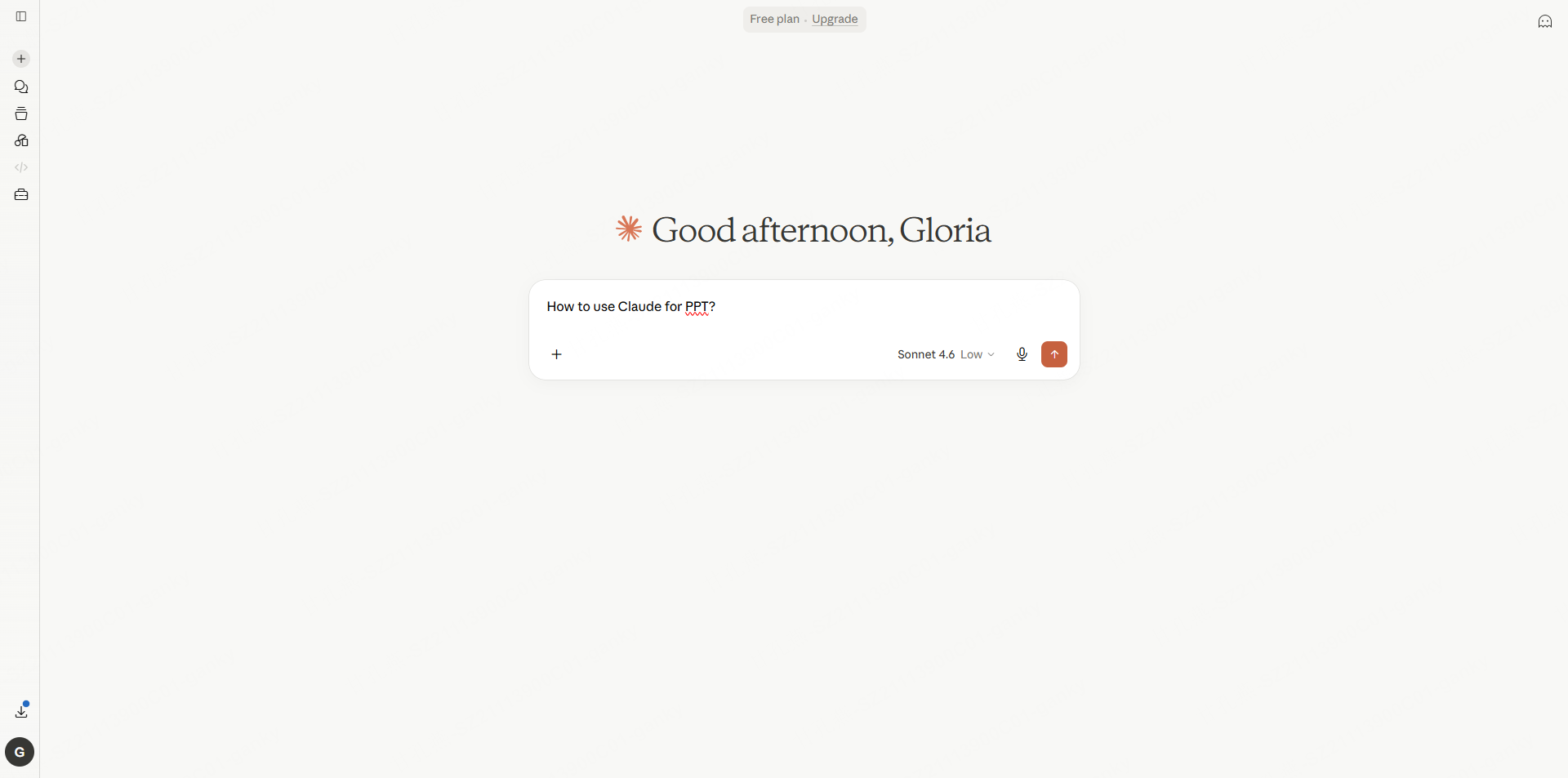

Claude can generate slides as files as well as text. The official file-creation guide describes this capability for Free and paid plans. Check that it is enabled in your account; an organization can restrict it. The PowerPoint add-in is a separate route for working inside an existing deck.
You can keep drafting and file generation in Claude, edit the resulting PPTX in PowerPoint, or bring an outline into a presentation editor. Using Presenti is an optional way to try a different visual design, not a requirement for getting a PowerPoint file.
For a long report, ask Claude to identify the audience, main argument, and supporting evidence before creating slides. Compare its outline against the source document, especially when a table or qualification affects the conclusion.
Three ways to work on presentations with Claude
Method 1: Claude for PowerPoint (Add-in)
The Claude for PowerPoint add-in brings an assistant into Microsoft PowerPoint. Use the official installation instructions to check supported accounts and any administrator requirements. The Claude for PowerPoint guide covers installation and the kinds of changes to inspect inside the existing presentation.
To get it:
- Open PowerPoint
- Go to Insert → Add-ins → Get Add-ins
- Search for "Claude" in the Office Add-ins store
- Install the Claude for PowerPoint add-in
Once installed, you can use Claude from within PowerPoint to draft slides, generate content, rewrite text, and more — without leaving the app.
Method 2: Create a PPTX in Claude chat
Ask for a downloadable .pptx file and specify the audience, slide count, source material, and editable elements. For example:
"Create a 10-slide pitch deck about renewable energy"
"Make a PowerPoint presentation for a quarterly business review"
"Build a training deck on onboarding new employees"
Method 3: Draft content for a browser-based slide editor
For Google Slides, you can draft slide text in Claude and then edit it in Slides, or import a generated PPTX. Check the imported layout. Browser assistance is a separate workflow from native PowerPoint file creation.
How to Use Claude AI for PPT: Step-by-Step
Step 1: Access Claude AI and Start a Conversation
- Open your browser and go to claude.ai
- Create or sign in to an account and check the available file-creation tools and remaining usage.
- Open a new conversation and type your presentation prompt
Step 2: Write an Effective Claude AI PPT Prompt
A useful prompt gives Claude both a clear task and reliable source material. Define these three things before generating:
| Element | What to Define | Example |
|---|---|---|
| Purpose and Audience | Who is in the room and what do you need them to do | “For Series A investors, goal is to secure a follow-up meeting” |
| Slide Count | How many slides the deck should contain | “12 slides” |
| Required Sections | Sections that must appear in the deck | “Problem, Solution, Market Size, Traction, Team, Ask” |
Try These Claude AI PPT Prompt Templates
Adapt these three Claude presentation prompts to your own source material.
Template 1: Business Report
You are a senior presentation consultant.
Create a complete slide-by-slide outline for a 12-slide
business presentation with these details:
- Topic: H2 2026 Marketing Strategy Review
- Audience: Executive leadership team
- Goal: Align leadership on H2 priorities and secure budget approval
- Required sections: H1 performance summary, market trend analysis,
  H2 strategic direction, KPI targets, budget proposal
- Format per slide: Title + 1-sentence key message + 3-4 bullet points
- Final slide: Q&A
- Tone: Professional, data-forward, confident
Template 2: Academic Presentation
Create an academic presentation outline for the following:
- Topic: The Impact of AI on Employment
- Audience: University class + faculty evaluator
- Duration: ~10 minutes
- Slide count: 8-10 slides
- Required content: Introduction (AI landscape), jobs being
  automated, new jobs AI creates, opposing arguments,
  conclusion and personal stance
- Format: Title + max 3 key points per slide
- Use only statistics and references from the supplied sources;
  mark missing evidence as a placeholder
Template 3: Investor Pitch Deck
Act as a presentation editor for a startup pitch.
Use only the facts supplied in the brief.
Build a 15-slide pitch deck outline for:
- Company: AI-powered healthcare platform startup
- Stage: Series A
- Audience: Institutional investors
- Required sections: Problem, Solution, Market Size
  (TAM/SAM/SOM), Business Model, Traction, Competitive
  Landscape, Team, Use of Funds, Ask
- Each slide needs a compelling investor-facing hook
- Overall narrative should follow storytelling structure:
  problem tension → solution relief → evidence → opportunity
Step 3: Work With Claude’s Output
Once Claude generates your slide outline, use these follow-up prompts to refine it:
- “Rewrite slide 4 to be more persuasive for a non-technical audience”
- “Make the entire outline more concise — max 3 bullets per slide”
- “Add a 90-second speaker script for each slide”
- “Reframe the market size slide around our specific niche rather than the total market”
Advanced Use Cases for Claude AI PPT Work
| Task | Prompt Approach |
|---|---|
| Slide body writing | “Write body content for slide 5 as 4 bullet points, max 10 words each” |
| Speaker scripts | “Write a 90-second delivery script for each slide” |
| Data interpretation | “Turn this revenue data into 3 presentation-ready insights” |
| Title sharpening | “Rewrite every slide title to be more direct and specific” |
| Language localization | “Translate this outline into formal business English for a US audience” |
How to Download PPT from Claude AI
Ask Claude to create a PowerPoint (.pptx) file, wait for the generated attachment, and download it from the conversation. Open it in PowerPoint to check the content, layout, and elements you need to edit.
If Claude returns an outline instead of a file, ask explicitly for a downloadable PPTX and check whether file creation is enabled. You can also take either of these outline-based routes:
Path 1: Manual transfer
Copy Claude’s output and paste it into PowerPoint or Google Slides manually. Apply your own formatting, templates, and design. This gives you full control but requires time.
Path 2: Try a presentation editor. Paste the outline into Presenti AI, choose a design, and review the generated slides. This creates a new design from your content; compare the result before deciding which workflow to use.
Optional Workflow: Bring a Claude Outline into Presenti AI
If you want to try a different layout system, use your Claude outline as the starting point in Presenti. Keep the same slide messages so you can compare the designs without changing the argument.
What is Presenti?
Presenti is a presentation editor that can turn a topic, text, or a supported source document into an editable slide draft.
Key features:
- Converts Word, PDF, Markdown, and TXT files into PPT format automatically
- Choose a template for the presentation’s audience and purpose.
- Provides both AI-powered quick mode and expert mode
- Exports to PPTX or PDF
- Review the sharing and collaboration options available in your account.
Presenti’s free plan includes limited AI credits and Markdown/XMind input. Word/PDF/TXT input and editable PPTX/PDF exports are listed on paid plans. Check those requirements before transferring the outline.
Step 1: Generate your outline in Claude
Use one of the prompt templates above. Ask for slide titles, body content, and speaker notes. Refine with follow-up prompts until the structure and messaging are right.
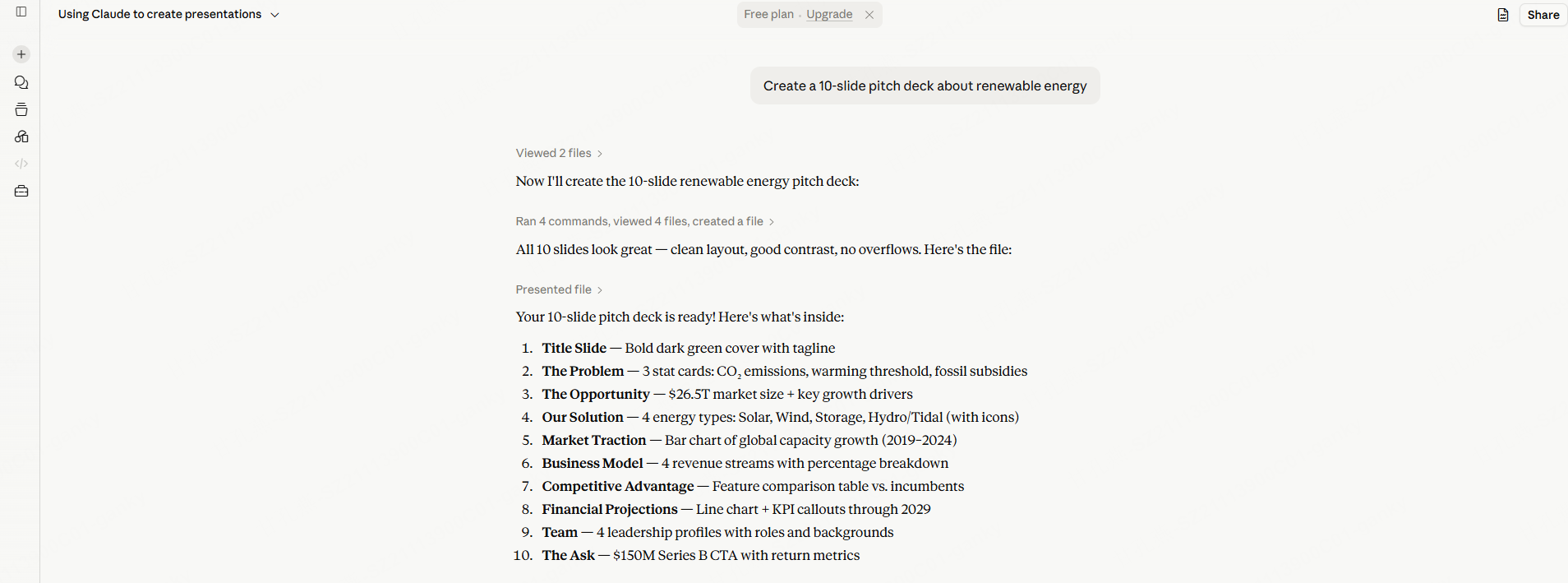
Step 2: Open Presenti AI
Go to presenti.ai and sign in or create an account. Choose text input or a supported document import.

Step 3: Paste your Claude output
Copy the structured outline from Claude and paste it into Presenti’s input field. Alternatively, if you have saved your Claude output as a document, upload it directly.
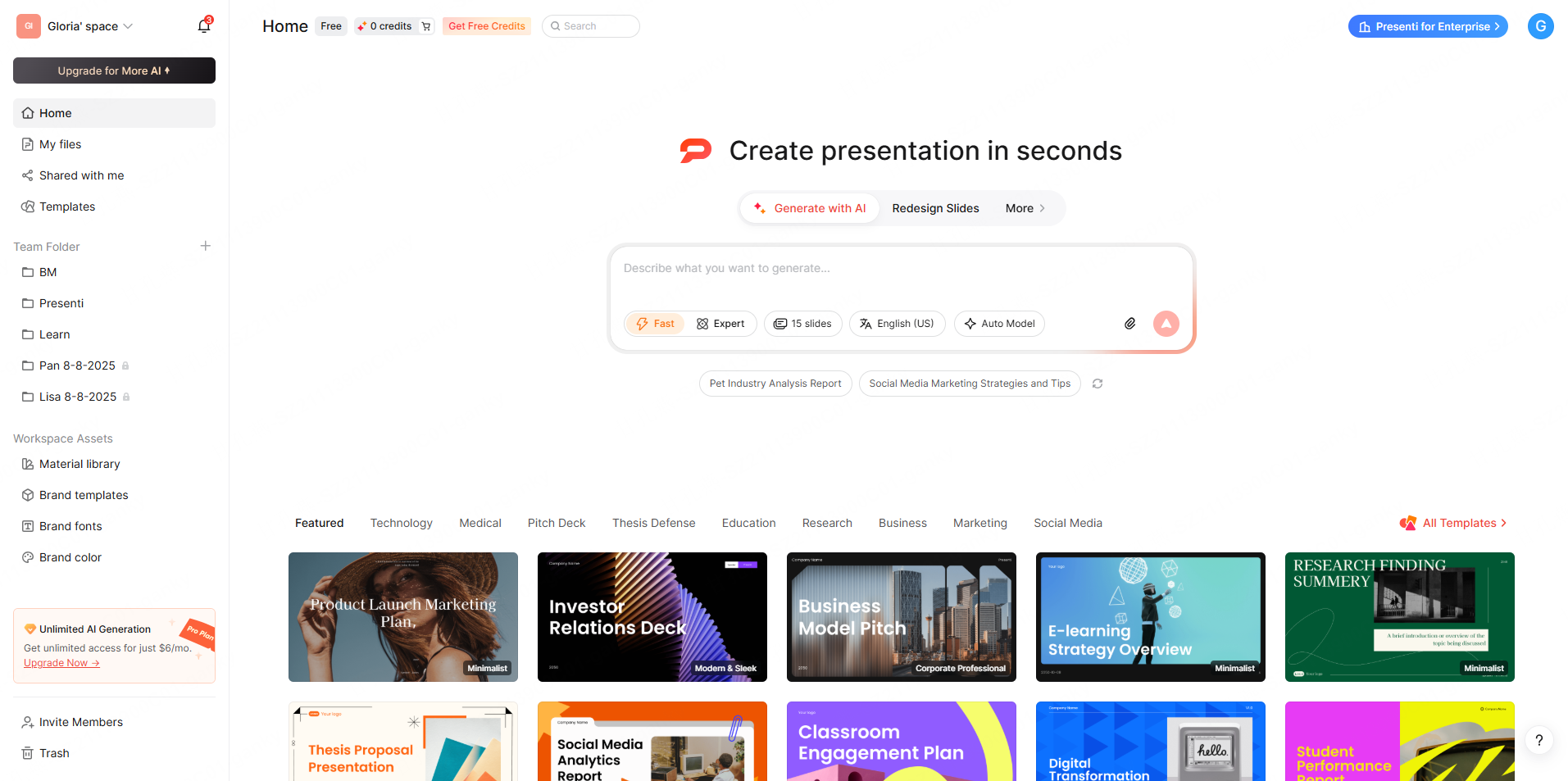
Step 4: Select a PPT template
Choose a visual direction that matches your audience — clean and minimal for corporate presentations, bold and structured for pitch decks, warm and approachable for education.
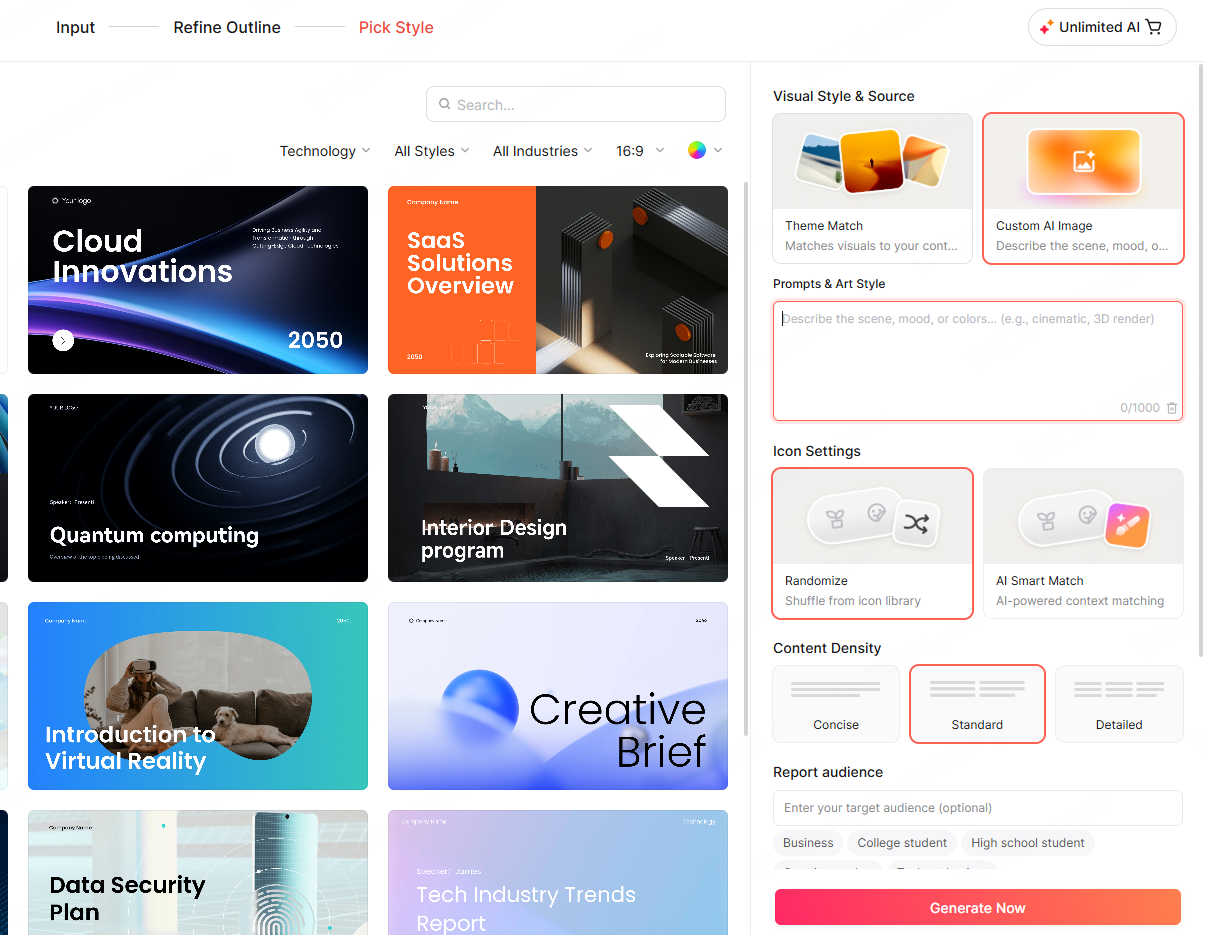
Step 5: Generate Presentation
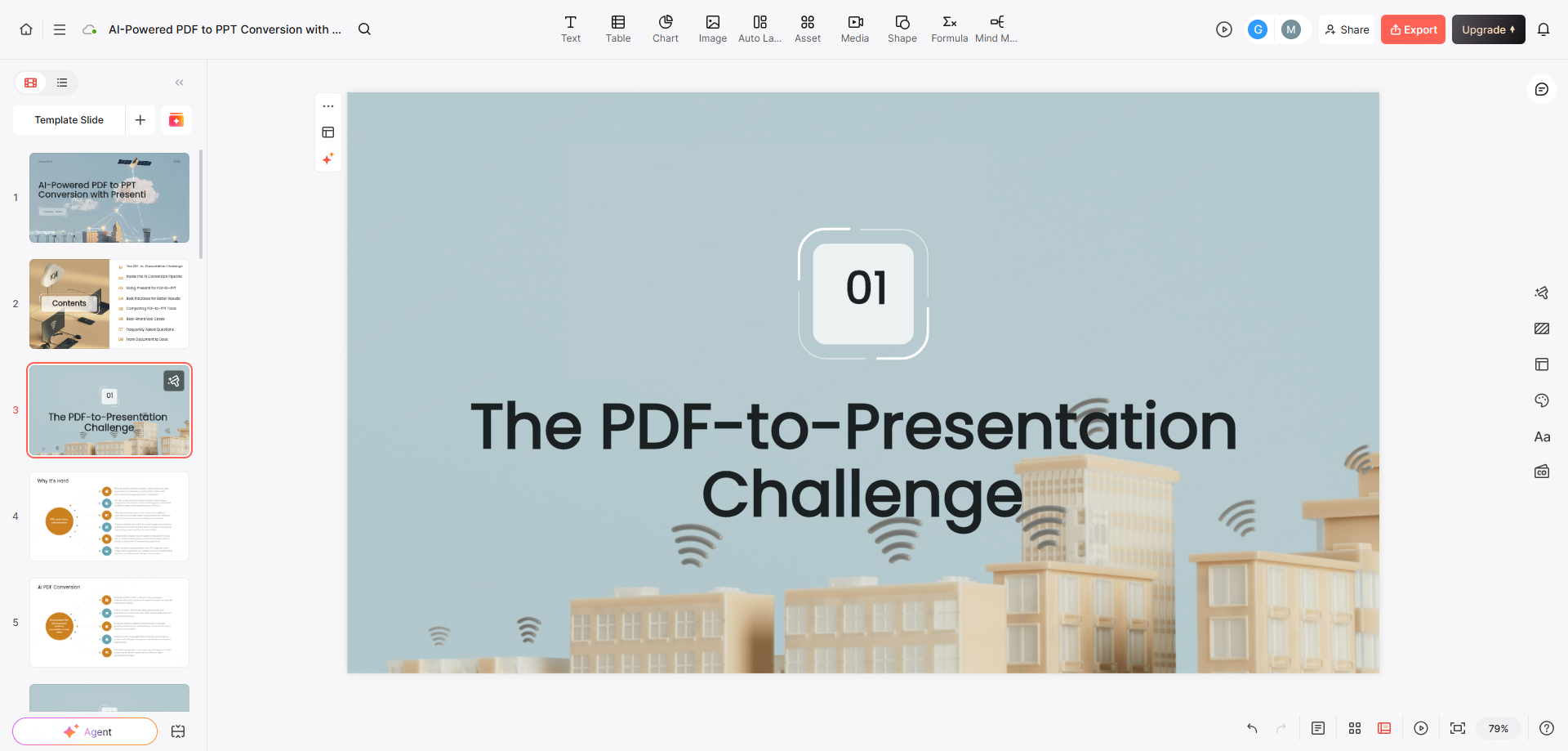
Generate a first draft, then inspect how the text has been divided across slides. Dense paragraphs, tables, or charts may need additional editing.
Step 6: Review, edit, and export
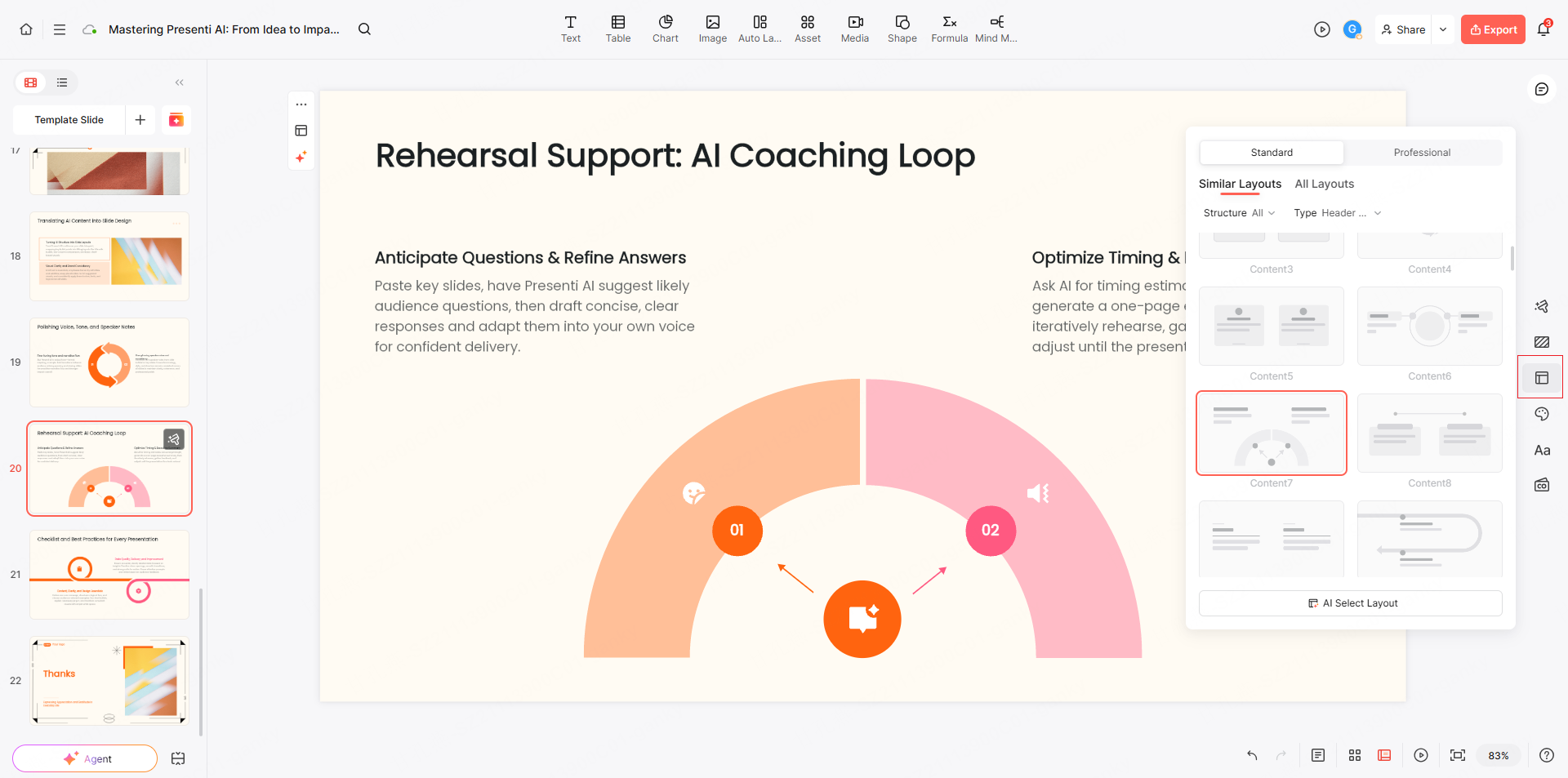
Check each slide for accuracy. Refine phrasing in the browser editor. Then export as PPTX for final edits in PowerPoint, or as PDF for direct sharing.
PPT Creation Workflow Comparison
| Workflow | Where you draft | Where you edit and download |
|---|---|---|
| Claude chat | Prompt or source material in the conversation | Download a generated PPTX when file creation is enabled; edit it in PowerPoint |
| Claude in PowerPoint | Content and instructions alongside an existing deck | Work inside PowerPoint using the supported add-in |
| Claude outline + Presenti | Outline in Claude; visual draft in Presenti | Review the new layout and available export options in Presenti |
Frequently Asked Questions
Can Claude AI generate a PPT file directly?
Yes. When file creation is enabled, Claude can generate a downloadable PPTX. Open the file to check facts, layout, and editability before using it.
How do I download a PPT from Claude AI?
Ask for a .pptx attachment, then download the file Claude creates. If it gives only text, check the file-creation setting or use the outline in PowerPoint or another slide editor.
Is Claude AI PPT creation free?
Claude documents file creation for Free as well as paid plans. Usage limits still apply. Claude Pro provides more usage, not unlimited use; file generation draws from the account's allowance.
Is Claude better than ChatGPT for creating PPT content?
That depends on the task, model, and available tools. Use the same brief and compare factual accuracy, structure, editing effort, and the exported file rather than assuming one is always better.
What is the best workflow for Claude AI PPT creation?
For a downloadable draft, start with file creation in Claude. For revisions inside an existing deck, check the PowerPoint add-in. If you prefer another design, reuse the outline in a presentation editor such as Presenti.
The Bottom Line
Claude AI for PPT work can cover both the outline and a downloadable file. Start with the route that matches your editing environment, then spend time on the claims and slides that matter to your audience.
A separate design tool is useful when it gives you a layout or editing experience you prefer. It does not remove the need to check the source material or the finished export.
To try the outline route, paste a Claude outline into Presenti and compare the resulting draft with the file you created in Claude.