A hyperlink in PowerPoint can move to another slide, open a website, or open a separate file. The useful part is deciding what happens after that first click. A contents slide with working branches still feels unfinished if readers cannot find their way back.
Start with the questions people may want to explore. Presenti’s guide to designing a clear PowerPoint agenda slide can help you name and arrange those choices. Then add the actual links in PowerPoint. The five-slide example below turns two workshop options and their supporting material into a small presentation people can navigate themselves.
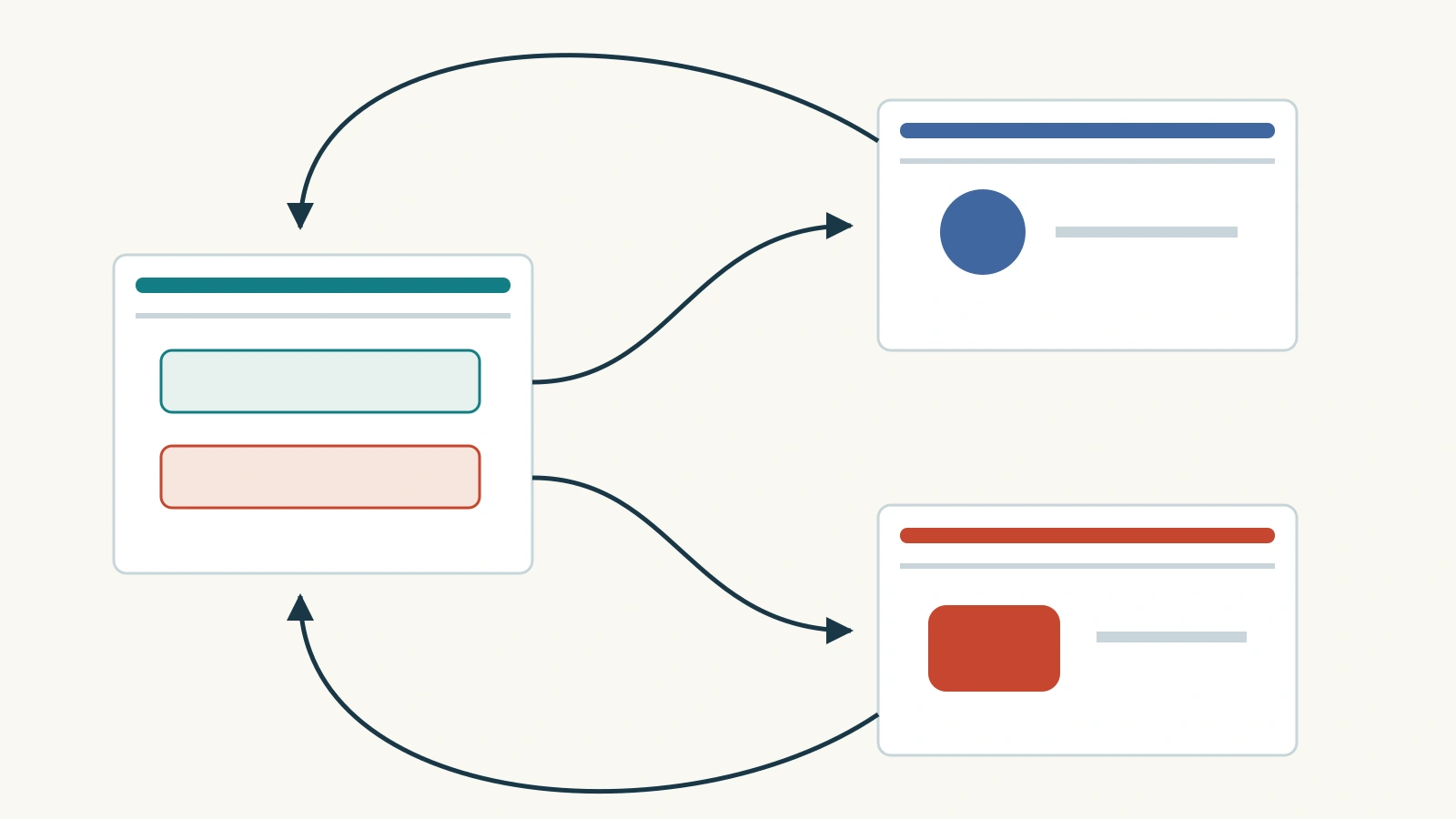
Choose the target before you draw a button
Three buttons can look identical while behaving very differently. Make the destination clear in the label:
- Internal slide: “Compare the workshop formats” stays inside the deck. Use it for menus, explanations, and returning to an overview.
- Website: “Visit the venue website” opens an external destination. The audience needs a working connection and any access the page requires.
- Separate file: “Open the planning worksheet (.xlsx)” opens another resource. Linking does not put that resource inside the presentation.
A file stored online may be reached through a web address; a file on your laptop may use a local path. Those are different delivery arrangements even when both resources are spreadsheets. For an emailed deck, an accessible shared address is usually easier to distribute than a path that exists only on your computer.
Add an internal slide link and a deliberate return
In PowerPoint for Windows, create the destination slides first and give them recognizable titles. Then:
- Select the text, shape, or picture that should act as the link.
- Open Insert > Link; choose Insert Link if a menu appears.
- Select Place in This Document, expand Slide Titles if needed, and choose the destination.
- Confirm with OK.
On the destination slide, make a separate “Back to menu” link pointing to the menu slide. Keep it in the same position throughout the deck. A named destination is more predictable than a bare “Back,” which could mean the previous slide or the slide the reader visited last.
On Mac, the internal destination is called This Document. PowerPoint for the web uses This Presentation. Microsoft’s slide-link instructions show the choices for each version. These are internal slide links; sharing a URL that lets another person open a presentation is a separate operation.
Build a five-slide workshop chooser
Imagine a team choosing a format for a short writing workshop. Use these sample contents to build the deck before adding the links. The aim is to compare two options, consult supporting material if needed, and agree on the next step.
Slide 1: Choose a workshop format
Show this instruction: “Explore either format, then agree on a next step.” Add three clearly separated choices: Guided practice, Peer review, and Supporting material. Link them to slides 2, 3, and 4 respectively. Add a smaller Make a decision link to slide 5 for a group that already knows the options.
Slide 2: Guided practice
Put a complete session outline on the slide: “10 minutes: introduce one writing technique. 20 minutes: revise a sample paragraph together. 15 minutes: revise individual work. 5 minutes: share one change.” The session totals 50 minutes. Add the condition: “Choose this when participants need a common starting point.”
Provide Compare peer review → slide 3, Make a decision → slide 5, and Back to menu → slide 1. The comparison link saves a trip through the menu without removing the familiar return route.
Slide 3: Peer review
Use a parallel outline: “5 minutes: explain the feedback questions. 20 minutes: read and comment in pairs. 20 minutes: revise individual work. 5 minutes: share one change.” This also totals 50 minutes, so the comparison concerns the activity rather than a hidden difference in duration. Add: “Choose this when everyone can bring a draft.”
Provide Compare guided practice → slide 2, Make a decision → slide 5, and Back to menu → slide 1.
Slide 4: Supporting material
Show two separately labeled resources: Visit the venue website — opens in browser and Open the planning worksheet (.xlsx) — separate file. Use the actual venue URL and your actual worksheet when building the deck. Below them, write: “Return to this presentation after reviewing the resource.” Add internal links to Make a decision and Back to menu.
Keep the essential comparison on slides 2 and 3. The meeting should still be able to discuss the formats if a website is unavailable or a participant cannot open the worksheet.
Slide 5: Agree on the next step
Show three prompts: “Which format fits this group? Who will prepare the sample or collect drafts? When will we confirm the plan?” Include links to revisit both formats and to return to the menu. These prompts support a discussion; clicking a format does not record a vote or submit a response.
Now rehearse two routes: 1 → 2 → 3 → 5 → 1 for comparison, and 1 → 4 → external resource → 4 → 5 → 1 for checking details. For a straightforward presentation, retain a sensible reading order from slides 1 through 5 as well.

Connect the external resources without losing the audience
In Windows, select the resource label or shape and open Insert > Link > Insert Link. Choose Existing File or Web Page. For a website, enter its full address in Address; for a local file, select the file. Confirm with OK.
Opening a website is a departure from the slide show, not another internal slide. Before clicking, tell the audience what to look for: “We’ll check whether the room has tables suitable for paired work.” Then switch back to the presentation. A hyperlink cannot supply a return button inside a website you do not control.
For a local worksheet, distribute the linked file with the deck and test from the destination computer. Keeping the files together is sensible, but does not prove the saved link resolves there. For an online worksheet, check access with an intended recipient’s account. Your own access is not evidence that everyone else has permission.
Test the version people will actually open
Run the complete routes in Slide Show, clicking the visible labels and shapes. On Windows, F5 starts at the beginning; Shift+F5 starts at the current slide. Check that the return link remains easy to find after each jump. If you linked only the text inside a large shape, test the surrounding area too: the appearance should match the clickable area.
For a live screen share, rehearse switching to the browser and back while watching what the audience receives. Sharing only the PowerPoint window may not show the external page. Decide beforehand whether to change the shared window or show the relevant information on a slide.
Choose the handoff format deliberately:
- PowerPoint file: test the delivered copy in the recipient’s intended app, including every linked file and permission boundary.
- PDF: export, reopen, and click the links in the viewer readers will use. PowerPoint for Mac does not preserve hyperlinks in its PDF export. Microsoft’s PDF export guidance recommends saving to OneDrive and downloading a PDF through PowerPoint for the web instead; still test the resulting file.
- Video or slide images: viewers cannot click a pictured button as a native PowerPoint hyperlink. Give them a separate resource list or a clickable deck, and make the recorded sequence understandable without branching.
If exporting only part of the presentation, include the slides that the navigation needs. A menu pointing to an omitted destination is not a useful handout.
Repair the failing part of the route
The click selects an object instead of opening the link. You may be editing the slide. Try Slide Show; in Windows Normal view, right-click the link and choose Open Hyperlink.
The jump reaches the wrong slide. Reopen the link settings and check the destination title. This is especially useful after copying navigation shapes or replacing slides. Correct the destination and test both the outward jump and the return.
The website works for you but not for someone else. Open the same address in that person’s intended environment. Separate an incorrect URL from a sign-in requirement, restricted permission, or unavailable connection. Do not solve an access problem by sharing your credentials.
The file cannot be found. Locate the actual file on the receiving machine and reconnect the link, or use an appropriately shared online copy. Sending the presentation again will not repair a missing dependency.
The exported deck looks clickable but is not. Return to the export method and viewer, rather than redesigning all the buttons. Keep the working PowerPoint version available, or supply a readable linear handout with the resource addresses alongside it.
A useful linked deck gives people three things at every branch: a recognizable destination, enough information to choose it, and a clear way to continue. Build those routes first; style the buttons once the journey works.