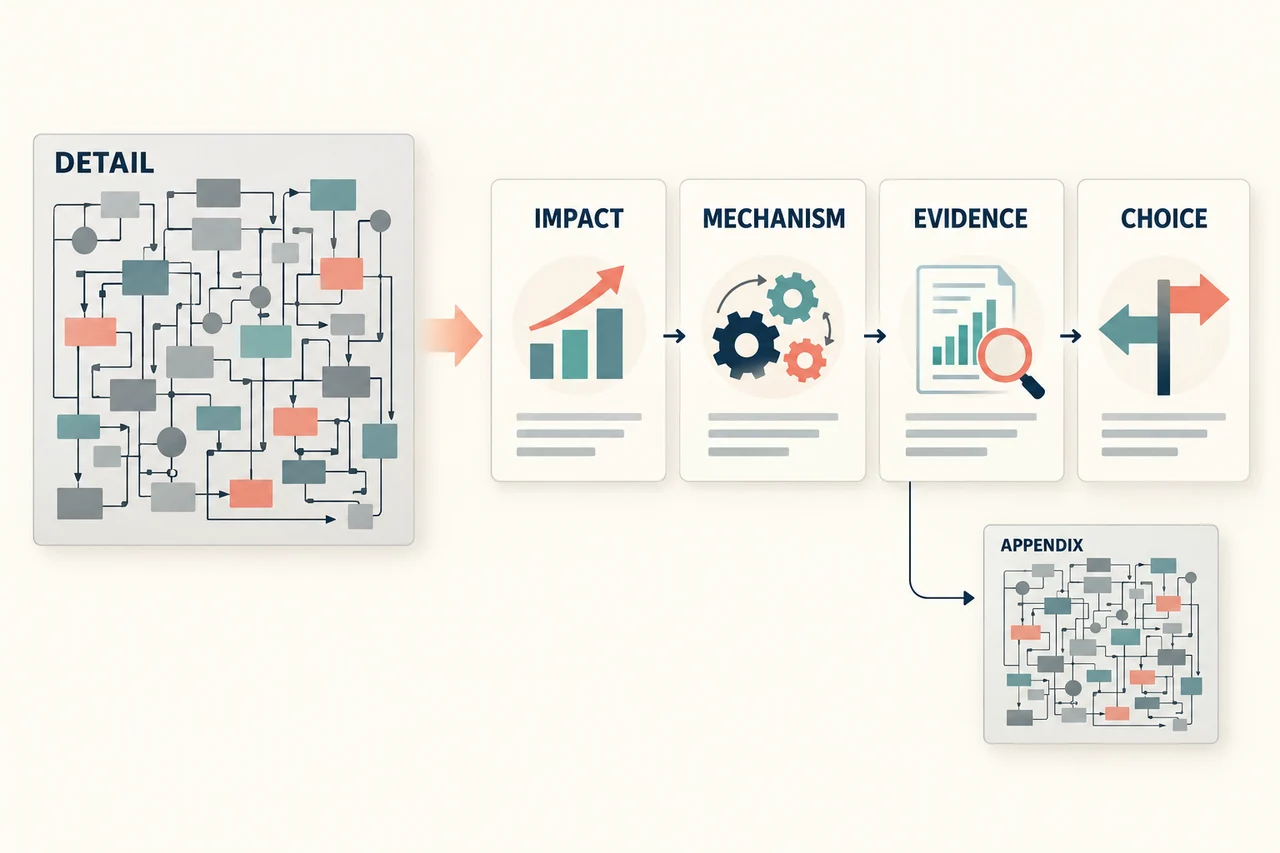
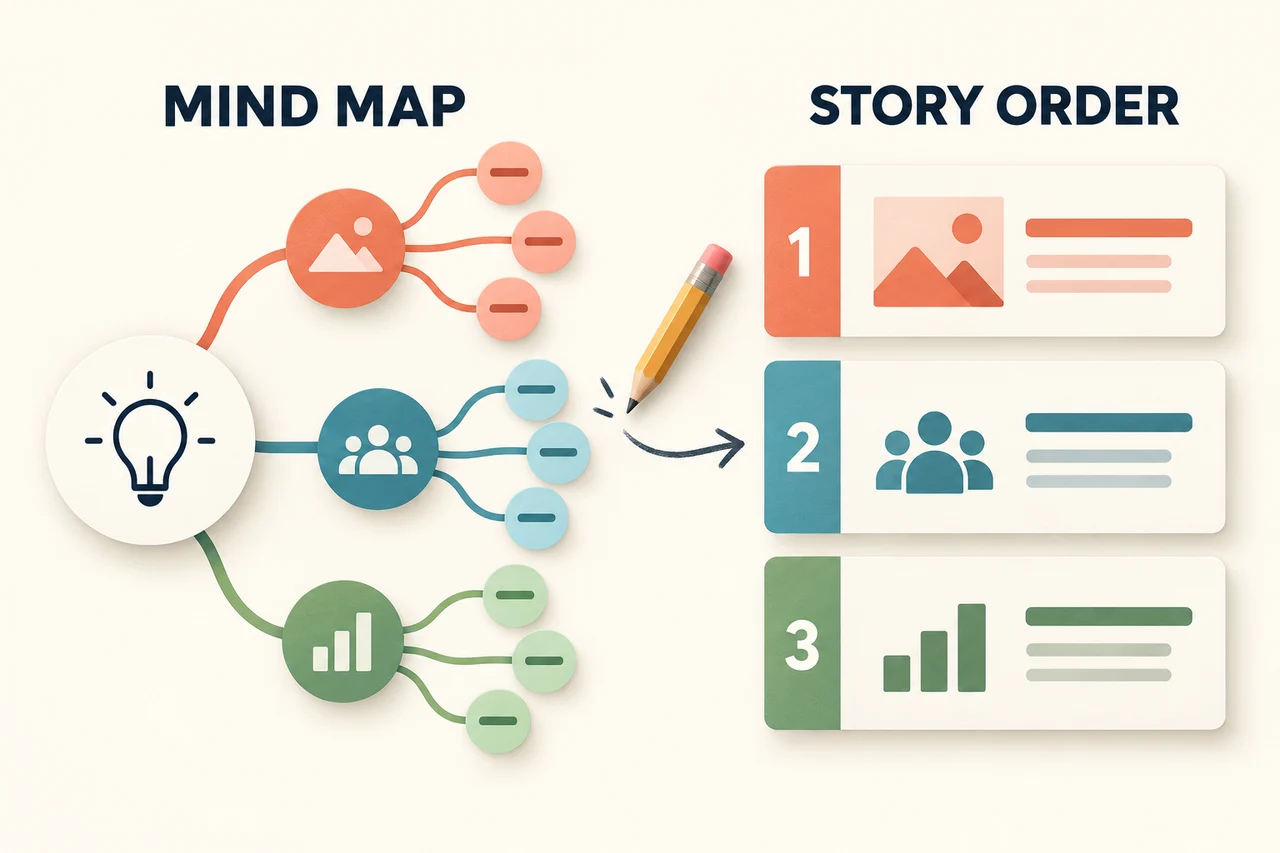
A mind map shows how ideas relate; a presentation needs a sequence the audience can follow. Before converting an XMind file to PowerPoint, decide which branches support the main message, which belong together and which should stay in your working notes.
You have two distinct routes: use Xmind's own presentation/export features when you want to present the map, or import a supported XMind file into Presenti to develop a new slide draft. Neither route removes the need to choose what the audience should see.
Choose between presenting the map and drafting new slides
An .xmind file stores topics and their hierarchy. A map can also contain notes, relationships, images or other material, so a successful transfer involves more than retaining its central topic.
| Your goal | Route to consider | What to check |
|---|---|---|
| Walk the audience through the existing map | Xmind's Pitch Mode and its available export options | Topic visibility, presentation sequence and the output supported by your app and plan |
| Turn the map into a different narrative | Import a supported XMind file into Presenti and edit the outline | Branch coverage, missing context and which details should become slides |
| Show the complete map as a reference | Export an image or PDF from Xmind and use it as supporting material | Label readability and whether a static overview is enough |
Xmind's export guide includes PowerPoint among its formats. Its platform matrix places PowerPoint/Pitch export on desktop, and its plan comparison distinguishes paid export features. Do not assume a web or mobile menu will match the desktop instructions.
Prepare a map with a clear presentation purpose
This fictional example is a team review of a help-center cleanup. It is an authored planning example, not a product-generated deck. The audience needs to understand the remaining work and agree on the next step; they do not need to see every idea collected during the project.
Help-center cleanup review
  Scope
    Review 12 existing articles
    Correct outdated steps and broken links
  Current position
    8 articles reviewed
    4 articles awaiting technical review
    These counts describe review status, not publication status
  Issues found
    3 broken links to replace
    5 articles with outdated steps
    Issue counts can overlap; do not add them as unique articles
  Next actions
    Taylor: replace 3 broken links by 8 October 2026
    Riley: arrange technical review for 4 articles by 12 October 2026
  Proposal
    Finish the remaining reviews before expanding the project
    Team approval has not yet been recorded
  Parking lot
    Translate the FAQ in a later cycle
    No owner or schedule agreed
The indented text is a reusable planning resource, not a native XMind file. Recreate or adapt its branches in your own map. Keep “Proposal” and “Parking lot” explicit: nesting an idea under “Next actions” would change its meaning.
Before import, remove duplicate topics and replace vague branch labels such as “Other” with descriptive ones. If a relationship line carries an important dependency, write that dependency as a sentence as well. Check whether notes and attachments appear in the imported content rather than assuming every map element becomes slide text.
Map branches to a presentation sequence
The presentation can use five slides even though the working map contains six main branches. The parked idea stays out of the main story, and the project scope becomes context for the first slide.
| Slide | Title | Source branches and treatment |
|---|---|---|
| 1 | Four of the twelve articles still need technical review | Combine Scope and Current position. Say “reviewed,” not “published.” |
| 2 | The cleanup found broken links and outdated instructions | Use Issues found. Keep the overlap note; do not claim eight different articles have issues. |
| 3 | Two owners have defined next steps | Turn Next actions into a two-row owner/date table. |
| 4 | Proposal: finish the remaining reviews before expanding | Keep the proposed status visible. Do not present it as an approved decision. |
| 5 | Agree on the next review point | Ask the team to confirm the proposal and review date. Mention the translation idea only if it affects that discussion. |
This mapping is an editorial plan. The generated outline may differ. Use the plan to decide which changes improve the story and which accidentally drop a qualification, deadline or unresolved issue.
Import the XMind file into Presenti and refine the draft
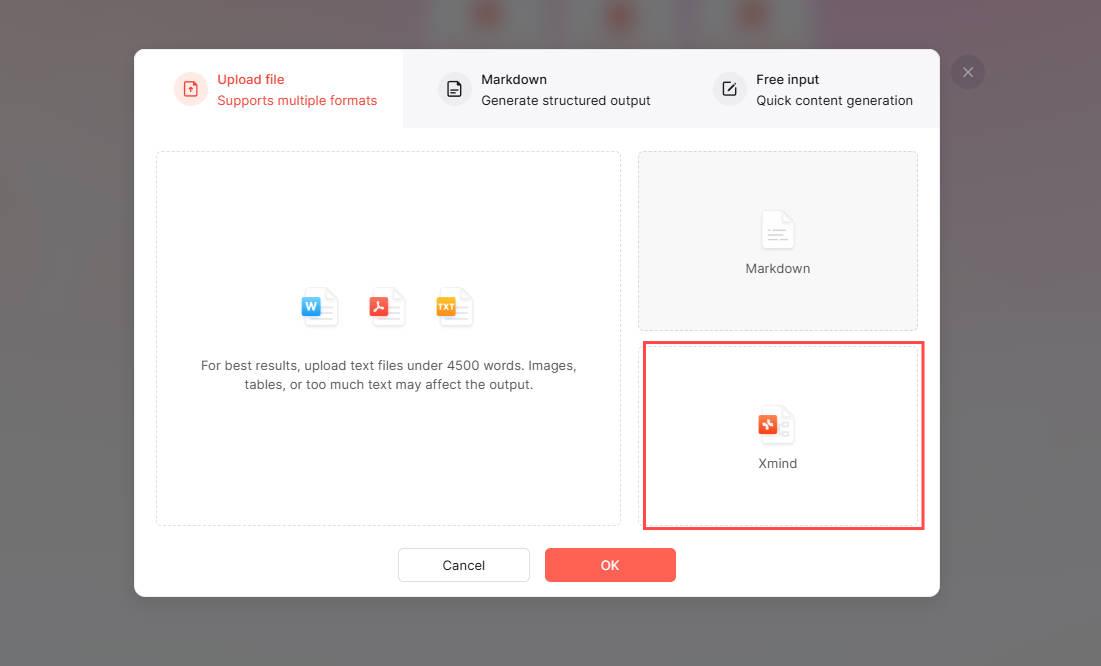
1. Sign in and choose file import
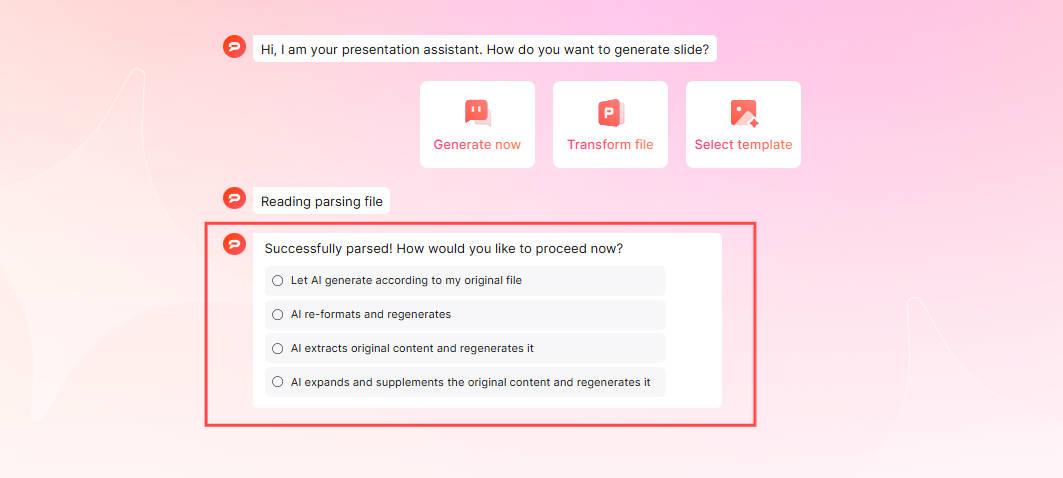
Open Presenti and choose the supported-file workflow. The reference images show Transform file; use the labels and accepted formats displayed in your workspace.

Upload your saved XMind file. For a first attempt, use a small map whose branches you can check easily.
2. Select a generation approach
The illustrated options follow, reorganize, summarize or expand the source. Following the original is useful for an already prepared map; reorganizing can help when the branch order reflects brainstorming rather than the talk. Treat any expanded material as new draft wording to verify.
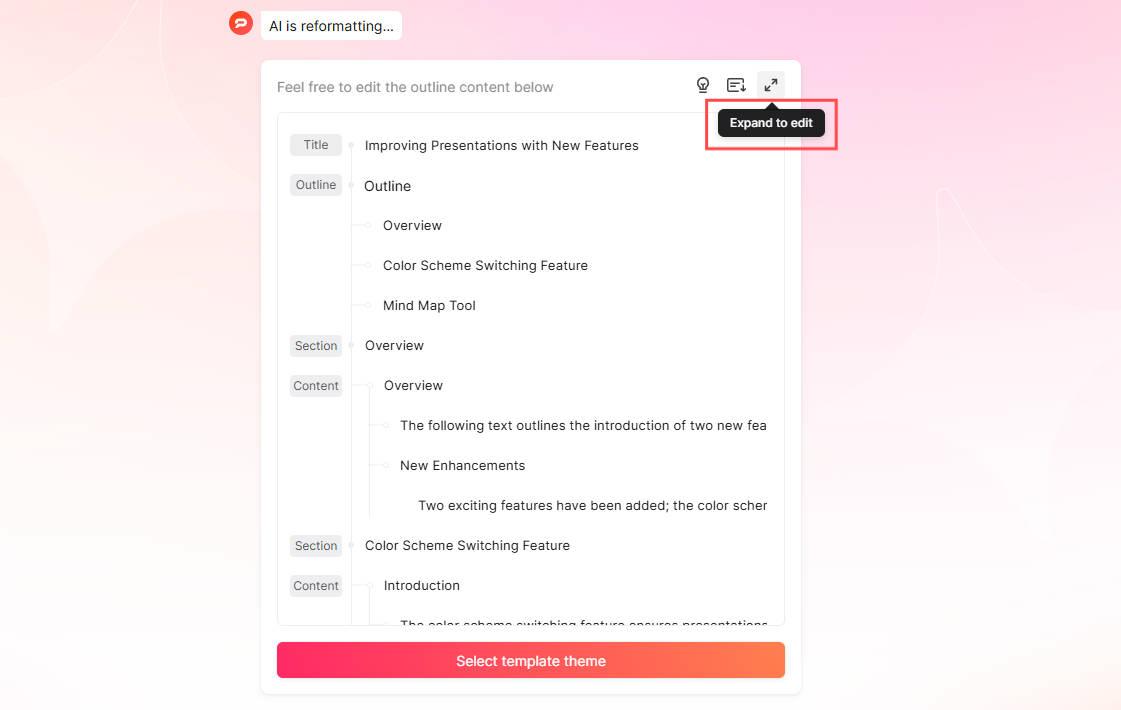
3. Compare the outline with your branch-to-slide plan
Check all important branches, then reorder the outline for the audience. In this example, preserve the distinction between review and publication, the overlapping issue counts, and the unapproved proposal. Remove the parking-lot idea from the main sequence if it distracts from the review.
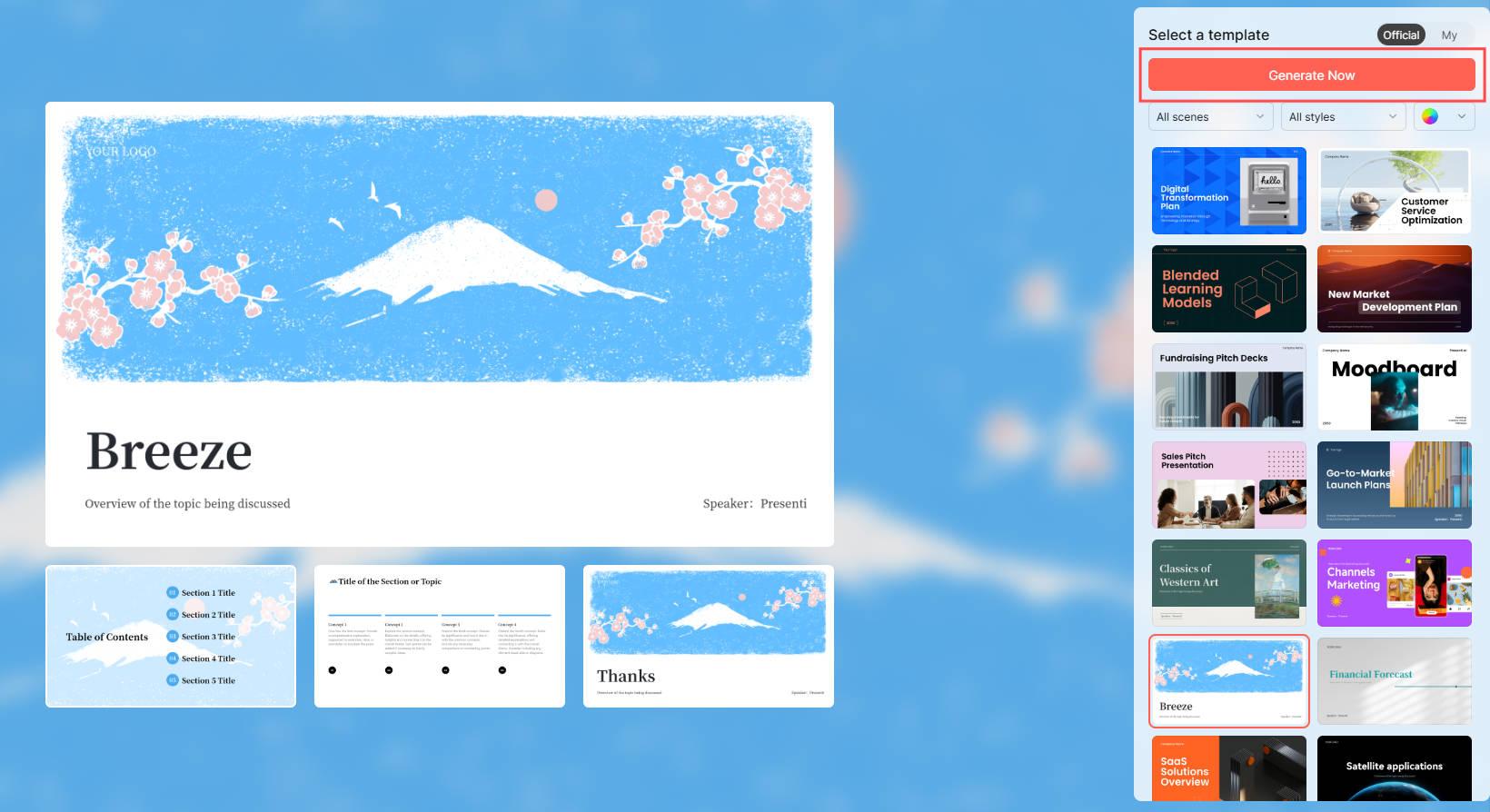
4. Select a theme and generate slides
Choose a theme with room for the status comparison and owner table. A map's branch colors can provide useful continuity, but each slide should remain understandable without the original map beside it.
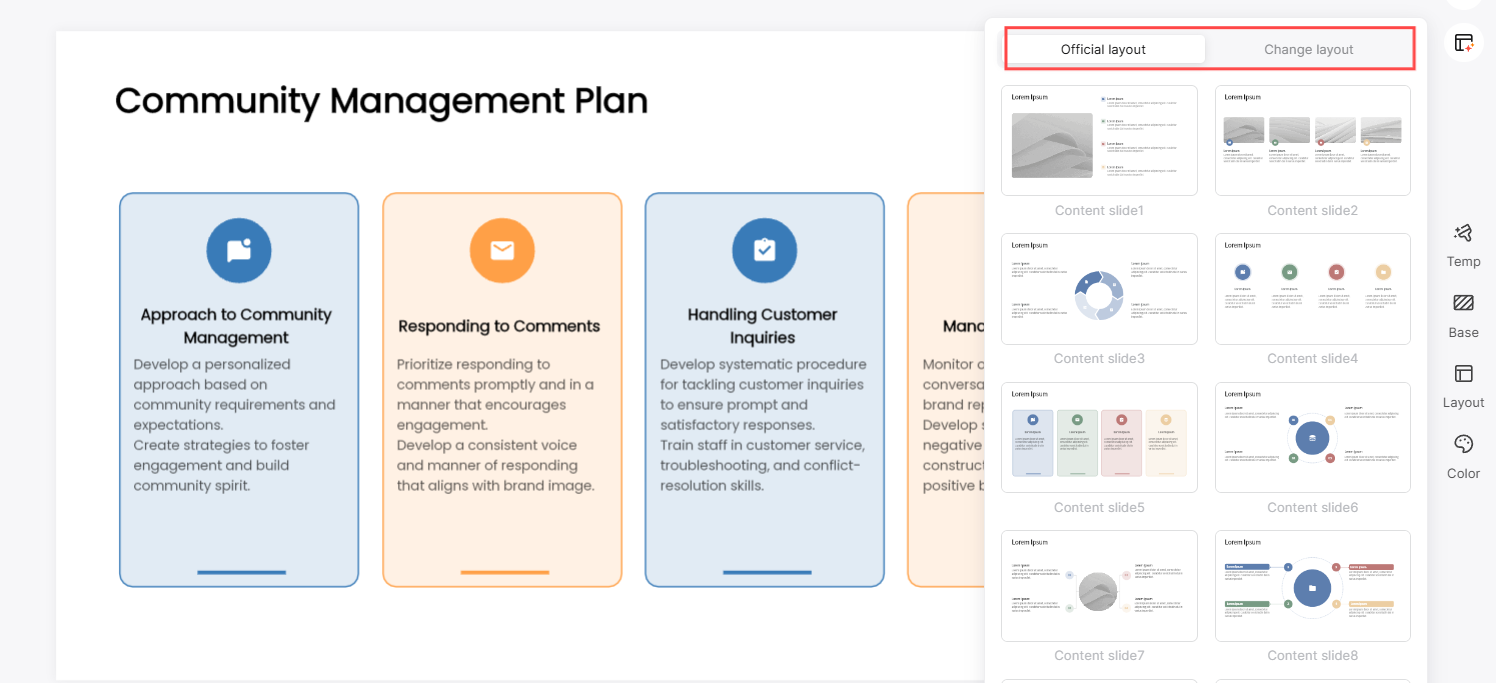
5. Edit the slide content and layout
Adjust fonts, colors and layouts around the information. A sentence explaining the remaining review work is more useful than a decorative process diagram that implies all twelve articles are complete. Add the complete map to supporting material only if its labels are readable and it answers a likely audience question.
6. Share or export the version you reviewed
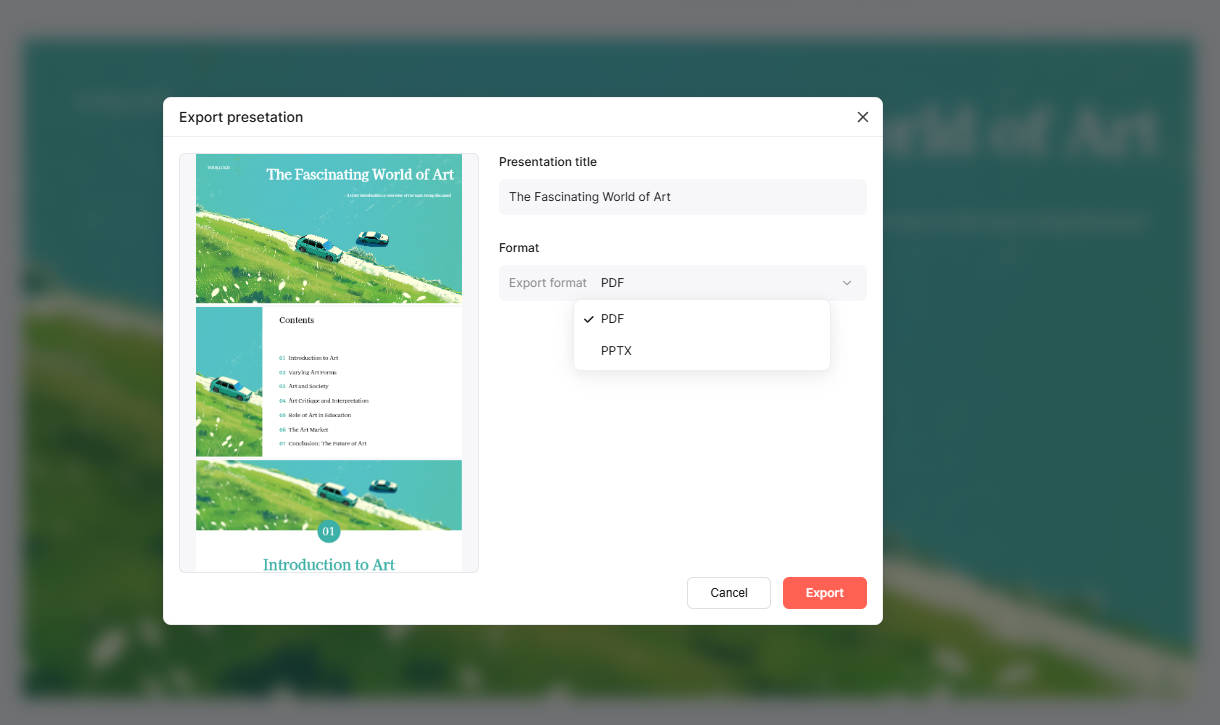
Use the sharing controls available to your account, or export on an eligible plan. Open the PPTX in the receiving application and inspect text, images, tables and slide order. A correct browser preview does not by itself establish the behavior of the exported file.
Common XMind-to-PowerPoint questions
Can I do this with free access?
Presenti's current plan table lists XMind input under the free plan with limited AI credits, while editable PPTX/PDF export is a paid feature. Xmind's own presentation/export entitlement is a separate subscription question. Check the tool and output you actually intend to use.
Will every branch, relationship and attachment survive?
Do not assume that. Review the imported outline against the map, especially notes, cross-links, images and attachments. Put essential qualifications into visible source text, and restore supporting objects manually when needed.
What if I only want the mind map on one slide?
Use an image or PDF export of the map when a static view is sufficient. That is different from converting its content into an editable slide narrative. A large map may need a simplified overview plus separate branch views to remain readable.
Download the branch-to-slide plan
Download the indented map example and five-slide outline. Adapt the branches to your project, then mark which ones belong in the main presentation and which should remain supporting material. The resource is plain text for planning, not a native XMind file.