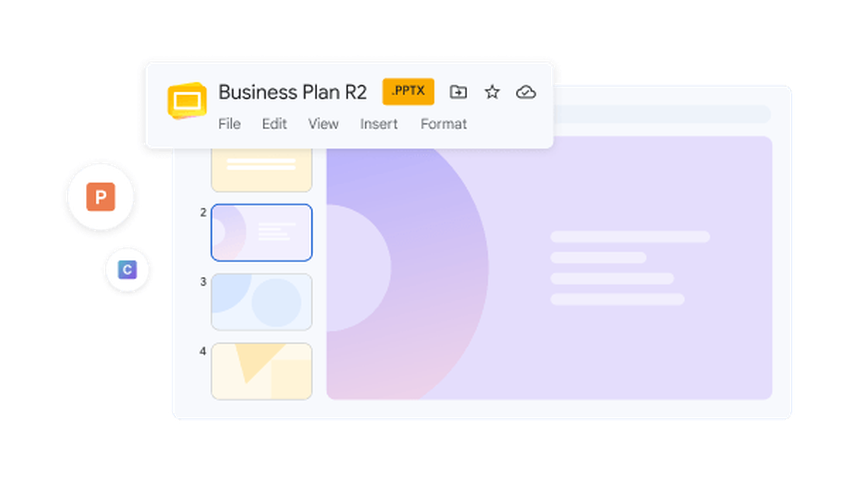
Google Slides and PowerPoint both support shared editing, comments, and offline work with the right setup. The choice usually comes down to where your team keeps its files, how colleagues review a deck, and what you need to send or present at the end.
Choose Google Slides when browser-first collaboration and a shared Google Workspace workflow are the dominant requirements. Choose PowerPoint when the final file must be a PowerPoint deck, the team relies on the desktop application, or the deck contains objects and delivery features that must be tested in that environment. For a consequential presentation, run the same source material through both workflows before standardizing.
Google Slides vs PowerPoint at a Glance
Start with the outcome you must deliver, then compare the collaboration, editing, file, and presentation conditions that support it. The table below is a decision aid; the validation test later is optional evidence for close calls.
The biggest practical difference is where the working deck lives and how the team handles it. Google Slides begins as a browser-based shared document in Google Drive. PowerPoint commonly begins as a presentation file in the desktop application, while current Microsoft 365 workflows can add browser editing and coauthoring when the file is stored in OneDrive or SharePoint.
That distinction affects permissions, offline preparation, version ownership, file exchange, and final-room testing. It does not mean that only Google Slides collaborates or only PowerPoint works offline.
| Requirement | Google Slides workflow | PowerPoint workflow | What to verify |
|---|---|---|---|
| Browser-first coauthoring | Native to a shared Drive file with access controls | Available in Microsoft 365 when the file is saved to OneDrive or SharePoint | Guest access, edit rights, comments, and version recovery |
| Offline editing | Requires supported offline setup and files made available offline | Desktop application can edit a local file; cloud changes must synchronize later | Account, device, licensing, and sync behavior before travel |
| Final PPTX delivery | Can download a PowerPoint file, but the converted deck must be inspected | PPTX is the native current presentation format | Fonts, layout, charts, transitions, notes, and media on the recipient's system |
| Final browser link | A shared Slides link fits the native workflow | Microsoft 365 can share a cloud presentation link | Permissions and what external recipients can open |
| Complex or unusual objects | Test import, editing, and export using the actual objects | Test in the required PowerPoint version and destination device | Chart editability, embedded media, equations, add-ins, and animation |
| OpenDocument handoff | Test the converted ODP in the destination | Microsoft notes that some information may be lost when saving as ODP | Layout and feature changes after conversion |
| Live presentation | Test browser, connection, permissions, and offline fallback | Test local file, fonts, media paths, display, and presenter controls | The exact room, browser, application version, and adapter |
A requirements table is more useful than a generic winner because the same team may use different tools for different outcomes. A recurring internal update can prioritize coauthoring, while a customer keynote can prioritize a controlled final file and room rehearsal.
The Differences That Matter to Teams
Collaboration and permissions
Google Slides is a natural fit when the working deck should stay in a shared Google Drive file and reviewers can work from a browser. PowerPoint supports coauthoring when the file is stored in OneDrive or SharePoint. In either case, verify guest access, edit and comment rights, ownership, and version recovery with the accounts your project will actually use.
Design control, charts, and animation
PowerPoint is often the safer choice for a deck that depends on a PowerPoint template, custom fonts, complex charts, embedded media, or detailed motion. Google Slides can handle common layouts and media, but unusual objects should be checked in the imported, exported, and presentation environments rather than judged from a feature list.
Offline work and presenting
Both tools can support offline preparation in the right setup. Google Slides requires offline access to be enabled and the relevant files to be available offline; PowerPoint desktop can work from a local file while cloud changes synchronize later. Rehearse on the exact laptop, display, browser or app version, network, and adapter you expect to use.
File compatibility and accessibility
A Google Slides link avoids a conversion step, while PPTX is PowerPoint's native working format. Exporting between them can change fonts, line breaks, charts, notes, links, media, transitions, or reading order. Inspect the destination file and complete the accessible PowerPoint presentation checks when accessibility is part of the deliverable.
AI and creation speed
AI features and integrations change quickly, so compare the current workflow you can access rather than relying on a static feature claim. For an AI-specific comparison, see PowerPoint AI vs Google Slides AI; this article keeps its focus on the broader team workflow and delivery decision.
Which Tool Fits Your Team?
Choose Google Slides when
Google Slides is usually a strong fit when everyone works in Google Workspace, the deck is expected to remain a shared browser document, and review depends on fast access rather than exchanged attachments.
- The approved working version can live in one Drive location.
- Contributors can be managed through view, comment, or edit permissions.
- Reviewers need to work from different devices without installing a desktop presentation application.
- The final deliverable can remain a Slides link or a deliberately tested export.
- The deck's fonts, charts, media, and motion are compatible with the chosen workflow.
Offline work is possible, but it should be configured and tested in advance. Google's current help requires offline access to be enabled in a supported setup and the relevant files to be made available offline. Do not discover that dependency at the airport or in the meeting room.
Choose PowerPoint when
PowerPoint is usually a strong fit when the final deliverable is a PPTX, contributors already use the Microsoft desktop workflow, or presentation-specific objects must remain editable and stable in PowerPoint.
- The recipient explicitly requires a PowerPoint file.
- The presenter will use PowerPoint on a known device and can rehearse there.
- The deck depends on templates, fonts, charts, media, or motion tested in the required PowerPoint version.
- The organization stores working files in OneDrive or SharePoint and can use Microsoft's coauthoring workflow.
- The team needs a reliable handoff package with the deck, assets, font guidance, and a fallback export.
PowerPoint collaboration is not limited to emailing attachments. Microsoft's current guidance supports coauthoring after the presentation is stored in OneDrive or SharePoint. The practical question is whether your organization has that storage, identity, and permission workflow configured for all contributors.
Use both only with a clear handoff rule
A mixed workflow can work when one tool owns drafting and the other owns final delivery, but name that boundary before work begins. Keep one approved master, define who can make final edits, and budget time to inspect the exported file. Without that rule, a shared link and a downloaded PPTX can quietly become competing versions.
How to Validate a Close Decision with One Test Deck
If both tools meet your basic needs, try making the same small deck in each. Include a chart, a custom font, speaker notes, and any media you expect to use. That will reveal practical differences that a feature list cannot.
Set the criteria and weights first
Weight each criterion from 1 to 5 based on the project, then score each tested workflow from 1 to 5. Multiply weight by score. Use evidence from the short side-by-side build rather than assumptions.
| Criterion | Suggested question | Evidence |
|---|---|---|
| Final format | Which workflow minimizes conversion before delivery? | Recipient requirement and handoff test |
| Collaboration | Can every contributor access, edit, comment, and recover versions? | Two-account permission test |
| Offline readiness | Can the owner edit and present under expected network conditions? | Offline rehearsal |
| Content fidelity | Do fonts, charts, media, notes, and motion survive? | Representative sample and cross-tool check |
| Delivery reliability | Does it run in the actual room or call platform? | Destination rehearsal |
| Governance | Is there one approved working version and a final approver? | Written ownership rule |
| Accessibility | Can the team create and verify the required accessible output? | Use this accessible PowerPoint presentation guide for reading order, captions, and manual checks |
Step 1: Define the deliverable
Start with: the recipient, submission instructions, presentation setting, deadline, and any required file type or shared link.
Put it in writing: complete this sentence: "The approved presentation will be delivered as [link or file type], presented in [room, device, or meeting platform], and sent to [recipient] by [date]."
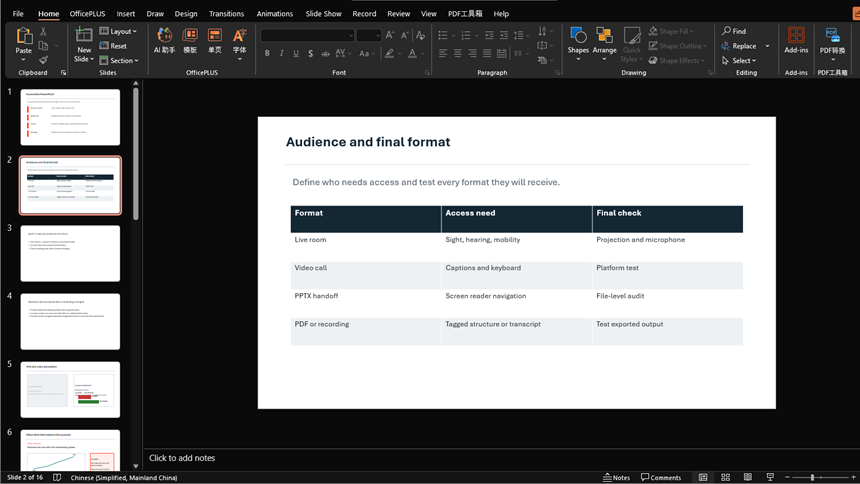
Choose one clear delivery target, such as a shared Google Slides link, an editable PPTX, a PDF leave-behind, or a deck that must run on a venue laptop.
Before moving on: confirm the requirement with the recipient or event organizer. Your team's preferred editing tool does not determine what the audience needs.
Step 2: Map editing and approval access
List the people involved: include everyone who will create, comment on, approve, present, or receive the deck.
Assign the access each person needs: name the owner, editors, commenters, final approver, presenter, and external recipients. Check whether each person can use the required Google or Microsoft account.
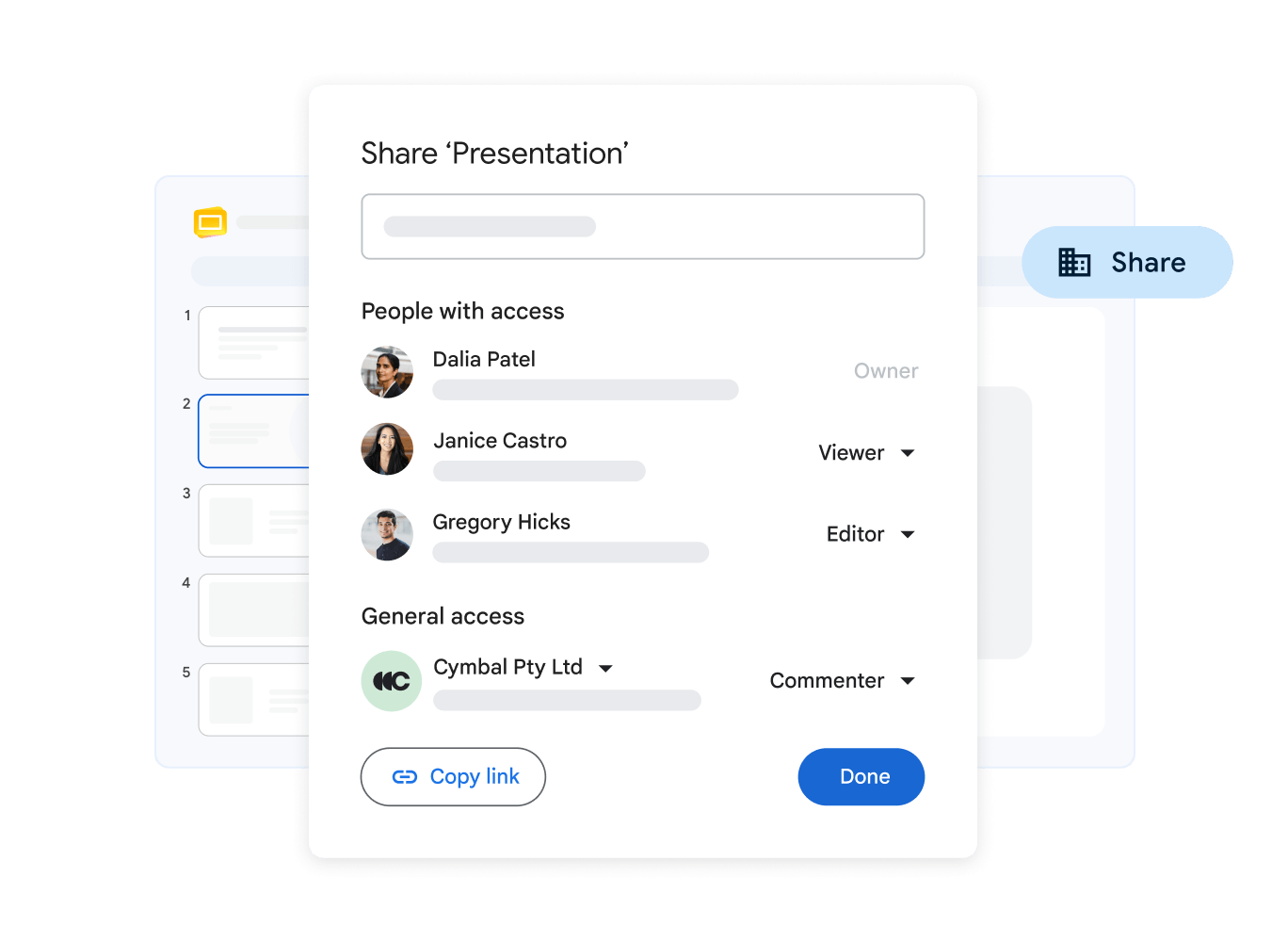
Keep a short list of who can edit, comment, approve, and change sharing settings.
Test it: ask one external guest or view-only participant to open the deck before review begins. Being able to open your own link does not prove that a guest can use it.
Step 3: Flag content that may break
Open the real asset folder: review the fonts, charts, tables, video, audio, equations, diagrams, speaker notes, links, and transitions planned for the final deck.
Flag anything fragile: mark content that may shift, stop working, or become harder to edit when the deck is imported, exported, or opened on another device.
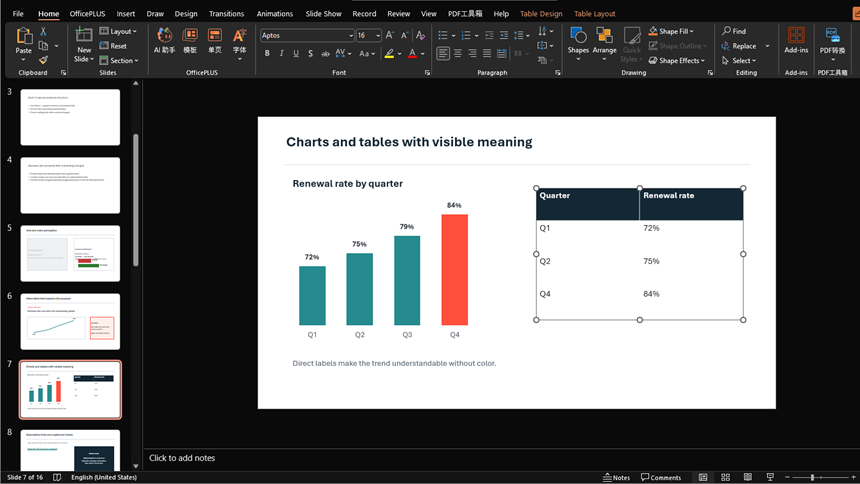
Focus on the objects that matter to this deck. It might include a custom font, a chart linked to a spreadsheet, an embedded video, or notes the presenter cannot lose.
Make the sample realistic: include the objects you actually plan to deliver. A test made only from titles and bullet lists will not predict how the finished deck behaves.
Step 4: Build the same short deck in both tools
Use the same source material: prepare one representative content packet and the same three-to-five-slide assignment for Google Slides and PowerPoint.
Build both versions: use the same copy, image, chart, font requirements, speaker notes, and transition. Give each version the same amount of production time.
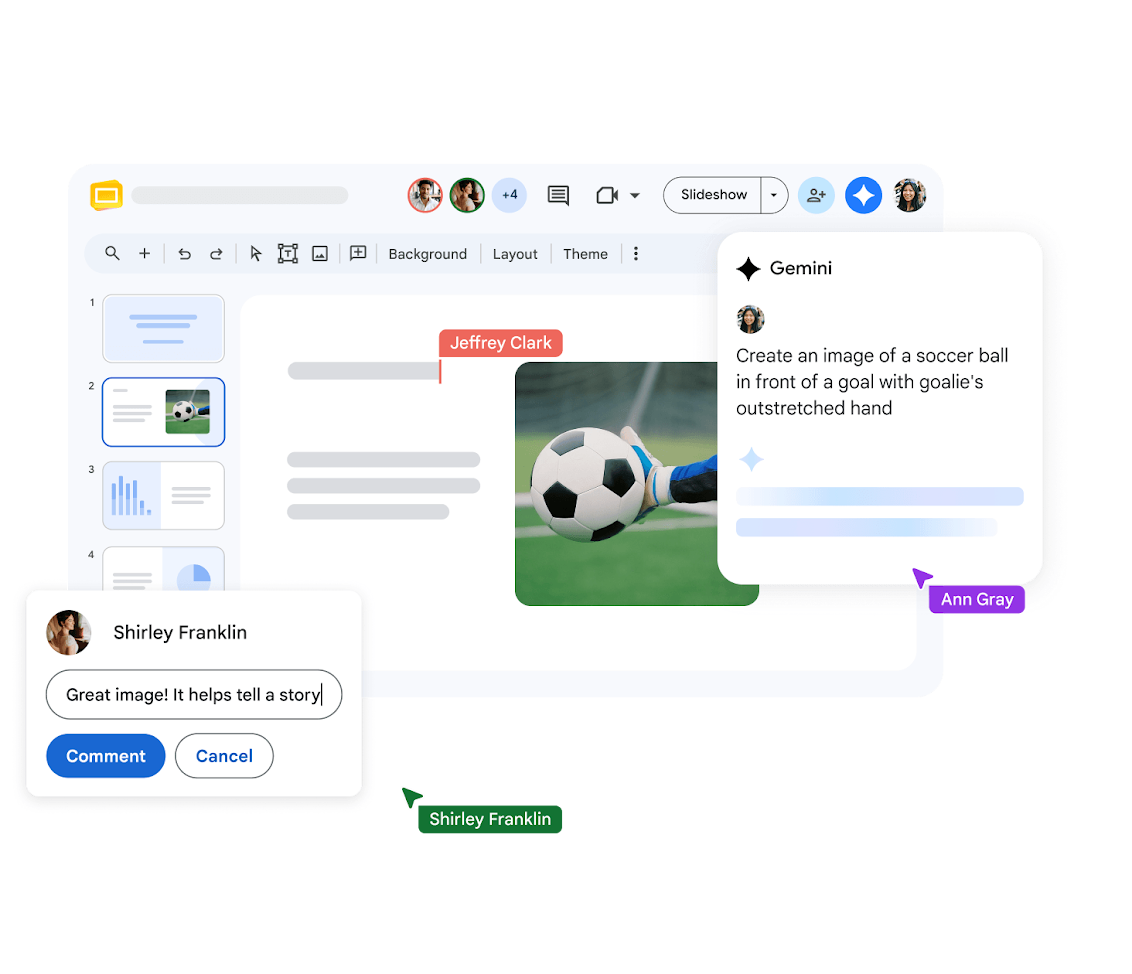
Compare the two mini-decks: record how long each took to create, review, revise, and present, along with any rework or access problems.
Compare the results against the requirements from Step 1. Personal familiarity matters, but it should not hide missing features, permission problems, or conversion errors.
Step 5: Test the file handoff
Use the two sample decks to test the handoff your project will need, such as downloading a Slides deck for a client who edits in PowerPoint.
Complete the handoff: download or export a copy, open it in the other tool, make one visible change, save it, and reopen it in the original tool when the team expects editing to move both ways.
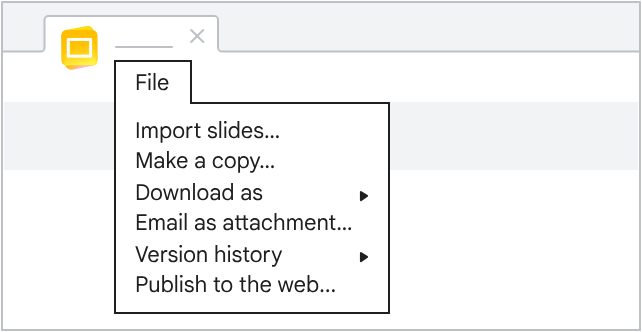
Record what changed: note layout shifts, font substitutions, chart or media failures, broken links, missing notes, changed transitions, and objects that are no longer editable.
Inspect every slide: run slideshow mode, click every link, play every media item, and check speaker notes in Google Slides and PowerPoint speaker notes separately.
Step 6: Test collaboration and recovery
Set up two test accounts: place the deck in the proposed storage location and give each account the permissions it would have during the real project.
Simulate a normal review: have two people edit different slides, leave and resolve a comment, inspect an earlier version, restore a change, and see what happens when someone loses access or works offline.
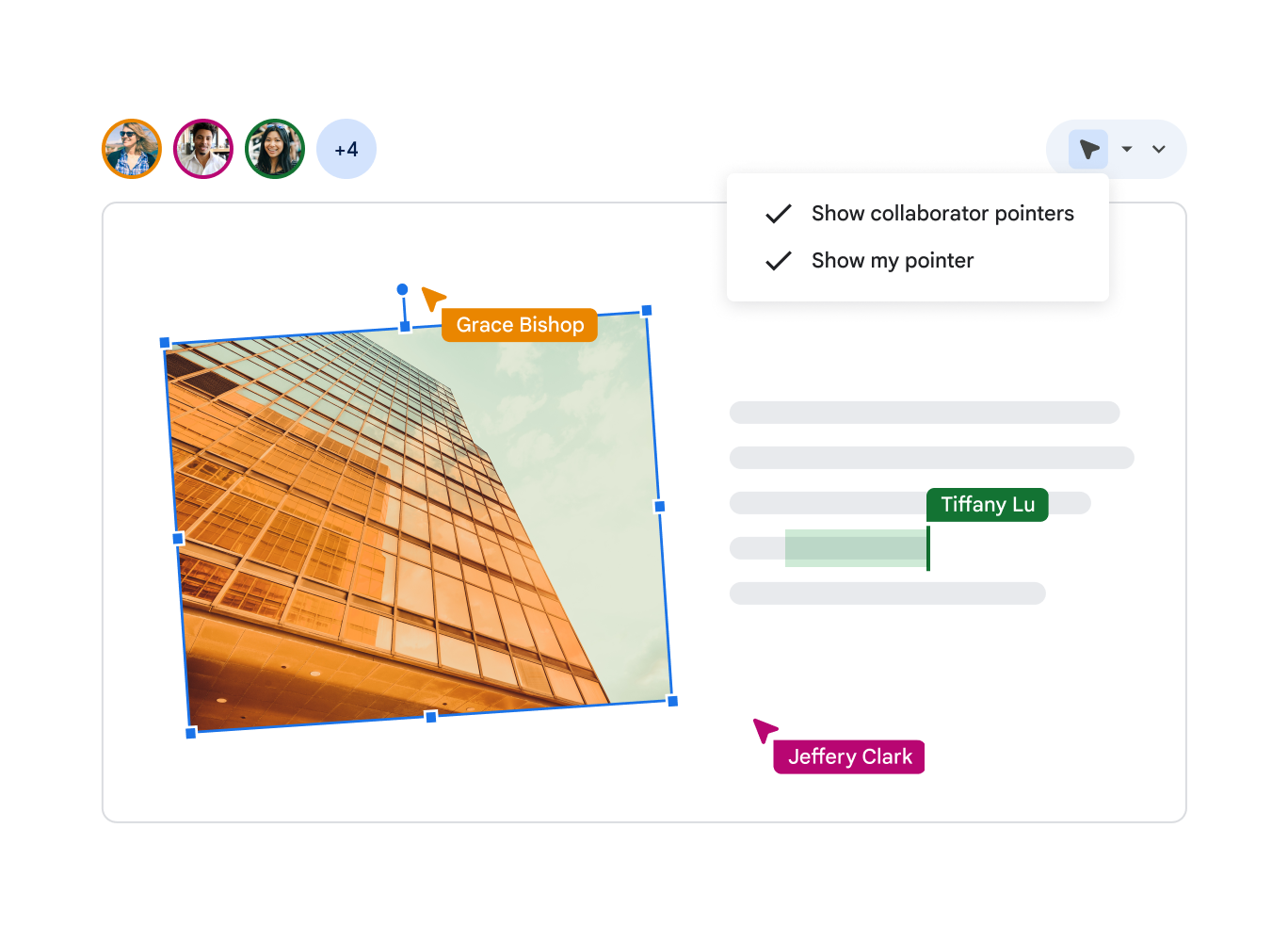
Write down the recovery path: show where the approved deck lives, who can restore an earlier version, and how the team confirms that a change was recovered correctly. The PowerPoint version control guide gives teams a more detailed ownership and recovery process.
Name the one approved file: tell contributors whether to edit the live deck, leave comments, or work in a copy. Clear ownership prevents more confusion than another folder of nearly identical files.
Step 7: Rehearse the real presentation setup
Use the delivery copy: bring the nearly final deck to the room, laptop, display, or video-call platform that the presenter will actually use.
Run the real setup: test Presenter View, video, audio, transitions, speaker notes, aspect ratio, links, fonts, remote controls, adapters, and the expected network conditions.
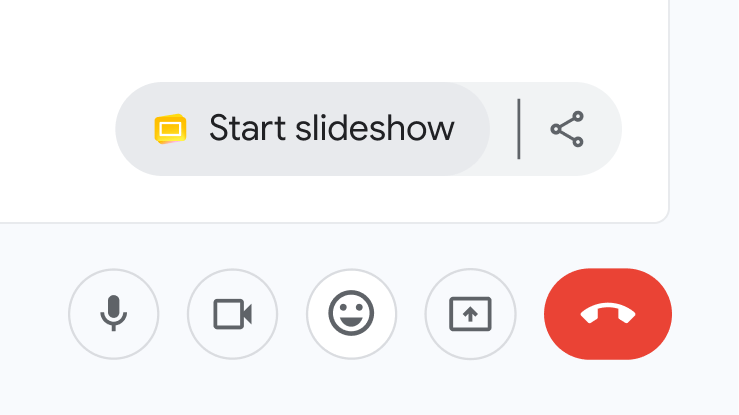
Prepare a fallback: keep a PDF or local copy when it suits the presentation, and make sure the presenter knows when to switch to it.
Test the fallback on its own: open it on a second device. A backup that depends on the same account, network, adapter, or missing font does not protect against the original failure.
Score the result and make one decision
After the rehearsal, total each workflow's weighted score and record the failures that matter more than the total. Choose the tool with the stronger evidence for the actual delivery requirement, then document the approved master, final editor, export path, and fallback. Re-run the test when the deck, destination, or team permissions materially change.
Moving a Deck Between Google Slides and PowerPoint
Keep the original deck when moving between tools. Convert a copy, open it in the destination application, and fix any changes before making it the team’s working version.
Google Slides to PowerPoint
- Duplicate the approved Slides file and freeze the source version.
- Download the copy as PPTX.
- Open the PPTX in the required PowerPoint version.
- Check fonts, line breaks, cropping, charts, tables, equations, and layered objects.
- Run animations, transitions, links, audio, and video.
- Verify notes, hidden slides, comments, and accessibility information.
- Save the corrected PowerPoint file as the new approved master.
PowerPoint to Google Slides
- Preserve an approved original PPTX and collect required assets.
- Upload or import a copy into Google Slides.
- Check the theme, fonts, layout behavior, and slide dimensions.
- Inspect charts, media, equations, transitions, notes, and links.
- Confirm that intended collaborators have the correct permissions.
- Present the imported deck in the target browser and display setup.
- Make the Slides version the approved master only after review.
Where Presenti Fits in the Workflow
Presenti can help draft a presentation from a topic, URL, or supported document. PDF input and PowerPoint or PDF export require an eligible paid plan. Decide whether the finished deck will be presented in PowerPoint or Google Slides before choosing the export and handoff process.
After generation, move the draft into the chosen workflow and run the file, collaboration, accessibility, and delivery checks in this guide. Presenti can accelerate the first draft, but the destination tool and final environment still determine what must be verified.
Frequently Asked Questions
Is Google Slides better than PowerPoint?
Neither is universally better. Google Slides often fits browser-first shared work in Google Workspace. PowerPoint often fits a PowerPoint-native desktop and file-delivery workflow. Test the actual deck against the final requirement.
Can multiple people edit a PowerPoint at the same time?
Yes, Microsoft documents coauthoring when the presentation is saved to OneDrive or SharePoint and shared with collaborators. Account, application, file, and organization conditions still need verification.
Can Google Slides work offline?
Yes, in supported configurations after offline access is enabled and the relevant files are made available offline. Test the setup on the exact device before relying on it.
Will a Google Slides deck look the same in PowerPoint?
Do not assume exact fidelity. Download the real deck as PPTX and inspect fonts, line breaks, crop settings, charts, media, notes, links, transitions, and accessibility information in the recipient's PowerPoint environment.
Which tool is better for team presentations?
Choose based on the team's identity and storage system, external access, file ownership rules, content complexity, and final delivery format. Building the same short deck in both tools provides stronger evidence than a generic feature comparison.
Which Should Your Team Choose?
If your team already works in Google Workspace and shares browser links, Google Slides is a practical choice. If recipients need an editable PPTX or the deck relies on desktop PowerPoint features, start in PowerPoint. For a mixed team, choose one working version and agree when the file will move between tools.