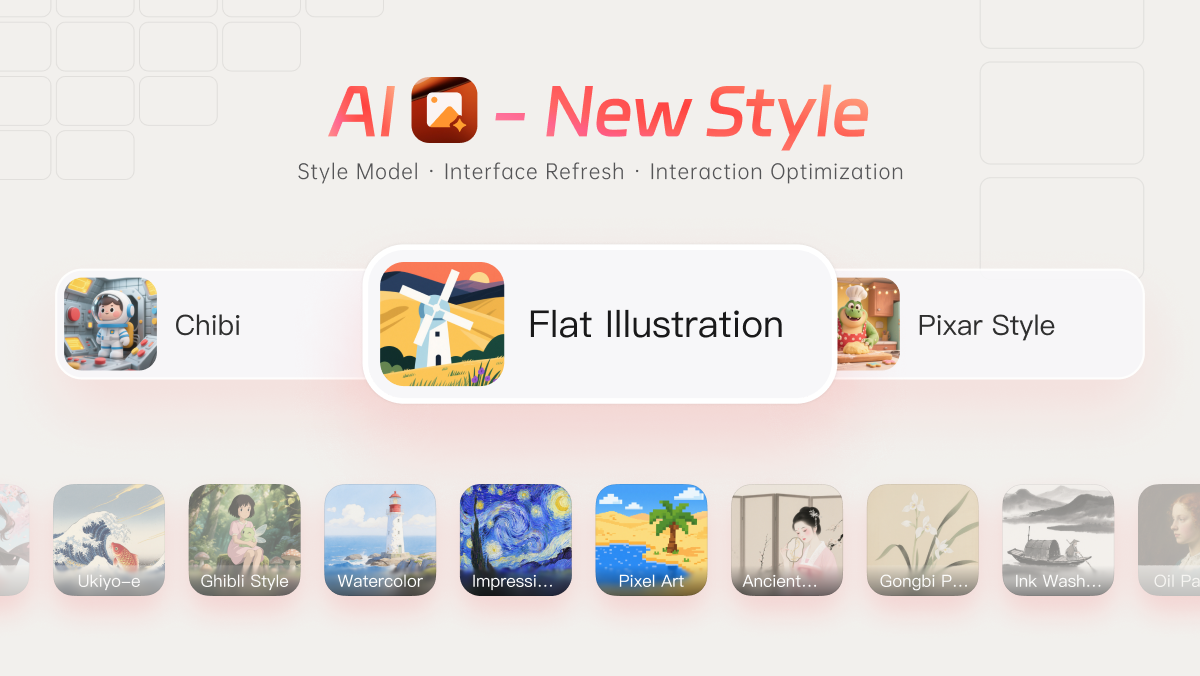
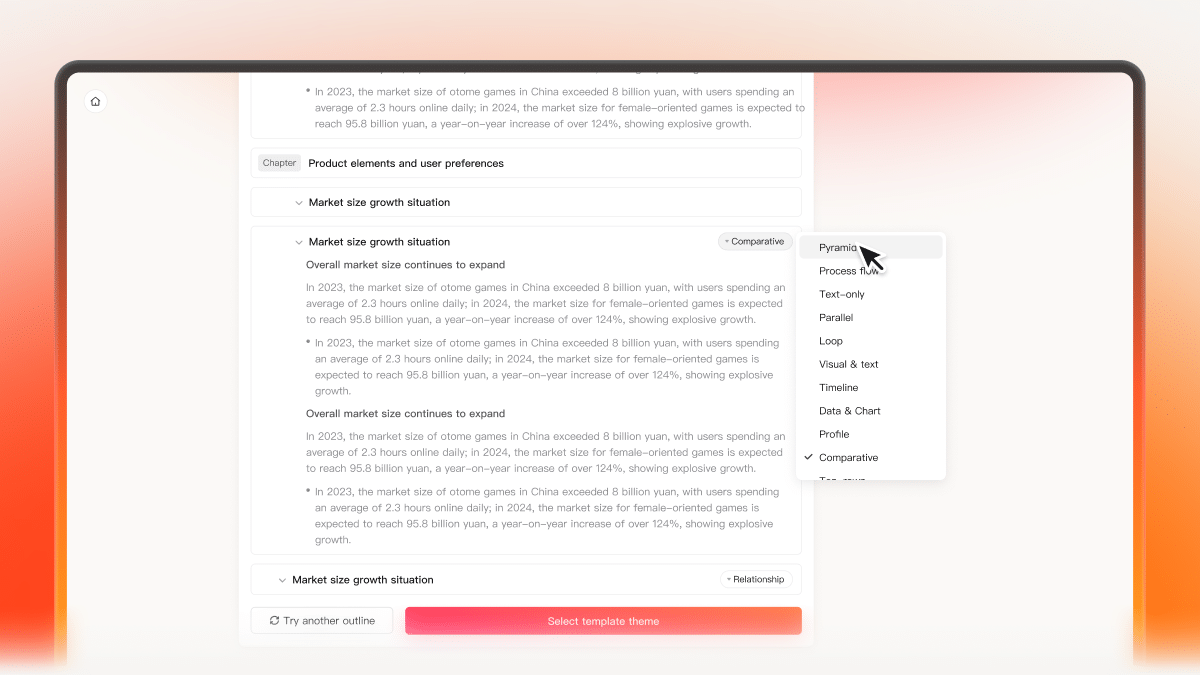
This archived release introduced changes to text formatting, slide navigation, layouts, templates, and comments. The sections below describe those changes and how they fit into a presentation workflow. Interface labels and availability may differ in your current workspace.
Improved Text Formatting and Shortcuts
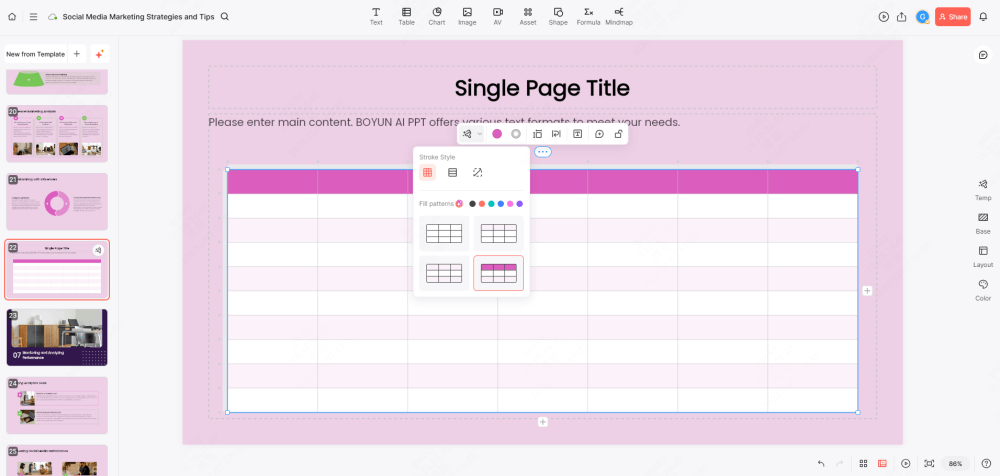
One of the key upgrades in this release is our new bullet styles for text. Whether you're outlining ideas or presenting key points, these new styles allow for more structured and visually appealing text. We’ve also introduced a series of useful shortcuts:
Enter: Quickly create a new blank page.
CMD/Ctrl + D: Duplicate the current page for faster edits.
Up/Down Keys: Effortlessly flip through pages.
These improvements help you save time while giving you more control over your slides.
Enhanced Layouts and Template Management
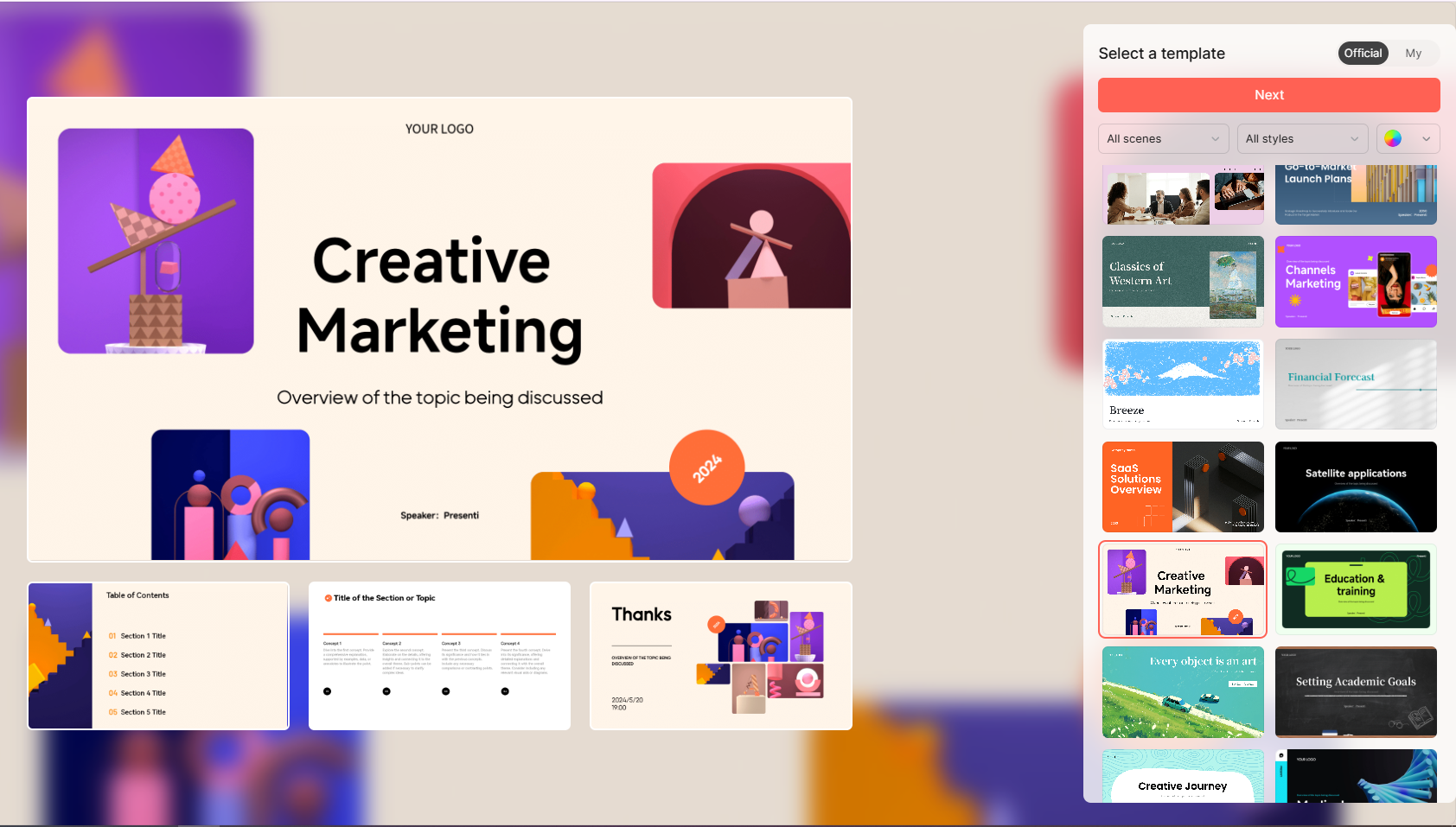
Creating beautifully designed presentations is easier than ever with our newly introduced layout types. Whether you’re working on a business deck or a creative portfolio, you’ll find a variety of layout options to suit your needs. We’ve also enhanced the template category filters, allowing for faster and more intuitive template selection when starting new projects.
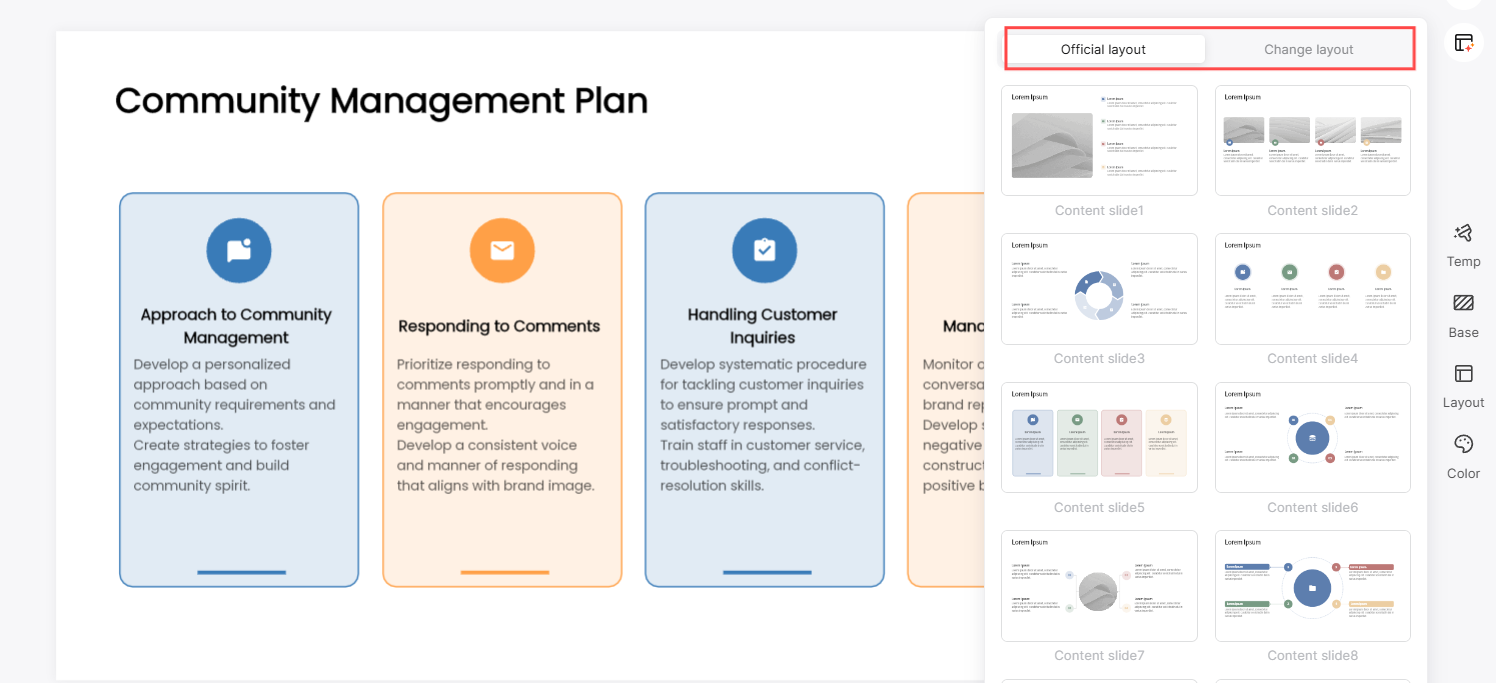
Better Text Input and Material Organization
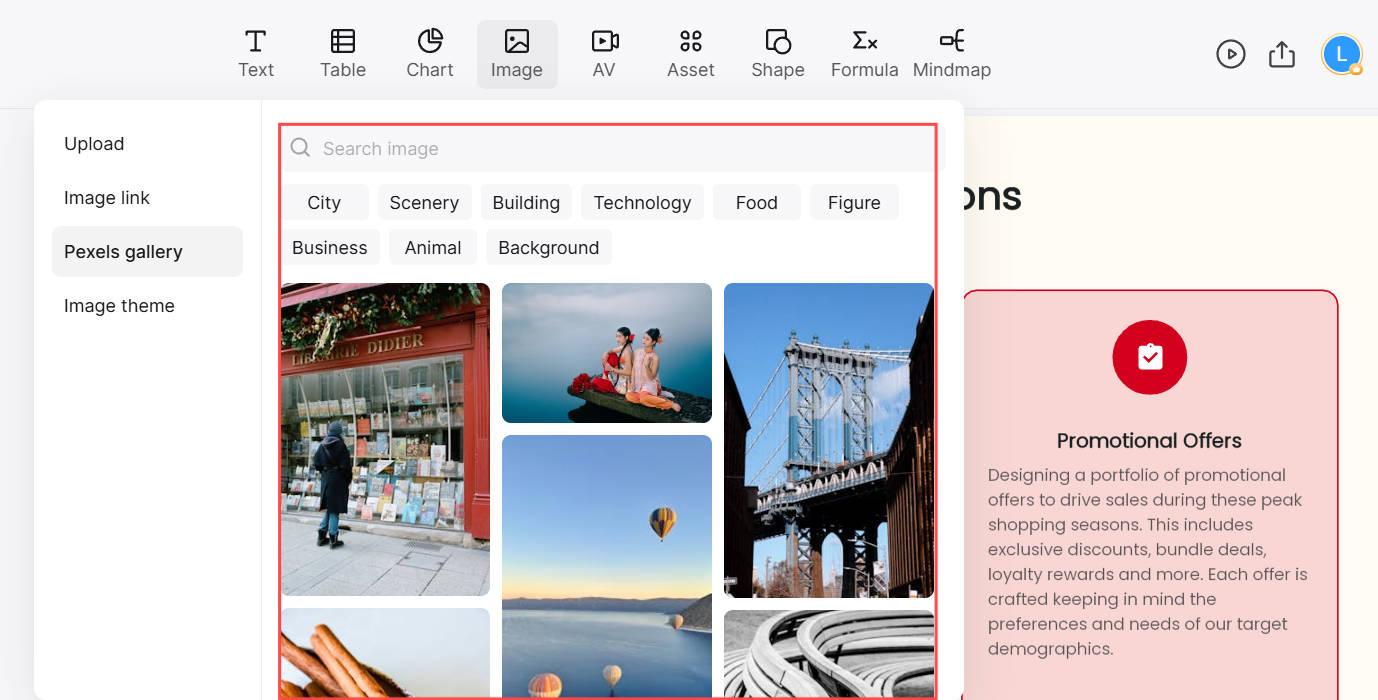
Presenti AI now makes it simpler to add and format text. Text and table templates now automatically apply corresponding fonts, ensuring that your slides have a cohesive look. We've also optimized the display of the material library directory, so finding the right images, icons, and elements is quick and hassle-free.
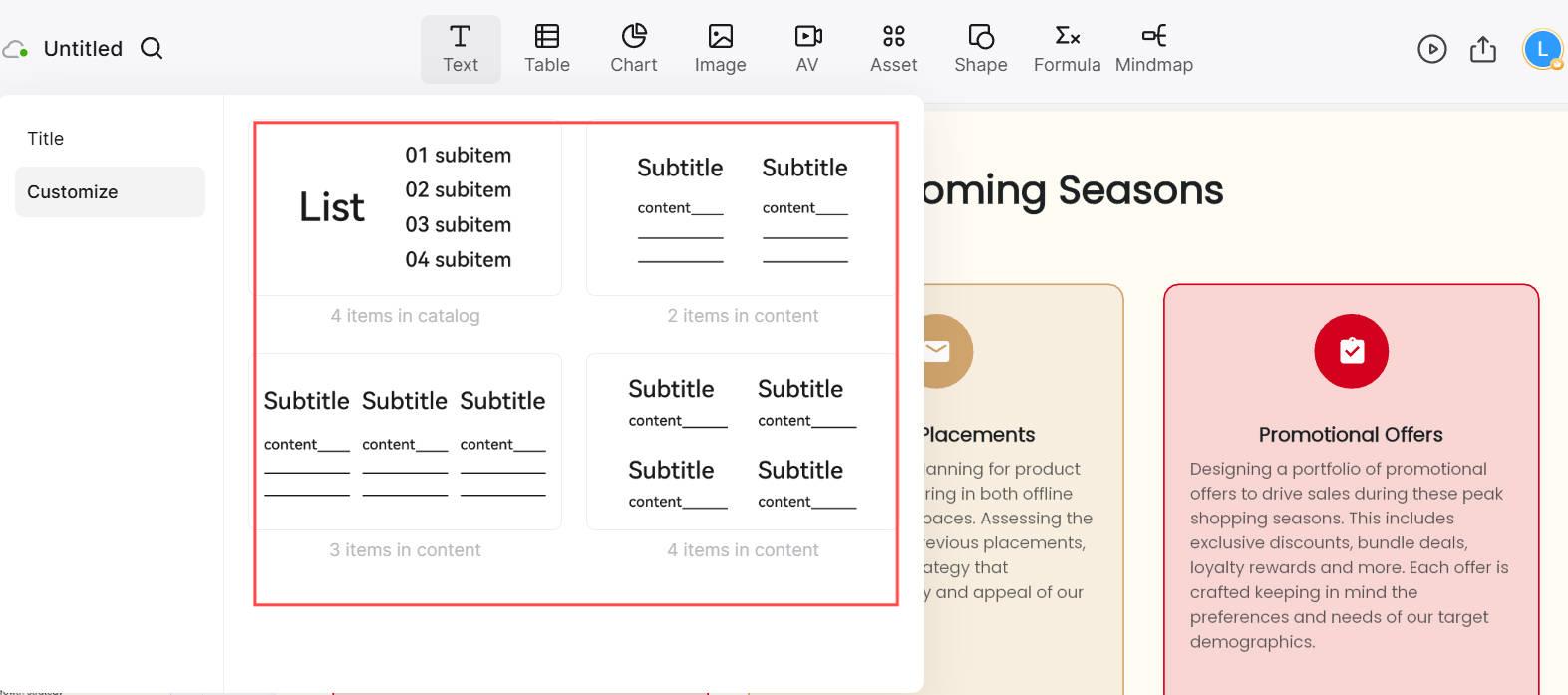
New Commenting Feature for Seamless Collaboration
Collaborating on presentations just got easier! The new commenting feature allows users to add comments directly on slides, enhancing teamwork and feedback. Whether you're working with colleagues or clients, you can now streamline communication and improve the final result with this simple but powerful tool.
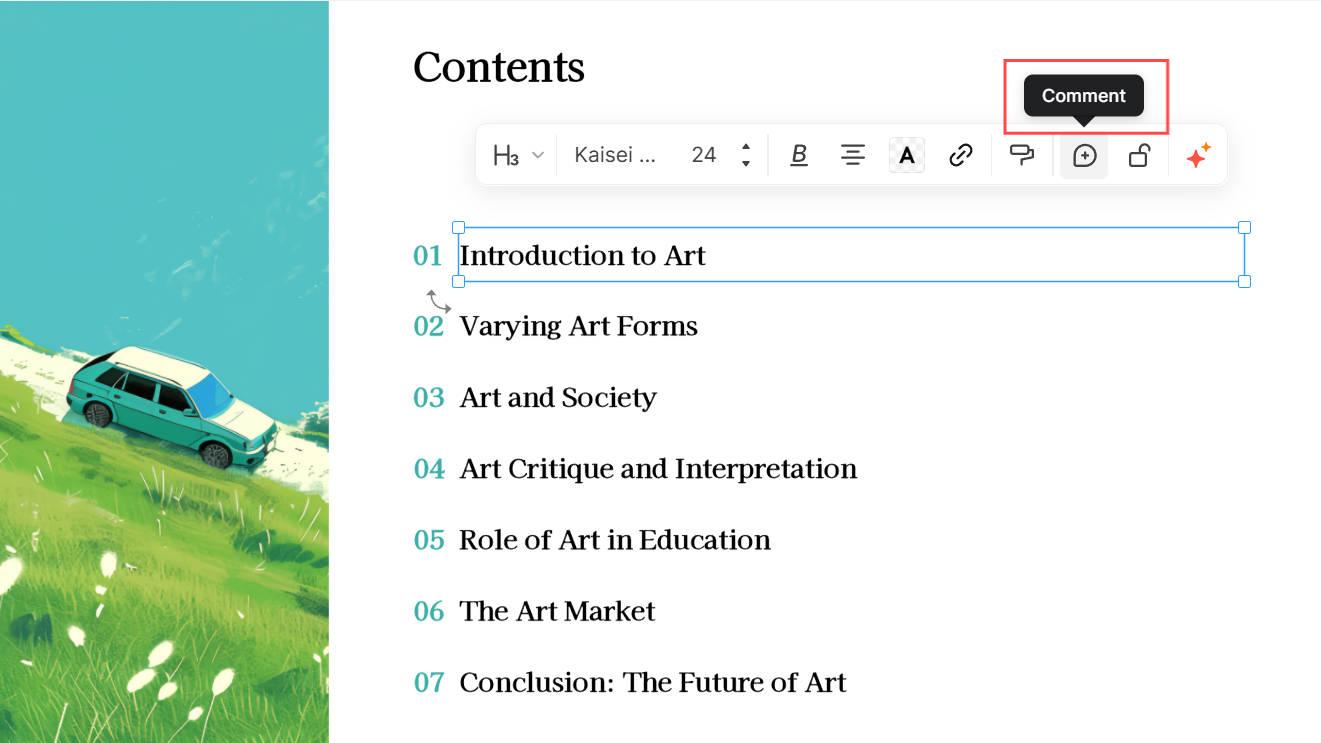
Fresh Templates for Creative Presentations
We’ve added 10 new sets of cartoon hand-drawn templates, offering a fun and engaging option for your presentations. Whether you’re crafting a creative pitch or delivering a casual talk, these templates bring a unique flair to your work. We've also optimized the overall template usage experience, making it easier than ever to customize your slides.
How to Use These Updates in a Real Presentation Workflow
The new features are most useful when they are part of a repeatable workflow rather than a one-off experiment. A practical sequence looks like this:
- Start with the decision. Write the audience, the decision you need, and the single message the deck must support.
- Draft the structure. Use the improved text input and outline tools to group the evidence before choosing a template.
- Apply a layout system. Choose one template family and use the enhanced layout management to keep typography, spacing, and color consistent.
- Use comments for review. Leave specific comments on the slide or element that needs a change, then assign a clear owner and due date.
- Polish and export. Check the slides on the target display, export to PPTX or PDF, and open the exported file once before sharing it.
Before the deck leaves your team, confirm that the sources, numbers, labels, and approval status are still current. New formatting and template features make the deck easier to produce; they do not replace review of the underlying claims.
Putting the Update to Work
Use a template and a small set of layouts to keep the deck consistent, then use comments to collect specific feedback. Check the presentation after revisions so the final wording, figures, and design support the same message.
For a current project, start with the controls available in your workspace and review the exported file before sharing it.