Building a presentation that feels right isn’t just about the content. The way information is arranged on each slide shapes how clearly your audience receives it. A process explanation lands differently as a flowchart than as a bullet list. A competitive analysis reads more powerfully in a VS layout than in a generic text block.
Presenti AI now gives you layout choices at two key points in your workflow — during outline generation and after your presentation is fully built.
What’s New
Layout Switching During Outline Generation
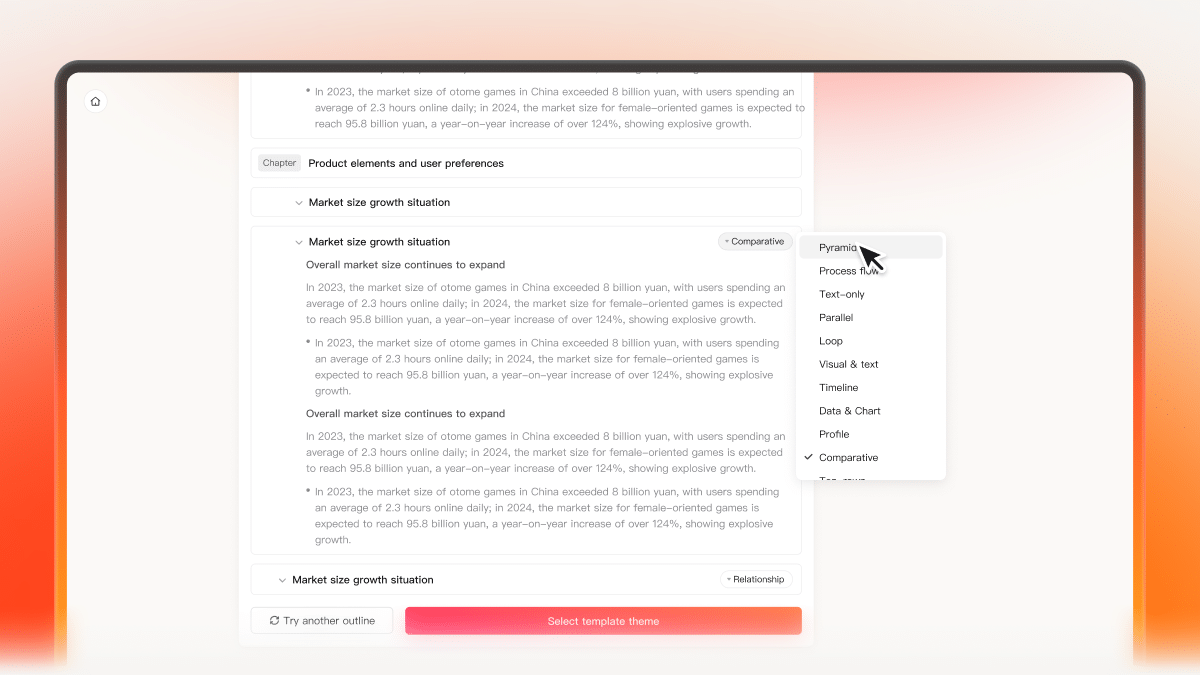
When Presenti generates your presentation outline, it automatically selects an appropriate layout for each slide based on the content. That initial selection is a strong starting point, not a final decision. As you review your outline, you can click the layout icon on the right side of any slide to browse and switch to a different layout before moving forward.
This means your structural and visual decisions happen together, before any design is applied — producing a more coherent presentation from the first generated slide.
Layout Switching After Full Presentation Generation
Once your presentation is fully generated and you can see the complete content in context, layout preferences sometimes shift. A slide that looked right in outline form may benefit from a different arrangement once you see the actual text and visuals together. You can click the Layout icon on the right side of any slide to open the layout panel and switch to a different option at any point.
Standard and Professional Slide Layouts
Presenti organizes layouts into two distinct categories, each serving different communication needs.
Standard Slide Layouts cover the fundamental structures that work across any presentation context:
- Pyramid layout
- Process & Flow layout
- Text-only layout
- Parallel layout
- Loop layout
- Visual & Text layout
- Timeline layout
- Data & Chart layout
- Profile layout
- Comparative layout
- Top-down layout
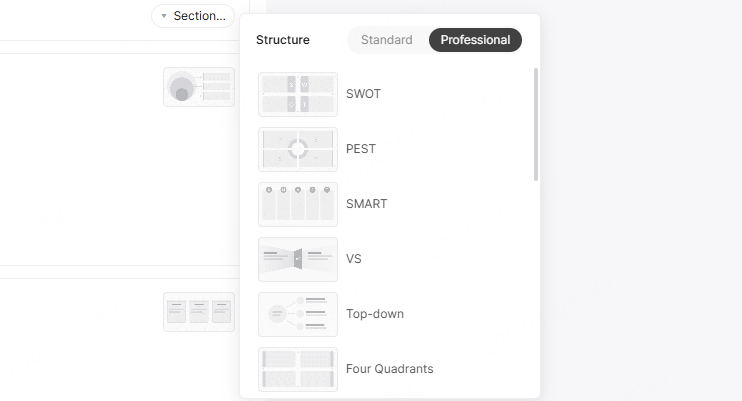
Professional Slide Layouts are Presenti’s standout offering — a curated set of structured frameworks built around recognized business and strategic communication models:
- SWOT layout
- PEST layout
- SMART layout
- VS layout
- Top-down layout
- Four Quadrants layout
- The Golden Circle layout
- Work Plan layout
- Work Summary layout
- 5W1H layout
- KISS Retrospective layout
- PDCA layout
- Data Result layout
- Work Review layout
- Multi-Dimensional Time Comparison layout
- Fishbone Diagram layout
- Funnel Progressive layout
Professional layouts transform the way structured thinking gets communicated on screen. Instead of manually arranging a SWOT matrix or a Fishbone Diagram from scratch, the layout handles the structure automatically and populates it with your content.
How to Use Layout Switching
During Outline Generation
Step 1: Enter your prompt, upload a document, or import a file to generate your presentation outline.
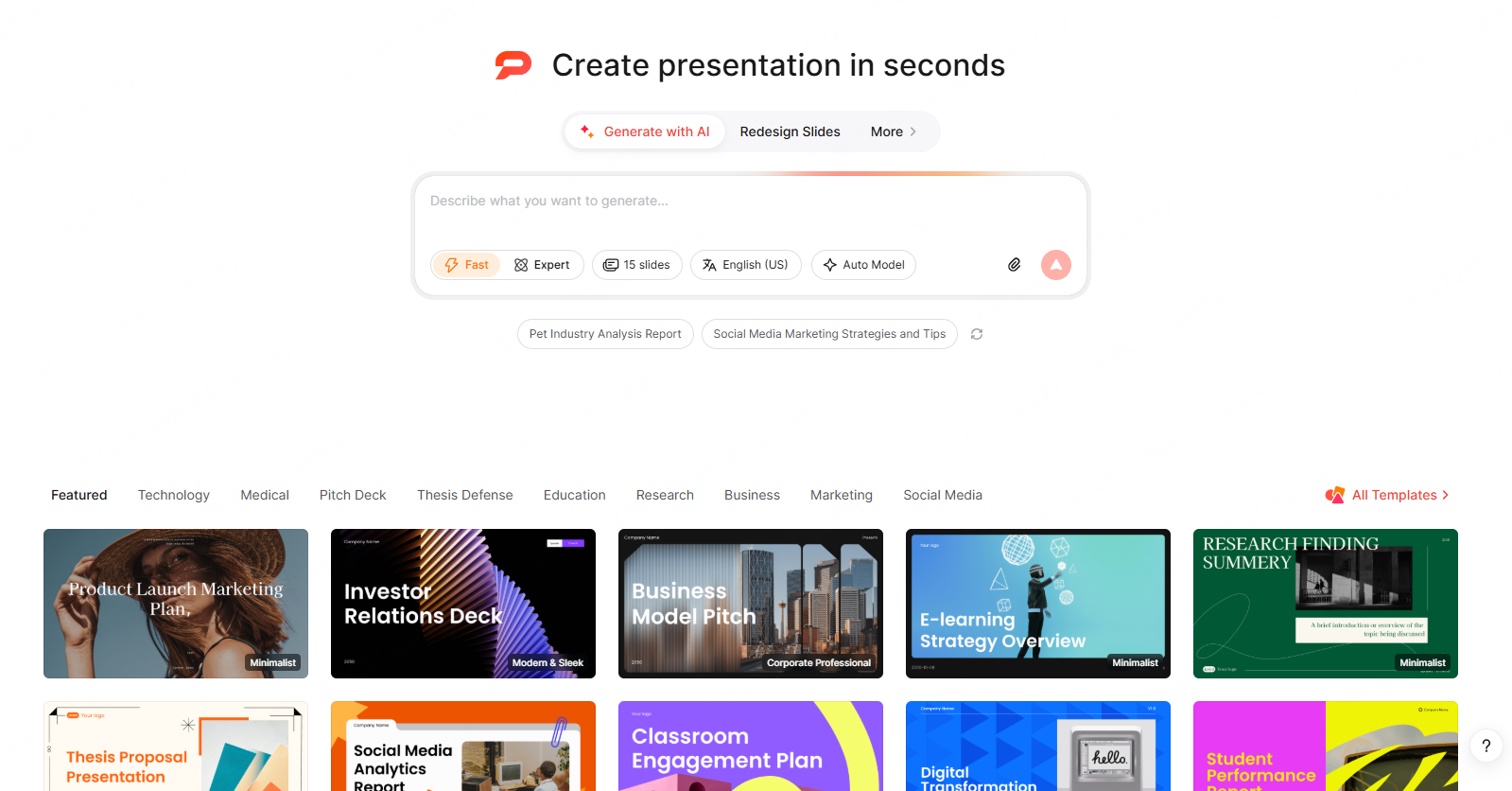
Step 2: Review the generated outline. Presenti automatically assigns a layout to each slide based on the content type.
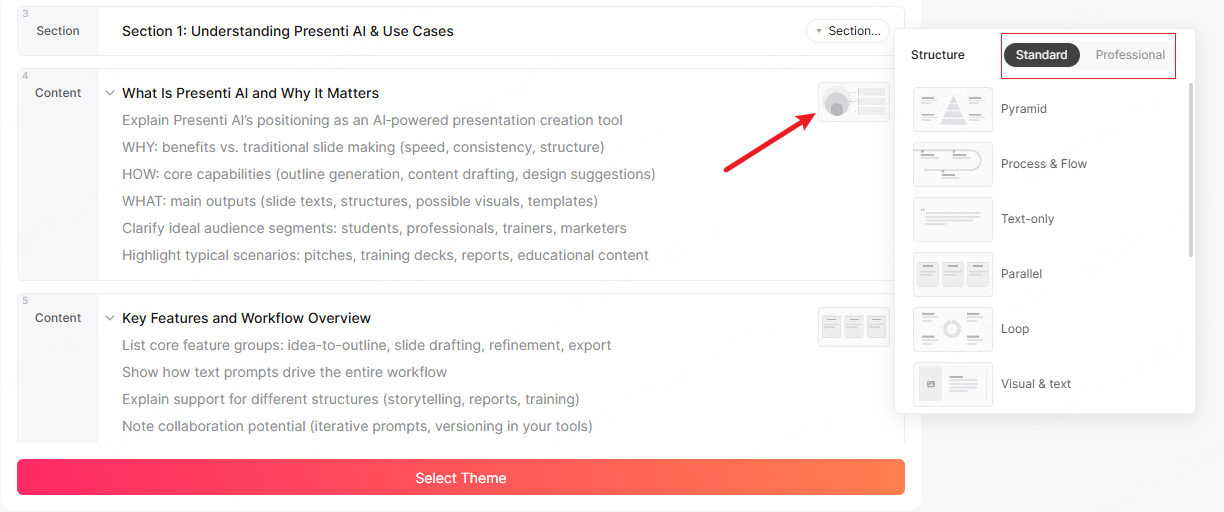
Step 3: To change any slide’s layout, click the layout icon on the right side of that slide in the outline view. The layout panel opens showing both Standard and Professional options.Browse the available layouts across both tabs. Click any layout to apply it to that slide instantly.
Step 4: Once you are satisfied with the outline and layout selections, proceed to the next step to choose your presentation theme.
After Presentation Generation

Step 1: With your fully generated presentation open, identify any slide whose layout you want to change.
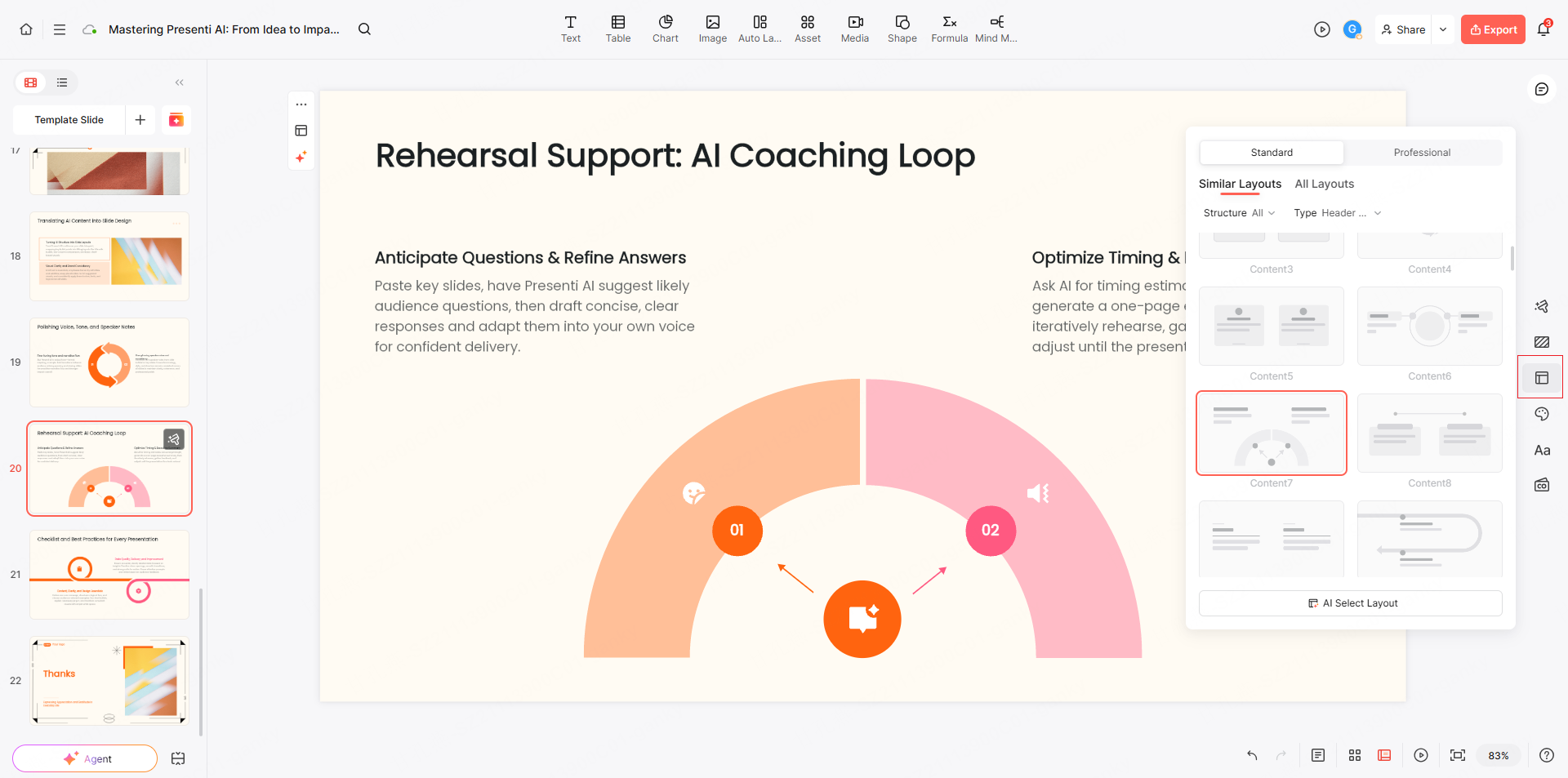
Step 2: Click the Layout icon on the right side of that slide.
Step 3: Browse the Standard and Professional layout options. Hover over any option to preview how your content will be arranged in that layout.
Step 4: Click to apply. Your slide content redistributes into the new structure immediately.
Who This Is For
Anyone who wants structure to match content. A timeline slide communicates sequence. A Fishbone Diagram communicates causality. A VS layout communicates comparison. Choosing the right layout for each slide is not a cosmetic decision — it is a communication decision.
Teams using professional frameworks. SWOT analyses, PDCA cycles, and Golden Circle structures are standard in business communication. Professional layouts bring those frameworks directly into your slides without manual construction.
Presenters who refine as they review. The ability to switch layouts after generation means you are never locked into the first version. See the full presentation, identify what needs rethinking, and adjust at the layout level before making any edits to content.
This release introduced layout switching at the outline stage and after generation, with Standard and Professional categories. The options available in your workspace may depend on the current product and account.
Try Presenti AI today — generate your next presentation, explore the Professional layout library, and choose a structure that fits the content.