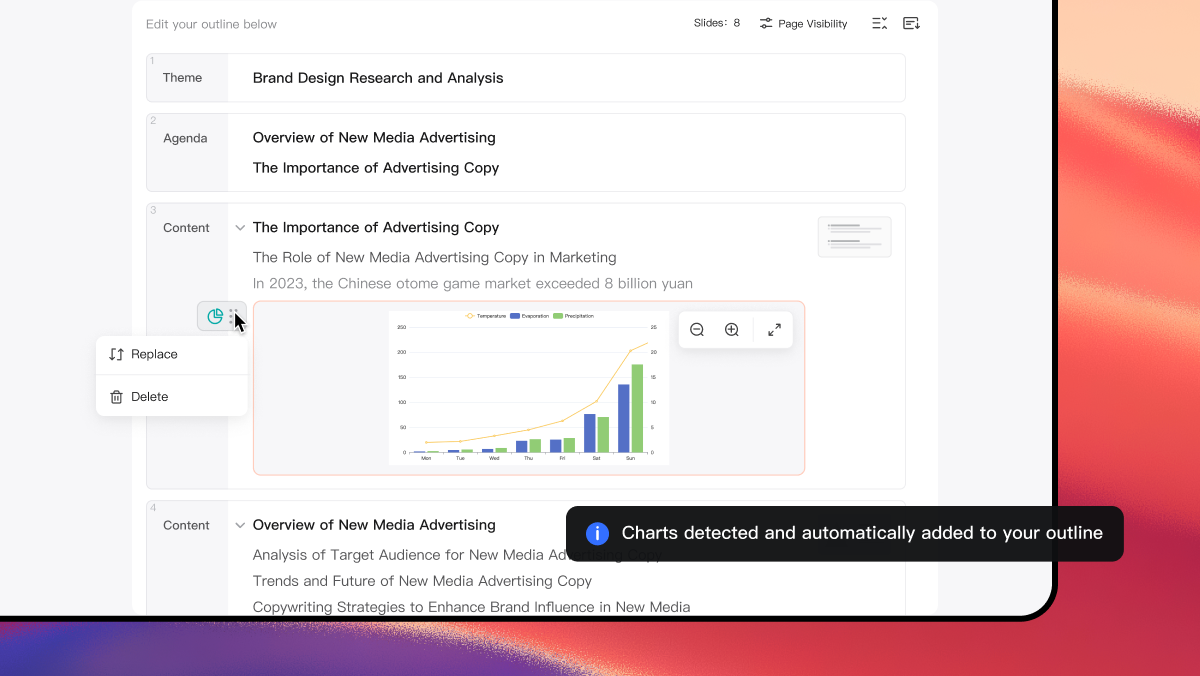
Your slides are only as strong as the visuals inside them. A great layout with a flat, generic image still loses the room. That gap between “functional” and “genuinely impressive” is exactly what Presenti’s expanded AI image editing suite is designed to close.
Today we’re shipping 15 new AI image editing style options — giving you direct, one-click control over how every image in your presentation looks and feels. The Presenti product update archive provides context for this release and links to other feature announcements.
What’s New
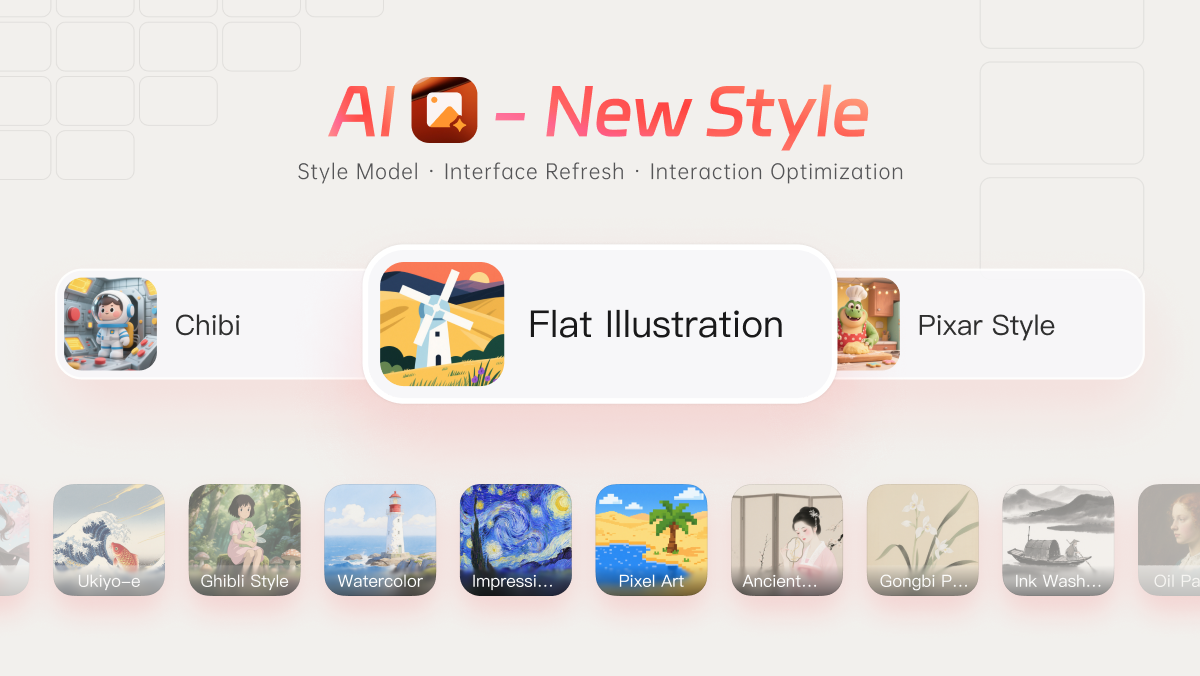
Presenti’s AI image editor now includes 15 distinct style treatments you can use when generating visuals for your deck. Each style is purpose-built for presentation contexts, intended to offer different visual treatments; inspect the result at presentation size.
The new styles span a deliberate range:
- Flat Illustration — Clean, two-dimensional vector-style visuals ideal for diagrams, icons, and modern presentation aesthetics
- Chibi — Cute, simplified character style with exaggerated features, perfect for playful or educational content
- Pixar Style — Polished, expressive 3D rendering with warm appeal, great for storytelling and engaging visuals
- Watercolor — Soft, artistic painterly effect with fluid textures for creative or inspirational decks
- Pixel Art — Retro, block-based digital style suited for tech nostalgia or gaming-related topics
- Impressionism — Loose brushstrokes and vibrant light effects for artistic or cultural presentations
- Ancient Style — Traditional, timeworn aesthetic for historical or heritage themes
- Gongbi Painting — Fine-lined, detailed Chinese realistic brush painting style for elegant cultural content
- Ink Wash — East Asian brush painting style with flowing black ink and subtle color washes
- Anime — Japanese animation style with expressive features and vibrant colors
- Ukiyo-e — Traditional Japanese woodblock print aesthetic with distinctive textures and historical charm
- Ghibli Style — Soft, nostalgic, hand-drawn animation aesthetic inspired by classic storytelling visuals
- Oil Painting — Rich, textured brushwork with deep color blending for dramatic or artistic impact
- Cyberpunk — Neon-lit, futuristic style with high contrast and urban sci-fi atmosphere
- Machine — Industrial, mechanical rendering style with precise lines and cold tones for technical themes
Why It Matters for Your Presentations
Generic stock images inserted without treatment create visual inconsistency. One photo looks warm, the next looks cool, a third is flat. Even with a well-designed template, mismatched image treatments undermine the sense that a deck was thoughtfully assembled.
Using a consistent image style can make a deck more coherent. Review each generated image for subject accuracy, legibility, and fit with the surrounding content; a shared style does not resolve those issues automatically.
Choose from the styles listed above according to the content. Flat Illustration may suit a process explanation, Watercolor a creative workshop, and Pixel Art a gaming topic. Keep data and documentary images accurate when artistic treatment would change their meaning.
How to Use It
Method 1: Generate Custom AI Images During Presentation Creation
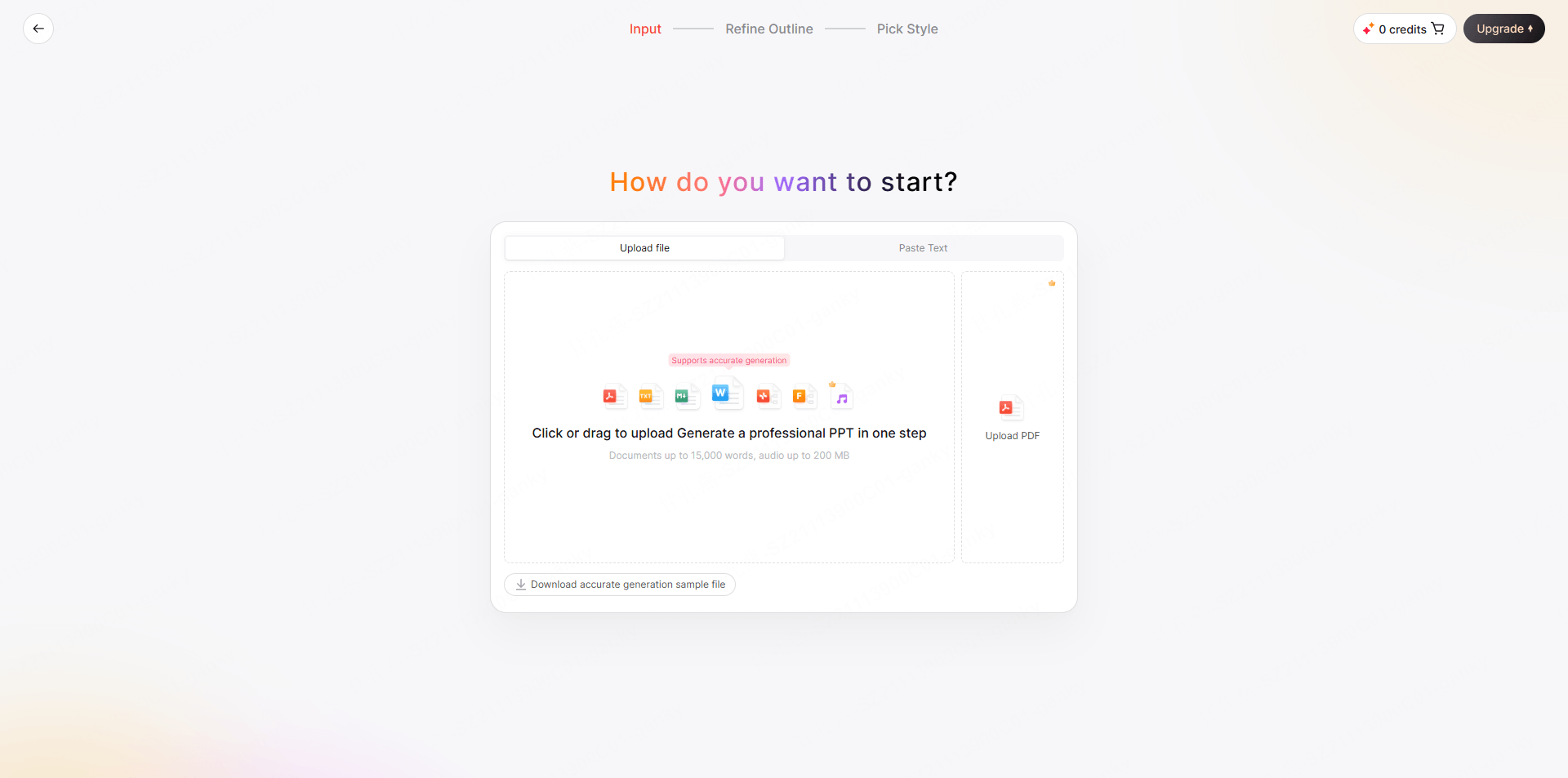
Step 1: Open the Presenti workspace and choose an input method supported by your account. Markdown/XMind, Word/PDF/TXT, audio, links, and existing-slide improvement are distinct workflows with their own allowances; do not assume every file follows the same import path.
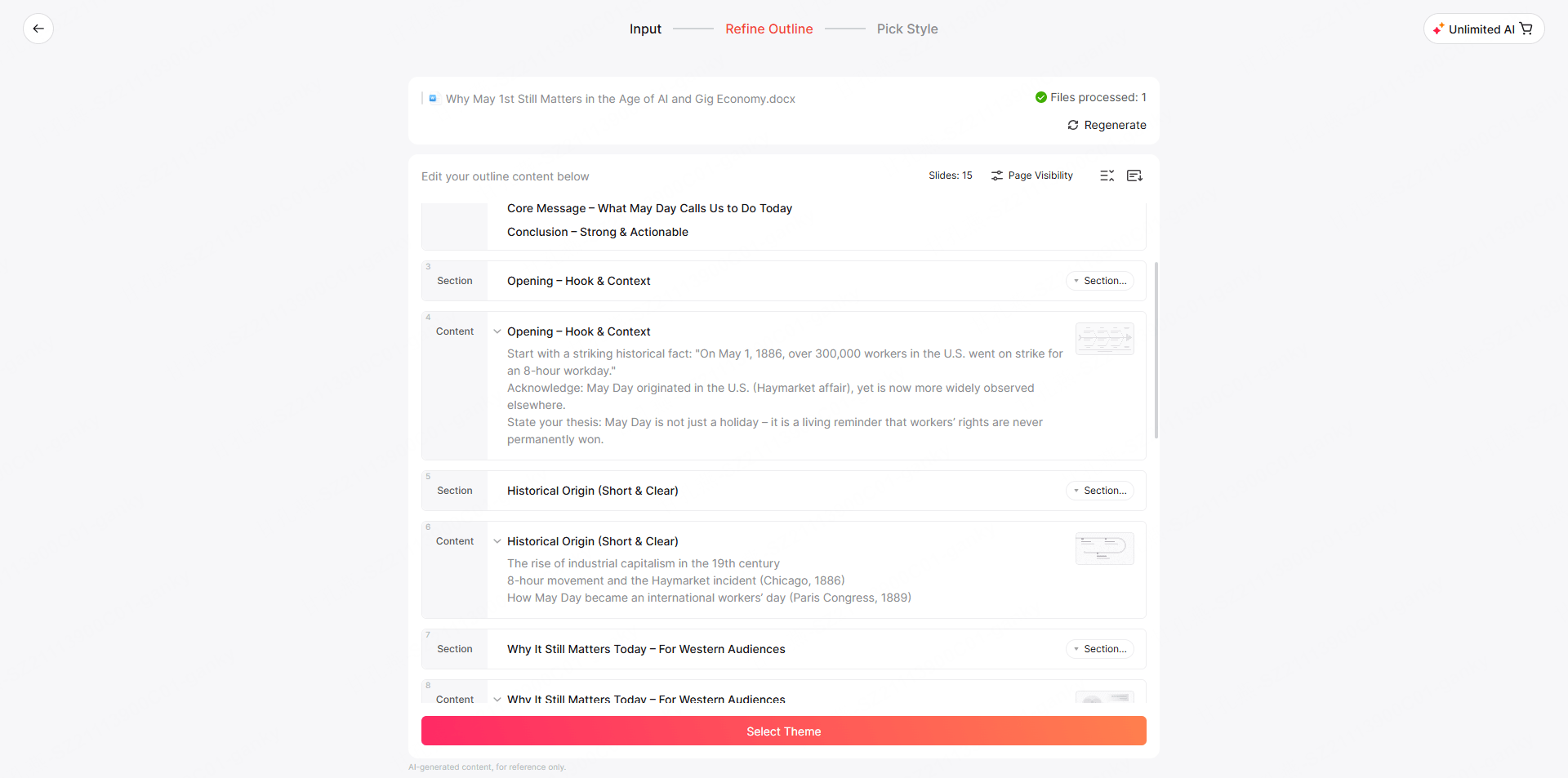
Step 2: Generate the presentation outline, then proceed to the next step where you can select a theme.
Step 3: In the theme selection panel, choose Custom AI Image and describe the image style you want to generate.
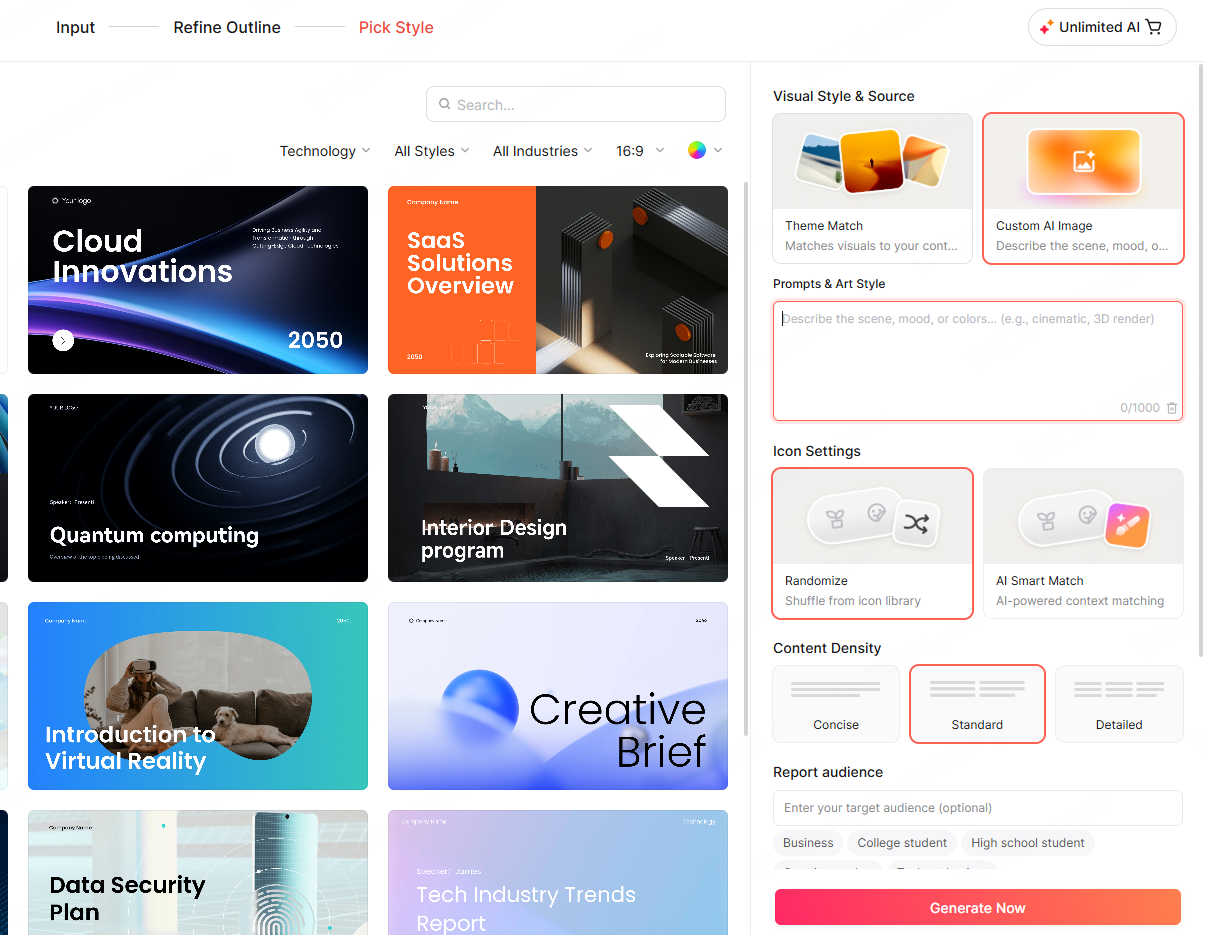
Step 4: Continue to generate your presentation with the custom AI-generated images integrated.
Method 2: Generate AI Images in Existing Presentations
Step 1: In a generated presentation, select an image, then click AI Image Generator. The AI image generation panel will appear on the right side.
Step 2: Describe the image content you want to generate, then browse through the 15 style options. Hover over any style to preview how it will look on your selected image in real time.
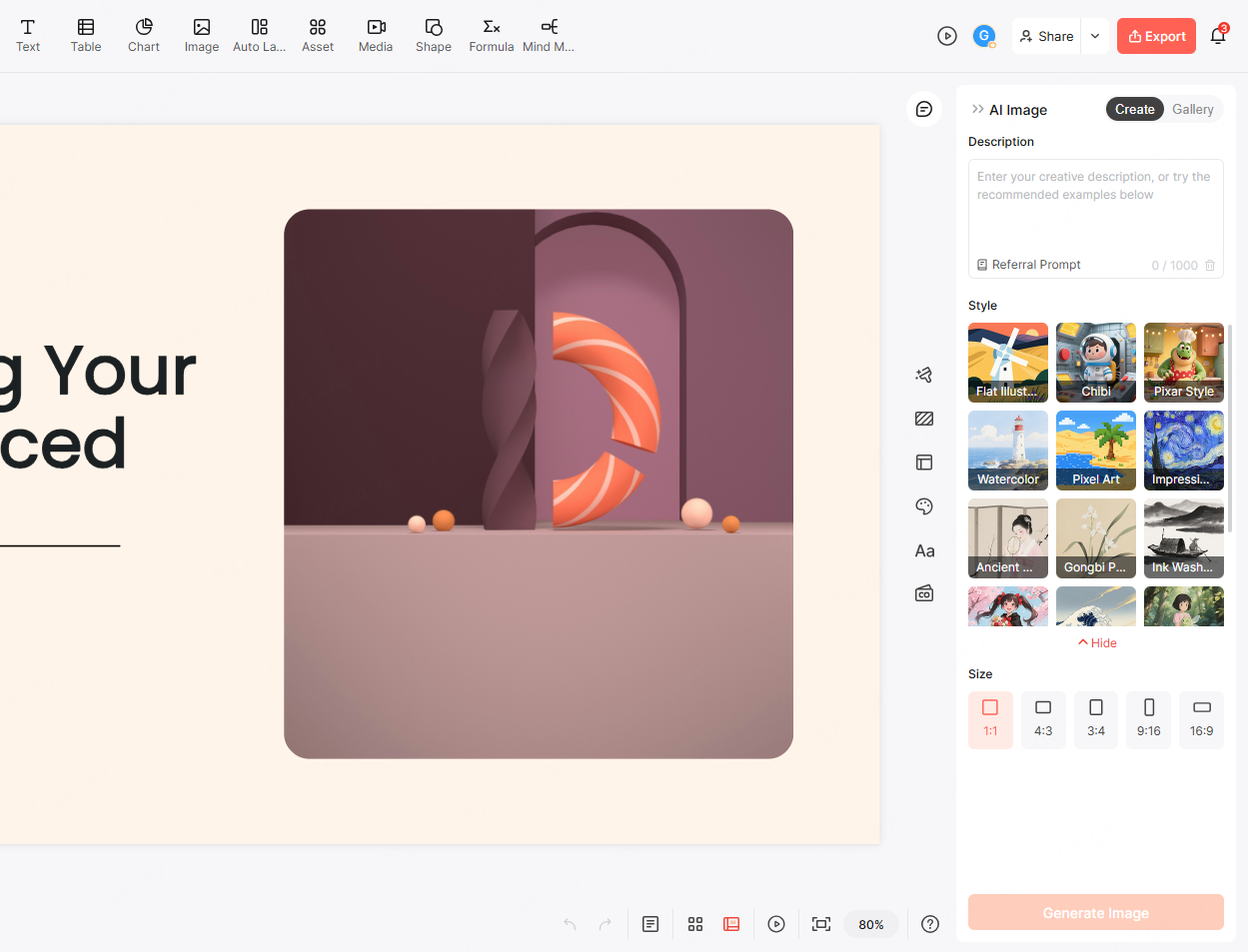
Step 3: Click "Generate Image" to apply. Review the generated result before inserting it.
Who This Is For
Anyone building a deck that needs to look designed, not assembled. Visual consistency is the single most visible marker of a professionally produced presentation. AI image styles deliver that consistency without requiring a designer or a photo editing workflow outside of Presenti.
Marketers and brand teams who need visuals that feel on-brand even when source images vary. Apply your brand’s preferred style treatment and every image reads as intentional.
Educators and trainers whose slide libraries include images sourced from different places at different times. A consistent style treatment unifies a curriculum that would otherwise look patched together.
Consultants and analysts can use a restrained illustration style for conceptual explanations. Keep chart values, labels, and source evidence unchanged when refining the surrounding design.
This release introduced the 15 styles listed here. Check the image-generation options and AI allowances available in your current account.
Open Presenti AI and try the new styles — select any image in your deck, apply a style, and compare the generated result with your intended message.
![[Updates] Add a New Slide to Any Presentation Using Markdown](https://presenti.ai/assets/markdown-slide-cover_18a995fa1f0cc1399a29.png)