Choose a picture layout by the relationship between the photos. Use one large image when the audience needs to inspect one subject, equal frames when it needs to compare two subjects, and a labeled sequence when order matters. A collage is useful for showing a collection, but it is a poor substitute for explaining which photo the audience should examine first.
Before opening a layout gallery, write the point of the slide in one sentence. “These are our project photos” gives little direction. “This joint connects the two beams” tells you that a close view needs room and a clear link to the whole object.
If the pictures are already in a PowerPoint draft, use Presenti to explore a clearer slide arrangement, then inspect the proposed crop, relative size and captions. You still decide what each photograph demonstrates; a layout suggestion should not turn a supporting detail into the main claim.
Sort the photos by what they explain
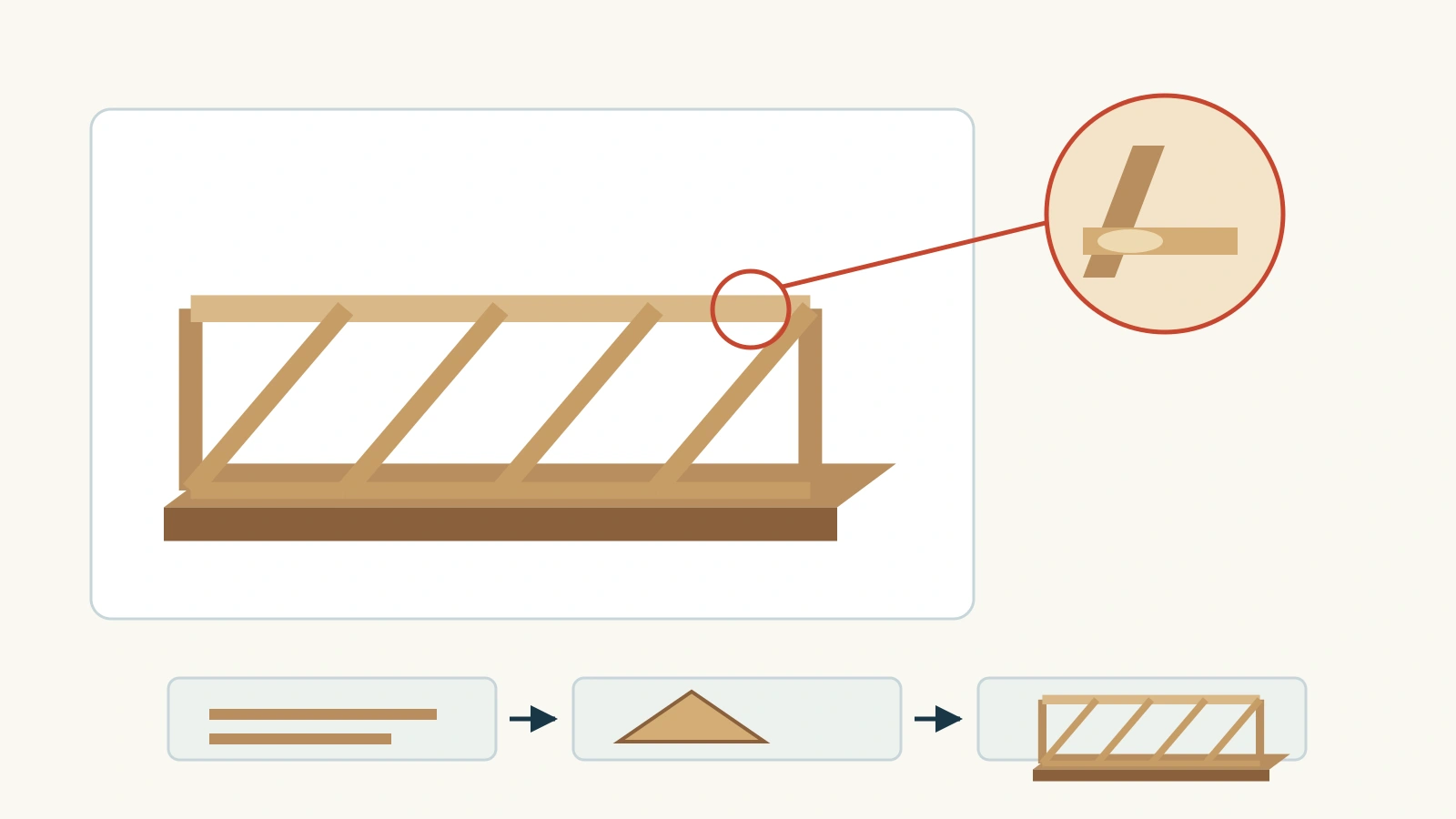
Imagine a class project with photographs of two cardboard bridge models. The collection includes an overall view, a close-up of a glued joint, side views of models A and B, and three photos taken while assembling a model. This is an illustrative project, not a reported strength test.
Those pictures can answer different questions. The overall view shows what was built. The close-up explains a connection. The side views let the audience inspect visible design differences. The assembly photos show a sequence. Putting every image on the same slide would make those four tasks compete.
| Audience task | Useful arrangement | What must stay visible |
|---|---|---|
| Inspect one object | One large picture with a short caption | The complete feature the slide discusses |
| Understand a detail | Overview plus a clearly identified close-up | The detail’s location in the whole |
| Compare A and B | Equal frames with matching labels | Comparable views and any relevant differences in scale |
| Follow an actual process | Numbered pictures in a clear reading order | Every step necessary to explain the sequence |
| Browse a collection | A consistent grid or contact sheet | Enough labeling to distinguish the items |
Keep a photo only if it helps answer the current question. That does not mean deleting useful project documentation. Keep additional views in the project materials or an appendix rather than forcing the main slide to display them all.
Give one photo a clear job
For the bridge’s overall view, give the model enough space to be recognizable. A large picture with a short caption is often more useful than the same picture inside a decorative frame surrounded by three unrelated icons.
Place text beside the picture when the background is busy. An empty-looking patch of the photograph may seem convenient for a heading, but check what happens after cropping or changing the slide proportions. Text over a pale wall can become unreadable when that wall is removed from the crop.
For this example, “Cardboard bridge model A” is an honest caption. “A stronger bridge” would require evidence beyond its appearance. If the photograph does not include measurements, avoid implying that its displayed width establishes the model’s actual span.
Full-bleed photography works when the photograph itself carries the slide and the important subject survives the frame. When the whole object matters, leave space around it. There is no requirement to make every photograph touch all four edges.
Connect a close-up to the whole
The glued joint is hard to see in the overall photograph. Use a large close-up with a smaller overview showing where to look. A restrained outline on the overview and a matching label can connect the two. If a line is useful, connect the relevant location to the close-up rather than pointing vaguely across the slide.
Label the close-up “Joint detail.” It is intentionally enlarged, so it should not be mistaken for another object at the same scale. Keep enough surrounding material to show which pieces meet. Cropping to a patch of glue may make the picture larger while making the connection harder to understand.
Do not stretch the close-up to fill an inconvenient rectangle. Resize it proportionally, adjust the frame, or accept empty space around it. Enlarging a low-resolution photograph does not reveal detail that the file never captured; use a better original or explain the joint with a simple diagram when the photograph is insufficient.
Make two pictures fair to compare
Place the side views of models A and B in equal-sized frames with the same amount of space for their labels. Align a meaningful reference, such as the tabletop or the models’ base, so the viewer does not have to mentally correct an accidental tilt.
Equal frames do not necessarily mean equal object scale. If model A is photographed from farther away, fitting both files into identical rectangles may make A look smaller. Use a common visible reference or known dimensions when scale matters. If the pictures cannot support a size comparison, say what can be compared instead, such as the visible arrangement of the braces.
Consider two treatments of the same pair. In the first, A has generous surrounding space while B is tightly cropped. B occupies much more of its frame and appears more prominent. In the second, both have comparable framing and a similar baseline. The second treatment makes their visible structures easier to inspect, but it still does not establish which bridge carries more weight.
Keep the captions parallel: “Model A: diagonal braces” and “Model B: vertical supports,” if that is what the photos actually show. Avoid a neutral label for one and a promotional claim for the other. When photographs compare a change over time, the before-and-after slide guide explains the additional context needed to avoid confusing changed conditions with an outcome.

Use a sequence only when the order is real
The assembly photographs belong in a sequence because they were taken at successive stages: cut the pieces, fold the beams, then join the braces. Give each image a short action label and a visible number. Arrange them in the reading direction appropriate for the presentation language.
Do not use arrows merely because three photos look more interesting when connected. An overall bridge, a close-up and a side view are different views, not three assembly steps. Putting arrows between them would introduce an order the photos do not document.
If a stage contains a small detail, give it its own slide or follow the overview with a closer view. Three very wide photographs squeezed into narrow columns can lose the hands, joints or tools that explain the action. It is better to use two slides than to keep three pictures together at the cost of their meaning.
When a sequence is incomplete, identify the missing stage in the explanation. Do not label separate photographs as a complete construction tutorial if an essential joining or drying step is absent.
Make a grid readable without making everything equal
A grid is useful for a class gallery showing several finished projects. Use consistent gaps, aligned captions and a predictable reading order. View the grid at presentation size: if a photo becomes a colored thumbnail, the audience can recognize the collection but cannot inspect the individual work.
Decide whether equal prominence is appropriate. A gallery of six classmates’ projects may call for equal frames. A slide explaining one bridge’s joint should give that detail more space. Visual consistency does not require assigning identical importance to every image.
For photos with different proportions, choose deliberately between cropping and leaving space within the frame. Cropping can create a tidy grid, but it must not cut off the subject. Leaving a narrow or tall image inside a consistent outer frame preserves the whole image without distorting it.
Finish the slide with the right context
Look at each picture’s edge, not just its center. Check for cut-off hands, labels, supports and other details that explain what is happening. Then read the caption with the picture: does it state something visible or supported by the accompanying evidence?
Add useful alternative text that explains the picture’s role. For the bridge overview, describe the relevant structure. For a detail, explain the connection being highlighted. Microsoft’s guidance on accessible PowerPoint visuals emphasizes describing an image’s purpose and important information; a filename does not do that job.
Keep the original photographs available and use images you have permission to include. If you still need suitable material, the presentation image-source guide covers that earlier step. For an existing set, finish by reading the slide’s point again: the arrangement should make the intended relationship easier to see, without inventing a new one.