The background color of a PowerPoint slide is often the first thing your audience notices. It sets the visual tone, influences readability, and directly impacts how professional your presentation feels. Whether you are preparing a technical briefing, a project update, or an educational lecture, choosing the right background fill can significantly elevate your slides from ordinary to polished.
In this guide, you will learn practical and professional methods for filling PowerPoint backgrounds, along with design principles that help your content stand out. We will also introduce an efficient AI powered presentation tool, Presenti AI, to demonstrate how modern teams streamline background design without sacrificing quality. If you already have a draft, AI slide design tools can help with the layout stage; the content still needs your review.
This tutorial is written for technical teams, educators, project managers, and developers who want clean, readable, and professional presentations that work across global audiences.
1. How to Fill a PowerPoint Background
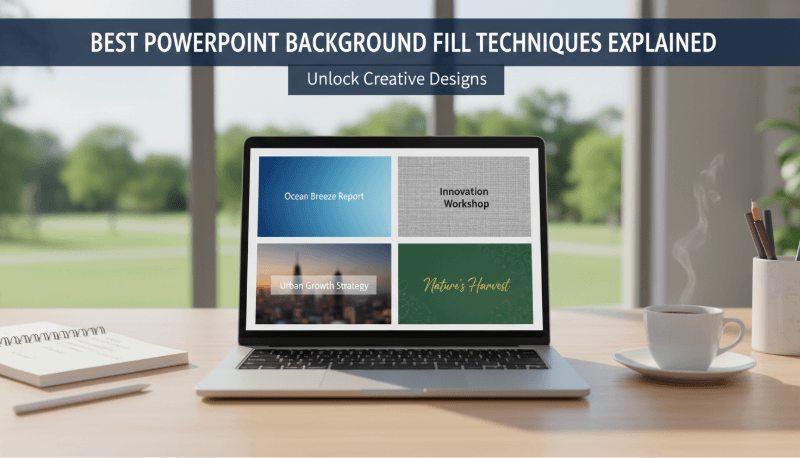
Common slide backgrounds include solid colors, gradients, patterns, and images. In desktop PowerPoint, open Design > Format Background, choose the fill, and use Apply to All only if every slide should change. PowerPoint for the web has more limited background controls; see Microsoft's platform-specific background instructions. The sections below also describe Presenti examples; follow the controls available in your current workspace.
1.1 Solid Color Fill
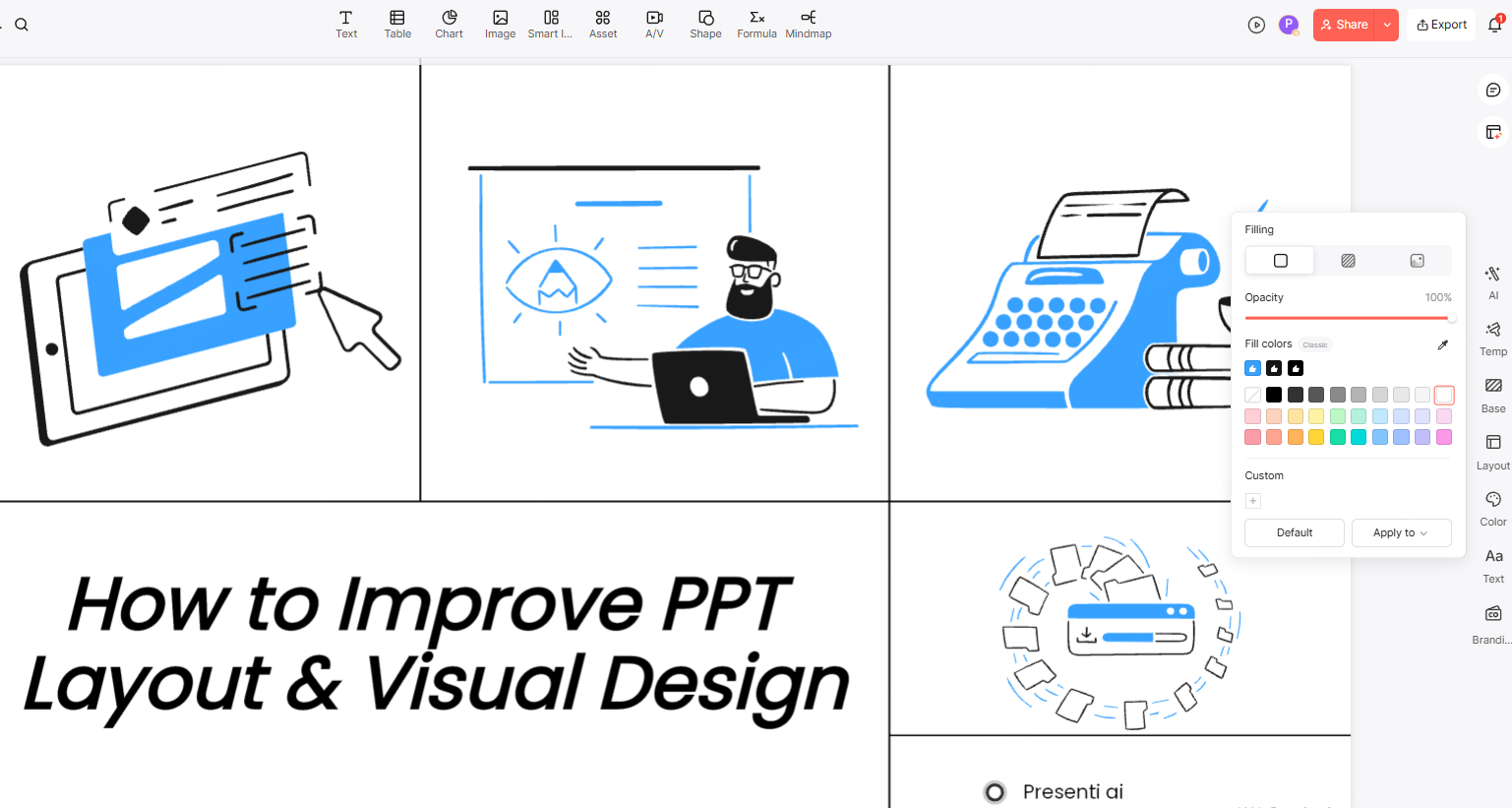
Solid color backgrounds are the most commonly used option in professional presentations. They are clean, flexible, and easy to align with brand guidelines.
In the Presenti interface shown below, the right-side Base control opens a Filling panel with solid-color swatches, custom colors, and an Opacity slider. Choose a color that supports the slide's text and chart labels. In your current workspace, use the available background controls and preview the result on a single slide first.
Solid color fills work especially well for:
- Technical documentation
- Project status updates
- Educational lectures
- Investor or stakeholder presentations
Neutral colors such as white, light gray, and navy can make a useful starting palette. Check the contrast with your text and charts.
1.2 Pattern or Texture Fill
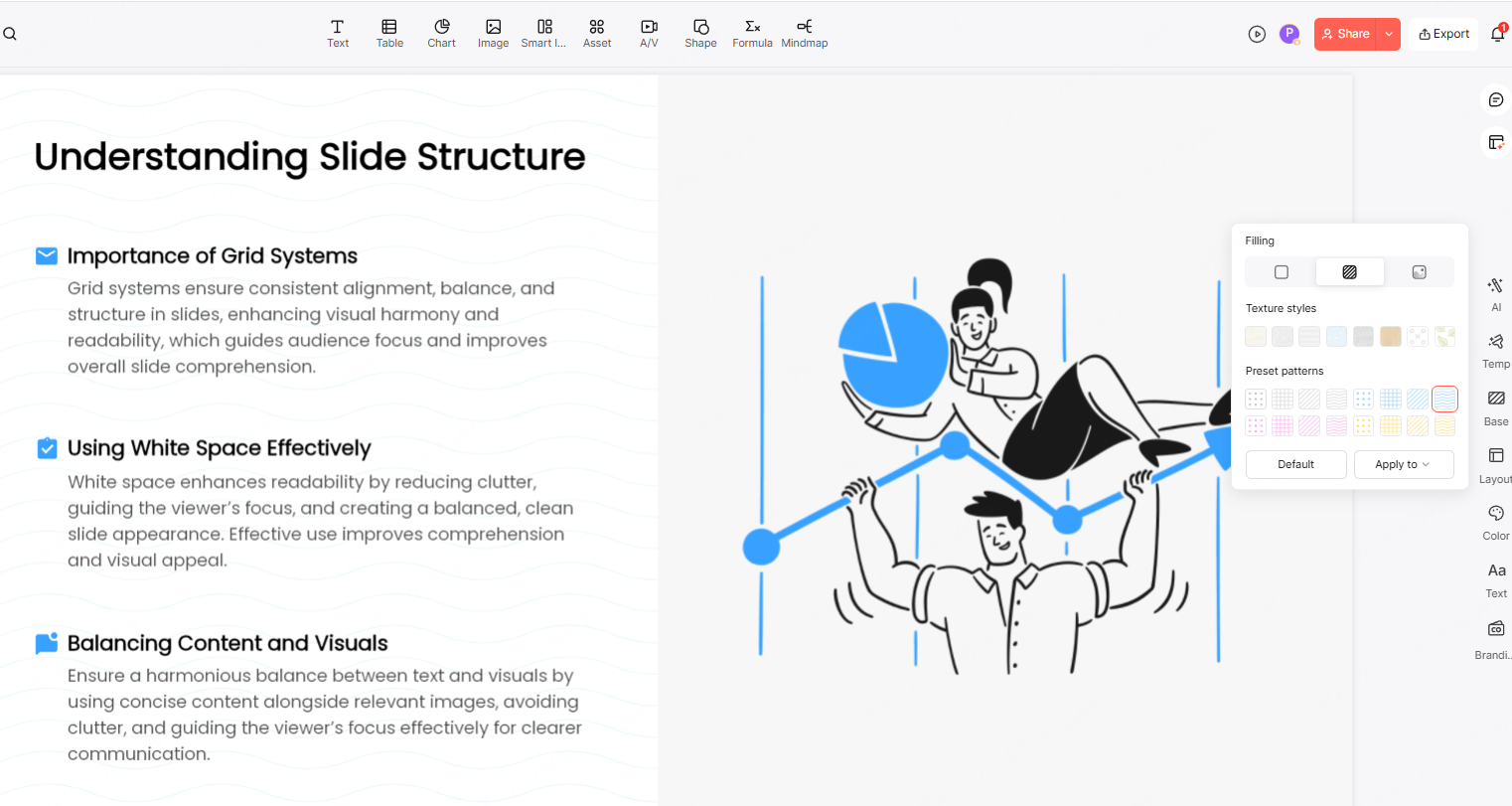
Pattern and texture backgrounds add subtle visual depth without overwhelming your content. When used correctly, they can make slides feel more refined and intentional.
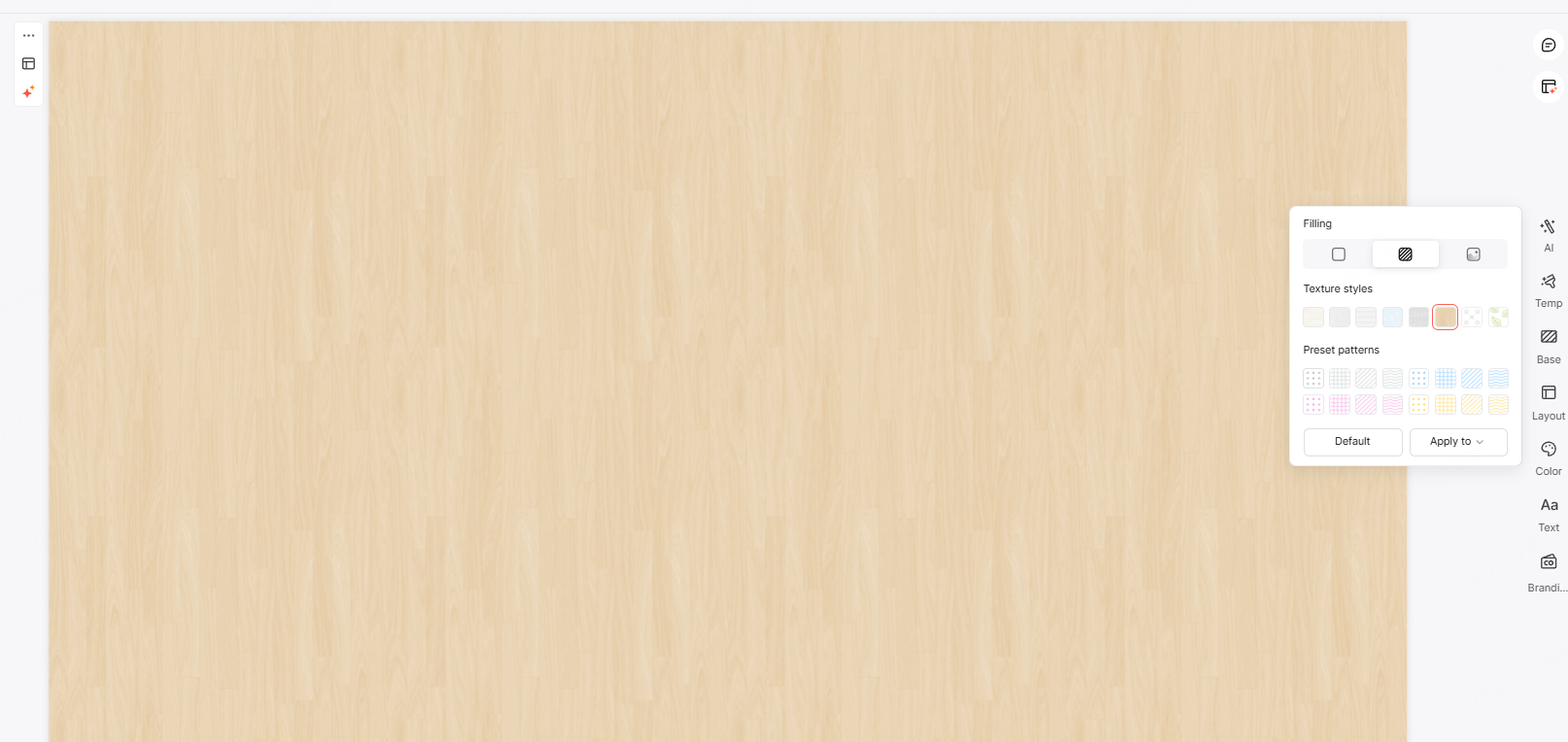
The screenshot shows a texture and pattern tab with several surface textures and repeating patterns. Try the fill on a text-heavy slide before applying it more widely. If your workspace offers an Apply to menu, inspect its scope rather than assuming it changes only the selected slide or always changes the whole deck.
This approach is especially effective for:
- Conference presentations
- Training materials
- Product demos
- Creative yet professional storytelling
The key is restraint. Patterns should remain subtle so they support the content rather than compete with it.
1.3 Image Fill
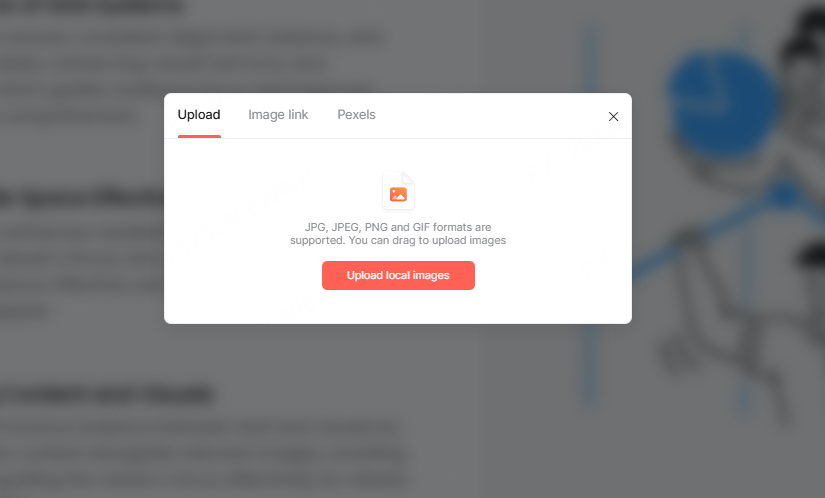
Image backgrounds can be powerful when they align with your message. For example, a cityscape for a global strategy deck or abstract technology visuals for a software presentation.
The image-selection dialog shown here has three source tabs; use the options available in your current workspace:
- Uploading local images
- Inserting images via direct URL
- Selecting an image from an available library and checking its source license. For Pexels images, review the Pexels license and use restrictions; a library listing does not remove those conditions.
Once the image is placed, preview its crop and the text over it. Use the adjustment controls available in the editor; if the composition cannot remain readable, choose another image or a plain fill. Judge the final combination of image, background, and text. Making an image more transparent over a white background can make white lettering harder to read. Use dark text on the lighter result, or place light text on a sufficiently dark, solid panel.
Image fills are best used for:
- Opening slides
- Section dividers
- Vision or strategy storytelling
Avoid using complex images behind dense text.
2. Best Practices for PowerPoint Background Design
Choosing a background fill is not just a visual decision. It directly affects comprehension, focus, and audience engagement. Use the following design principles to review readability and emphasis.
2.1 Ensure Strong Contrast Between Text and Background
Readability should always come first. High contrast between text and background ensures your audience can quickly scan and understand information.
Effective combinations include:
- Dark text on a light background
- Light text on a dark background
Avoid similar color tones that reduce legibility, especially in meeting rooms or virtual presentations where lighting conditions vary.
2.2 Manage Image Overlay Carefully
When combining background colors with images, harmony matters. Adjust image transparency so the background color subtly shows through. This creates visual balance and prevents the image from overpowering the content.
For a text-heavy slide, place the text on a plain panel if the image changes from dark to light behind it. For example, white text may be clear over a dark building but disappear over bright clouds. Check the weakest area behind the lettering, not the average darkness of the photograph; a solid panel is more predictable than an arbitrary transparency setting.
2.3 Use White Space Intentionally
White space, also known as negative space, gives your content room to breathe. Overcrowded slides reduce comprehension and increase cognitive load.
A well balanced background allows viewers to focus on key points instead of being distracted by visual noise. This principle is especially important in technical and educational presentations.
2.4 Avoid Overly Complex Backgrounds
Backgrounds should support your message, not compete with it. Avoid loud gradients, busy patterns, or high contrast textures that draw attention away from the content.
Subtle gradients or minimal textures can enhance visual appeal without sacrificing professionalism. The practical tests for a simple slide background include checking a gradient on the presentation screen and comparing it with a plain fill when visible bands become distracting.
2.5 Enhance Depth with Texture and Shadow
Light textures such as paper grain or soft fabric can add sophistication. Similarly, subtle shadows can create hierarchy and separation between elements.
These techniques help slides feel layered and intentional, which is especially valuable in enterprise and academic settings.
2.6 Customize Gradients and Transparency
Gradients can add energy and movement when used sparingly. Choose colors within the same palette to maintain cohesion.
Adjusting transparency allows background elements to blend naturally with charts, diagrams, and text, preventing visual overload.
3. Recommended Tool for Efficient Presentation Design
Creating professional background designs manually can be time consuming, especially for teams without dedicated designers. This is where AI driven tools can make a meaningful difference.
Why Choose Presenti AI

Presenti AI is an AI powered presentation generator designed for global users. It supports:
- AI generated presentation outlines
- Automated slide content creation
- File to presentation conversion
- Intelligent layout optimization
- AI assisted text refinement
Presenti AI offers templates and layouts for a starting draft; check text contrast and image placement on the actual slides before presenting.
Key Features
User Friendly Interface
The intuitive interface allows users with no design background to apply background fills quickly and confidently.
Extensive Templates and Design Assets
A wide selection of templates and visual styles ensures consistency and professionalism while saving time.
Consistent Color Choices
Start from approved brand colors, then check their contrast with the actual text and charts. A color that matches the logo may still be unsuitable behind small labels.
Controlled Background Changes
Preview a change on the cover, a text slide, and a chart slide before applying it throughout the deck. Preserve deliberate exceptions, such as a plain background behind a dense table.
Final Thoughts
Background fill is not just a decorative choice. It is a foundational design element that shapes how your audience experiences your presentation. By understanding different fill options and applying professional design principles, you can create slides that are clear, engaging, and visually credible.
Tools like Presenti AI further reduce the effort required to achieve high quality results, making professional slide design accessible to teams of all skill levels.
With the right background strategy, your presentations can communicate ideas more effectively and leave a lasting impression.