For a projected presentation, try body text around 24–32 points and headings around 36–48 points, then check the actual slides from the audience’s viewing position. These are starting ranges, not a rule that makes every slide readable. A short label, a dense table, a laptop window and a deep lecture room create different reading problems.
Choose a small set of sizes for distinct jobs, then adjust the content and layout around them. If an important qualification fits only in tiny print, reorganize the slide before shrinking the qualification. The person at the back needs the same meaning as the person in the front row.
When an existing deck feels crowded, Presenti’s AI-assisted slide layout suggestions can give you another arrangement to work from. Compare the result with your original information and check the text yourself; a tidy layout cannot tell you whether a particular audience can read it.
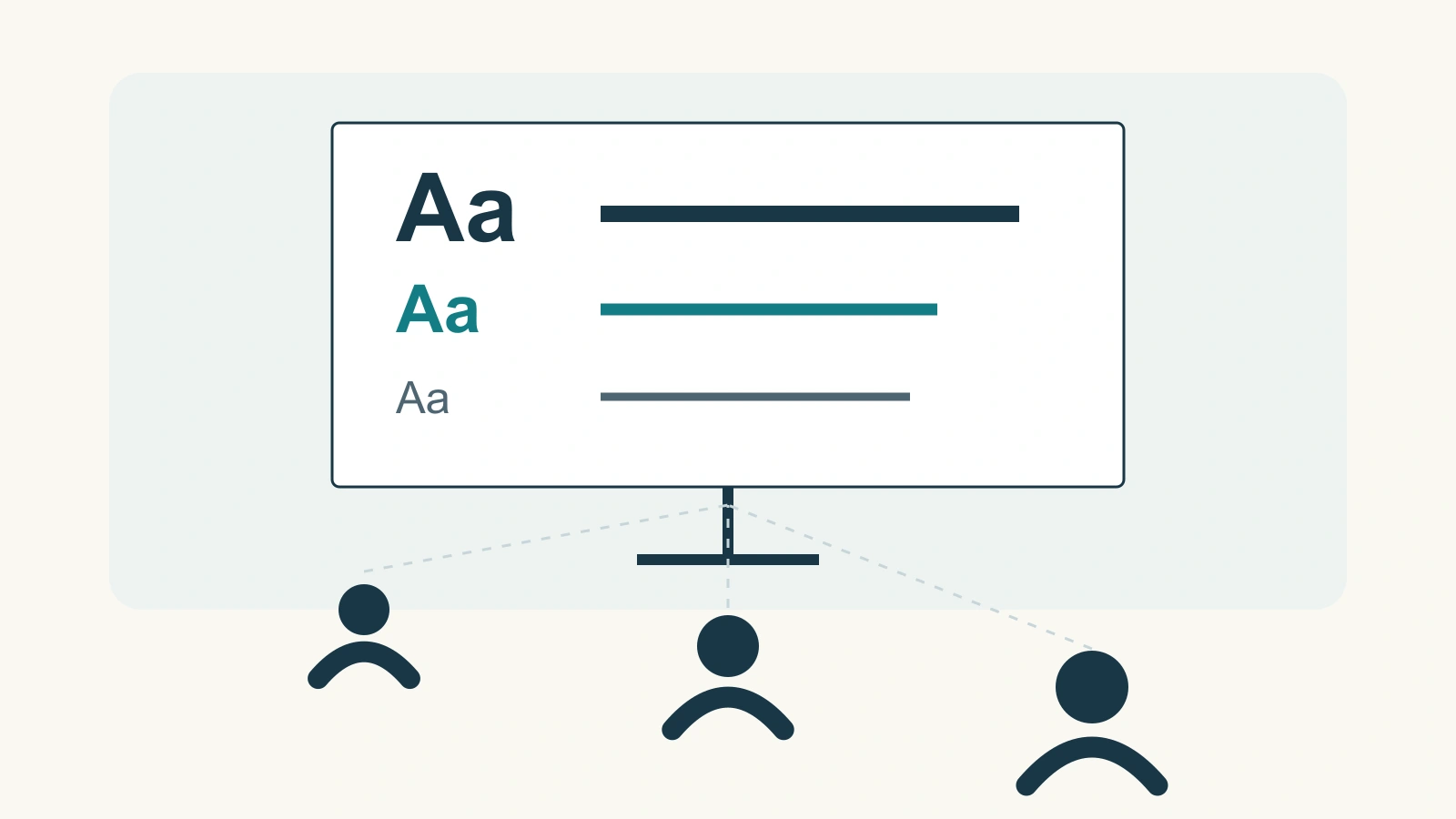
Choose a type hierarchy you can use throughout the deck
Start with the slide’s main statement, the information needed to understand it, and any essential labels or qualifications. Give each a recognizable role. You rarely need a different size for every text box.
| Text role | A starting point for projection | What to check |
|---|---|---|
| Main heading | 36–48 pt | Does it state the point without wrapping into a large block? |
| Main explanation or short list | 24–32 pt | Can listeners read it while following the talk? |
| Chart labels and important qualifications | Start near the body size | Are units, conditions and category names as usable as the headline number? |
| Detailed references | Use a readable short source line | Can fuller details move to a reference page or accompanying document without hiding a limitation? |
These ranges are editorial suggestions for trying a layout. Microsoft’s PowerPoint accessibility guidance recommends larger type, including 18 points or above, sans serif fonts and sufficient space. That recommendation does not establish that 18-point text will be readable from every seat, or that selecting a larger number makes a presentation fully accessible.
Keep the hierarchy consistent, but do not let consistency become a reason to retain an unreadable slide. If a diagram needs larger labels than your usual body text, enlarge them. If a heading needs three lines, try a more direct heading before lowering its size.
Repair a crowded slide without losing information
Consider a fictional repair workshop announcement. Its notes contain six pieces of information: Saturday, 10 a.m.–noon; Library Meeting Room B; bring one small unplugged item; the first 12 bookings receive an assessment; a successful repair is not guaranteed; children under 16 must attend with an adult.
A first attempt might put everything in one paragraph:
Join our repair workshop on Saturday from 10 a.m. to noon in Library Meeting Room B. Please bring one small unplugged item. Assessments are available for the first 12 bookings, and a successful repair is not guaranteed. Children under 16 must attend with an adult.
If that paragraph does not fit at a readable size, reducing it to 16 points solves the box’s problem while creating a problem for the audience. Instead, give the six details a clear place:
- Heading: Repair workshop
- Time and place: Saturday, 10 a.m.–noon · Library Meeting Room B
- Bring: One small unplugged item
- Places: Assessments for the first 12 bookings
- Repair limit: A successful repair is not guaranteed
- Under 16: Attend with an adult
Try a 40-point heading, 28-point time and place, and 24-point details in two clearly separated groups. Those values describe this example, not a tested guarantee. Leave the booking limit beside “assessments” and keep the repair limit visible. A huge “12” above a tiny qualification could wrongly suggest 12 guaranteed repairs.
The wording is shorter because the labels do some of the work; none of the six facts has disappeared. If the room test still fails, use two slides and keep the practical conditions with the invitation. Do not hide them in speaker notes when someone needs them to decide whether to attend.

Test the view your audience will have
Check a difficult slide, not only the cover. Choose one with a chart, several short paragraphs or an essential qualification. Look at it without relying on your memory of the words.
In a room
Display the deck with the equipment you intend to use and look from the furthest relevant seat. Ask another person to read the smallest important line aloud. If they can identify the heading but cannot read the workshop’s booking condition, the slide has not passed the useful test.
When you cannot access the room beforehand, ask about screen dimensions and seating, prepare generous text, and arrange a check when you arrive. Standing back from a laptop can expose obvious crowding, but it does not reproduce a projector, a bright room or someone else’s vision.
During screen sharing
View the shared presentation on a second device in a participant-sized window. The presenter’s full-screen view is not the same as a small shared-content area beside a meeting’s video panels. Check labels after the sharing connection has settled, and enlarge the important content if it becomes difficult to distinguish.
For the workshop slide, test the room letter, the number 12 and “under 16,” not just the large heading. A misread letter or number changes the instructions.
In a file read alone
A reader can often zoom a document, but constant zooming makes a deck awkward to use. Open the exported file at a normal reading view and follow the page from beginning to end. If you need substantial explanation, give it a readable page or an accompanying document instead of treating every slide as a poster full of small text.
Do not let charts and footnotes disappear
A slide can have a 44-point heading and still be unreadable. Common weak spots are chart axes, table cells, map labels and source notes. They may keep their original small size when the main text is enlarged.
Read a chart’s value together with its unit, period and category. “48” is not useful if “responses in May” cannot be read. Enlarge the relevant labels, remove unnecessary visual clutter, or show a focused view with enough context to interpret it. Keep the full data available when readers need the detail.
Separate a bibliographic detail from a decision-changing qualification. A full publication title can appear on a reference page. “Responses from one class only” belongs beside a result that otherwise appears to describe the whole school. Moving that condition into unreadable text changes how the claim is understood.
For a dense table, identify the comparison the audience needs. Show the relevant rows and columns with clear labels, then provide the complete table separately. Do not crop away a total or a category needed to interpret the excerpt.
Check what changes after you change the font
Two fonts at the same point size can look different in apparent height and width. Changing the font may also change line breaks. Inspect ordinary words, numbers and the characters your audience must distinguish, rather than deciding from the typeface’s name.
Use weight and spacing as well as size. A short bold label can identify “Bring” without introducing a fourth or fifth size. Avoid making entire paragraphs bold: when every line competes for attention, the hierarchy stops helping.
After shortening text, replacing a font or applying a new layout, check the actual size of the smallest important text again. Do not assume it stayed unchanged because the slide still fits. Recheck the exported presentation on the device used for delivery, especially when fonts or line breaks differ.
Font size is one part of a readable presentation. Contrast, reading order, text alternatives and captions also matter; the guide to accessible PowerPoint presentations covers those broader tasks. For this pass, finish with a simple question: can the audience read the information it needs to understand and act on this slide?