To make a useful Venn diagram in PowerPoint, define what each circle contains before drawing the circles. Put members that belong to both groups in the overlap, and members that belong to only one group in its outer region. For a simple editable layout, PowerPoint's SmartArt gallery includes Venn diagrams; use separate text boxes for labels in the overlaps.
The common mistake is not the drawing. It is labeling an overlap with a number that includes people already counted elsewhere, or making a circle larger just to emphasize a preferred option. The examples below show how to prepare the data, build the slide and explain what the shapes do—and do not—mean.
Once the membership and labels are correct, you can improve the diagram slide's layout with Presenti. Keep the source counts beside your draft and compare them after any formatting change. A presentation design tool does not establish whether a person or feature belongs in a set.
Decide what one member means
Write a one-line definition for each circle and use the same kind of member throughout. For example, two circles might contain people who selected two workshop topics. A person can belong to both. Alternatively, the circles could contain features supported by two products; then each member is a feature, not a buyer.
Do not switch meanings halfway through. If one circle is “people who need mobile access” and the other is “products with reporting,” the overlap has no clear interpretation. If both circles describe customer needs, the intersection means people who have both needs. It does not prove that a particular product meets them.
State the population and the selection rule too. “Participants who selected a workshop topic” differs from “participants who attended a session.” Use a consistent time period and record whether multiple selections were allowed. Otherwise two accurate counts can still describe incompatible groups.
Build a two-set example before adding complexity
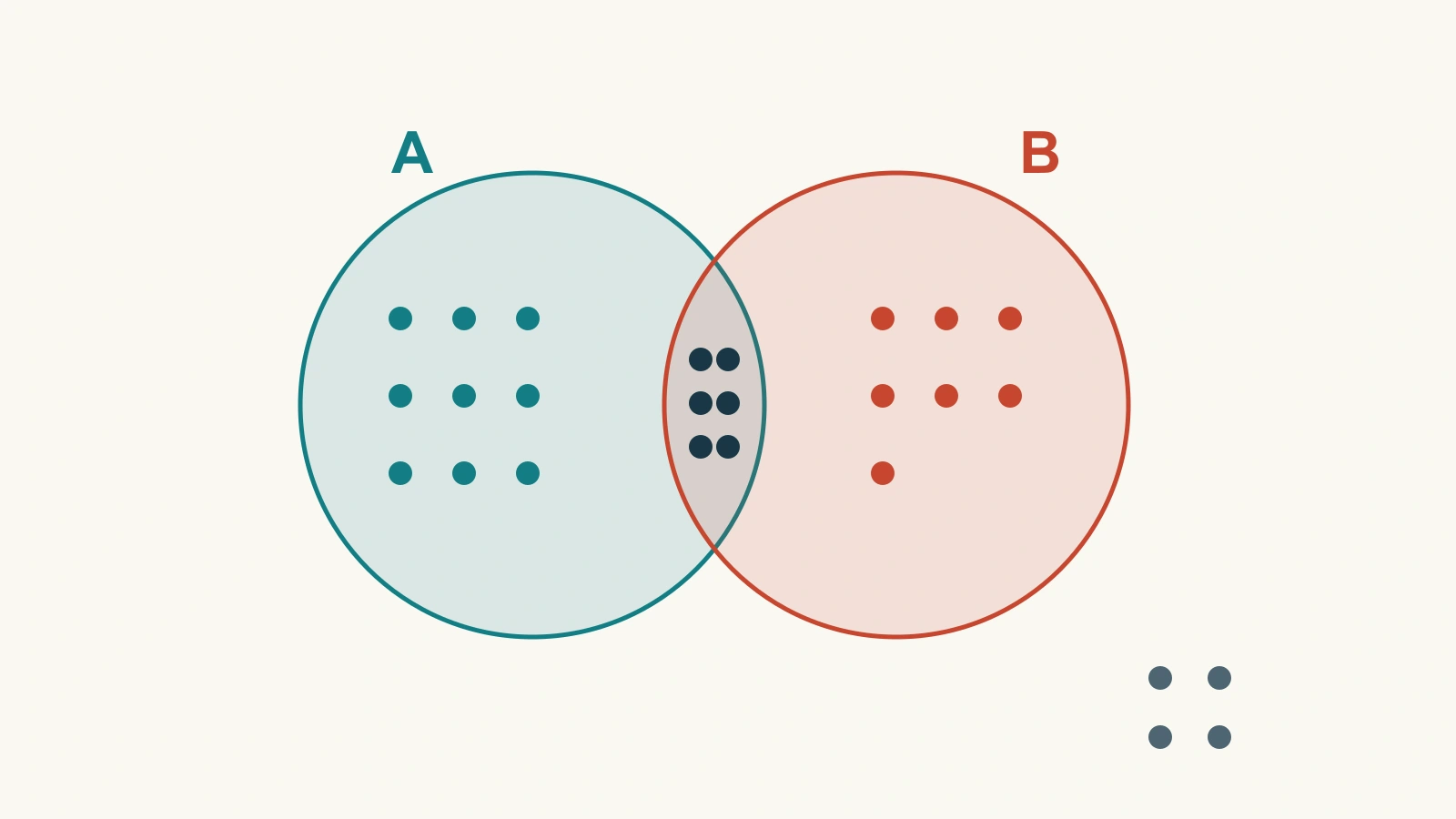
Imagine 26 people answered a workshop-interest question. Fifteen selected coding, thirteen selected design and six selected both. Multiple selections were allowed. These are illustrative counts, not survey findings.
- Coding only: 15 − 6 = 9.
- Design only: 13 − 6 = 7.
- Both: 6, placed in the overlap once.
- At least one topic: 9 + 6 + 7 = 22.
- Neither topic: 26 − 22 = 4, placed outside both circles.
The slide should show 9 in the coding-only region, 6 in the overlap and 7 in the design-only region. Writing 15, 6 and 13 in those three regions would count the shared group three times when a reader adds the regions. If you also show each circle's total, label it explicitly, such as “Coding: 15 in total.”
A title such as “Six participants want both workshops” gives the audience a reason to look at the intersection. A subtitle can state “Illustrative example: 26 respondents; multiple selections allowed.” The four people outside both circles still matter if the question concerns the whole group.
Create the editable diagram in PowerPoint
Microsoft's Venn diagram instructions describe the following desktop workflow:
- Open Insert → SmartArt, choose the Relationship category and select a Venn layout such as Basic Venn.
- Adjust the number of circles to match the sets. Add or remove a circle using the SmartArt controls rather than leaving an unexplained extra set.
- Enter the set labels. Put counts for exclusive regions in positions that clearly belong to those regions.
- Use Insert → Text Box for the overlap labels. The SmartArt text pane does not directly place text in the intersections.
- Check the circles, labels and any separate text boxes together after moving or resizing the diagram.
For the two-topic example, use matching circle dimensions and place “Coding” and “Design” near the respective outer edges. Put 6 at the center of the lens-shaped overlap. Keep 9 and 7 clearly outside that lens. Put “Neither: 4” below the circles, inside a frame representing the 26 respondents.
You can also construct the diagram from separate circles and text boxes when you need precise label placement. Keep a copy with its original editable objects. If you use PowerPoint's shape-merging tools to isolate a region, work on a duplicate: an intersection operation keeps only the shared area, while a union removes the boundary between the selected shapes.
For three sets, calculate from the center outward
A three-circle diagram has seven regions inside the circles: three single-set regions, three two-set-only intersections and one intersection shared by all three. Calculate those exclusive regions before placing any numbers.
Extend the workshop example to a separate fictional group of 40 respondents choosing coding, design and presenting. Suppose the source table gives these totals:
| Selection | Respondents |
|---|---|
| Coding | 24 |
| Design | 20 |
| Presenting | 15 |
| Coding and design, including people who also chose presenting | 12 |
| Coding and presenting, including people who also chose design | 9 |
| Design and presenting, including people who also chose coding | 8 |
| All three | 5 |
Start by putting 5 in the center. Then subtract those five from each pair total: coding-and-design only is 12 − 5 = 7; coding-and-presenting only is 9 − 5 = 4; design-and-presenting only is 8 − 5 = 3.
Now calculate the single-set regions. Coding only is 24 − 7 − 4 − 5 = 8. Design only is 20 − 7 − 3 − 5 = 5. Presenting only is 15 − 4 − 3 − 5 = 3. The seven regions sum to 35, leaving five of the 40 respondents outside all three circles.
The wording “including people who also chose the third topic” is important. If a source instead reports “coding and design only,” that number already excludes the center. Subtracting the center again would undercount the pair region. Ask what the table means before attempting to reconcile it.

Keep circle area and counts distinct
An ordinary SmartArt Venn diagram is a membership illustration, not an automatically area-proportional chart. A circle containing 24 people does not become quantitatively accurate simply because it looks larger than one containing 20. Likewise, a large-looking overlap does not establish that most respondents selected both topics.
Use visible region counts and add a short note such as “Areas are not proportional to counts” when readers might interpret the geometry numerically. If the main question is which topic has the most interest, a bar chart of the topic totals is easier to compare. If the question is how many people selected each combination, a table of exclusive combinations may be clearer than a crowded diagram.
Three sets are already enough to require careful reading. Do not add a fourth circle to an ordinary three-circle arrangement and assume all combinations are represented. For more categories, use a membership matrix or a clearly labeled combination table unless a more complex set visualization is genuinely needed.
Make intersections readable without relying on color alone
Keep the labels inside their intended regions and use a consistent text size. A number floating across a boundary is ambiguous even when the colors are attractive. If a region is too narrow, place the label outside with a short leader line ending unambiguously inside that region.
Use clear outlines and direct set labels as well as color. Transparent fills can reveal overlaps, but the mixed colors should not be the only way to distinguish regions. Avoid shadows or dimensional effects that obscure the boundaries. Give the diagram enough space that the center label is no smaller than the outer labels.
In the 40-person example, a plain three-circle arrangement with labels Coding, Design and Presenting is enough. Show 5 in the center and 5 outside the circles, but make their locations unmistakable: those equal numbers describe different groups. A concise text explanation below the image can state that 35 selected at least one topic and five selected none.
Turn the diagram into a useful slide
Choose the headline from the question the diagram answers. “Five participants selected all three topics” directs attention to shared interest. “Five participants selected none” points toward a different planning problem. Both are accurate in the fictional example; neither tells you why people made those choices.
Keep the underlying membership table with the deck. If someone asks for a change, recompute the regions from the table rather than editing one label until the picture looks right. A negative region count is a sign of incompatible definitions, duplicate records or mistaken arithmetic—not a number to hide.
Before delivery, add the exclusive regions and compare the result with the stated population, including the outside region. Then read each set total back from its regions. In the three-set example, coding must still add to 24, design to 20 and presenting to 15. When those totals agree and the headline describes a supported observation, the slide is ready to explain an overlap rather than merely decorate one.