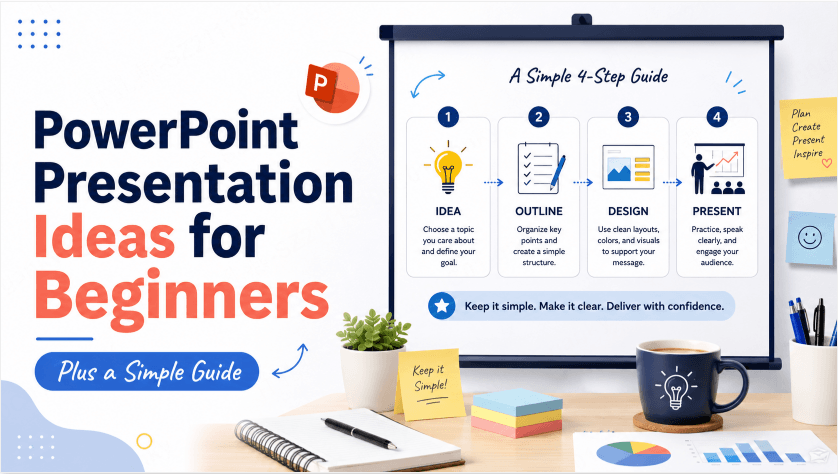
PDFs are everywhere. Research papers, annual reports, product specs, client briefs, legal summaries — a significant portion of professional content lives in PDF format. And at some point, almost everyone who works with presentations faces the same situation: you have a PDF that needs to become a slide deck, and the path from one to the other is not straightforward.
Traditional methods range from frustrating to genuinely time-consuming. A purpose-built PDF to PPT converter powered by AI changes that equation significantly. This guide covers why the conversion problem is harder than it looks, how AI tools solve it, and how to use Presenti to turn suitable PDF content into a slide draft.
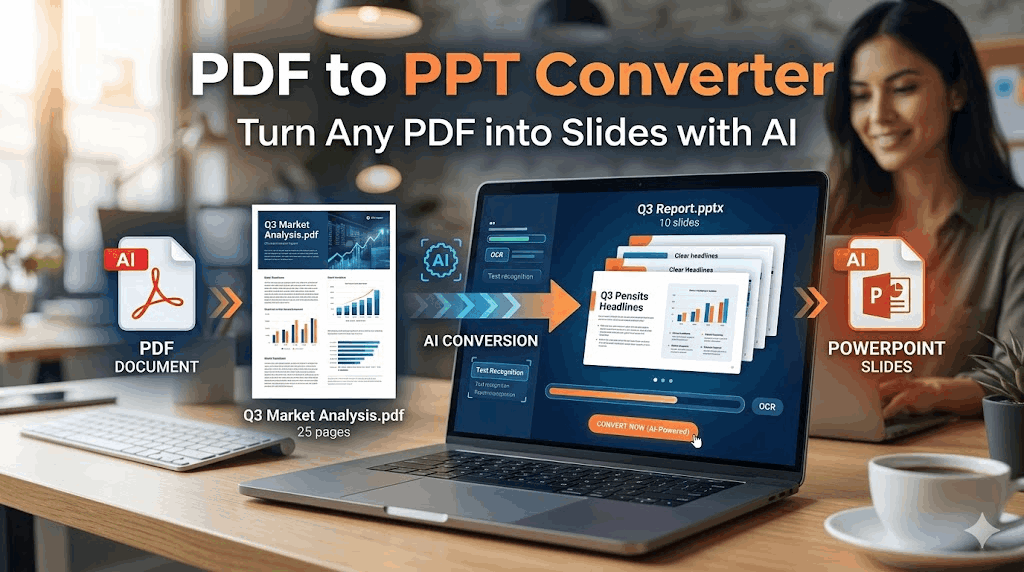
Why Converting PDF to Presentation Is Harder Than It Looks
On the surface, a PDF-to-slides conversion sounds simple: extract the text, put it on slides, done. In practice, several factors make the process genuinely difficult without the right tool.
PDF structure varies. Tagged PDFs may contain headings and reading-order information, while other files provide mainly positioned text or scanned pages. A converter must interpret what is actually present in the file.
Layout information gets lost in translation. PDFs preserve visual appearance, not document structure. Multi-column layouts, sidebars, footnotes, and tables can all render as scrambled text when extracted, because the extraction logic reads position on the page rather than logical reading order.
Slide density is fundamentally different from document density. A single page of a PDF might contain 400 words. A projected slide usually needs much less text. Deciding what to keep, what to cut, and how to condense 10 pages of a report into 12 clean slides requires editorial judgment — the kind of judgment that rule-based conversion tools can’t apply.
Conversion tools serve different purposes. Some preserve each page’s appearance, while others try to reconstruct editable text and objects. AI presentation generators may instead summarize and reorganize the content into a new deck. Choose the workflow that matches your goal.
AI changes all of this. A genuine PDF to presentation AI tool reads the content, interprets the structure, makes editorial decisions about slide organization, and applies professional design automatically.
How AI PDF to PPT Conversion Actually Works
A capable PDF to slide maker doesn’t simply extract text and paste it into a template. The AI pipeline involves several distinct operations happening in sequence.
Text extraction and cleaning. A tool attempts to extract readable text from the PDF and may remove repeated material; check page numbers, headers, footnotes, and multi-column reading order.
Structure inference. Where structural tags are absent, the AI analyzes patterns in the text to infer hierarchy. Larger, bolder text signals a heading. Repeated formatting patterns signal section breaks. Short, standalone lines at the top of content blocks signal slide titles.
Content segmentation. The AI groups related content into logical slide units. A three-paragraph section becomes one slide. A list of seven items becomes a structured content slide. A section header followed by supporting data becomes a title-plus-data slide.
Layout selection. Once the content type of each slide is determined, the AI selects an appropriate layout from its design library. Data-heavy slides get visualization-friendly layouts. Text-heavy slides get reading-optimized layouts with clear hierarchy. A single key finding gets a spotlight layout that gives the number room to breathe.
Design system application. Typography, color palette, spacing, and alignment rules apply consistently across every slide. The output looks designed from the start, not assembled.
The difference between this process and a simple page-to-image conversion is the difference between a presentation and a photographed document.
How to Convert PDF to PPT with Presenti: Step by Step
Presenti is one of the few tools that handles the full PDF to presentation AI pipeline described above. Use the following workflow, allowing for the controls available in your account.
Step 1: Prepare Your PDF
Before uploading, a few minutes of preparation improve the output quality significantly.
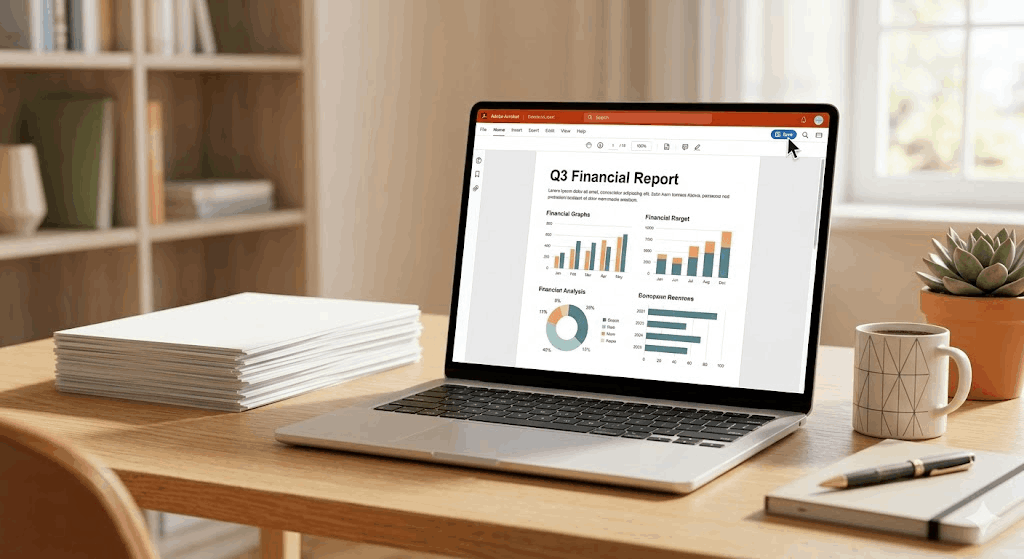
Check that your PDF contains searchable text. PDFs fall into two categories: text-based (where the content is real text that can be selected and copied) and image-based (where the pages are scanned images with no extractable text). Presenti’s AI works with text-based PDFs. If your PDF was created by scanning physical pages without OCR processing, run it through an OCR tool first to make the text extractable.
Remove sections you don’t want in the slides. Appendices, reference lists, legal disclaimers, and dense footnotes rarely translate well to slides. If you can edit the PDF or export a clean version from the source document, remove those sections before uploading.
Identify your target slide count. Having a rough target in mind (10 slides, 15 slides) helps you assess the generated output and decide whether to consolidate or expand.
Review non-English source material. Check the extracted text and generated slides in the source language, especially names, numbers, specialist terms, and reading order. Examples of languages that may require their own typography and terminology review include English and the following:
- Russian (Русский)
- French (Français)
- German (Deutsch)
- Japanese (日本語)
- Korean (한국어)
- Simplified Chinese
- Traditional Chinese
For a French report, Japanese specification, German summary, or Chinese brief, review a representative section before processing the whole document. OCR quality depends on the file and the recognition tool. Do not assume perfect extraction or automatic translation from language support alone.
Step 2: Upload to Presenti
Open Presenti and start a new project. Select the document upload option and drag in your PDF file.
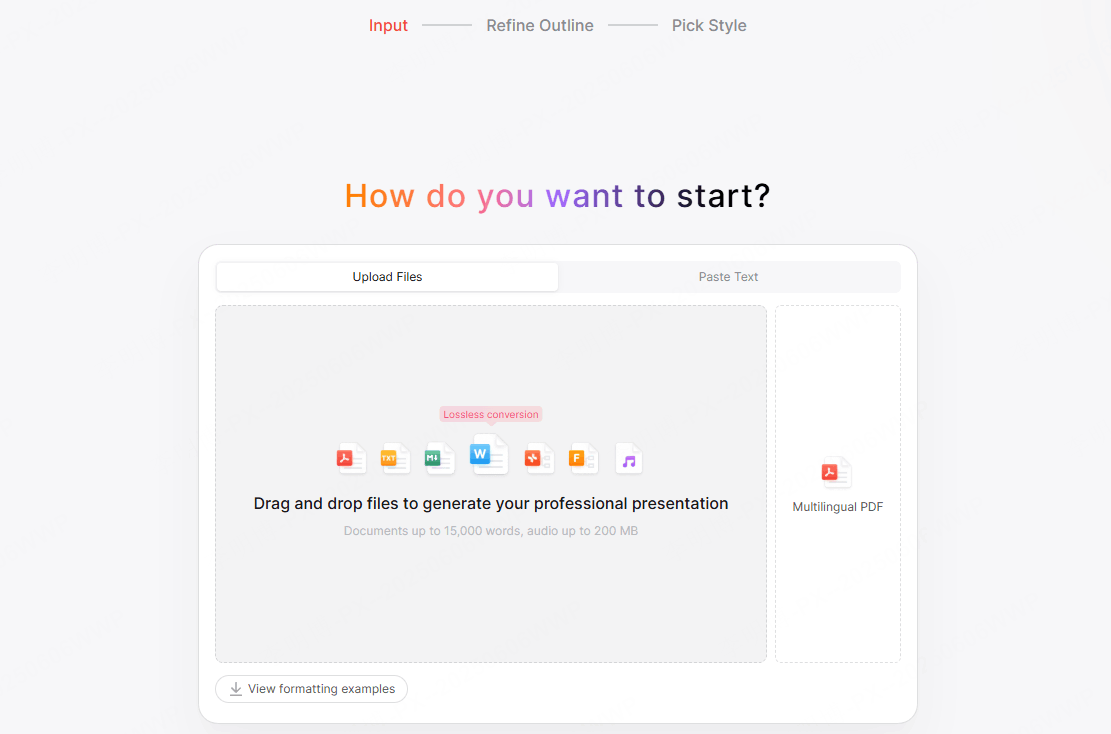
Presenti accepts:
- PDF files (.pdf)
- Word documents (.docx)
- Markdown files (.md)
- Plain text paste
Presenti supports several source formats. Its pricing lists Word/PDF/TXT input on paid plans and Markdown/XMind input on the free plan; editable PPTX/PDF export is also listed on paid plans.
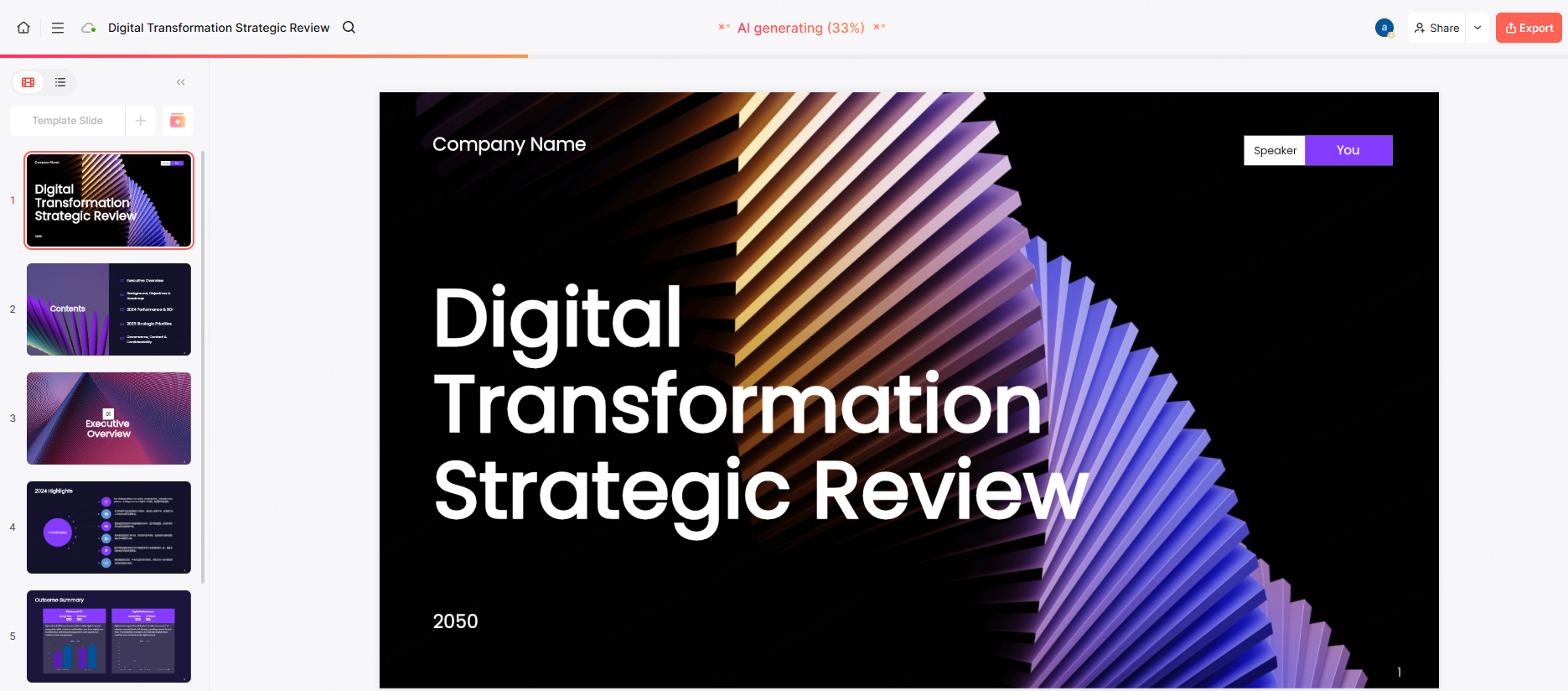
Once uploaded, Presenti processes the document. You’ll see a content preview showing how the AI has segmented your PDF into proposed slides before any design is applied. This is the moment to review the structure and flag any grouping issues.
Step 3: Choose a Theme
Select a design theme that fits the presentation’s context. Presenti’s themes are organized by use case:
- Business — structured layouts, professional palette, appropriate for reports and briefings
- Pitch Deck — high contrast, bold typography, suited for investor and client presentations
- Academic — minimal, high readability, appropriate for research and educational content
- Marketing — expressive layouts, dynamic compositions, suited for campaign and brand work
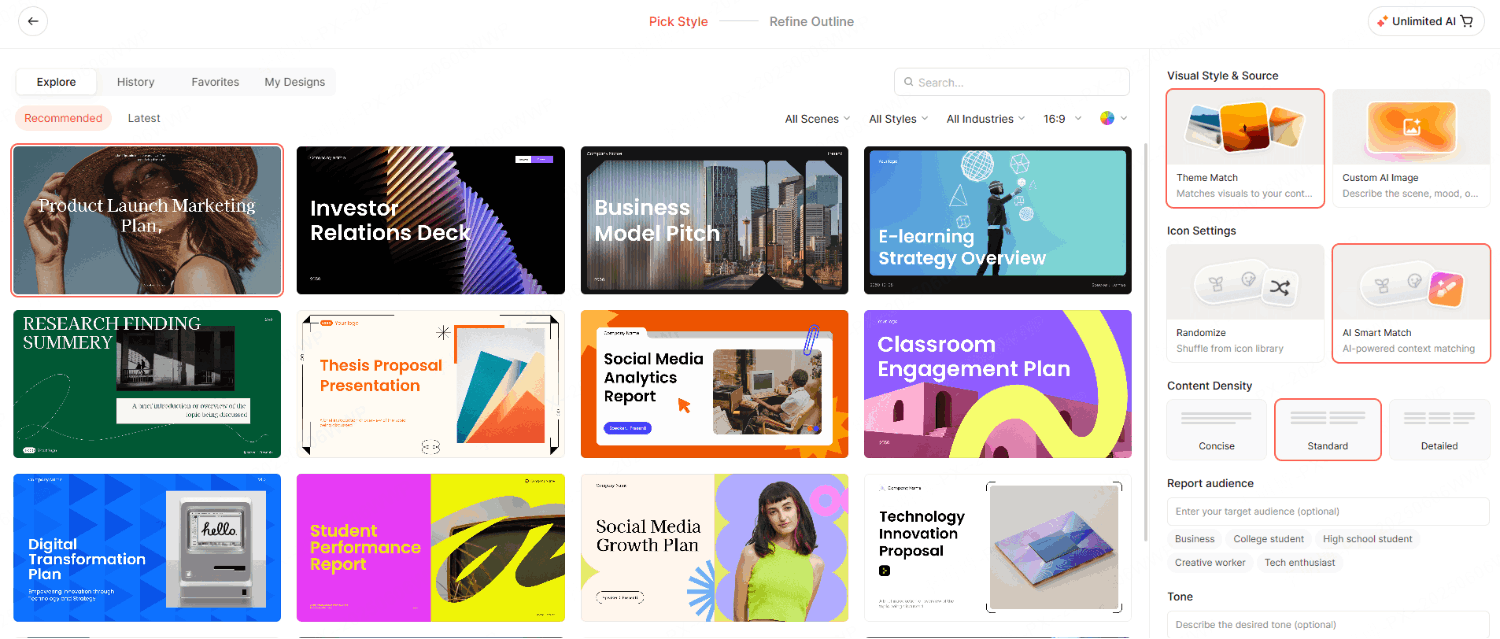
Your theme choice defines the full design system applied to every slide. You can change the theme after generation without rebuilding the deck.
Step 4: Generate and Review
Generate the draft, then compare it with the source before treating it as ready to present.
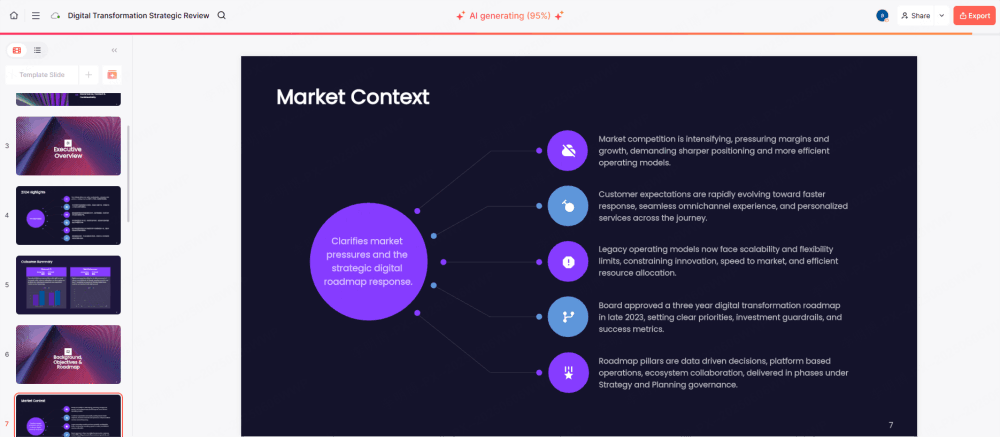
Review the output slide by slide. Pay specific attention to:
- Slides where the AI condensed dense paragraphs — confirm the key point survived the reduction
- Any slides where tables or charts from the PDF were converted to text — these may need visual treatment added manually
- Section transitions — confirm the logical flow matches what the source document intended
Step 5: Edit and Export
Use Presenti’s editor to refine the deck. Common edits at this stage include trimming text that came over too long from the PDF, reordering slides if the sequence needs adjustment, and adding images where the AI left layout placeholders.
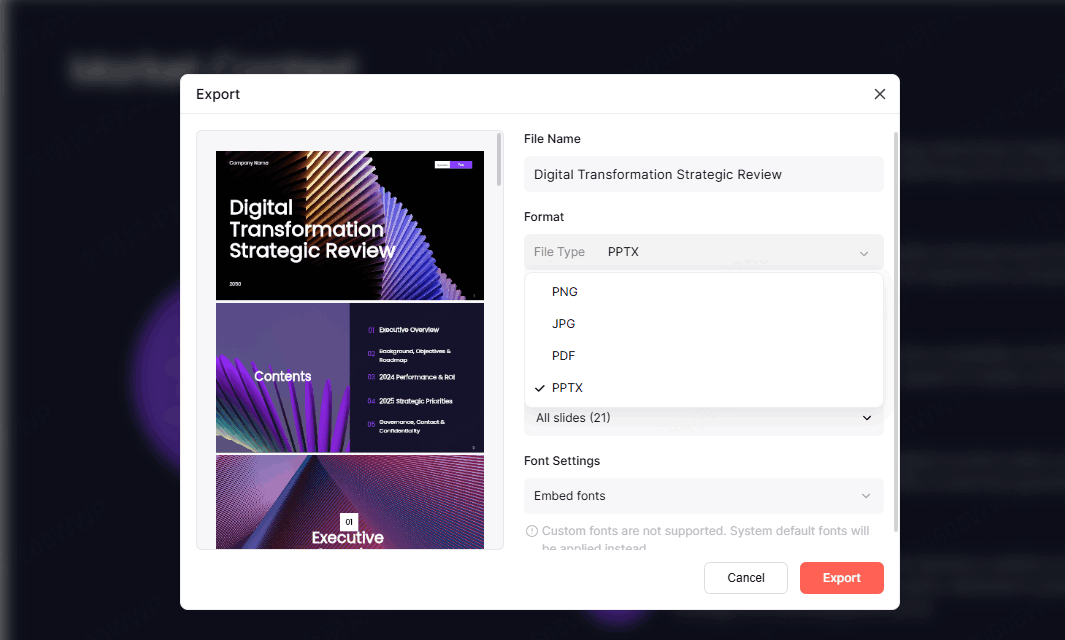
When the deck is ready, choose a delivery option supported by your plan:
- PowerPoint (.pptx) for editing in Microsoft PowerPoint or sharing as an editable file
- PDF for final distribution or printing
- Web link for browser-based presentation sharing
Best Practices for Better PDF Conversion Results
A few habits consistently improve the quality of AI-converted presentations.
Use source documents when available. If the PDF was originally a Word document, export from Word directly rather than converting the PDF. Word documents carry heading style information that makes AI segmentation significantly more accurate.
Break long PDFs into sections before uploading. A 50-page annual report should probably be split into chapters or sections before conversion. Each section can become its own focused deck, or you can manage the sections as separate uploads and merge selectively.
Plan for image-heavy content. Charts, graphs, and images embedded in PDFs often don’t convert cleanly. After generation, check slides that had visual content in the source PDF and add replacement visuals or rebuilt charts manually where needed.
Keep the first edit focused on structure, not style. After generation, review whether the slide sequence and content organization make sense before adjusting any visual details. Structural issues are more important to resolve first.
How Different Tools Handle PDF Input
| Tool | Workflow | Source Check | Structure Check | Output Check |
|---|---|---|---|---|
| Presenti | Paid PDF input | Extracted text | Generated outline | Layout and editable export |
| Gamma | PDF import available | Imported content | Card/slide sequence | PDF or PowerPoint export |
| Canva | Inspect PDF import | Text and objects | Page order | Editing and layout |
| Adobe Acrobat | PDF-to-PowerPoint conversion | Text recognition | Page correspondence | Editable objects |
| Smallpdf / ILovePDF | PDF-to-PowerPoint conversion | Text and images | Page correspondence | Actual file editability |
Compare tools using the same representative PDF. Check whether you need a faithful page conversion or a newly organized narrative, then inspect editable text, tables, images, and source coverage in the output.
Real-World Use Cases for PDF to PPT Conversion
Research papers and academic reports. Researchers regularly need to present findings from papers at conferences or in seminars. Uploading the paper PDF to Presenti produces a structured academic presentation without manually reconstructing the argument slide by slide.
Annual reports and financial summaries. Finance teams receive dense PDF reports and need to present key findings to leadership. The AI handles the content reduction and slide organization automatically, producing an executive-ready deck from a document that would otherwise require hours of manual preparation.
Client-facing proposals and RFP responses. Proposals written and delivered as PDFs often need to become pitch presentations. Presenti’s convert PDF to presentation workflow handles this conversion while applying a professional visual treatment that matches the stakes of the context.
Training and onboarding materials. HR departments often maintain policy documents and process guides as PDFs. Converting these to slide decks makes the content more accessible for training sessions without rebuilding from scratch.
Product documentation and technical specs. Product teams presenting to non-technical stakeholders benefit from converting spec documents into structured, readable slide summaries. The AI handles the density reduction that makes technical content presentable.
Frequently Asked Questions
Q: Does Presenti work with scanned PDFs?
Presenti’s AI extraction works with text-based PDFs where the content is real, selectable text. Scanned image-based PDFs need to be processed through OCR software first to make the text extractable. Adobe Acrobat, Google Drive, and several free online OCR tools can handle this conversion before you upload to Presenti.
Q: How accurately will the structure be preserved?
That depends on the PDF and the workflow. Compare the proposed outline with the original headings and argument, and check tables, footnotes, and qualifications that may be omitted or regrouped.
Q: Is Presenti’s PDF-to-PPT feature available on the free plan?
The pricing page lists PDF input and editable PPTX/PDF export on paid plans. The free plan includes limited AI use and Markdown/XMind input.
Q: What happens to charts and images in the PDF during conversion?
Embedded images and charts from PDFs are not automatically recreated as editable slide elements. The AI focuses on text content and structure. For slides that had significant visual content in the source PDF, you’ll want to add replacement visuals or rebuilt charts during the editing step.
Q: How long does it take to convert a 20-page PDF?
Processing and review time vary with file complexity and the amount of editing required. Allow time to compare important claims with the source, rebuild difficult visuals, and inspect the exported file.
Q: Can I use a PDF in a language other than English?
Test a short representative section and review the extracted text, terminology, and layout in that language. Do not assume that accurate extraction, translation, and typography follow automatically from uploading the file.
From Document to Deck Without the Detour
Start by deciding whether you need each PDF page preserved or the content rewritten as a slide narrative. That decision determines whether a conventional converter or an AI drafting workflow is the better starting point.
A genuine PDF to presentation AI tool handles the full conversion pipeline — extraction, structure inference, content segmentation, layout selection, and design application — automatically. The result is a presentation-ready deck that reflects your source document’s logic and looks professionally designed from the first slide.
For a Presenti workflow, prepare the source, review the outline, generate the slides, and inspect the final export. PDF input and editable-file delivery require the relevant paid-plan access.
Open Presenti to check the input and export options for your account before preparing the full deck.