Lesson preparation includes choosing examples, checking the content, and making it understandable for students. An AI presentation tool can help draft a structure and layout, but the teacher still decides what belongs in the lesson. This guide explains how to assess that workflow using Presenti as an example.

Why Teachers Need a Dedicated AI Presentation Maker
A lesson deck needs to suit the students, the subject, and the activity. Text-heavy slides can be difficult to follow, but decorative visuals alone do not improve a lesson. Look for a tool that lets you adjust reading level, simplify the layout, and include opportunities for students to respond.
Start with three requirements: an easy editing workflow, content that you can check against the curriculum, and room for questions or activities. For a history lesson, for example, you may need a timeline and a primary-source excerpt. Supply those requirements in the brief and inspect the draft rather than assuming the tool understands them.
Using Presenti for a Lesson Draft
Presenti offers a free starting plan with limited AI credits and Markdown/XMind input. Paid plans include Word/PDF/TXT input and editable PPTX/PDF export. Check the account allowance and the format you need before planning a unit around the tool.
Beyond the credits, the platform’s strength lies in its diverse template library. These are not generic corporate backgrounds; they are curated scenes designed for various educational contexts. Whether you are looking for science labs with realistic equipment visuals, history timelines that flow logically, elementary storytelling themes with vibrant colors, or sober academic styles for university lectures, the options are vast. You can choose between minimalist designs for low-distraction environments or infographic-heavy styles for data-rich subjects.
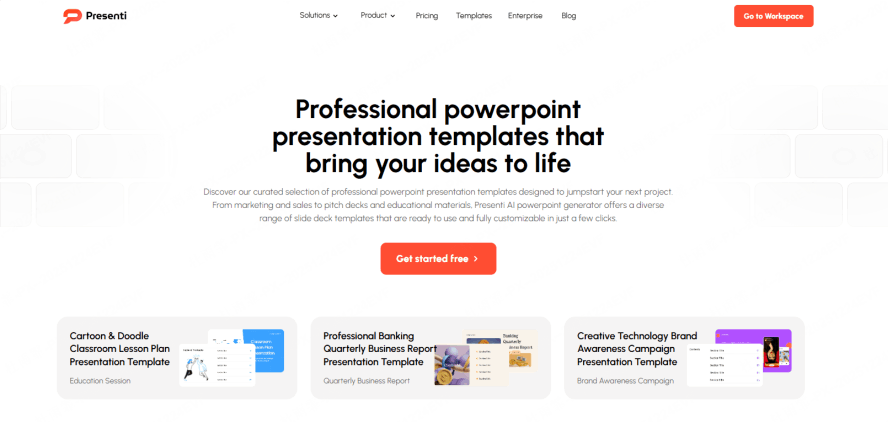
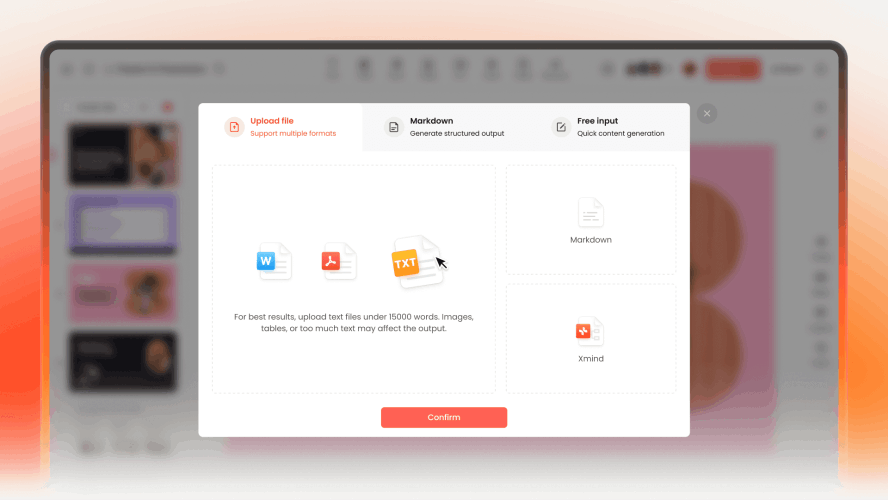
What truly differentiates Presenti is its versatile creation modes. It recognizes that teachers start their planning from different places:
- Topic-to-PPT: Simply type a prompt like "The Water Cycle for 4th Graders" and the AI generates a logically sequenced deck.
- File-to-PPT: This is a fan favorite. You can upload a 30-page PDF textbook chapter or a Word-based lesson plan, and the AI will distill the core concepts into a presentation.
- Text-to-PPT: If you have raw notes or a script you have used for years, just paste it in and let the AI handle the visualization.
- Link/Outline-to-PPT: Use supported links or a text outline as source material; check access and extraction rather than assuming every page or video is supported.
Use the available design controls to improve alignment, fonts, and image placement. Review the slides at classroom display size afterward; a design adjustment can still leave text or diagrams hard to read.
Step-by-Step Guide: Creating Your First Lesson with Presenti
Use a short lesson to evaluate the workflow before preparing a full unit. The lesson-plan-to-slides example shows this with a six-slide equivalent-fractions lesson, keeping student activities separate from teaching notes.
Step 1: Check Your Account and Input Options
Sign in or create an account, then check the current AI allowance and import/export access. Choose a short lesson brief or supported file for the first draft.
Step 2: Choosing Your Input Path
Decide how you want to build your lesson. If you have an existing curriculum document, the File-to-PPT feature is your best friend. Upload your document and watch as the AI identifies headers, key terms, and summary points. This turns "old" resources into "new" experiences in seconds.
Step 3: Refining the AI Outline
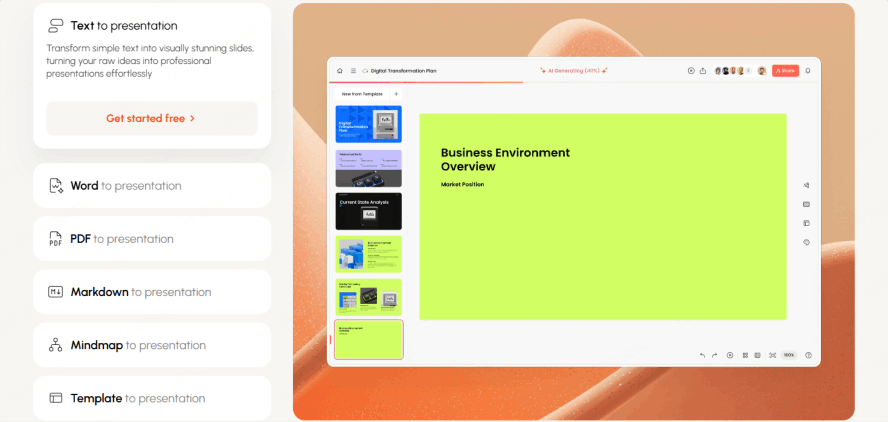
Before the final slides are rendered, Presenti presents you with an AI-generated outline. This is a critical step for pedagogical accuracy. You can add a slide for a "Check for Understanding," remove sections that are too advanced, or reorder the flow to better match your specific lesson objectives.
Step 4: Design and Personalization
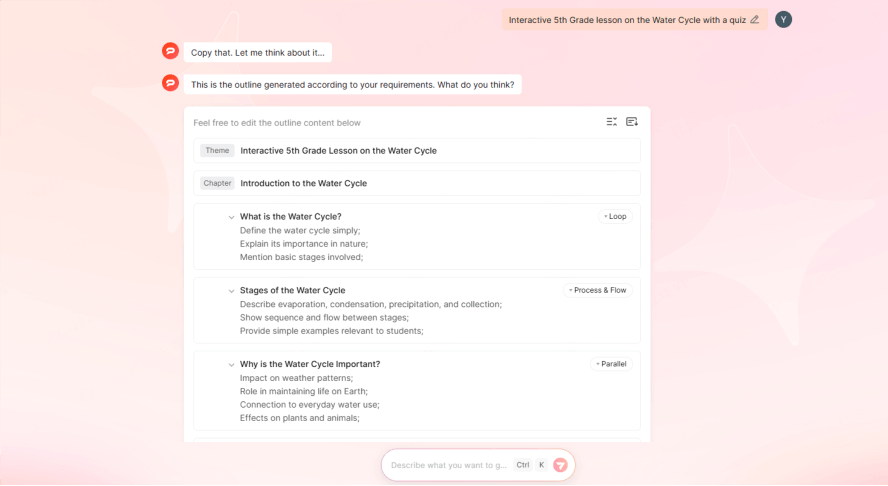
After the outline is approved, you select your template. Here, you can match the "vibe" of your classroom. For a high-energy morning class, you might choose vibrant, high-contrast colors. For a complex afternoon lab, a clean, infographic-style template might work better to keep students focused on the data.
Step 5: Export and Integration
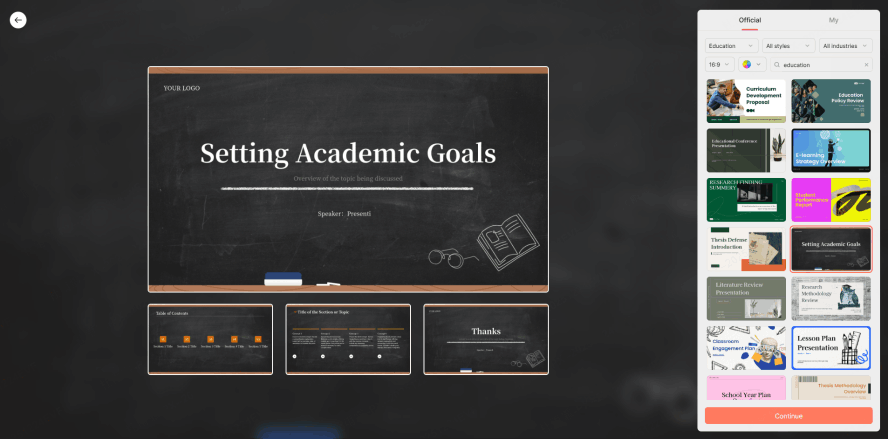
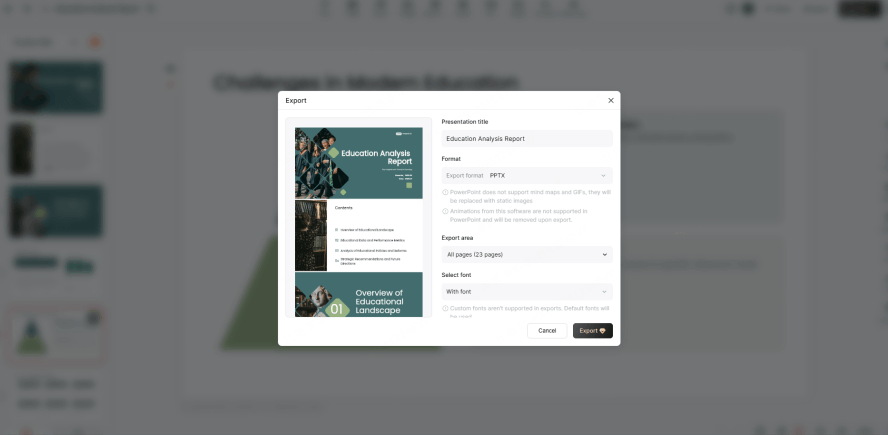
After checking the content, export a PPTX or PDF on an eligible paid plan. Open it in the software used at school and test fonts, diagrams, and any media before class.
Comparing the Landscape: Free vs. Paid AI Tools for Education
General-purpose and education-focused tools can both be useful when the brief is specific. Compare how each handles the same learning objective, source material, and target age group. The amount of revision is more informative than a broad claim that one category is better.
Check what free access covers: generation, document import, editing, and the output format may have different limits. Include any required subscription in the comparison, and test whether a usable lesson can be completed within the available allowance.
Critical Evaluation: What Teachers MUST Look For
Evaluate the parts of the workflow that affect teaching: content accuracy, readability, accessibility, school approval, and the ability to revise the final slides.
Grade Level and Curriculum Fit
Specify the grade or age range, the learning objective, and any prerequisite knowledge. A lesson for younger students may need concrete examples and simple labels; an advanced class may need more technical detail. Check alignment with any required standard, including Common Core or NGSS where applicable, yourself.
Editing and Delivery Compatibility
Confirm the format your school’s learning platform accepts. If you need editable slides, inspect the exported PPTX in PowerPoint or after importing it into Google Slides. Check that text and images can be revised; do not assume native Google Slides export or a direct integration with Google Classroom, Canvas, or Schoology.
From Static to Interactive (Engagement)
Moving beyond "Death by PowerPoint" is the goal of every modern educator. The best ai tools for teacher presentations are those that suggest interactive elements. Instead of just presenting facts, the tool should help you create "active learning" triggers. Presenti’s logical layouts make it easy to insert your own quizzes, polls, or "turn and talk" prompts, transforming a lecture into a two-way conversation.
School Approval and Practical Value
Use tools approved under your school’s data and procurement policies. Confirm the handling of uploaded material before including confidential or identifiable student information. Product features alone do not establish compliance or district approval. When judging value, include the time needed to check and revise the draft.
Rejecting the "AI Look" (Authentic Design)
Inspect generated images for factual errors, distorted details, and misleading representations. Replace a decorative image with a checked diagram or a relevant classroom example when that better supports the lesson. Use photos only where you have the necessary permission.
Conclusion: Empowering the Future Classroom
Choose the tool that helps you prepare a clear, accurate lesson in a workflow you can sustain. Keep your learning objectives and sources in control, and use AI to draft material that you can revise.
Start with one lesson, test it on classroom equipment, and record what required revision. Use that experience to decide whether the tool fits your teaching practice and budget.