You built that deck in PowerPoint. Spent real time on the content, got the structure right, made sure the data was accurate. The one thing it still needed was a visual overhaul — cleaner layouts, better typography, a design that actually matched the quality of the thinking behind it.
That workflow just got a lot shorter.
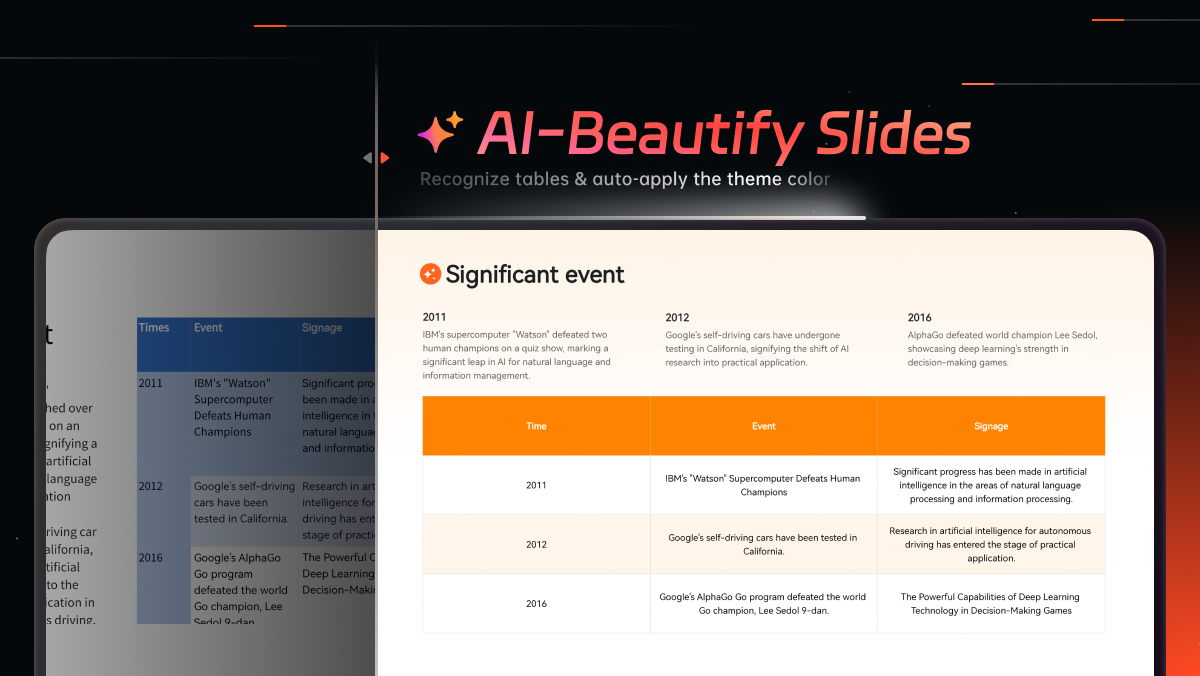
Presenti’s Slide Polisher now recognizes and preserves both images and tables from your original PowerPoint files during beautification. Bring your existing deck into Presenti, and the AI handles the design upgrade with support for recognizing images and tables in the imported file.
What’s New
Enhanced Image and Table Preservation
Slide Polisher supports images and tables in imported PPTX files. The product page lists files up to 100 MB and supported elements including text, images, specified shapes, SVGs, tables, and basic charts. Review the parsed slides before applying a new design.
Smart Layout Beautification That Works Around Your Content
Slide Polisher’s AI applies professional layout improvements across every slide while respecting the content that already exists. Spacing becomes intentional. Typography becomes consistent. Visual hierarchy gets clarified across the deck. The beautification works with your images and tables, not against them — enhancing the slides around the elements that matter most to your message.
Intelligent Table Recognition
Tables inside your imported files are now correctly identified as structured data rather than treated as static images. Compare the recognized table with the source: check values, row and column labels, merged cells, and notes. Review the redesigned table again to confirm that its relationships remain clear.
Why This Matters
Most presentation workflows don’t start from scratch. You have files — quarterly reports built two years ago, slide decks inherited from a colleague, proposal templates with good bones but dated design. Until now, getting that content into a modern AI presentation environment meant rebuilding everything manually, or accepting that your images and tables might not survive the process cleanly.
Import the existing file, inspect the parsed content, and apply a design pass. Complex charts, diagrams, and tables deserve particular attention; support for an element type is not a guarantee of identical rendering.
For anyone who works with data-heavy presentations, the table recognition upgrade is particularly significant. Tables are among the most information-dense elements in any presentation. When they break during import or get treated as images, the data inside becomes unusable. Check that the table remains readable and that the cells you need to revise are editable in the result.
How to Use Slide Polisher
Step 1: Log in to the Presenti AI workspace and click the Slide Polisher button on the homepage.

Step 2: Upload your .pptx file. Before uploading, you can review the Formatting Guide and Download Template options on this screen. Following these guidelines helps Presenti preserve your original content more accurately and produce stronger beautification results.
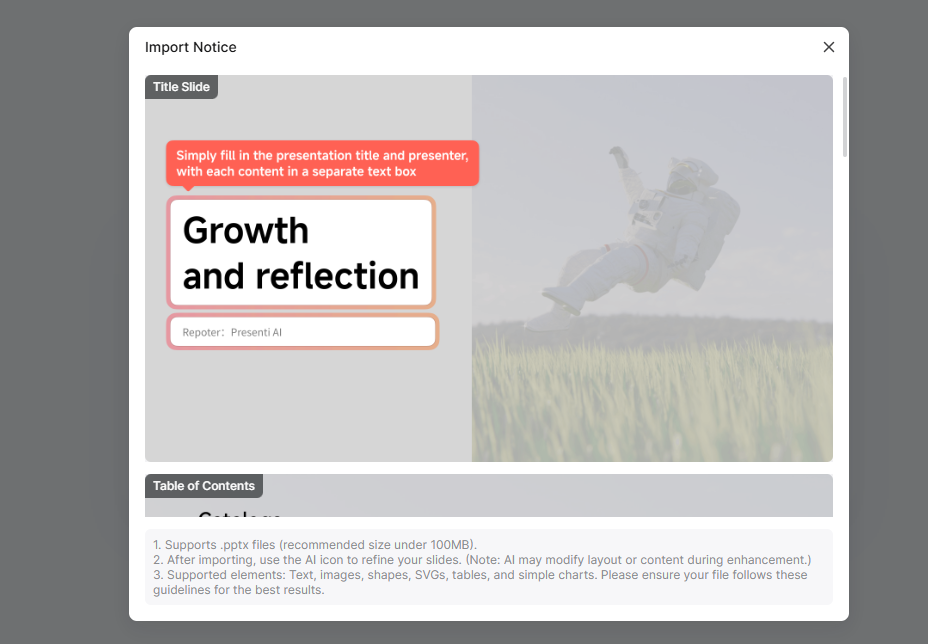
Step 3: Once uploaded, browse through your original slides to confirm the content and structure look correct. Presenti parses your text, images, and tables at this stage.
Step 4: Click Select Theme to move to the theme selection panel. Choose the visual style that fits your presentation context.

Step 5: On the right side panel, choose your image sourcing method:
- Theme Match — Presenti selects images aligned with your chosen theme
- Custom AI Image — Describe the image style you want the AI to generate
- File Picture — Uses the original images already in your uploaded file. This option is selected by default when Presenti detects existing images in your deck.
Step 6: Click Generate Now. Presenti applies the full beautification pass across every slide, using the selected theme and image options.
Step 7: Review the output slide by slide. Use Presenti’s in-browser editor to make any final adjustments — refine text, reorder slides, or swap individual elements as needed.
Step 8: Use an eligible paid plan to export an editable PPTX or PDF, or review the sharing options available to your account.
Who This Feature Is Built For
Analysts and consultants who rely on data tables. When your slides carry structured data across multiple tables, format integrity is non-negotiable. Table recognition provides a starting point for redesigning data-heavy slides; verify the values and readability before sharing.
Professionals with existing PowerPoint libraries. Years of .pptx files containing accurate, relevant content that looks visually dated can now get a design upgrade while checking the retained images and data against the original.
Teams standardizing presentation design. Apply a selected visual style to supported files, then review the result against the team's design standards and original content.
Anyone facing a tight deadline with an imperfect deck. Import the file you have, trigger beautification, and deliver something polished then reserve time to check the imported content and redesigned output.
Check the Slide Polisher access and export options available to your account.
Try Slide Polisher in Presenti AI today — upload your existing PowerPoint file, review the recognized images and tables, choose a design, and inspect the finished deck before export.