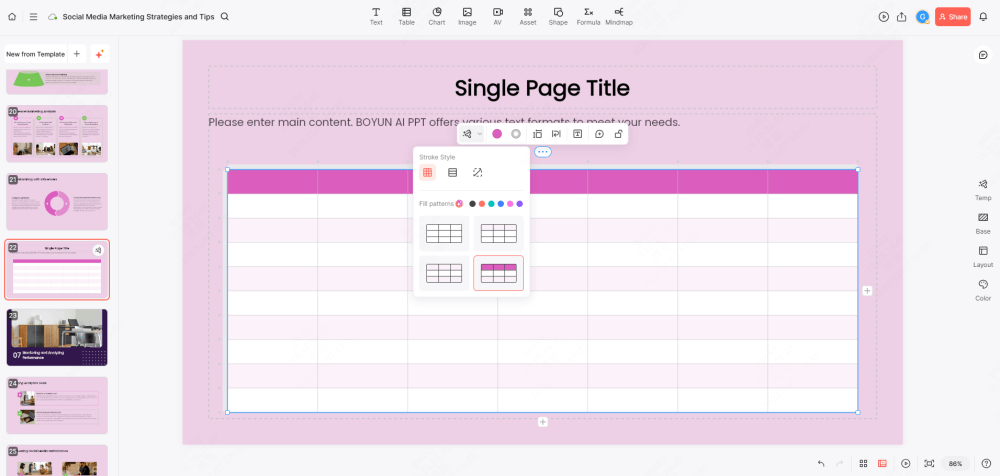
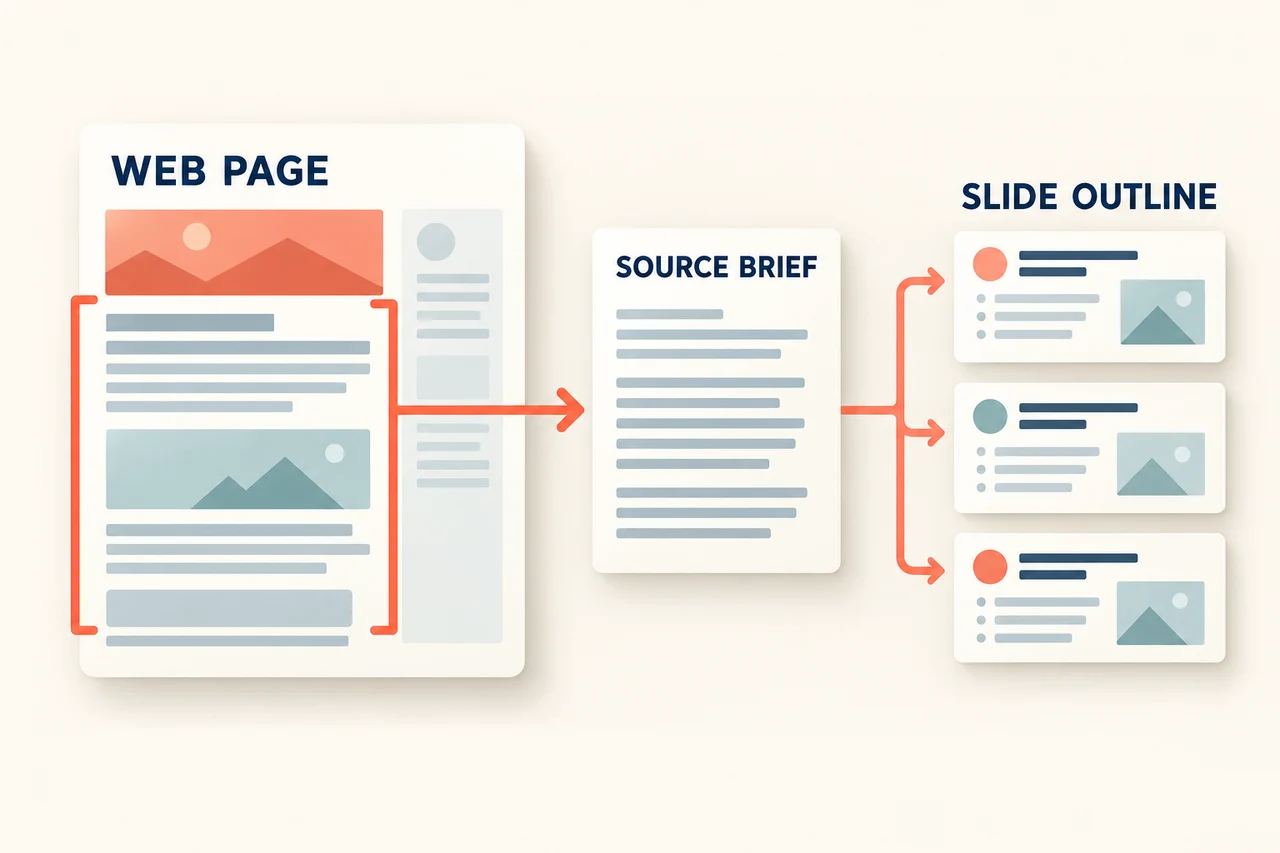
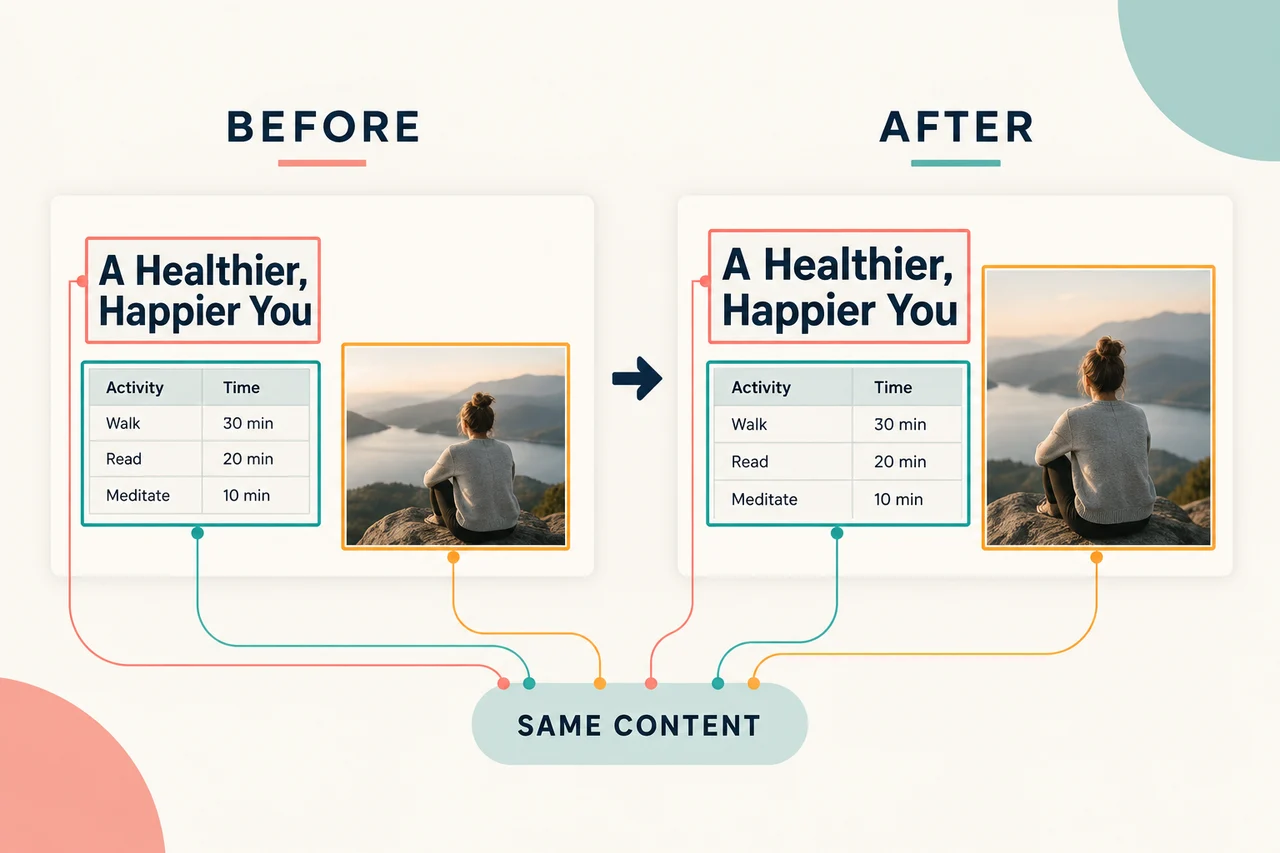
We just made Word import significantly smarter. When you convert a Word document to presentation with Presenti AI, tables inside that document are automatically detected, extracted, and added to your presentation as properly formatted slides — with your chosen theme applied from the moment they appear. Review the generated table slides for data accuracy and readability before sharing.
Here is what changed, why it matters, and who is going to feel the difference most.
What’s New: Table Recognition in Word Import to Deck
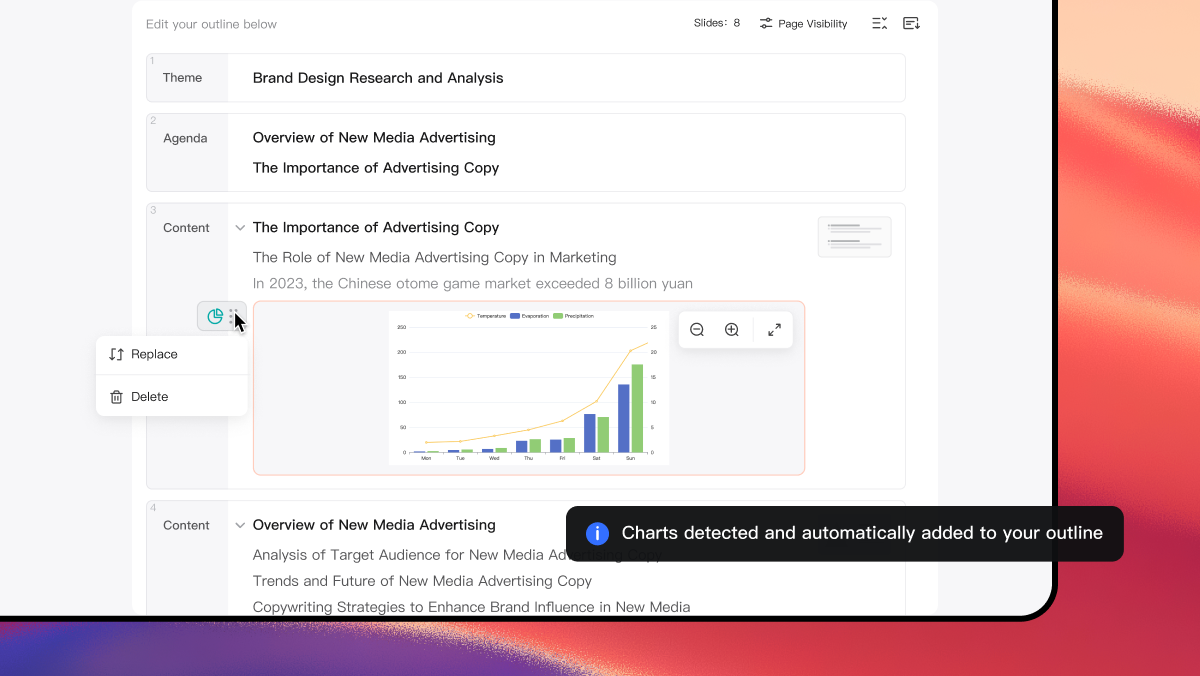
Previously, importing a Word document into Presenti AI would pull in your text, headings, and general structure — and do a solid job of it. But tables were a known gap. Complex comparison data, financial figures, project schedules, survey results — structured content that can be difficult to carry into slides — needed closer attention during conversion.
That changes with this update.
Presenti AI now scans imported Word files for tables during the generation process. Recognized tables can be incorporated into the slide draft. Compare the resulting rows, columns, labels, and values with the source, especially for merged cells or complex layouts. The moment the slide is generated, your active theme kicks in — typography, color palette, header styling, and all — so the table slide looks like it belongs to the same deck, not like a spreadsheet screenshot someone pasted in at the last minute.
How It Works
The workflow stays exactly as simple as it always was:
- Upload your Word document using an eligible paid plan
- Choose or confirm your presentation theme
- Let the AI generate your deck
The difference is what happens behind the scenes during step three. Presenti identifies supported tables as structured content and incorporates them into the draft. Review their position in the narrative and adjust crowded layouts after the theme is applied.
Who This Helps
Business professionals working with reports. Quarterly reviews, competitive analyses, budget breakdowns — these documents are built on tables. Turning them into a presentation used to mean rebuilding every table by hand in PowerPoint. Import the Word file, then verify the recognized tables and simplify any that are too dense for a slide.
Academics and researchers. Papers, literature reviews, and study summaries often include data comparison tables, participant demographics, or results matrices. With this update, table recognition can help move structured content into a slide draft, making it easier to build conference presentations or seminar decks from existing research.
Project managers and team leads. Status reports and project plans typically live in Word documents loaded with milestone tables, resource allocation grids, and deliverable schedules. Importing these into Presenti AI now means you can review structured content within the generated deck rather than treating the source as text alone.
Anyone converting documentation into decks. Internal wikis, SOPs, onboarding guides, client-facing specs — check how the recognized tables handle headers, notes, merged cells, and the selected layout.
Theme Beautification: Why It Matters
It is worth pausing on the automatic theme application, because this is where Presenti AI’s approach differs from a simple format conversion.
When a table slide is generated, it is not just dropping raw content onto a blank rectangle. The theme you have selected — whether it is a clean corporate look, a bold creative style, or something aligned to your brand palette — wraps around the table automatically. Font weights, header colors, cell spacing proportions, and overall slide composition all reflect the design system already applied to the rest of your deck.
The selected theme gives table slides a common visual starting point. Check font sizes, contrast, spacing, and the clarity of the data after it is applied.
Start Importing
This feature is live now. Open Presenti AI, upload a Word document that contains tables, select your theme, and review the generated deck, including every table against the source. Editable PPTX and PDF export are listed on paid plans.
If you have been putting off converting a long report or a data-heavy research document because the table problem made it feel too painful, today is a good day to try again.
We are continuing to improve the Word import pipeline and expanding what Presenti AI can recognize and transform from your source documents. More updates coming soon.