
Converting a PDF into a PowerPoint presentation is a common task for technical teams, educators, project managers, and developers. PDFs are excellent for preserving layouts and sharing finalized documents, but they are not ideal for live presentations or iterative editing.
PowerPoint, on the other hand, is designed for storytelling, collaboration, and visual communication. Whether you are preparing a technical review, a classroom lecture, a sprint demo, or a client presentation, converting PDF content into editable slides can save hours of manual work.
This guide walks you through a practical, beginner friendly method to convert PDF files into PowerPoint using an AI powered tool. You will learn how to upload a PDF, choose the right conversion strategy, customize slide structure, and optimize the final presentation for professional use.
Why Convert PDF to PowerPoint
Before jumping into the process, it is helpful to understand why PDF to PPT conversion is so widely needed.
PDFs are static by design
PDF files are optimized for consistency and distribution. Once exported, layouts, fonts, and spacing are locked. This is ideal for reports and documentation, but limiting when you need to:
- Edit content for different audiences
- Reuse material in meetings or classes
- Add animations, transitions, or speaker notes
PowerPoint supports collaboration and iteration
PowerPoint presentations allow teams to:
- Reorganize content quickly
- Adjust visual hierarchy for clarity
- Collaborate across departments
- Present ideas in meetings, classrooms, and webinars
For this reason, converting PDFs into PPT slides is a standard workflow in product teams, education, consulting, and software development.
Choosing the Right PDF to PPT Conversion Tool
Not all PDF to PowerPoint tools deliver the same results. Traditional converters often produce slides with broken layouts, overlapping text, or flattened images that are hard to edit.
An AI powered solution can significantly improve both accuracy and usability.
Why use an AI based converter?
AI tools go beyond simple format conversion. They understand document structure, extract key points, and rebuild content into presentation friendly layouts.
With an AI powered PPT generator, you can:
- Preserve logical structure instead of raw formatting
- Automatically generate slide outlines
- Choose different content generation strategies
- Reduce manual cleanup after conversion
In this tutorial, we use Presenti AI, an online AI PowerPoint generator designed for document to slide workflows.
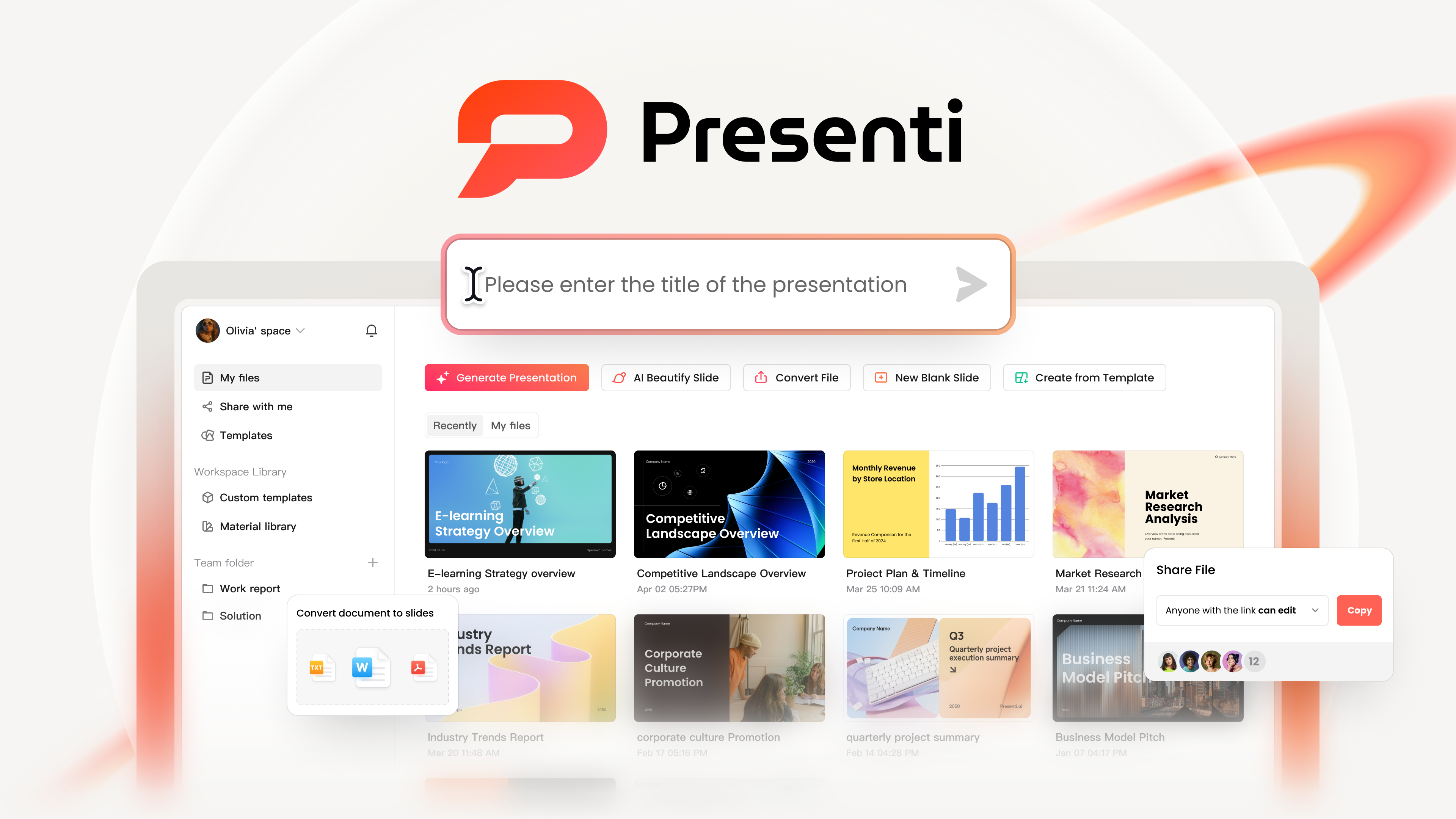
Step by Step Guide: Convert PDF to PowerPoint with Presenti AI
Step 1: Access the Presenti AI Workspace
Start by opening your web browser and navigating to the Presenti AI website. After creating an account and logging in, you will arrive at the main workspace.
The dashboard is designed for clarity and speed, making it accessible even for first time users.
Step 2: Upload Your PDF File
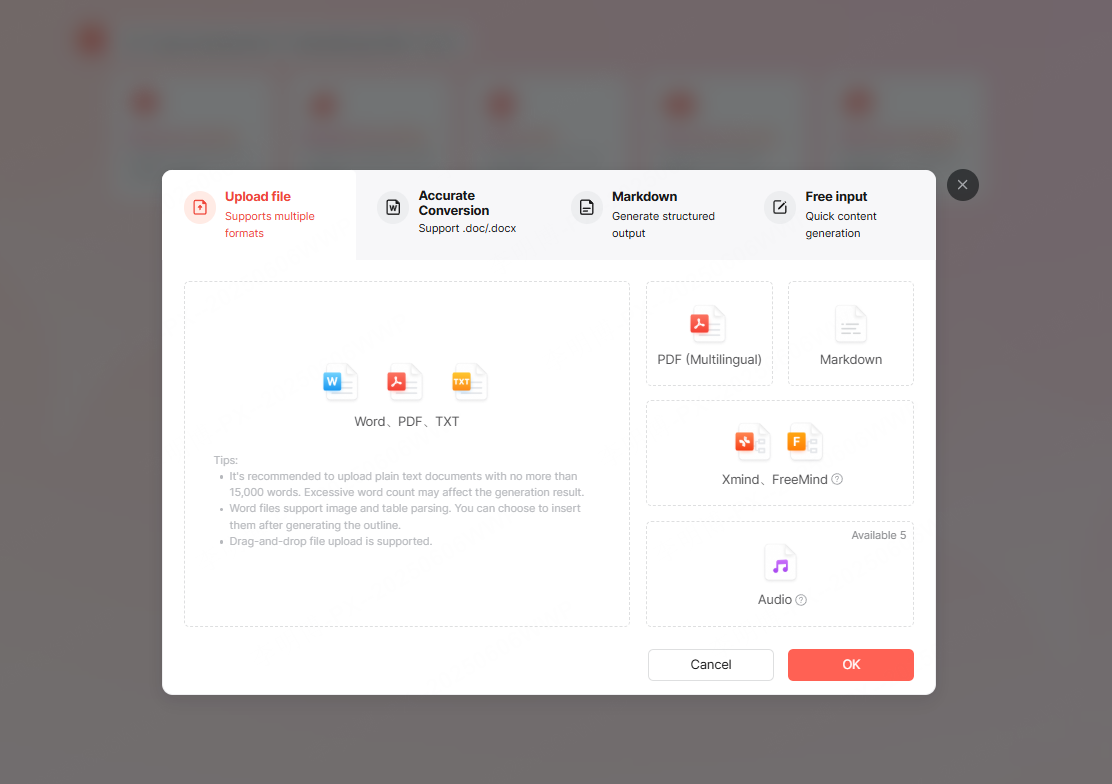
2.1 Select the PDF import option
From the workspace, choose the option labeled Import File to Generate PPT. This feature is specifically built for converting documents such as PDFs into structured slide decks.
2.2 Upload the PDF
In the file upload dialog, select the PDF file you want to convert and confirm the upload. The system will begin reading and parsing the document.
Processing time depends on file length and complexity, but most PDFs are analyzed within seconds.
Step 3: Choose a Generation Strategy
Once the PDF is parsed, Presenti AI offers three different generation modes. Each mode is suited to a different use case.
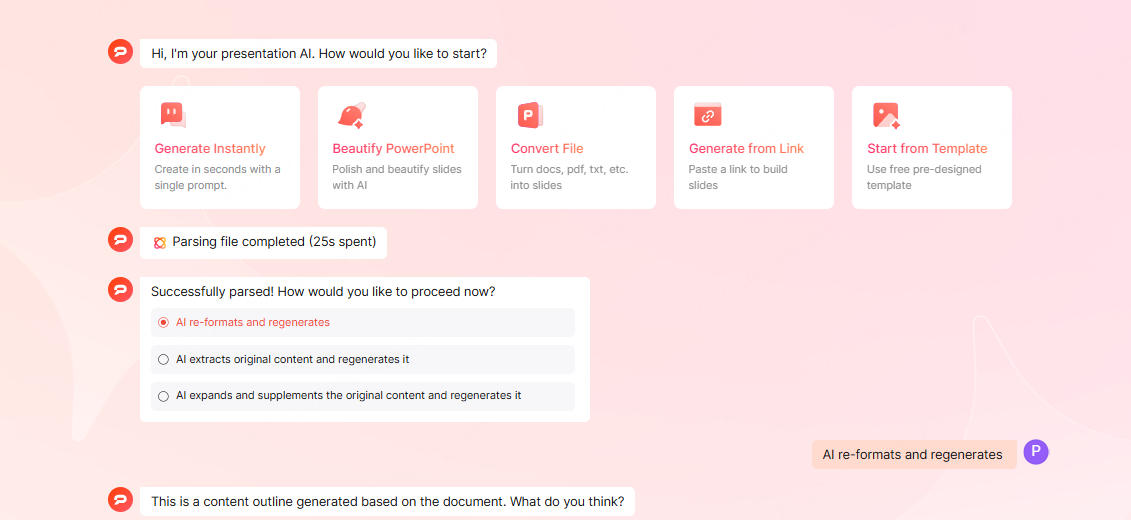
Option 1: Reformat and regenerate
This option keeps the original content intact while reorganizing it into clean, presentation ready slides. It is ideal when you want to preserve wording but improve structure and layout.
Option 2: Extract and summarize key content
This mode identifies the most important points and converts them into concise slides. It works well for executive summaries, lectures, or time limited presentations.
Option 3: Expand and enrich content
This option enhances the original text by adding context, explanations, or examples. It is useful for training sessions, onboarding materials, or educational presentations.
Select the mode that best matches your goal.
Step 4: Review and Edit the Slide Outline
After selecting a generation strategy, the AI generates a slide outline based on your PDF.
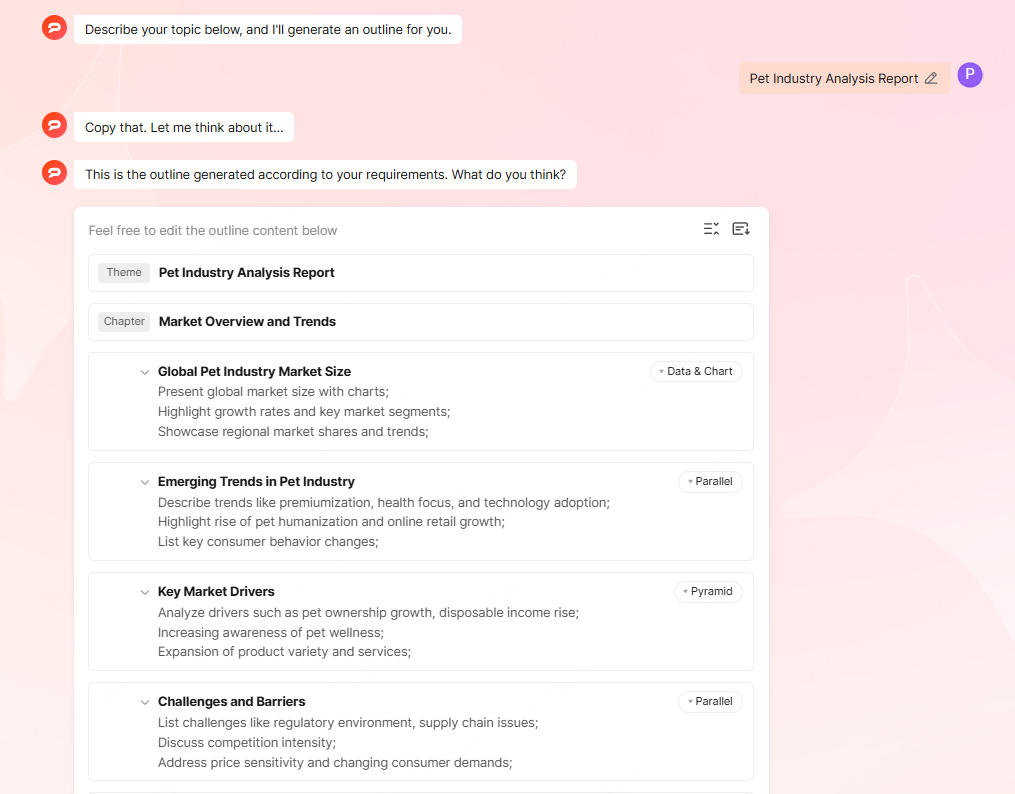
You can:
- Reorder slides
- Rename slide titles
- Edit bullet points
- Remove or add sections
This step gives you full control before visual design is applied, ensuring the presentation aligns with your audience and objectives.
Step 5: Choose a PowerPoint Template
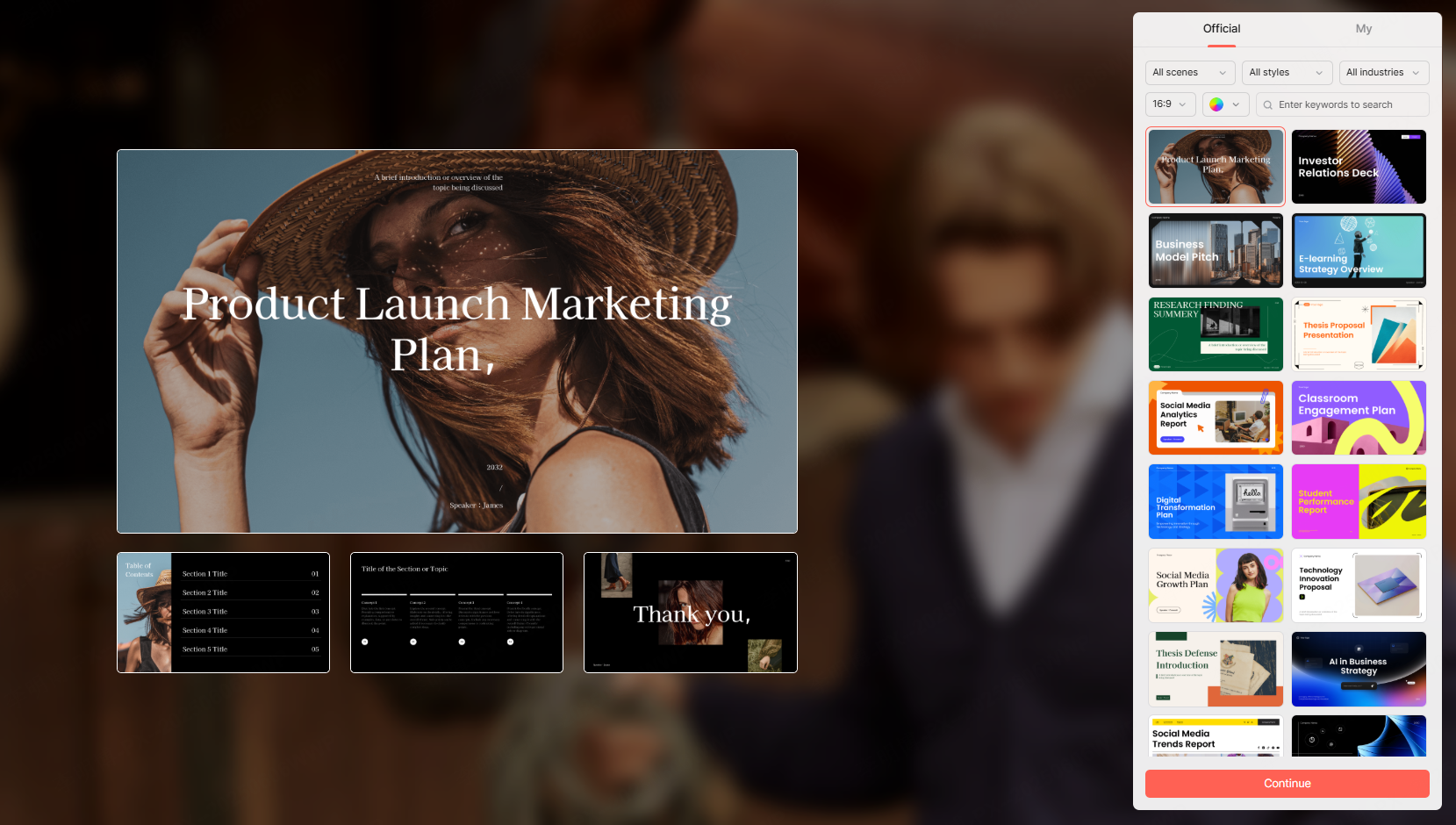
Once the outline is finalized, proceed to the template selection stage.
Presenti AI provides a wide range of professionally designed PowerPoint templates, covering use cases such as:
- Technical presentations
- Business reports
- Educational lectures
- Product demos
You can select templates based on color themes, typography, and layout styles. All templates are designed to work well with structured AI generated content.
Step 6: Generate the PowerPoint File
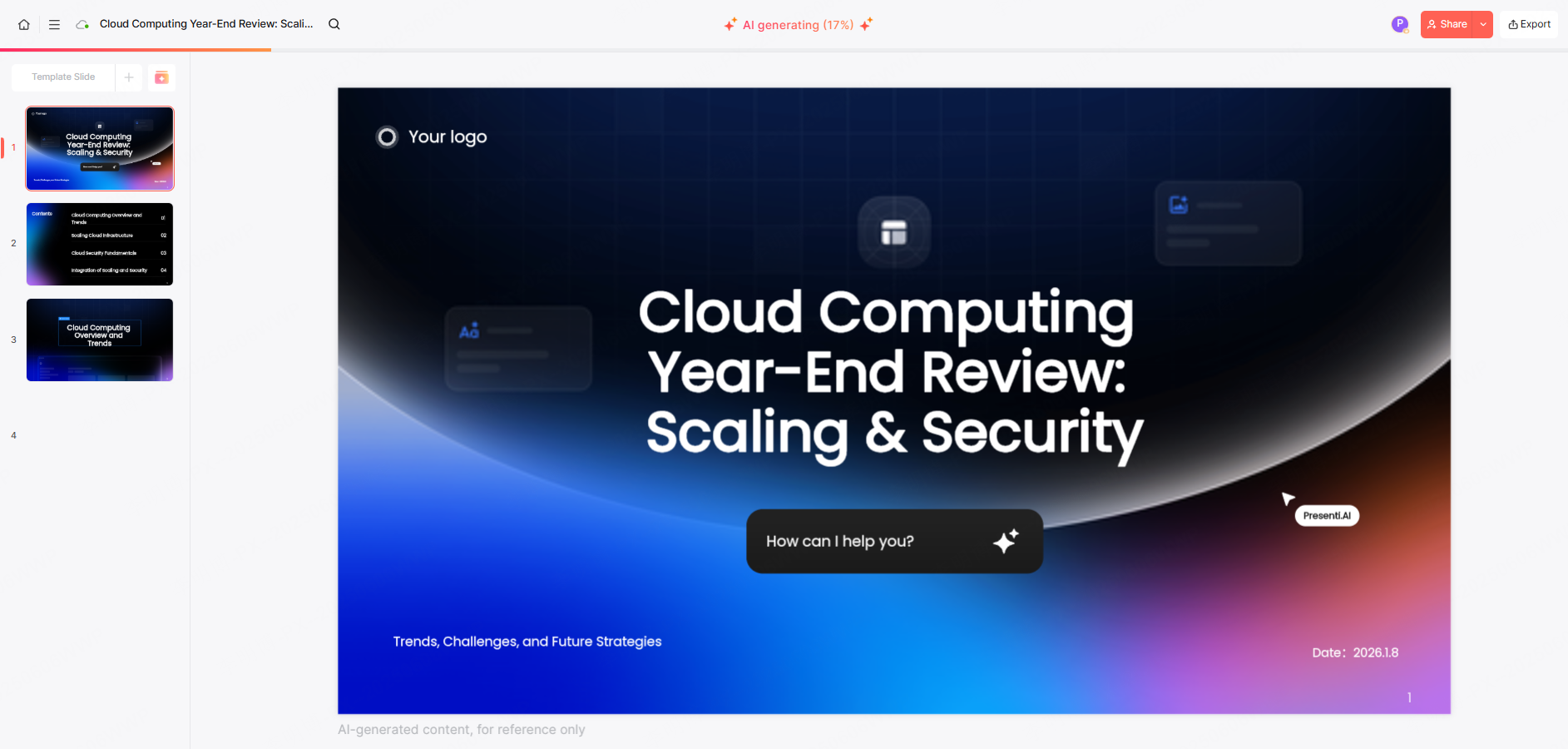
After choosing a template, click Generate PPT. The system automatically builds a complete slide deck, including layouts, text placement, and visuals.
Within moments, you will have a fully editable PowerPoint presentation generated from your PDF.
Optimizing the Generated PowerPoint
AI gets you most of the way there, but final optimization ensures professional quality.
Fine tune content with AI assistance

Presenti AI includes built in writing tools that allow you to:
- Rewrite text for clarity
- Expand or shorten content
- Summarize complex sections
- Translate slides into English or other languages
This is particularly useful for technical documentation, academic content, or multilingual teams.
Adjust visuals and layout
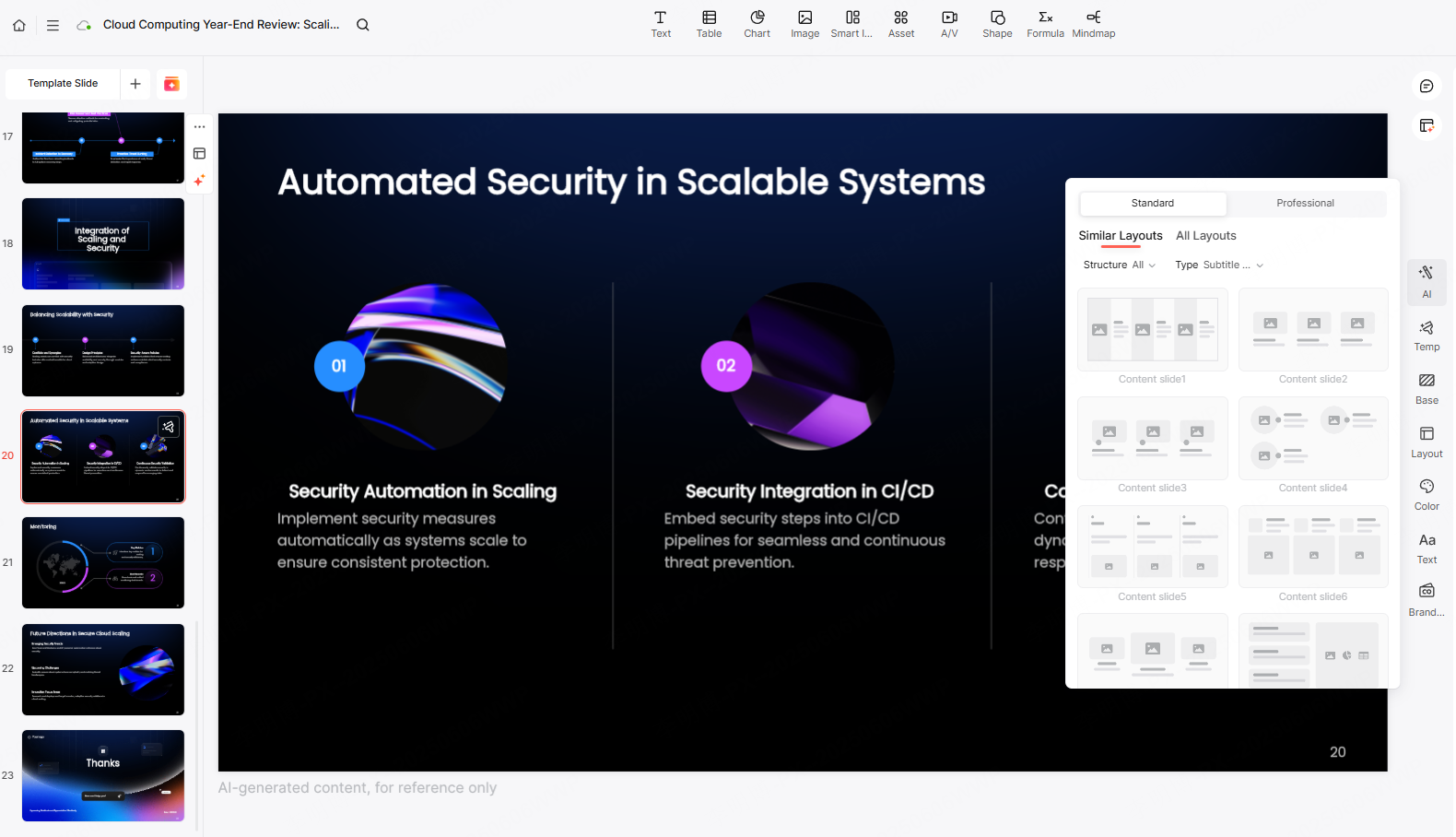
You can manually:
- Replace images and icons
- Modify charts and diagrams
- Switch slide layouts
- Update backgrounds and typography
These adjustments help tailor the presentation to your brand or presentation context.
Exporting and Sharing Your Presentation
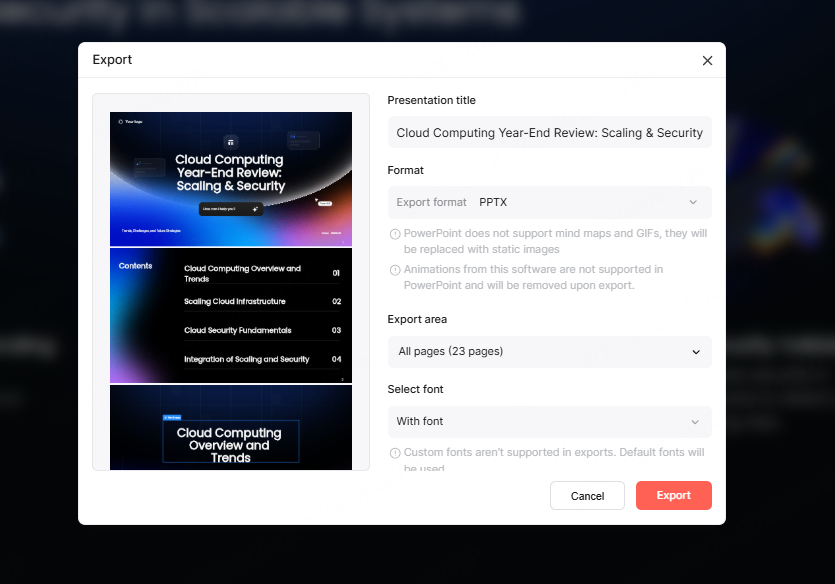
Once you are satisfied with the result, you have multiple output options.
- Share the presentation via an online link
- Present directly from the browser
- Export the file as a standard PPTX for offline use
This flexibility supports team collaboration, remote meetings, and classroom delivery.
Additional Features Beyond PDF to PPT
Presenti AI is not limited to PDF conversion. It also supports:
- One sentence prompt to PPT generation
- Mind map to PowerPoint conversion
- Outline based slide creation
These features make it a versatile tool for modern presentation workflows, helping teams move faster while maintaining quality.
Conclusion
Converting a PDF to PowerPoint no longer needs to be a manual, time consuming process. With the help of AI powered tools like Presenti AI, you can transform static documents into clear, editable, and visually engaging presentations in just a few steps.
Whether you are a developer presenting system architecture, an educator preparing course slides, or a project manager reporting progress, AI based PDF to PPT conversion can dramatically improve your efficiency and presentation quality.









