Before choosing a PDF-to-PowerPoint tool, decide what you want to preserve. A PDF that already contains slides usually needs page conversion; a long report needs a shorter narrative. Both routes can produce a PowerPoint file, but they solve different editing problems.
These five workflows are compared by input, output and the edits left to you, using the providers’ documented features rather than a conversion-quality ranking. For report summarization, Presenti’s PDF-to-presentation workflow creates a new draft from the source content.
| Route | Use it when | What to inspect |
|---|---|---|
| Presenti AI | You need a shorter presentation from a report | Whether the outline preserves facts, limits and the intended audience |
| Adobe Acrobat | You want a PDF export route in an established document workflow | Editable text, source-page layout and scanned-text handling |
| Smallpdf | You want a basic browser conversion to a PowerPoint file | Text and image editability after downloading |
| iLovePDF | You need to distinguish selectable text from scanned input | Whether the selected route requires OCR Premium |
| Zamzar | You need a supported file-pair conversion | Output format, allowance and the resulting slide structure |
Choose the route from the source, not the file extension
| Source and assignment | First move | What a useful result looks like |
|---|---|---|
| A 12-page PDF exported from slides; update a name and date | Try page conversion before rewriting the content | The text you need to change is editable and the rest of the slide remains legible |
| A scanned lesson handout; reuse two definitions | Recognize the text, then check it against the scan | Names and symbols match the source; OCR mistakes are corrected before drafting |
| A 40-page report; brief a manager in five slides | Select the decision and evidence, then create a new outline | Five slides answer the manager’s question without presenting assumptions as results |
| A chart-heavy PDF; change the underlying values | Locate the source spreadsheet where available | A native editable chart uses the intended data, or the slide clearly keeps a static chart |
The tool descriptions below reflect their official pages as checked on 14 October 2026. The source-to-output examples are suggested tasks, not measured conversion results.
1. Presenti AI
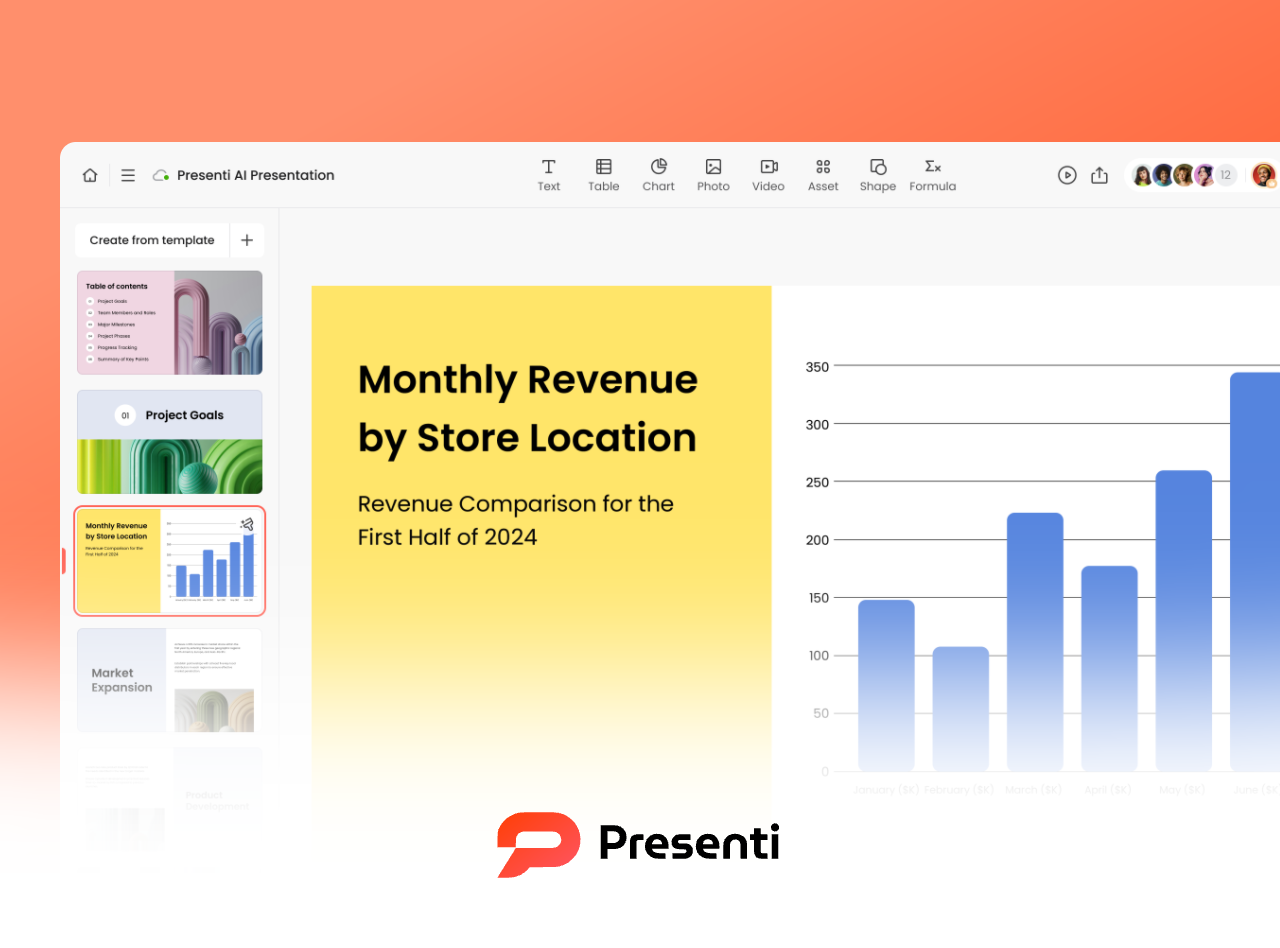
Presenti AI uses a PDF as source material for a presentation draft. Review the generated outline before selecting a template: a report’s page order is not necessarily the best sequence for a talk.
For a lesson, project briefing or client update, choose the points the audience needs and leave detailed supporting material in the source document. PDF input and editable exports are listed on paid Presenti plans.
Key Features
AI powered document structure analysis
Use the proposed outline as a draft and compare headings, key figures and qualifications with the PDF.
Automatic layout and visual design
Choose a layout for the message, then inspect text, image placement and labels after generation.
Different drafting goals
Decide what the draft should do before generating it:
- Keep the source wording when exact terminology matters
- Reorganize content for clearer presentation flow
- Summarize and refine key points
- Keep explanations supported by the source rather than asking AI to invent missing evidence
Online presentation and sharing
Edit the draft online and use the share or export options available on your plan.
How to Convert PDF to PPT with Presenti AI
- Visit the Presenti AI website and sign in
- Open the workspace and choose the file-import workflow
- Upload your PDF file
- Review the generated outline against your chosen audience and the source facts
- Choose a presentation template
- Generate the slide draft, then inspect it in the editor
- Edit, customize, and export or share the final slides
Before generation, users can manually adjust the outline to improve accuracy. After generation, inspect the content and the objects you need to edit. Check text, chart values, tables, and image crops in the exported PPTX; an editable file does not guarantee that every source element becomes a native PowerPoint object.
2. Adobe Acrobat Pro DC
Adobe Acrobat provides PDF editing, OCR and export tools. Its PDF-to-PowerPoint documentation describes exporting to a slide file; it does not establish that every chart or table will become a native PowerPoint object.
Why Choose Adobe Acrobat Pro DC
- Direct PDF editing and creation
- PDF-to-PowerPoint export
- Source-PDF review before export
- OCR technology for scanned documents
- Account-based document storage and sharing options
How to Convert PDF to PPT with Adobe Acrobat Pro DC
- Open your PDF file in Adobe Acrobat Pro DC
- Open the export or conversion tool in your Acrobat version
- Choose Microsoft PowerPoint as the output format
- Review the available conversion settings for the file
- Click Export to start the conversion
- Save and edit the resulting PowerPoint file
If you already use Acrobat, exporting the PDF there may fit your document workflow. For an image-only scan, handle text recognition first and compare names, units and decimal points with the original.
3. Smallpdf
Smallpdf’s browser converter accepts a PDF and provides a PowerPoint download. No software installation is needed for this online route.
Key Advantages
- Clean and intuitive interface
- Browser-based file conversion
- Downloaded slide file for further editing
- Cross platform compatibility
- Review upload retention, deletion, and access terms before sharing sensitive documents
How to Convert PDF to PPT with Smallpdf
- Open the Smallpdf website
- Select the PDF to PPT conversion tool
- Upload your PDF file
- Wait for the conversion to complete
- Download the PowerPoint file
- Open the file in PowerPoint for further editing
After conversion, try changing a text label and moving an image independently. A visually similar slide may still need rebuilding if the element you need to edit is part of a single picture.
4. iLovePDF
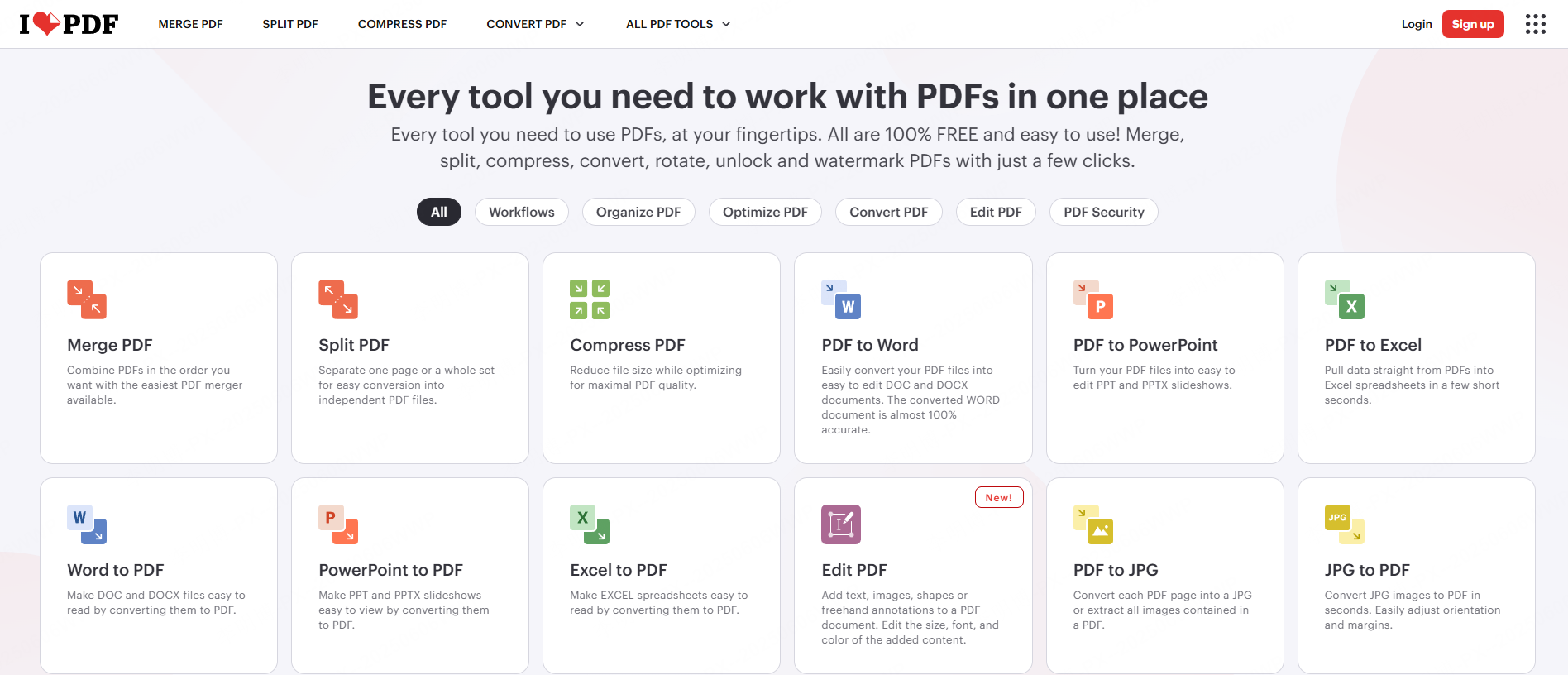
iLovePDF’s PDF-to-PowerPoint tool provides an upload, conversion and download workflow. It is intended for file conversion rather than selecting which ideas from a report should become slides.
Why Use iLovePDF
- Simple step by step workflow
- Online upload and download
- A PowerPoint output file to inspect in your presentation editor
- No complex configuration required
How to Convert PDF to PPT with iLovePDF
- Visit the iLovePDF website and choose PDF to PPT
- Upload your PDF file
- Start the conversion process
- Download the converted PowerPoint file
- Edit the slides as needed in PowerPoint
The conversion page distinguishes PDFs with selectable text from scanned pages and labels its OCR route Premium. Use the standard route when the source already contains the material you want to present. If a page is a dense report table, conversion alone will not decide which comparison the audience should see.
5. Zamzar
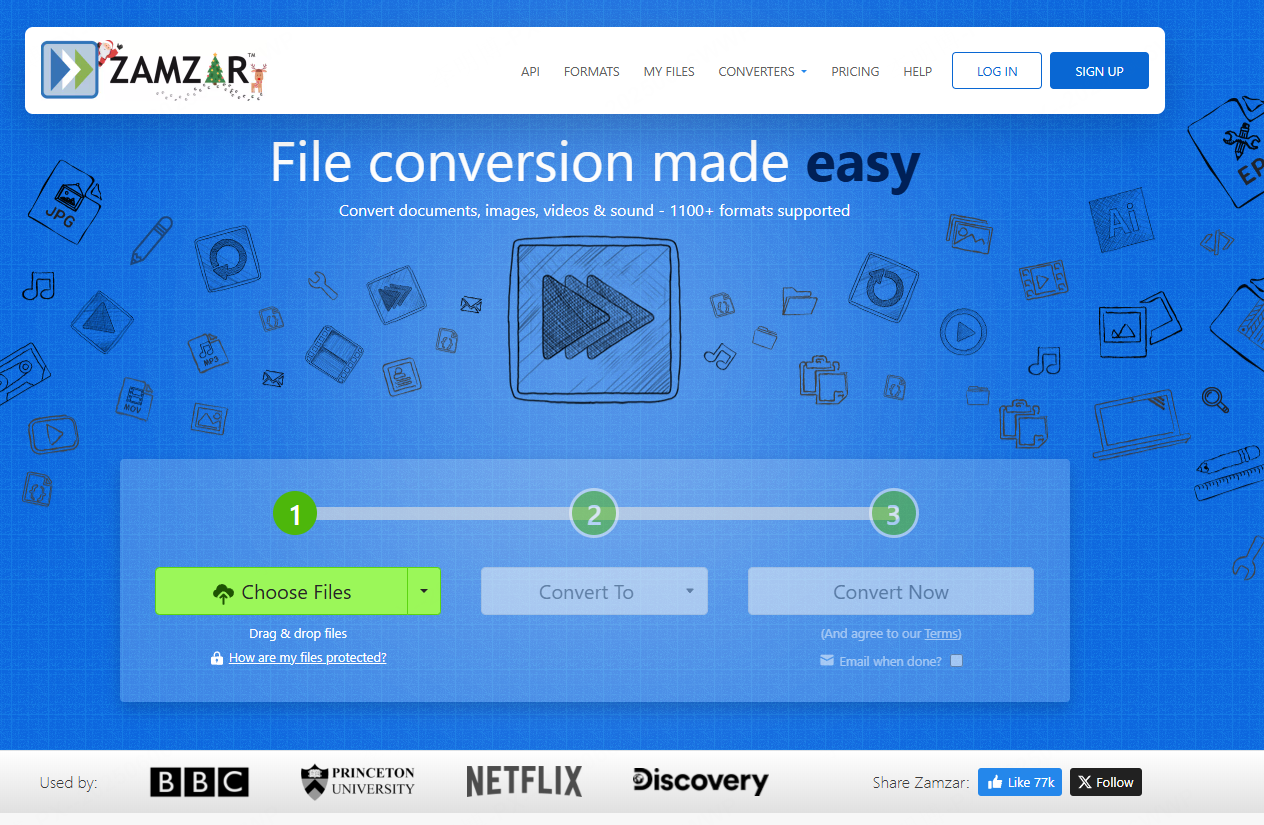
Zamzar’s PDF-to-PPT route converts between the stated file pair. Select the intended PowerPoint format and check the current file allowance before uploading.
Key Benefits
- Supports many file formats
- Clear and simple conversion process
- No advanced technical knowledge required
How to Convert PDF to PPT with Zamzar
- Go to the Zamzar website
- Upload your PDF file
- Select PowerPoint as the output format
- Provide an email address if the selected download workflow asks for one
- Start the conversion
- Download the converted file using the options provided
Zamzar is suitable for users who occasionally need file conversions across different formats.
Worked example: one report, two different decks
Imagine a library report that says: “September recorded 420 visits, including 70 workshop attendances. These are visits, not unique visitors. The library proposes a trial of longer Thursday opening hours; no trial results are available yet.” The numbers and setting here are invented to illustrate the editing decision.
| Deliverable | What to keep | What to change |
|---|---|---|
| A reference deck for the team reviewing the report | The source table, counting definition and proposal wording | Convert the relevant pages, enlarge small labels, and keep the source reference beside the material |
| A manager’s five-slide briefing | The recorded visits and the fact that longer hours are only proposed | Build a sequence: decision needed → current usage → proposed hours → trial measure → approval requested |
A usable briefing headline is “September recorded 420 library visits.” “Longer hours brought in 420 new readers” is not supported: it changes visits into unique people and claims a result from a trial that has not happened. This meaning check matters even if the converted file looks identical to the PDF.
If the manager needs to update the chart later, hand over the data and an editable chart as well as the deck. If only the appearance matters, a clear static chart with its source can be sufficient. Agree on that distinction before spending time rebuilding every object.
How to Choose the Right PDF to PowerPoint Tool
When selecting a PDF to PPT converter, consider the following factors:
- Conversion accuracy: Does the tool preserve structure and formatting?
- Editing flexibility: Can you easily modify slides after conversion?
- Design quality: Are layouts presentation ready?
- Workflow efficiency: Does it save time compared to manual rebuilding?
- Security requirements: Is your data handled safely?
Try a representative three-page sample before converting a full report: one text page, one chart and one table. This is a suggested test, not a result from a benchmark. In the output, change a number, edit a chart label and move an image. Record which changes are possible without rebuilding the slide.
If the task is to summarize a report, also compare the slide headline with the source claim. “Costs may fall after the pilot” must not become “Costs fell.” If free access is the main constraint, the PDF conversion access guide separates starting a conversion from downloading the finished file.