An agenda slide tells the audience what you will cover and in what order. This guide explains when to use one, how to write concise topic labels, and how to turn those labels into a readable slide with an AI slideshow maker.
What is an Agenda Slide?
An agenda slide outlines the main sections of a presentation. It usually appears near the beginning and helps the audience follow the sequence. Include a few clear topic labels rather than every subtopic in the deck.
Why Use an Agenda Slide in Presentations?
An agenda can be useful in a longer talk or a meeting with several discussion topics:

- Sets Expectations: An agenda slide informs your audience about the key topics you'll cover, helping them understand the purpose of your presentation from the outset.
- Enhances Engagement: By providing a clear structure, a slide keeps your audience focused and engaged. They can anticipate the flow of information and follow along more easily.
- Improves Retention: A well-organized agenda helps reinforce the key points of your presentation. When viewers know what to look for, they are more likely to remember the information.
- Facilitates Navigation: Throughout your presentation, the slide acts as a reference point. It allows the audience to track progress and stay connected to the overarching narrative.
- Encourages Interaction: By outlining topics that invite discussion, an agenda slide can encourage audience participation, making your presentation more interactive and engaging.
How to Make an Agenda Slide with Presenti AI
Presenti AI can help you draft and format slides. For an agenda, the most important first step is deciding which topics the audience needs to see.
Here's a guide on how to create an agenda slide using Presenti AI:

- Start with Presenti AI: Begin by launching the Presenti AI Slide Generator. Open a new presentation or the deck you are editing.
- Write the agenda first: For a project review, try “1. Progress since last month; 2. Risks and decisions; 3. Next steps.” Match the order to the meeting’s purpose, then choose a readable layout. A very short talk may not need a separate agenda slide.
Input Your Topics: Enter the key topics you plan to cover. Focus on being concise and clear; each item should be a brief phrase summarizing the main point.
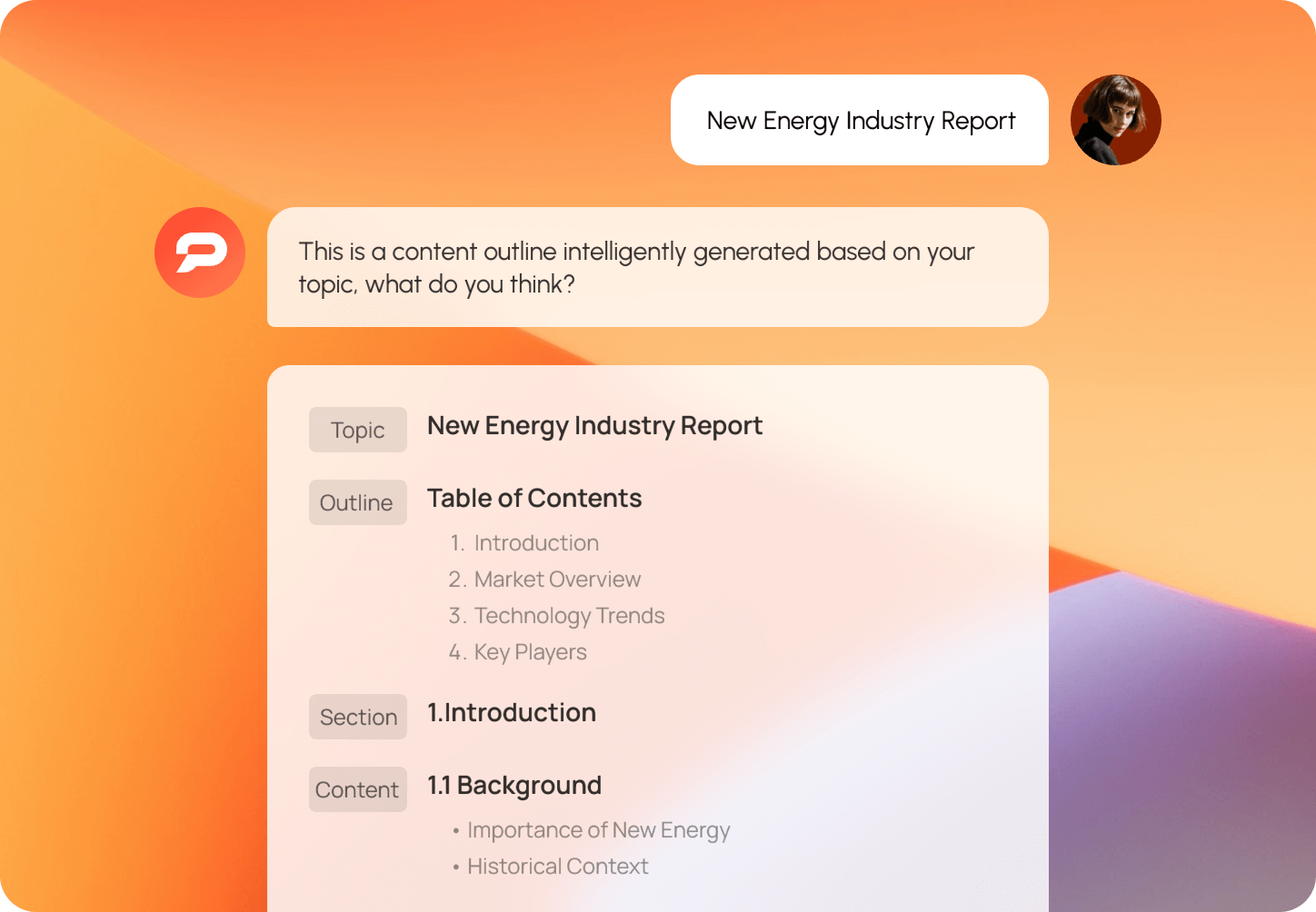
- Organize Your Content: Arrange the topics in a logical order. This can be organized chronologically, thematically, or according to priority. A well-organized agenda makes it easier for your audience to follow along.
Customize Design Elements: Use Presenti AI's design features to enhance your slide visually. Adjust colors, fonts, and layouts to ensure they are consistent with your branding and engaging for your audience. Once the labels are settled, compare these eight agenda slide layouts to choose between a simple list, a timeline, or a hierarchy.
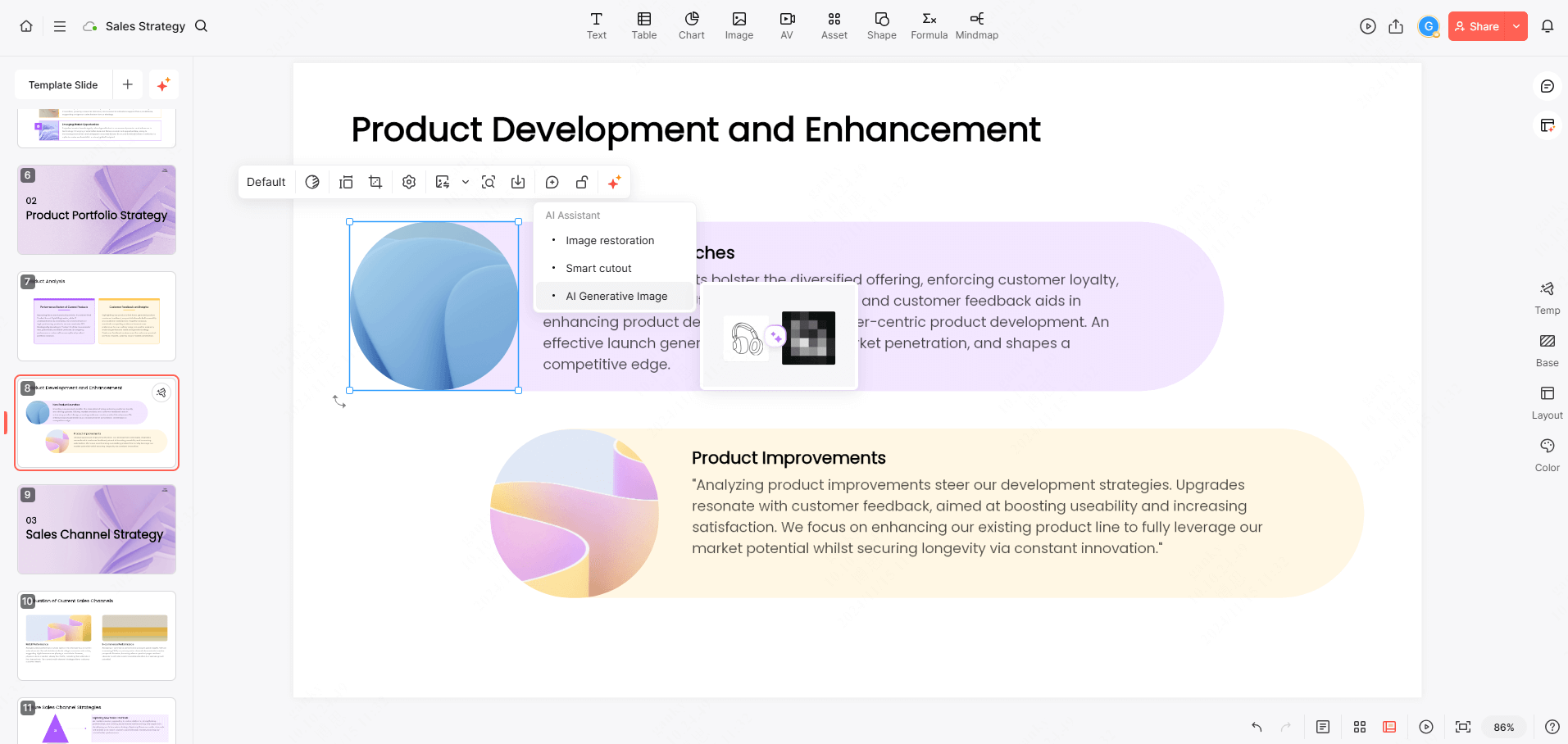
- Add Visuals: Consider incorporating icons or images that relate to your agenda items. Presenti AI allows you to easily integrate visuals that can aid in conveying your message effectively.
- Preview and Edit: Once you've created your slide, use the preview feature to ensure everything looks good. Make any necessary adjustments for clarity and design before finalizing.
Make the agenda describe the decisions, not just the sections
“Introduction / Update / Discussion / Next steps” could belong to almost any meeting. For a fictional 30-minute project review, use labels that tell people why each section is there:
| Agenda item | Planned time | Purpose |
|---|---|---|
| What changed since the last review | 5 minutes | Establish the current position |
| Which launch risk needs a decision | 10 minutes | Compare the available responses |
| Agree the owner and next milestone | 5 minutes | Confirm who does what |
| Questions and unresolved points | 10 minutes | Make room for discussion |
These times are a planning example, not a rule for all project reviews. If the second item contains a difficult choice, give the group the necessary context in advance or allow it more time. Do not add a precise time beside every item unless you intend to manage the meeting against it.
Notice the difference between “Risks” and “Which launch risk needs a decision.” The second label gives the presenter a reason to leave routine status details in the supporting slides. It also tells participants when their input will matter. An agenda should orient the group; it should not become a miniature copy of the whole deck.
If a decision-maker arrives late and you move the risk discussion, change the displayed order or say clearly that the meeting will follow a different sequence. Otherwise the agenda becomes an unreliable map. Reuse the same short labels on section dividers so readers can find the supporting material afterward.
For a five-minute update on a single issue, you may not need this slide at all. A spoken opening such as “I’ll explain the delay, compare two options and ask for a decision” can do the same job. When drafting in Presenti, supply the actual meeting purpose and section names rather than asking for a generic agenda; then match the resulting labels to the finished deck.
Tips for a Clear Agenda Slide
To ensure your agenda slide is effective, keep these tips in mind:
- Be Concise: Use bullet points or short phrases instead of lengthy sentences. This keeps the slide clean and easy to read, allowing your audience to absorb the information quickly.
- Prioritize Clarity: Make sure each agenda item is clearly defined. Steer clear of using technical terms or complicated language that may bewilder your audience. Simplicity is key.
Visual Appeal: Utilize the design capabilities of Presenti AI to create an eye-catching slide. Select contrasting colors and readable fonts to enhance visibility.
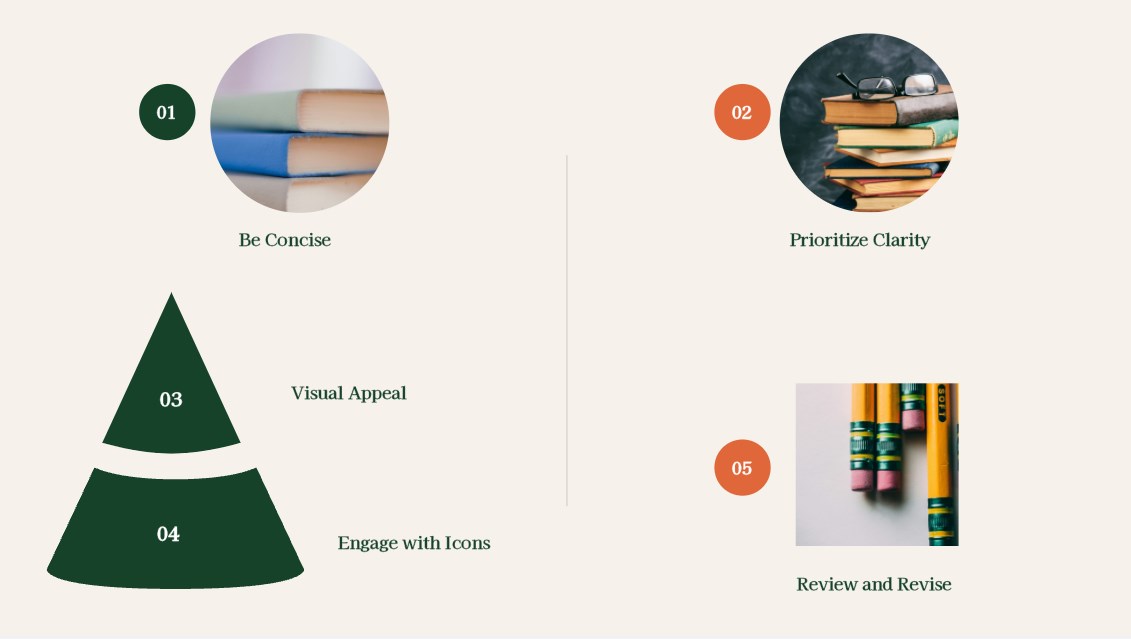
- Engage with Icons: Incorporate relevant icons next to each agenda item. This visual cue can help reinforce the message and create a more engaging experience for your audience.
- Review and Revise: Before finalizing your slide, take a moment to review it for clarity and coherence. Ensure it accurately reflects the flow of your presentation and is free of errors.
Final Thoughts
Before presenting, compare the agenda with the finished deck in Presenti AI. Use the same section names and order, remove topics you no longer cover, and keep the slide readable at a glance. For a very short talk, a spoken overview may be enough.