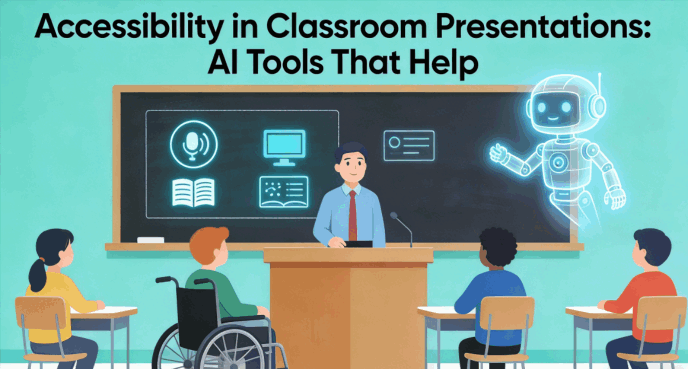
Traditional classroom PPTs should give learners more than one way to access the important information. Clear text, useful image descriptions, captions, and a logical reading order can remove barriers. AI can help draft and simplify material, but the finished slides and delivery method still need accessibility review.
What Defines an "Accessible" Presentation Standard?
When educators ask, "What makes a presentation accessible?" they are looking for more than just legible fonts. Universal Design for Learning encourages flexible ways to engage with material and demonstrate understanding. Alongside those teaching choices, check the presentation’s technical accessibility in the format students will receive.
High-Contrast Design and Color Safety
For students with low vision or color blindness, a poorly chosen color palette can render a slide unreadable. Check text/background contrast with an appropriate contrast checker. Do not use color alone to distinguish categories: add labels, patterns, or symbols so the meaning remains available when colors are difficult to distinguish.
Automatic Alternative Text (Alt Text)
Images are powerful teaching tools, but they are invisible to students using screen readers unless they have Alt Text. Write alt text that explains the purpose of an image in the lesson. Review any automatically generated description, and provide a longer explanation or data table when a chart conveys more information than a short description can capture.
Real-Time Captioning and Transcription
Captions support learners who cannot hear the audio or need to follow a talk in a different way. Integrating real-time captions into live presentations allows students to follow along in silence or noisy environments. Furthermore, AI-driven transcription can turn a spoken lecture into a searchable text document, a useful alternative for reviewing the lesson.
Logical Reading Order Optimization
A common pitfall in slide design is a chaotic reading order. When a screen reader scans a slide, it must follow a logical sequence (Title -> Body Text -> Image Caption). Check the object reading order in the delivery application and test the exported file with the assistive technology learners will use. A visually tidy layout does not establish a correct reading order.
Leading accessible presentation makers
Presenti
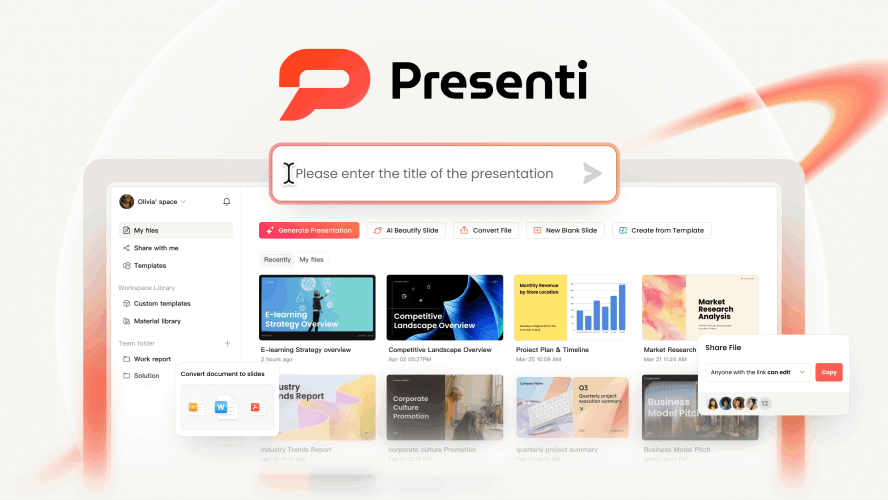
Presenti can help turn notes or supported documents into a presentation draft. Use it to organize the lesson, then review the content and the accessibility of the final file.
Lesson structure: Start with the learning objective, introduce the main concepts, and finish with a recap or practice task. Adapt the sequence to the learners rather than assuming a diagnosis determines one preferred format.
Reading order: Inspect the final presentation in its delivery application. Do not assume that AI layout generation has created an accessible object order.
Simplifying text: Ask for a shorter explanation, then check that key definitions, qualifications, and examples remain accurate.
Quick Start:
- Upload: Log in and drop in your "messy" PDF or Word notes.
- Define: State the learning objective, audience, and concepts that must remain in the outline.
- Refine: Adapt the wording and supporting materials to the needs identified by the teacher and the learner’s support plan.
Canva Magic
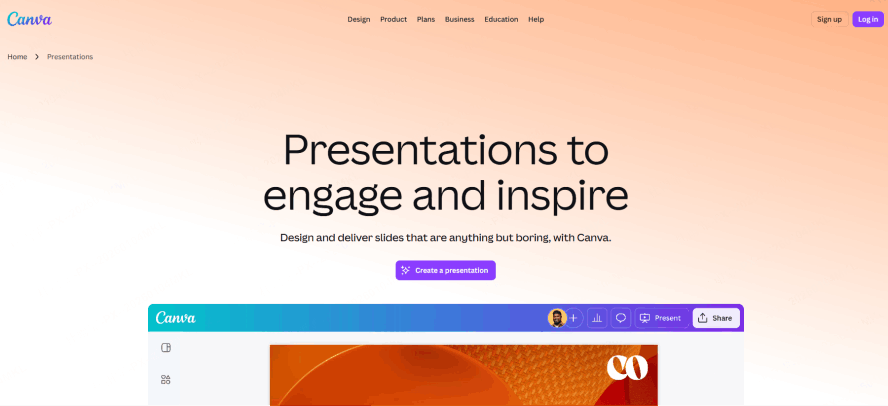
We all know Canva makes things look gorgeous, and for students who need high visual engagement to stay focused, it’s a powerhouse.
The "Design Health Check": Use Canva’s accessibility-checking options where available, then review any flagged issues in the context of the lesson.
The Catch: It’s "semi-automatic." You still have to remember to run the accessibility checker and manually add Alt-Text for images.
Best for: The K-12 teacher who wants their slides to pop, but has a few extra minutes to fine-tune the inclusive details.
Quick Start:
- Generate: Use "Magic Design" to turn a prompt into a slide deck.
- Check: Click on File > View Settings > Check Accessibility.
- Fix: Follow the AI’s suggestions to fix low-contrast text or missing Alt-Text for images.
Plus AI
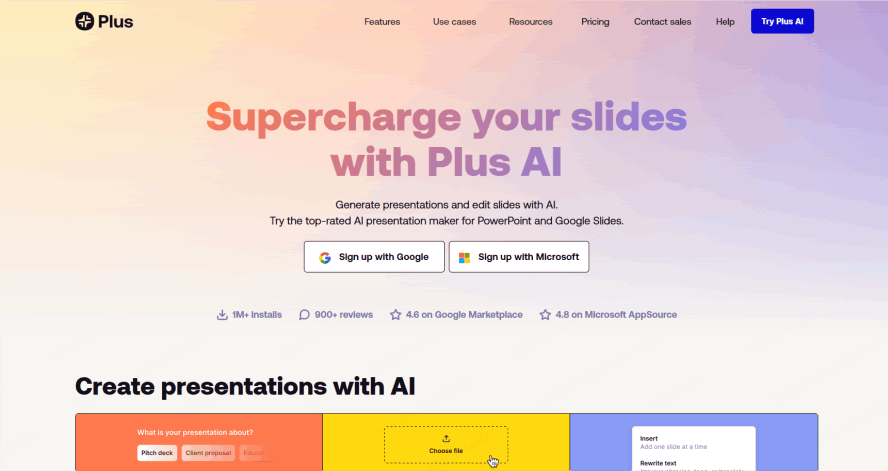
If you’re married to Google Slides and don't want to learn a new interface, Plus AI is your best friend for content heavy lifting.
From Chaos to Outline: Its real strength is taking a dense, 30-page PDF and turning it into 10 clear, manageable slides. By stripping away the fluff, it naturally reduces "cognitive load"—which is a fancy way of saying it keeps students from feeling overwhelmed.
Keep in Mind: It’s a content writer first. You’ll still need to do the heavy lifting regarding screen-reader compatibility and color-contrast settings within Google Slides.
Best for: University professors or secondary teachers who need to turn complex research into digestible classroom bites quickly.
Quick Start:
- Launch: Open the Plus AI add-on inside Google Slides.
- Convert: Paste your text or link and select "Rewrite/Summarize".
- Scaffold: Use the "Remix" tool to turn a complex paragraph into a simple, scaffolded bullet-point list.
Gamma
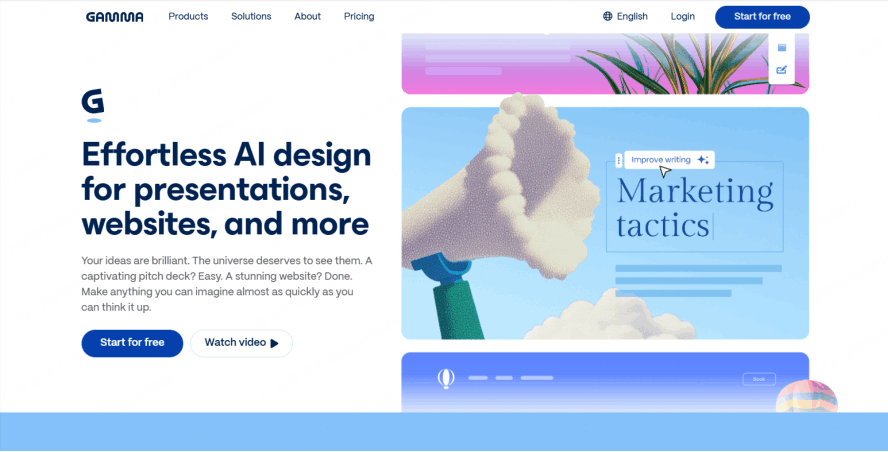
Gamma doesn’t really make "slides"—it makes interactive journeys. It feels more like a website than a PowerPoint.
The Mobile-First Advantage
Many students access materials on their phones or tablets. Check Gamma’s cards on the phones and tablets your learners use, including text size, zoom, tables, and image descriptions.
The Focus Factor: For students who find the "flip-flip-flip" of traditional slides jarring, Gamma’s vertical scroll feels much more natural and modern.
Best for: Flipped classrooms or asynchronous learning where students are moving through the material at their own pace.
Quick Start:
- Create: Type your topic into the AI generator.
- Format: Choose a High-Contrast theme from the sidebar.
- Share: Send the link to students—they can scroll through the "cards" vertically, and test whether that format suits the learners and the material.
Which One should You Pick
| Workflow need | Option to evaluate | What to check |
|---|---|---|
| Drafting from notes | Presenti | Meaning, structure, and accessibility of the final delivery file |
| Visual design | Canva | Contrast, image descriptions, and reading order |
| Working in Google Slides | Plus AI | Accuracy of simplified text and the host editor’s accessibility settings |
| Self-paced web reading | Gamma | Keyboard navigation, screen-reader behavior, zoom, and mobile readability |
Conclusion
"Accessibility is not a feature; it’s a right." As educators, our goal is to ignite a spark in every student, but that spark can only catch if the student can reach the flame. By adopting a specialized classroom presentation maker, we move away from a "one-size-fits-all" approach and toward a "one-size-fits-each" philosophy.
Whether you teach a small group or a lecture hall, ask learners what helps them access the material and provide suitable alternatives where needed. Let us embrace these AI-driven tools not just to work faster, but to teach better and include more.