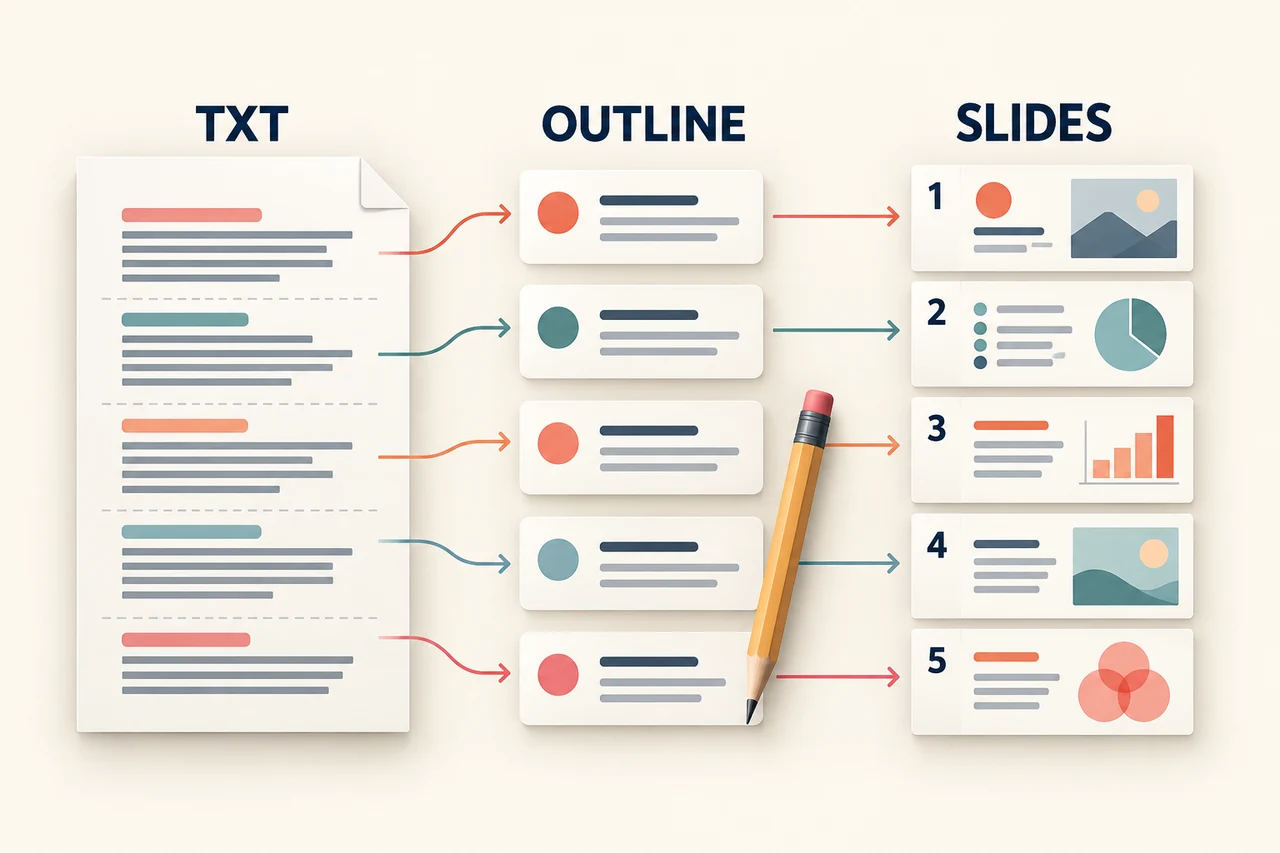
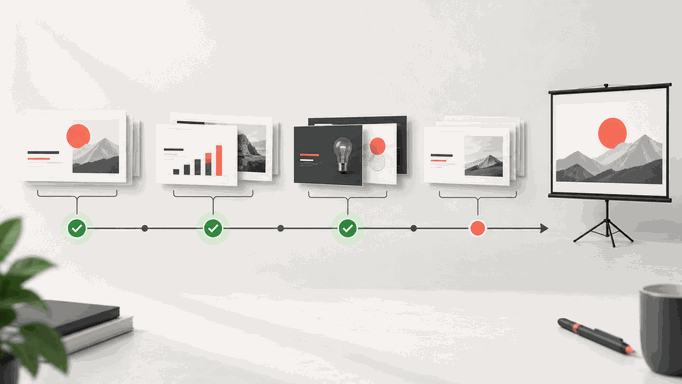
Creating visually appealing, professional presentations can often be a time-consuming process. Presenti AI can help create an initial outline and slide draft. This guide explains how to choose a template, revise the content, and prepare a file for your audience.

What Is a Presentation Generator?
A presentation generator uses templates and design tools to turn your input into a slide draft. AI tools can also propose an outline and wording, giving you a starting point for organizing the presentation.
Presenti AI helps turn a topic or supported document into a slide draft. Choose a template, review the outline and content, and adjust the design to fit your audience.
Why Use a Presentation Generator?
AI presentation tools can help students, teachers, and professionals organize existing material. The value depends on the task and the amount of revision the draft needs.
1. No Downloads or Installation Required
Presenti AI works in a browser, so this workflow does not require a separate desktop installation. You need a suitable browser and an internet connection; keep important source files backed up.
2. Start with a Template
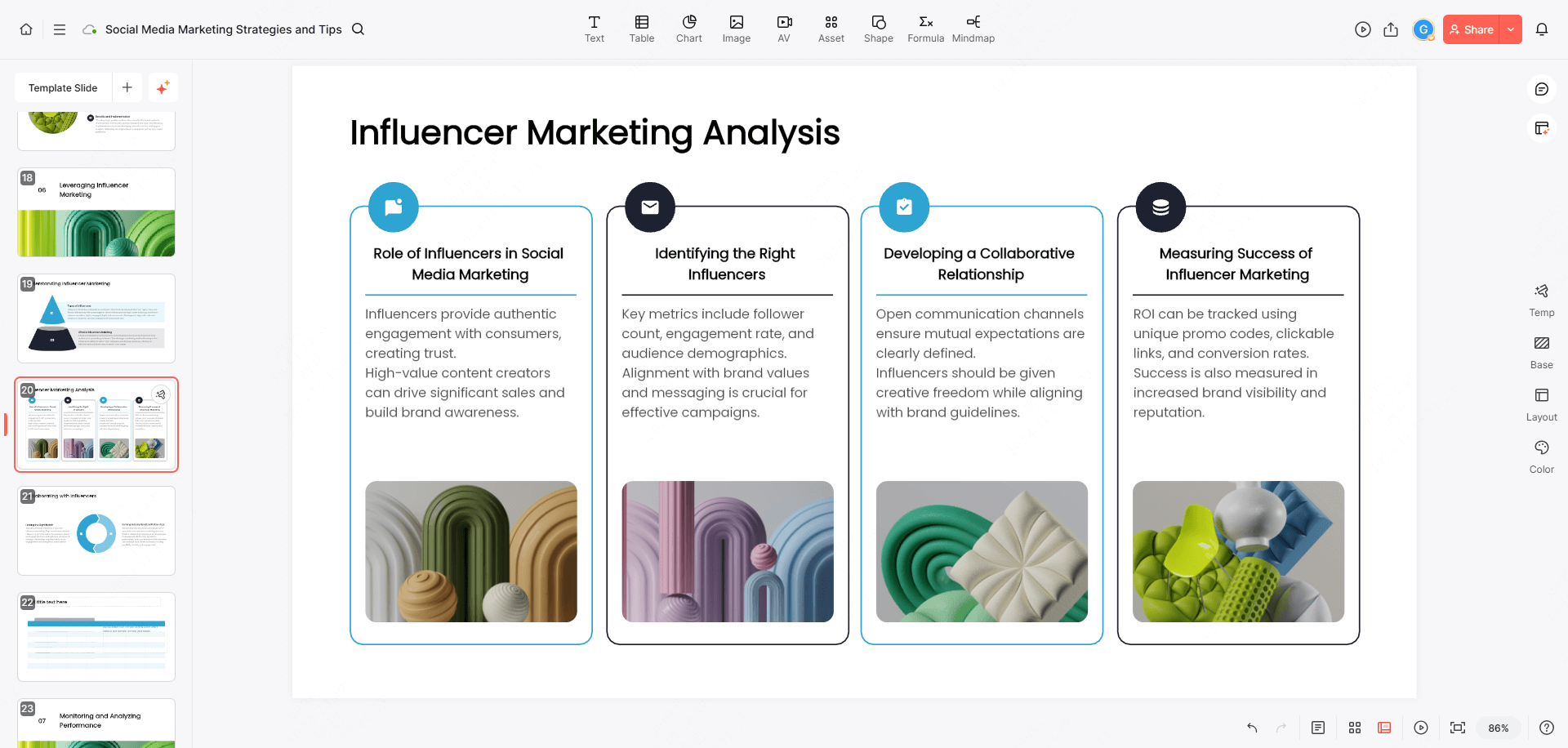
You can start with a template, add your content, and adjust the design. Try the editing controls on a short draft to see how they handle the slides you need to make.
3. Adapt the Draft to Your Task
Students can organize class material, teachers can prepare lesson slides, and professionals can structure business reports. In each case, the draft still needs to match the audience and purpose.
4. Save Time and Effort
A generated layout can reduce the work of arranging text and images. Use that starting point to refine the message, remove unnecessary slides, and make sure the design supports the content.
How to Create a Presentation with Presenti AI
The following steps take you from an idea or source file to a reviewed slide deck.
Step 1: Open Presenti AI Online
Open the Presenti AI website and sign in or create an account.

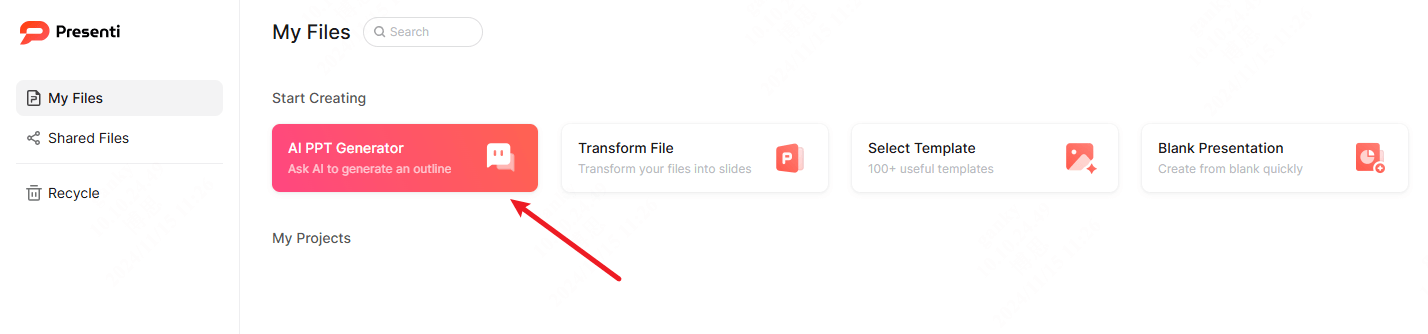
Step 2: Choose Your Slide Creation Method
With Presenti AI, you can create your slides in a variety of ways:
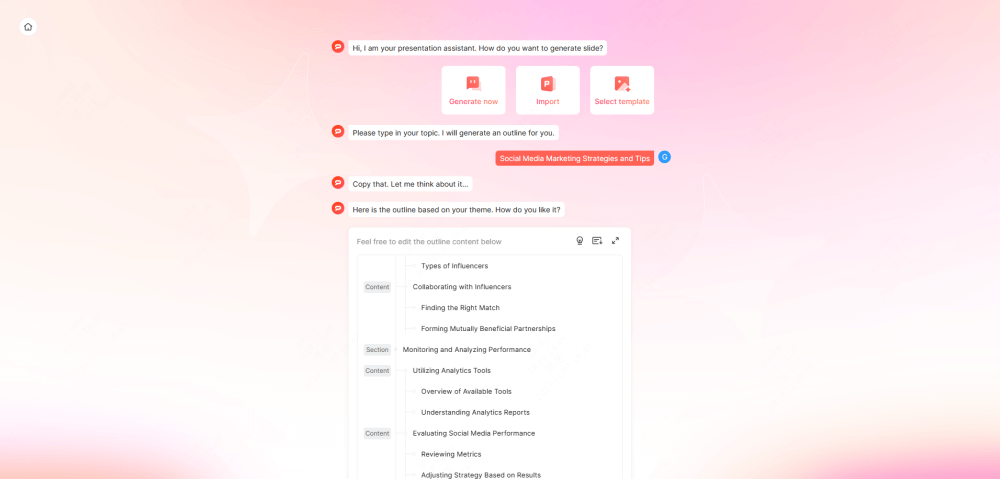
AI PPT generator: Enter a topic, audience, and key points to generate a first draft. Review the proposed outline and verify any claims before using the slides.
File import: Use the relevant Word, PDF, or Markdown import to start from existing material. Check which content has been extracted and whether the outline needs changes.
Start with a template: Browse the library, choose a design, and add your own content.
Step 3: Generate the Slide Draft
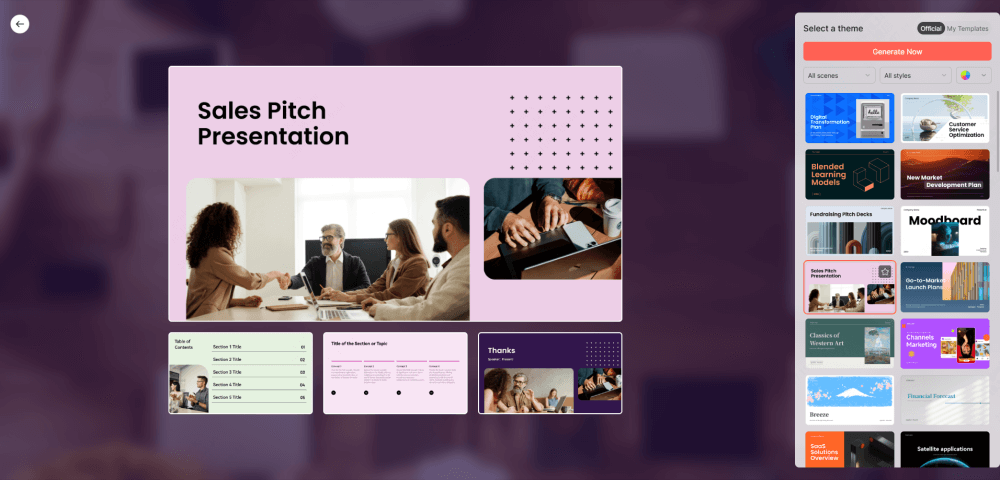
After entering your topic or uploading a supported file, follow the generation prompts. Review the outline and choose a template before generating the slide draft.
Step 4: Customize Your Presentation
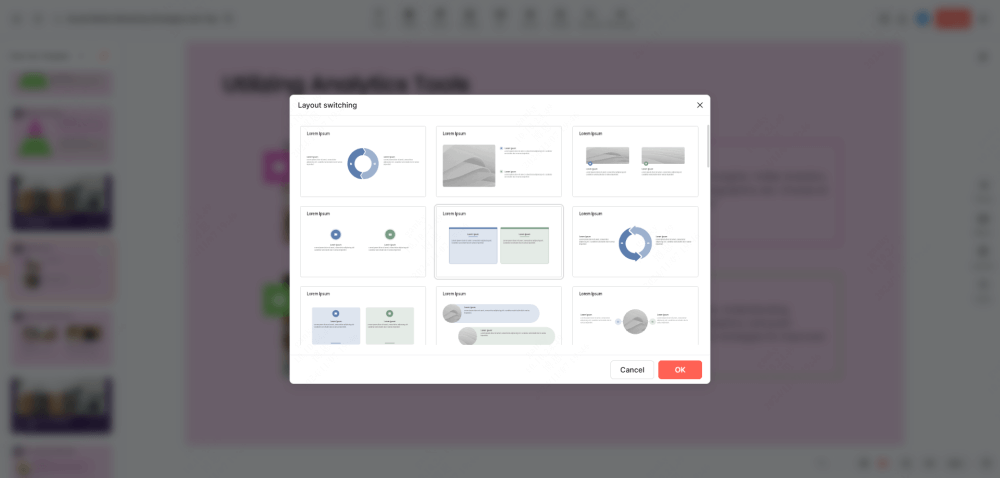
Revise the wording, rearrange elements, and adjust the layout where needed. Keep fonts, colors, and visual elements consistent, and leave enough space for the main point on each slide.
Step 5: Export and Share
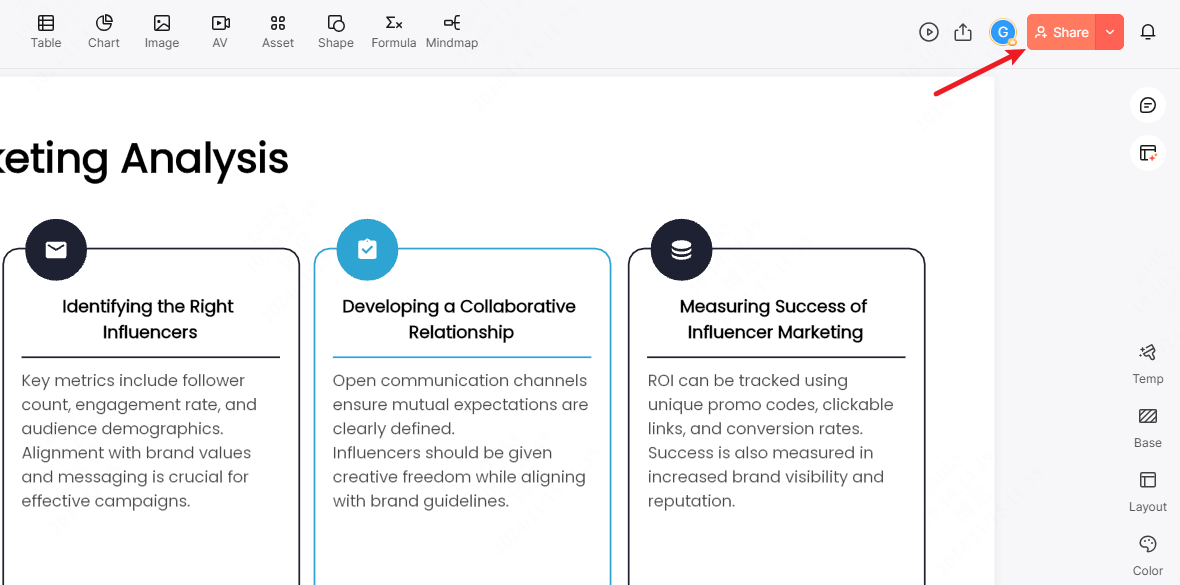
After reviewing the slides, use an eligible plan to export an editable PPTX or a PDF reading copy. Open the exported file and check fonts, charts, and layouts before sharing.
When to Use a Presentation Generator
Here are three situations where a presentation generator can help you organize existing material.
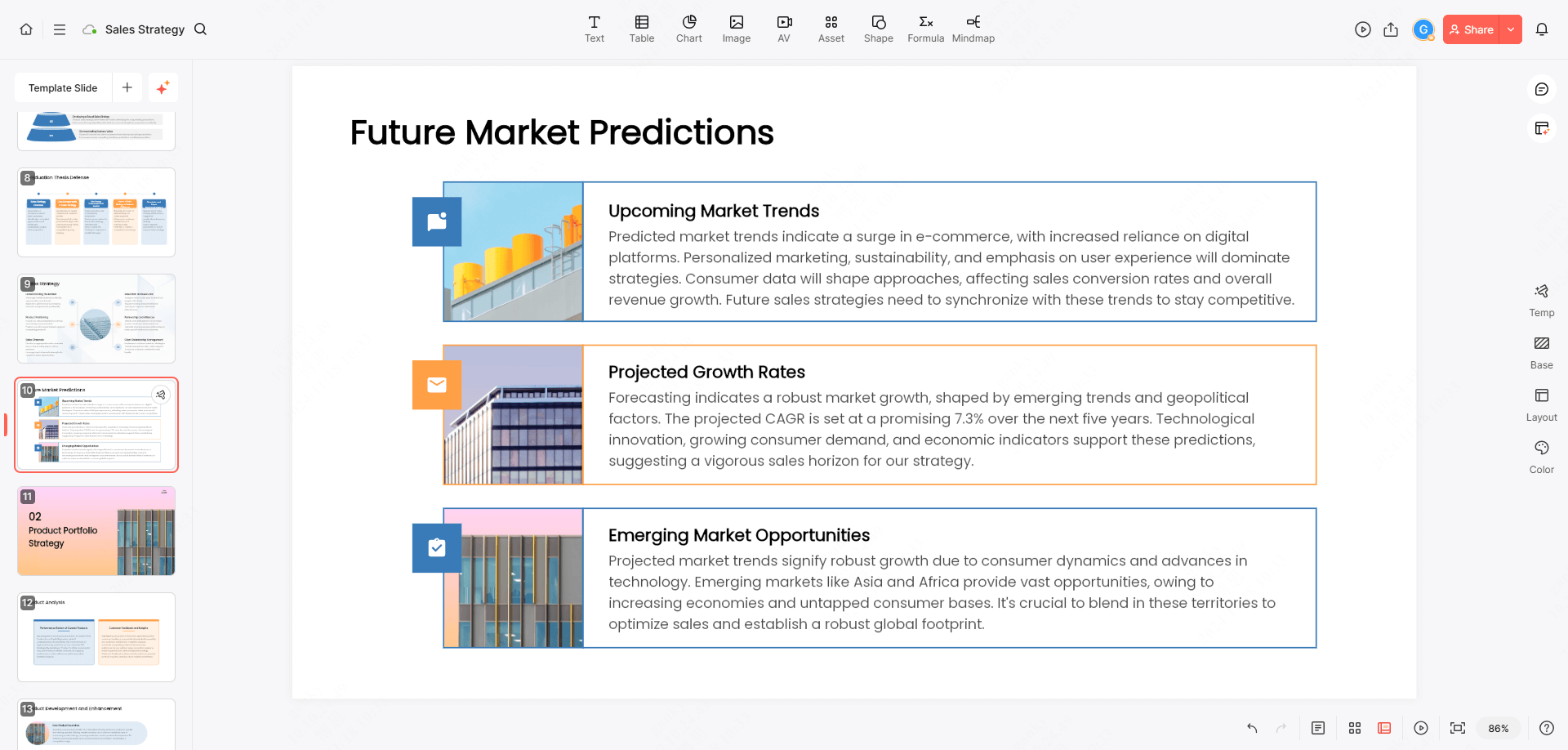
1. Corporate Strategy Meetings
For a strategy meeting, organize the deck around market research, competitor analysis, and proposed next steps. Supply the underlying evidence yourself and make the decision you need from the audience clear.
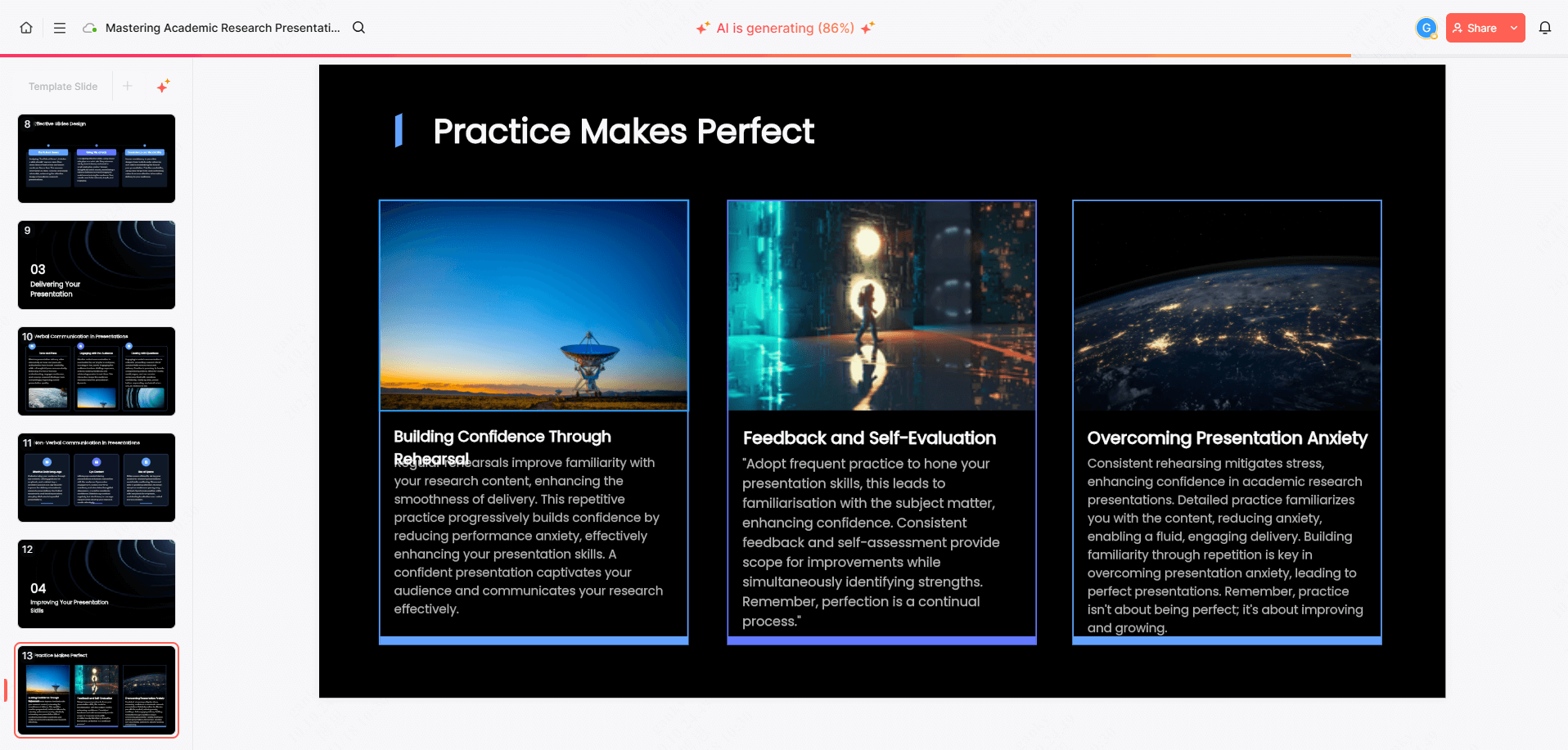
2. Academic Research Presentations
Researchers often need to share detailed results and methodologies. Presenti AI helps academics by simplifying the creation of well-structured slides that clearly communicate data, findings, and conclusions, leaving more time for refining content.
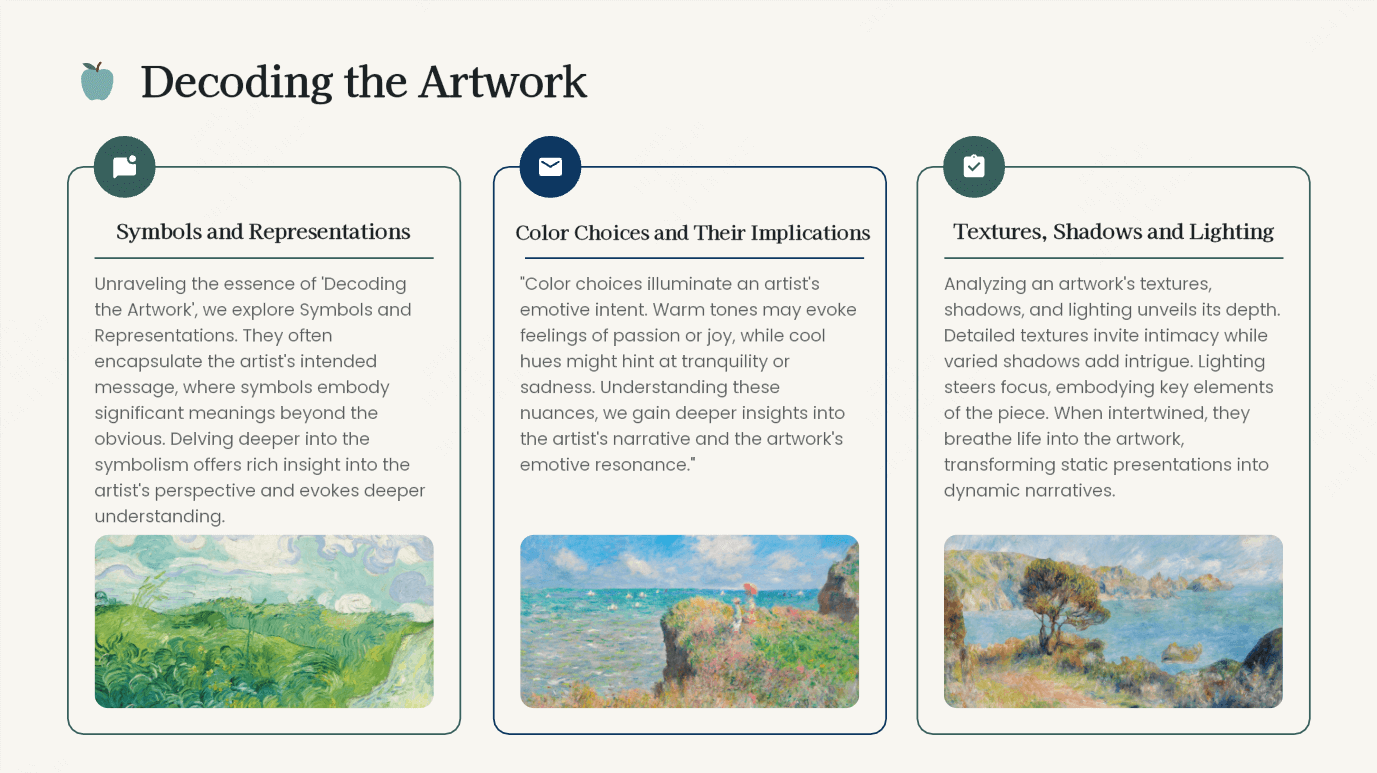
3. Creative Project Showcases
If you’re showcasing creative work, whether it's art, design, or other innovative projects, Presenti AI allows you to create visually engaging presentations that reflect your ideas and vision. Use smart layouts and visual assets to captivate your audience.
Start with a clear purpose and a manageable amount of source material. Use the generated slides as a draft, then check the content, design, and exported file before presenting.