To turn a TXT file into useful PowerPoint slides, give the text a clear hierarchy before you upload it: a purpose, descriptive section headings, the facts that must stay, and the question the presentation should answer. Plain text carries no visual layout, so that structure does much of the work.
Presenti can draft a presentation from a supported TXT file. Its current plans and input requirements specify UTF-8 text; TXT file import and PPTX/PDF export are paid features. The example below shows how to prepare the source and judge the resulting outline. It is an authored practice brief, not a recorded product test.
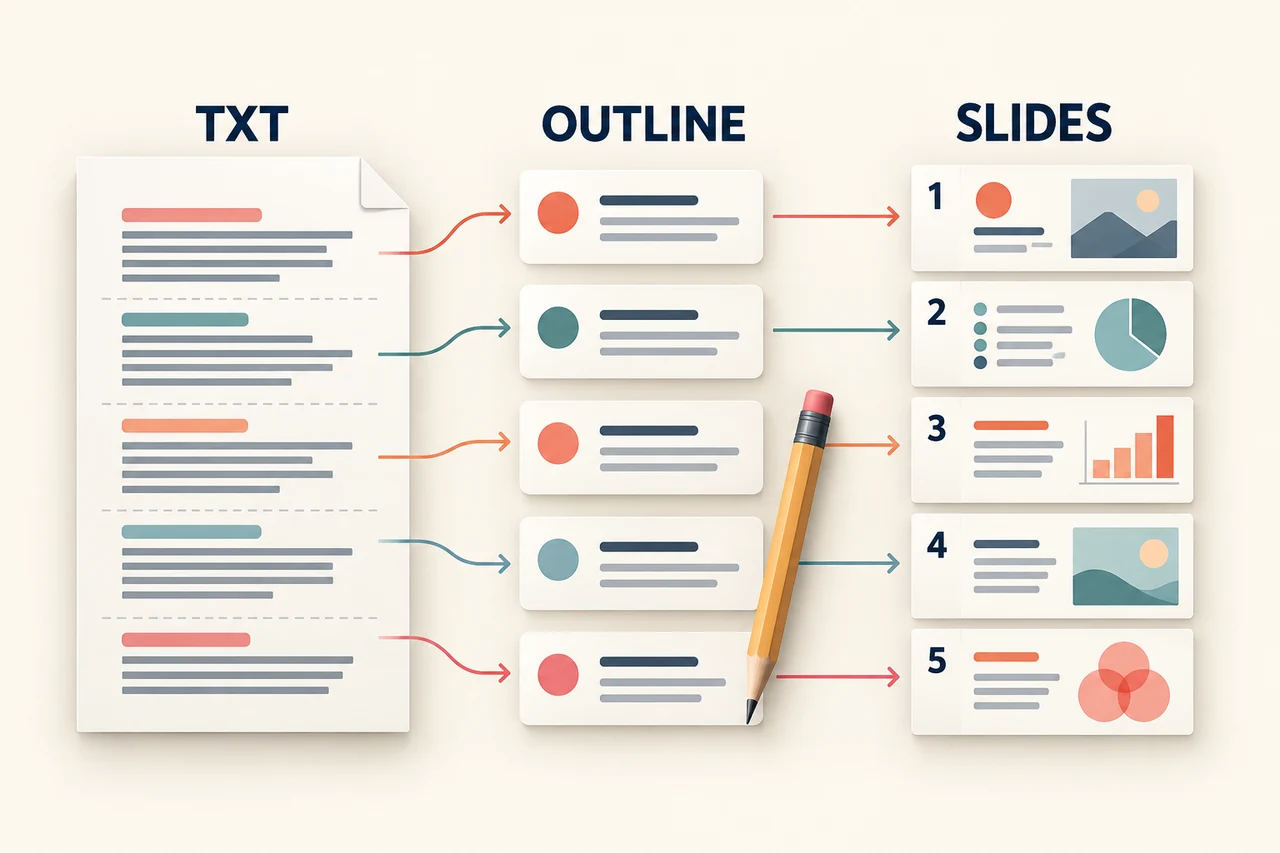
Prepare a TXT file the audience can follow
A useful source file contains both content and instructions. State the audience and intended decision separately from the facts you want on the slides. Use ordinary headings and short paragraphs; do not try to draw columns with spaces or reproduce a table using tabs.
Copy this fictional training-rollout brief into a text editor and save it as training-rollout-brief.txt with UTF-8 encoding. Replace the example details with your own approved information.
PRESENTATION BRIEF
Audience: Department leads
Purpose: Agree on the scope of an onboarding pilot
Requested output: Five slides for a short planning discussion

1. WHY A PILOT IS NEEDED
New starters currently receive three separate onboarding documents.
The team wants to test one shared checklist before wider use.
No measured time saving is available yet.

2. PROPOSED PILOT
Two departments, six new starters, four weeks.
Keep existing required training and approval steps.
Use the shared checklist alongside the current process.

3. WHO DOES WHAT
Maya: prepare the checklist by 6 October 2026.
Owen: confirm the two department leads by 8 October 2026.
Department leads: nominate a contact for questions.

4. WHAT WILL BE REVIEWED
Record which checklist steps were completed.
Collect comments about unclear instructions.
Review the pilot on 5 November 2026.
Do not describe the pilot as successful before that review.

5. DECISION NEEDED
Approve the proposed scope and nominate the two departments.
Open question: who will own the checklist after the pilot?

DRAFTING RULES
Keep the names, dates, sample size and open question unchanged.
Label the scope as proposed until approval is confirmed.
Do not invent cost savings, results or extra commitments.
UTF-8 is an encoding choice when saving the file, not text to add to its contents. If accented names or punctuation appear as broken characters after opening the file, fix the encoding in your text editor before importing it. Also replace relative deadlines such as “next Tuesday” with confirmed calendar dates.
Decide what each source section should become
The source above has five sections because the meeting needs five different pieces of information. That does not mean every TXT heading must always become a slide. Combine short sections when they answer the same question, and split a dense section when it contains two separate points.
| Source section | Proposed slide title | Information to preserve |
|---|---|---|
| Why a pilot is needed | Test one shared onboarding checklist | The current three-document process; no measured saving yet |
| Proposed pilot | Start with two departments and six new starters | Four-week duration; existing requirements remain |
| Who does what | Two preparation tasks need named owners | Maya and Owen, their tasks and exact deadlines |
| What will be reviewed | Review completion and unclear instructions | What will be recorded and the 5 November review |
| Decision needed | Approve the scope and name the departments | The approval request and unresolved long-term ownership |
Notice the difference between “Test one shared checklist” and “A shared checklist saves time.” The first describes this proposal; the second invents a result. Keep that distinction when reviewing the generated outline.
Import the TXT file and review the outline in Presenti
1. Open the file-generation workflow
Sign in to Presenti and choose the file-import option in your workspace. The reference screens below show the Transform File workflow. If your interface uses different labels, follow the file types and controls shown in that dialog.

Upload the saved TXT file. Check that the source preview, if provided, contains the final section as well as the opening; a partial input can still produce a plausible-looking outline.
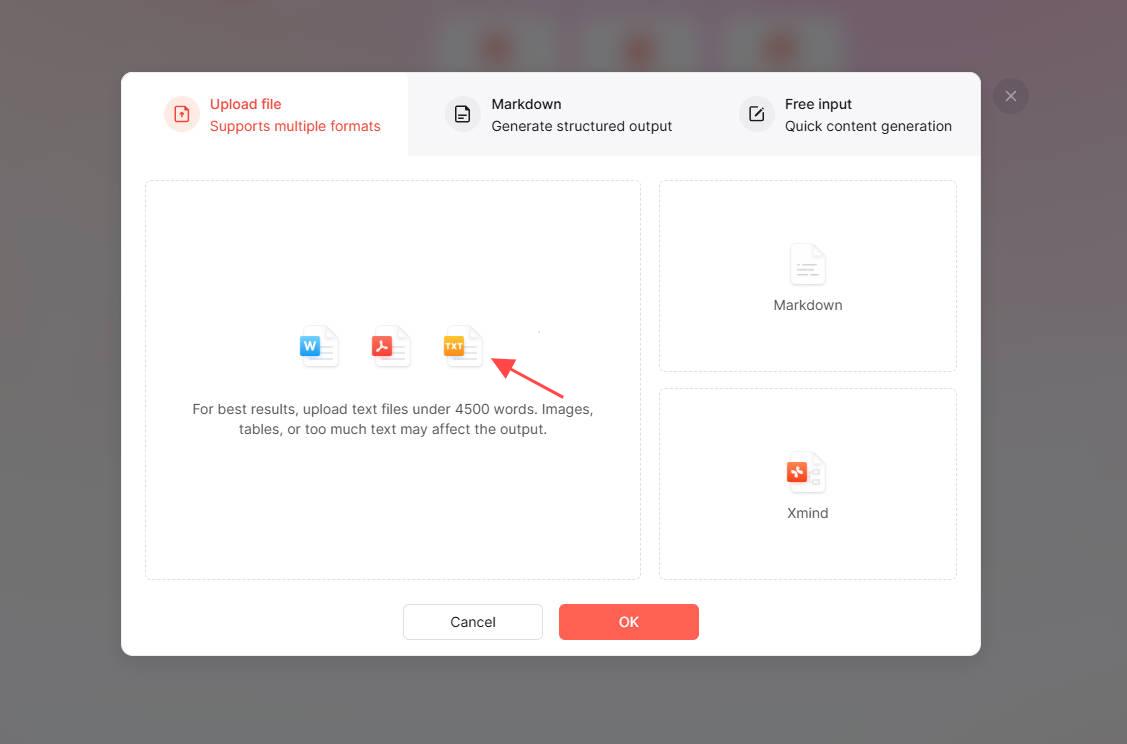
2. Choose how much the draft may change
The illustrated workflow offers choices for following the original file, reorganizing it, extracting key points or expanding it. A structured brief like this example is a good starting point for the option that follows the source. For long notes, a summary may be more useful. Expansion needs particular care because added wording is not evidence from your file.
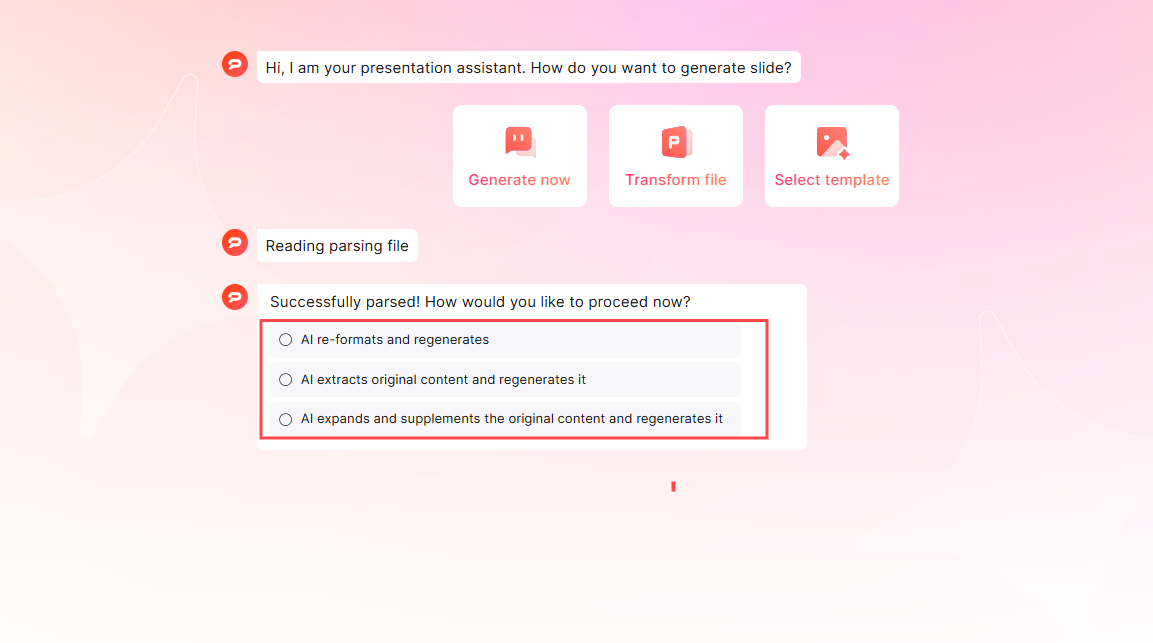
3. Edit the outline before generating slides
Compare the proposed outline with the mapping table above. Keep the approval request visible, move implementation detail after the proposed scope, and restore the open question if it is missing. If the tool treats audience instructions as slide content, remove them from the outline while keeping their effect on the wording.
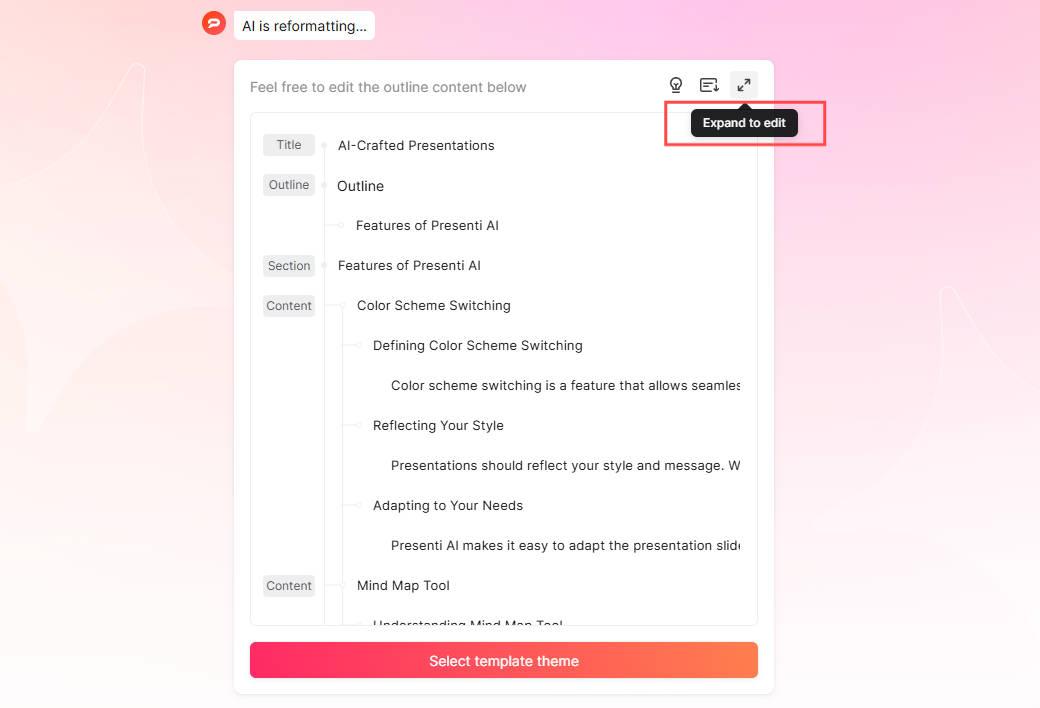
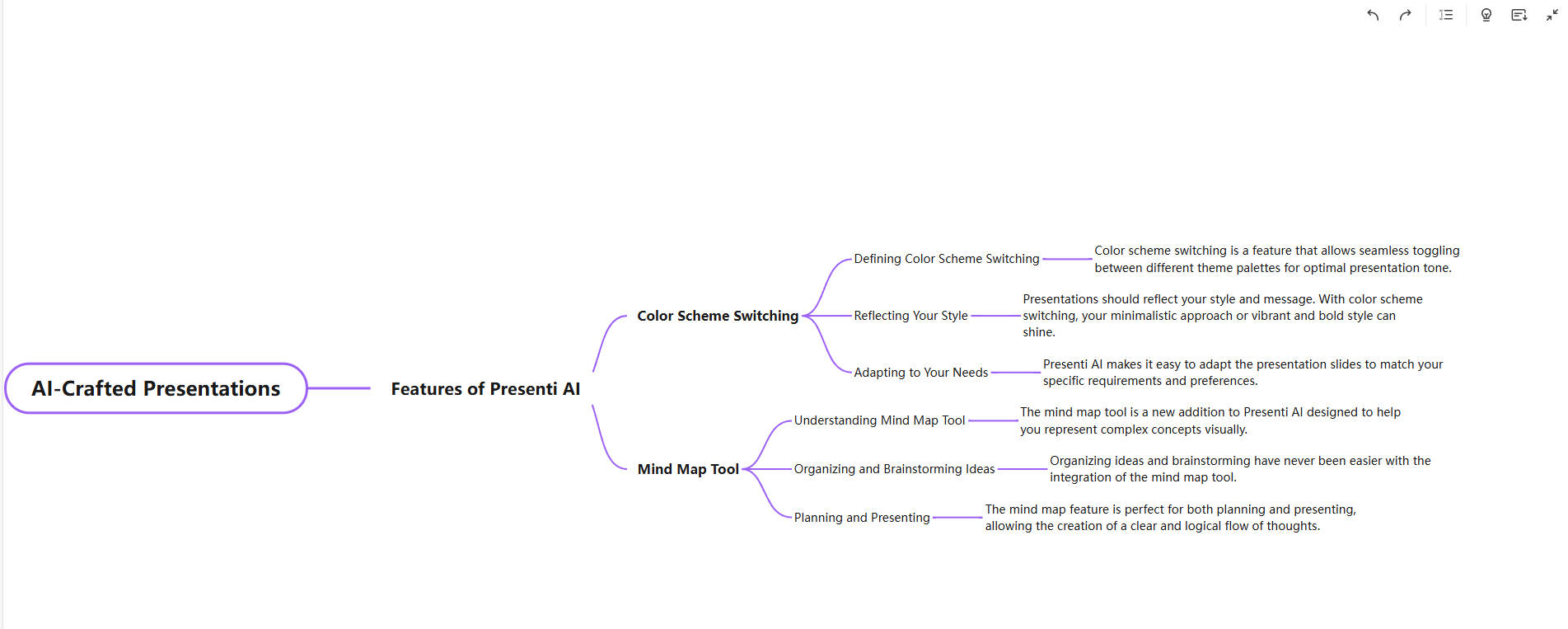
The mind-map view can help you see whether a detail is nested under the right section. It is a view of the proposed structure, not confirmation that every statement is correct.
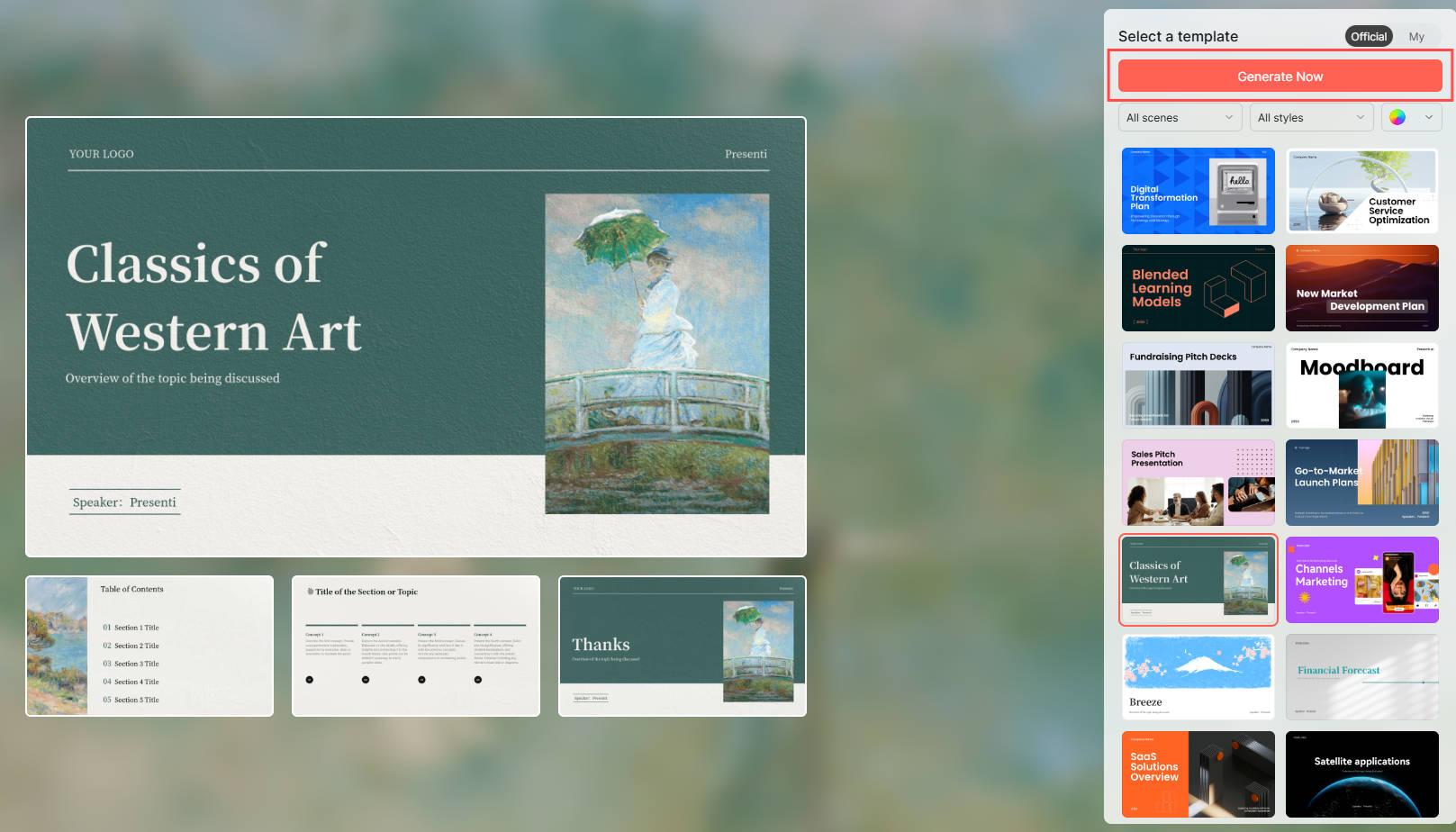
4. Choose a template and generate a draft
Use a simple layout for this planning discussion: a short context slide, a scope slide, an owner table, a review plan and a decision slide. Select a theme with enough room for names and dates, then generate the presentation.
Edit the draft around the information
Start with content rather than decoration. Confirm that “six new starters” has not become “six departments,” that dates are unchanged, and that proposed work is still described as proposed. Then adjust the layout: an owner/date table serves the third slide better than a generic photograph.
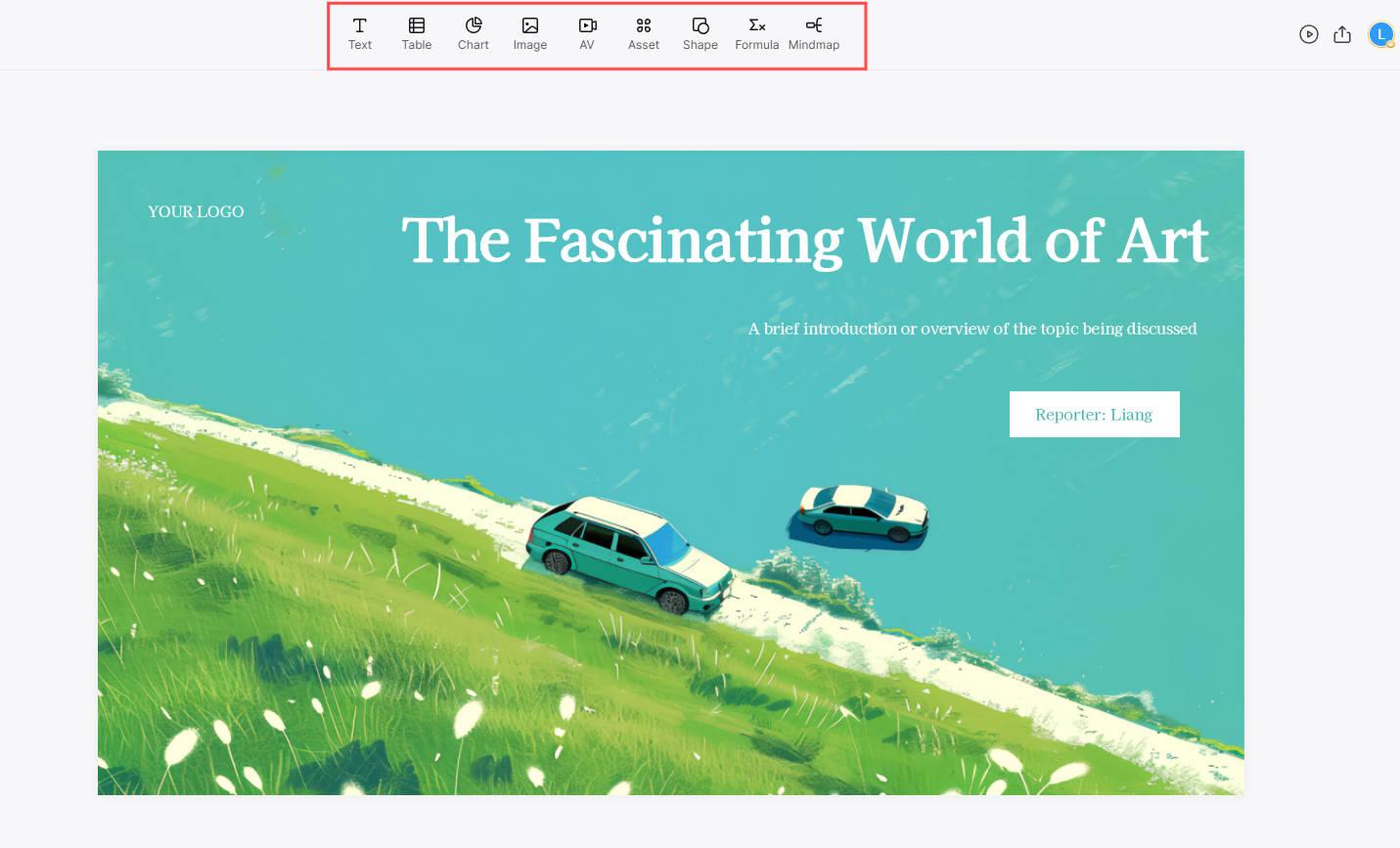
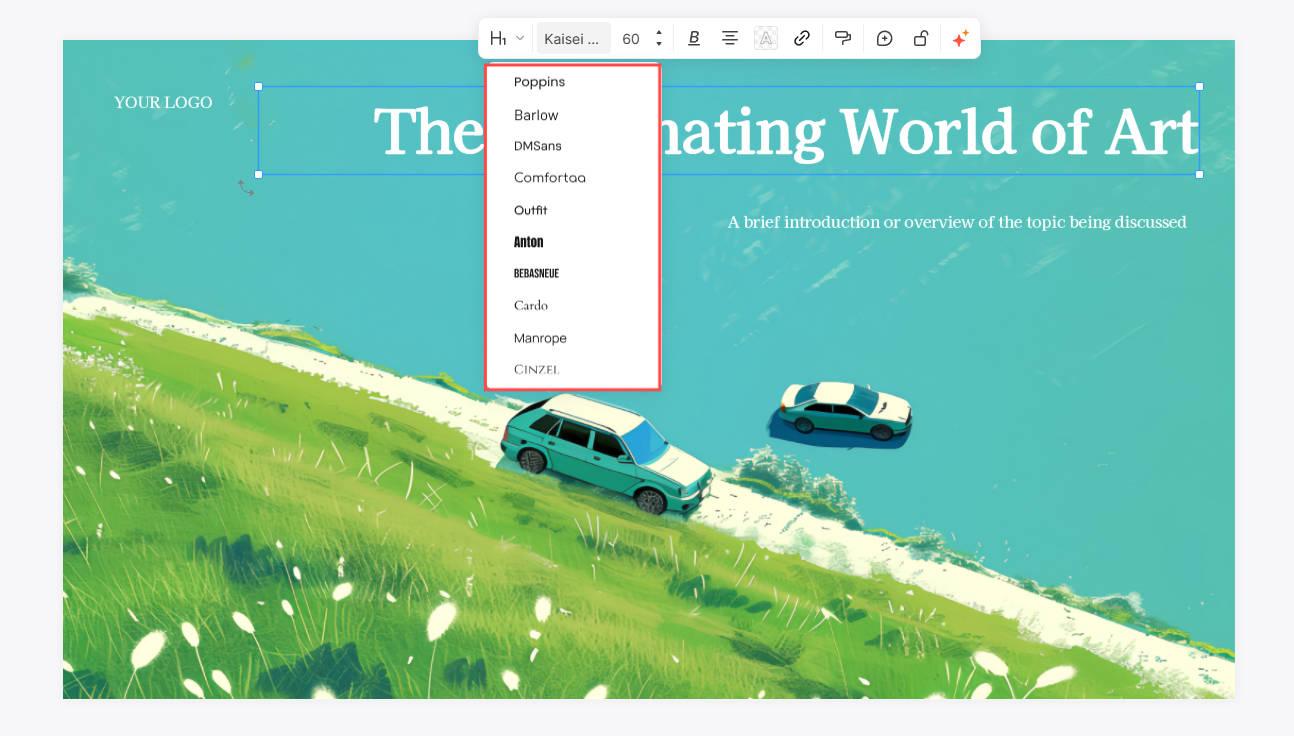
Use the text controls to make labels readable at presentation size. Shorten a title before shrinking it to fit, and check names and dates after changing a font.
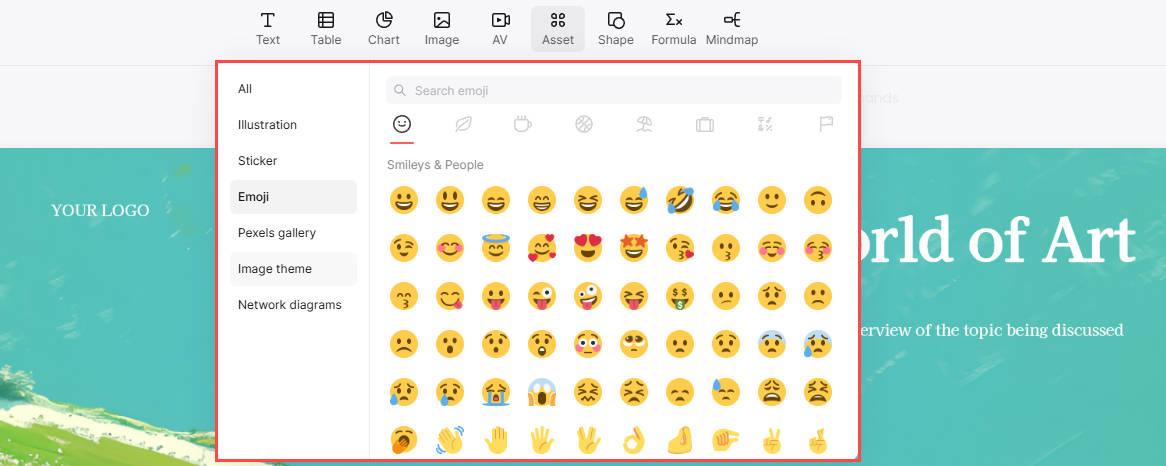
Add an icon or illustration only when it explains the task. A decorative asset should not replace the evidence or consume the space needed for an unresolved question.
Review the facts with a colleague
Give the reviewer the source brief and the draft together. Ask for specific corrections: “On the owner slide, Owen confirms the department leads; he does not own the full pilot.” Presenti documents workspace invitations and real-time collaboration, so agree who edits each section and who resolves conflicting changes.
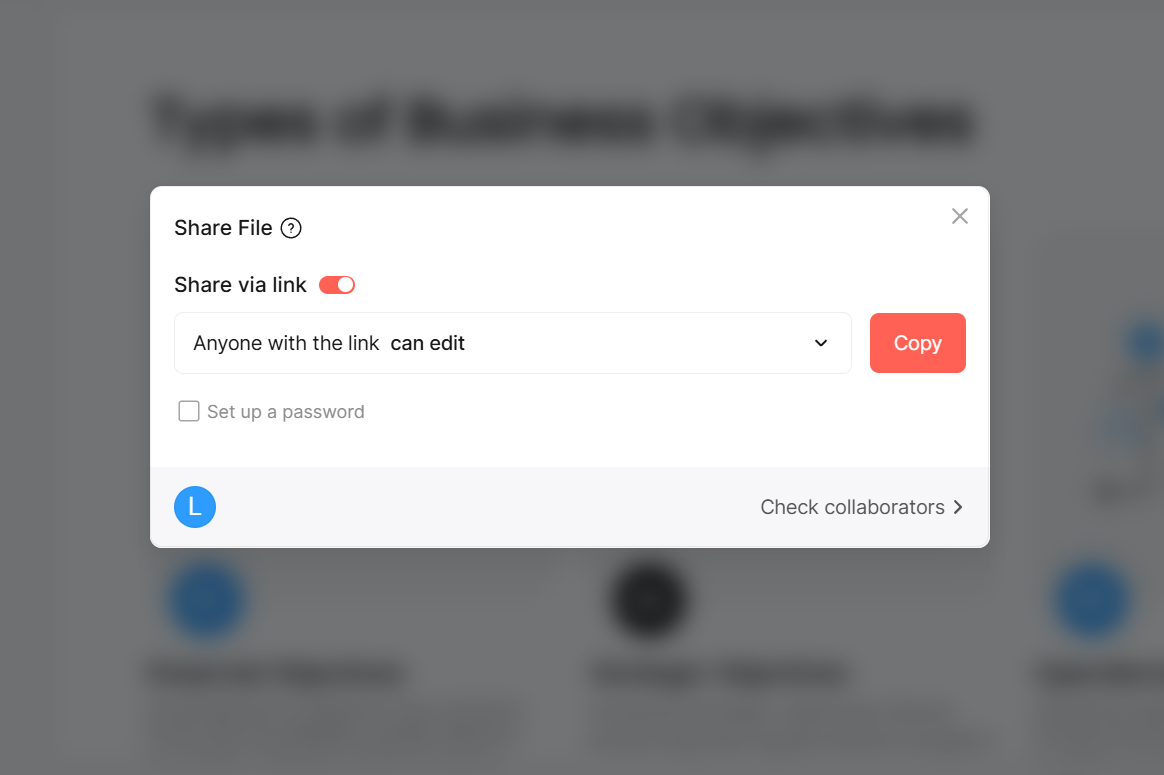
Keep a named copy before substantial changes. Once the scope is approved, update both the source record and the slide wording; a presentation should not be the only place a project commitment is recorded.
Export the format the recipient needs
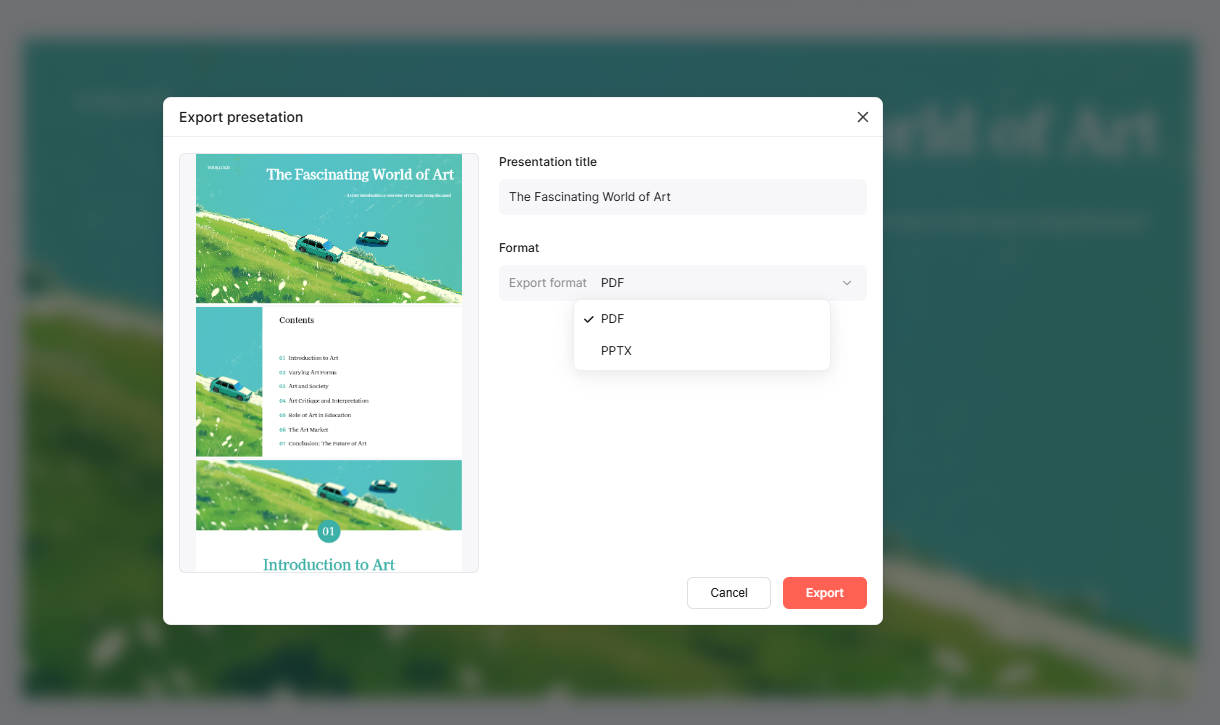
On a plan that includes export, choose PPTX when the recipient needs to edit the presentation, or PDF for a fixed reading copy. Open the exported file in the receiving application and inspect the five slide titles, the owner table, dates and any image crops. The exported file is a separate deliverable from the browser draft.
Adapt the source brief to another task
For a lesson, replace the approval request with a learning objective and a student activity. For a client update, include agreed deliverables, completed work and the decision needed from the client. The important pattern is the same: tell the tool what the audience needs, supply the evidence, and identify what remains unknown.
If you are still choosing a product, the presentation-tool workflow comparison can help you decide which input and output features matter. If TXT already fits your source, improving its structure is more useful than repeatedly changing converters.
Download the training-rollout brief
Download the UTF-8 TXT example, replace its fictional names, dates and scope, and keep the drafting rules that fit your task. The source-to-slide table above provides a reference for reviewing your first outline.