A presentation’s appearance or an AI-detector score cannot reliably establish how it was authored. Content, file metadata, and source records can offer clues, but they need context. This guide explains those checks and their limits.
This guide walks through all of them: what to look for with your eyes first, what the writing itself tends to give away, how to dig into the file's technical structure, and where dedicated AI-text checkers actually help versus where they don't.
Why There's No Single "AI Checker" for Presentations
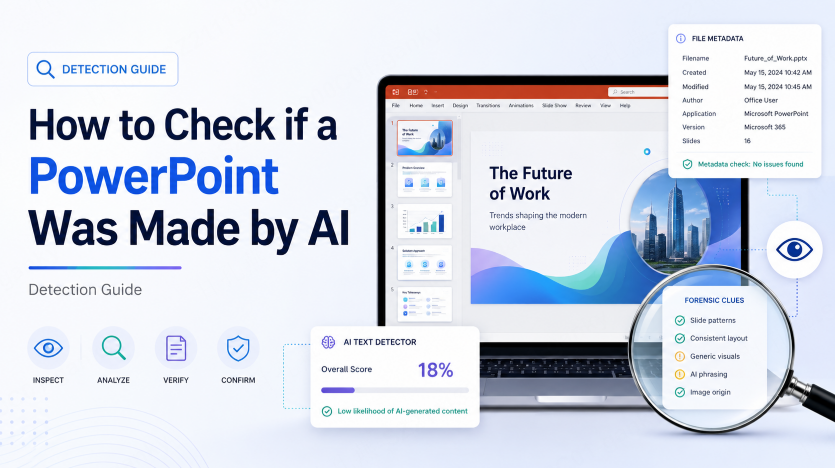
AI text detectors like GPTZero and Copyleaks exist because plain text has consistent statistical patterns to analyze — sentence rhythm, word choice predictability, that kind of thing. A slide deck is a different kind of object entirely: it's a mix of short text fragments, imagery, layout, color, and design choices, most of which don't reduce to the kind of pattern a text classifier looks for.
A slide deck combines text, images, layout, and content from several sources. Reviewing those parts may reveal quality problems or an export tool, but combining weak clues does not turn them into proof of AI authorship.
Phase 1. Visual Cues: What AI-Generated Slides Tend to Look Like
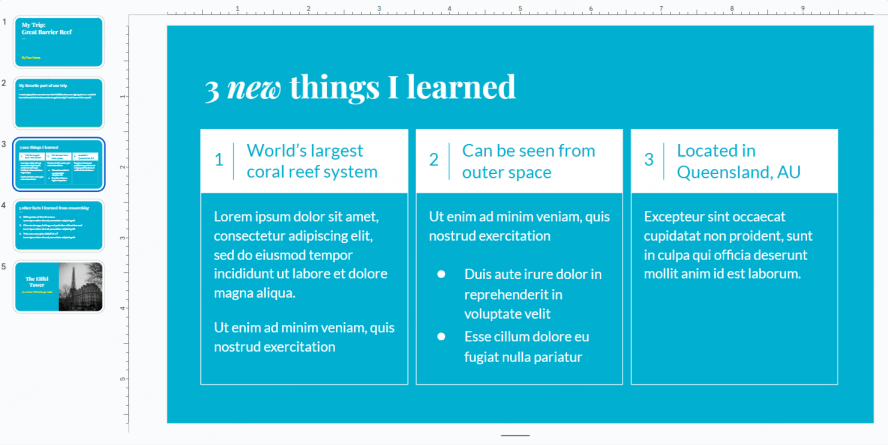
Before touching the file itself, a straightforward look at the deck catches more than people expect.
- Over-symmetrical layout. Human designers — even ones working from a template — tend to introduce small, deliberate variations in spacing and emphasis to highlight what actually matters on a slide. AI-generated decks often apply the exact same visual weight to every slide regardless of content importance, which reads as strangely flat once you notice it.
- A distinct "AI" image texture. Obvious glitches are mostly gone by now, but many AI image tools still produce a slightly waxy, over-smoothed texture, or shadows that don't quite match the implied light source. Background text in a generated image is also a reliable tell — it may be warped or nonsensical, but that alone does not establish the origin of the whole deck.
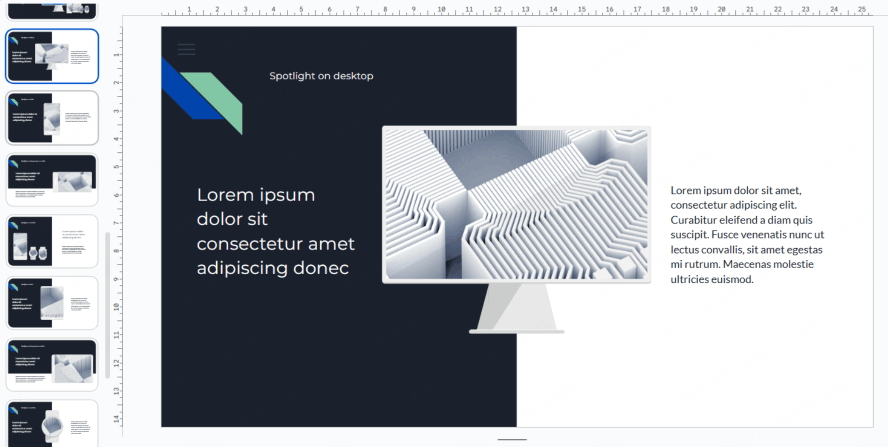
- Generic "premium-looking" stock visuals. Abstract 3D spheres, floating geometric shapes, and glassy gradients that look expensive at a glance but have no real connection to the actual content are a common AI-generator default.
- Leftover watermarks. Don't overlook the obvious — free tiers of several AI slide generators leave a small "Made with [tool]" mark in a slide corner or the master slide. It may identify a tool used to export or edit the deck.
Phase 2. Content & Logic: The Real Detective Work
If the visuals pass inspection, the writing itself is where AI tends to give itself away — it's fluent at the sentence level but consistently weaker at the level of an actual argument.
- Professional-sounding fluff. The copy reads confidently and uses the right vocabulary, but stays generic — it explains what a concept is without ever grounding it in the specific situation the deck is supposedly about. This "sounds right, says nothing" quality is one of the most reliable tells there is.
- Narrative discontinuity. AI is good at making any single slide internally coherent, but weaker at connecting slides into an actual throughline. Watch for sudden logical jumps between slides, or three slides in a row that restate the same point with different words.
- Fake or placeholder-feeling statistics. Numbers like "10% growth" with no source, or a cited case study or year that doesn't check out under a quick search, are content problems that need verification, regardless of how the deck was created.
- An oddly even tone throughout. A real subject-matter expert's writing usually has some texture — a stronger opinion in the section they care about, a specific turn of phrase, maybe a small aside. AI-written decks tend to stay uniformly polite and neutral from the first slide to the last.
Phase 3: Technical Forensics, Digging Into the File Itself
File inspection can provide provenance clues, such as the software that exported or last saved a deck. It generally cannot establish which text or images were generated by AI, who revised them, or whether their use followed a policy.
Step 1: Check the metadata
Metadata is the fastest check and takes under a minute, but the method differs depending on your operating system.
On Windows:
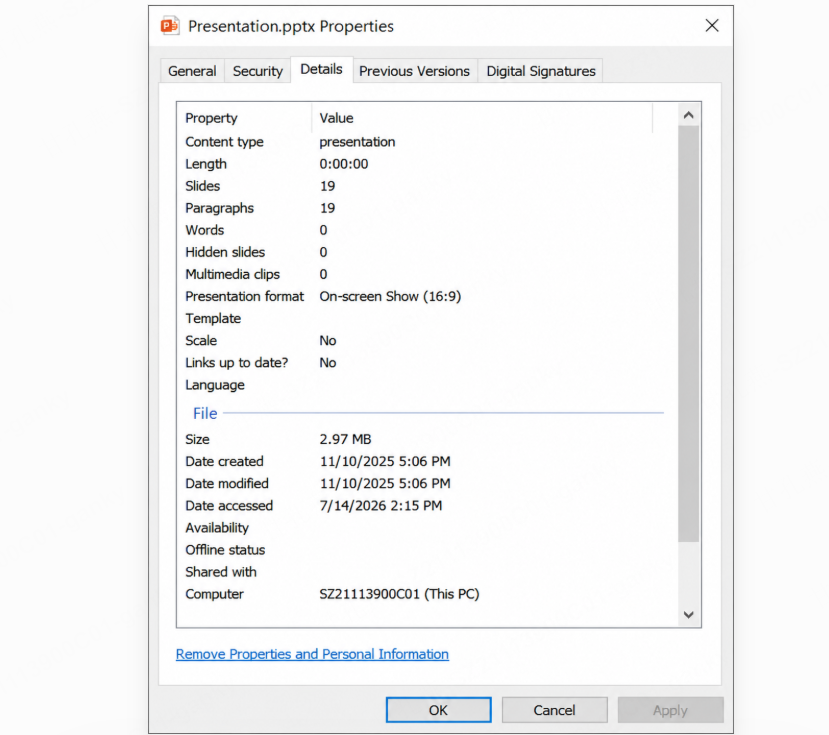
- Right-click the .pptx file and select Properties.
- Open the Details tab.
- Check the Author, Company, and Last saved by fields.
On Mac:
- Select the file and press Cmd+I (Get Info).
- Expand the More Info section.
- Compare whatever author or origin details are shown, keeping in mind macOS surfaces fewer custom fields than Windows by default.
An author or application field may identify a service involved in saving the file. That does not prove the service generated the content: templates, collaboration, conversion, and exports can all affect metadata. Blank fields are also inconclusive. For a formal review, seek source documents, revision history, and the author’s explanation.
Step 2: Open the file as a zip archive
A .pptx file is essentially a renamed compressed folder. If you duplicate the file and change the extension from .pptx to .zip, you can extract it and peer into the inner workings of the presentation.
- Navigate to the ppt/media folder. Here, you will see all the images used in the deck.
- Exported images can have complex, long-string alphanumeric filenames (e.g., image_df234_992l.png) or specific prefixes generated by the API of the AI service.
- Some source images have descriptive names like Q3_Growth_Chart.png or CEO_Headshot.jpg, but an exporter may replace those names.
- Media filenames are weak clues. Export software can rename files regardless of how the images were created, so a filename should not be used to classify the deck as AI-generated.
Step 3: Inspect the Slide Master structure
The ppt/slideMasters folder contains the deck’s master-slide XML. Its complexity reflects templates and editing/export software; it does not reliably distinguish human design from AI generation. Inspect it only if you need to understand the file structure.
Working with Google Slides instead of a .pptx? These metadata and file-structure techniques are specific to PowerPoint's file format and don't transfer directly to a native Google Slides document. Google Slides has its own, arguably more useful method built in — version history — covered in full in our Google Slides AI checker guide.
Phase 4. Using AI Text Checkers on a Presentation
Dedicated AI-text detectors — tools like GPTZero, Copyleaks, and Originality.ai — weren't built for slide decks, but they can still help, specifically for the written portion of a presentation.
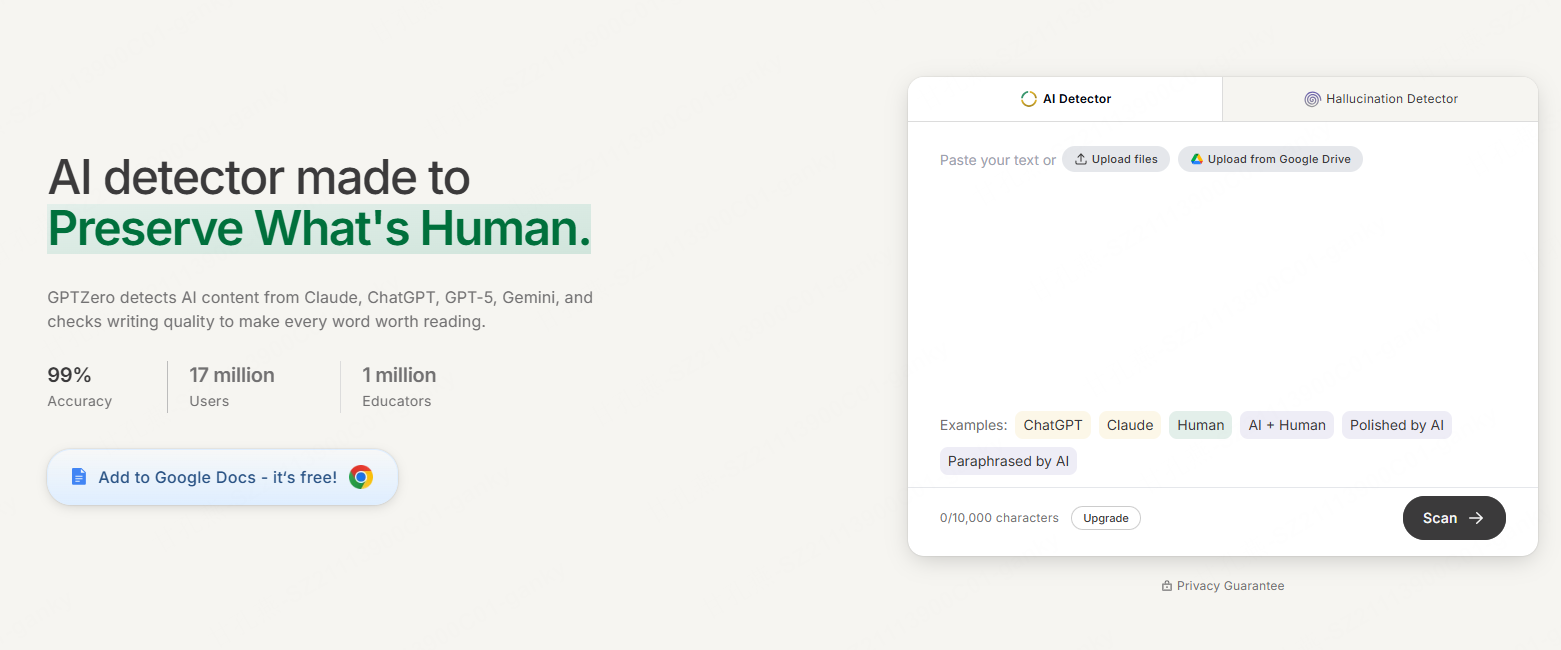
How to actually use one: copy the visible slide text and, if present, the speaker notes into a single document, then run that combined text through the detector. These tools scan for the flat, overly predictable sentence rhythm typical of LLM output — text lacking the natural unevenness ("burstiness") of human writing is flagged as more likely AI-generated.
| Tool | What it actually checks | What it can't tell you |
|---|---|---|
| GPTZero | Sentence-level predictability in extracted text | Design, layout, image sourcing, slide structure |
| Copyleaks | AI-pattern detection plus plagiarism overlap | Whether content was AI-generated then heavily human-edited |
| Originality.ai | AI-pattern scoring, built with publishers in mind | Context-specific accuracy claims or data authenticity |
Treat the output as one more data point, not a verdict — a deck where someone used AI to draft rough text and then rewrote it heavily in their own voice can score as "human" even though AI was genuinely involved in the process, and that's a completely normal, common way people actually use these tools.
What These Methods Can't Tell You
Worth being upfront about this: even combining every method above, there are limits.
- A skilled human editor can smooth out an AI draft's fluff, add real specifics, and vary the tone enough that content-level tells mostly disappear.
- File metadata can be edited or stripped intentionally, and plenty of legitimate human-made files simply have incomplete metadata for unrelated reasons.
- Text detectors have real false-positive and false-negative rates — treat a single tool's score as a signal, not a conviction.
- None of this proves intent. A deck can be AI-assisted and still represent genuine, accurate work by the person presenting it.
That last point matters enough to build a whole section around, which is where this goes next.
From "Catching AI" to "Making AI Yours"
Most of this guide is written for someone trying to evaluate someone else's work — a recruiter, a professor, a client. But a lot of people land on a guide like this from the other direction: they used AI to build a deck themselves and want to know whether it'll read as obviously AI-made before they send it anywhere.
If that's you, the checklist above doubles as a to-do list — professional-sounding-but-generic copy, an oddly even tone, placeholder-feeling stats, and leftover watermarks are all things you can fix directly rather than just worry about. We've written a full, practical guide to exactly that process: Will Your AI-Made Presentation Get Flagged? How to Make It Sound Like You.
The broader point worth sitting with either way: AI isn't inherently the problem — using it as a substitute for your own thinking is. Presenti AI is built around that distinction. Rather than generating generic content from a bare prompt, it works from documents you actually wrote — a Word doc, a PDF, your own Markdown notes — and turns your existing thinking into a structured, designed deck. Because the substance comes from your own material rather than an AI's guess at what you might mean, the result tends to read as genuinely yours, because it is.
Frequently Asked Questions
Is there a reliable way to check for AI on a PowerPoint?
No visual, metadata, or text-detector check in this guide proves AI authorship. Source documents, process records, and a conversation with the author can provide more useful context than a style judgment or score alone.
What's the best free way to check a PPT for AI?
Start with the visual and content checks in this guide — they cost nothing and catch a surprising amount. If you need file-level evidence, renaming a copy of the .pptx to .zip and inspecting the media folder and slide master is also free and doesn't require any special software.
Do AI presentation checkers actually work?
AI-text checkers may produce a score for extracted slide text, but short fragments and edited or mixed-origin material can be especially difficult to assess. The result is not proof, and it says nothing conclusive about the images or layout.
Can you tell if a PowerPoint was made with AI just by looking at it?
No. Symmetry, templates, stock visuals, or awkward wording can occur in both human-authored and AI-assisted decks. A tool watermark may identify an export service, but it does not establish how every part of the content was made.
Does this work the same way for Google Slides?
Partly. The visual and content checks apply the same way regardless of platform. The file-level technical checks don't, since Google Slides isn't a .pptx file by default — but Google Slides has its own built-in method (version history) that's arguably more useful than anything available for PowerPoint.
How to Interpret the Findings
Checking whether a PowerPoint was made with AI isn't a one-click process, and any guide that implies otherwise is oversimplifying. What actually works is layering visual judgment, content scrutiny, file-level forensics, and text-detection tools — and being honest about what each one can and can't prove. None of it establishes intent, and a deck built with AI assistance can still represent real, accurate work.
The more durable question, whichever side of this you're on, isn't "was AI involved" — it's whether the thinking behind the deck is actually sound. A tool can help build the slides. It can't do the thinking for you.