Google Slides does not label a presentation as human-written or AI-generated through its version history. The history records changes to that file. It can help explain how a deck developed, but it cannot establish the source of every sentence or image.
This guide shows how to inspect revisions, check claims and sources, and understand the limits of AI text checkers. A professional design, a burst of edits, or a detector score is not enough to conclude that someone used AI or broke a rule.
For a PowerPoint file, our PowerPoint AI detection guide explains the limits of metadata and file inspection. Neither file format provides a conclusive authorship test.

What Google Slides Version History Records
The history of a cloud presentation belongs to the file stored in that service. Exporting it as a PPTX does not turn that history into a complete record of how all its content was originally created.
Google’s version history documentation explains how to inspect earlier revisions. You need permission to edit the file, and revisions can be grouped or merged. A missing early draft is not proof of AI use.
How to Check the Version History
This feature is not unique to Google Slides: PowerPoint also offers version history for files stored in OneDrive or SharePoint. In either service, use it to understand revisions, not to classify the writer.
- Open the presentation in Google Slides using an account with edit permission.
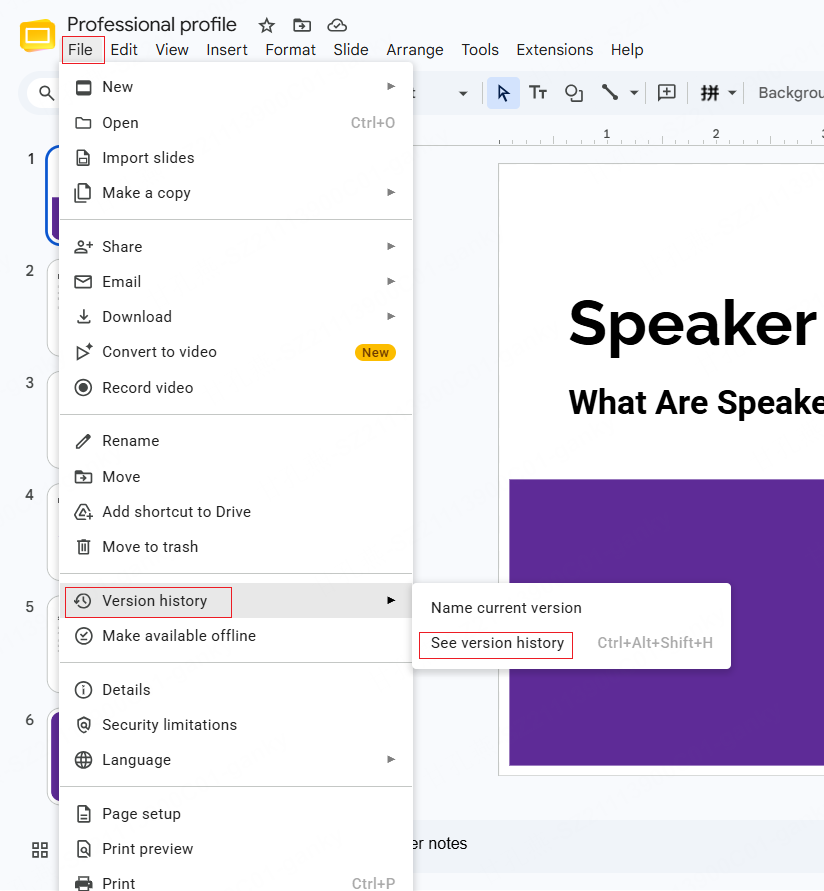
- Choose File → Version history → See version history. You can also use the version history control near the top of the document.
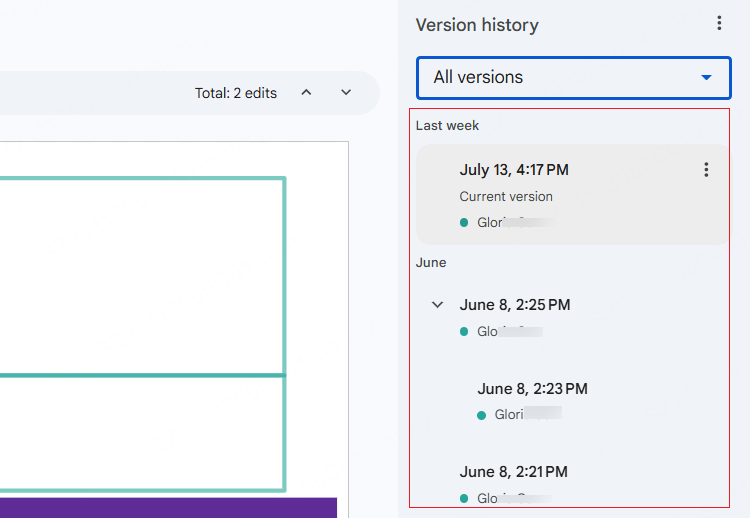
- The side panel lists available revisions by time and identifies accounts associated with edits. It is not necessarily a record of every individual keystroke.
- Click through a few of the named version groups to see how the content changed between them.
Describe what the revisions show without assigning a cause they cannot establish:
- Content appears gradually: the deck was edited in stages within this file. Either human-written or AI-assisted content can be revised this way.
- Many slides appear at once: content may have been imported or pasted from another source. That source could be a person’s earlier draft, a template, another presentation, or AI output.
What "See Version History" Actually Shows You
A few details worth paying attention to once the panel is open:
- Editor accounts: an account name tells you which account made an edit, not who originally wrote the material. Ask about unfamiliar contributors when provenance matters.
- Named versions: labels can help identify milestones, but they are user-supplied descriptions rather than independent verification of origin.
- Timing: timestamps help reconstruct the order of changes. Fast or slow editing does not distinguish human work from AI assistance.
Review the Content and Sources
Check unsupported statistics, missing citations, misleading charts, irrelevant images, and gaps in the argument. These are quality problems whether a human or AI produced the draft. A logo may identify a tool used in the workflow, but it does not show who researched or wrote the content. See the PowerPoint review guide for related file checks and their limits.
Using AI Text Checkers With Google Slides
Text checkers assess the text you submit, not the complete presentation or its production process. Short bullets, quotations, and edited passages can be difficult to interpret. Check a service’s supported languages and input requirements before considering its result.
- If you are permitted to submit the material, copy the relevant text and speaker notes into a document; identify quotations so they are not confused with the author’s prose.
- Alternatively, download an authorized copy using File → Download → Microsoft PowerPoint (.pptx) and work with the text in that export. Do not assume the export contains the original revision history.
A detector result can be wrong in either direction and cannot by itself establish misconduct. Turnitin advises reviewers not to treat its AI report as a definitive answer in isolation. For an authorship concern, examine the sources and discuss the work with its author under the relevant policy.
What Version History Can't Tell You
Version history has several limits that matter when you review a deck:
- Copies and imports may omit earlier work. A new file may start after the author has already completed substantial drafting elsewhere.
- Editing can involve several tools. A person can revise generated text gradually, and a person’s original text can arrive in one import. Neither pattern identifies the source by itself.
- A revision timeline is not an AI detector. It can establish that a change happened in the file; it cannot establish how the pasted or imported material was produced.
If You're the One Who Used AI
Keep source notes and explain which parts you generated, edited, and checked. Follow any disclosure requirements. Our guide to reviewing an AI-assisted presentation focuses on improving the draft without trying to manufacture evidence of unaided authorship.
When drafting in Presenti, you can begin with your own report, notes, or PDF and review the resulting outline. If your plan includes PPTX export, you can open the file in Google Slides and continue editing. Keep the source document alongside the deck so you can check whether the summary preserves its meaning.
Frequently Asked Questions
Is there a real AI detector for Google Slides?
Version history is a revision feature, not an AI detector. Text-checking services may evaluate extracted prose, but their scores do not establish who created the deck or whether its use of AI was permitted.
How do I check the version history of a Google Slides file?
With edit permission, open File → Version history → See version history and select an available revision. Use the differences to understand changes; do not read edit speed as proof of AI use.
Does a short version history mean the deck was generated with AI?
No. The author may have imported an existing deck, copied their own notes, or worked in another file first. Request the relevant source material when needed rather than inferring authorship from a short history.
Does exporting to PowerPoint change anything about detection?
A PPTX export lets you inspect that exported file. Its metadata may describe the exporting application, and it does not supply the complete Google Slides editing history. Neither kind of record proves that AI was or was not used.
Review the Work, Not Just the Timeline
Use version history to understand revisions, source checks to evaluate claims, and a conversation with the author to clarify the process. Do not turn a visual impression or a detector score into a verdict.
AI assistance and factual quality are separate questions. A deck can contain accurate, well-supported work with AI assistance, or unsupported claims without it. Apply the same evidence standards and the relevant usage policy to both.