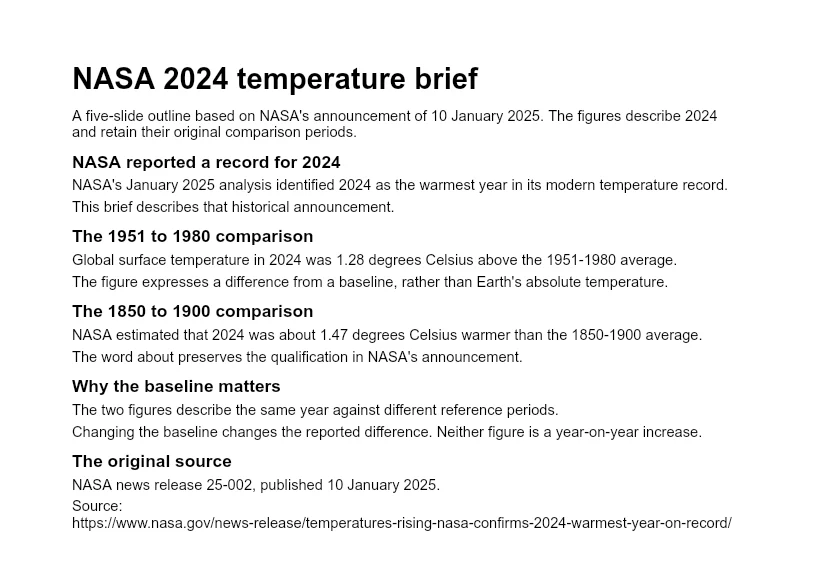
Microsoft 365 Copilot Notebooks brings selected project references into a focused workspace. You can ask questions about those materials, summarize them, and use them to draft new content. The quality of the result depends on the sources you include and how you review the response.
Add supported files, notes, conversations, and other references available to your account. Supported link types and access permissions matter; adding a URL does not guarantee that Copilot can read every public website or restricted page. Once your notes are organized, the text-to-presentation workflow offers a way to turn that material into an editable slide draft.
This article introduces what Microsoft 365 Copilot Notebooks is, its key features, how to create a notebook, and practical use cases.
Availability note (checked September 28, 2026): Copilot Notebooks and its PowerPoint workflow can vary by license, platform, and rollout wave. Check Microsoft 365 Copilot release notes for the current status.
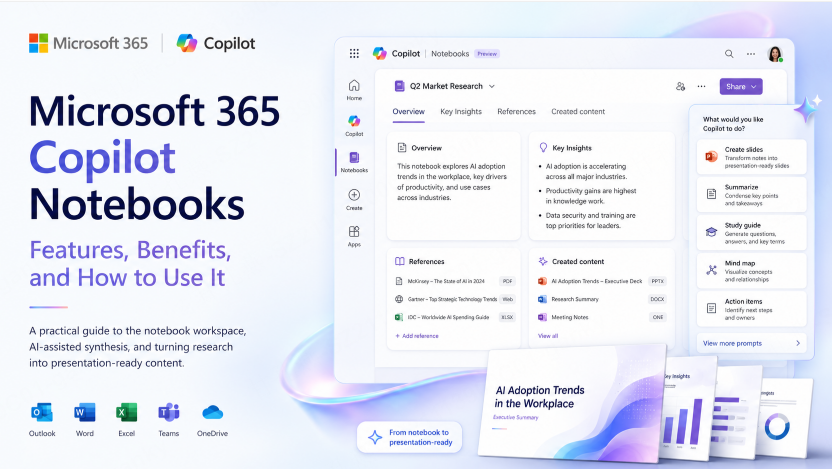
What Is Microsoft 365 Copilot Notebooks?
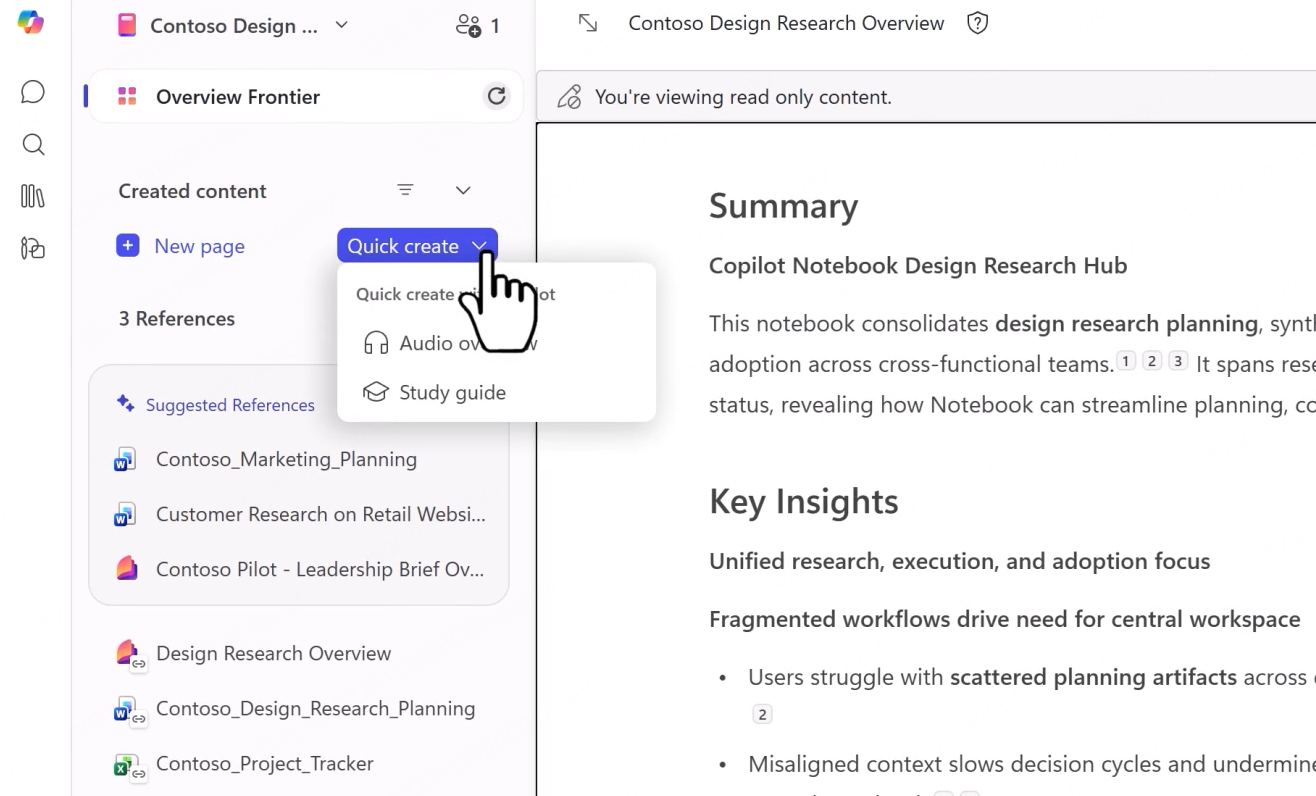
Microsoft 365 Copilot Notebooks is an AI-powered workspace designed to help users organize and work with information related to specific tasks or projects.
Unlike traditional note-taking applications, Copilot Notebooks does more than store information. It understands the context of the content inside the notebook and provides AI assistance based on the collected resources.
Users can add different types of content, including:
- Microsoft 365 documents
- Copilot Chat conversations
- Pages and notes
- Meeting summaries
- Email content
- Supported links you have permission to access
- Uploaded files
After adding relevant materials, Copilot can analyze the information inside the notebook and help users generate summaries, identify important insights, answer questions, and create new content.
For example, when preparing a product launch project, users can add market research reports, meeting notes, and planning documents into one notebook. Copilot can then summarize key trends, extract important findings, and help draft an initial project plan.
Requirements for Using Copilot Notebooks
Availability depends on the account and rollout. Microsoft documents access through eligible Copilot and consumer subscriptions; distinguish a paid Copilot license from access through Copilot Chat.
- Microsoft 365 Copilot licenses
- Eligible Copilot Chat access, subject to its notebook limits
- Microsoft 365 Personal, Family, and Premium subscriptions
A SharePoint or OneDrive service plan is required to create notebooks for work or school accounts. Your organization’s permissions also control which references you can use.
Microsoft is gradually rolling out Copilot Notebooks features, so some functions may not yet be available for all users.
How to Access Microsoft 365 Copilot Notebooks
Open the Microsoft 365 Copilot app and look for Notebooks in its navigation. The location and visible options can vary by account:
- Sign in to Microsoft 365.
- Open the Microsoft 365 Copilot app.
- Choose Notebooks in the navigation when available.
After opening Notebooks, users can view existing notebooks or create a new workspace for their projects.
Key Features of Microsoft 365 Copilot Notebooks
1. Collect and Organize All Project Resources
One of the biggest advantages of Copilot Notebooks is that it brings scattered information together into a single workspace.
Collect the references relevant to one question or project. Keep the scope focused and remove obsolete files so conflicting versions do not make the answer harder to interpret.
Common resources include:
- Project documents
- Research materials
- Customer feedback
- Meeting records
- Planning files
This makes information management faster and helps teams maintain a clear overview of their work.
2. Get AI-Powered Answers and Insights
Copilot Notebooks allows users to ask questions directly based on the content stored in the notebook.
Copilot grounds answers in the references available to the notebook. Open the cited material to check whether a statement is supported, especially when documents disagree or contain outdated figures.
For example, users can ask:
Summarize the key findings from this project and provide recommended next steps.
Copilot can help:
- Extract important information
- Identify major themes
- Connect related ideas across documents
- Generate actionable recommendations
3. Create New Content with AI Assistance
Copilot Notebooks can also help users create new content based on existing materials.
Users can generate:
- Project proposals
- Meeting summaries
- Business reports
- Presentation outlines
For example:
Create a project proposal based on the files and notes in my notebook.
Copilot can automatically generate a draft including:
- Executive summary
- Project objectives
- Recommended next steps
4. Share Project References with Your Team
A shared notebook lets collaborators work with a common set of references, subject to permissions. Individual Copilot conversations remain private; sharing a notebook does not mean everyone sees the same live chat.
Team members can:
- Review project materials
- Add new references
- Share knowledge
- Work together with Copilot
For a project team, use the notebook to collect the shared evidence, then record agreed decisions in a document everyone can access. Do not assume a private chat response is visible to colleagues.
How to Create a Copilot Notebook
Step 1: Open the Notebook Dashboard
After opening Notebooks:
- Select All notebooks.
- Click New notebook.
You can also create additional notebooks by selecting the plus icon next to Notebooks in the left navigation menu.
Step 2: Name Your Notebook
Create a name that matches your project or task.
Examples:
- 2026 Product Launch Plan
- Market Research Project
- Customer Feedback Analysis
- Quarterly Sales Review
Step 3: Add References and Resources
Copilot Notebooks provides several ways to add content:
Filter Suggested References
Copilot can suggest relevant resources. Users can filter content by:
- All
- Files
- Meetings
- Emails
- Sites
Search for Specific Content
Enter a file name or keyword in the search bar and select the required reference.
Upload Files
Users can upload external files directly into the notebook.
Add Files from OneDrive
Browse OneDrive folders and select the files you want to include.
Drag and Drop Content
Simply drag files into the notebook workspace to add them quickly.
After adding all required references, select Create to complete the notebook setup.
Practical Examples of Using Copilot Notebooks
1. Organize Research for a New Project
When starting a new project, users can collect all related documents and research materials in one notebook.
Example prompt:
Create a summary of all documents in my notebook related to [project name], highlighting key themes, major findings, and actionable next steps.
Copilot can quickly organize large amounts of information and help teams understand the project background.
2. Prepare for Team Meetings
Before a team meeting, users can add recent updates, documents, and notes into the notebook.
Example prompt:
Summarize the latest updates from all references in my notebook and create three discussion points for the upcoming team meeting, emphasizing progress, challenges, and decisions needed.
This helps teams prepare more focused and productive discussions.
3. Draft an Initial Project Proposal
When preparing a proposal for stakeholders, users can ask Copilot to create a first draft based on existing references.
Example prompt:
Draft a one-page proposal for [project name] based on the files and notes in my notebook. Include an executive summary, project objectives, and recommended next steps.
Copilot can transform scattered information into a structured proposal draft.
Who Should Use Microsoft 365 Copilot Notebooks?
Copilot Notebooks may suit users who needs to manage large amounts of information and collaborate with others.
Enterprise Teams
Useful for:
- Project management
- Product planning
- Market analysis
- Knowledge sharing
Content Creators
Useful for:
- Collecting research materials
- Organizing ideas
- Creating article outlines
Researchers
Useful for:
- Managing documents
- Extracting insights
- Summarizing research results
Business Professionals
Useful for:
- Preparing customer meetings
- Creating business proposals
- Analyzing client information
Conclusion
A notebook is most useful when it has a clear scope: one project, one set of reviewed sources, and a question those sources can answer.
Keep references current, inspect citations, and distinguish the source’s conclusions from an AI-generated recommendation. That review matters more than the length or polish of the generated summary.
The key advantages of Copilot Notebooks include:
- Centralized project information management
- AI-powered content analysis
- Faster document creation
- Shared references with permission controls
Start with a small project: add a few relevant references, ask for a summary of open questions, and compare it with the originals before relying on the notebook for a larger decision.