Creating animated slides in PowerPoint transforms a flat deck into something audiences actually watch. The difference between a static bullet list appearing all at once and each point building deliberately on screen is the difference between a presentation that loses the room and one that controls it. Animation, used well, directs attention, reveals information at the right moment, and makes complex ideas easier to absorb.
This guide covers common methods for creating animated slides in desktop PowerPoint, from entry-level transitions to multi-step animation sequences, plus when to use each one and how a PowerPoint tool like Presenti AI can save you significant setup time.
What Are Animated Slides in PowerPoint?
Animated slides in PowerPoint use motion effects to control how content appears, exits, or moves on screen during a presentation. There are two distinct categories worth understanding before you start:
Transitions affect the movement between slides. When one slide leaves the screen and the next enters, a transition effect controls that handoff — a fade, a push, a morph, or dozens of other options.
Animations affect individual elements within a slide. A text box, an image, a chart, a shape — supported objects can have entrance, emphasis, exit, or motion-path effects applied independently.
Most presenters use transitions and animations interchangeably in conversation, but keeping the distinction clear helps when building a deck, because they live in different places in the PowerPoint ribbon and serve different purposes.
How to Create Animated Slides in PowerPoint: Step-by-Step
First: Add Slide Transitions
Transitions are the fastest way to add motion to a presentation. Choose transitions when movement between slides helps the presentation. A simple cut is also appropriate when motion would distract.
Step 1: Open your PowerPoint presentation and click on the slide you want to apply a transition to in the slide panel on the left.
Step 2: Click the Transitions tab in the ribbon at the top of the screen.
Step 3: Browse the transition gallery. Hover over any effect to preview it on your slide in real time. The available effects and gallery groups vary by PowerPoint version.
Step 4: Click a transition to apply it to the selected slide. The slide thumbnail in the left panel will show a small star icon confirming the transition has been applied.
Step 5: In the Timing group on the right side of the Transitions tab, adjust the Duration field to control how fast or slow the transition plays. A duration between 0.5 and 1.0 seconds works for most professional contexts. Slower transitions can feel theatrical; faster ones feel crisp.
Step 6: To apply the same transition to every slide in the deck, click Apply to All in the Timing group. For variety, apply transitions individually to specific slides.
Pro tip: The Morph transition, available in PowerPoint 2019 and later, creates smooth animated movement between slides that share common elements. If a shape, image, or text block appears on two consecutive slides, Morph animates the object moving from its position on the first slide to its position on the second. This single effect produces some of the most visually impressive results available in PowerPoint with very little setup work.
Second: Animate Individual Objects on a Slide
This is where animated slides in PowerPoint go from basic to genuinely controlled. Object-level animations let you decide exactly when each element appears, how it arrives, and in what order.
Step 1: Click on the slide you want to work with. Select the object you want to animate — a text box, an image, a shape, a chart, or any other element.
Step 2: Click the Animations tab in the ribbon.
Step 3: Browse the animation gallery. Effects are grouped into four categories:
- Entrance effects — control how an object appears on the slide (Fade, Fly In, Zoom, Bounce, and many others)
- Emphasis effects — animate an object that is already visible to draw attention to it (Pulse, Spin, Color Change, Grow/Shrink)
- Exit effects — control how an object leaves the slide before the slide advances
- Motion Paths — move an object along a custom path you draw on the slide
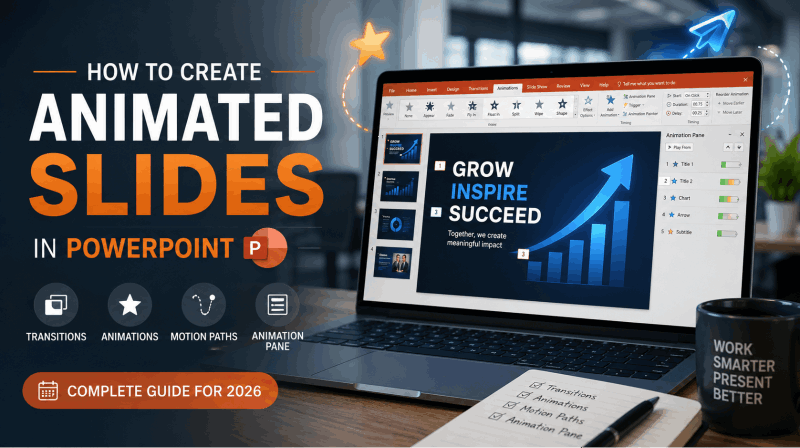
Step 4: Click an effect to apply it to the selected object. A small numbered label appears next to the object on the slide, indicating its position in the animation sequence.
Step 5: In the Timing group on the Animations tab, set the Start option for the animation:
- On Click — the animation plays when you click the mouse or press a key. Use this when you want precise control over when each element appears during your delivery.
- With Previous — the animation plays simultaneously with the animation immediately before it in the sequence.
- After Previous — the animation plays automatically after the previous animation finishes, without requiring a click.
Step 6: Set the Duration for the animation. Most entrance effects work well between 0.5 and 1.5 seconds. Very fast animations under 0.3 seconds can feel jarring. Very slow animations over 2 seconds can feel self-indulgent in a business context.
Step 7: Set a Delay value if you want the animation to wait before playing, even after its trigger condition is met. Delay is useful for staggering multiple objects that all animate with the same trigger.
Third: Use the Animation Pane for Precise Control
Applying animations to individual objects is straightforward. Managing multiple animations on a single slide — controlling their sequence, timing, and relationships — requires the Animation Pane.
Step 1: With a slide open and at least one animation applied, click Animation Pane in the Advanced Animation group of the Animations tab. A panel opens on the right side of the screen.
Step 2: The Animation Pane lists every animation on the current slide in order. Each item shows the object name, the animation type, and the trigger. Colored bars represent the duration of each animation on a timeline.
Step 3: To reorder animations, drag items up or down in the list. The numbered labels on your slide update automatically to reflect the new sequence.
Step 4: To edit an animation’s timing, right-click it in the Animation Pane and select Timing. The Timing dialog lets you set start condition, delay, duration, and repeat behavior with more precision than the ribbon controls offer.
Step 5: To preview your full animation sequence without entering Slide Show mode, click the Play button at the top of the Animation Pane. This plays all animations on the current slide in order so you can check the timing and sequence before presenting.
Step 6: To copy an animation from one object and apply it to another, select the animated object, click Animation Painter in the Advanced Animation group, then click the target object. The animation settings transfer exactly, saving you from rebuilding complex timing configurations from scratch.
Fourth: Apply Entrance Effects to Build Content Progressively
Progressive content reveals are the most practical application of animation in professional presentations. Rather than showing a complete list of bullet points the moment a slide appears, you reveal each point as you speak to it. This keeps the audience focused on what you are currently discussing rather than reading ahead.
Step 1: Click on a text box containing multiple bullet points.
Step 2: Apply a Fade or Appear entrance effect from the Animations tab. By default, PowerPoint animates the entire text box as one object.
Step 3: In the Animation Pane, right-click the animation and select Effect Options. In the dialog that opens, go to the Text Animation tab.
Step 4: In the Group text dropdown, select By 1st level paragraphs. This splits the single animation into individual animations for each top-level bullet point.
Step 5: Check the resulting paragraph animations and set their Start options to On Click if you want to reveal each point manually. During your presentation, each click reveals the next bullet point in sequence.
Step 6: For nested bullet points, set Group text to By 2nd level paragraphs to reveal sub-bullets individually as well.
Fifth: Create Motion Path Animations
Motion paths move objects across the slide along a path you define. They are useful for demonstrating processes, showing directional relationships, and creating visual storytelling effects that static layouts cannot achieve.
Step 1: Select the object you want to move.
Step 2: In the Animations gallery, scroll down to the Motion Paths section. Basic options include Lines, Arcs, Turns, Shapes, and Loops. Click one to apply it.
Step 3: A green arrow marks the starting point of the path and a red arrow marks the ending point. Drag either endpoint to adjust where the animation starts or finishes.
Step 4: For a fully custom path, select Custom Path from the Motion Paths section. Draw the path directly on the slide by clicking to create waypoints, then double-clicking to finish.
Step 5: Set the duration and trigger as you would for any other animation. For complex motion paths that should play automatically rather than requiring a click, set the start to After Previous.
Animation Best Practices for Professional Presentations
Knowing how to apply animations is the technical foundation. Knowing when and how much to use them is what separates polished presentations from chaotic ones.
Use one animation style per deck. Pick an entrance effect — Fade works in almost every context — and use it consistently across the deck. Mixing Fly In on some slides, Bounce on others, and Spin on a third creates visual noise rather than visual coherence.
Default to Fade for professional contexts. Fade is invisible in the best sense. Content appears without drawing attention to the animation itself, only to the content. Save more kinetic effects like Fly In or Zoom for moments where the motion carries meaning.
Animate to control pacing, not to decorate. Every animation should serve a communication purpose. Revealing bullet points one at a time controls narrative pacing. Animating a chart to build bar by bar adds meaning to a data story. Animating a logo just because you can adds nothing and slows the presentation down.
Keep durations short. In business presentations, animation durations above 1.5 seconds typically feel slow. Repeated slow effects can distract from the content and interrupt delivery. Fast, subtle effects are almost always the right choice.
Test your sequence before presenting. Run through the full presentation in Slide Show mode before any live delivery. Animation sequences that look correct in the editor sometimes reveal unexpected timing issues when played in full-screen mode.
How to Create Animated Slides Faster with AI
Building a full slide deck and then layering in animation sequences is a significant time investment. An AI PowerPoint maker like Presenti AI compresses the first half of that process dramatically.
Presenti generates complete, professionally designed slide decks from text prompts, Word documents, PDFs, and Markdown files. Editable PPTX export is available on paid plans. Open the draft in PowerPoint and review its layout and objects before adding effects. From that point, you apply your animation sequences to finished slides rather than building each slide from scratch before you can start animating.
Compare the time needed for drafting, content checks, layout revisions, and animation setup. This guide does not provide a measured time saving for a fifteen-slide deck.
The animations themselves — entrance effects, transitions, motion paths, progressive reveals — are all applied in PowerPoint after export, using exactly the steps described in this guide. The AI handles structure and design. You handle the animation layer that brings the content to life.
For a broader look at how AI presentation tools compare in 2026, the overview of the best AI PPT tools covers the full landscape in detail.
Animated Slides Quick Reference
| Animation Type | Where to Find It | Best For |
|---|---|---|
| Slide transitions | Transitions tab | Movement between slides |
| Morph transition | Transitions tab | Smooth object movement between slides |
| Entrance effects | Animations tab | Revealing content on a slide |
| Emphasis effects | Animations tab | Drawing attention to visible content |
| Exit effects | Animations tab | Removing content before slide advance |
| Motion paths | Animations tab | Moving objects across the slide |
| Animation Pane | Animations tab | Managing sequence and timing |
| Animation Painter | Animations tab | Copying animations between objects |
| Rehearse Timings | Slide Show tab | Recording natural pacing for auto-play |
Start Building Animated Slides Today
Animated slides in PowerPoint give you precise control over what your audience sees and when they see it. Transitions smooth the movement between slides. Object-level animations control when content appears and in what order. The Animation Pane manages complex sequences with precision. Motion paths add directional storytelling for process flows and visual narratives.
These steps describe desktop PowerPoint. Menu names and effects vary across Windows, Mac, web, mobile, and subscription versions; check the options in your application, particularly for Morph and motion paths.
To try an AI-assisted path from content to slides, generate your deck with Presenti AI as your starting PowerPoint tool, then apply your animation sequences to professionally designed slides that are already built.