Every developer hits the same fork in the road eventually. You have a polished HTML page — clean markup, solid CSS, maybe some dynamic data — and now someone needs a deliverable. Do you run HTML code to PDF conversion and call it done? Or does this particular moment actually call for a proper presentation deck?
The answer matters more than most people realize. Pick the wrong format and you either send a static wall of text when your audience needed a visual story, or you spend three hours building slides for a document that nobody will ever present live. This guide covers both the technical methods for HTML to PDF conversion and the strategic question of when to skip PDF altogether.
What HTML to PDF Conversion Actually Does
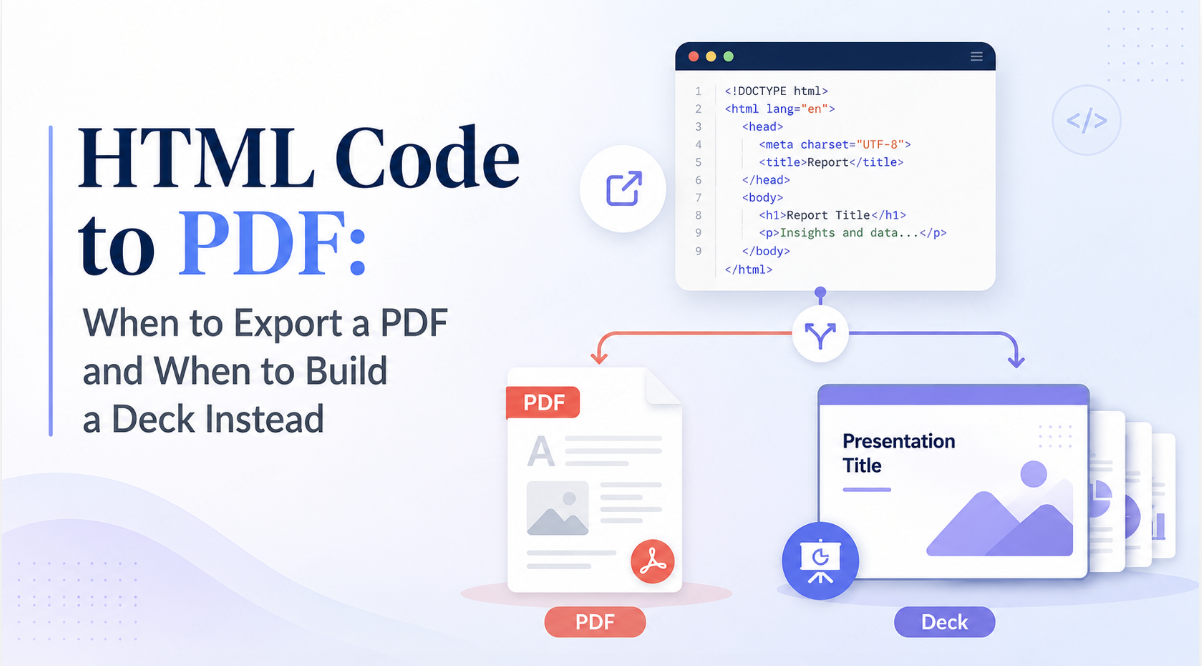
HTML-to-PDF conversion renders web content into fixed pages. The result depends on the rendering engine, print styles, fonts, and loaded assets. Web interactions and animations generally do not survive browser print-to-PDF, so inspect the saved document.
That consistency is the entire point. PDFs are not meant to be dynamic. They are meant to be final. Understanding that distinction is step one before choosing any html to pdf tools.
4 Core Methods to Convert HTML to PDF
There is no single “best” approach. The right method depends entirely on your use case, tech stack, and volume requirements.
Method 1: Browser Print-to-PDF
The simplest approach requires zero additional tools. Every modern browser — Chrome, Firefox, Edge — has a built-in print function that saves pages directly to PDF.
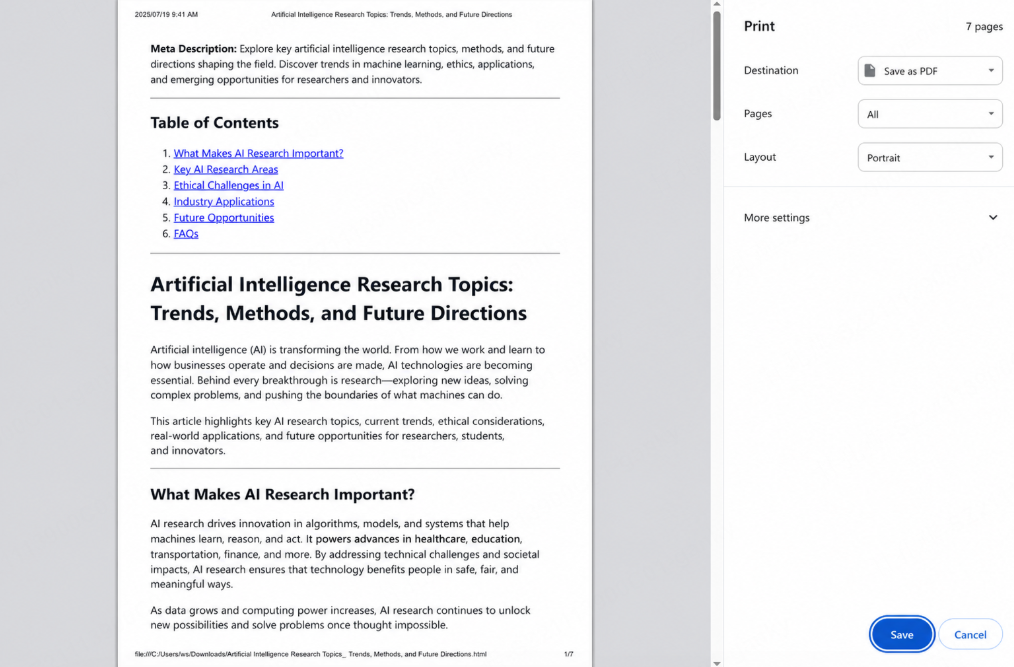
How to use it:
- Open the HTML file or URL in your browser
- Press Ctrl + P (Windows) or Cmd + P (Mac)
- Set the destination to “Save as PDF”
- Adjust margins, scale, and paper size as needed
- Click Save
Best for: One-off conversions, quick internal documents, personal use cases where automation is not required.
Limitations: No batch processing. Manual intervention on every export. CSS print media queries can behave unpredictably depending on the browser.
Method 2: Code Libraries and Programmatic Conversion
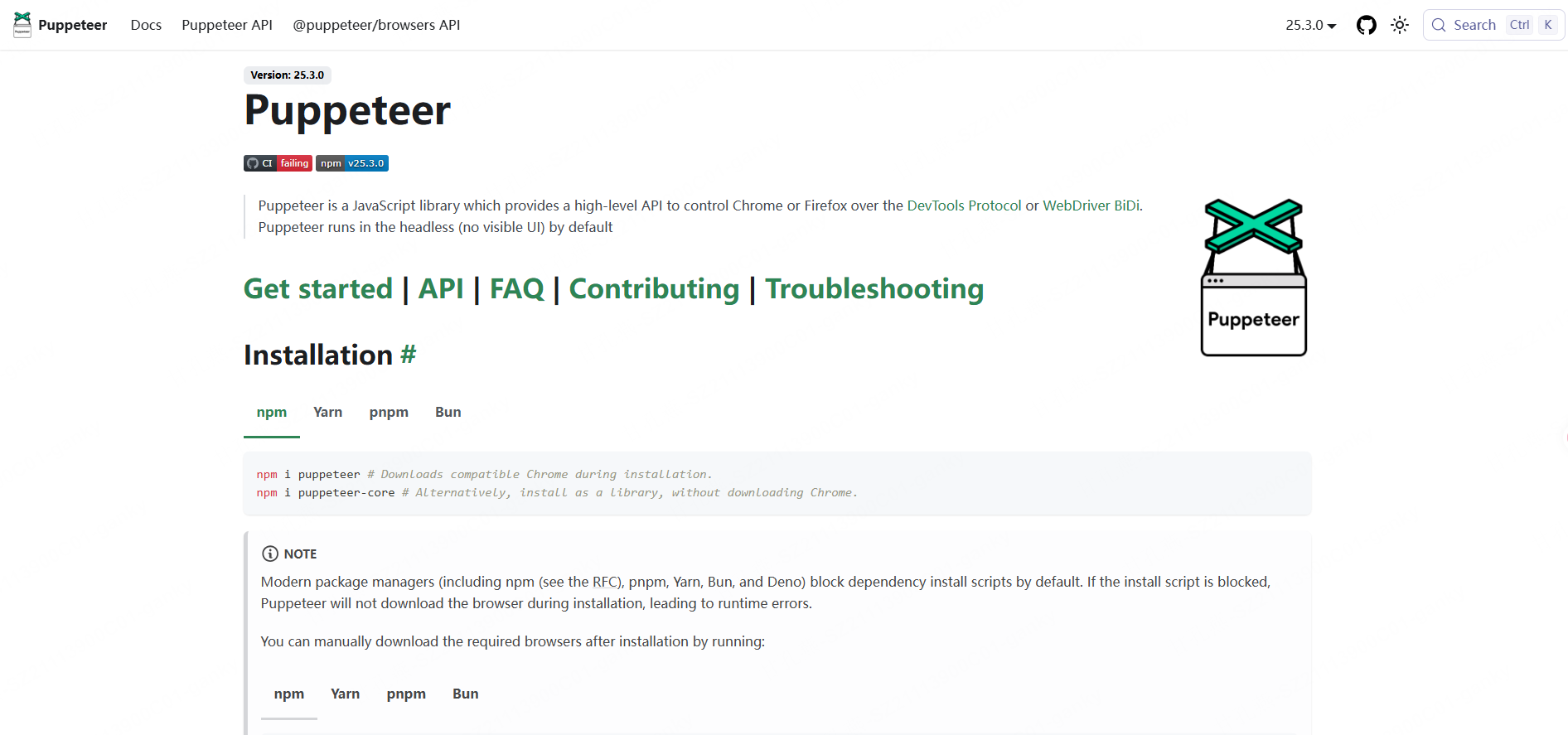
For developers who need to automate html to pdf conversion inside an application, code libraries are the standard solution. The most widely used options include:
- Puppeteer / Playwright — Browser-automation tools that can generate PDFs through Chromium. Wait for required fonts, data, and images, then inspect the print layout. This overview of Node.js PDF libraries provides additional background; consult the selected library’s current documentation for implementation details.
- wkhtmltopdf — An older open-source tool that uses WebKit to render HTML. Fast and lightweight, but it uses an outdated rendering engine that struggles with flexbox, CSS grid, and modern layout patterns.
- jsPDF / html2pdf.js — Client-side JavaScript libraries that generate PDFs directly in the browser without a server round-trip. Useful for giving users an in-app export button.
- WeasyPrint — A Python-based tool that prioritizes CSS paging standards. Excellent for generating reports and printable documents where page layout precision matters.
Best for: Invoice generation, report automation, user-triggered export buttons, backend document pipelines.
Method 3: HTML to PDF API Services
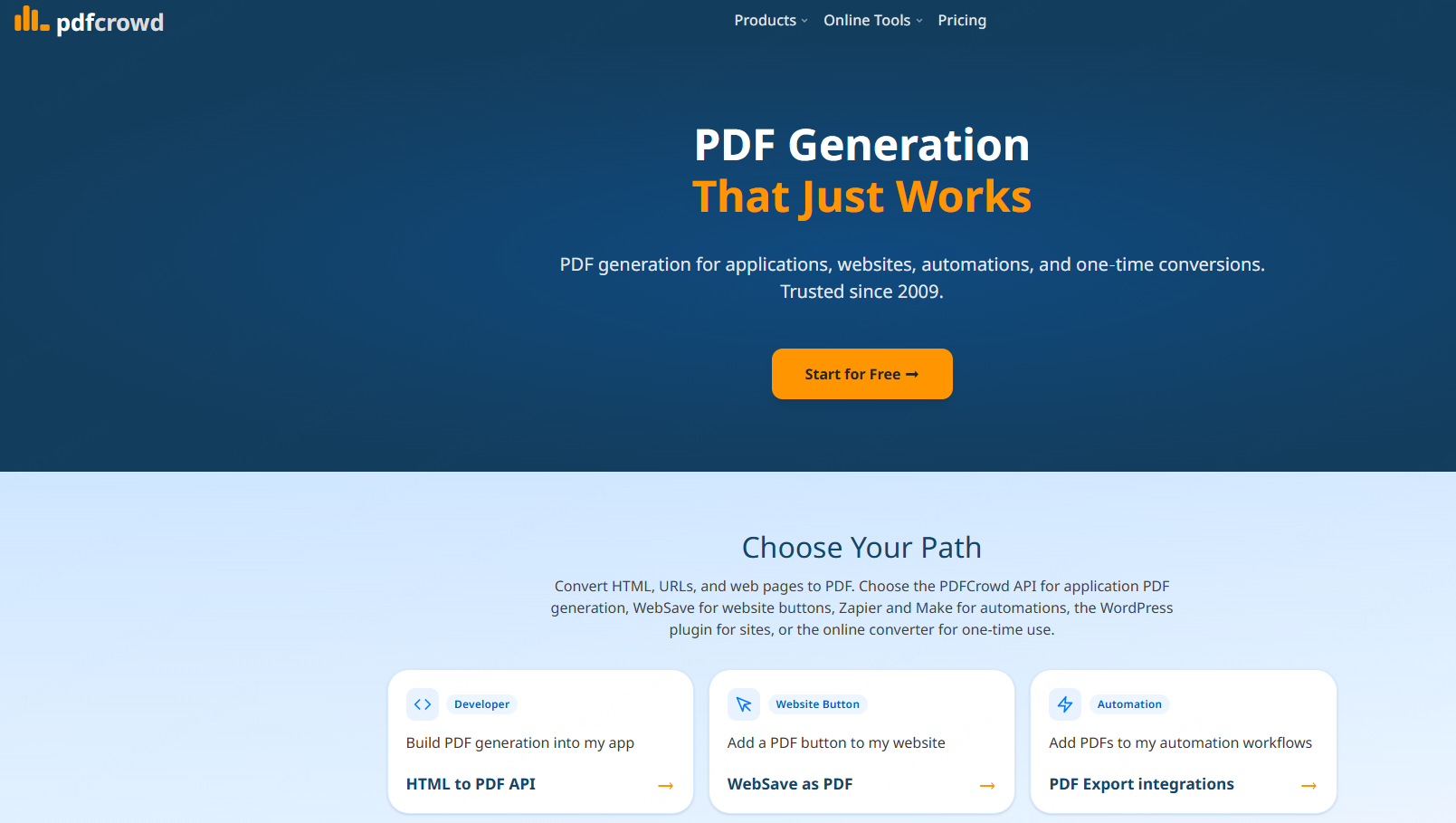
Cloud APIs let a provider manage the rendering service. You send an HTTP request with your HTML content or URL, and the API returns a PDF. Popular services include PDFCrowd, APITemplate.io, and Apryse.
Apryse’s breakdown of conversion methods highlights that cloud APIs are particularly valuable when you need to scale conversion across thousands of documents without managing headless browser infrastructure yourself.
Typical workflow:
- Send a POST request with your HTML string or a URL
- Pass parameters (page size, margins, header/footer templates)
- Receive the PDF binary in the response
- Store or serve the file as needed
Best for: SaaS platforms, multi-tenant applications, teams without dedicated DevOps resources to maintain conversion servers.
Limitations: Ongoing cost per conversion, latency from external API calls, potential data privacy concerns with sensitive HTML content.
Method 4: Online HTML to PDF Tools
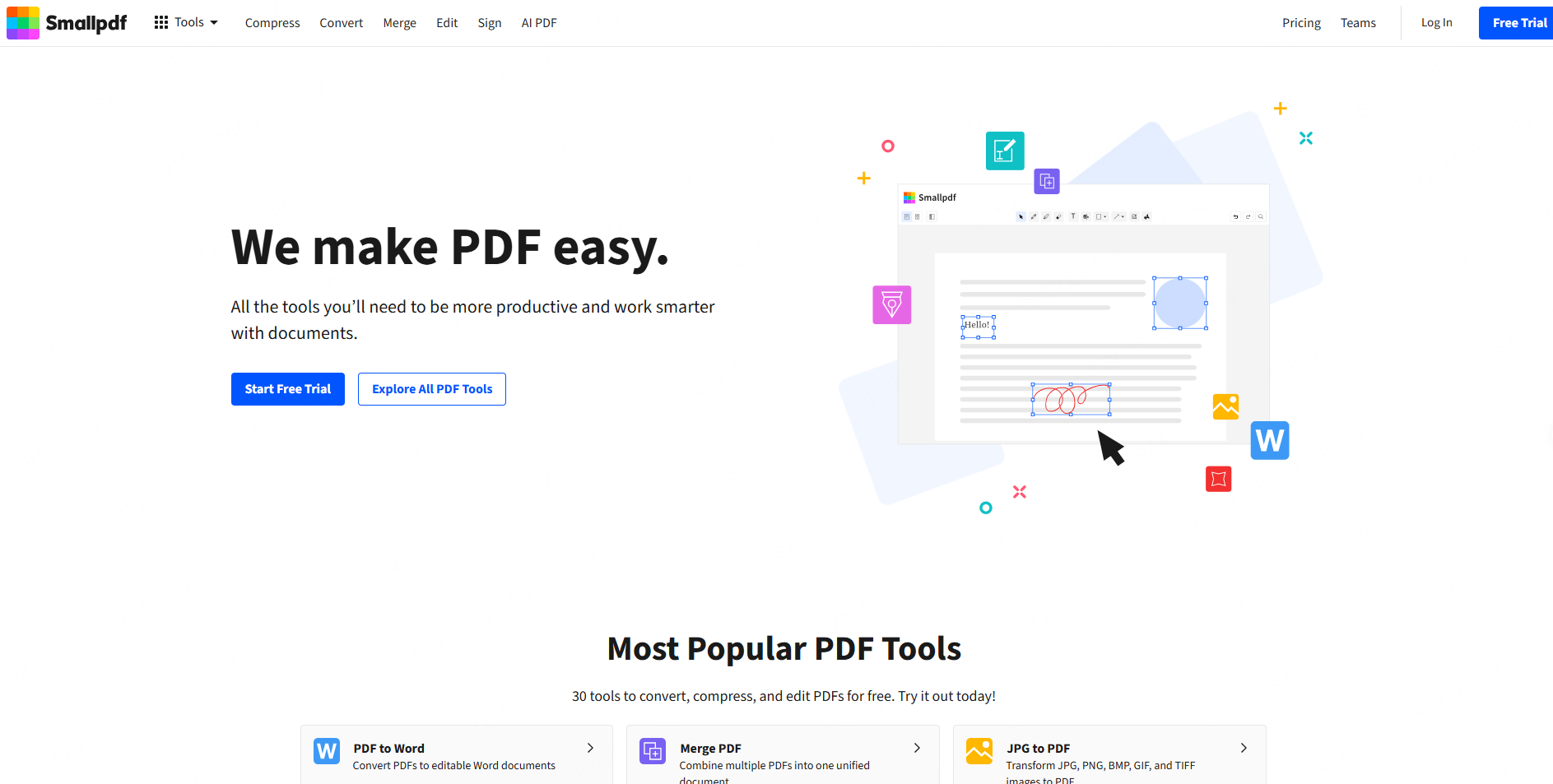
For non-developers or quick one-off conversions, browser-based tools like Smallpdf, FreeConvert, and PDFCrowd’s web interface accept an HTML file upload or a URL and return a downloadable PDF.
These tools are fast, require no installation, and handle simple pages well. Complex CSS or JavaScript-dependent content may not render accurately, so always verify the output before distributing it.
Best for: Marketing teams, content managers, or anyone who needs a clean PDF without touching code.
When HTML Code to PDF Is the Right Choice
Knowing how to convert html to pdf only gets you halfway there. Knowing when to do it is what separates efficient workflows from wasted effort.
Choose PDF conversion when:
- You are generating transactional documents. Invoices, receipts, contracts, compliance reports — these need a fixed layout, a printable format, and a permanent record. Confirm the format your recipient or recordkeeping system requires.
- Archival or submission requirements apply. Follow the recipient’s specified format and validation requirements. A PDF export alone does not establish PDF/A compliance, immutability, or suitability for a legal filing.
- The audience will print the document. Print-ready formatting requires precise page breaks, margins, and typography. HTML can use print styles, but the result depends on the renderer. A well-constructed PDF handles this natively.
- You need a fixed page layout. PDF can preserve page geometry across devices, but fonts, rendering, accessibility, and printing still need checking.
- You are exporting data-heavy reports. Analytics dashboards, financial summaries, or research outputs that live as HTML can be captured as PDFs for distribution to stakeholders who do not have system access.
- You need a self-contained file. Check that fonts and images are embedded or rendered as intended and that the saved PDF opens without access to the original page.
When to Build a Presentation Deck Instead
Here is where most people make the wrong call. They run HTML code to PDF conversion, send the file, and wonder why the feedback is tepid or why the meeting felt flat.
A presentation is a way of structuring content; PDF is one possible delivery format for it. Build a slide narrative when you need a paced visual explanation, then choose PPTX, PDF, or a browser presentation according to the audience’s needs.
Choose a presentation deck when:
- You are pitching to investors or clients. Build a clear slide sequence for the discussion. A PDF version can also serve as the presentation or follow-up handout when that matches the recipient’s requirements.
- The content needs to be walked through live. If you plan to speak alongside the content — in a meeting, webinar, or conference — slides are built for this. Each slide focuses the audience’s attention on one point at a time.
- Visual storytelling matters. Data that is embedded in an HTML table becomes noise in a PDF. Transformed into a chart on a well-designed slide, it becomes an insight. Design hierarchy and white space in presentation decks guide where the eye goes.
- You need stakeholder buy-in, not just information transfer. Presentations are persuasion vehicles. PDFs are information containers. These are genuinely different jobs.
- The audience will interact with the content. Presentation tools support animations, embedded video, audience Q&A, and click-through flow. None of this survives HTML to PDF conversion.
To build slides from HTML content, extract the relevant text and visuals or use a supported source workflow. Presenti can draft from supported material, but do not assume that it imports arbitrary HTML and CSS faithfully. An HTML-to-PPT workflow may involve rebuilding the narrative rather than reproducing the page.
The Decision Framework: PDF vs. Deck
Use this table to make the call quickly.
| Scenario | Presentation Deck | |
|---|---|---|
| Invoice / contract / receipt | ✅ | Depends on delivery needs |
| Investor pitch | Depends on delivery needs | ✅ |
| Regulatory compliance document | ✅ | Depends on delivery needs |
| Sales presentation | Depends on delivery needs | ✅ |
| Internal report for archiving | ✅ | Depends on delivery needs |
| Product demo or explainer | Depends on delivery needs | ✅ |
| User-facing document export (SaaS) | ✅ | Depends on delivery needs |
| Training or onboarding session | Depends on delivery needs | ✅ |
| Print-ready brochure or datasheet | ✅ | Depends on delivery needs |
| Stakeholder quarterly review (live) | Depends on delivery needs | ✅ |
The core question: Does the audience need a detailed document, a sequence of slides, or both? Then choose the file format needed for reading, presenting, editing, or archiving.
There is also a hybrid scenario worth acknowledging: you might build a presentation deck for the live meeting, then export it to PDF for the follow-up email. Many modern presentation platforms — including Presenti AI — support both workflows, letting you turn PPT files into professional PDFs once the live presentation is done.
Recommended HTML to PDF Tools at a Glance
| Tool | Type | Best For |
|---|---|---|
| Puppeteer / Playwright | Code library | Developers, automation, JS-heavy pages |
| WeasyPrint | Code library | Python backends, print-accurate layouts |
| PDFCrowd | API + Online | SaaS integrations, quick web conversions |
| Smallpdf | Online tool | Non-developers, simple HTML files |
| Apryse SDK | Enterprise SDK | High-volume, enterprise document workflows |
| Browser Print-to-PDF | Built-in | One-off, manual exports |
For teams that frequently need to go in the other direction — from PDFs or documents into polished slides — explore AI-powered PDF to PowerPoint conversion as a complementary workflow.
Conclusion
Converting HTML code to PDF is a genuinely powerful capability — whether you are automating invoice generation, archiving compliance documents, or giving users a one-click export button inside your application. The methods are mature, the tools are plentiful, and the browser print function alone handles most simple use cases without any code at all.
Choose the structure and format separately. A detailed HTML report may work well as a PDF; a live briefing may need a shorter slide narrative that you can deliver as PPTX, PDF, or an online deck. Test the actual output instead of assuming one format is always better.
Match the format to the job. That is the whole framework.