An AI-generated draft may rely on broad statements, repeated layouts, or examples that do not fit your audience. Edit those choices so the presentation reflects your evidence and purpose. This guide covers structure, voice, branding, visuals, and a final review.
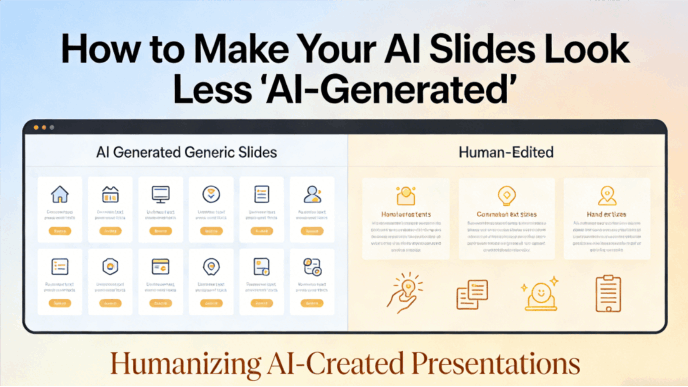
Why a Draft Needs Your Review
Choose a presentation workflow that lets you review the outline and edit the resulting slides. A useful draft should remain open to revision, especially where your audience needs context that the prompt did not provide.
In Presenti, review the structure before refining the slide content and design. These decisions help you turn a general draft into a presentation suited to a particular audience.
How to Make Your Slides Less AI-generated with Presenti
1. Ground Your Logic: The Power of Markdown and MindMap Imports
A generic deck often starts with a vague outline. When you ask a general AI to "create a deck," it defaults to a generic sequence. To make the argument specific to your audience, you need to provide it with a human-designed skeleton.
Outline-Based Drafting
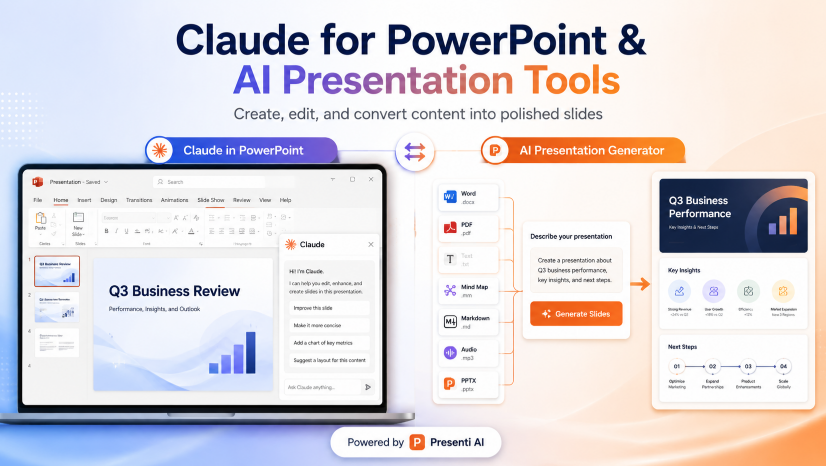
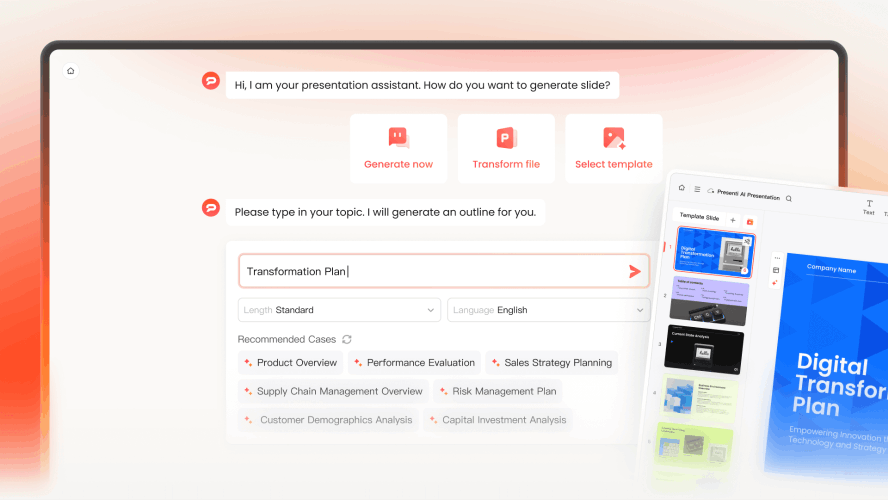
- This is where Presenti shines. Instead of starting with a vague one-sentence prompt, Presenti allows you to import Markdown files or MindMaps.
- Why this matters: When you import a mind map, you are dictating the hierarchy of information. You decide which points deserve a full-page spotlight and which are sub-bullets.
- How to humanize AI presentations here: By using Presenti to turn your structured thoughts into visual slides, the "logic" of the deck remains human. The AI handles the heavy lifting of layout, but the narrative DNA belongs to you.
2. Refine the Voice: Moving Beyond "Buzzword Bingo"
AI-generated text is notoriously wordy. It loves phrases like "In today's fast-paced world" or "Unleash your potential." To make your slides resonate, you must kill the fluff.
Using Presenti’s AI Content Editor
- Presenti doesn't just generate text and walk away. Its built-in AI Content Editor is designed to help you "talk like a human."
- The "Punchy" Pass: Use Presenti’s "Refine" tool to ask the AI to "make this text more conversational" or "summarize this into a single, bold statement."
- Add specificity: Replace broad claims with verified figures and their context. For example, “34% faster turnaround in Q4” is useful only if your actual records support it and you explain the comparison period.
- Review the tone: Rewrite wording to suit the audience and your organization’s voice. Ask for plainer language where needed, then check the result.
3. Customize the Slide Design: Breaking the "AI Template" Curse
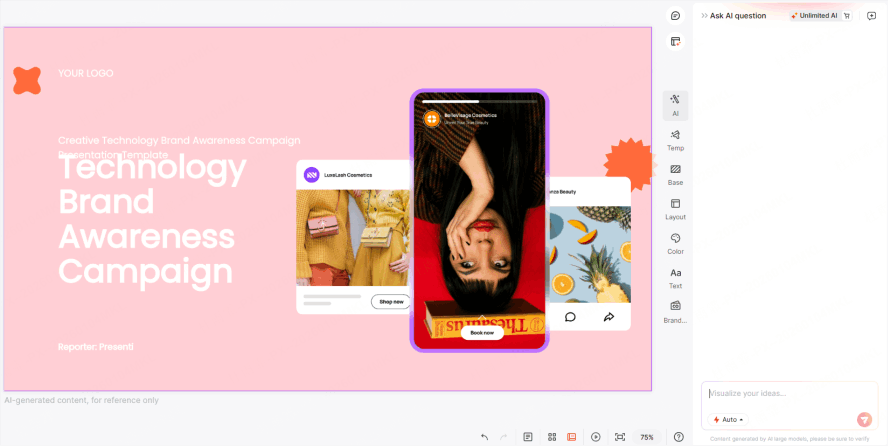
If your slides look like a generic template, your audience will treat your ideas as generic, too. To customize AI slides design, consider alternatives to repetitive visual patterns—like perfectly centered text boxes and stock-photo-clichés. The guide to fixing generic AI slide layouts distinguishes deck-wide themes, individual layouts, and changes to an existing deck.
Intelligent Layout Optimization
- Unlike traditional tools that force content into a static box, Presenti uses Intelligent Layout Optimization. This means the design adapts to the content, not the other way around.
- Visual hierarchy: Give the most important quote or finding a clear position and readable type size. Add its source and any context needed to interpret it.
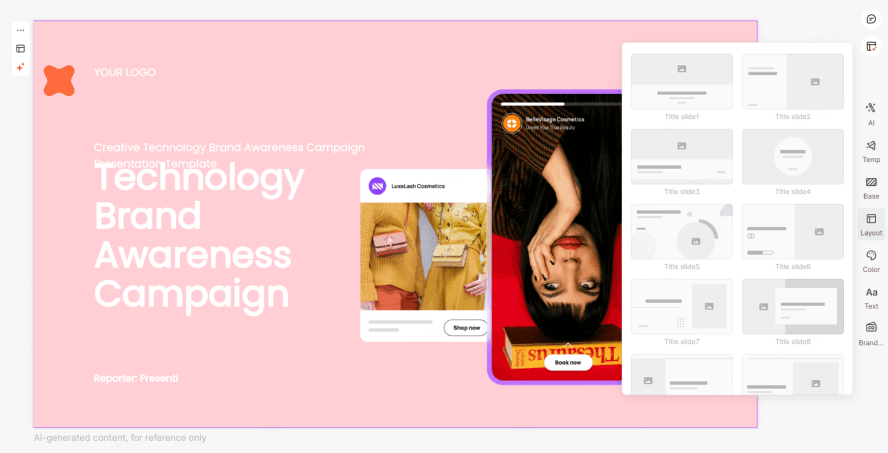
- The "Human" Asymmetry: Humans don't always put things in the center. Use Presenti’s layout switcher to experiment with asymmetrical designs that feel more like a custom editorial layout in a magazine than a standard PowerPoint.
4. Branding as a "Humanity" Signal
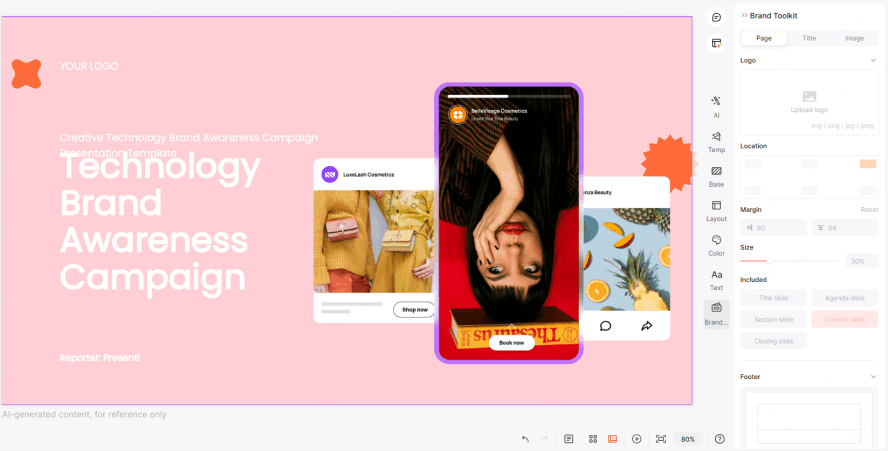
Brand consistency helps readers recognize the organization behind a deck. It does not establish whether AI was used. Choose approved colors, typefaces, and logos, and apply them consistently.
Apply Your Brand Elements
- Use your organization’s brand guidelines while editing the slides.
- Custom Color Palettes: Don’t settle for the AI’s suggested colors. Use your brand’s approved colors where the editor supports them.
- Typography: Use an approved typeface available in the editor and delivery environment. Check substitution and line breaks after export.
- Logo placement: Place an approved logo consistently without obscuring content or dominating every slide.
5. Visual Storytelling: Beyond Stock Photos
We’ve all seen the "AI-generated business people" with too many fingers or eerie, glowing skin. Using these images is the fastest way to lose your audience. A custom-image workflow for slides starts with the image's job, consistent style directions, and a review of the generated details.
Presenti offers a more sophisticated approach to visuals:
- Ditch the "AI-Face": Instead of generic humans, use Presenti’s integration with high-quality icon libraries and abstract illustrations.
- Focus on Data: Use Presenti to transform raw numbers into clean, minimalist charts. Nothing feels more "human" than a well-interpreted data point.
- Real imagery: Use relevant photos of your team, work, or product when you have permission. Check image quality, captions, and what the picture actually demonstrates.
6. The Presenti Advantage: Editing Fluently
Leave time to edit after generation. Check the order of ideas, the accuracy of the supporting material, and whether each slide makes its point clearly.
Use Presenti’s editing tools to revise the draft. The amount of work required depends on the source material and the audience; there is no fixed ratio between AI drafting and human review.
- One-Click Beautify: If a slide feels "off," use the AI Beautify feature to cycle through different professional layouts until you find one that feels right.
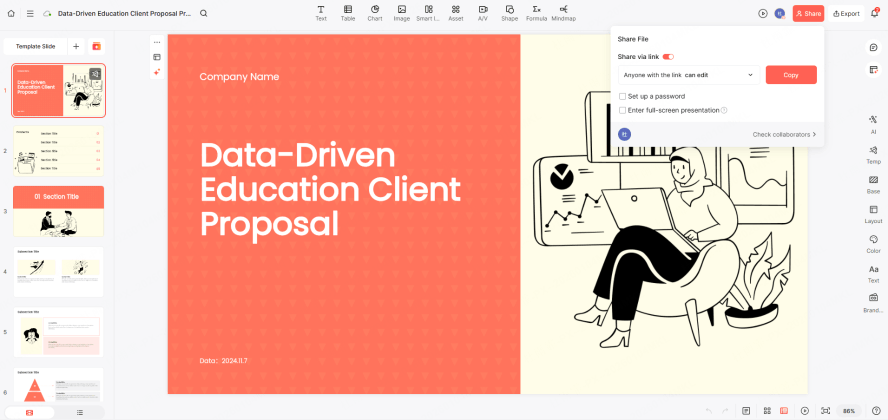
- Collaborative Refining: Presenti allows teams to jump in and tweak the AI’s work. This collaborative layer is essential to customize AI slides design because it allows for multiple human perspectives to polish the final product.
7. Make the Content Your Own
Personalization should help the audience understand and assess your message. Follow any applicable disclosure policy, and focus on accurate evidence, relevant examples, and a delivery you can explain confidently.
A personalized presentation AI like Presenti allows you to focus on the high-level strategy while it handles the tedious alignment. This leaves you with more time to rehearse your delivery, which is the ultimate way to humanize any presentation.
Step-by-Step Checklist to Humanize Your Next Presenti Deck
To ensure your next project doesn't fall into the AI trap, follow this Presenti-powered workflow:
- Provide a structure: Import an XMind map or Markdown outline when you have one, then compare the generated order with your intended argument.
- Apply your brand: Choose approved colors and fonts and check their consistency throughout the deck.
- Audit the Copy: Use the AI Content Editor to shorten sentences and remove "robotic" adjectives.
- Choose layouts deliberately: Repeat a layout when it helps comparison. Change it when the content needs a different hierarchy.
- Add a relevant example: Use a sourced case study or a personal experience you have permission to share. Explain its relevance rather than using it merely to signal authorship.
Conclusion
Review the deck as its author: can you explain every claim, identify the source of each figure, and justify the design choices? Those checks matter more than making the slides appear to have a particular origin.
Use Presenti to draft and revise a presentation built around your expertise, approved source material, and audience needs.