A good Word-to-PowerPoint conversion keeps the argument, the evidence and the qualifications that make the document accurate. It does not need to keep the page margins. A report written to be read usually needs a different shape when someone presents it aloud.
Start by deciding what the audience must understand. Then prepare the source, generate or write a slide outline, and give each important point enough space. Below, a short NASA example shows why preserving meaning matters more than reproducing the page.
What should survive the conversion?
Keep section order where it carries the argument. Keep dates and units beside numbers. Keep a chart’s explanation with the chart. If a claim depends on “estimated,” “in this sample” or a particular time period, that qualification belongs on the slide too.
You can change sentence length, rearrange a dense table and move background detail into notes. Those are presentation decisions. Changing a comparison period or removing the condition attached to a result changes the meaning.
A real example: one temperature, two baselines
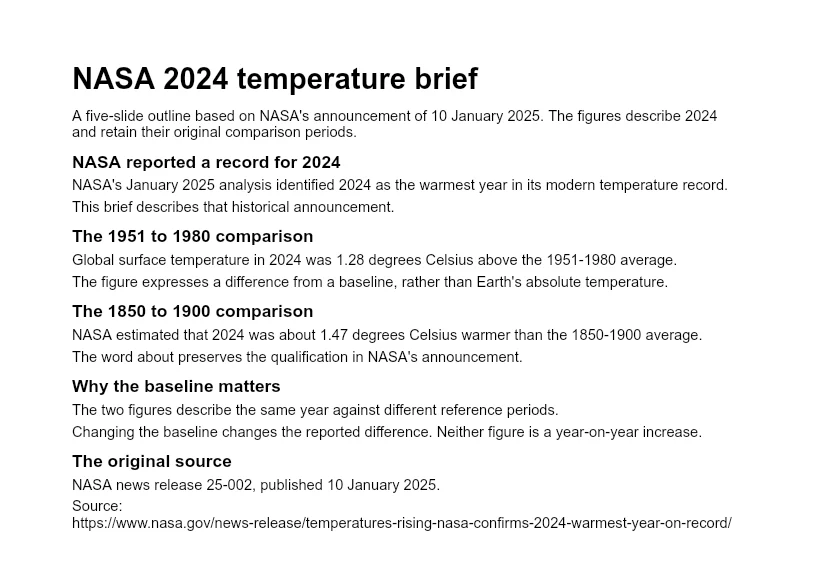
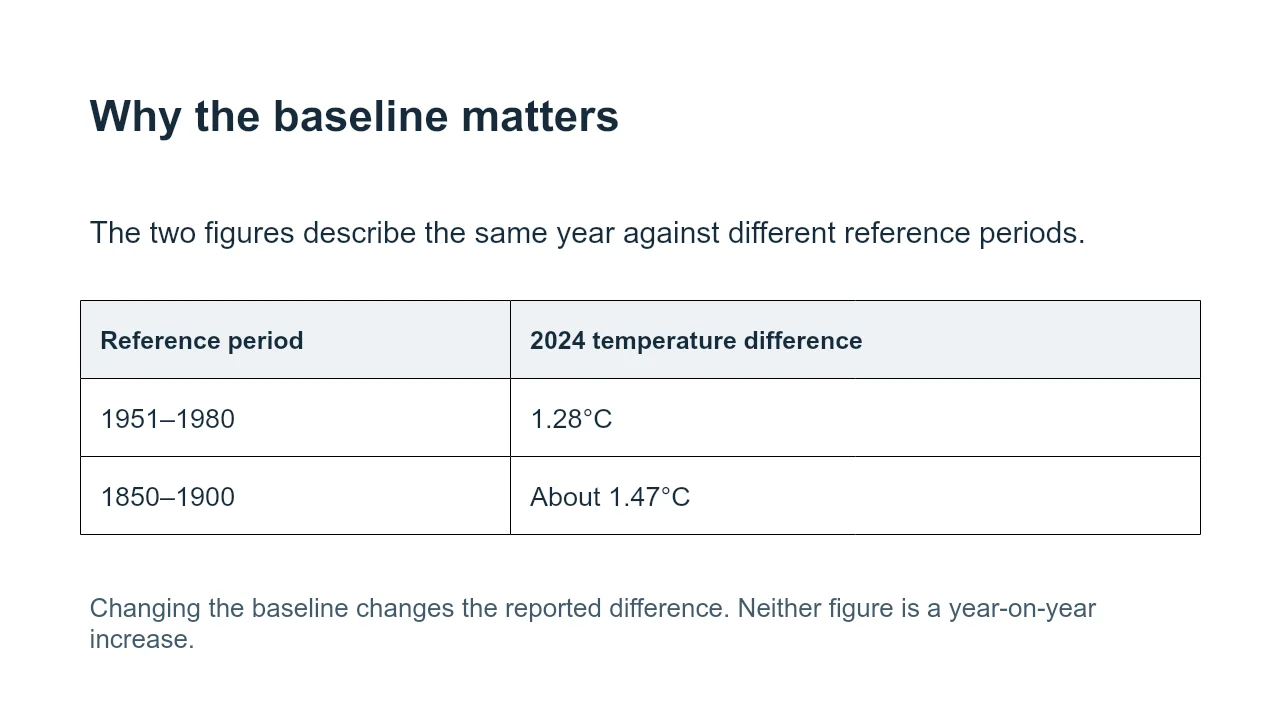
In its January 10, 2025 release, NASA reported that 2024 was 1.28°C above the 1951–1980 average. The same release estimated about 1.47°C above the 1850–1900 average. These are two comparisons for the same year, not two consecutive readings.
| Slide wording | What the reader would learn |
|---|---|
| “Temperature rose from 1.28°C to 1.47°C.” | A change over time that these two values do not establish. |
| “NASA’s 2024 estimate: +1.28°C relative to 1951–1980; about +1.47°C relative to 1850–1900.” | The values and their different reference periods. |
The second version is a little longer because the labels carry essential information. A slide designer can put the two comparisons in separate panels. Shortening them into an unlabeled arrow would be a factual error, however tidy it looked.
Use the Word source brief and editable reference deck to work through this example. The deck is an editorial interpretation of the cited material, not a recorded Presenti conversion.
Prepare the Word file for slides
Use Word’s built-in heading styles to make the hierarchy clear. Keep each section focused on one claim or question. A heading such as “Delivery is waiting on the security review” gives a conversion tool and a human editor more direction than “Current situation.”
Reduce repeated introductions, page headers and navigation text. Leave necessary definitions and source notes in place. For a chart or image, write a nearby caption explaining its point; do not expect the file name to communicate why it matters.
A table with many rows may belong in the appendix. In the main outline, describe the comparison the audience needs and retain a link or note back to the full table. If you need a blank starting structure, download the project-update outline.
Use Presenti to draft, then compare with the source
The Presenti Word conversion page accepts Word documents and describes a workflow for creating an editable presentation. Prepare a clean copy of the document, open that page and follow the upload and account instructions shown there.
Before committing to the visual layout, read the proposed slide sequence. Remove repetition and restore anything important that has been shortened away. In the NASA example, the reference periods must remain attached to the temperatures. A title such as “Two ways to express the 2024 anomaly” is more useful than “Key statistics.”
Choose a theme for the amount of information you have. A large photograph can work well beside a short statement; it leaves less room for a table with detailed labels. After generating the draft, revise the content and layout together rather than shrinking everything to fit.
Inspect the slide elements you need to edit
Open the exported PPTX in the application you will use for the meeting. Select a text box and change a word. Try editing a table cell or chart value that you expect to reuse. A file opening successfully is not proof that each element has remained editable.
Compare the slides with the Word source at the points most likely to change meaning: numeric labels, shortened quotations, diagram arrows and qualifications. Also look for cropped images, substituted fonts and text that has run beyond its box. These are concrete editing tasks, not reasons to accept a less accurate sentence.
When a native outline is the better starting point
If the document is already a concise slide outline and you want its wording carried over, use PowerPoint’s native Word-outline import. An AI drafting workflow is more relevant when the report needs selection, summarization or a new sequence. Neither route removes the need to understand the source.
Fix the cause of a poor slide
| What you see | A useful correction |
|---|---|
| Too many slides | Merge repeated ideas in the outline; retain separate sections when their conclusions differ. |
| A wall of text | Choose the one point the slide should communicate. Move explanation into notes or a second slide. |
| A missing or misleading visual | Add the original visual deliberately and restore its caption, units and source. |
| An unreadable table | Show the relevant comparison on the main slide and keep the full data in an appendix. |
| A font or layout changes after export | Use an available font, resize the affected object and inspect the actual exported file again. |
Choose the amount of rewriting for the document
A weekly status note may need little rewriting. A customer proposal needs its scope, costs and exclusions kept together. A research paper usually needs substantial selection, with results and limitations carried into the talk. For that last task, use the research-paper presentation guide rather than treating every section as a slide.
Common questions
Can Word-to-PowerPoint conversion preserve the original formatting?
It can preserve useful structure and some visual elements, but a Word page and a slide have different layouts. Decide which information and editable objects matter before choosing a conversion method.
Will every table, chart and image remain editable?
Do not assume so. The result depends on the source object, conversion route and export. Open the output and try the particular edit you need.
Is conversion free?
An existing Office license, a free allowance and a paid trial are different arrangements. The free Word-to-PPT guide explains how to choose a route without confusing them.
When the slides are shorter than the document, compare what was removed as carefully as what remains. The aim is a presentation the audience can follow without losing the evidence behind it.