
Converting a PDF into a PowerPoint presentation is a common requirement for educators, project managers, developers, and technical teams. PDFs are excellent for sharing finalized documents, but they are not ideal when you need to present, edit, or reuse content in a slide based format.
Fortunately, there are multiple ways to convert PDF files into PPT format. The best method depends on the complexity of your document, formatting requirements, and how much control you want over the final presentation.
This guide walks through the most reliable and free PDF to PPT conversion methods, explains when to use each one, and provides step by step instructions to help you choose the right approach for your workflow.
Why Convert a PDF to PowerPoint?
Before diving into the tools, it helps to understand why PDF to PPT conversion is so widely needed:
- Presentation readiness: PowerPoint is the standard format for meetings, lectures, and demos.
- Content reuse: Slides allow you to restructure, highlight, and simplify information.
- Collaboration: PPT files are easier to edit and review in team environments.
- Design flexibility: PowerPoint supports animations, transitions, and custom layouts.
If your PDF contains reports, training materials, documentation, or pitch decks, converting it to PPT can significantly improve clarity and engagement.
Method 1: Convert PDF to PPT Using Online Tools
Online PDF to PPT converters are the fastest and most accessible option. They are ideal for users who want quick results without installing software or handling complex configurations.
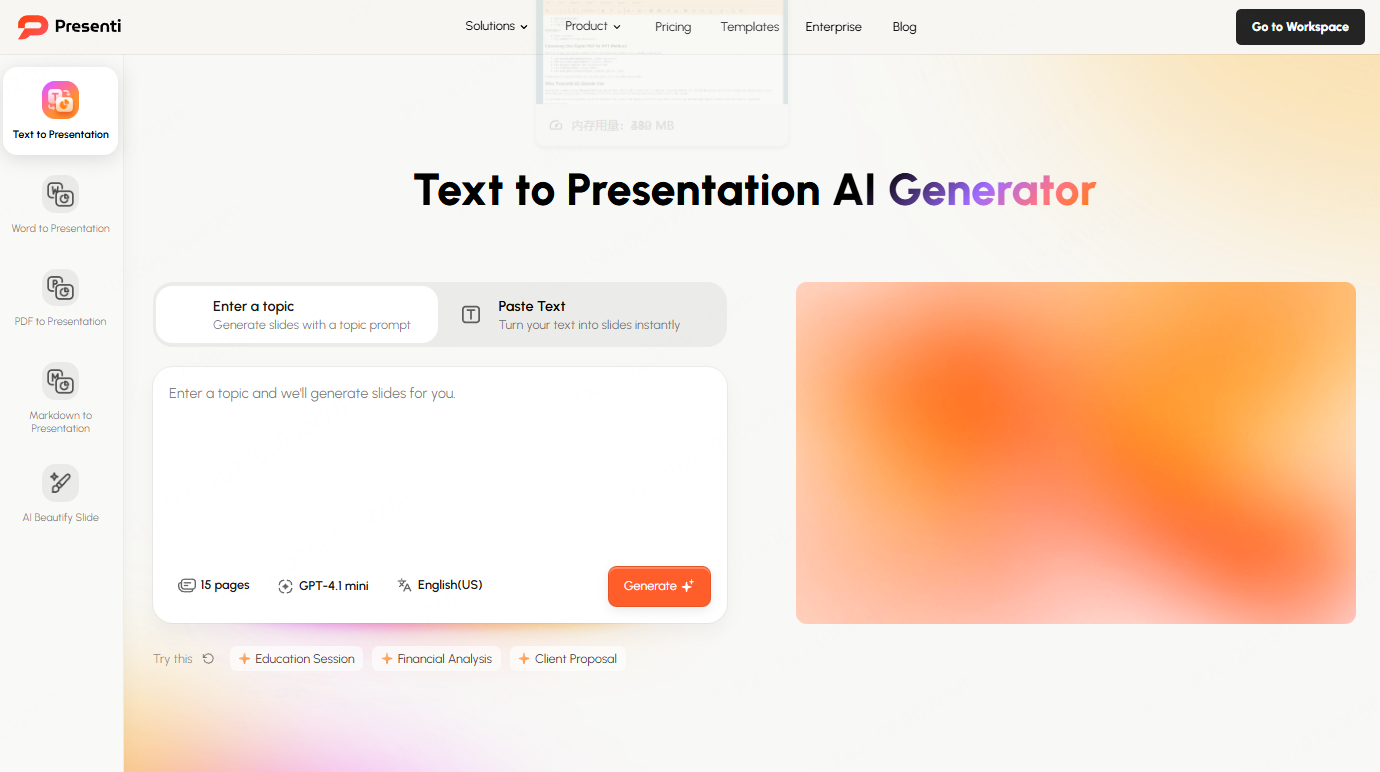
Popular and widely used tools include Presenti AI, Smallpdf, iLovePDF, and PDF to PPT Converter. These platforms are familiar to global users and work directly in the browser.
How It Works
- Open an online PDF to PPT conversion website.
- Upload the PDF file you want to convert.
- Select the option to convert the file to PowerPoint format.
- Start the conversion process.
- Download the generated PPT file once the conversion is complete.
When to Use This Method
- You need a fast conversion for a small number of files.
- You are working on a shared or restricted device.
- The PDF layout is relatively simple.
- You do not want to install desktop software.
Pros and Cons
Advantages
- No installation required
- Simple and beginner friendly
- Works across operating systems
Limitations
- File size limits on free plans
- Less control over formatting
- Privacy considerations for sensitive documents
Method 2: Convert PDF to PPT Using Desktop Software
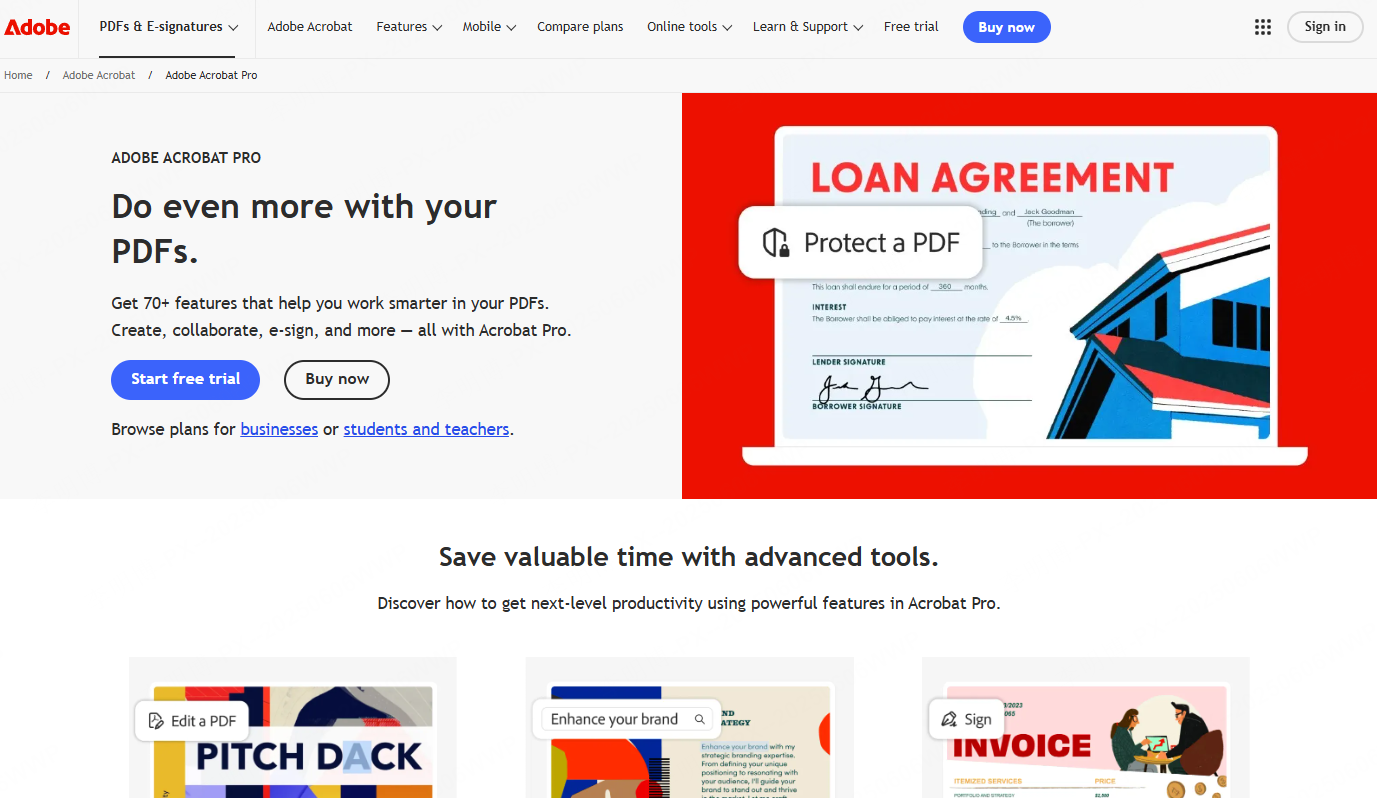
For users who need higher accuracy and more control, desktop PDF software offers a more professional solution. Tools such as Adobe Acrobat Pro and Wondershare PDFelement are commonly used by professionals in technical and corporate environments.
How It Works
- Open your PDF file in the desktop software.
- Select the Export or Convert feature.
- Choose PowerPoint as the output format.
- Adjust settings such as page range or layout options.
- Run the conversion and save the PPT file.
When to Use This Method
- You frequently convert PDF files.
- The document contains complex layouts, charts, or images.
- Formatting accuracy is critical.
- You are working with large or confidential files.
Pros and Cons
Advantages
- Better preservation of layout and visual elements
- Advanced export settings
- Offline processing for better data control
Limitations
- Most tools require a paid license
- Software installation is required
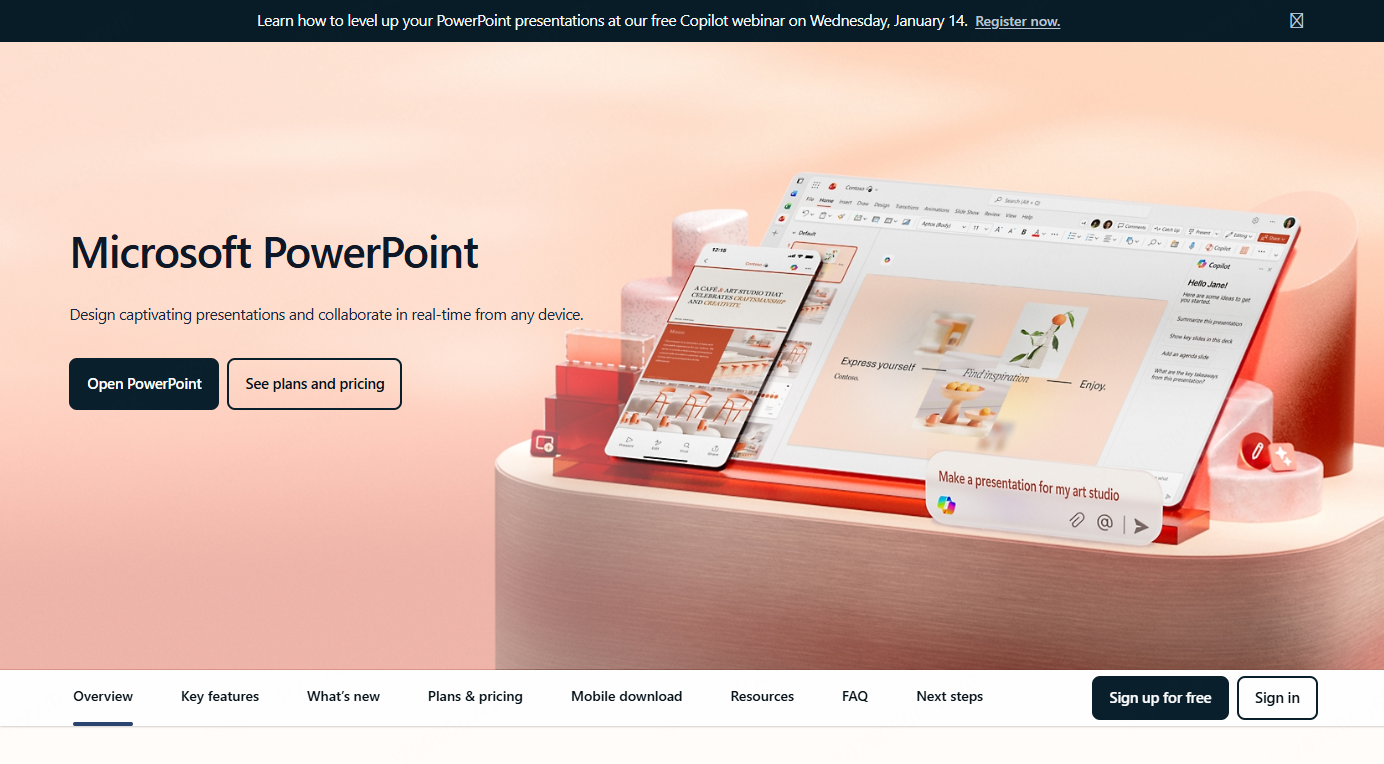
Method 3: Convert PDF to PPT Using Microsoft PowerPoint
If you already use Microsoft PowerPoint, you can convert PDF content directly without additional tools. PowerPoint 2016 and later versions support importing PDF files as editable objects.
How It Works
- Open Microsoft PowerPoint.
- Create a new presentation.
- Go to the Insert menu and select Object.
- Choose Insert from File and select your PDF.
- The PDF content appears as slides or embedded objects.
- Manually adjust layout and content as needed.
When to Use This Method
- You already work within the Microsoft Office ecosystem.
- You want to fine tune slides manually.
- The PDF content needs significant redesign.
Pros and Cons
Advantages
- No extra software required
- Full control over slide design
- Ideal for custom presentations
Limitations
- Manual adjustments can be time consuming
- Not ideal for large or multi page PDFs
Method 4: Convert PDF to PPT Using Google Slides
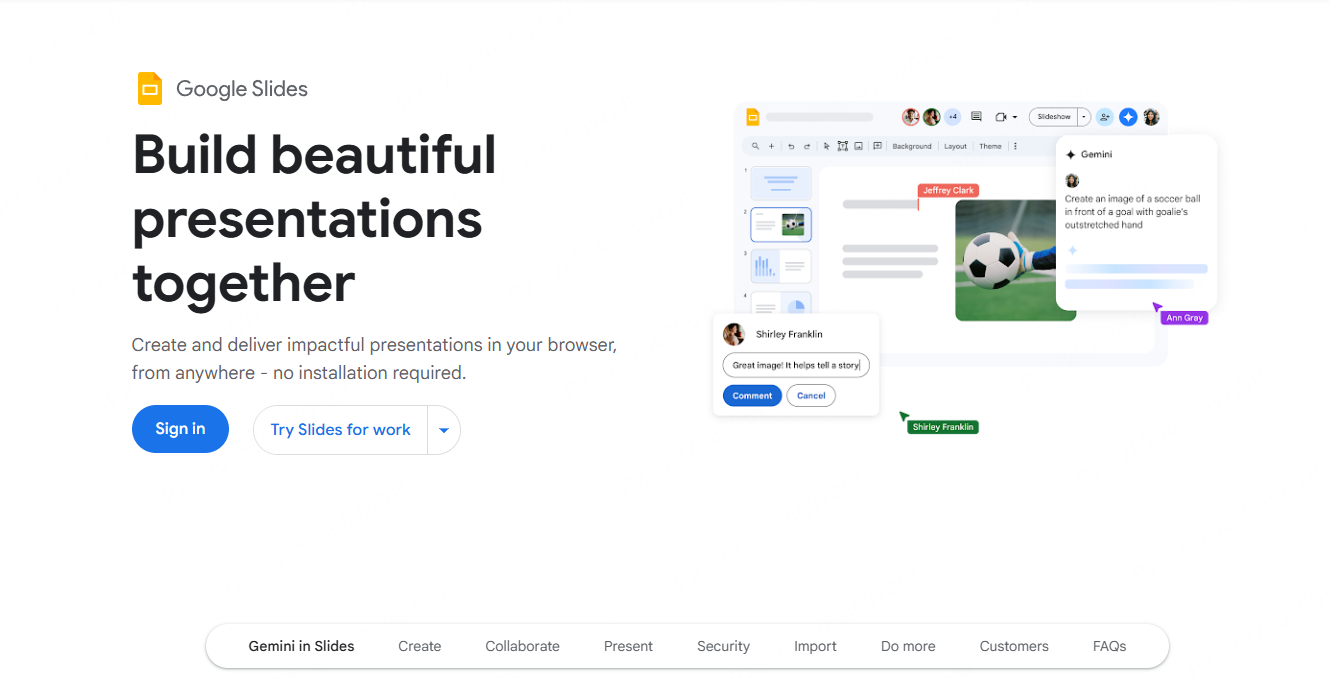
Google Slides offers a free, cloud based alternative for converting PDFs into presentations. This method works well for teams that collaborate remotely or need cross device access.
How It Works
- Upload the PDF file to Google Drive.
- Open the PDF using Google Docs.
- Convert or copy the content into Google Slides.
- Edit the slides as needed.
- Download the file as a PowerPoint presentation.
When to Use This Method
- You work in cloud based environments.
- Collaboration and sharing are priorities.
- You need access from multiple devices.
Pros and Cons
Advantages
- Free and browser based
- Strong collaboration features
- Easy sharing and version control
Limitations
- Formatting may shift during conversion
- Requires manual cleanup for complex layouts
Method 5: Manually Copy and Paste Content
For simple PDFs or partial conversions, manual copy and paste remains a practical option. While it requires more effort, it provides complete flexibility.
How It Works
- Open the PDF file.
- Copy text or images from the document.
- Paste the content into PowerPoint slides.
- Adjust layout, fonts, and visuals manually.
When to Use This Method
- You only need specific sections of the PDF.
- The document structure is simple.
- You want full creative control over slide design.
Pros and Cons
Advantages
- Maximum flexibility
- No tools required
- Ideal for redesign and customization
Limitations
- Time intensive
- Not suitable for large documents
Choosing the Right PDF to PPT Method
There is no one size fits all solution. The best method depends on your workflow and goals:
- For speed and convenience: Online converters
- For accuracy and volume: Desktop software
- For design control: Microsoft PowerPoint
- For collaboration: Google Slides
- For selective content reuse: Manual copy and paste
Understanding your priorities will help you select the most efficient approach.
Why Presenti AI Stands Out
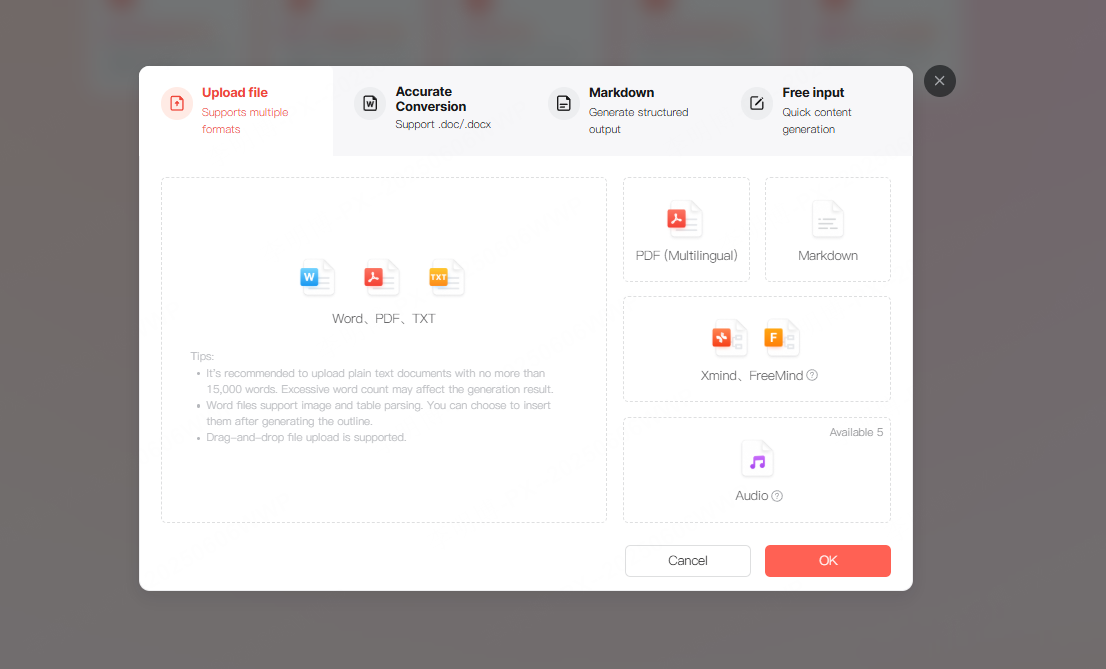
Among the available tools, Presenti AI goes beyond basic PDF to PPT conversion. It supports converting Word, TXT, XMind, Markdown, and other formats into PowerPoint. It also offers AI powered one click presentation generation, professionally designed templates, and flexible slide layouts.
For professionals who frequently create presentations for work or education, Presenti AI provides a modern and efficient alternative to traditional slide creation workflows.
Conclusion
Converting a PDF to PowerPoint does not have to be complicated. With the right method, you can quickly transform static documents into dynamic presentations that are easy to edit, share, and present.
Whether you choose an online tool, desktop software, or manual editing, understanding the strengths of each approach ensures better results and higher productivity in your daily work.









