Microsoft PowerPoint remains one of the most popular tools for creating presentations, photo slideshows, business reports, and educational materials. It allows users to combine text, images, animations, audio, and video into a complete slideshow. However, creating a professional slideshow manually requires more than adding content to slides. Users need to plan the structure, write content, select visuals, adjust layouts, and maintain consistency across the entire presentation.
This guide explains how to make a slideshow in PowerPoint step by step. It also shows how to start from an outline or supported document in Presenti AI, then review and edit the resulting slides.
What Is a PowerPoint Slideshow?

A PowerPoint slideshow is a sequence of slides designed to communicate information visually. It can be used for business presentations, education, reports, photo albums, and events. Unlike a simple collection of images, a professional slideshow usually includes:
- A clear structure
- Visual hierarchy
- Text and images
- Charts and diagrams
- Animations and transitions
- Background music or narration
- A consistent design style
PowerPoint slideshows are commonly used for:
- Business presentations
- Sales proposals
- Training materials
- School projects
- Research presentations
- Photo albums
- Event displays
- Conference presentations
A successful slideshow combines clear messaging, visual hierarchy, and consistent design instead of simply placing information onto separate pages.
How to Make a Slideshow in PowerPoint: Step-by-Step Guide
Step 1: Create a New PowerPoint Presentation
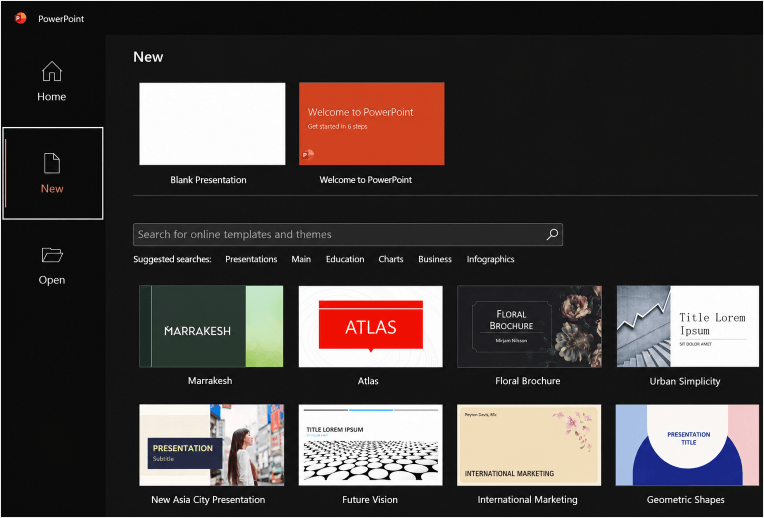
Open PowerPoint and select a blank presentation or choose a template. Templates provide predefined fonts, colors, and layouts that help establish a consistent visual style.
Step 2: Choose a Slide Layout
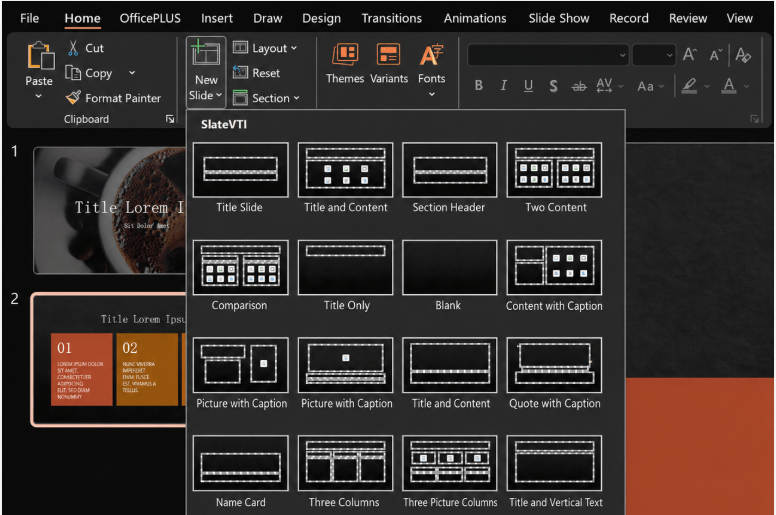
Select layouts based on your content type. Title slides, content layouts, comparison layouts, and image-focused layouts help organize information more effectively.
Step 3: Add Text and Content
Keep each slide focused on one main idea. Avoid long paragraphs and use concise messages supported by visuals.
Step 4: Add Photos and Images
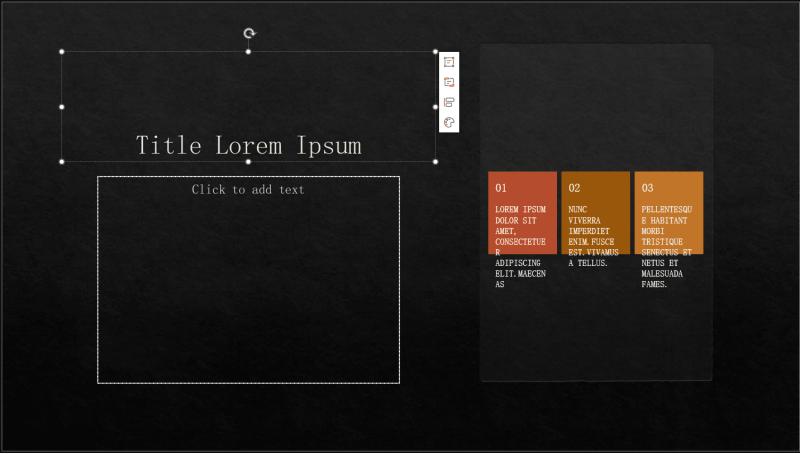
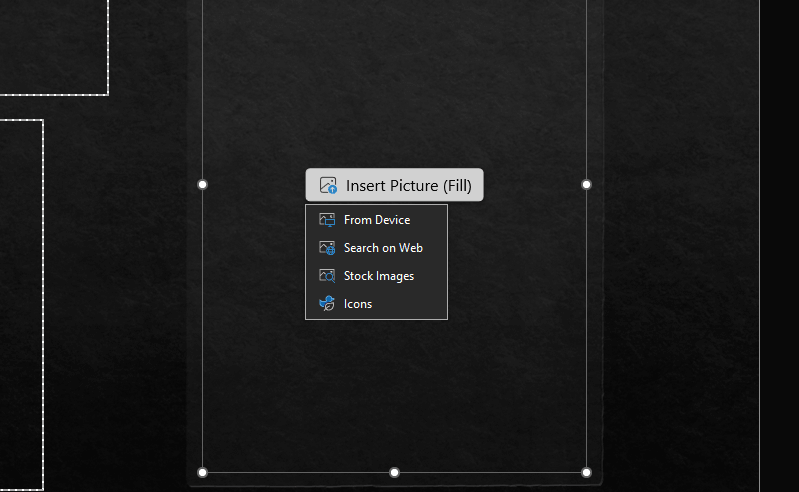
Use Insert → Pictures to add images. In PowerPoint for Windows, Insert → Photo Album can also create slides from multiple photos.
Step 5: Add Slide Transitions
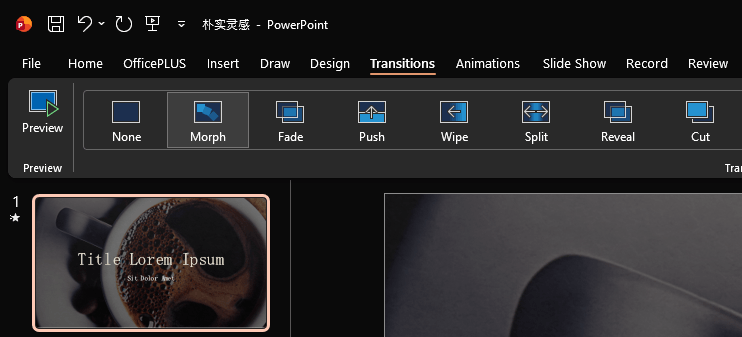
Transitions control movement between slides. Professional presentations usually use a consistent transition style instead of many different effects.
Step 6: Add Animations
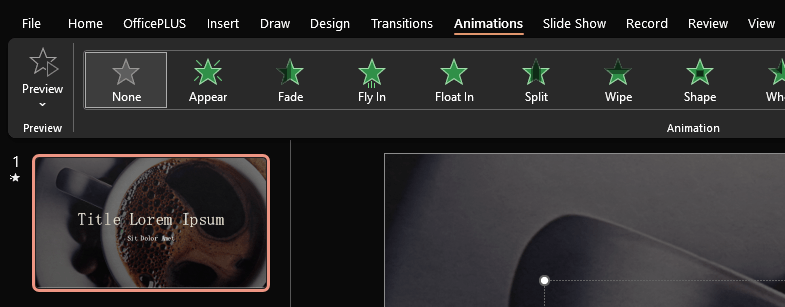
Animations can reveal information gradually and highlight important elements. Use them carefully to avoid distracting your audience. For a controlled sequence, follow the object animation and Animation Pane steps rather than applying the same effect to every element.
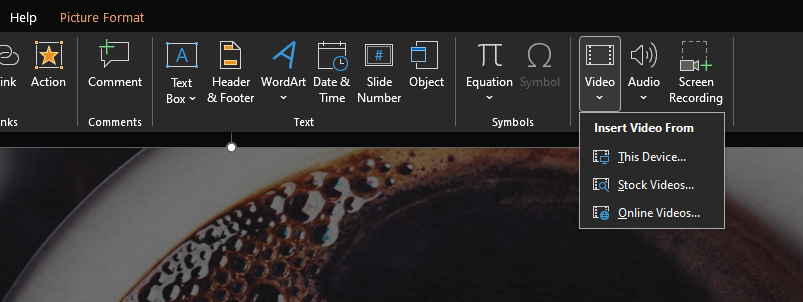
Step 7: Add Music or Audio
PowerPoint allows you to insert background music or narration through Insert → Audio. Playback settings can be configured to play across slides or loop continuously. The guide to planning a multimedia presentation and playback fallback explains how to preserve the message if a clip, connection, or soundtrack fails during delivery.
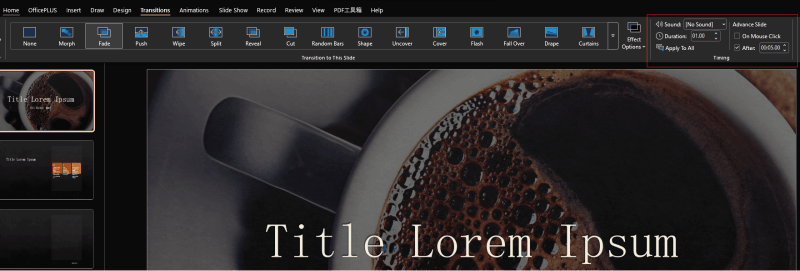
Step 8: Make Your PowerPoint Slideshow Play Automatically
Enable automatic slide advancement through the Transitions tab. For continuous playback, use Slide Show → Set Up Slide Show and select loop continuously until stopped. The automatic playback and looping guide explains how manual timings and Rehearse Timings affect the finished show.
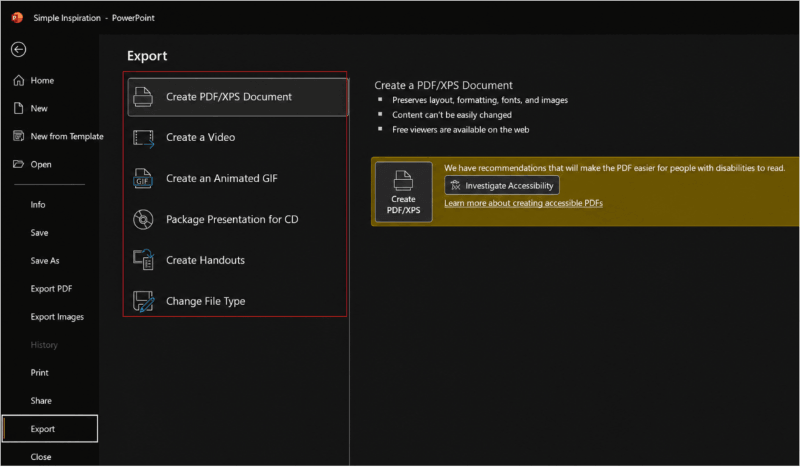
Step 9: Export Your Slideshow
Save the editable presentation as PPTX, or export a copy in a format suited to delivery. In PowerPoint for Windows, video export is under File → Export → Create a Video; menus and available formats differ on Mac and the web.
The Challenges of Creating PowerPoint Slides Manually
PowerPoint provides excellent control, but creating a polished presentation manually can be time-consuming. The process often requires researching information, creating an outline, writing content, designing layouts, finding visuals, and repeatedly adjusting formatting.
For simple photo slideshows this approach works well. For business proposals, research reports, strategy decks, and professional presentations, creating every slide manually can require many hours. If the final deliverable is a video built around photographs, compare photo-to-video slideshow apps for editing controls, music, and export conditions.
Presenti AI: Start from an Idea or Source Document
Presenti AI is an AI-powered presentation generator that transforms ideas, documents, and existing files into professional presentations.
Presenti offers several creation workflows: Markdown/XMind import is listed on the free plan; Word/PDF/TXT import and editable PPTX/PDF export are paid features. Existing PPTX files use the beautification workflow, while audio has a separate generation allowance. Choose the workflow suited to your source:
- Text prompts and outlines
- PDF and Word documents
- Markdown and TXT files
- Existing PowerPoint files
- Web pages
- Mind maps
- Audio content
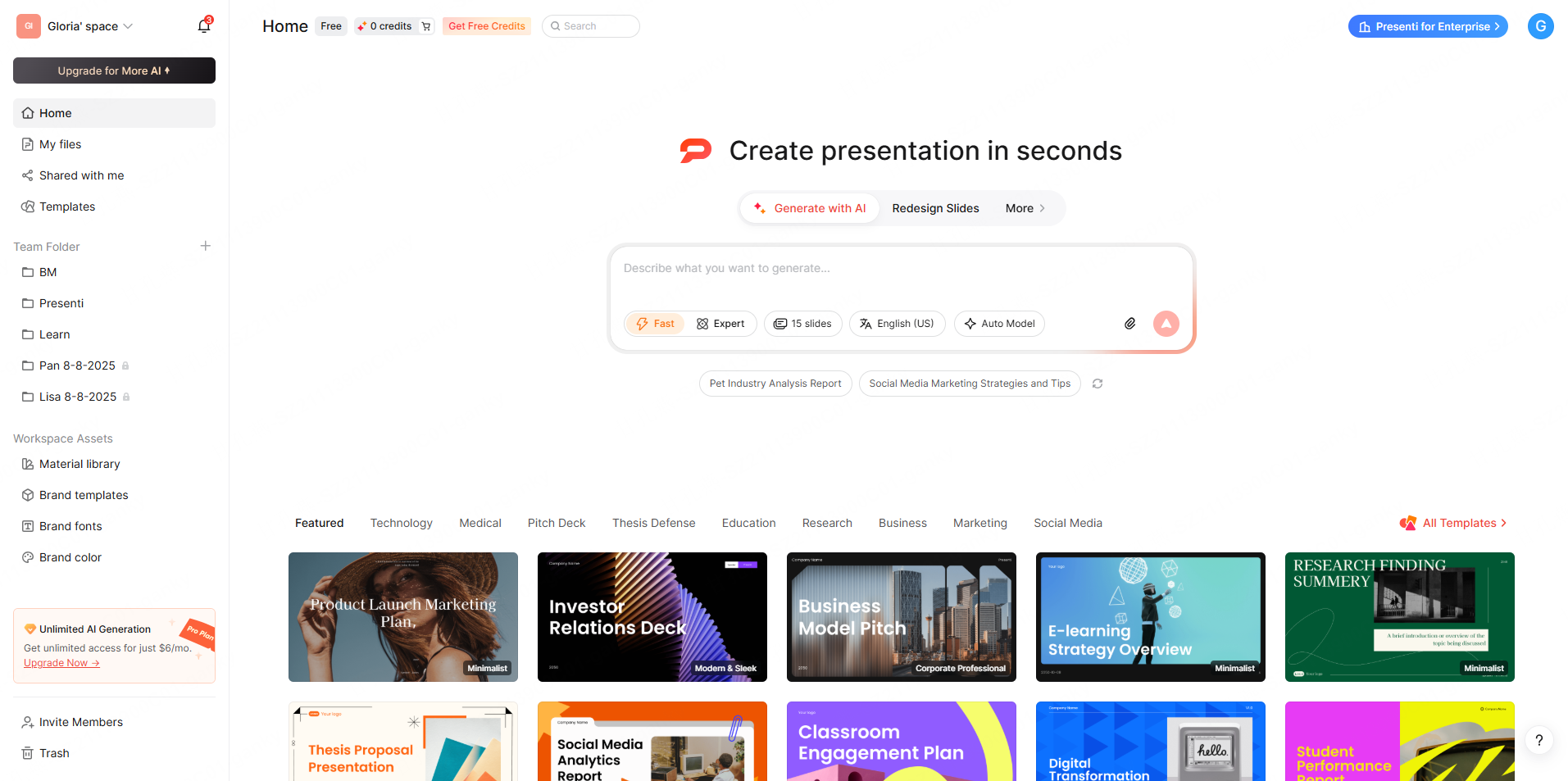
How Presenti AI Generates a PowerPoint Presentation
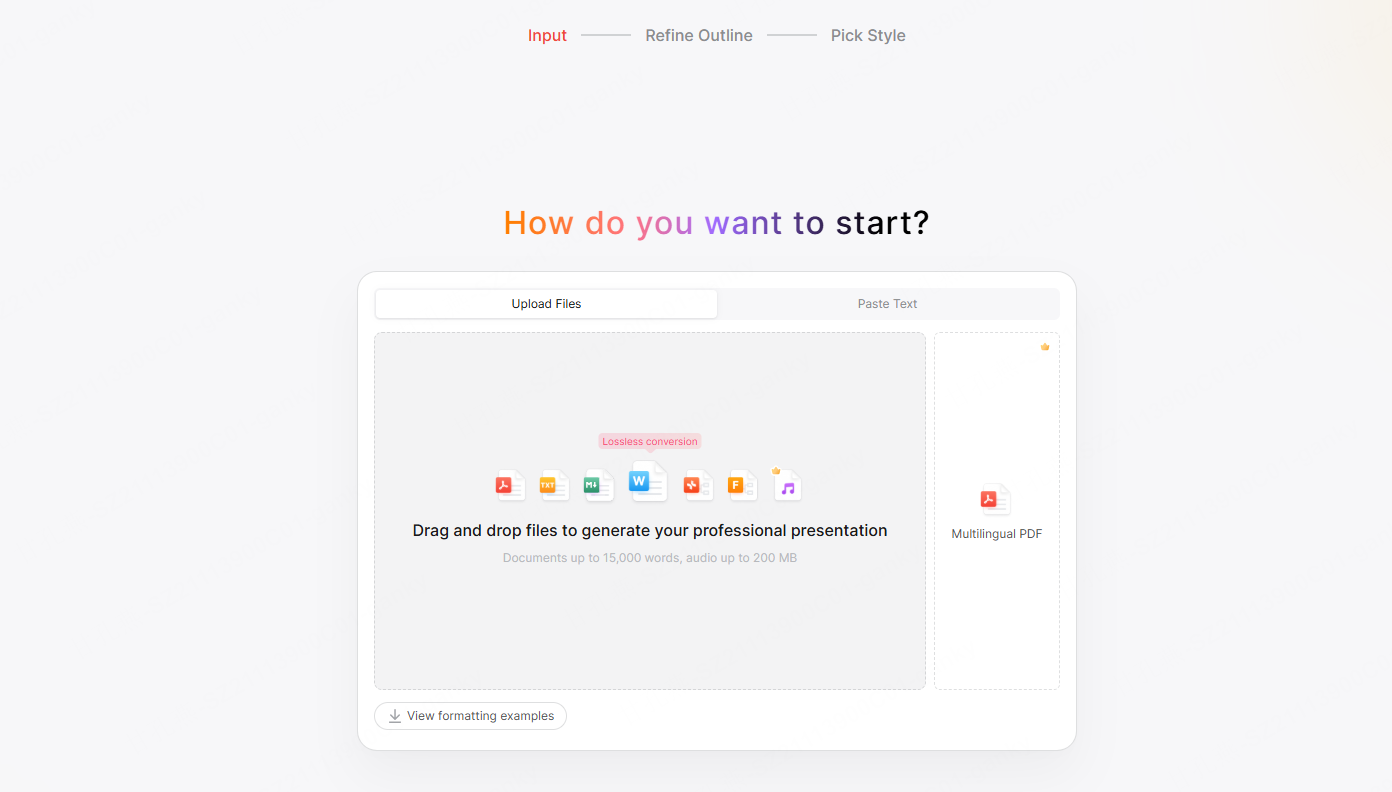
Step 1: Enter Your Idea or Upload Content
Start with a topic or upload source material. Presenti AI analyzes the content and identifies key information, arguments, and presentation structure.
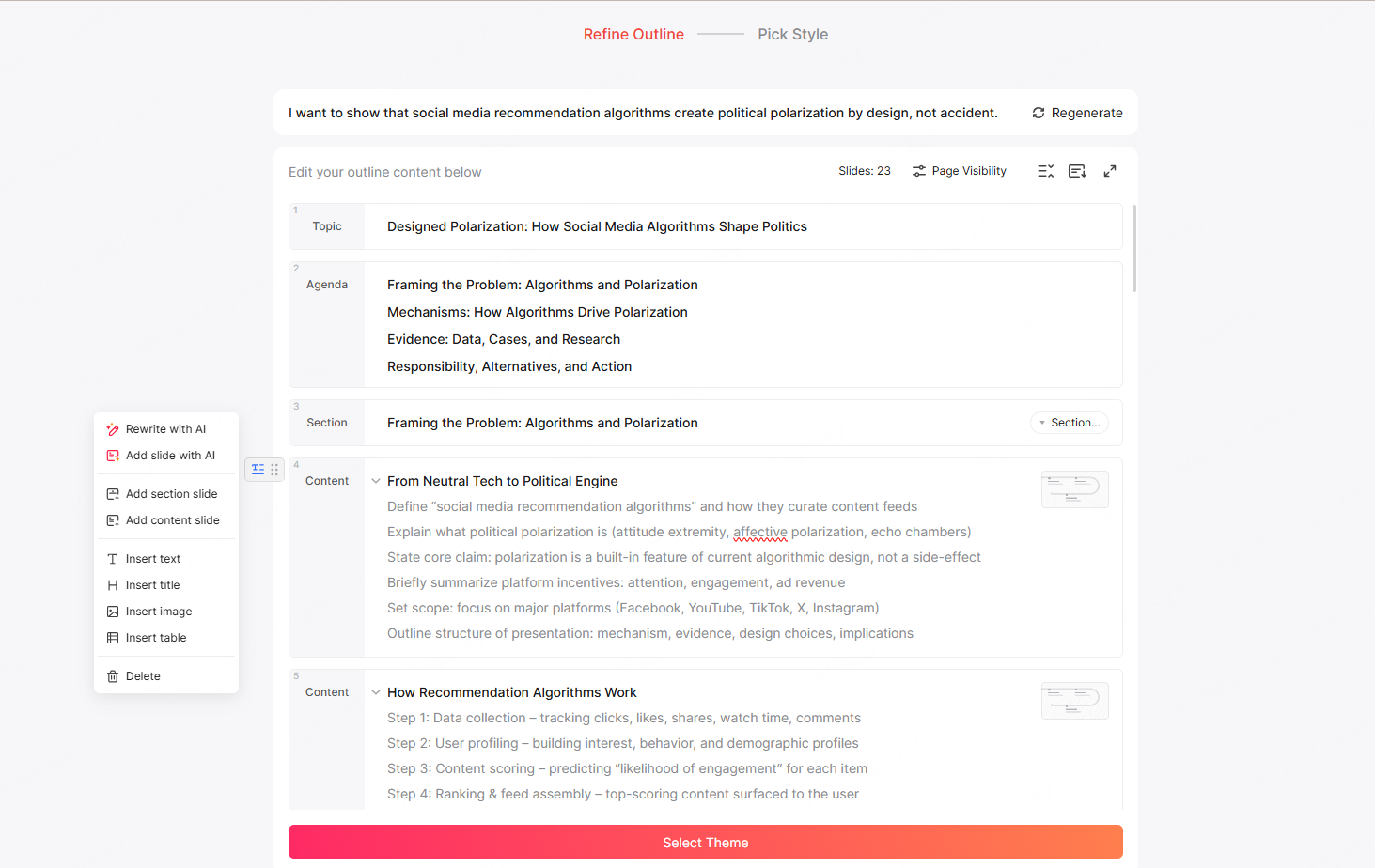
Step 2: Review the AI-Generated Outline
Before creating slides, Presenti AI generates an outline so users can review the story flow and adjust sections.
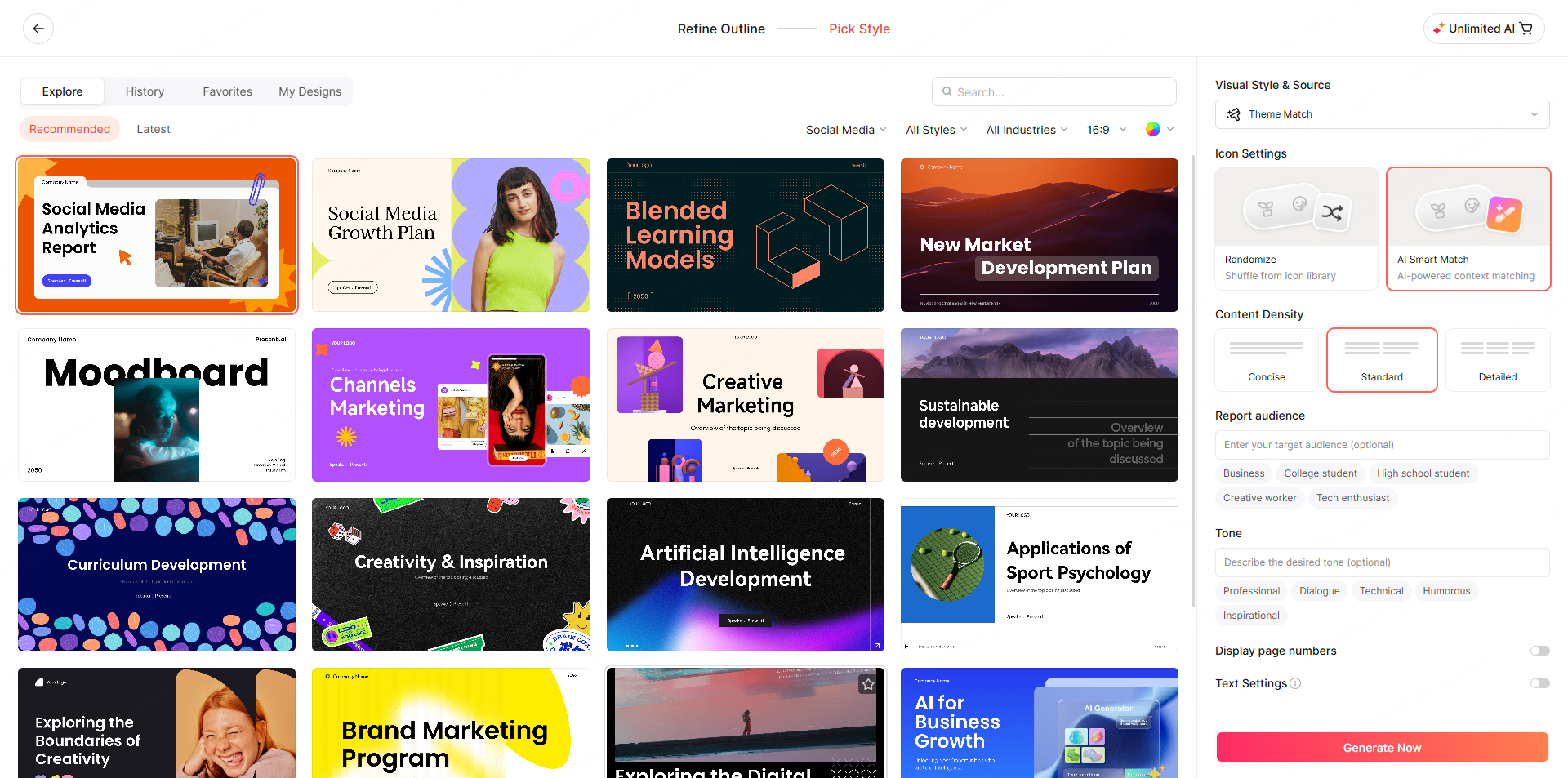
Step 3: Select a Presentation Style
Choose a visual direction based on your audience and purpose, including business, education, marketing, and research presentation styles.
Step 4: Generate Complete Slides
Presenti AI generates a draft with content and layouts. Check figures, labels, and the way each chart or diagram represents the source before keeping it.
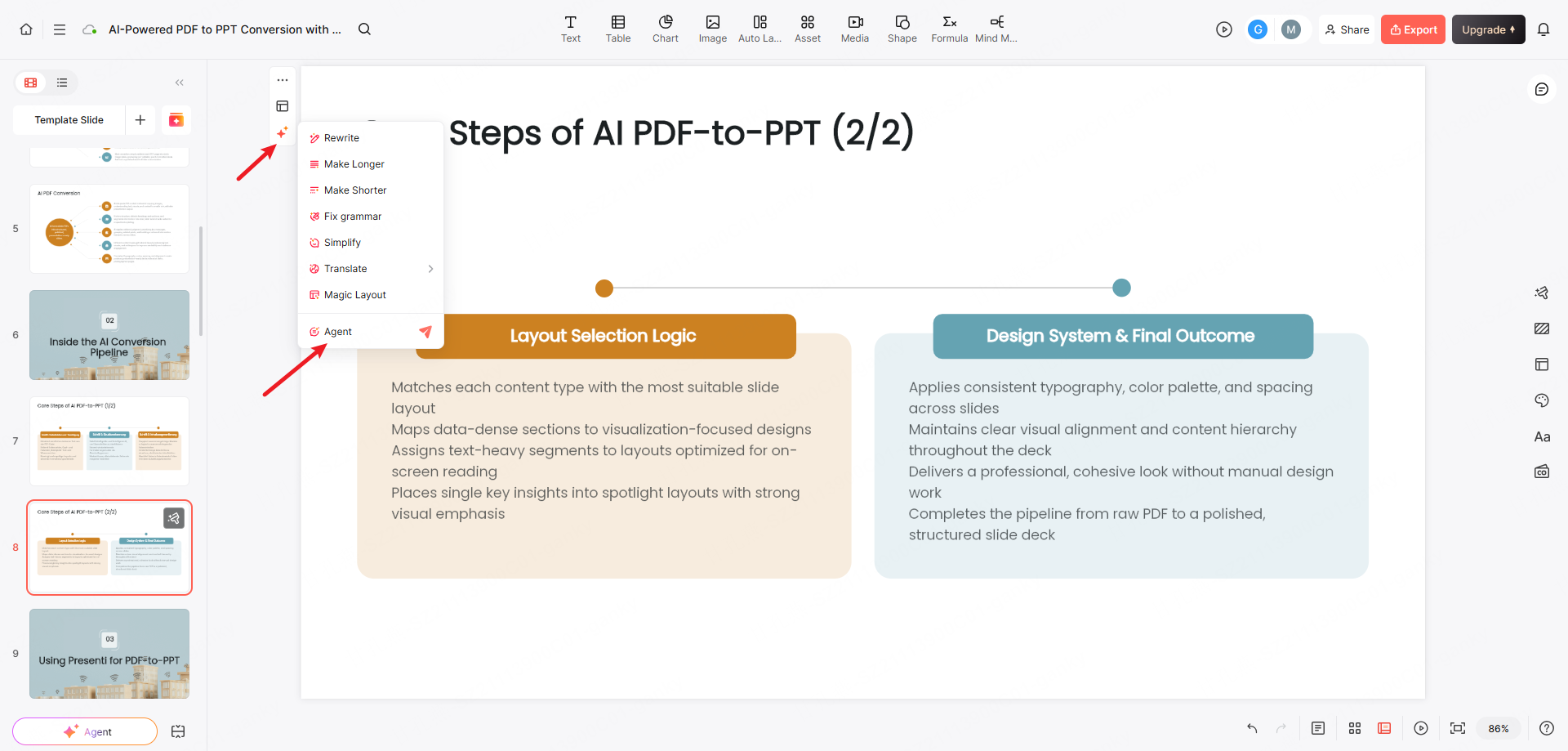
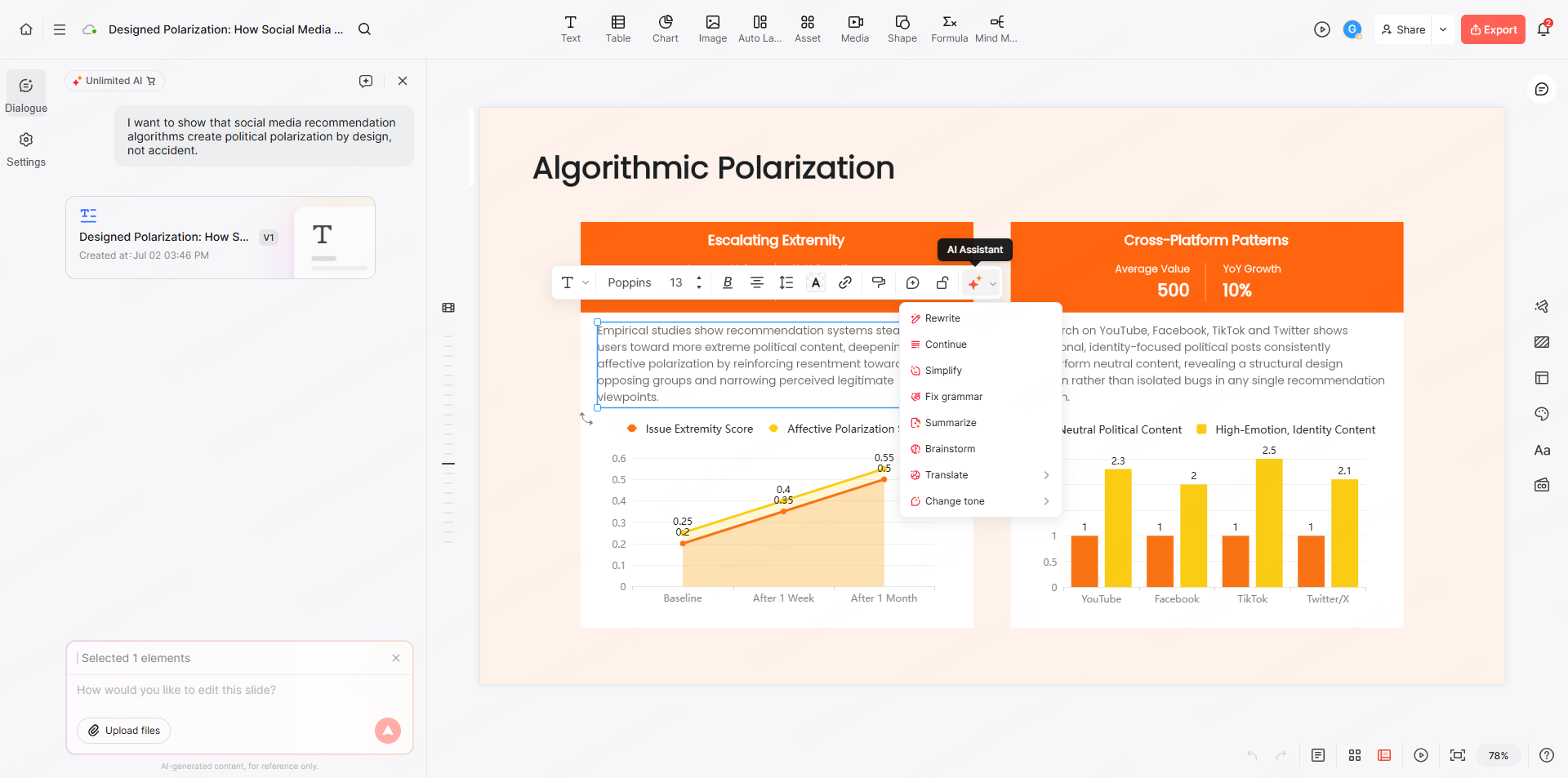
Step 5: Edit Slides With AI Assistance
Users can refine presentations with natural-language instructions, such as shortening content, improving tone, changing layouts, or adding visual elements.
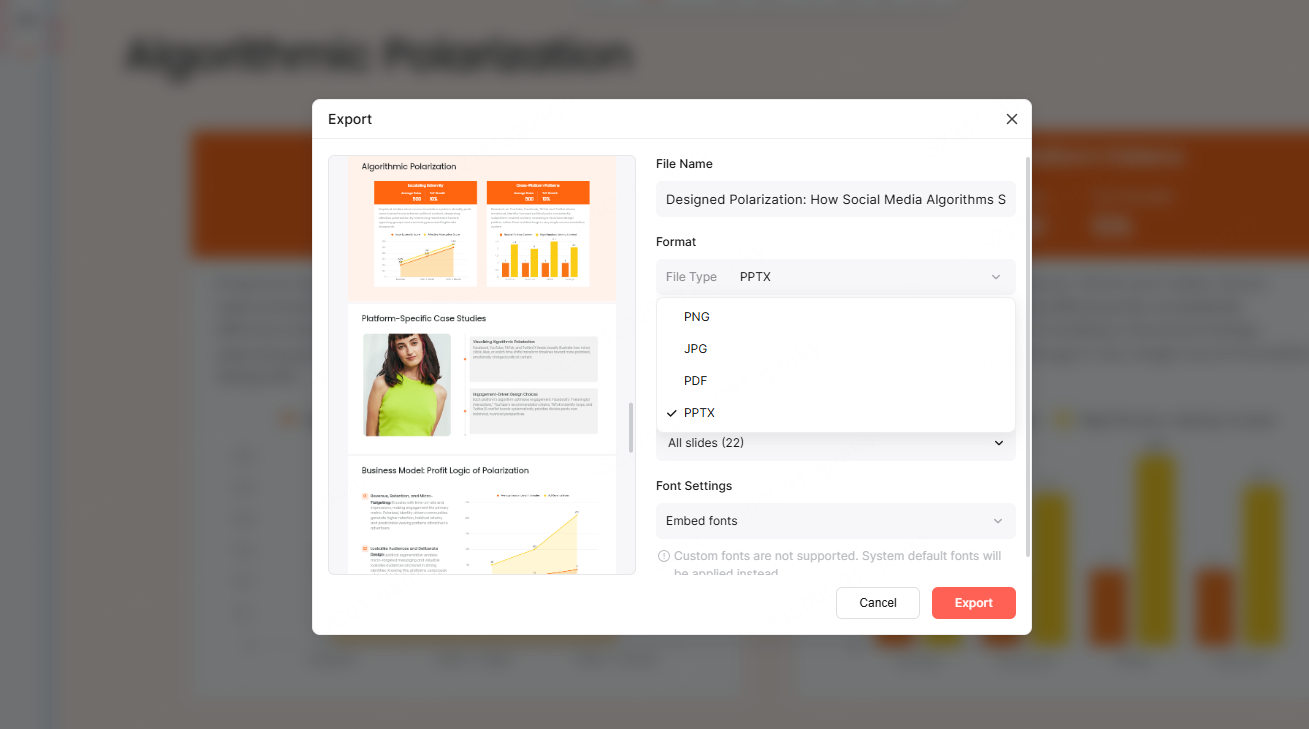
Step 6: Export to PowerPoint
Paid plans list editable PPTX export. Open the exported file in PowerPoint and review fonts, charts, and layouts before presenting.
PowerPoint vs Presenti AI: Which Tool Should You Choose?
PowerPoint and Presenti AI solve different parts of the presentation creation process. PowerPoint is a powerful presentation editor that gives users complete control over every slide, while Presenti AI focuses on accelerating the creation process by transforming ideas, documents, and existing content into structured presentations.
The right choice depends on where you are starting from. If you already have a clear outline and want to manually customize every detail, PowerPoint remains one of the most capable tools available. If you need to create a professional presentation quickly from a blank page, research material, or existing documents, Presenti AI can significantly reduce the time spent on planning, writing, and formatting.
| Feature | PowerPoint | Presenti AI |
|---|---|---|
| Create slides manually | ✅ Excellent | ✅ |
| Generate presentation from topic | Available with eligible Copilot access | AI generation subject to plan allowance |
| Use source documents | Supported sources depend on the Copilot workflow | Word/PDF input on paid plans |
| AI-assisted structure | Eligible Copilot workflows | Outline review before generation |
| Design assistance | Designer/Copilot features depend on access | Generated layouts and themes |
| Professional templates | ✅ | ✅ |
| Edit individual elements | ✅ Excellent | ✅ |
| Export PPTX | Native format | Paid plans |
| Source verification | Author must check evidence | Author must check evidence |
| Best for | Manual editing | Fast AI creation |
When Should You Use PowerPoint?
PowerPoint is the better choice when you need maximum control over the final presentation. It provides extensive editing capabilities, allowing users to adjust every element manually, including text placement, images, animations, charts, transitions, and slide layouts. If your team needs a different workflow, compare PowerPoint alternatives by editing workflow and test editing, sharing, and export with the people receiving the file.
PowerPoint works especially well when:
- You already have the presentation structure and content prepared.
- Your team uses Microsoft Office as part of its daily workflow.
- You need advanced manual editing capabilities.
- You are working with existing corporate presentation templates.
- You require precise control over animations, formatting, and slide-level adjustments.
For example, a designer refining a brand presentation or a consultant making final adjustments to an executive deck may prefer PowerPoint because every visual detail can be customized exactly.
However, creating a presentation from scratch in PowerPoint can be time-consuming. Users are responsible for researching information, organizing the narrative, writing slide content, selecting visuals, designing layouts, and maintaining consistency across dozens of slides. For complex presentations, the biggest challenge is often not editing slides but deciding what content should appear and how the story should flow.
When Should You Use Presenti AI?
Presenti AI is designed for users who want to move faster from an idea or source material to a complete presentation.
Instead of starting with an empty slide canvas, users can provide a topic, upload documents, or import existing content. Presenti AI analyzes the information, generates a structured outline, creates slide content, applies professional layouts, and produces an editable presentation.
Presenti AI is especially useful when:
- You only have an idea but need a complete presentation structure.
- You need to convert PDF, Word, Markdown, TXT, or existing PowerPoint files into slides.
- You want AI to help organize complex information.
- You need professional-looking slides without spending hours formatting.
- You frequently create business reports, research presentations, proposals, training materials, or marketing decks.
A typical workflow with Presenti AI looks like this:
Idea or document → AI-generated outline → Designed presentation → AI refinement → Editable PowerPoint file
After generating the presentation, users can continue editing through AI-assisted commands, such as improving slide content, changing the tone, adding visual elements, simplifying information, or restructuring sections.
Presenti AI does not replace PowerPoint editing. Instead, it helps users complete the most time-consuming parts of presentation creation before they enter the traditional editing stage.
One possible workflow is to use Presenti for a first draft based on reviewed source material, then use PowerPoint for final customization and delivery. Research and fact-checking still require attention before either stage.
Final Thoughts
PowerPoint remains a powerful presentation editor, but AI tools offer additional ways to draft presentations. Instead of starting with a blank slide, users can now begin with an idea or document and generate a structured presentation automatically.
The modern workflow is simple: Idea or document → AI-generated structure → Designed presentation → Editable PowerPoint file.
Choose PowerPoint when you want direct control over slide elements and delivery settings. Try a document-based draft when your main task is organizing source material, and allow time to revise the content and exported layout.