You’re doing a final pass on your slides and hit a wall: how exactly are you supposed to format this citation? The rest of the deck is done, but now you’re re-searching citation rules with the deadline an hour away. It happens to grad students defending a thesis and it happens just as often to a marketing manager dropping a market-research stat into a client pitch.
The good news: citing sources in PowerPoint isn’t actually complicated. What trips people up is not knowing how formal to be for a given audience — over-format a casual internal deck and you waste time; under-format an academic one and you leave out something you needed. This guide breaks citation formatting down by audience, walks through exactly how to add it in PowerPoint, and includes copy-paste APA templates for the source types you’ll run into most. For the separate question of tracing AI-generated claims back to source material, see the discussion of Copilot Deep Citations.
Why Citations Belong on Your Slides
Before the how, it’s worth being clear on the why — it makes the effort feel less like busywork.
They separate your thinking from someone else’s. When a slide presents data or an argument, the audience needs to know whether that’s your original analysis or something you’re drawing from someone else’s research. Leaving that ambiguous, even unintentionally, can read as passing off someone else’s work as your own — a real problem in both academic and business settings, where it’s a credibility issue either way.
They make your argument more convincing, not less. A slide built entirely on unsupported opinion tends to feel thin. “According to a 2026 industry report” does more for your credibility than the same claim with no attribution — your audience can judge the reliability of the source for themselves. This matters most in slides built around market data or statistics, where citing (or not citing) a source is often the difference in how convincing the slide actually is.
Citation and permission are separate. Crediting a source does not by itself authorize copying it. In the US, fair use depends on a case-specific assessment of the purpose, nature, amount used, and market effect. Check the license or other legal basis for the material you include; rules differ by jurisdiction.
How Formal You Need to Be Depends on the Room
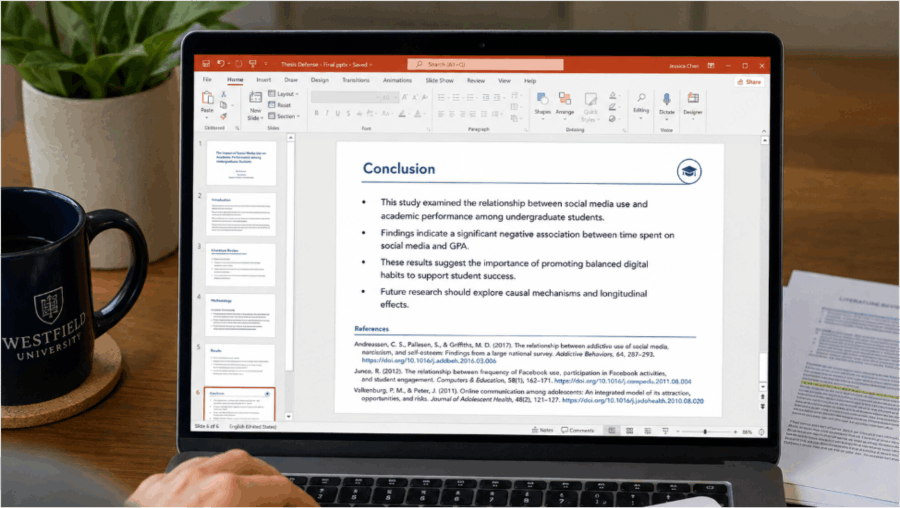
Here’s the part that isn’t talked about enough: how strict your citation formatting needs to be depends entirely on who’s in the audience. You don’t need academic-journal-level formatting for an internal status update, and you shouldn’t wing it for a thesis defense.
Conference presentations and thesis defenses. These call for a genuine, consistent citation style — author, title, publication, volume/issue, year, and page numbers, in a defined order. The exact format depends on your field and institution (APA is the most common default in the US, though some disciplines use MLA or Chicago), so check your department’s or conference’s style requirements before you commit to a format — a “this looks about right” guess is exactly the kind of thing that gets you asked to redo it.
University coursework and class presentations. Follow the assignment’s citation requirements. Include enough source details to identify and retrieve the material, using the required style. Some instructors specify a required style in the syllabus, so it’s worth checking before you default to whatever you remember from the last class.
Internal meetings and sales proposals. In a business setting, academic-level formatting is rarely necessary — what actually matters is that anyone in the room can quickly tell where a number came from. For market research, something like “Source: Gartner, 2026 Market Outlook” is usually enough. For government or public statistics, naming the agency and the report title (e.g., “U.S. Bureau of Labor Statistics, 2026 Employment Report”) communicates credibility without needing full bibliographic detail. Prioritize traceability over formatting perfection.
Seminars and public-facing talks. These tend to involve more charts and images, which means you’re not just citing text sources — you also need to credit the images and graphics themselves. More on that in the copyright checklist below.
Figure out which of these categories your deck falls into first, then match your formatting effort to it. Over-formatting an internal deck wastes time; under-formatting a thesis defense creates real problems.
Where to Put Citations on the Slide
Before getting into formatting specifics, decide where citations actually live on the slide. There are two standard approaches.
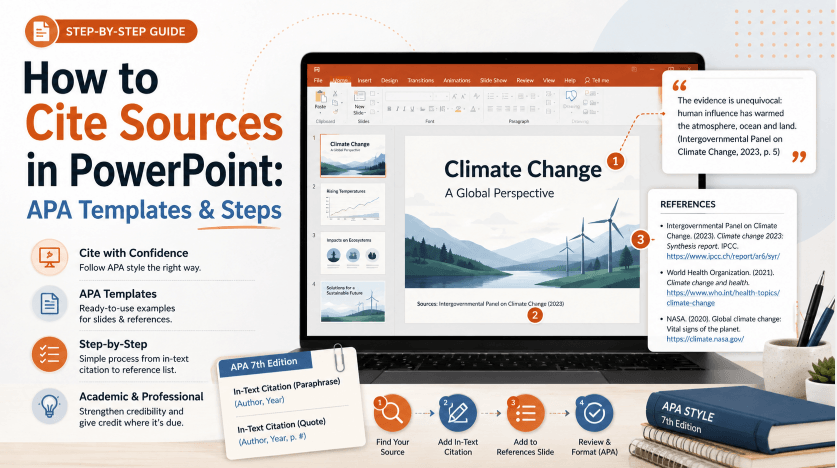
Directly on the slide where the data appears. A small citation line at the bottom of any slide using data or a quoted source. The advantage is that your audience can verify a claim the moment they see it. This works well when each source is only used once, or when your deck leans heavily on charts and statistics throughout.
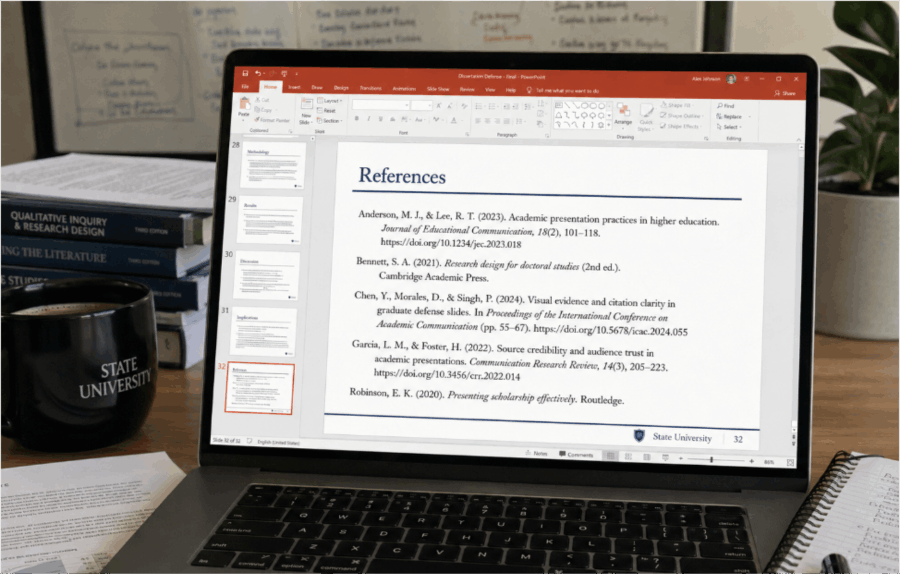
A dedicated references slide at the end. One “References” slide near the end of the deck, listing everything you cited. This keeps individual slides cleaner and is the better option when you’re reusing the same source across multiple slides, or when you have a long list of sources overall — it’s also the standard, expected format for conference talks and thesis defenses.
You don’t have to pick only one. A common approach is a brief citation on each slide plus a full references list at the end — especially useful if your audience might want to revisit the deck later and look sources up themselves.
How to Add Citations in PowerPoint: Step by Step
Once you know where citations are going, here’s how to actually add them.
Method 1: The footer (best for a citation that repeats across every slide)
- Go to Insert → Header & Footer.
- In the dialog box, check the Footer box under the Slide tab.
- Type your citation into the footer field.
- Click Apply to add it to the current slide only, or Apply to All to add it across the whole deck.
This is the fastest option when the same source needs to appear on every slide, since you only set it up once.
Method 2: A text box (best for source-specific citations)
- Go to Insert → Text Box.
- Click or drag on the slide where you want the citation to sit.
- Type your citation into the box.
Text boxes give you full control over position and wording per slide, which makes them the better choice when you’re citing a different source directly under each chart or image.
Adding footnote-style superscript numbers
Some presenters prefer numbering citations in the body text and matching those numbers to a source list in the footer or at the bottom of the slide. To superscript a number, select it, open the Home → Font dialog, and check the Superscript box — the default offset usually looks fine without adjustment. Apply superscript only to the in-text number, not the footer text itself, or the footer becomes too small to read.
Font size guidance
Use a readable citation line near the relevant claim, chart, or image and put fuller details on a references slide or accompanying document. Test readability in the presentation setting; an 8–12 pt citation may be too small for projection.
Copy-Paste Citation Templates (APA Style)
The templates below use APA 7th edition conventions. If your institution or company requires MLA, Chicago, or another style, the same underlying logic applies — just check your required format’s specific rules before finalizing.
Book:
Author, A. A. (Year). Title of work: Subtitle in sentence case. Publisher.Example: Isaacson, W. (2023). Elon Musk. Simon & Schuster.
Journal article:
Author, A. A. (Year). Title of article. Title of Journal, volume(issue), page range. DOI URL (when available).Placeholder example: Author, A. A. (Year). Article title. Journal Title, volume(issue), page range. DOI URL. Replace every placeholder with details from the actual source.
Website:
Author or Organization. (Year, Month Date). Title of page. Site Name. URLPlaceholder example: Organization Name. (Year, Month Day). Page title. URL. Add the site name only when it differs from the author.
Use (n.d.) when no publication date is available. APA uses retrieval dates for content designed to change over time when earlier versions are not archived; an undated page does not automatically need one. Omit the site name when it is the same as the author.
Newspaper or news article:
Author or Publication. (Year, Month Date). Title of article. Publication Name. URLPlaceholder example: Author, A. A. (Year, Month Day). Article title. Newspaper Name. URL. Use the credited author and actual publication details.
Government report or agency statistic:
Agency Name. (Year). Title of report. URLPlaceholder example: Agency Name. (Year). Report title. URL. Use the report’s actual title, date, and location.
For internal or informal business decks, you can usually shorten this to “Source: [Agency Name], [Report Title]” without the full URL — just make sure the source is specific enough that someone could track it down later if they needed to.
Image and Chart Copyright Checklist
Text citations aren’t the only thing to think about — the images, photos, and charts on your slides are also protected by copyright, and this is where external-facing decks run into the most avoidable trouble.
Before using any image, check its license. Licensing determines whether commercial use is allowed, whether attribution is required, and whether you’re permitted to modify it. CC0 waives copyright restrictions to the extent possible, but privacy, publicity, trademark, or other rights may still apply. CC BY requires attribution and compliance with its license terms. Watch out for CC BY-NC images specifically — they explicitly prohibit commercial use, and it’s a common mistake to drop one into a business deck without checking that restriction first.
Cropping or color-adjusting an image doesn’t remove the need to credit it. If you’ve modified an image, note that directly — something like “Adapted from [source]” is standard practice. Some licenses prohibit modification entirely, so check the terms before you edit, not after.
“I found it on the internet” is not a license. Even when pulling from free stock-image sites, note the site name and, where possible, the specific image URL, so you can track it down again if a question ever comes up later.
Skip the Manual Formatting: Try Presenti AI
Even once you know the rules, actually assembling a clean, well-formatted references slide — especially a long one — takes real time. Getting the spacing, alignment, and font consistency right across a dozen or more citations is exactly the kind of detail work that eats an afternoon.
Presenti AI won’t format your citations for you in a specific style like APA or MLA — that judgment call still needs to be yours, based on your accepted templates above. What it does handle well is everything around it: you can upload a Word document, PDF, Markdown file, or an XMind file, and Presenti converts the content into a structured slide deck automatically, including a clean, well-designed layout for list-heavy pages like a references slide.
The practical workflow looks like this: prepare your citations using the templates above, then let Presenti handle the layout, spacing, and visual consistency of the slide itself — including matching fonts and color themes across your whole deck. Presenti supports real-time team editing and PPTX/PDF export on eligible paid plans, so a colleague can review your source list without you emailing files back and forth.
Think of it as dividing the labor: you own accuracy (the right source, formatted the right way), and the AI owns the time-consuming part (making a dense list of citations look clean and consistent on the slide).
Frequently Asked Questions
What’s the difference between quoting and citing? A quote reproduces someone else’s exact words, set apart with quotation marks or a separate paragraph so it’s clearly distinguished from your own writing. Citing more broadly means crediting a source — including when you paraphrase an idea in your own words rather than quoting it directly. Both require attribution; only direct quotes require the exact wording to be marked off from your own text.
What font size should citations be? Make them readable at the intended viewing distance. Use a short on-slide citation and place longer details in the references section rather than shrinking the text to fit.
Do I need to cite my own photos or data? Not in the sense of avoiding plagiarism, but it’s worth labeling them anyway — something like “Photo by author” or “Internal company data, 2026” clarifies that it’s original, which matters when a deck mixes your own material with sourced content. That distinction helps your audience understand what’s independently verified versus your own analysis.
Do I still need to cite an image if I edited it? Yes. Even a cropped or color-adjusted image should still be credited, and noting that it was modified (e.g., “Adapted from [source]”) helps avoid any confusion about what was changed from the original.
Conclusion
There’s no single universal format for citing sources in PowerPoint — the right amount of rigor depends entirely on who’s going to see the deck. A thesis defense calls for a real, consistent academic style; an internal sales deck usually just needs enough detail that someone could trace a number back to its source. Start by identifying which category your presentation falls into, then apply the matching template from this guide without over- or under-doing it.
Once the citation rules are second nature, you can put your attention where it belongs — the actual content and design of the deck. If the layout and formatting work is what’s eating your time, a tool like Presenti AI can take on the visual side while you focus on making sure every source is accurate and properly credited.