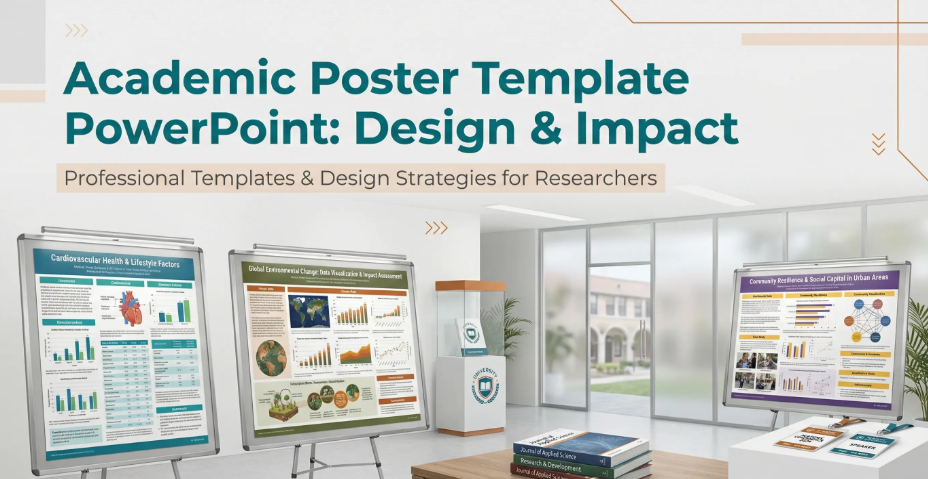
A useful PPT template provides layouts that fit the material you need to explain. When choosing one in 2026, look beyond the cover preview: test a dense content slide, a chart, and the final output format. The five priorities below are design criteria, not a ranking based on market research.

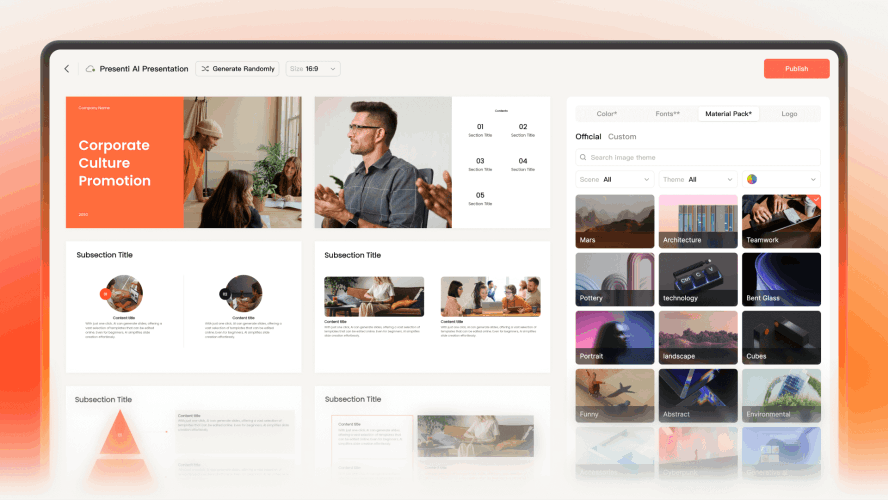
Priority 1: Layouts That Fit Your Content
The Evolution of Responsive Design
A template can look balanced with sample text and become crowded when you add your own. Choose layouts with room for realistic titles, labels, and supporting points. Test the longest passage before applying the template to the entire deck.
Layout automation can suggest arrangements, but it cannot guarantee that every amount of text will fit. If a slide becomes crowded, shorten the wording, divide the idea across slides, or choose a layout with more space.
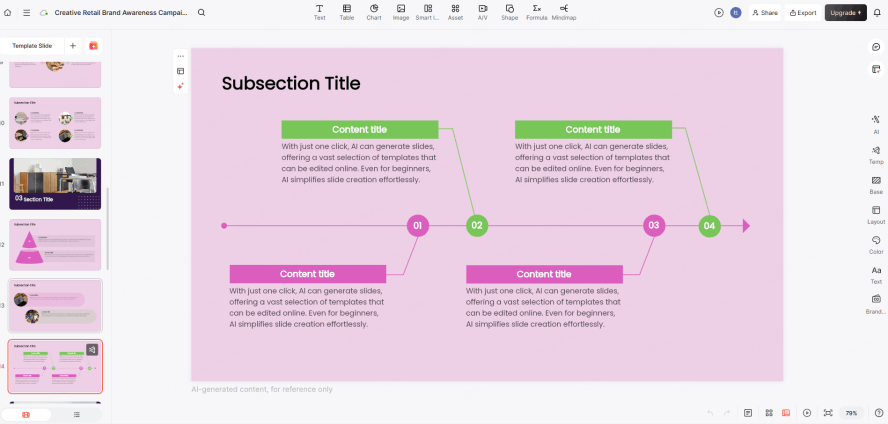
Presenti’s Solution:
Presenti can generate a draft and offer layouts for your content. Check whether the title, supporting detail, and visuals have the right emphasis. Review spacing again after replacing sample text with the final wording.
Priority 2: Readability and Accessibility
Design for Every Brain
Build readability into the template selection process. Consider contrast, text size, reading order, and the needs of people viewing the deck on different devices. A visual style alone cannot establish accessibility or legal compliance.
Choose clear typography and distinguish information through labels as well as color. Avoid unnecessary motion, and provide text alternatives or descriptions for meaningful images where the delivery format supports them. Check the final file with the accessibility tools available in the application you use.
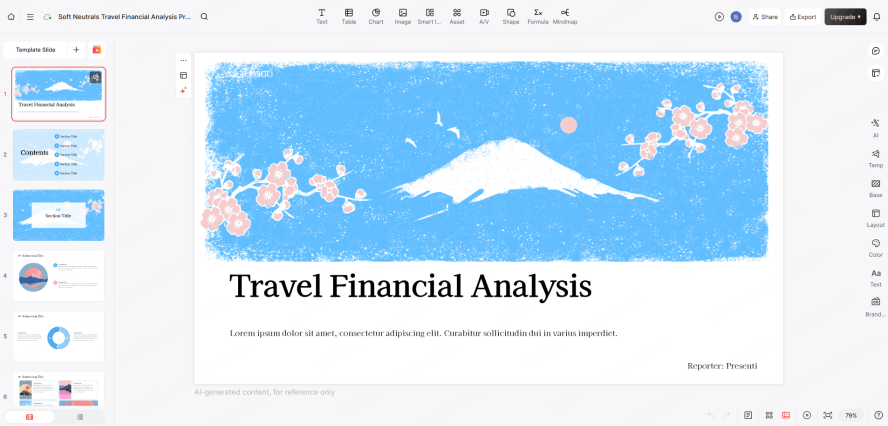
Presenti’s Edge:
Review accessibility deliberately rather than assuming the template or AI has completed the check. Inspect contrast, image descriptions, reading order, links, and any motion in the final delivery application. Ask about audience needs when planning the presentation.
Priority 3: Explain What the Data Means
From "The What" to "The Why"
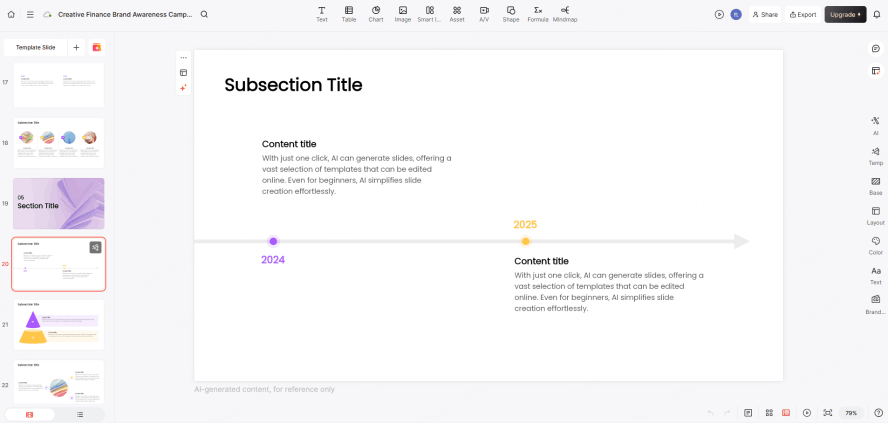
A chart needs enough context for the audience to interpret it. State the comparison, label the units and period, and explain the finding that matters for the decision. Keep the source close to the claim.
Use a short callout to highlight a meaningful value or change. Distinguish an observed association from a demonstrated cause. Put supporting detail in an appendix when it would obscure the main comparison.
Presenti’s Feature:
Use Presenti’s AI to draft wording from the findings you supply, then verify the interpretation against the data. Choose the chart type yourself when the comparison requires it, and check values, axes, units, and source notes after editing.
Priority 4: Consistent Branding and Restrained Effects
Use Visual Effects with a Purpose
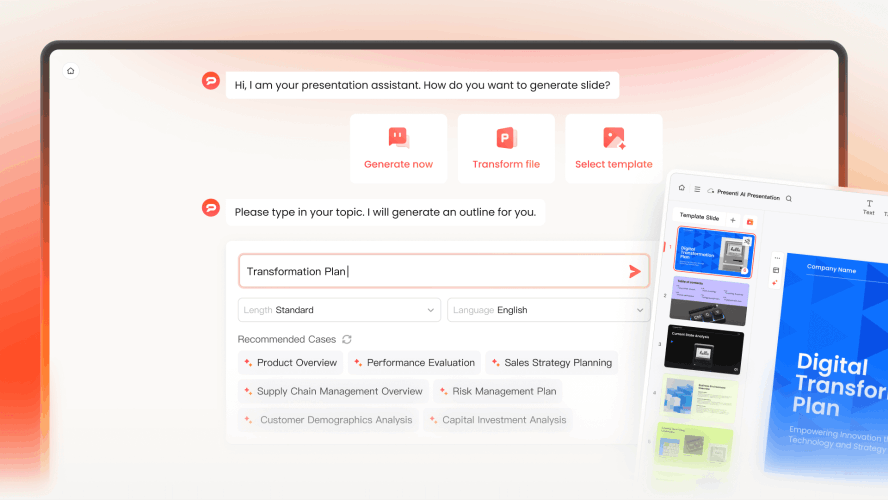
Soft shadows, transparent panels, and textured images can add visual interest. Use them where they establish hierarchy or support the subject, and remove them when they reduce contrast. A decorative effect should not make a chart or label harder to read.
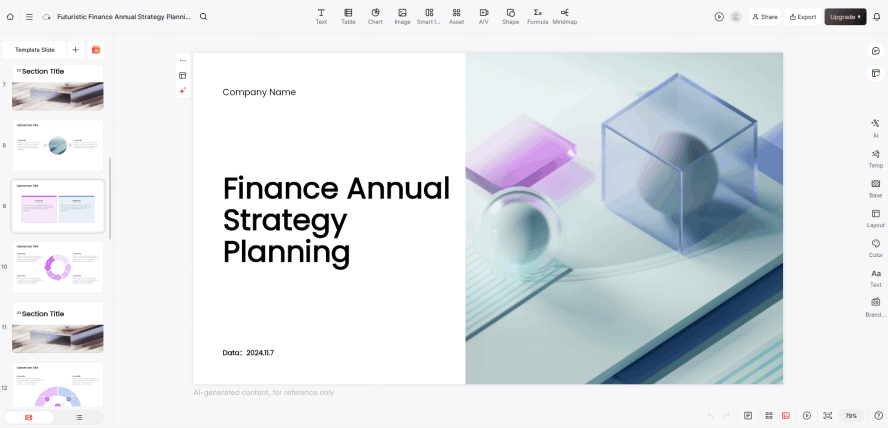
Teams benefit from a shared set of approved colors, fonts, logos, and sample layouts. Document the choices so colleagues can reproduce them across different decks and tools.
The Presenti Solution:
In Presenti, choose a template and adjust the available colors, fonts, and images to match your brand. Keep an approved example for comparison, and review the final slides for inconsistent logo placement or visual styles.
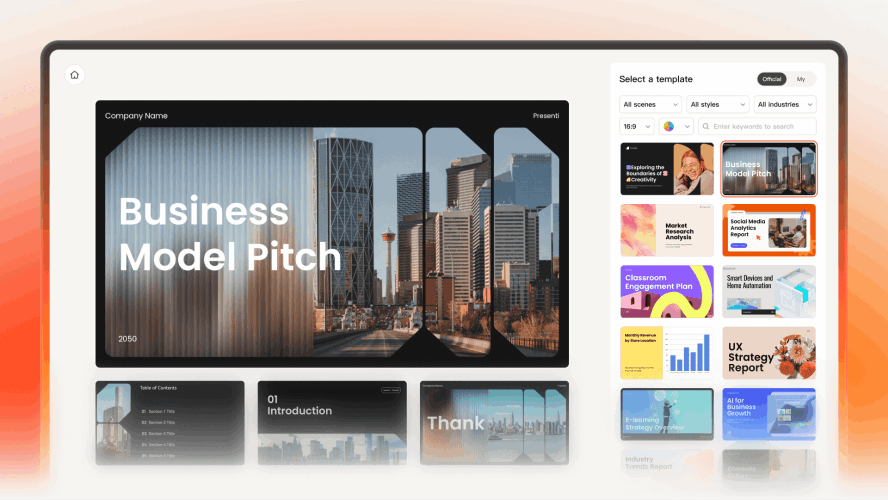
Priority 5: Design for the Delivery Format
Choose the Required Deliverable
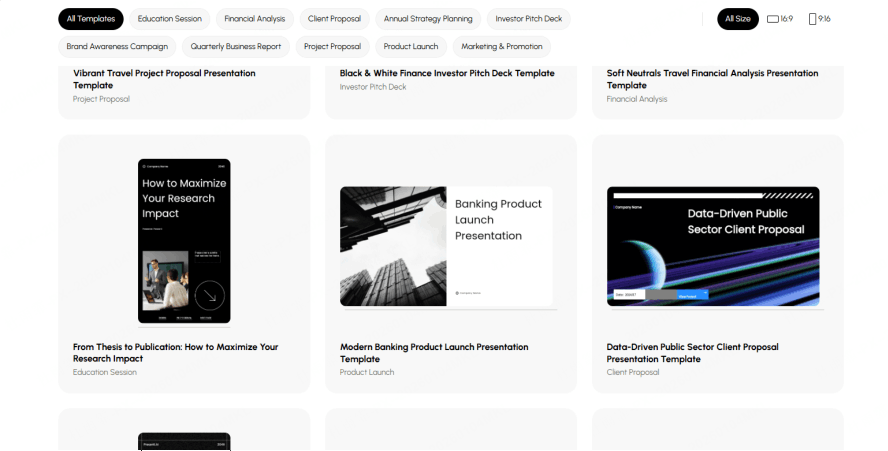
A live presentation, a mobile briefing, and a printable handout serve different purposes. Decide which you need before choosing the page size and density. A widescreen slide does not automatically become a readable vertical document.
Reuse the underlying outline and visuals, but inspect each output separately. A handout may need fuller explanations; a live deck may need larger labels and fewer words. Allow time for layout changes when the dimensions or reading context change.
A Practical Template Workflow in Presenti
Use this workflow to test whether a template suits your content and the way the presentation will be delivered.
Step 1: Selecting the Core Logic
Start with the purpose: an investor pitch, a lesson, a project review, or a document read without a speaker. Browse Presenti’s current templates and test a representative content slide before committing to a style.
Step 2: Apply Your Brand Style
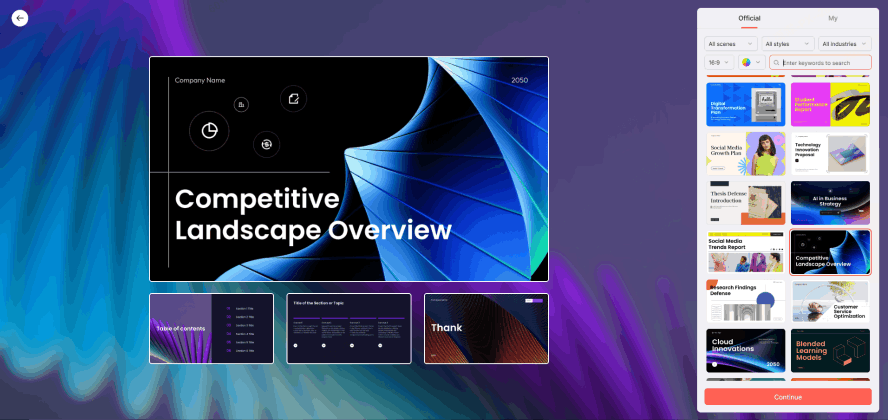
Apply your approved colors and typography using the available editing controls. Compare title, body, chart, and closing slides with your brand guidance; do not assume every element updates automatically.
Step 3: Review the Outline
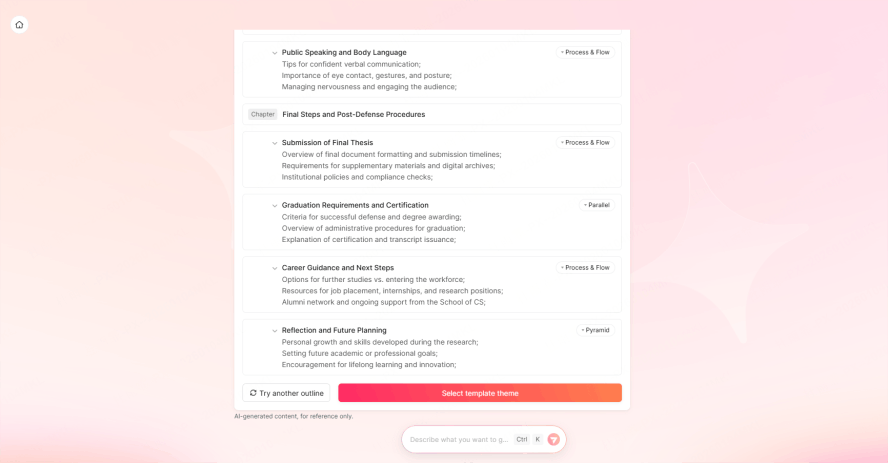
Enter your notes or a supported source document and review the generated outline. Put claims and evidence together, remove repeated sections, and make the next step clear before refining the layout.
Step 4: Accessibility Check
Check contrast, text size, reading order, and meaningful image descriptions in the final file. Use the accessibility checker available in the delivery application, then inspect the result manually for issues an automated check may miss.
Step 5: Multi-Channel Export
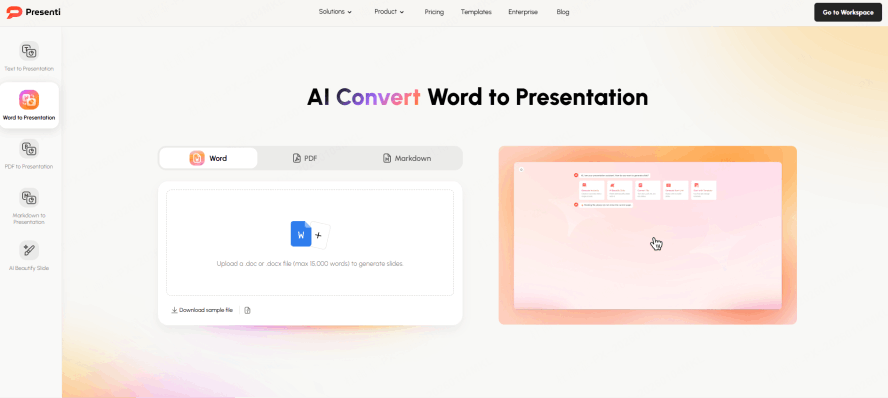
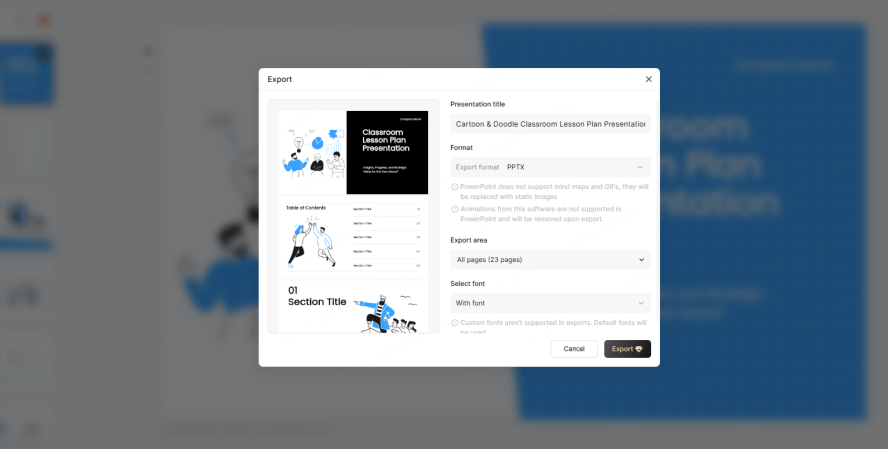
Use an eligible paid plan to export PPTX or PDF, or choose an available sharing route. Open the result on the devices your audience will use. Revise small text, cropped images, and crowded charts before distributing it.
Conclusion: Choose a Template You Can Use
Choose a template that makes your content easier to explain and revise. Flexible layouts, readable text, clear data, and consistent branding matter more than a fashionable visual effect.
Test the template with your own material, inspect the output, and keep the layouts that work well for future presentations.