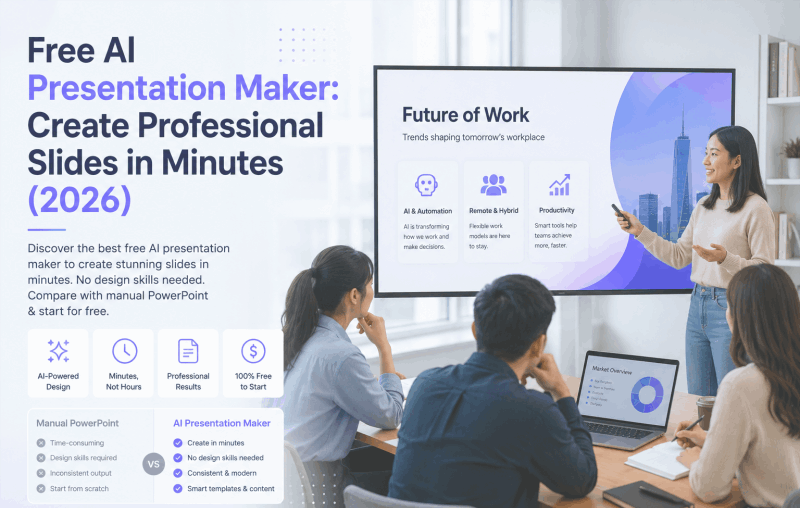
Converting a PDF into a PowerPoint presentation is one of those tasks that shows up constantly for technical teams, educators, project managers, and developers, and it's rarely as simple as it sounds. PDFs are great at preserving a finished layout and sharing it exactly as intended, but that same rigidity works against you the moment you need to edit, reorganize, or actually present the content live.
PowerPoint solves the other half of the problem: storytelling, collaboration, visual hierarchy. That's why so many technical reviews, lectures, sprint demos, and client presentations eventually need a PDF turned into slides. Copying that content over by hand, page by page, is the part nobody wants to do, especially with a long PDF report where the manual version can eat an entire afternoon.
This guide walks through a practical way to handle PDF to PPT conversion using an AI ppt generator. You'll see how to upload a file, choose the right conversion strategy, keep your table of contents and section structure intact, and clean up the result so it's actually ready to present, not just technically converted.
Why Convert PDF to PowerPoint in the First Place?

PDFs are built to stay still
A PDF is optimized for consistency and distribution. Once it's exported, the layout, fonts, and spacing are locked in place. That's exactly right for a finished report or a document you're sending out, and exactly wrong when you need to:
- Edit the content for a different audience
- Reuse the material in a meeting, class, or workshop
- Add animations, transitions, or speaker notes
PowerPoint is built to move
A PowerPoint file, by contrast, lets a team:
- Reorganize content quickly as priorities change
- Adjust visual hierarchy so the important point actually stands out
- Collaborate across departments instead of passing a locked file around
- Present the same ideas in meetings, classrooms, and webinars
That's the underlying reason PDF to PPT conversion has become a standard step in product teams, education, consulting, and software development. The source document and the presentation version of it genuinely serve two different jobs.
Choosing the Right PDF to PPT Conversion Tool
Not every PDF to PowerPoint tool produces the same quality of output. Traditional converters tend to treat the PDF as an image, and the result is often slides with broken layouts, overlapping text, or flattened graphics that are painful to edit afterward. An AI-powered approach handles this differently, and the difference shows up immediately in how usable the output actually is.
Why use an AI-based converter?
An AI ppt generator doesn't just reformat a file: it reads the document's structure, extracts the key points, and rebuilds that content into layouts designed for presenting rather than printing. In practice, that means you can:
- Preserve the logical structure of the source instead of just its raw formatting
- Get a slide outline generated automatically instead of building one from scratch
- Choose between different content strategies depending on the goal
- Spend far less time on manual cleanup after the conversion is done
The rest of this guide uses Presenti AI, an online AI presentation generator built specifically around document-to-slide workflows, to walk through the process.
Step-by-Step: Convert PDF to PowerPoint with Presenti AI
Step 1: Open the Presenti AI Workspace

Start by opening your browser and heading to the Presenti AI website. After creating an account and logging in, you'll land in the main workspace, laid out simply enough that a first-time user isn't guessing where to click.
Step 2: Import Your PDF File


2.1 Choose your upload method
Click "Import File" and you will go to the Upload Files tab. The main drop zone accepts PDF, TXT, Markdown, PPT, Word, and audio files, and it's marked with a "Lossless conversion" badge, meaning your document's structure is read and preserved rather than flattened into plain text. Documents can run up to roughly 100,000 words, and audio uploads up to 200MB. If you're unsure how your file's formatting will translate into slides, the View formatting examples link at the bottom is worth a quick look before you upload.
2.2 Uploading a non-English PDF
If your source file is a PDF written in a language other than English — Korean, Russian, Japanese, French, German, or Spanish are all supported — don't drop it into the main upload area. Use the dedicated Multilingual PDF panel on the right side of the screen instead. It's built specifically to parse non-English PDFs correctly, so headings, sections, and body text are read in the original language rather than being misread or garbled the way a general-purpose upload slot might handle them. Once the file is uploaded, either panel moves you into the same next step: choosing a generation strategy.
Step 3: Choose a Generation Strategy
Once the PDF is parsed, Presenti AI offers three generation modes, each suited to a different goal.

Option 1: Reformat and regenerate
Keeps the original wording intact while reorganizing it into clean, presentation-ready slides. This is the mode that matters most for a long, structured document. It reads your heading levels and uses them to define the slide sequence, effectively carrying your table of contents over automatically instead of making you rebuild it by hand.
Option 2: Extract and summarize key content
Identifies the most important points and condenses them into concise slides. Well suited to executive summaries, lectures, or any presentation with a hard time limit — including a research paper that needs to become a 15-minute conference talk instead of a full 20-page reading.
Option 3: Expand and enrich content
Adds context, explanations, or examples on top of the original text. Useful when the source material is dense or terse and the audience needs more scaffolding — training sessions, onboarding materials, and educational decks are the typical use case.
Pick whichever mode matches what you're actually trying to produce — this decision affects the rest of the workflow more than any setting that comes after it.
Step 4: Review and Edit the Slide Outline
After you pick a strategy, the AI generates a slide outline based on your PDF.

At this stage you can:
- Reorder slides
- Rename slide titles
- Edit bullet points
- Remove or add sections
This is also a good spot to add an explicit agenda or table-of-contents slide if you want one spelled out for the audience. The auto-generated structure already preserves your section breaks, but a dedicated overview slide is a manual, five-second addition, not something the AI assumes you want. Getting this step right, before any visual design is applied, is what keeps the final deck aligned with your actual audience and objective.
Step 5: Choose a PowerPoint Template

With the outline finalized, move to template selection. Presenti AI offers a wide range of professionally designed templates covering use cases like technical presentations, business reports, educational lectures, and product demos. You can choose by color theme, typography, and layout style, and every option is built to work cleanly with structured, AI-generated content.
Step 6: Generate the PowerPoint File

Once a template is set, click Generate PPT. The system builds the complete deck in one go, handling layouts, text placement, and visuals together. Within moments, you have a fully editable PowerPoint presentation generated from your PDF, ready for a final review before you present it.
Handling a Long PDF Report: Table of Contents and Section Breaks
A short one-pager and a 40-page report don't behave the same way once you feed them through an AI presentation generator, and it's worth understanding why before you upload something long. When you bring in a long PDF report, the Reformat and regenerate strategy is doing more work than it looks like. It reads your heading hierarchy (top-level sections, subsections, sub-subsections) and maps that structure directly onto the slide sequence, turning each major heading into a natural section break instead of dumping every paragraph into one continuous scroll of bullets.
In practice, that means a report with five major sections tends to come out as five identifiable blocks of slides, in the same order they appeared in the source document, rather than a flat list where the original structure has been lost. If the auto-generated version doesn't include a standalone table of contents slide, adding one is a quick manual step during the outline review in Step 4. The harder part — keeping the underlying section order and hierarchy intact — is already handled before you get there. For document uploads, Presenti currently supports files with substantially long content, so a lengthy quarterly report or whitepaper doesn't need to be split into multiple uploads before conversion.
Converting a Word Document to PowerPoint While Preserving Headings
The same Import File workflow isn't limited to PDFs — Word documents go through the identical process, and the heading-preservation logic works the same way. A Word file's built-in heading styles (Heading 1, Heading 2, and so on) are read the same way a PDF's structural formatting is: top-level headings become section breaks, and subheadings become individual content slides underneath them.
This matters most for anyone converting a document that was already written with a proper heading structure — a proposal, a spec, a report drafted collaboratively in Word — since the alternative (copying the text manually into a blank deck) is exactly the structure-losing process an AI ppt generator is meant to avoid. The same Reformat, Summarize, and Expand strategies from Step 3 apply here too, so a Word document can be converted with the same amount of control as a PDF.
Optimizing the Generated PowerPoint
AI gets you most of the way there, but a short optimization pass is what pushes a deck from "technically converted" to actually presentation-ready.
Fine-tune content with AI assistance

Presenti AI includes built-in writing tools that let you:
- Rewrite text for clarity
- Expand or shorten a section
- Summarize a dense block of content
- Translate slides into English or other languages
This is particularly useful for technical documentation, academic content, or any team working across languages.
Adjust visuals and layout

You can also manually:
- Replace images and icons
- Modify charts and diagrams
- Switch between slide layouts
- Update backgrounds and typography
These adjustments are usually quick, but they're what tailors a generated deck to your specific brand or presentation context rather than leaving it looking like a default template.
Exporting and Sharing: PPTX, PDF, and the Reverse Direction

Once you're happy with the result, there are a few ways to get it out into the world:
- Share the presentation as an online link
- Present directly from the browser
- Export the file as a standard PPTX for offline use
It's worth answering the reverse question too, since it comes up almost as often. Maybe what you actually need is a PDF version of a finished PowerPoint: for archiving, for a version nobody can accidentally edit, or for emailing to someone without PowerPoint installed. Presenti AI exports directly to PDF as well as PPTX from the same editor, so both directions live in the same place and you don't need a separate converter for one of them.
If your PPTX file was built entirely outside Presenti and you just need a one-off PDF copy, PowerPoint's own File → Export → Create PDF/XPS does the job in seconds, no AI tool required. Bringing that file into Presenti only makes sense if you also want a design refresh or a content edit along the way.
From Research Paper to Conference Presentation: A Focused Workflow
Turning a research paper into a conference talk is a slightly different problem from converting a business report, mostly because the source is longer, denser, and full of content that shouldn't make it onto a slide verbatim: methodology details, citations, and full data tables all need to be filtered rather than copied. A workflow that keeps manual editing to a minimum looks roughly like this:
- Upload the paper as a PDF through Import File, the same way as any other document.
- Choose Extract and summarize rather than Reformat — a paper's abstract, methodology, and full reference list don't belong on slides at the same density they appear on the page, and this mode is built to pull out the points that matter for a talk rather than preserving every sentence.
- Review the outline and keep it aligned to a conference-talk shape — background, method, key results, and conclusion — trimming anything that reads more like a paper section than a spoken point.
- Pick a Research or Academic-style template from the library rather than a generic business layout, so charts and citations have appropriate slide formats to sit in.
- Double-check the numbers — any figures or quoted results should get a final accuracy check. This is the one step that stays entirely human, since a presentation with a wrong statistic in front of a room of peers is a real cost.
The time savings mostly come from skipping the manual copy-paste-and-reformat stage entirely; the judgment calls about what to cut and what to double-check still belong to the presenter.
Additional Features Beyond PDF to PPT
Presenti AI isn't limited to PDF and Word conversion. It also supports:
- One-sentence prompt to PPT generation, for when you don't have a source document at all
- Mind map to PowerPoint conversion
- Outline-based slide creation, for a rough list of bullet points rather than a finished file
- Generating a deck directly from a webpage or product link
Between the different input types, it functions less like a single-purpose PDF to PowerPoint converter and more like a general AI ppt generator that adapts to whatever format your content already happens to be in.
What Do Real Users Say? Is the Output Actually Usable?
It's a fair question. The honest answer is mostly yes, with one caveat worth knowing before you rely on it for something high-stakes. Independent reviews of Presenti consistently point to two strengths: the range of input formats it accepts (PDF, Word, Markdown, and mind maps among them), and generation speed. Reviewers note a rough document can go from upload to a styled draft in well under a couple of minutes. Export compatibility gets solid marks too, since the output is a genuinely editable PPTX file rather than something locked into a proprietary viewer, so last-minute fixes can happen in PowerPoint itself.
The recurring criticism is about polish straight out of the gate, not the underlying conversion logic. On denser or more complex pages, reviewers occasionally note overlapping text or content running past a slide's edge, and the general consensus is that a generated deck benefits from one round of manual cleanup before it's presentation-ready, regardless of which tool produced it. A summary of user feedback on AppSumo echoes the same pattern: praise for speed and design, alongside occasional notes about content-generation depth and export edge cases on more complex files.
The realistic takeaway: an AI ppt generator gets a converted PDF to roughly 90% finished in a fraction of the time manual conversion would take. The last stretch is still worth doing yourself: checking for layout glitches, confirming nothing important got summarized away, and giving the deck one final look before you present it live.
Conclusion
Converting a PDF to PowerPoint no longer has to be a manual, hours-long process. With an AI-powered tool like Presenti AI, a static document — a long report, a research paper, a Word file with a proper heading structure — can become a clean, editable, section-aware presentation in a handful of steps instead of an afternoon of copy-pasting.
Whether you're a developer presenting system architecture, an educator preparing course slides, a researcher turning a paper into a conference talk, or a project manager reporting progress, AI-based PDF to PPT conversion is one of the more reliable ways to save real time, as long as the final read-through stays yours.