Every professional has opened a blank slide and felt the quiet dread of having to make something look good. You know what you want to say. Turning that into a PPT presentation that actually looks designed — not just assembled — is where most people get stuck. The gap between a forgettable deck and a polished one is not talent. It is knowing a handful of principles that professional PPT designers apply every time.
This guide covers those principles. You will walk away with a clear framework for making slides that look intentional, communicate clearly, and hold an audience’s attention from the first slide to the last.

Why Most PPT Presentations Miss the Mark
Before the tips, it helps to name the actual problem. Most non-designer PowerPoint decks fail for the same three reasons:
Too much content per slide. When a slide contains everything you want to say, the audience reads instead of listens. The slide competes with the presenter rather than supporting them.
No visual hierarchy. Everything is the same size, the same weight, the same color. The eye has nowhere to go. Important information does not look more important than everything else around it.
Inconsistent design decisions. One slide uses one font, the next uses two others. Colors change without logic. Margins drift between slides. The overall effect is a deck that looks assembled piece by piece rather than designed as a whole.
Fix these three things and your presentations will immediately look more professional, regardless of your design background.
6 Core PPT Designer Tips for Clean, Professional Slides
1. Use a Maximum of Two Fonts
Professional PPT designers rarely use more than two typefaces in a single deck. One for headings. One for body text. That is the complete system.
The heading font should have personality — something slightly distinctive that communicates the tone of your presentation. The body font should prioritize readability above everything else. Clean, well-spaced sans-serif fonts like Inter, Lato, or Source Sans Pro work in almost every professional context.
Strong pairing examples that work in 2026:
| Heading Font | Body Font | Tone |
|---|---|---|
| Playfair Display | Lato | Editorial, polished, classic |
| Raleway | Open Sans | Modern, clean, minimal |
| DM Serif Display | DM Sans | Contemporary, confident |
| Josefin Sans | Montserrat | Geometric, forward-looking |
Set your font pairing in the Slide Master before building any slides. Every slide you create from that point forward inherits the system automatically. Later changes to the Slide Master can update slides that use its layouts; review slides with local formatting overrides.
2. Build a Three-Color Palette and Commit to It
Color is where non-designer decks most visibly fall apart. Too many colors, applied inconsistently, create visual noise that reads as amateur regardless of the content quality.
A small palette with defined roles is a useful starting point:
Dominant (60%): Usually a neutral. White, off-white, very light gray, deep navy, or dark charcoal. This is your background.
Secondary (30%): A mid-tone that adds structure. Soft sage, warm sand, slate blue, or dusty rose. This appears in section dividers, supporting text, and UI elements.
Accent (10%): A more saturated color used sparingly for emphasis only. Key data points, CTAs, highlighted statistics, and important labels get the accent color. Nothing else does.
Write down your three hex codes before building the deck. Set them as custom colors in PowerPoint’s color picker. Use nothing that is not on that list. The constraint looks severe on paper and looks professional on screen.
3. Design Visual Hierarchy into Every Slide
Visual hierarchy is the system that tells the audience where to look first, second, and third. Without it, slides feel cluttered and hard to scan even when the actual content load is light.
Build hierarchy using four tools:
Size. The most important element on each slide should be the largest. Slide titles are larger than body text. Key statistics are larger than the explanatory text around them. The size difference communicates importance.
Weight. Bold a single key phrase per content block. Not entire paragraphs — a single phrase that anchors the idea. The bolded text should be something a reader could understand even without reading the surrounding context.
Color. Use your accent color only on the single most important element per slide. If everything is emphasized, nothing is emphasized.
Spacing. Whitespace functions as visual hierarchy. An element with generous space around it reads as more important than one crowded against other elements. When in doubt, add more space rather than more content.
4. Apply the One Idea Per Slide Rule
The clearest structural principle in professional presentation design is also the most frequently violated: each slide should communicate one main point.
Not one topic. One idea. One argument. One data point. One insight.
When a slide contains multiple ideas, the audience must decide which one matters most. That decision belongs to the presenter, not the audience. When a slide contains one idea, the presenter controls the emphasis and the audience receives it clearly.
If you find yourself writing “and” in a slide headline, that is a signal the slide needs to be split. “Q1 revenue grew 34% and customer acquisition cost fell 18%” is two slides. “Q1 revenue grew 34%” is one slide. It gets the focus it deserves.
This rule also solves the too-much-content problem. When the constraint is one idea, the pressure to pack information onto a single slide disappears entirely.
5. Set Consistent Margins and Never Break Them
Inconsistent margins are one of the most visible signs of a non-designer-built deck. Text that starts in a slightly different horizontal position on each slide, images that run to the edge on one slide and leave a wide gap on another, titles that sit at different heights — these details register subconsciously and undermine the credibility of the whole deck.
Use PowerPoint’s ruler and guides (View → Guides) to establish consistent margins. Keep text within them, while allowing deliberate exceptions such as full-bleed images.
Apply the same discipline to the vertical position of slide titles. Keep titles at a consistent position on slides with the same layout. This single consistency creates a visual rhythm that makes a deck feel designed even before a viewer consciously notices any individual design decision.
6. Use Images That Earn Their Place
Images on slides do two things: they reinforce the content or they distract from it. There is no neutral ground. Every image choice is either working for the presentation or against it.
Images earn their place when they:
- Show something the words cannot describe as efficiently
- Create emotional context that supports the verbal argument
- Illustrate a process or relationship more clearly than text can
- Give the audience a visual anchor for an abstract concept
Images do not earn their place when they are generic stock photos of people shaking hands, decorative backgrounds that compete with text for visual attention, or low-resolution images that look blurry at full screen.
When sourcing images for a ppt presentation, Unsplash and Pexels offer high-resolution photos at no cost. Filter searches by color to find images that align with your palette. Choose images that have a clear area where text can sit without competing — a sky, a wall, a flat surface — rather than busy images where every pixel fights for attention.
Common PPT Design Mistakes to Fix Before You Present
Even designers with strong fundamentals make these errors when working quickly. Run through this checklist before any deck leaves your hands.
Centered body text. Centered alignment is appropriate for short headings. For multi-line body copy, it creates ragged edges that are harder to read and look less intentional than left-aligned text. Left-align everything except slide titles.
Low-contrast text. Light gray text on a white background looks minimal and modern on a design mockup. Projected on a screen or viewed on a laptop in a bright room, it becomes illegible. Use a contrast checker before finalizing any color combination involving text.
Stretched or distorted images. When you resize an image by dragging a side handle rather than a corner, you change the aspect ratio and distort the photo. Use the picture’s Lock aspect ratio setting or proportional corner resizing, and check that the image has not stretched.
Inconsistent bullet formatting. Mixing bullet styles, indent levels, and spacing across slides creates visual noise that pulls attention away from content. Standardize your bullet formatting in the Slide Master and apply it universally rather than adjusting each slide individually.
Too many slides. A longer deck is not a more thorough deck. It is a more exhausting one. Cut every slide that does not contain information the audience specifically needs. A live talk and a reference deck may need different levels of detail; choose the slide count for the delivery format and available time.
Visual Hierarchy in Practice: Before and After
The difference between a weak slide and a strong one is often a single restructuring decision. Consider this typical before state:
Before: A slide titled “Q1 Results” containing five bullet points of equal visual weight, each covering a different metric, with a small chart in the corner and two lines of context text below it.
After: A slide with a single large headline number — “Revenue Up 34%” — in large, bold type. Below it, three secondary bullets in smaller text provide supporting context. The chart is on the right side of the slide, sized to be easily readable. Nothing competes with the headline.
The content is identical. The visual hierarchy tells the audience which number matters before they read a single supporting word.
This restructuring helps the audience find the main result. Apply it where a slide’s most important evidence is difficult to see.
Traditional Tools vs. AI PPT Makers: What Actually Saves Time
Understanding design principles is one half of building great presentations. Having the right starting point is the other.
Professional PPT designers working manually apply these principles slide by slide, which produces excellent results at the cost of significant time. The time required depends on the content, visual complexity, and revision process.
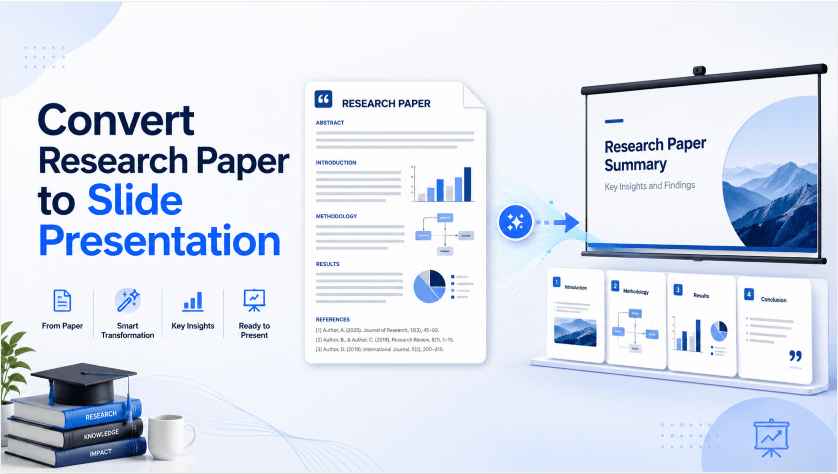
AI presentation tools change that equation. Presenti AI generates complete, professionally designed slide decks from text prompts, Word documents, PDFs, and Markdown files. The AI applies visual hierarchy, consistent color palettes, appropriate font pairings, and varied slide layouts automatically across every slide it generates.
The output is a native PPTX file that opens in PowerPoint, where you can apply the refinements described in this guide. The AI handles the structural and design foundation. You spend your time on the content judgment and the finishing touches — not on aligning text boxes and selecting color combinations from scratch.
For professionals who need to produce polished presentations regularly without formal design training, the combination of these design principles and an AI tool covers the full gap between “I know what I want to say” and “this looks professional.”
How to Make a Neat PPT with an AI PPT Maker: Step-by-Step with Presenti
Step 1: Prepare your content as a Word document or a detailed text prompt. Include your key ideas, supporting data, and any specific sections you need covered.
Step 2: Open Presenti AI and upload your document or paste your prompt.
Step 3: Browse the template library and select a visual direction that matches your audience. For business presentations, choose a clean and minimal template. For pitch decks, choose a bold and structured one.
Step 4: Generate. Presenti produces a draft using the chosen theme. Review the structure and design before treating it as ready to present.
Step 5: Review the generated deck slide by slide. Apply the one-idea-per-slide rule: split any slide carrying multiple ideas. Check that visual hierarchy is working on each slide, with the most important element clearly reading as the most important.
Step 6: Apply the margin consistency check. Confirm that text starts at the same horizontal position across all content slides and that title height is consistent throughout.
Step 7: Export as PPTX. Eligible paid plans support editable PPTX export. Open in PowerPoint for any final adjustments, then present.
Frequently Asked Questions About PPT Design
How many slides should a PPT presentation have?
For most business and educational contexts, 10 to 15 slides is the right range. Investor pitch decks typically run 12 slides. Training presentations may run longer when content genuinely requires it. The rule is that every slide must earn its place — remove any slide whose absence would not be noticed.
What is the best font size for PowerPoint presentations?
Slide titles: 36 to 44pt. Section headings: 28 to 32pt. Body text: 18 to 22pt. Captions and labels: 13 to 15pt. Never use body text below 16pt in a presentation that will be projected or viewed on screen from a distance.
How many colors should a PPT presentation use?
Start with a background, supporting colors, and an accent used for emphasis. Three colors can work well, but the roles and contrast matter more than the exact count.
Do I need design experience to make professional slides?
No. The principles covered in this guide — two fonts, three colors, one idea per slide, consistent margins, deliberate visual hierarchy, earned images — are learnable rules, not innate talent. Apply them consistently and the results speak for themselves.
Make Your Next Presentation Work, Not Just Look Good
Good PPT design is not decoration. It is structure that serves communication. Every design decision — the font hierarchy, the color accent, the whitespace, the image choice — either helps your audience receive your message or gets in the way of it.
The principles in this guide give you a repeatable system. Two fonts. Three colors. One idea per slide. Consistent margins. Visual hierarchy on every slide. Images that earn their place. Use these principles to review each slide, adapting them to the audience and the information you need to show.
For the fastest path from content to professionally designed slides, Presenti AI handles the design layer automatically — giving you a strong, structured starting point that you refine rather than build from scratch. The free plan has a limited AI allowance; editable PPTX/PDF export requires an eligible paid plan.
Try Presenti AI free today — generate a complete, design-ready ppt presentation in minutes and spend your energy on the message, not the margins.