A presentation style should support the message and viewing environment. This guide explores four design approaches and shows how to adapt them when drafting slides in Presenti.

Four Design Approaches to Try
These four approaches can help you organize a deck. Choose the parts that fit your content rather than trying to use every style at once.
Trend One: Logic Minimalism (Clarity-First Minimalism)
The modern audience is overwhelmed. The "Logic Minimalism" trend removes clutter to focus on one core idea per slide. This style uses massive amounts of white space, bold sans-serif fonts, and a "less is more" philosophy. It’s about making your logic feel inevitable and your message impossible to miss.
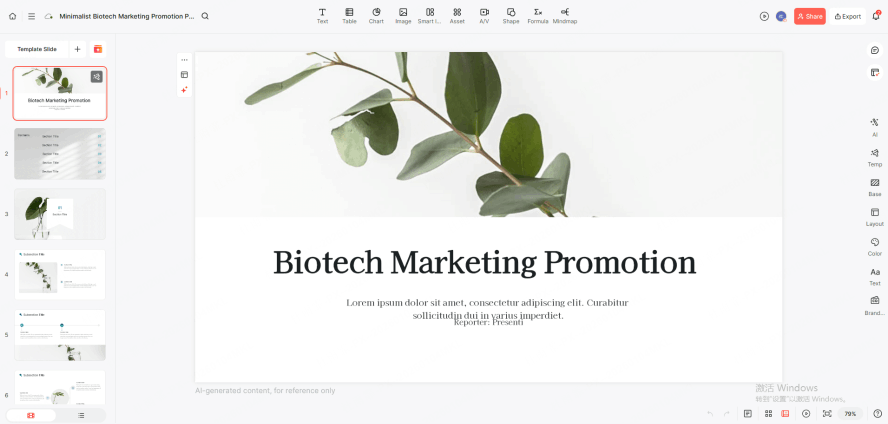
How Presenti Realizes This:
When generating slides from a document, check that the outline retains the important argument and evidence. Shorten text deliberately, then leave enough space around headings, visuals, and source notes.
Trend Two: Immersive Dark Mode & Neon Accents
Dark backgrounds with bright accents can suit a product demonstration or technology pitch. Test contrast in the intended room or screen environment; dark themes do not automatically reduce fatigue or improve accessibility.
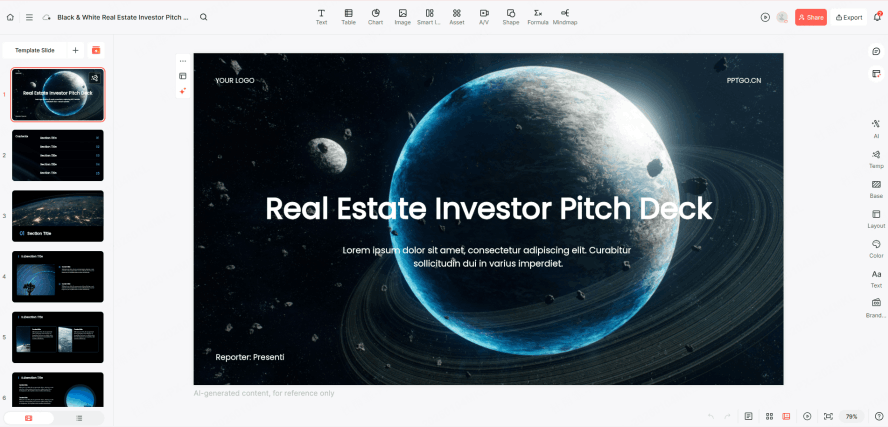
How Presenti Realizes This:
Choose a dark template if it fits your content, then review every slide for readable text and distinct chart colors. Use neon accents sparingly, and do not rely on color alone to convey meaning.
Trend Three: From “Data Dumps” to “Data Storytelling”
A data slide should answer a question. Use a labeled chart to show a comparison or trend, a flowchart for a process, and a prominent number when one measure is the central point. A table remains useful when readers need exact values. These infographic layouts for different information relationships distinguish a process, comparison, timeline, and statistical callout before you choose a visual format.
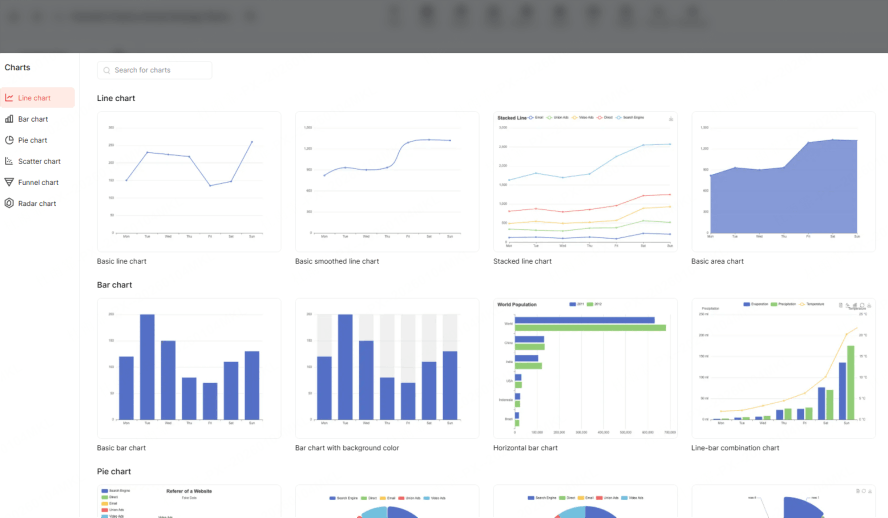
How Presenti Realizes This:
Prepare the source data and identify the relationship you need to show. Use a supported chart or an approved visual, then verify values, units, axes, and labels against the source. A polished layout cannot validate the data.
Trend Four: AI-Generated Visual Consistency
The biggest professionalism-killer is visual inconsistency—using different icon styles, mismatched fonts, or varying image tones across a deck. The latest trending ai presentation designs focus on "Global Harmony," ensuring every slide feels like part of a unified brand experience.
How Presenti Realizes This:
Presenti offers slide beautification, but the author still needs to review consistency. Compare font sizes, icon styles, image treatment, and alignment across the deck, especially after adding or editing content.
Apply a Design Style with Presenti
Use the following four stages to move from source material to a reviewed presentation.
Step 1: Signup and Setup
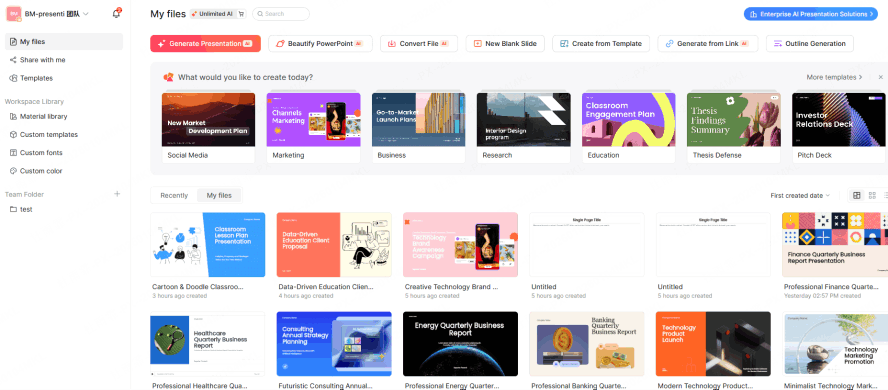
Your journey begins with a seamless onboarding. Once you log in to Presenti, you are greeted by a workspace designed for speed.
There are no cluttered toolbars or confusing menus—just a clear path to your next big deck. This is your command center for high-efficiency design.
Step 2: Add Your Source Material
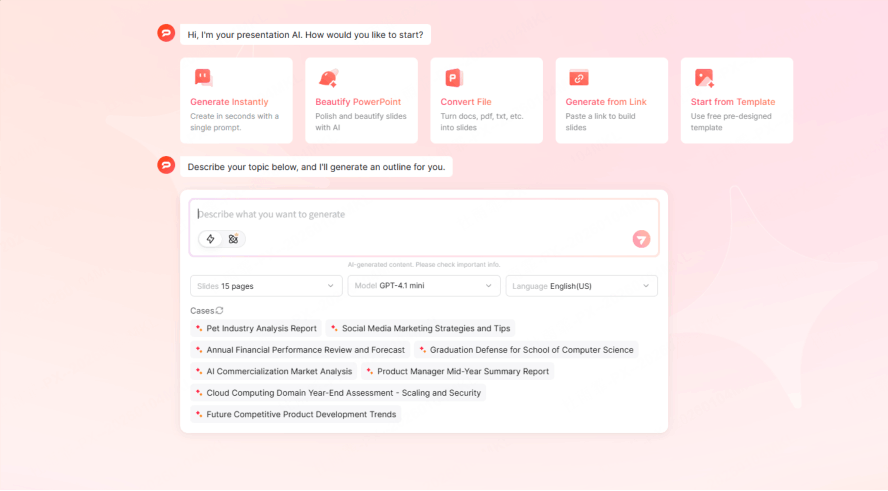
Stop staring at a blank screen. Presenti allows you to start with what you already have. Choose a supported input: Markdown/XMind is listed on the free plan, while Word/PDF/TXT input is listed on paid plans.
Review the proposed introduction, main sections, and conclusion before generating the slides. Add missing evidence and correct the order so the design follows a coherent argument.
Step 3: Choose and Review a Theme
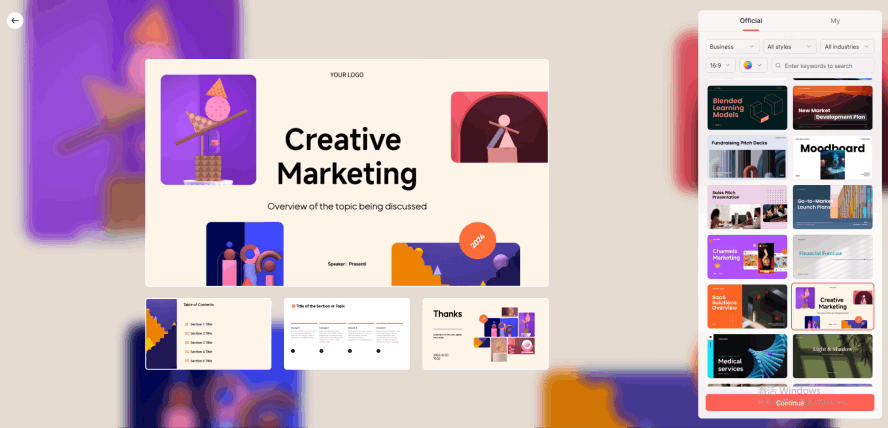
Once the logic is locked in, it’s time to choose your aesthetic. Browse the Presenti library and filter by your specific occasion—be it a startup pitch, a corporate quarterly review, or a creative keynote. Here, you select from trending presentation templates that are suited to the amount and type of content you have.
Apply the selected theme, then inspect the result using your actual text and visuals. Adjust crowded slides or unsuitable layouts before moving on.
Step 4: Refine Individual Slides
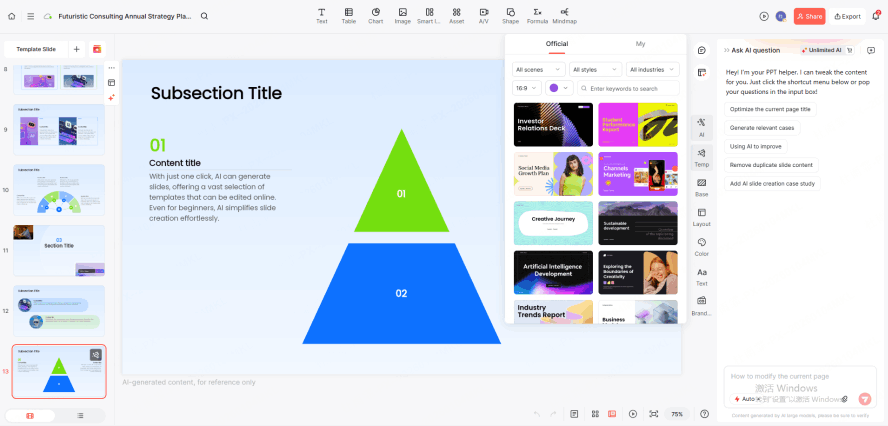
Edit slides that are too dense or unclear. Shorten a headline, choose a more relevant visual, or try another layout, then check that the revision preserves the intended meaning.
Finish by checking the deck as a sequence: repeated elements should be consistent, and each change in layout should serve the content.
Conclusion
Design preferences change, but readable text, accurate evidence, and a clear sequence remain useful. Choose a style that suits the audience, then review the finished deck in its delivery format.