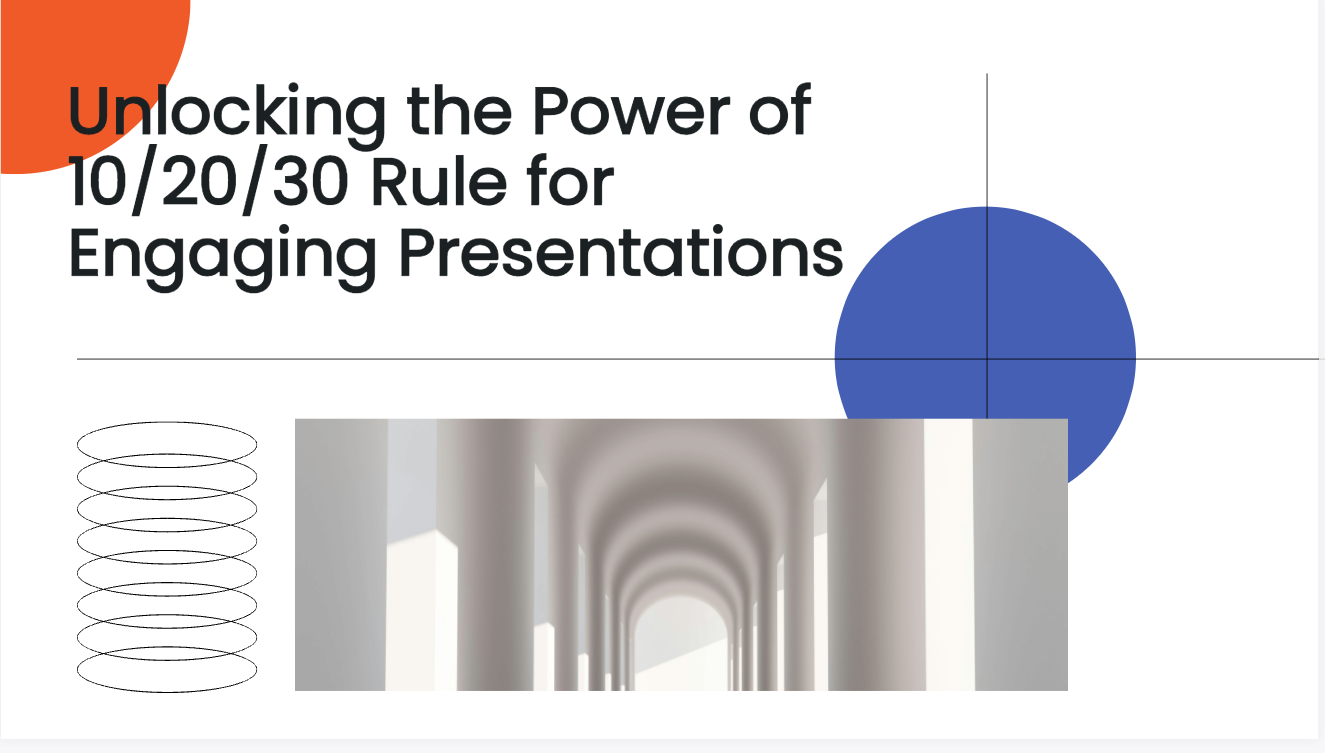
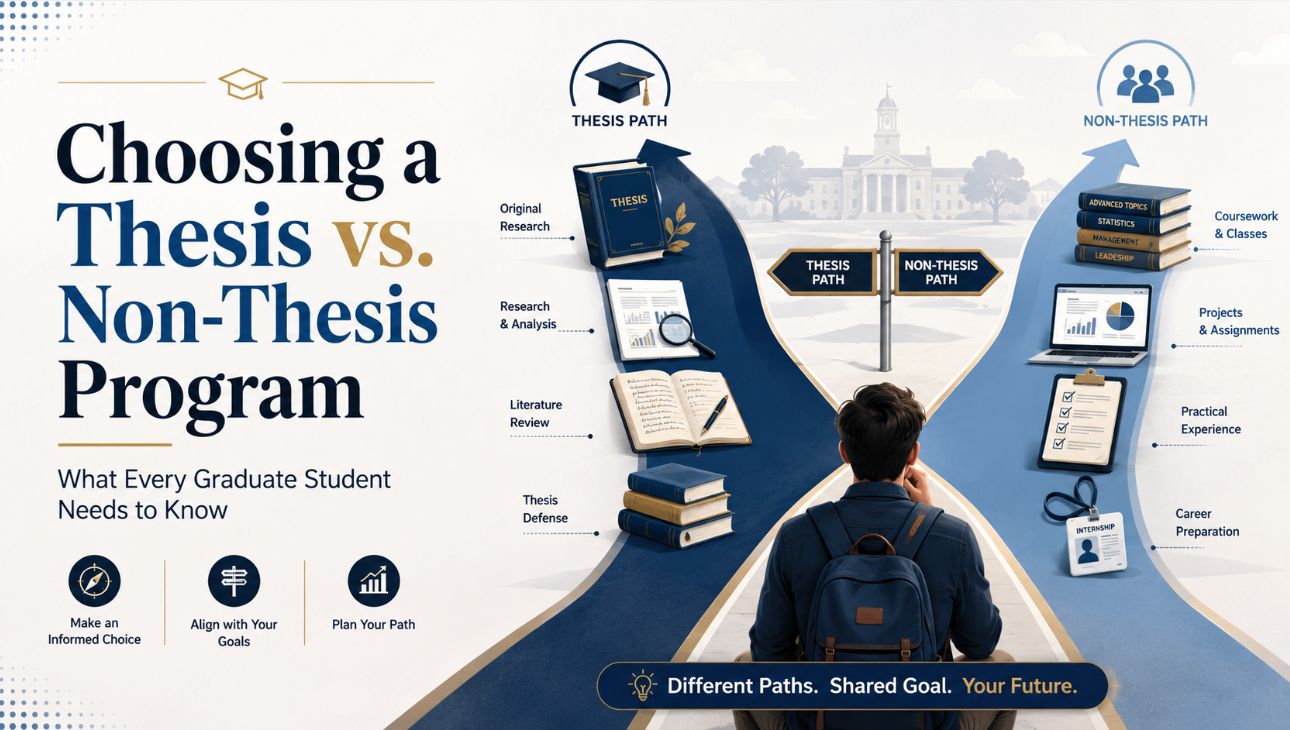
If you’ve ever said, “Can you make me a PPT?” or “Let’s review the slides,” you’re not alone. Across offices, classrooms, and online meetings, people use presentation, slide, and PPT almost interchangeably.
But here’s the truth: they don’t mean the same thing. Each term represents a different part of the storytelling process, from the idea you’re sharing, to the visuals that illustrate it, to the tool that helps you put it all together. To connect individual slides into a complete talk, use the outline-to-presentation guide to organize the sequence first.
Understanding these differences not only helps you communicate better but also improves how you design, plan, and deliver your message. Here is how the terms differ.
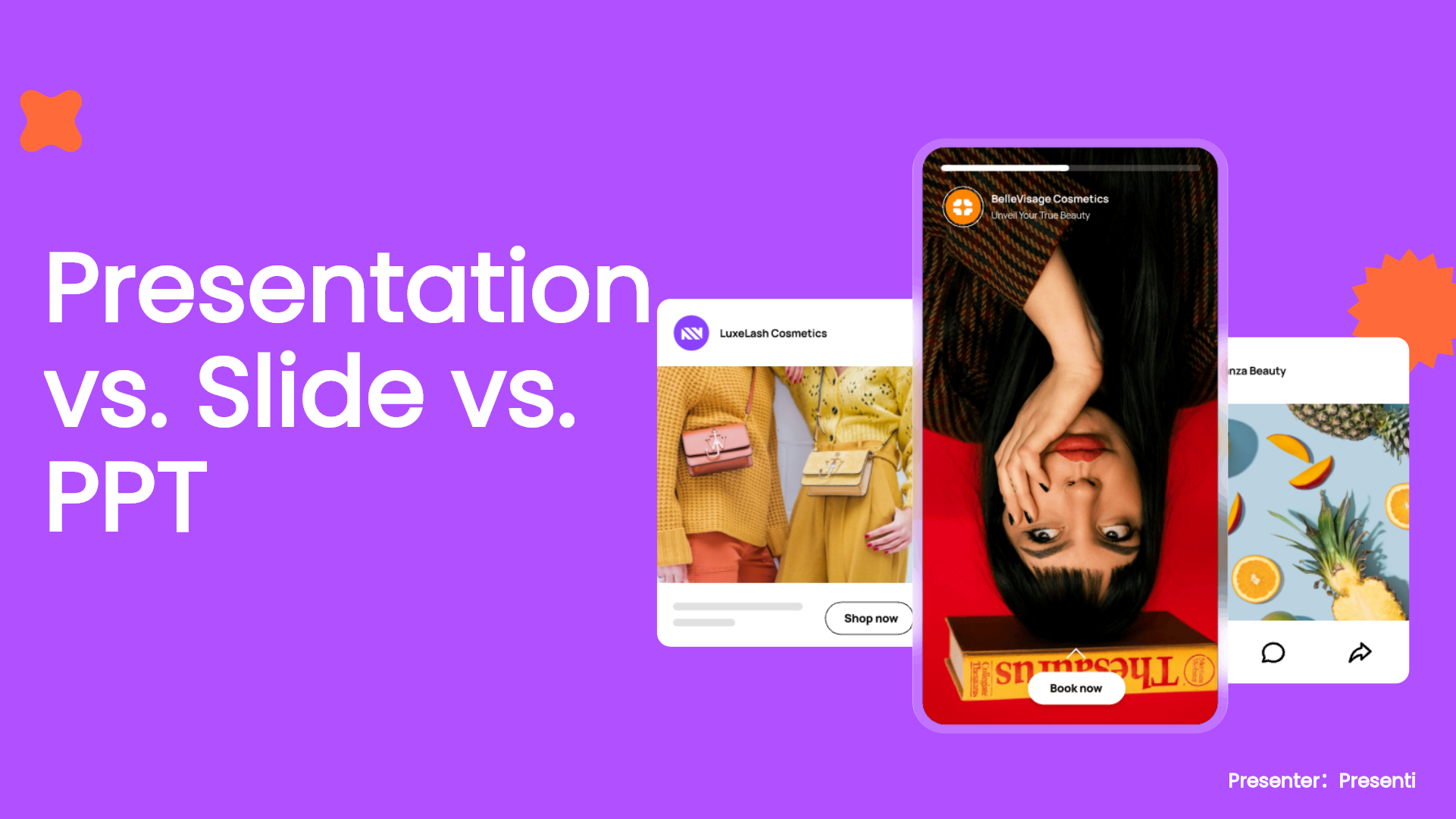
1. Presentation: The Complete Story
A presentation is the entire package: your story, message, and the experience you deliver to your audience. It’s not just about slides or visuals; it’s about how effectively you communicate an idea.
Whether you’re pitching a startup, presenting quarterly results, teaching a class, or leading a webinar, your presentation is the narrative: what you want people to understand, feel, and remember.
Unlike what many believe, a presentation doesn’t have to exist inside PowerPoint. It can take many forms:
· A deck built in PowerPoint, Keynote, or Google Slides
· A video presentation with voiceover and animations
· An interactive web demo or even a live product showcase
Think of it as your “movie.” Each slide, visual, or moment is a scene, but the presentation is the full story.
2. Slide: The Smallest Unit of a Presentation
A slide is the smallest visual unit of your presentation. It’s a single frame that displays one idea or one part of your message.
Each slide is like a page in a book, clear, structured, and visually consistent with the rest. When you string multiple slides together, you create the flow of your story.
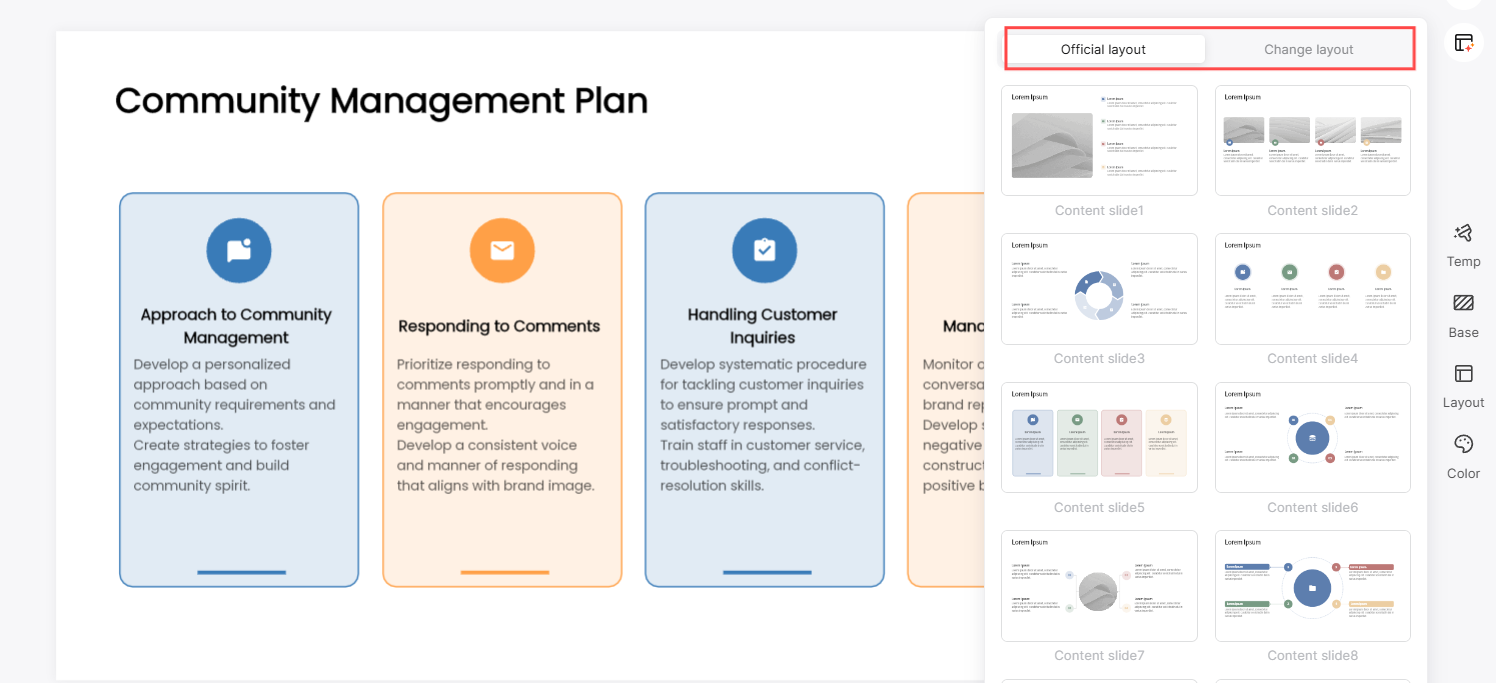
Common types of slides include:
· Title slide: introduces your topic
· Agenda slide: outlines the structure
· Content slides: explain ideas, data, or arguments
· Summary slide: wraps up key takeaways
When someone says, “This slide looks too crowded,” they’re referring to one visual canvas, not the entire presentation. Good presentations are built on well-designed individual slides that connect seamlessly to form a logical narrative.
3. PPT: A File Format and Common Shorthand
The .ppt extension identifies an older PowerPoint file format; .pptx is the modern format. People also use “PPT” informally to mean a PowerPoint file or a slide deck, even when it was made in Google Slides or Keynote. When exchanging files, specify the format you actually need.
For example:
· “Can you make a PPT?” usually means “Can you create a presentation?”
· “This PPT looks great.” often refers to the visual design.
· “I’m not good at making PPTs.” really means “I find presentation design difficult.”
It’s similar to how people say “Photoshop” for any photo editing software; PPT has become a generic term in everyday conversation.
4. The Problem: Traditional Tools Take Time
Creating a professional-looking presentation takes time and design skill. You need to:
· Write a clear narrative
· Choose consistent visuals
· Format layouts and fonts
· Balance aesthetics with readability
For professionals, students, and marketers alike, this process can easily take hours or even days, especially when you’re starting from scratch. That’s where AI is making a difference.
5. Smarter Way to Build Presentations: Presenti AI
Instead of spending time dragging text boxes and aligning shapes, imagine simply typing your topic and letting AI do the rest. That’s exactly what Presenti AI was built for.
With Presenti AI, you can turn a topic into a slide draft, then check the structure, facts, and design.
Here’s how it works:
1. Enter a topic such as “Annual Marketing Review” or “AI Trends in 2050.”
2. The AI analyzes the subject, generates slide outlines, and organizes the content into sections.
3. It then applies a clean, professional template, adjusting text balance, font size, and color themes automatically.
4. You can edit, add notes, or export directly to PowerPoint (.pptx).
No design background needed — just your ideas.
Why Users Love Presenti AI
· Smart Structure: AI builds presentations with clear logic and narrative flow.
· Beautiful Templates: Choose from dozens of modern designs for business, education, or creative projects.
· Cloud-Based Editing: No need to install anything; access and collaborate online.
· Time-Saving: Generate a complete, professional deck in minutes, not hours.
· Flexible Export: Download as PowerPoint or share instantly via link.
Compared to traditional PowerPoint or Google Slides, Presenti AI lets you focus on your ideas, not formatting. It’s presentation creation reimagined for the AI era.
Conclusion: Let AI Handle the Design, You Focus on Ideas
A presentation communicates the whole message. Slides provide individual visual pages. PPT refers to a file format and is also used informally to mean a slide deck.
AI tools like Presenti AI empower you to move from concept to completion — faster, smarter, and with stunning results. So the next time someone says, “Can you make a PPT?”, smile and say: “Sure, but I’ll let the AI handle it.” Try Presenti AI today and experience how effortless presentation creation can be.