Have you ever stood in front of an audience with a slide that has only three bullet points on it — and completely blanked on what you were going to say? Or gone the opposite direction, cramming so much text onto your slides that someone in the back row mutters "too many words" under their breath?
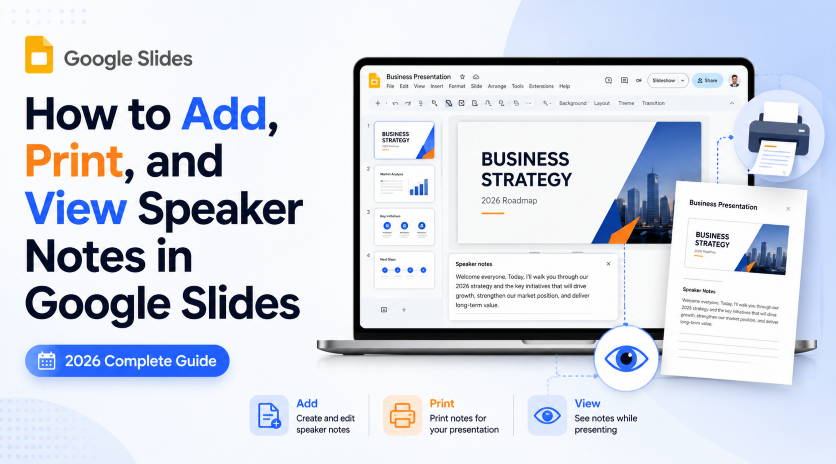
Both problems have the same fix: speaker notes. Google Slides lets you keep speaking cues alongside each slide. Presenter view can show them separately from the slideshow, provided you share the correct window.
This guide covers everything people usually search for around this feature: how to add speaker notes in Google Slides, how to see them while presenting (on desktop and mobile), how to print Google Slides with speaker notes, and how to download Google Slides with speaker notes as a PDF.
What Are Speaker Notes in Google Slides?
Speaker notes are text attached to a slide. They do not appear in the normal slideshow, but people with access to the file may be able to read them. Sharing the editor, Presenter view, or a notes-inclusive PDF can also expose them.
The basic workflow most experienced presenters use: put only the headline, the key number, or the core visual on the slide itself, and push everything else — talking points, the order you want to walk through a chart, data sources, anticipated questions — into the notes field underneath. That split alone does most of the work of making a deck look clean and a presenter sound confident.
PowerPoint has an equivalent "Notes" feature, and the concept is nearly identical. The advantage of Google Slides is that it runs entirely in the browser, and multiple collaborators can add or edit notes in real time — which matters a lot for team decks, classroom slides, or webinar scripts that pass through several hands before showtime.
How to Add Speaker Notes in Google Slides
Adding notes takes seconds once you know where the field lives.
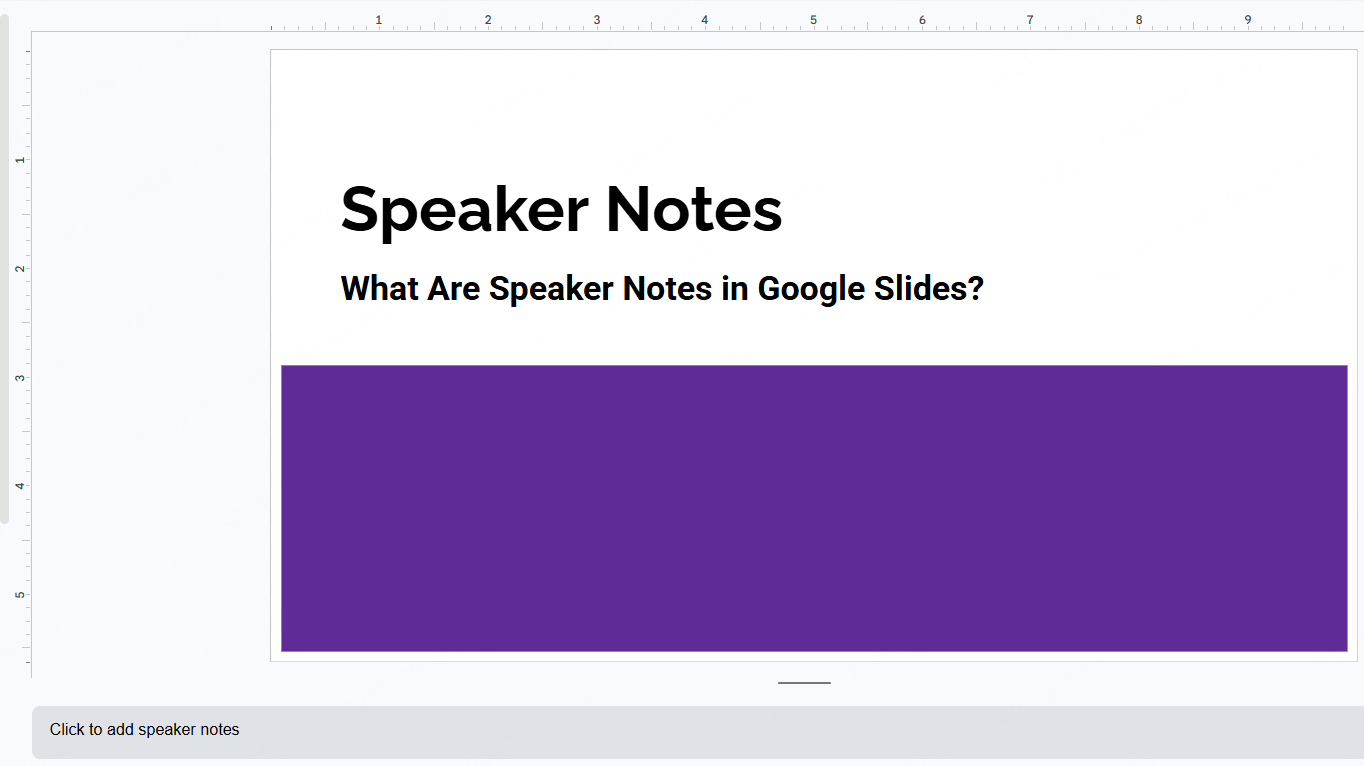
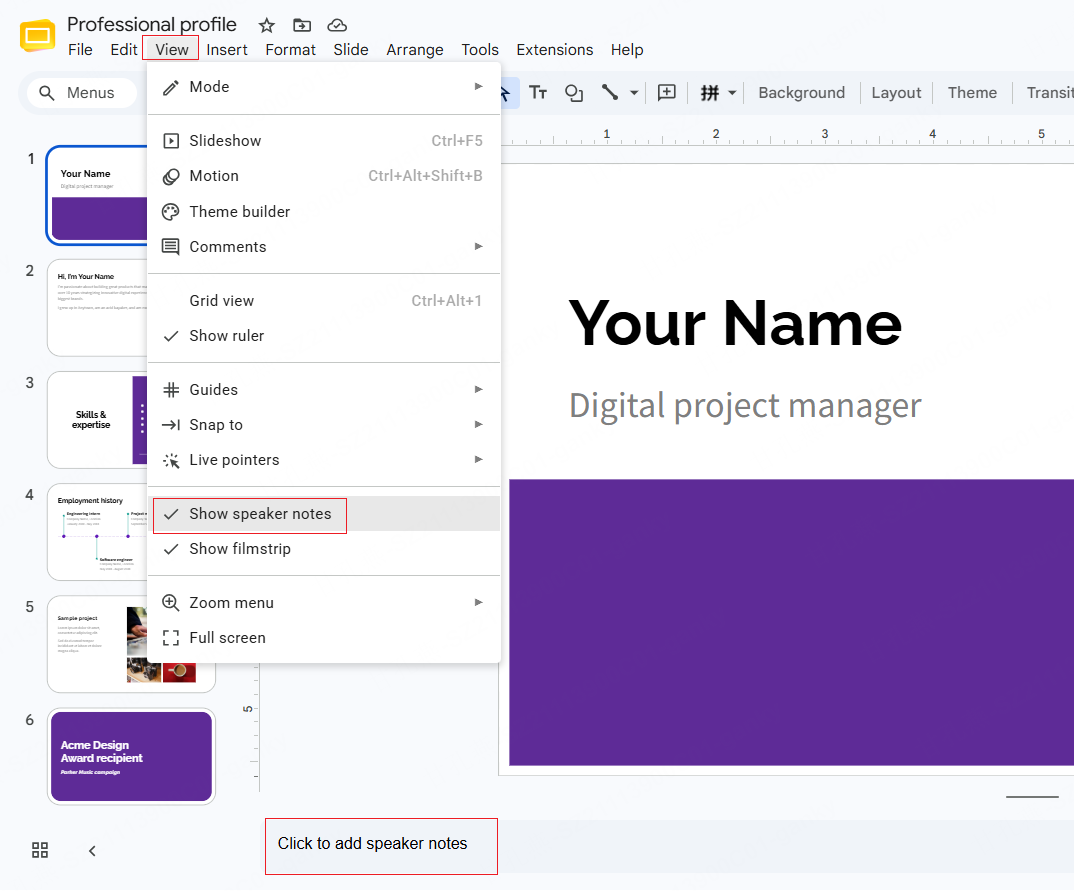
- Open the notes panel. When you open a Google Slides presentation, you'll usually see a thin strip below the slide that says "Click to add speaker notes." If you don't see it, go to View > Show speaker notes from the top menu, and the panel will appear at the bottom of the screen.
- Click into the field and type. You can write a script, but short phrases or bullet points are easier to scan while speaking.
- Use basic formatting if it helps. Bold and underline both work inside the notes field. Bolding the one line you must not forget makes it easier to spot at a glance during a live talk.
- Resize the panel if needed. Drag the divider above the notes area up or down to give yourself more or less writing room.
Notes save automatically and stay attached to that specific slide, so there's nothing extra to do before moving on.
Presenter View: How to View Speaker Notes While Presenting
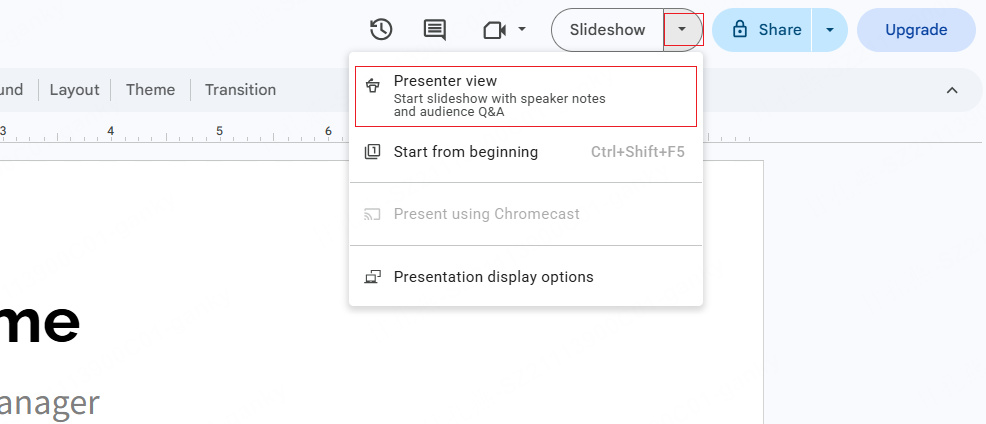
Once your notes are written, you need Presenter View to actually use them live. This is the feature people mean when they ask how the notes actually show up during a talk.
- Click the small arrow next to the Slideshow button (not the button itself) and choose Presenter view.
- This opens a presenter window with speaking controls and notes. Keep it separate from the slideshow window you share with the audience.
- If you're presenting over Zoom or Google Meet, share only the slideshow window, not your entire screen or desktop, or your notes will end up visible to everyone on the call.
To open notes on desktop, use the arrow next to Slideshow, choose Presenter view, and open Speaker notes. Rehearse the window arrangement before screen sharing.
How to See Speaker Notes on the Google Slides App (Mobile)
If you're presenting from a phone or tablet, the mobile app handles notes a little differently than desktop, and there's no separate private Presenter View window.
To view notes while presenting on mobile:
- Open your presentation in the Google Slides app and tap the Play icon to start presenting.
- Check the app’s presentation controls for speaker notes; the available view depends on the device and presentation method.
- Test the audience display before the session so you know which view is being shown.
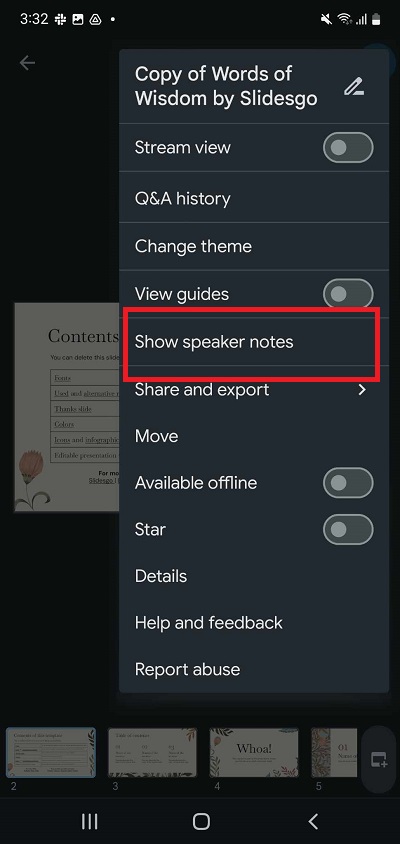
To add or edit notes on mobile:
- Open the slide in the mobile editor and use the speaker-notes option in its menu. If the option is unavailable in your version, edit the notes in the desktop browser.
Important limitation to know: the mobile app doesn't give you a separate, audience-hidden notes window the way desktop Presenter View does. If you're mirroring or casting your phone screen to a projector or smart TV, whatever is on your screen — notes included — may become visible to the room. For any presentation where privacy matters, it's safer to present from a laptop and keep your phone or a printed copy as backup reference, or route your slides to a second screen while keeping notes on a device you control.
How to Print Google Slides with Speaker Notes
After the talk, it's common to want a paper or PDF copy that includes your notes — for training materials, meeting records, or handing off a deck to a colleague. Google Slides has this built in, no extra software required.
- Go to File > Print settings and preview.
- In the layout dropdown (it defaults to "1 slide without notes"), switch to "1 slide with notes."
- Scroll through the preview to confirm every slide's notes display correctly and aren't cut off.
- Click Print, choose your printer and paper size, and print as usual.
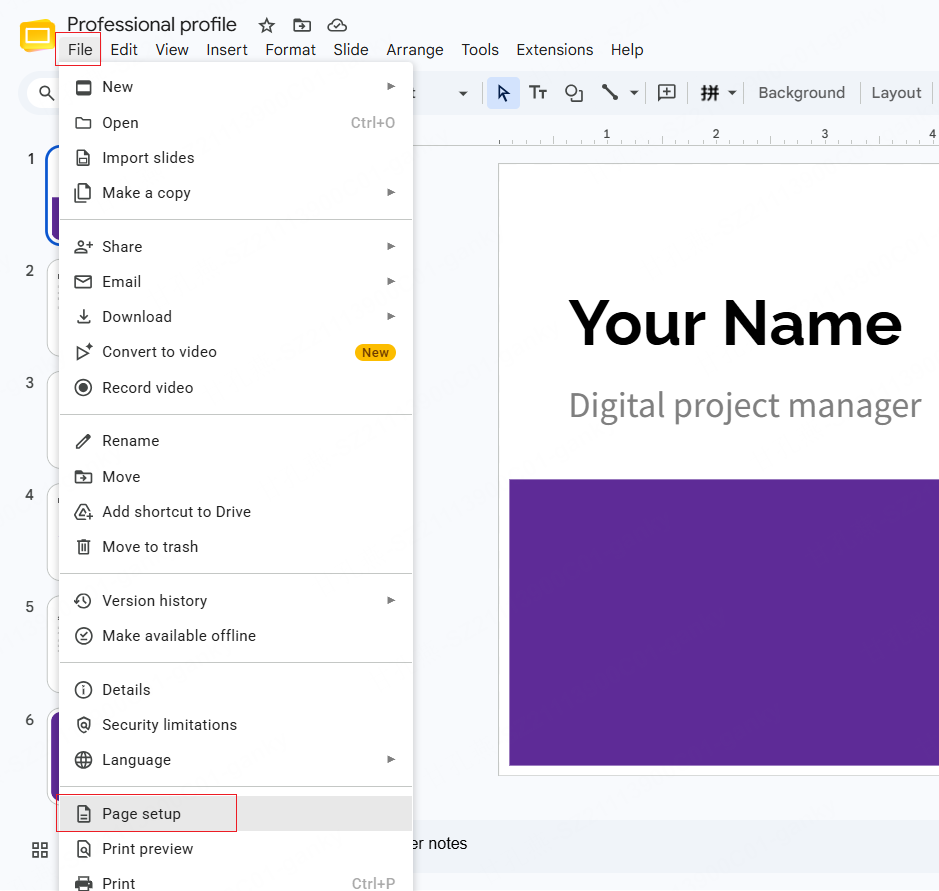
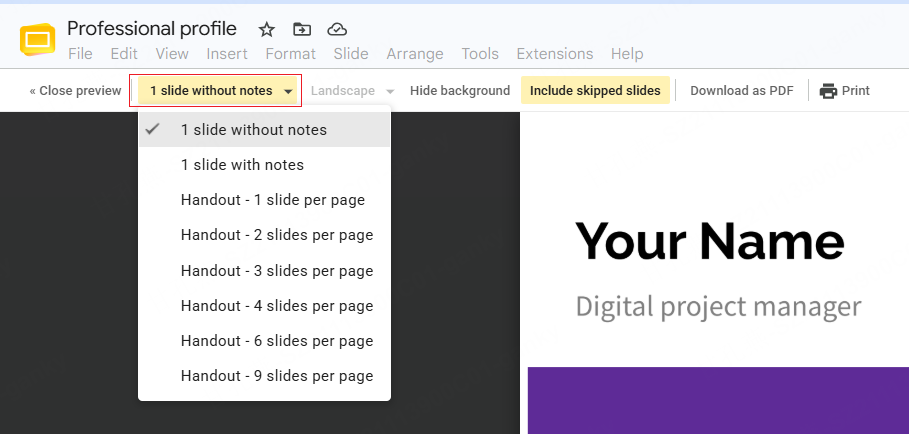
A few things worth checking before you commit to paper: decks with heavier background designs sometimes shrink the note text more than expected once you switch to this layout, so scan the preview first. Slides with empty notes will print with a blank notes box, which can look unpolished in a handout — worth a quick pass to fill in or accept before distributing. And notes that run long can get clipped at the bottom of the box, so keeping each slide's notes to a few lines helps avoid layout surprises.
How to Download Google Slides with Speaker Notes as a PDF
If you'd rather share a digital file than paper — say, for remote teammates or an online audience — download the notes-inclusive version as a PDF instead of printing.
- Go to File > Print settings and preview.
- Switch the layout to "1 slide with notes," same as above.
- Instead of clicking Print, look for Download as PDF (or, from the print dialog, choose "Save as PDF" as the destination).
- Open the downloaded file to confirm each page shows the slide and its notes correctly before sending it out.
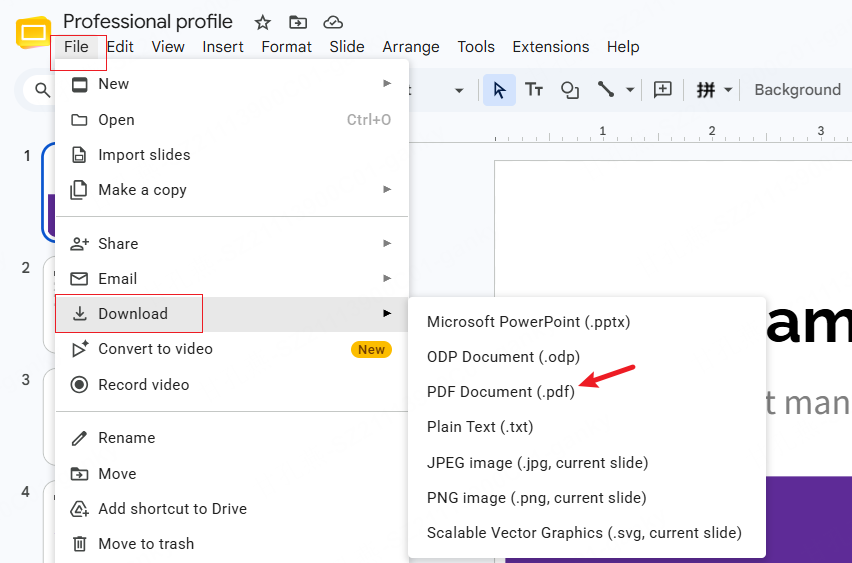
Review the PDF before sharing, especially long notes and any information intended only for the presenter.
Speaker Notes Not Showing? Common Fixes
A few recurring issues cause most "my notes disappeared" support questions:
- You started a plain slideshow instead of Presenter View. Open the arrow next to Slideshow, select Presenter view, and open Speaker notes.
- The notes panel is just collapsed. Check View > Show speaker notes to confirm it's toggled on.
- Presenter View didn't open because of a pop-up blocker. Presenter View launches in a separate browser window, so a strict pop-up blocker can silently prevent it from appearing. Test this before a live presentation, not during one.
- You're in Viewer-only access on someone else's file. If you were given "viewer" permissions on a shared deck, note editing (and sometimes certain display settings) may be restricted. Confirm your access level ahead of time.
Tips for Writing Speaker Notes That Actually Help
Knowing where the feature lives is half the battle — what you actually write in it matters just as much.
Useful things to include:
- A one-line opener for how you'll transition into each slide
- The source of any number or statistic you're citing
- The order in which you'll walk through a chart or diagram
- A likely audience question and your short answer
- A rough time budget for that slide
Names, dates, and exact figures are the details people forget under pressure — write those down precisely. Content you already know cold doesn't need much more than a keyword trigger.
It also helps to use the notes field for time management, not just content: a note like "keep this to 90 seconds" next to the elapsed-time counter in Presenter View makes it much easier to stay on pace. And if multiple people build a deck together, notes can double as handoff context — background on why a slide exists, where the data came from, what to double-check before reusing it — which is especially useful given that Google Slides supports real-time collaborative note editing.
One caution: don't over-write. A notes field packed with full sentences tends to turn a talk into a read-aloud performance, which usually comes across as stiffer than the presenter intends. Aim for notes you can absorb in a couple of seconds — keywords and short phrases you can expand on in your own words, not a transcript.
Speeding Up the Slide-Building Process with AI
Everything above assumes you already have a deck to work with — but building the deck itself is often the slower half of the job: structuring the outline, laying out slides, and only then getting to notes.
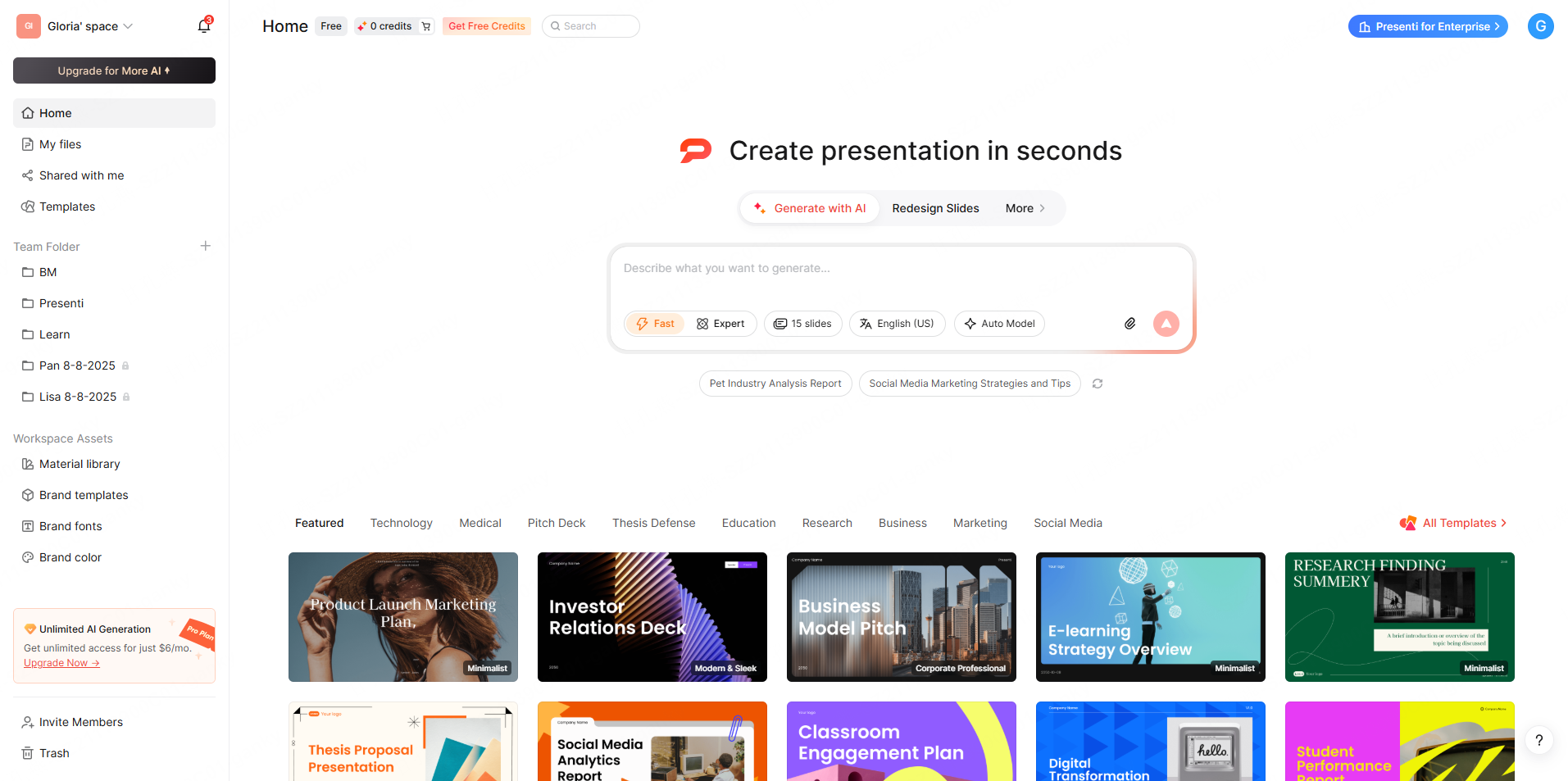
This is where a tool like Presenti AI can shave real time off the front end. You can start from a text prompt or upload an existing PDF, Word document, or Markdown file, and it generates a structured slide outline and design automatically — turning a blank page into a working draft you can refine rather than starting from zero. Eligible paid plans support PPTX export, which you can import into Google Slides, adjust the layout to your liking, and then add speaker notes exactly as described above.
Wrapping Up
Speaker notes let you keep speaking cues separate from slide content. Write brief prompts, rehearse with Presenter view, and check which window your audience can see. For a handout, review a notes-inclusive PDF or printout before sharing it.
Whether you're building your next deck from scratch or speeding up the process with an AI drafting tool, the note-writing and delivery habits above will serve you the same way either time.