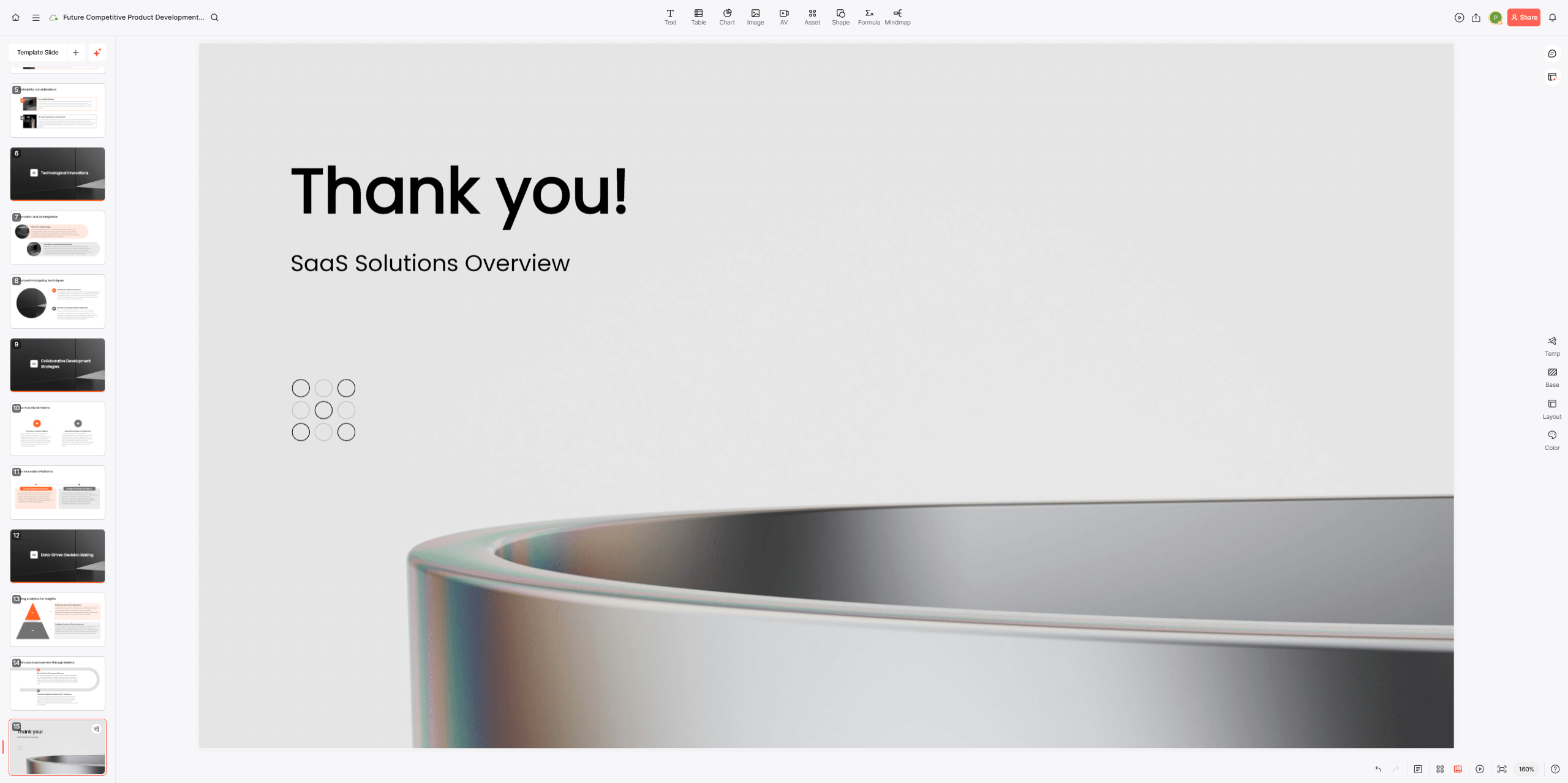
Team presentations often pass through several people: one drafts the story, another checks the numbers, and a reviewer approves the final message. This guide covers six requirements to evaluate. Presenti documents workspace invitations and real-time collaboration; the other sections describe capabilities to check or organize in your team’s workflow. The reference images do not establish that every pictured control is currently available.
A Shared Team Space Where Everyone's Work Lives in One Place
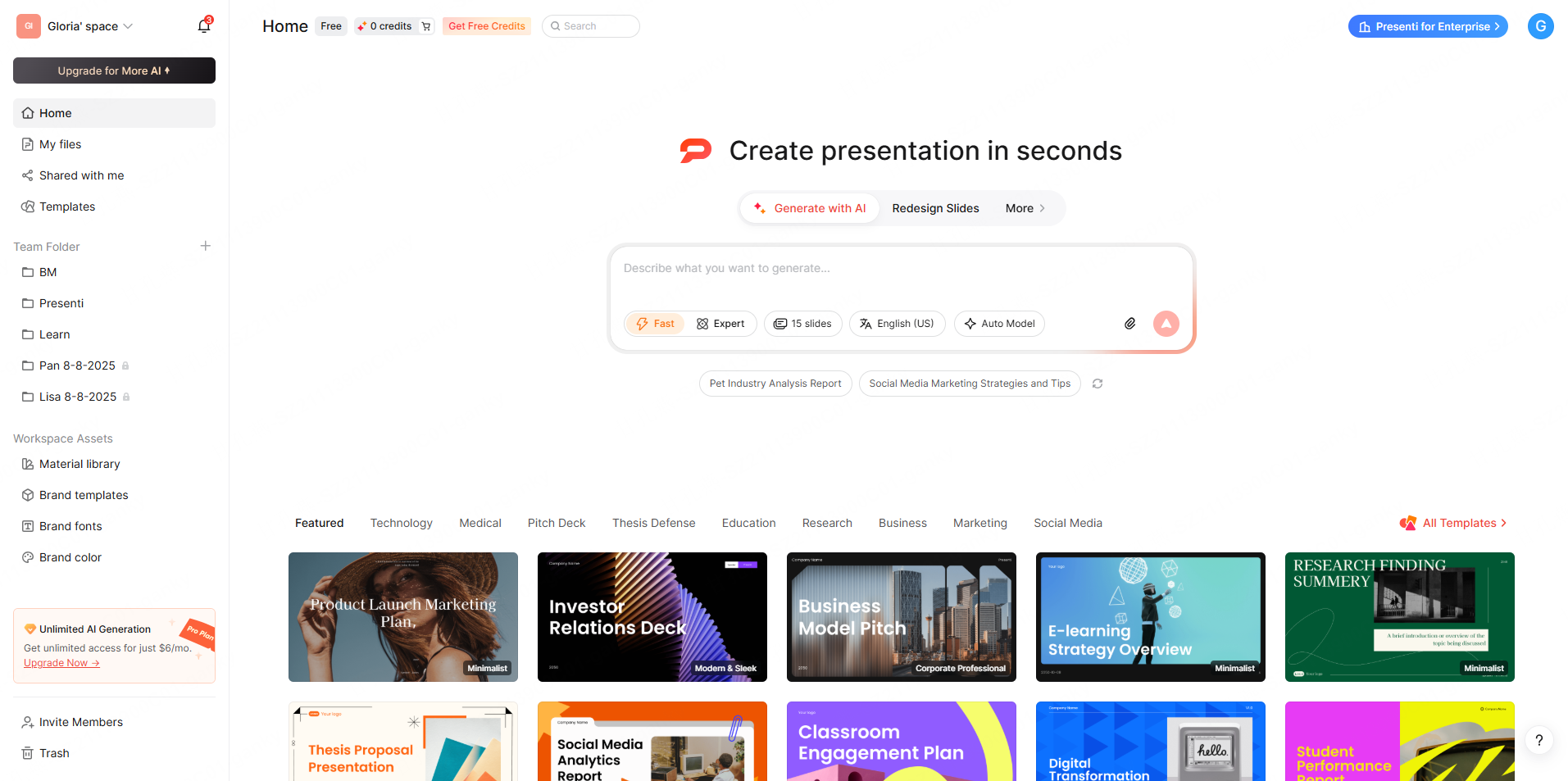
Presenti’s pricing FAQ documents inviting teammates to a workspace. Start by inviting the people responsible for drafting, data review, and final delivery. Confirm the available roles and access controls before placing client or restricted material in that space; this guide does not establish folder-level permissions. If colleagues need to edit the result, the editable PowerPoint handoff guide explains what to check in the delivered file.
Agree on a naming convention and a location for the current deck. Record who owns the presentation so reviewers know where to send a correction and which file is ready to use.
Real-Time Editing: Working in the Same Deck at the Same Time
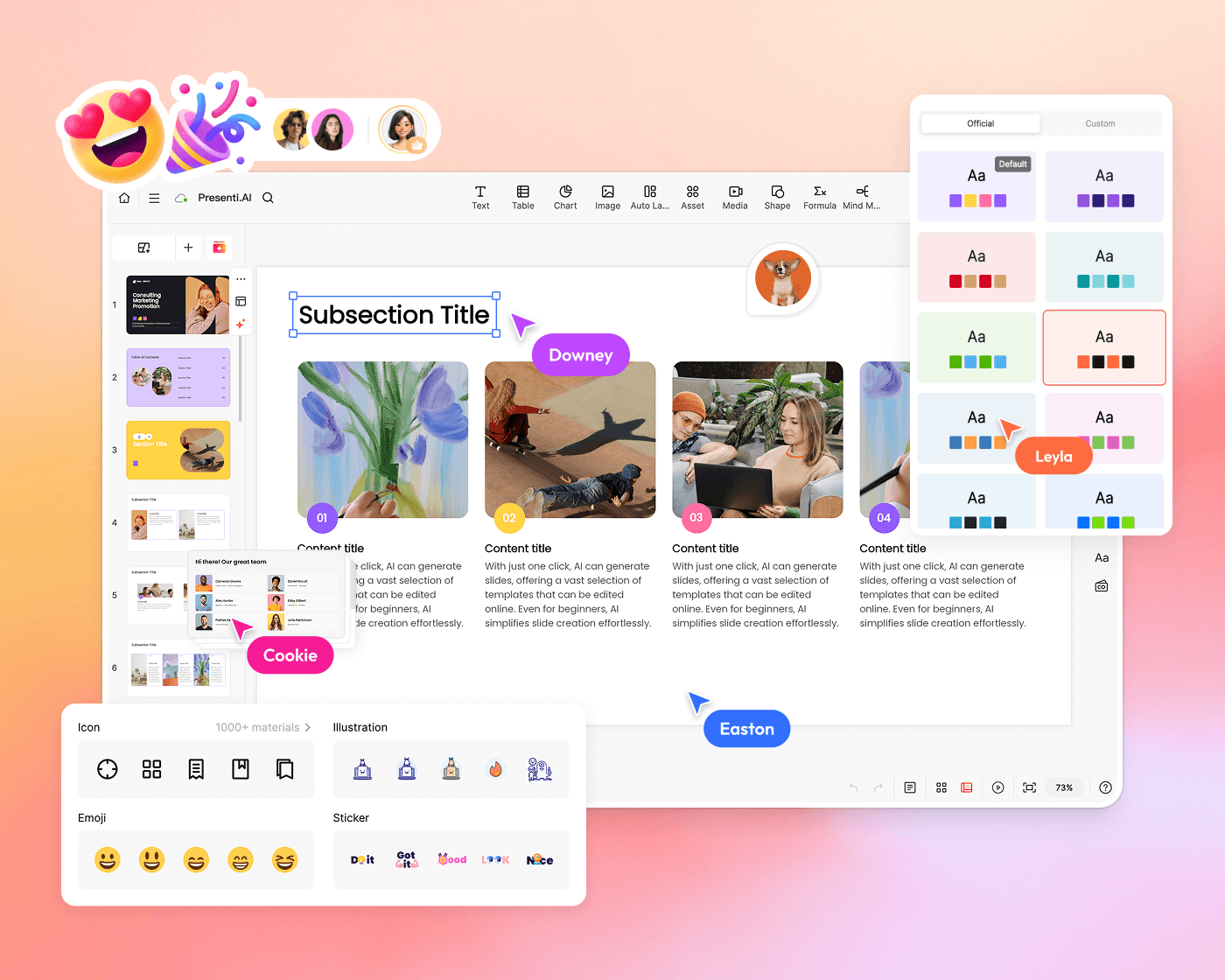
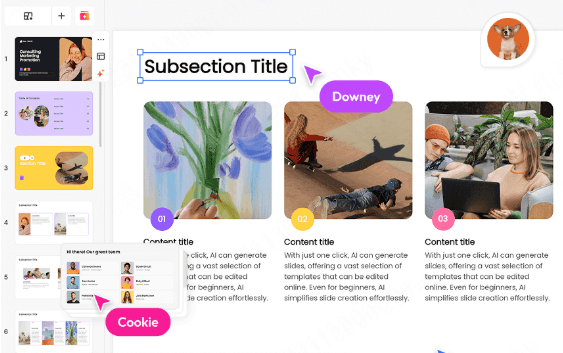
Once you're in a shared space, multiple people can open the same presentation at once and edit it live, seeing each other's changes as they happen instead of waiting for someone to finish and send the file along. Two teammates can work on different sections in parallel, which is a meaningfully different workflow from the usual pattern of emailing a .pptx around and hoping nobody's quietly editing an older copy at the same time.
Live editing reduces the need to circulate separate working copies, but teammates can still disagree or edit the same section. Assign sections and agree who resolves conflicting changes.
Feedback That Identifies the Slide and Requested Change
For review, each comment needs a clear target: the slide title, the relevant text or object, and the requested change. If the tool supports native slide comments, test how a reviewer places and retrieves one. Presenti’s public pricing documentation does not confirm that feature.
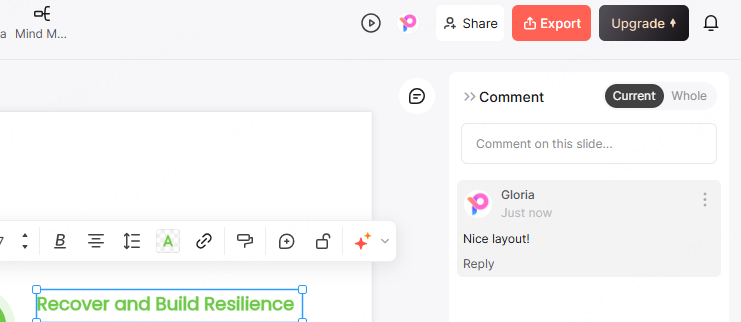
Track whether each request is open, accepted, or completed. A shared review document can do this when native comments are unavailable. Keep factual corrections separate from optional design preferences so the editor can prioritize.
Version Recovery and Approval Records
Before a major revision, keep a recoverable copy or export with a descriptive name such as “client draft before redesign.” If version history is essential, test what the tool saves, who can restore it, and what a restore changes. Named versions and rollback are not established by Presenti’s published collaboration description.
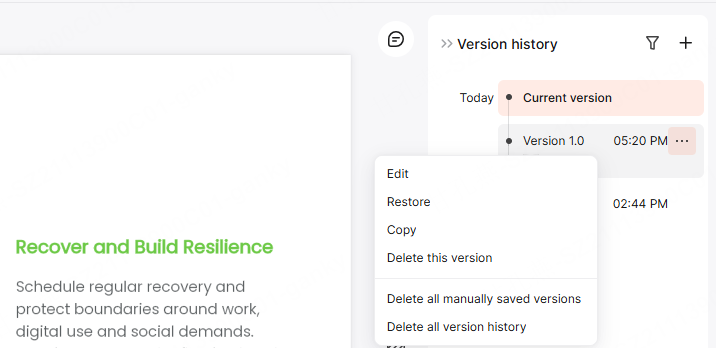
A saved version or resolved comment is not a formal approval. Agree who approves the final deck and record the approval against that exact version, using your team’s established process.
A Shared Source for Approved Brand Assets
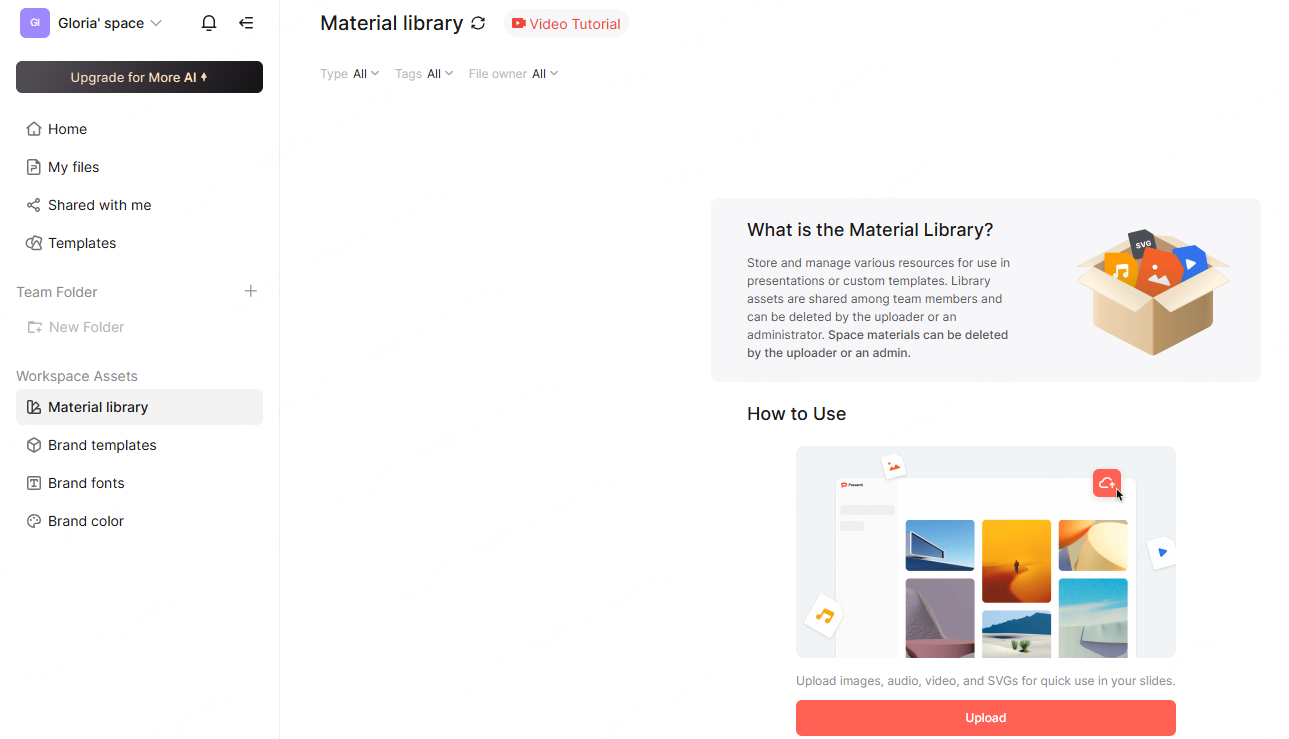
Choose one approved location for logos, product screenshots, and other assets, and name an owner who keeps it current. If you require an in-app shared library, check supported file types, access, and replacement behavior. The reference image does not establish current Presenti support for every listed media type or filter.
For large media files, check storage allowances and whether colleagues can access the files from their own accounts. Keep the asset’s source and usage rights with it so the next editor knows what can be reused.
Sharing the Finished Deck With People Outside the Team
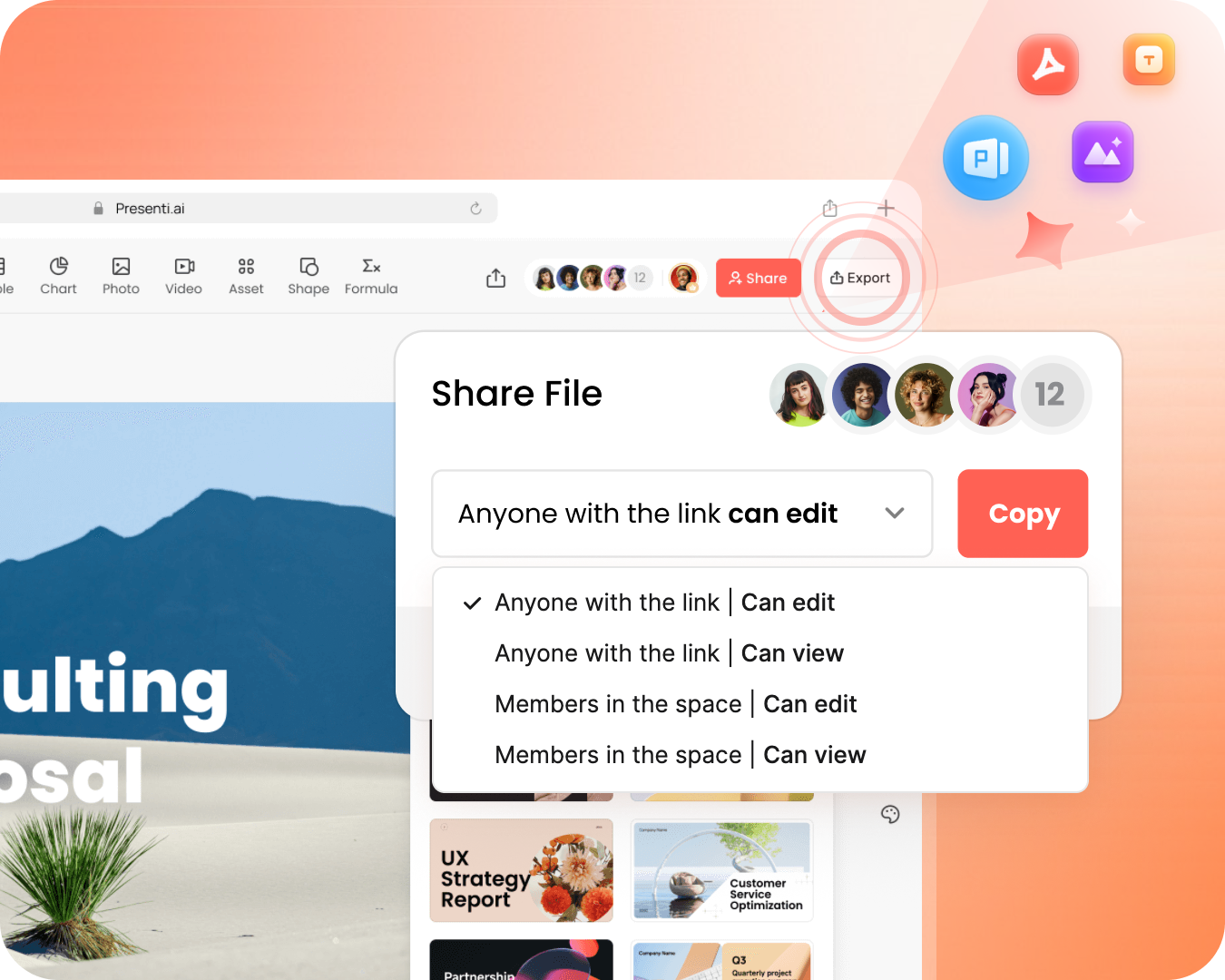
Plan the handoff before finishing: a client may need a viewable copy, while a colleague may need to edit in PowerPoint. Presenti’s paid plans list editable PPTX/PDF export. Check any link-sharing controls in your account and open an exported sample in the recipient’s application.
Conclusion
Start with the documented workspace and live editing functions, then test the review, recovery, asset, and delivery requirements your team actually needs. One short shared deck can reveal whether the workflow supports the full review process before you move recurring work into it.
Explore Presenti with a small team draft, checking workspace access, simultaneous edits, and the final handoff.