Choosing between Copilot and ChatGPT depends on where you work and what you need to produce. A useful comparison separates drafting and research from creating a PowerPoint file, editing its design and sharing it with a team.
This guide compares those workflows and shows how a presentation-focused tool such as Presenti fits alongside them. Features and limits vary by account, plan and application.
What Is ChatGPT?
ChatGPT is an AI assistant developed by OpenAI. It can help draft, revise and analyze content, including files supplied in a conversation. You can access it through chat.openai.com or supported apps. Available models, file tools and usage limits vary by account and plan.
Core ChatGPT features:
- Natural language conversation across complex, multi-layered topics
- Code generation and debugging across major programming languages
- Document analysis and summarization using supported uploaded files
- Visual ideation and image tools where available in your account
- Reusable prompts and custom workflows, depending on available tools
Choosing a ChatGPT plan for presentation work:
| Workflow | What to compare | Why it matters |
|---|---|---|
| Occasional outlining | Available access and message limits | A short brief may need only a few revisions |
| Working from source files | Supported file types and upload limits | Long reports and multiple sources need sufficient capacity |
| Creating a downloadable draft | File-generation tools available in the account | Drafting slide text and producing a PPTX are separate tasks |
| Team use | Workspace controls and contractual data terms | The organization decides which content may be uploaded |
What Is Microsoft Copilot?
Microsoft Copilot covers several Microsoft AI experiences, including chat and features within Microsoft 365 apps. For presentation work, the relevant experience is Copilot in PowerPoint. Access and functionality depend on the subscription, app and organization settings. For changes to an existing deck, see direct editing with Copilot and its review requirements, including the separate preparation needed for brand assets.
Core Copilot features:
- Drafting and revising content in supported Microsoft 365 applications
- Research and summarization using the sources available in the selected experience
- Presentation drafting within PowerPoint when Copilot is included in the account
- Referencing supported work files subject to permissions and source-location requirements
- Collaboration within the Microsoft 365 applications used by the organization
Choosing a Copilot setup for presentation work:
| Context | What to compare | Why it matters |
|---|---|---|
| Copilot chat | Available chat and file features | Chat access alone does not establish PowerPoint access |
| PowerPoint use | Whether the subscription includes Copilot in the app | The presentation workflow runs within PowerPoint |
| Organizational use | License, administrator settings and file permissions | These determine which work sources are available |
Copilot vs ChatGPT: 6 Workflow Considerations
1. Ecosystem and Integrations
ChatGPT provides a conversational workspace for developing content. Copilot in PowerPoint lets you work within the presentation application. For example, a team that already maintains its template and source documents in Microsoft 365 may find that in-app workflow convenient; another team may prefer to draft content separately.
2. Real-Time Information Access
For time-sensitive material, use a research workflow that provides traceable sources. Availability of search and connected sources depends on the selected experience and account. Neither a model name nor a free-versus-paid label tells you whether a particular answer is current: open the cited source and confirm the date and context.
3. Reasoning Depth and Conversation Quality
For a useful comparison, give each tool the same brief and source material. For example, ask it to turn a quarterly report into an eight-slide management update, then compare factual accuracy, narrative structure and the revisions needed.
4. Creating Visuals
For presentation visuals, compare the image workflow available in your account: generating an idea, finding a suitable asset, editing it and placing it on the slide. Usage limits and licensing terms matter more than an assumed model label. Review visual accuracy and usage rights before including an image.
5. Privacy and Enterprise Security
For work material, follow your organization’s approved data-handling rules. Consumer accounts and organizational workspaces can have different terms and controls. The applicable contract, administrator settings and file permissions determine which confidential material you may upload.
6. Copilot vs ChatGPT Workflow Comparison
| Presentation task | ChatGPT workflow | Copilot in PowerPoint workflow |
|---|---|---|
| Develop the argument | Discuss the brief and revise an outline | Draft within the presentation workflow |
| Use source material | Upload supported files subject to account limits | Reference supported files subject to app and permission requirements |
| Create slide content | Request titles, key points and speaker notes | Generate and revise a presentation draft in PowerPoint |
| Create a PPTX draft | Use available file-generation tools or transfer content to an editor | Work in PowerPoint with an eligible subscription |
| Apply a visual style | Use design suggestions or available generation tools | Refine the draft using the presentation’s theme and layouts |
| Share with a team | Use an approved workspace and document-sharing process | Use the organization’s Microsoft 365 sharing workflow |
Copilot vs ChatGPT for PPT: From Brief to Draft
The main distinction is where the draft is created and edited. Both routes still benefit from a clear brief, reliable sources and a review of the final presentation.
1. How to Use ChatGPT for PPT
ChatGPT can develop an outline, slide text and speaker notes. When suitable file-generation tools are enabled, it can also help create a PPTX draft; otherwise transfer the content to a presentation editor. See How to Use ChatGPT to Make a PPT Presentation for a step-by-step example. To compare the assistant route with a dedicated generation service, see SlidesGPT, ChatGPT, and Presenti workflows, including their different download conditions.
2. How to use Copilot for PPT
If Copilot is available in your PowerPoint account, start from your presentation and describe the audience, topic and intended length. Reference the relevant source file through the app’s supported file-selection workflow, then review and edit the generated draft.
For example: “Create an eight-slide management update from this report. Cover results, risks and the next quarter’s decisions. Keep supporting detail in the speaker notes.” Replace this sample brief with your actual task and sources.
Step 1: Open PowerPoint with an account that includes the relevant Copilot features.
Step 2: Select a supported reference file through the available file picker.
Step 3: Describe the audience, purpose and presentation length.
Step 4: Review the outline, generate the draft, and edit the slides.
Microsoft’s file-format guidance lists Word and PDF among the supported presentation sources, with different conditions for work/school and personal experiences. OpenAI’s File Uploads FAQ describes supported documents and plan-specific limits. These sources were consulted on 3 October 2026.
- File-format and source-location support depends on the Microsoft 365 app, license, and tenant settings
- Adapt generated layouts to your template and slide content
- Confirm that collaborators can access the chosen source files and presentation
- Compare the subscription needed for your workflow with the access you already have
Presenti: A Presentation-Focused Workflow
Presenti offers another route from a topic or source document to a slide draft.
Presenti is an AI presentation maker for creating presentation drafts from a topic or supported source files. You can develop the outline and refine the text and layout in its editor before exporting in a format included in your plan.
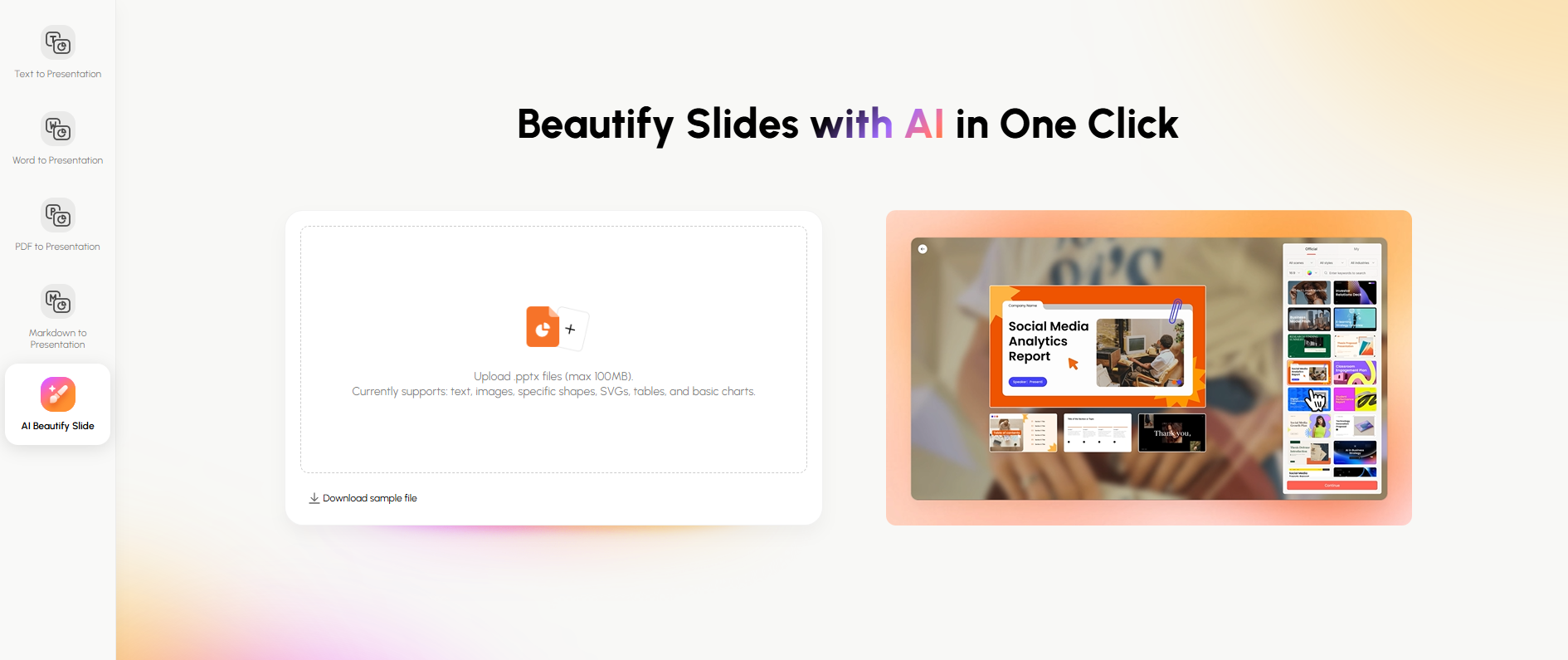
What makes Presenti different:
- Source options: Start with a topic or use supported document formats such as Word, PDF and Markdown. Import options depend on the chosen plan.
- Editable exports: Presenti’s pricing page lists editable downloads and PPTX/PDF export under the paid Plus, Pro and Ultra plans. The free plan provides basic access with limited presentation credits.
- Presentation templates: Choose a template suited to the task, such as a business review, lesson or pitch, and adapt the draft to your message.
- PowerPoint handoff: Use PPTX export when it is included in your plan. Open the exported file in your target application to review fonts, charts and layouts before sharing.
Feature comparison: Copilot vs ChatGPT vs Presenti for presentations
| Task | ChatGPT | Copilot in PowerPoint | Presenti |
|---|---|---|---|
| Start from a topic | Draft an outline and slide content | Generate a presentation draft | Generate a presentation draft |
| Use Word or PDF sources | Supported uploads, subject to account limits | Supported source workflow, subject to app and permissions | Import options listed for the chosen plan |
| Use structured text | Develop and revise the text | Include the brief in a prompt or supported source file | Paste content or use supported Markdown input |
| Obtain a PPTX draft | Available file tools or transfer to a presentation editor | Create and edit in PowerPoint | PPTX export listed under paid plans |
| Refine the design | Use suggestions or available tools | Edit theme and layouts in PowerPoint | Edit the template, text and layout in Presenti |
| Account requirement | Features depend on the ChatGPT plan and tools | Eligible Microsoft subscription and settings | Presenti plan matching the required features |
| Final review | Validate content and any generated file | Validate the generated slides | Validate the draft and exported file |
AI Tools in 2026: Which Should You Choose?
Choose ChatGPT when:
- You want to discuss an argument and revise an outline before designing slides
- You prefer to develop the content separately from your presentation editor
- Your task involves comparing or summarizing supported source files
- You have an approved account with the tools needed for your workflow
Choose Copilot when:
- Microsoft 365 is the core of your daily workflow
- Your organization already provides an M365 Copilot license
- You want to draft and edit within PowerPoint
- You work primarily within OneDrive and SharePoint
Choose Presenti when:
- You want to turn a topic or supported source document into a slide draft
- You prefer a presentation-focused editor for templates and layouts
- Your selected plan includes the imports and editable exports you need
- You work outside the Microsoft ecosystem as a freelancer, startup, or small team
FAQ
Do Copilot and ChatGPT use the same AI model?
Do not assume that every version uses the same model. Available models and tools change by product and experience. For a presentation task, compare the workflow and output you can access in your own account.
What is the difference between Copilot free and paid?
Access to chat is distinct from access to Copilot features within Microsoft 365 apps. For this guide’s PowerPoint workflow, confirm that your subscription includes the relevant in-app features and that your organization enables them.
Can ChatGPT make a PowerPoint presentation?
It can help draft the content and, when suitable file-generation tools are enabled, create a PPTX draft. You can also move the outline to a presentation editor or an AI slides generator such as Presenti. Review both the content and the exported layout.
Is learning how to use Copilot for PPT difficult?
Start with a short brief and a supported source file in PowerPoint. The steps depend on the available app features, subscription and permissions. Refine the outline and slides after generation rather than treating the first draft as final.
Which tool is better in 2026?
Choose by the task: a conversational drafting workflow, creation within PowerPoint, or a presentation-focused editor. Use the same short brief to compare the editing effort and output quality for your needs.
Conclusion
For Copilot vs ChatGPT, the practical choice starts with your workspace and task. ChatGPT offers a conversational route to develop content; Copilot in PowerPoint supports drafting within the presentation application when included in your account.
Compare the source formats, available file tools, editing workflow and subscription conditions you actually need. A clear brief and a review of the final slides matter whichever tool you choose.
Presenti is another option for turning a topic or supported document into a presentation draft. Its free and paid plans have different import, generation and export allowances. Start free at Presenti, then choose the workflow and plan that fit your presentation.
A fair comparison starts with one delivery brief
Compare the tools against the same brief instead of comparing feature lists. Record the file you supplied, the output format you received, the date checked and the editing step you completed. A feature may exist in a product while still being unsuitable for a workflow that requires a handoff as an editable PowerPoint file.
Use a small evidence table with columns for input, editable output, export path, manual correction and source date. Label an observation as confirmed, observed in a test, or still to verify. This prevents a polished demo from becoming a promise about every plan, file type or account.
The useful decision is conditional: choose the workflow that fits the brief, the subscription already available and the review effort the team can accept. Recheck product limits before publishing the comparison because file support and plan rules can change.