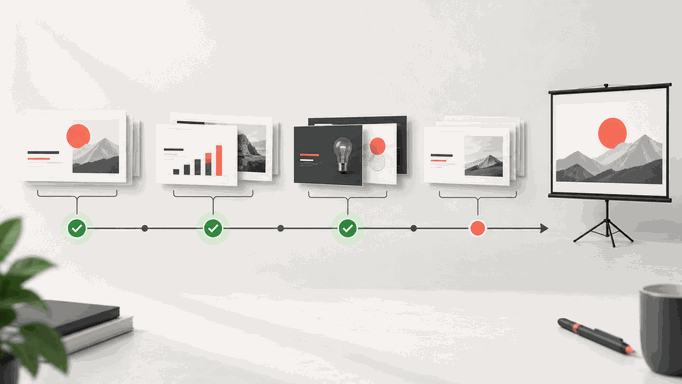
Creating a presentation involves choosing a structure, writing concise text, and arranging the slides. Text-to-PPT tools can produce an initial draft from an outline or document. This article explains how the workflow works and which parts you still need to review.
What Is Text to PPT Generation?
Text-to-PPT generation turns written material—such as an outline, report, or short brief—into a presentation draft. The tool proposes a structure and layout; the author checks whether the slides preserve the intended meaning. Once your notes are organized, the text-to-presentation workflow offers a way to turn that material into an editable slide draft.
How It Works Behind the Scenes
Tools vary, but a typical text-to-presentation workflow analyzes the input to propose:
- Identifying key themes
- Extracting hierarchical structure
- Detecting logical relationships
- Organizing major and minor points
The tool maps the proposed structure to slide layouts. Check the order, text length, and relationship between the visuals and the source; a consistent design does not establish that the content is correct.
Where Text-to-PPT Tools Can Help
Compared to traditional manual slide creation, AI generated PPTs offer several major advantages:
- Massive time savings: Even beginners can produce a complete draft in minutes.
- Consistent design: Fonts, colors, spacing, and style remain uniform across all slides.
- Content focused workflow: Users can invest more energy in ideas, not formatting.
- Beginner friendly: No design experience or technical skill required.
While AI tools may not replace highly customized design or advanced animations, they are ideal for business reports, academic presentations, proposals, marketing pitches, training materials, and any situation where clarity and speed matter.
Text-to-PPT Workflows to Compare
The following approaches offer different levels of automation and manual design control. Try the one that fits your input and editing requirements.
1. Presenti AI: Create and Edit a Slide Draft Online
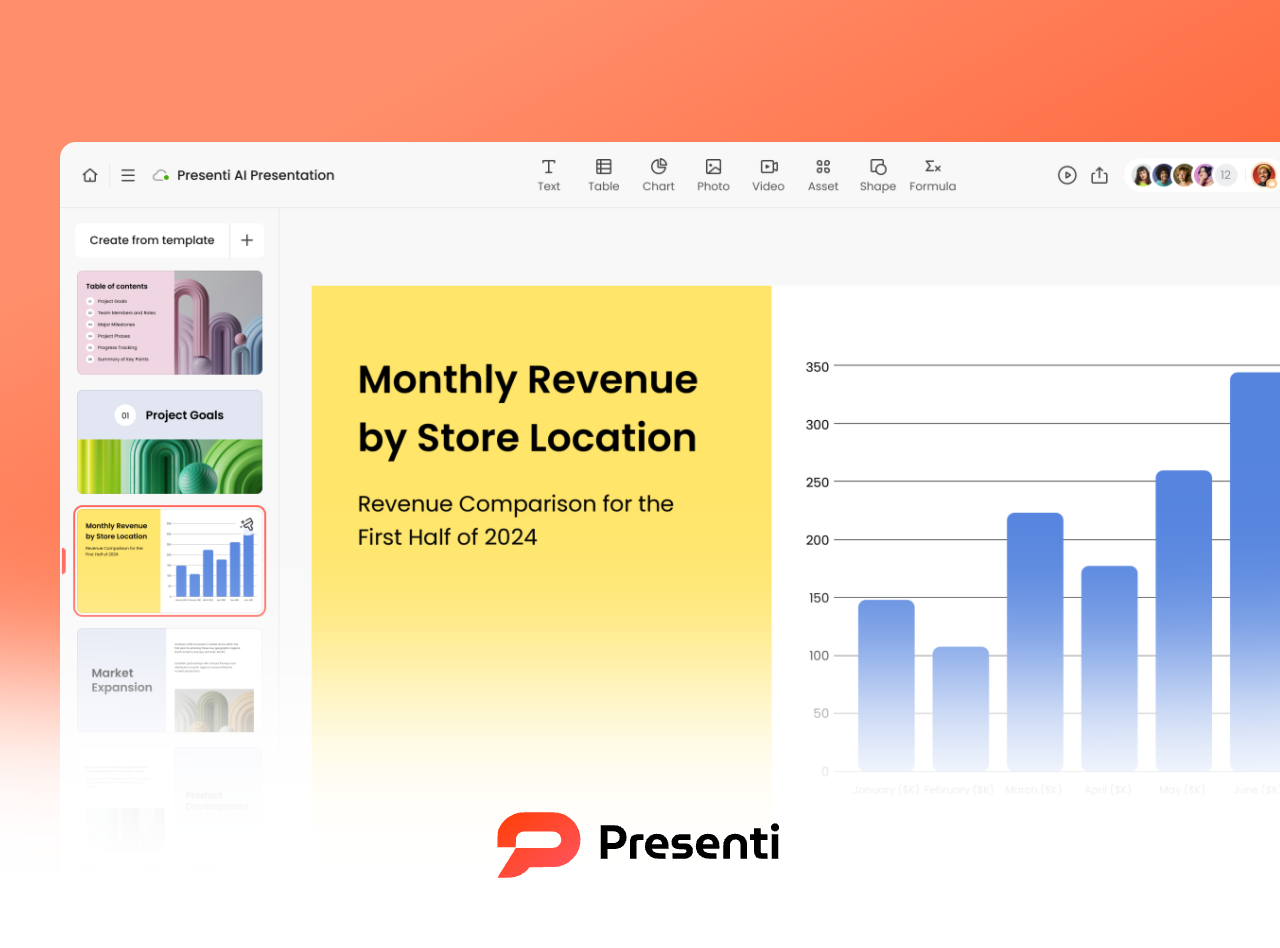
Presenti AI is designed specifically for users who want a polished and professionally formatted deck with minimal effort. You can paste text, upload a document, or provide a simple outline, and the platform automatically produces a full PPT draft, including titles, content organization, structure, and page layouts.
Key strengths:
- Support for preparing slide content in different languages; review the wording in the target language.
- Strong auto layout engine
- Huge library of business ready templates
- Adaptive color schemes and styles
- Content summarization and expansion tools for revising a draft.
Presenti combines outline generation, templates, and slide editing in one workflow. Compare a draft with your source material before using it.
2. Gamma.app (A Lightweight Option for Clear, Minimalist Presentations)

Gamma is popular among global users for its extremely intuitive text to presentation workflow. You simply paste text, and Gamma’s AI restructures it into clean and modern slides.
Best suited for:
- Quick drafts
- Proposals and concept presentations
- Minimalist and content focused slide layouts
Its design style leans toward clean, simple aesthetics, making it ideal for business meetings or brainstorming sessions.
3. ChatGPT + Canva/PowerPoint (Maximum Flexibility for Semi AI Workflows)
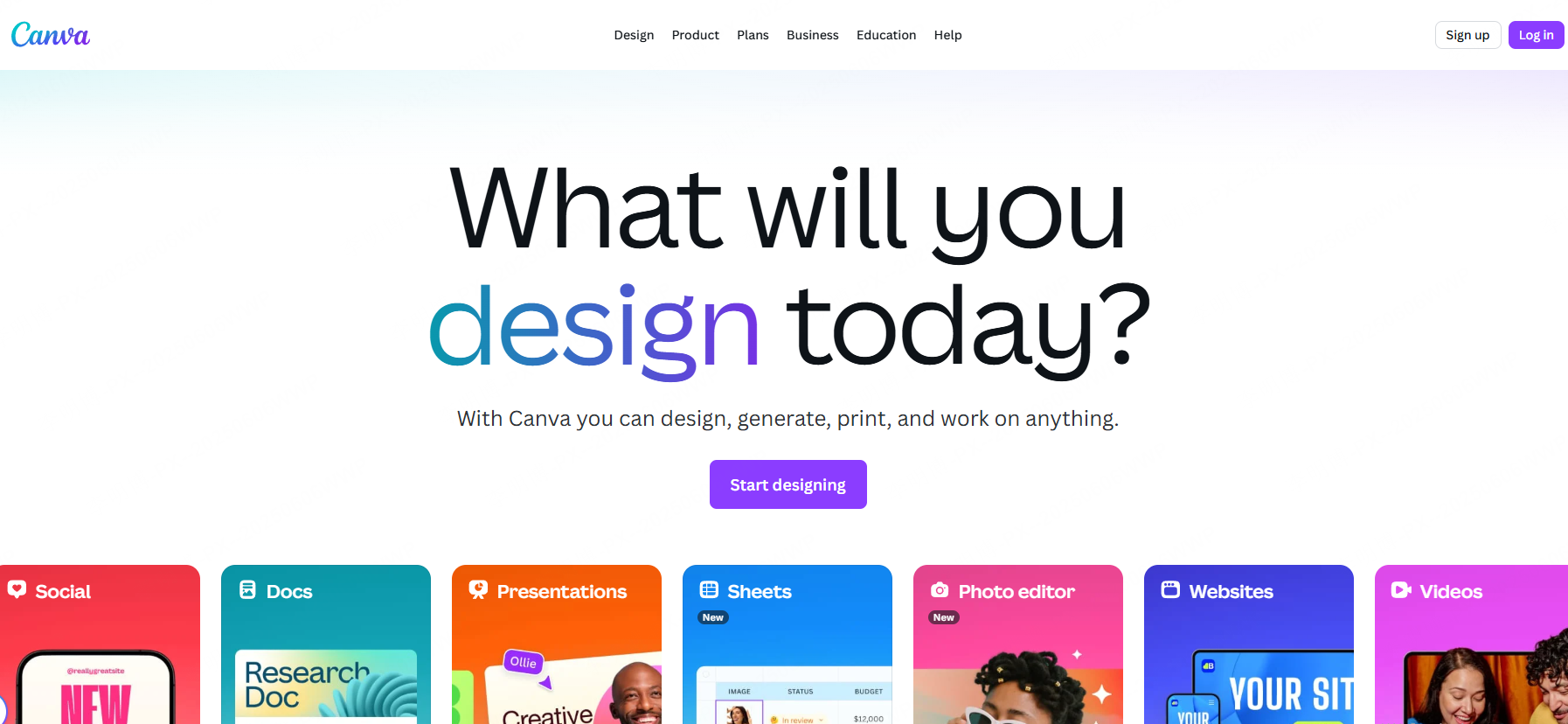
For users who still want design control, the combination of ChatGPT and a design tool like Canva, WPS, or Microsoft PowerPoint offers a balanced approach.
How it works:
- ChatGPT structures your content into a logical outline
- It formats each slide’s text clearly
- You paste the output into your preferred design tool
- Canva or PowerPoint templates handle visual layout
This method provides the customization freedom designers need while still reducing content preparation time dramatically.
Step by Step Guide: How to Generate a PPT from Text
To illustrate the workflow, here’s a complete guide using Presenti AI as an example.
Step 1: Import Your Content
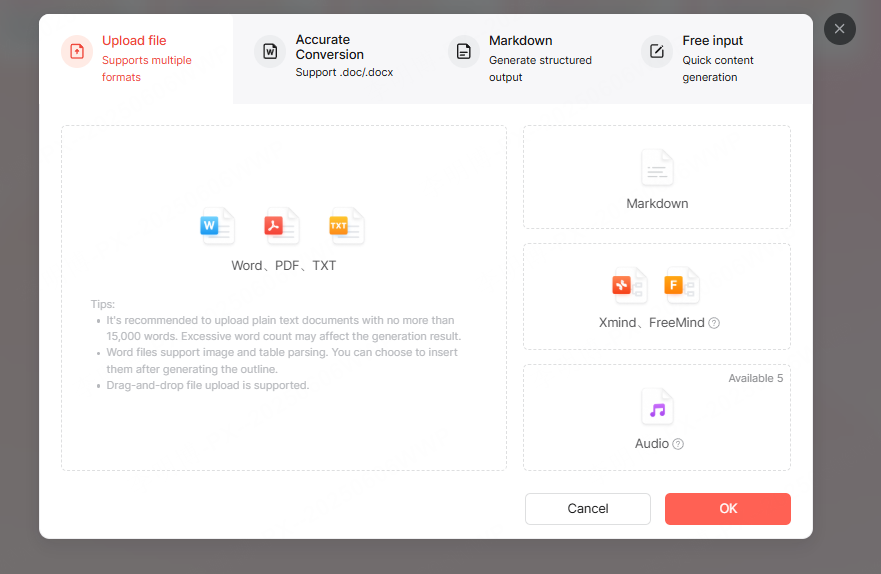
Choose one of three input methods:
- Paste text directly: best for outlines or rough drafts
- Upload Word, TXT, or PDF files: ideal for long articles or reports
- Upload Markdown: perfect for structured documents like speeches or proposals
Upload a supported file within the current input limit, then review the generated outline.
Step 2: Select an AI Generation Mode
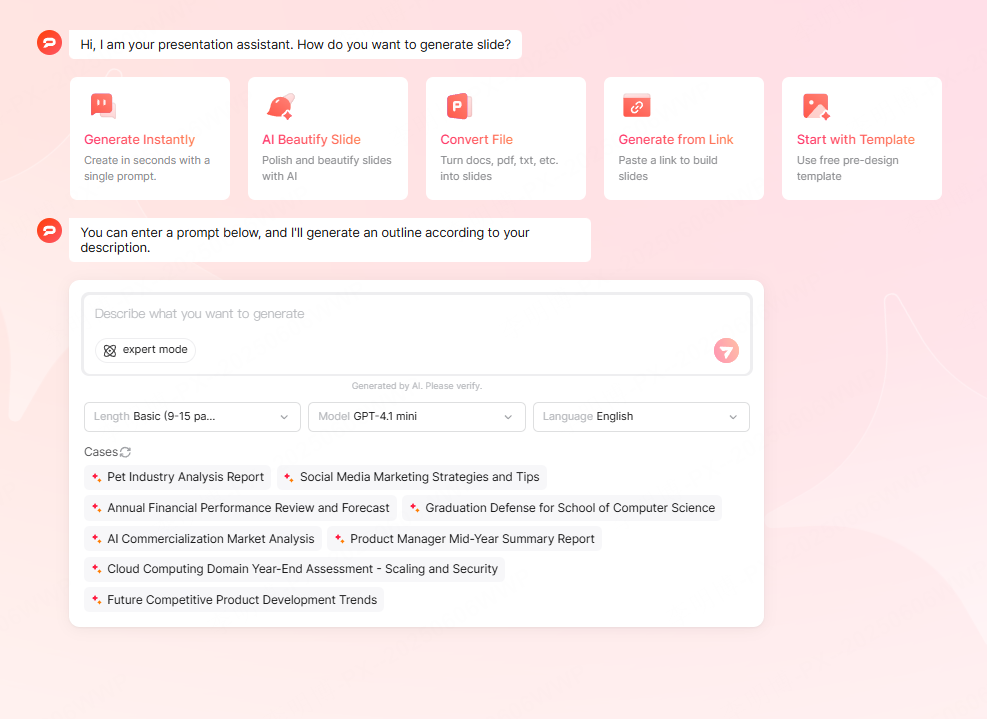
Presenti AI offers three modes depending on your content needs:
1. Reformat & Generate
For structured documents such as Markdown files or finalized reports.
The tool proposes a slide-friendly structure; compare it with the source to confirm that the meaning is intact.
2. Summarize & Generate
For long text that needs condensing.
AI extracts essential ideas and turns them into concise, well paced slide content.
3. Expand & Generate
For outlines or minimal input.
AI expands the outline into draft wording. Check added claims and keep slide text concise.
Step 3: Choose a Template Style
Presenti AI provides multiple professionally designed themes including:
- Business
- Minimalist
- Technology
- Marketing
- Education
- Clean/Modern
You can also customize colors, fonts, and images, or let the AI auto generate visuals for you.

Step 4: One Click Generation
After confirming your settings, start generation. Presenti AI uses your content and selected design to build a slide draft. The workflow includes:
- Splits content into logical slide sections
- Formats headings and body text
- Applies cohesive visuals
- Chooses images when needed
- Offers editable PPTX export on eligible paid plans
This makes it perfect for urgent deadlines, last minute presentations, or anyone who wants to boost efficiency.
Conclusion
Use text-to-PPT generation when you have source material to organize and time to review the result. Keep the original document nearby, verify important details, and adjust the draft for the audience.
Presenti, Gamma, and a writing-tool-plus-editor workflow offer different starting points. Compare the effort needed to reach a usable final deck, including revisions and export.