You’ve been there. Deadline in two hours, a blank PowerPoint staring back at you, and absolutely no idea why your slides keep looking like a ransom note — too many fonts, clashing colors, bullets crammed into every corner. Making a clean, professional presentation feels harder than it should be.
Neat slide design comes from consistent decisions about content, type, spacing, and alignment. This guide explains eight principles, compares common editing workflows, and shows how to review a Presenti draft.
Why Most Presentations Look Cluttered (And How to Fix It)
The root cause of messy slides is almost always the same: trying to say too much on a single screen. People treat slides like documents — stuffing in every data point, qualifier, and footnote — when slides are actually visual aids for a spoken message. Once you internalize that distinction, everything else about clean presentation design starts to click.
8 Core Presentation Design Tips for Clean, Professional Slides
1. One Idea Per Slide
This is the single most important rule. If you can’t summarize a slide’s message in one sentence, it’s doing too much. Split it. Your audience reads faster than you talk, and a cluttered slide pulls their attention away from what you’re saying. Keep it tight.
2. Use White Space Deliberately
White space — the empty areas around text, images, and shapes — isn’t wasted space. It’s breathing room. Margins, padding between elements, and space above headings all contribute to a slide that feels organized rather than rushed. A general rule: if a slide feels “full,” remove one element before adding another.
3. Stick to Two Fonts Maximum
One font for headings, one for body text. That’s it. Mixing three or four typefaces is the fastest way to make a slide look amateur. For business presentations, fonts such as Inter, Helvetica, or Source Sans can work well when sized for the viewing distance. Reserve decorative fonts for title slides only, and even then, use them sparingly.
4. Build a Consistent Color System
Pick a primary color, a secondary accent, and a neutral background — then use only those three throughout the entire deck. Don’t reach for a new color every time you want to emphasize something. Use bold, size, or spacing for emphasis instead. Consistent color signals intentional design; random color signals chaos.
5. Align Everything to a Grid
Misaligned text boxes and images are the silent killers of presentation credibility. Viewers might not consciously notice off-grid elements, but they feel the disorder. Use PowerPoint’s alignment tools or turn on gridlines. Every element should snap to the same invisible structure across all slides.
6. Limit Bullet Points — Seriously
Bullet points have their place, but a short list is often easier to scan. If you have seven bullets, you have a document, not a slide. Convert lists into visuals: timelines, comparison tables, icon grids. Your audience will retain more, and your slides will look dramatically cleaner.
7. Match Visual Hierarchy to Spoken Priority
What matters most should look biggest. Heading size, font weight, and color contrast should mirror how important each element is to your message. If a supporting statistic is the same size as your main point, you’ve flattened the hierarchy and confused your audience.
8. Keep Slide Count Honest
Split dense content when the extra slides improve the sequence and fit the available time. A 20-slide deck where each slide carries one clear message is easier to follow — and easier to design cleanly — than a 10-slide deck where every slide is a wall of text.
Traditional Tools vs. AI PPT Makers: What Actually Saves Time
Knowing the design principles is one thing. Actually executing them under time pressure is another. Here’s an honest comparison of how traditional tools and modern AI presentation makers stack up for everyday use.
| PowerPoint / Google Slides | Canva | AI PPT Maker (e.g., Presenti) | |
|---|---|---|---|
| Starting point | Templates, existing decks, or available AI features | Template library | Text, outline, or document |
| Design effort | Varies by template and available automation | Medium — templates need customization | Review generated layouts and adjust as needed |
| Draft review | Content and slide layouts | Template fit and asset choices | Generated claims, outline, and layout |
| Design consistency | Depends on user skill | Good within templates | Theme-based; review after editing |
| Content flexibility | Full control | Moderate | High — editable after generation |
| Best for | Designers, full custom builds | Visual-first content | Fast, professional decks from content |
| Learning curve | Medium | Low | Very low |
PowerPoint, Google Slides, Canva, and AI presentation makers all offer different starting points. Compare the same outline in the tools available to you, including the time needed to review and export the result.
How to Make a Neat Presentation with an AI Slide Maker: Step-by-Step with Presenti
Presenti drafts slides from a topic, outline, or supported document. The following workflow includes the content and design review needed after generation.
Step 1: Prepare Your Content as Text or an Outline
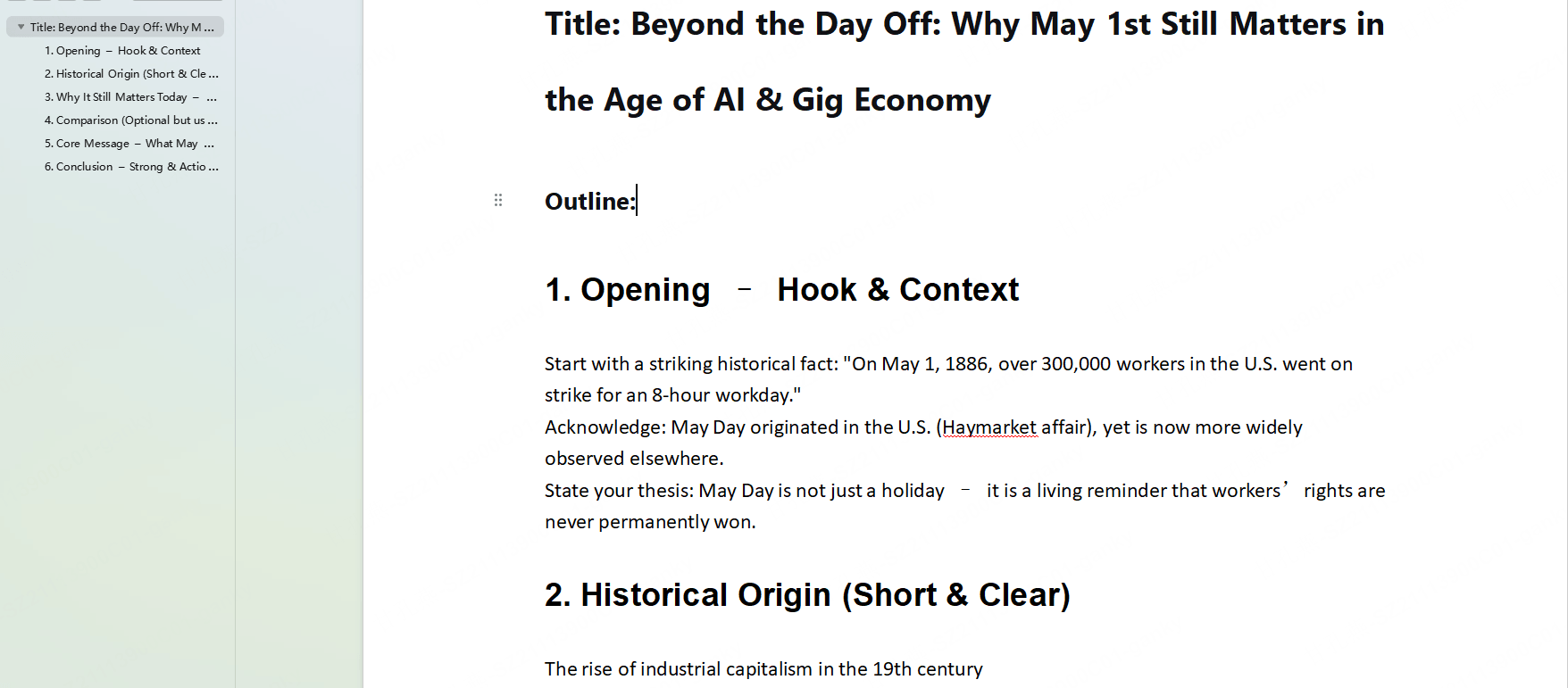
Don’t start in Presenti — start in a notes app or document. Write out what each slide needs to say: your key message, supporting points, and any data you want to include. A rough outline in bullet form is enough. The AI does better work when you give it clear content rather than vague prompts.
Step 2: Paste Your Outline or Upload Your Document
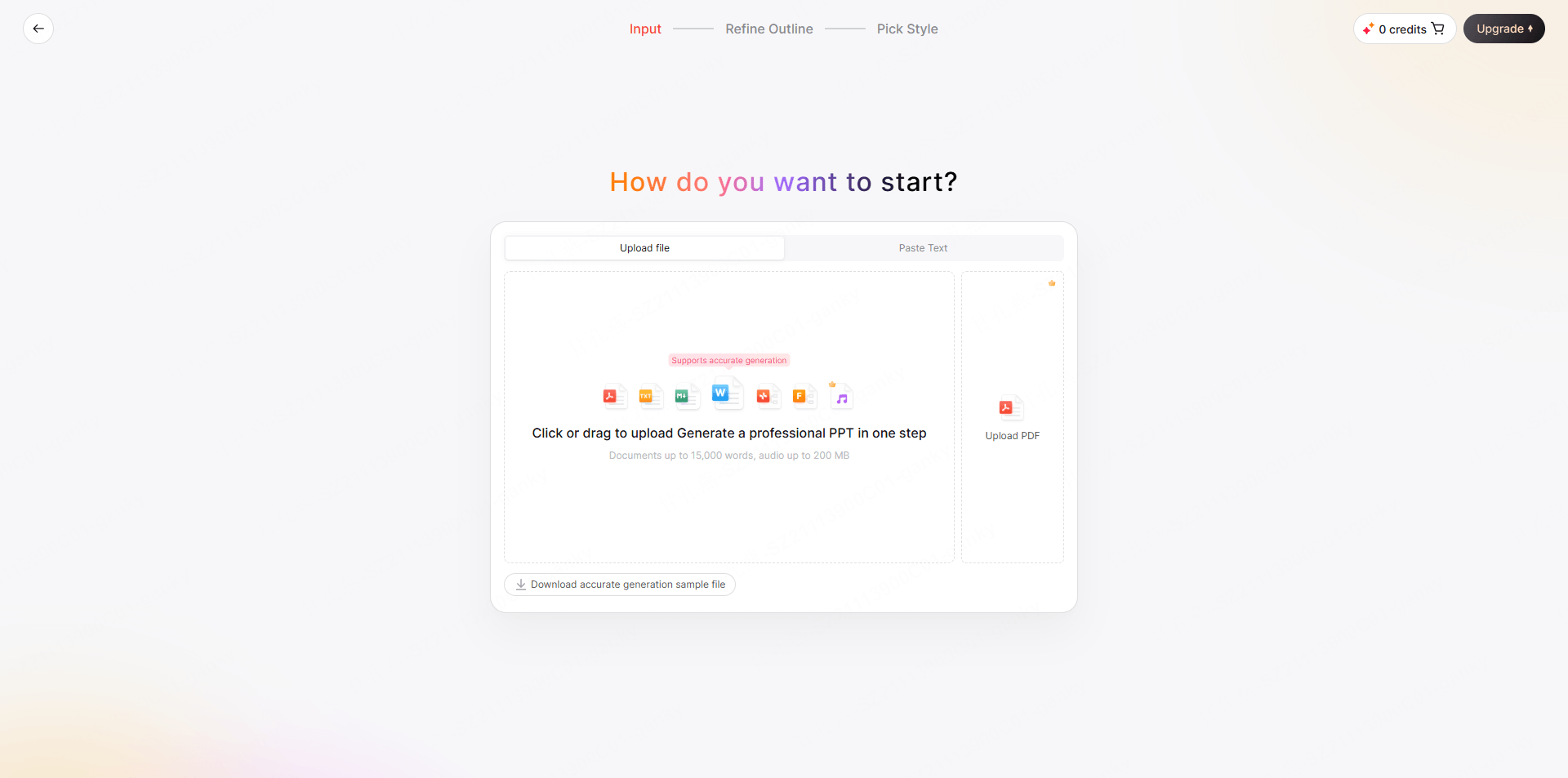
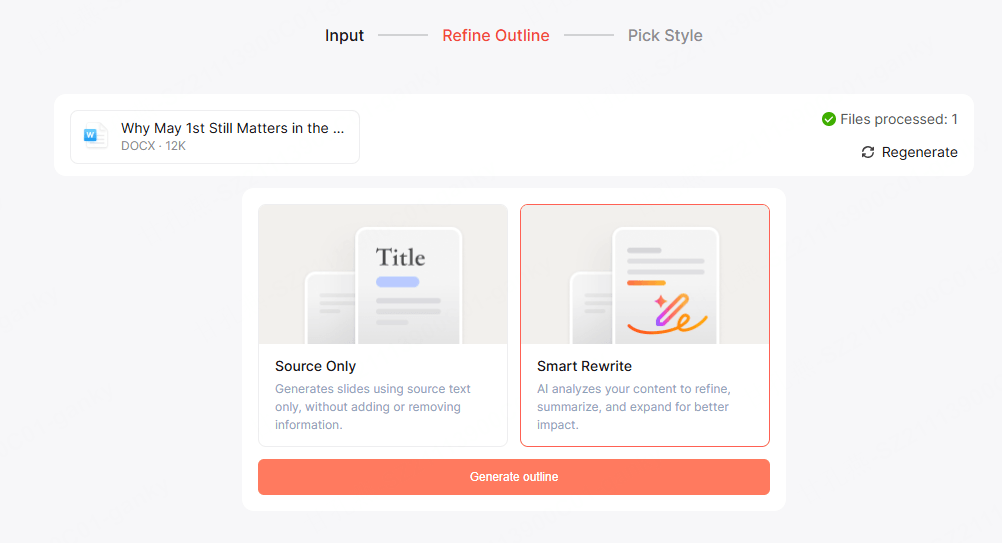
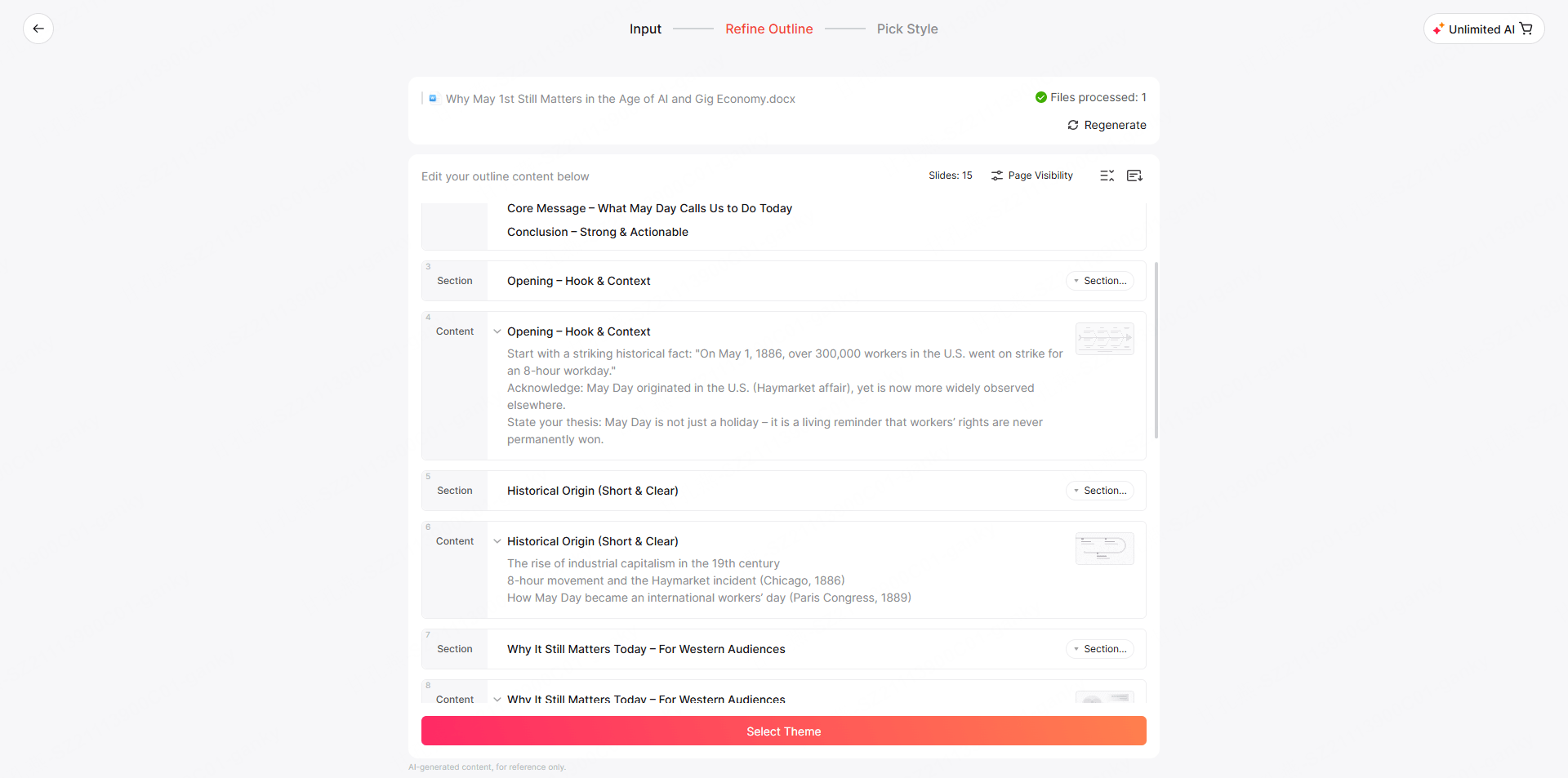
Paste an outline or choose a supported file input. Presenti lists Markdown/XMind input on the free plan and Word/PDF/TXT input on paid plans. Review the generated outline before creating the slides.
Step 3: Choose a Theme That Fits Your Audience
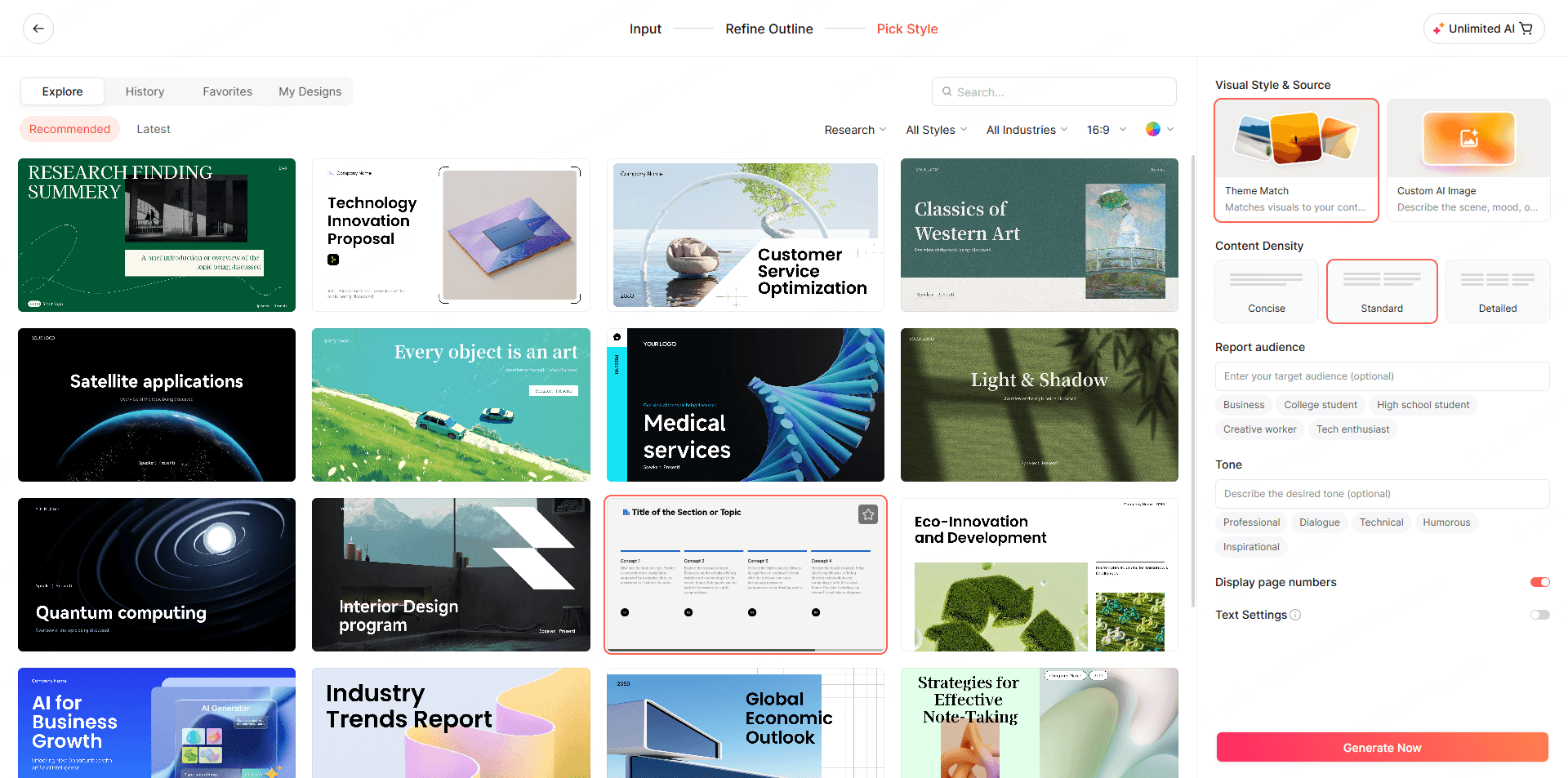
Select from Presenti’s design themes based on your presentation’s context — business, academic, pitch deck, or report. The AI applies your chosen color palette, typography, and layout rules consistently across every slide from the start.
Step 4: Review the Generated Deck
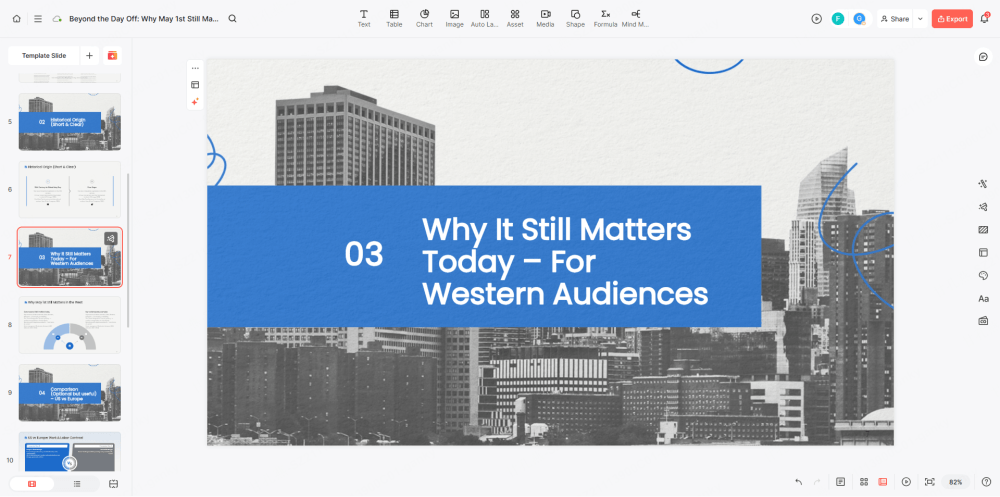
Review the generated deck: check that slide breaks make sense, headings are accurate, and the visual hierarchy reflects your priorities. Correct both the content and layout where needed.
Step 5: Refine and Export
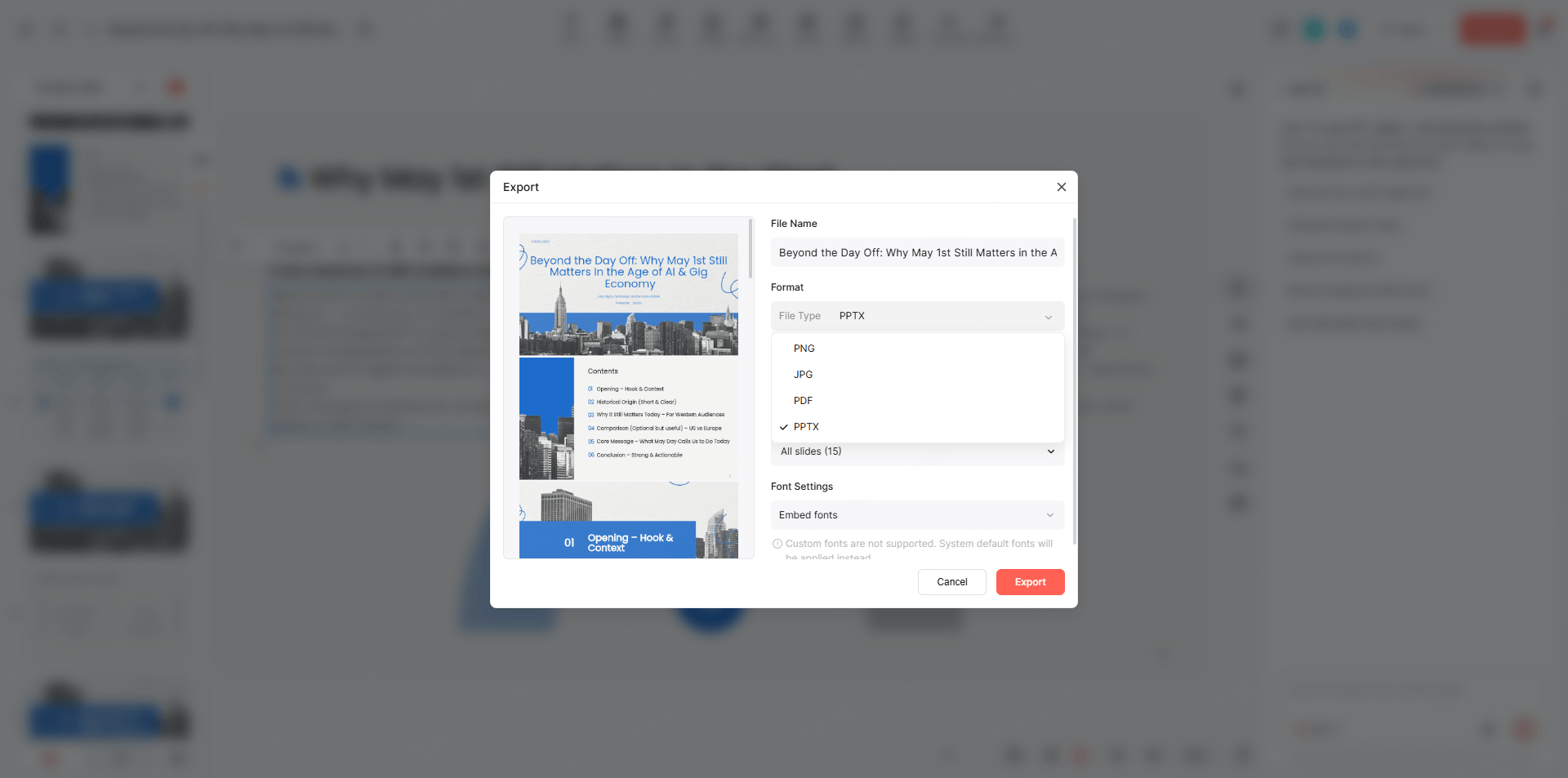
Edit the text, replace unsuitable images, and adjust individual slides in Presenti. Paid plans list editable PowerPoint and PDF exports; open the exported file to check fonts, visuals, and spacing.
Frequently Asked Questions About Clean Presentation Design
Q: How many slides should a presentation have?
There’s no universal rule, but a useful benchmark is one slide per minute of speaking time. A 10-minute presentation works well at 10–12 slides. More important than count is ensuring each slide earns its place with a single clear message.
Q: What’s the best font size for presentation slides?
Body text should be a minimum of 24pt for readability in a room. Headings typically sit between 32–44pt. If your content requires smaller text to fit, that’s a signal to cut content, not shrink the font.
Q: Can I use AI to improve an existing PowerPoint?
Presenti’s slide beautifier accepts PPTX files up to 100 MB. This is distinct from generating a new deck from an outline or document. Check the resulting slide elements and layout after processing.
Q: How do I make a presentation look professional without hiring a designer?
Follow the principles above — one idea per slide, two fonts, three colors, consistent alignment — and use a well-designed starting template or AI tool. Presenti’s AI applies professional design logic automatically, which means even a first draft looks intentional rather than improvised.
Q: Is Presenti free to use?
Presenti has a free plan with limited AI credits and Markdown/XMind input. Paid plans list Word/PDF/TXT input and editable PPTX/PDF export. Choose according to the source and delivery format you need.
Q: What makes a presentation “clean” vs. just “minimal”?
Clean design means every element on a slide has a purpose and is visually organized. Minimal design is a style choice — heavy white space, sparse content. You can have a clean presentation that uses rich visuals and data, as long as everything is structured and consistent. Minimal is a subset of clean, not a synonym. If that sparse style suits the talk, the minimalist presentation design principles explain how to use typography, space, and purposeful motion without discarding useful evidence.
Make Your Next Presentation Work — Not Just Look Good
The gap between a presentation that gets forgotten and one that actually lands has less to do with design talent and more to do with discipline: one message per slide, consistent visual choices, content that respects the audience’s attention.
The practical shortcut in 2026 is using an AI presentation maker to handle the structural and visual work automatically. Presenti turns a text outline into a designed deck in minutes — which means you spend your preparation time on what actually matters: the story you’re telling, the argument you’re making, the decision you want your audience to reach.
Ready to draft and review your next presentation? Try Presenti for free →