You have a report due tomorrow. The content is solid: sitting in a Google Doc, a Word file, or maybe just scattered across your notes app. The problem isn’t the ideas. It’s the two hours ahead of you: picking a template, wrestling with layouts, adjusting fonts, trying to make forty bullets look like ten clean slides.
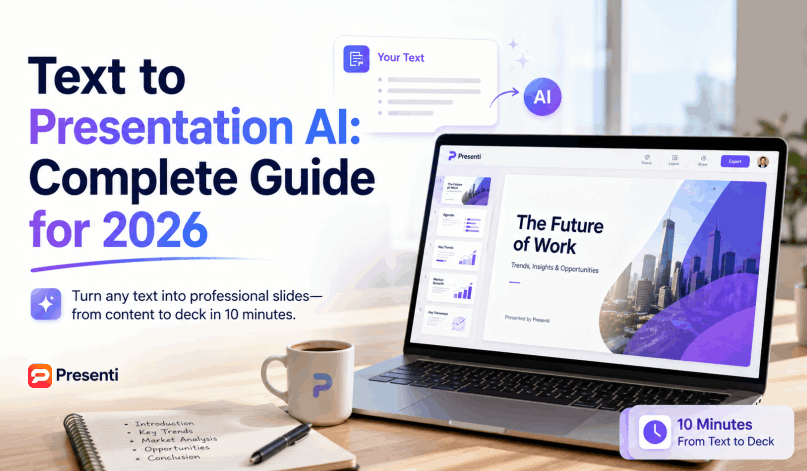
That bottleneck is exactly what text to presentation AI was built to eliminate. Paste in your text, pick a style, and walk away with a structured, designed slide deck in minutes, not hours. This guide covers how the technology works, why it actually saves time, and a step-by-step walkthrough using Presenti to go from raw content to a finished presentation.
What Is Text to Presentation AI?
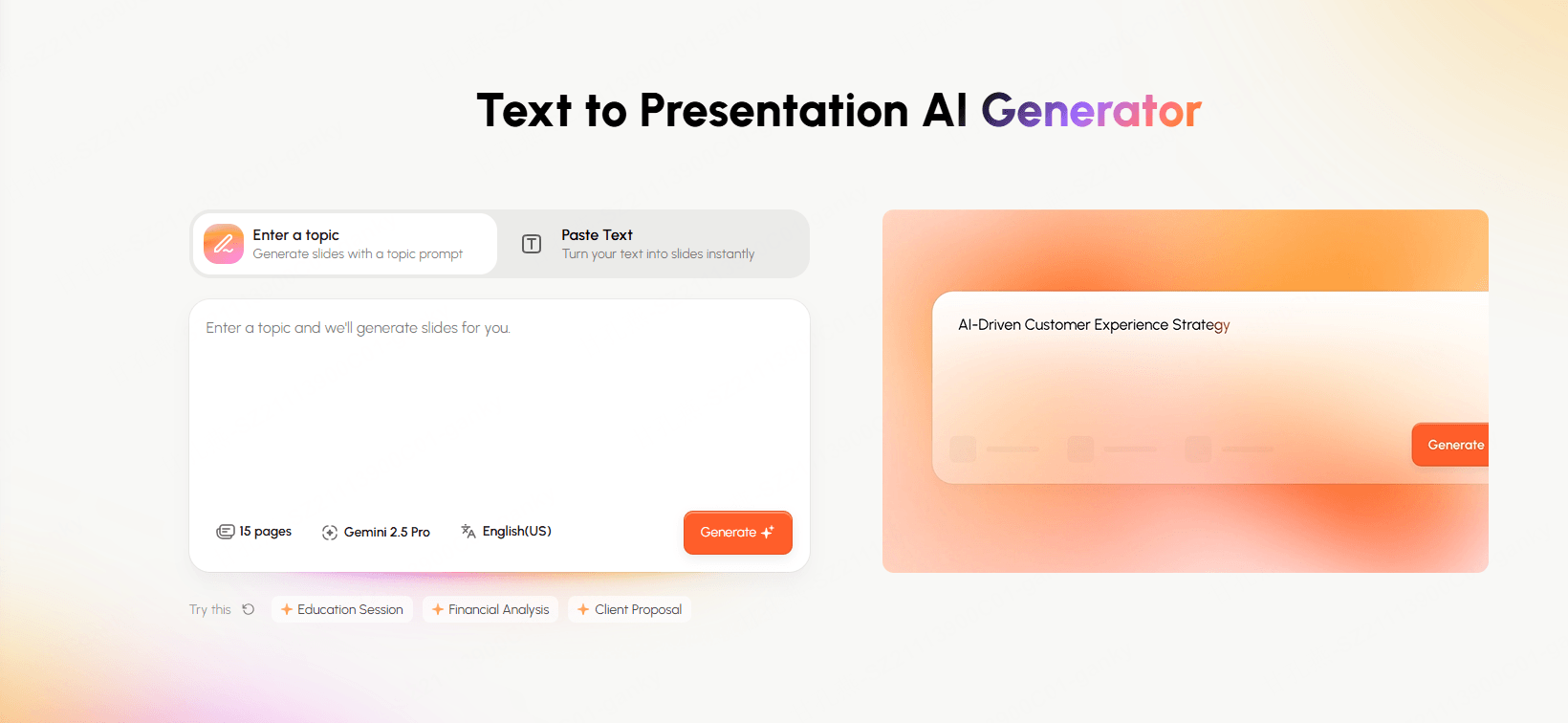
Text to presentation AI refers to tools that take written content, an outline, a document, a set of bullet points, even a rough paragraph, and automatically convert it into a complete slide deck. The AI handles two things simultaneously: content structuring (deciding what goes on each slide) and visual design (choosing layouts, typography, color systems, and spacing).
Traditional AI writing tools help you produce text. A text to PPT AI goes further: it takes that text and renders it into a presentation-ready format, complete with visual hierarchy, slide breaks, and design logic.
The key distinction from template-based tools is that you don’t start with a blank slide and drag things around. You start with content, and the AI builds the presentation around it. Tools like Presenti function as an AI PPT generator from text, the input is language, the output is slides.
Why Convert Text to Slides with AI Instead of Doing It Manually?
The honest answer is time. But there’s more to it than that.
Speed Without Sacrificing Quality
Manual slide-building in PowerPoint or Google Slides demands constant micro-decisions: how wide should this text box be, does this need a second column, should this bullet become a visual? An AI presentation generator eliminates those decisions automatically. Compare the full workflow, including generation, revision, and export checks, to see whether it saves time for your material.
Consistent Design Across Every Slide
One of the biggest failure modes in DIY presentations is inconsistency — font sizes that drift, margins that don’t match, colors that wander. When you use a text to PPT tool, the design system applies uniformly from slide one to the last. Every heading is the same size. Every margin is identical. The deck looks like someone actually designed it.
Lower Barrier for Non-Designers
Most people creating presentations aren’t designers. They’re analysts, managers, researchers, and students who need slides to communicate ideas, not to demonstrate layout skills. Text to PowerPoint AI lets non-designers produce results that look intentional and professional without learning design principles.
Easy Iteration
When your content changes — and it always does — regenerating or editing AI-built slides is faster than manually reformatting. Update the input, regenerate, done.
How to Use Presenti: A Complete Text-to-Slides Workflow
Presenti is built specifically for the text to presentation AI use case. It takes your content and applies professional design logic automatically. Here’s exactly how the workflow runs from start to finish.
Step 1: Prepare Your Text Content
Before opening Presenti, spend five minutes organizing what you actually want to say.
You don’t need a finished document. A rough outline works well. Here is an illustrative example; replace its figures with your own verified data:
Introduction: Q2 revenue overview
- Total revenue: $4.2M (+18% YoY)
- Top performing region: APAC
Key Challenges
- Supply chain delays (Q2 impact: -$340K)
- Increased CAC in North America
Recommendations
- Expand APAC team by Q3
- Test new acquisition channels in NA
The clearer your structure, the better the AI can identify natural slide breaks. If you already have a Word document or a detailed brief, that works too, and Presenti can accept document uploads directly.
💡 Pro tip: Use headings or numbered sections to signal slide boundaries. The AI reads structural cues to determine where one slide ends and the next begins.
Step 2: Input Your Content into Presenti
Open Presenti and start a new project. You have two options:
- Paste text directly into the input field: works well for outlines, bullet lists, or short briefs
- Upload a document (Word, PDF, or Markdown file): Presenti parses the structure automatically
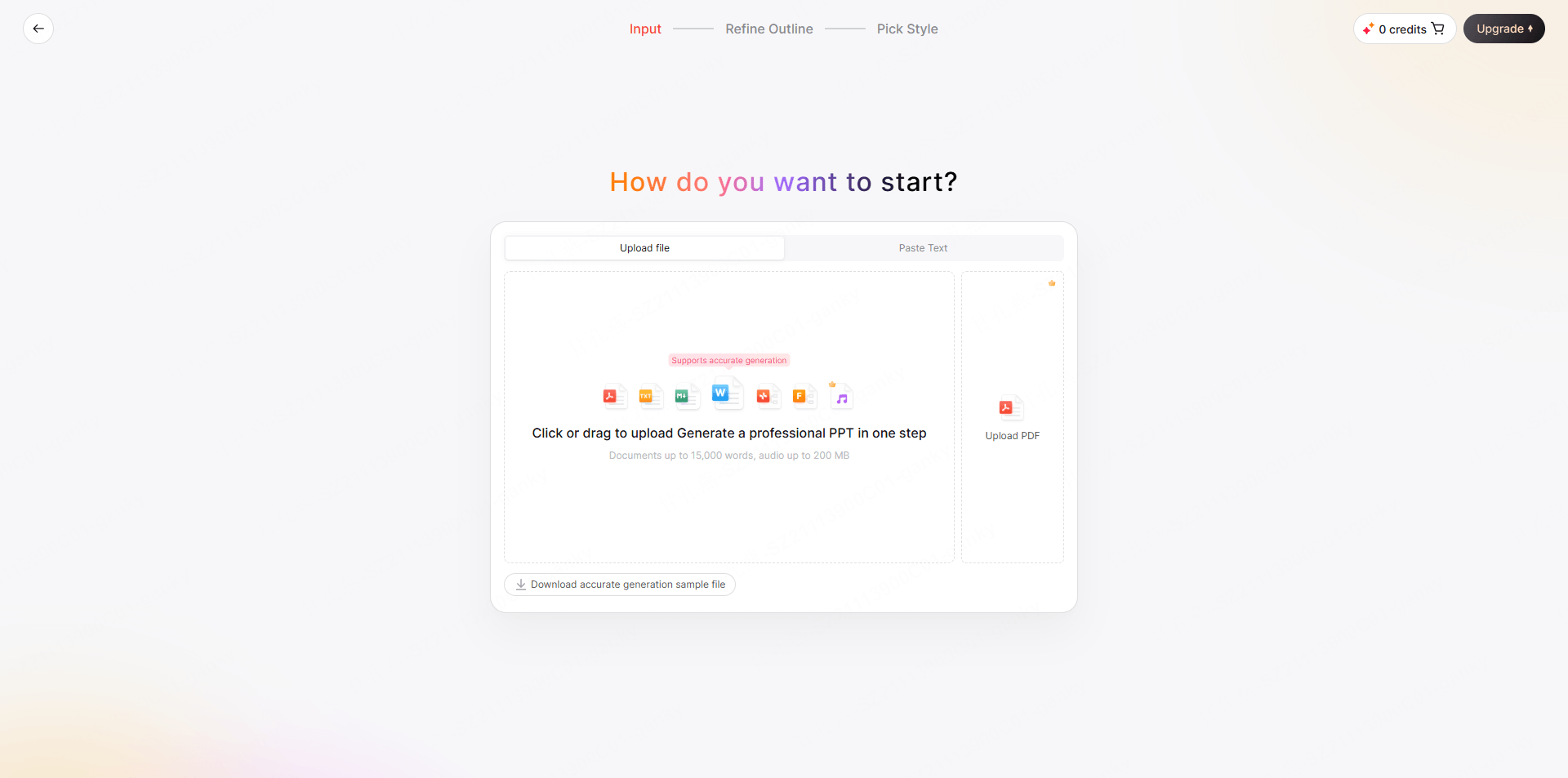
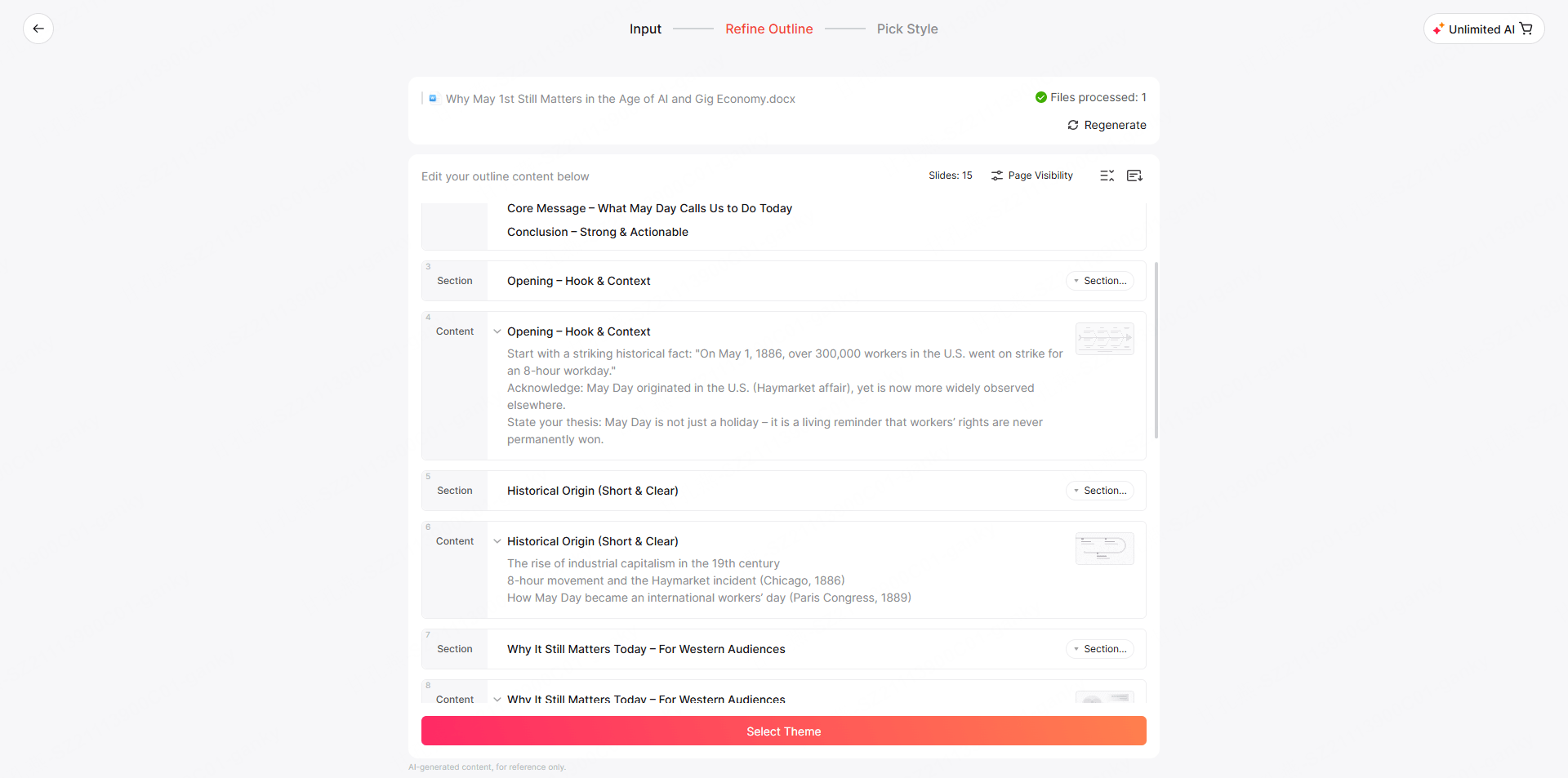
Once your content is in, Presenti scans the structure: it identifies headings, sub-points, and logical groupings that map to individual slides. You’ll see a preview of how the AI has interpreted your content before any design is applied.
Step 3: Choose a Theme
Next, select a design theme that fits your presentation’s context.
Presenti offers themes across several categories:
- Business: clean, structured, suited for reports and internal decks
- Pitch Deck: bold, high-contrast, optimized for investor or client presentations
- Academic: minimal, legible, appropriate for research and educational settings
- Marketing: visually rich, dynamic, designed for campaign proposals and brand work
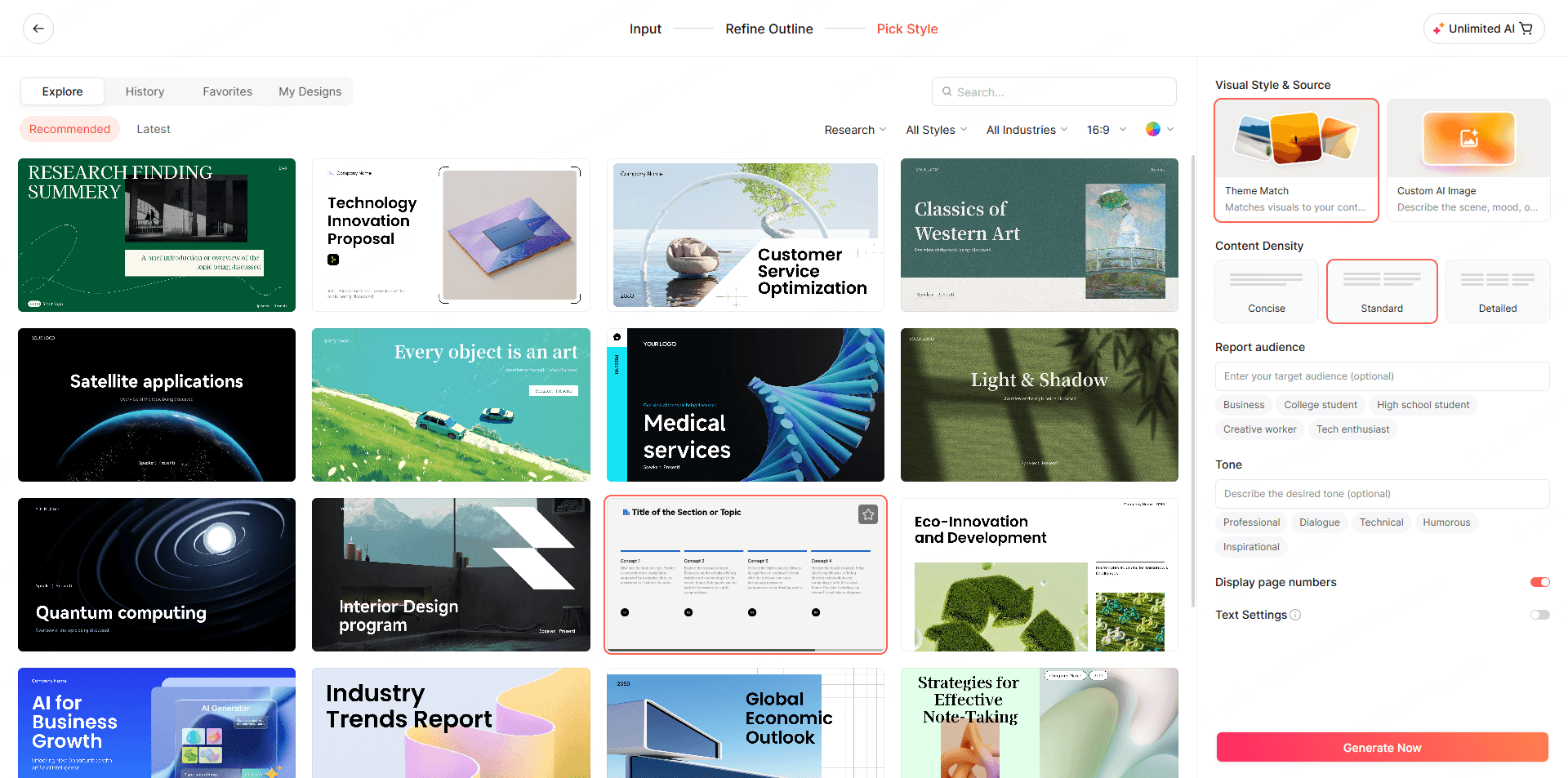
Your theme choice determines the color palette, font pairing, slide background style, and layout templates the AI will apply. You can change it later, but picking the right category upfront gives you a cleaner first draft.
Step 4: Let the AI Generate Your Slides
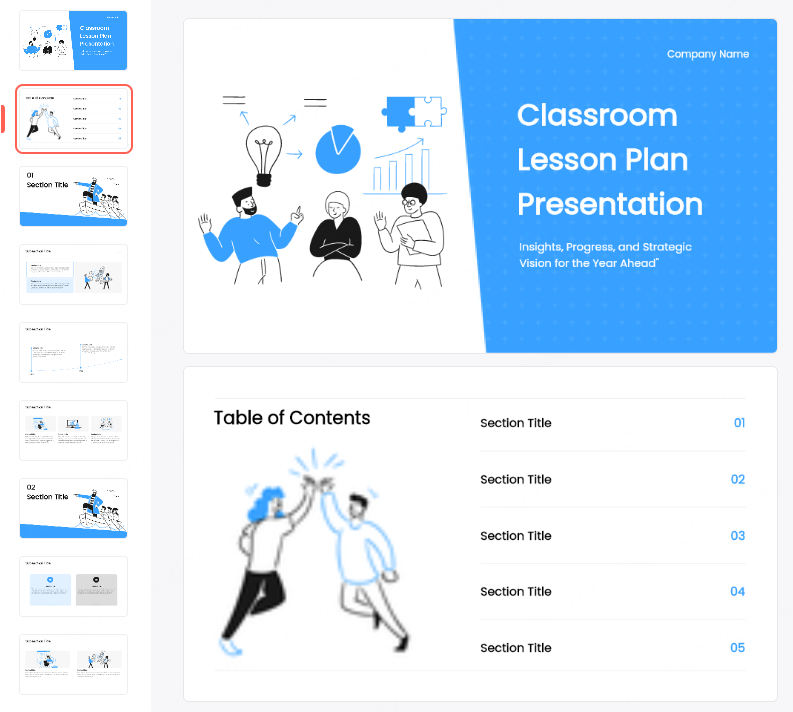
Click generate. Presenti’s AI runs through your content, maps it to slide structures, applies the design system, and produces a complete deck for you to review.
What comes out is a fully designed presentation:
- Each major section becomes its own slide or slide group
- Key data points get visual emphasis (callout boxes, large-number treatments)
- Lists are formatted as structured layouts rather than raw bullet dumps
- Slide headers and body text follow a clear visual hierarchy
Review the generated slides against the source outline before continuing.
This is your working draft. The editing needed depends on the source, the subject, and the presentation requirements.
Step 5: Edit, Refine, and Export
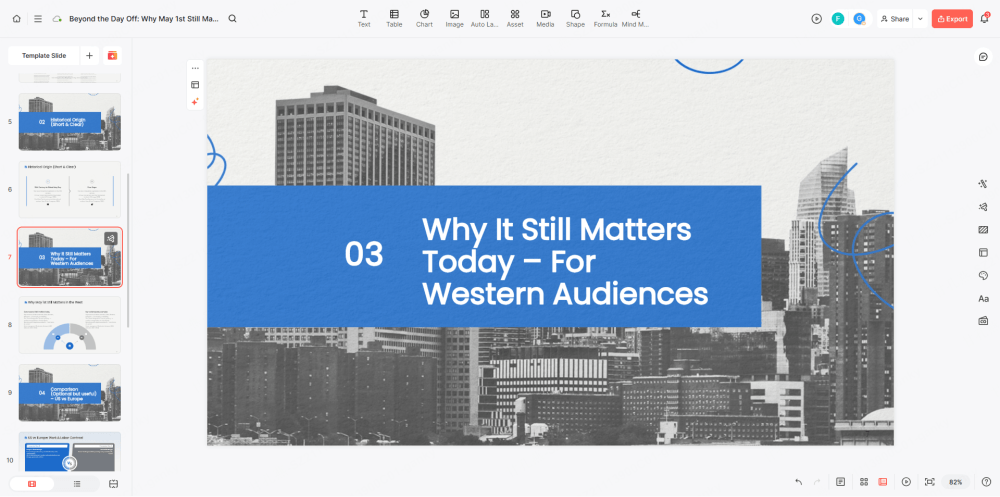
Review the generated deck slide by slide. Presenti’s editor lets you:
- Edit any text directly on the slide
- Swap layout variants for individual slides
- Replace placeholder images with your own visuals
- Reorder slides by dragging
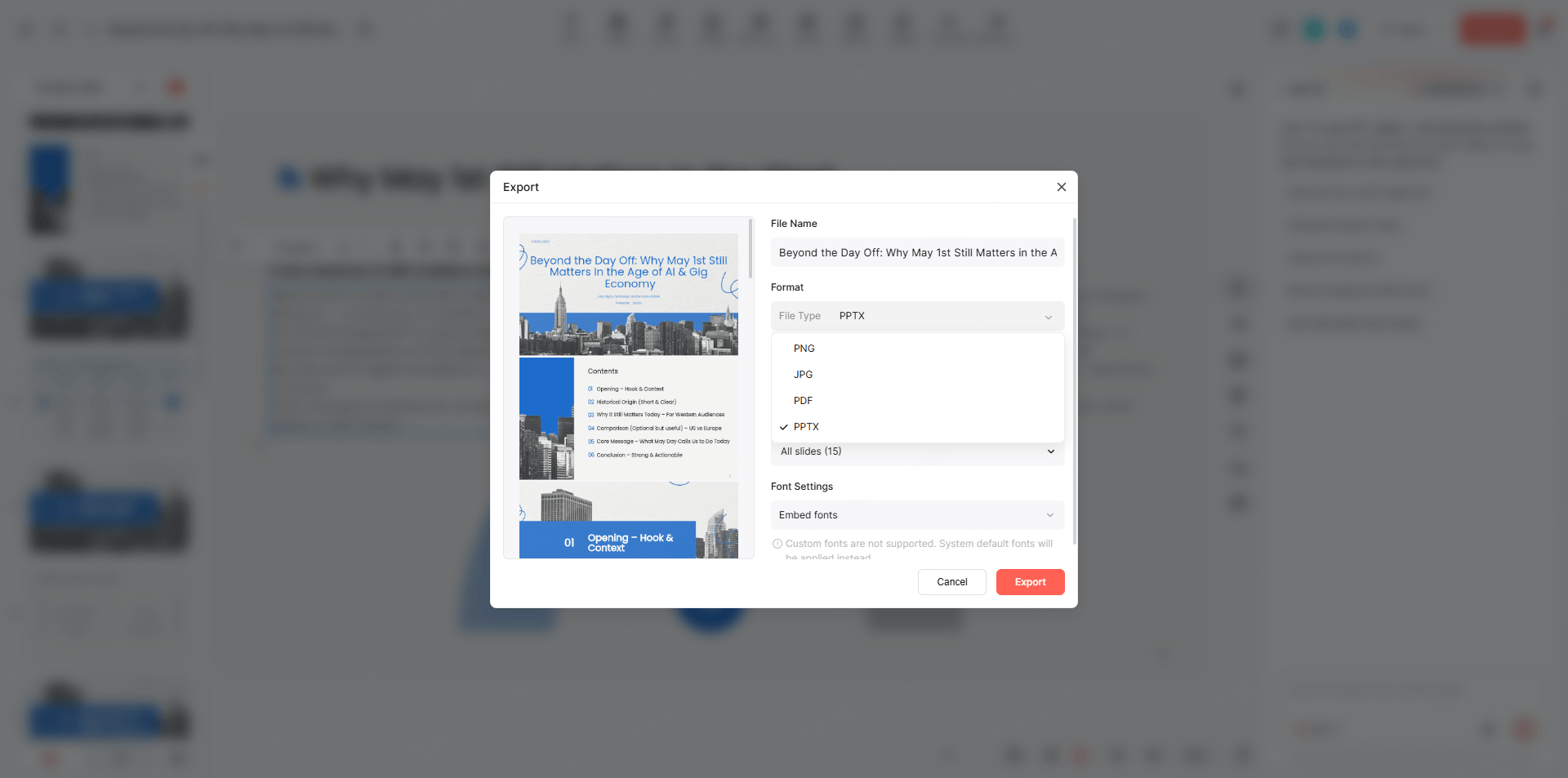
When you’re satisfied, export the deck:
- PowerPoint (.pptx): Fully editable in Microsoft PowerPoint
- PDF: For sharing or printing
- Present online: Share a link directly from Presenti
Allow time to review the content and open the exported deck in the software you will use to present.
Real-World Use Cases for Text to Presentation AI
Understanding where this workflow fits best helps you get the most value from it.
Business Reporting and Internal Briefings
Monthly reports, project updates, and team briefings often involve dense written content that needs to become slides fast. Drop the report summary into Presenti, and the AI structures it into an executive-ready deck without any manual formatting.
Sales and Marketing Proposals
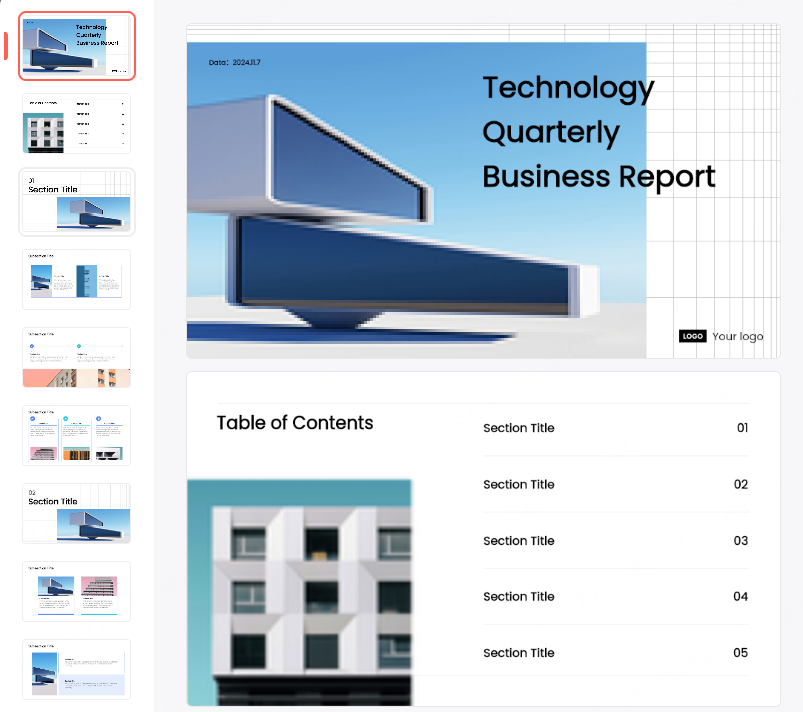
A well-written proposal document already contains everything a great presentation needs — the AI just transforms the format. Presenti’s pitch deck theme handles the visual treatment while you focus on the substance of the deal.
Academic Presentations and Research Summaries
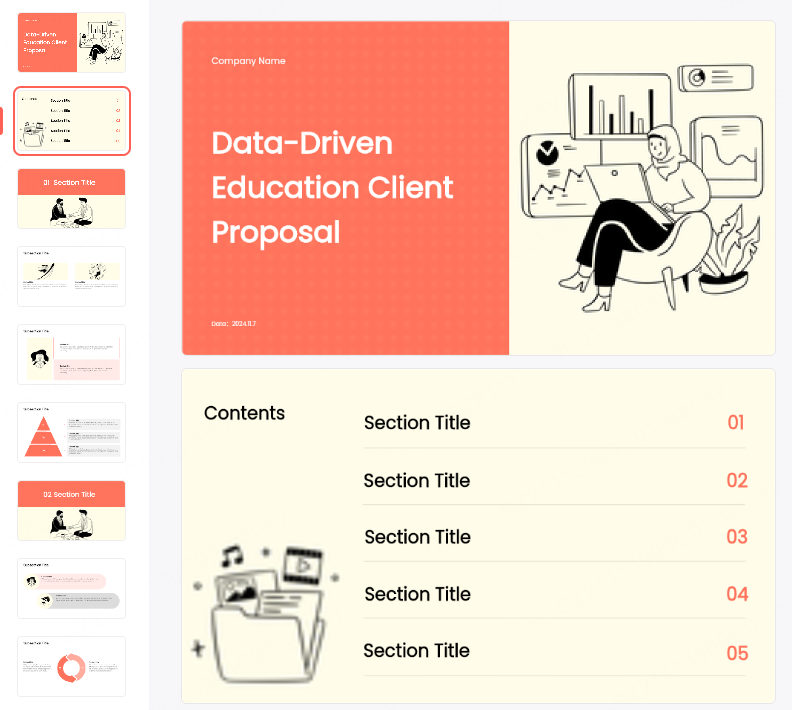
Researchers and students frequently need to translate paper abstracts, literature reviews, or project reports into conference or classroom presentations. The AI PPT generator from text workflow makes this conversion direct: structured text in, clean slides out.
Client Onboarding and Training Materials
Onboarding documents and training guides are natural candidates for text to PPT conversion. Presenti preserves the logical structure of step-by-step content and formats it as clear, readable slide sequences.
Meeting Preparation
If you’re preparing to walk a team through a document or brief, running it through Presenti gives you a visual aid without the presentation prep overhead. You stay focused on the thinking; the AI handles the slide production.
Frequently Asked Questions
Q: What types of text work best as input for a text to presentation AI tool?
Structured content performs best — outlines with clear headings, documents with defined sections, or bullet-point briefs. Conversational or essay-style text works too, but the AI may need to make more interpretive decisions about slide breaks. Adding light structure (headers, numbered points) to your input always improves output quality.
Q: How long does it take to go from text to finished slides with Presenti?
Timing depends on the source length, service conditions, and the revisions required. Measure the whole workflow rather than generation time alone.
Q: Can I use an existing Word document or PDF instead of pasting text?
Yes. Presenti supports direct document uploads (Word, PDF, Markdown). The AI parses the document structure automatically and uses it to determine slide organization.
Q: Is Presenti free to use?
Presenti offers limited free AI credits and lists Markdown/XMind input for free access. Paid plans list Word/PDF/TXT input and editable PPTX/PDF exports. Choose according to the input and deliverable you need.
Q: Can I edit the AI-generated slides after they’re created?
Fully. Every element in the generated deck — text, layout, images, ordering — is editable in Presenti’s built-in editor before export. The AI output is a starting point, not a locked result.
Q: How is Presenti different from just using ChatGPT to write slide content?
A writing assistant can help develop the argument and wording, while a presentation editor provides the slide layout and file-handoff workflow. Capabilities vary by tool and account. They complement each other: you might use ChatGPT to draft your content, then use Presenti as the text to PPT AI layer that turns that content into an actual deck.
Stop Formatting. Start Presenting.
The gap between having content and having a presentation used to be measured in hours. With text to presentation AI, it’s measured in minutes.
Presenti’s AI PPT generator takes your text — however rough, however dense — and applies the structural logic and design thinking that used to require either significant time or significant design skill. The result is a professional slide deck that reflects your content, not just your layout patience.
Try Presenti for free and use your next document as the starting point for a presentation draft. → Start for free at presenti.ai