If your presentation needs one more slide and the content is already in Markdown, you can paste a focused section into Presenti’s single-slide creation workflow. Headings and bullets give the draft a starting structure. This update explains the input options, shows two examples, and covers what to review after insertion.

![[Updates] Add a New Slide to Any Presentation Using Markdown](https://presenti.ai/assets/markdown-slide-cover_18a995fa1f0cc1399a29.png)
Three Ways to Add a New Slide with AI
When your presentation is already generated and you need to insert one more slide, Presenti gives you three distinct input methods to generate a slide with AI. Each suits a different kind of source material.
| Method | Input | What AI Does | Best For |
|---|---|---|---|
| Slide Title | A short title or phrase | Generates content from scratch based on the title | When you have a topic but no content yet |
| Extract Text | Long context up to 1000 characters | Extracts relevant content and generates the slide | When you have some source material |
| Paste Markdown (new) | Markdown-formatted text | Parses structure and generates one structured slide | When content is already written in Markdown |
The Markdown method is the newest of the three. It closes a real gap: users whose content already lives in Markdown had no direct path into the slide without losing structure first. Now they do.
How Markdown Input Works for a Single Slide
When you select the Markdown input option and paste your content, Presenti AI reads the document structure — not just the text. The following elements are parsed and respected:
#headings → become the slide title##subheadings → become section headers within the slide- Bullet lists (
-) → render as bullet points
The output is one slide, not a new presentation. This is not Presenti’s existing Markdown-to-full-deck feature, which generates an entire new presentation from a .md file. This feature inserts a single structured slide at the position you choose within your existing deck.
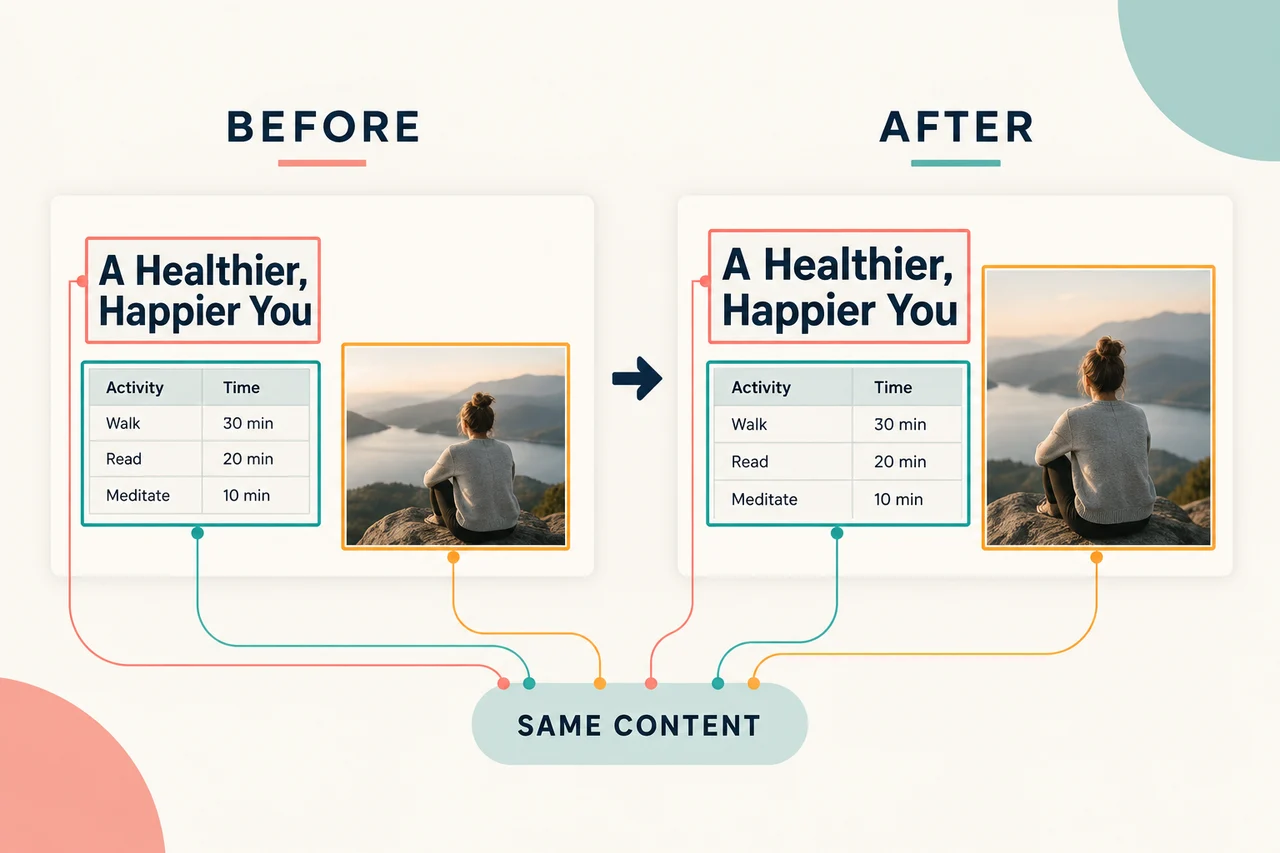
The new slide uses the deck’s active theme as a starting point. Check its text size, spacing, and visual balance alongside the neighboring slides.
Why Markdown Input Is Better Than Plain Text for This Job
When you paste plain text into a slide creator, the AI is guessing. It tries to infer what is a heading, what is a bullet, what belongs together. Sometimes it guesses correctly. Often it does not — particularly with technical content that has explicit hierarchy but none of Markdown’s structural signals.
Markdown supplies explicit structural cues. Use a main heading for the slide’s topic, subheadings for sections, and bullets for supporting points. Complex syntax may be simplified, so inspect the result instead of assuming every element will render exactly as it does in a Markdown editor.
Copy the relevant Markdown source from your notes or README and keep it focused on one slide. After generation, compare the title, section order, and key details with the pasted text.
Who Benefits Most from This Feature
Developers adding a technical slide to a business deck. You have an API overview or architecture summary in a README. The business presentation needs one technical slide to explain the system. Paste the relevant Markdown section — the heading becomes the slide title, the bullets become the content, and the deck theme is applied automatically.
Technical writers who maintain docs in Markdown. Your documentation lives in .md files. A stakeholder asks you to add a new spec slide to an existing deck. Instead of reformatting the spec for a slide editor, you paste the relevant section and the slide is generated.
Researchers inserting a finding from Markdown notes. Your field notes, literature review, or analysis live in Markdown. When an existing presentation needs a new slide for a specific finding, pull the relevant section and paste it directly — structure intact.
Content strategists updating a deck from Notion or GitHub. Both Notion and GitHub export or render Markdown natively. If your content workflow runs through either, you now have a direct path from draft to slide without a reformatting step in between.
Step-by-Step: Adding a Markdown Slide to an Existing Presentation
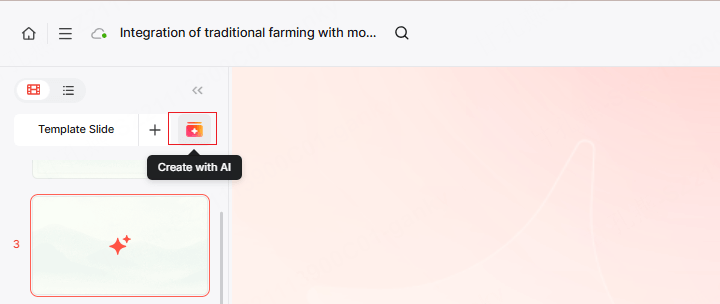
- Open your existing presentation in Presenti AI. Navigate to the deck where you want to insert the new slide.
- Choose the insertion position and click “Create with AI”. You can place it between any two existing slides or at the end of the deck.
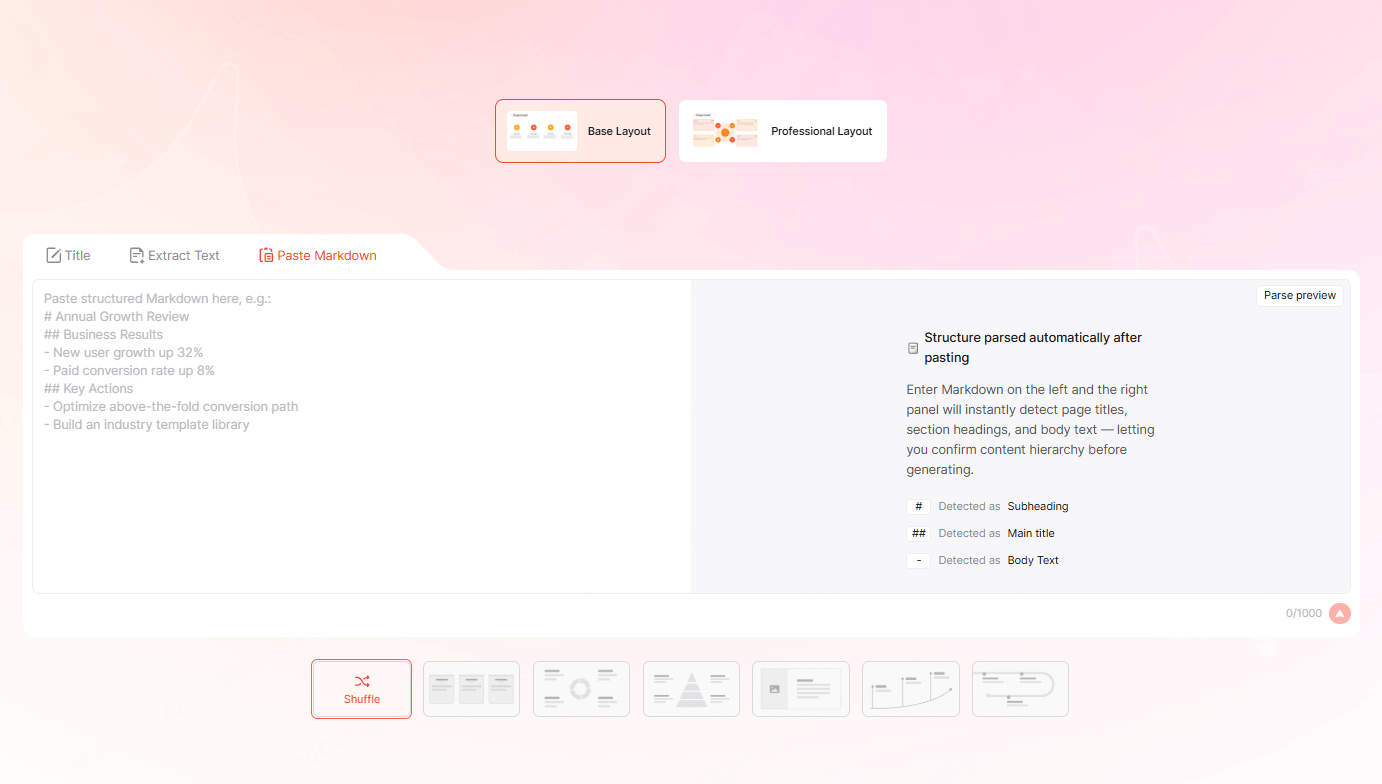
- Select “Paste Markdown” as the input method. The slide creation panel shows three input options — choose Markdown from the list.
- Paste your Markdown content into the input field. Use a heading and short bullet lists. Review the preview on the right before generating.
- Click the Send icon to generate the slide. The generated slide appears in your deck — formatted according to the Markdown hierarchy and styled to match your existing design theme.
Practical Markdown Snippet Examples
Two examples of content to paste and the slide structure to look for.
Example 1: Heading + three bullets → clean bullet-list slide
# Authentication Overview
- OAuth 2.0 used for all external API access
- JWT tokens expire after 15 minutes
- Refresh tokens stored server-side, never in the client
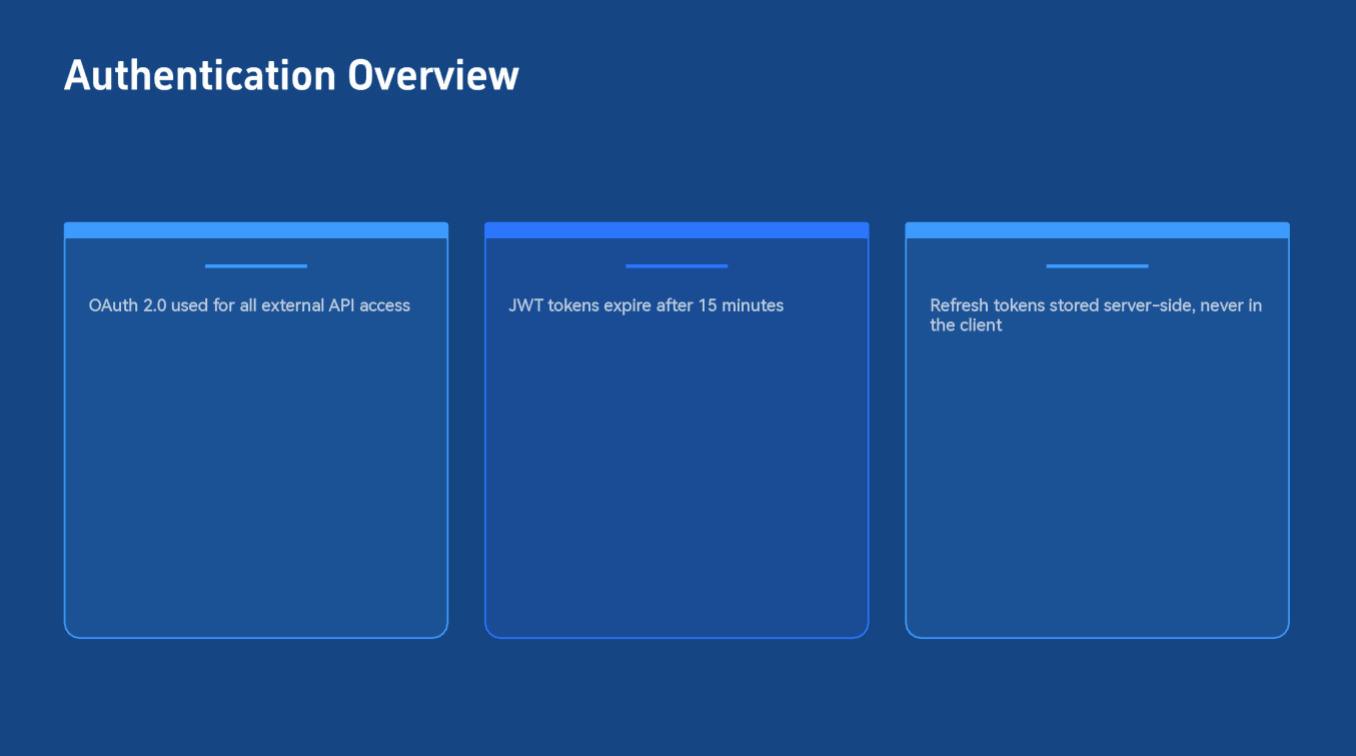
This produces a clean, single-focus bullet-list slide: the # heading becomes the slide title, and the three bullets are laid out as body content in the deck’s active style.
Example 2: Heading + two subheadings with bullet lists → two-section hierarchical slide
# Deployment Architecture
## Production Environment
- AWS us-east-1, auto-scaling group
- Blue-green deployment via CodePipeline
## Staging Environment
- Single EC2 instance, manually triggered deploys
- Mirrors production config, reduced capacity
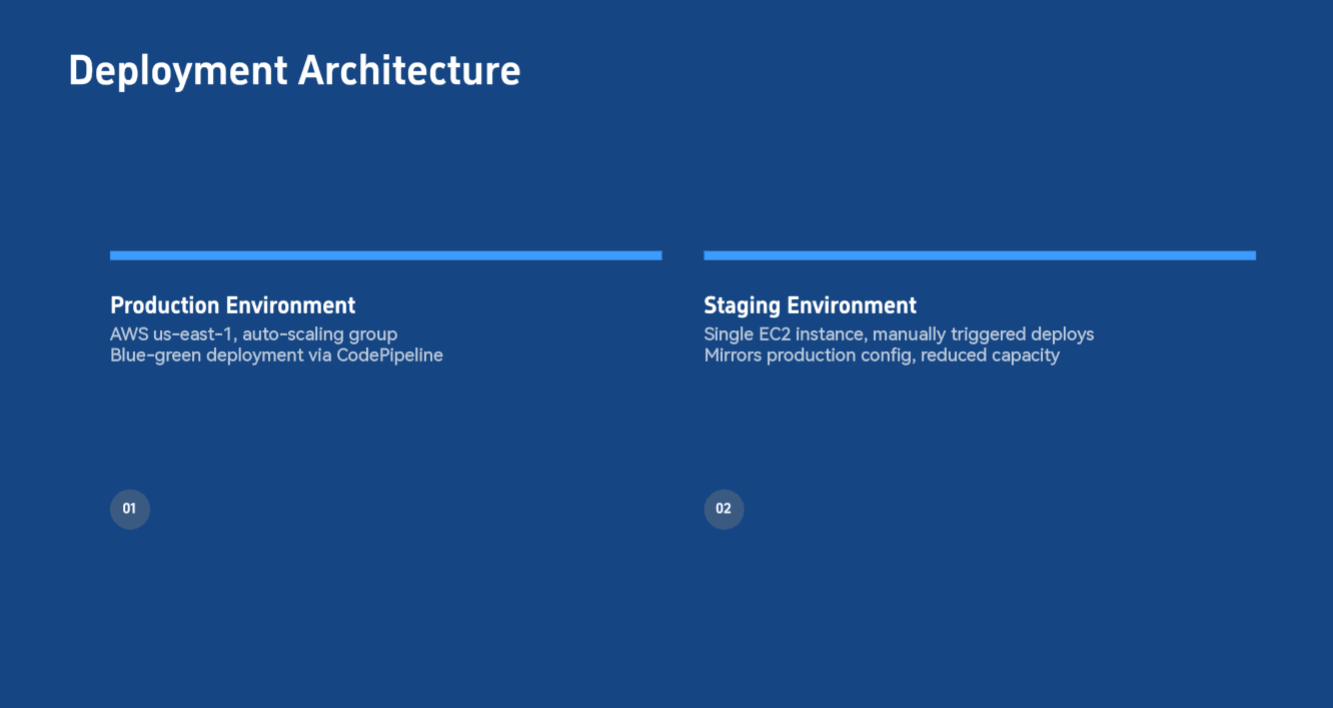
This produces a structured slide with two distinct sections: the ## subheadings render as section headers, the bullets fall under each, and Presenti selects a two-column or hierarchical layout to match the content structure.
What Stays Consistent When You Insert a Slide This Way
Review these parts of the new slide’s theme:
- Typography — same font family, size ratios, and weight hierarchy as every other slide
- Color scheme — heading and body colors drawn from the deck’s active theme
- Layout system — Presenti selects a layout consistent with the deck’s design language
Review the inserted slide in context. Shorten text that becomes too small, check that each subheading still groups the correct bullets, and adjust the layout if the new slide feels crowded.
Get Started
The Markdown input method for single-slide insertion is available now in Presenti AI. Open any existing presentation, click “Add New Slide,” and select the Markdown option.
Try Presenti AI free — no credit card required on the free plan.
If you work extensively with Markdown and want to understand the full range of what Presenti can do with it — including generating entire presentations from .md files — see our full Markdown to presentation guide. For more feature updates and practical workflows, visit the Presenti blog.
Frequently Asked Questions
Does pasting Markdown create a whole new presentation or just one slide?
Just one slide. This feature is specifically for inserting a single slide into an existing presentation. It is distinct from Presenti’s Markdown-to-full-deck feature, which generates an entire new presentation from a Markdown file. The output here is always one slide, inserted at the position you select.
What Markdown syntax should I use?
Start with headings and bullet lists, as shown in the examples. Do not assume support for every CommonMark extension, embedded HTML element, or complex table; inspect how the selected content is represented.
Will the new slide visually match the rest of my presentation?
The draft uses the active theme. Review text size, spacing, and contrast alongside the surrounding slides and make any necessary adjustments.
Can I paste content from a GitHub README or a Notion page?
Copy a focused section of Markdown source or a Markdown export. Check headings, bullets, and any complex content after generation rather than assuming every source element transfers unchanged.
What happens if my Markdown content is too long for one slide?
Presenti generates one slide and fits the content to it. If the input is very dense, the AI may condense or prioritize key points to maintain readability at slide scale. For best results, paste content that corresponds to one focused idea — roughly equivalent to what you would put on a single slide manually.
Conclusion
The ability to add a new slide to an existing presentation directly from Markdown content removes a friction point that anyone who writes in Markdown has encountered. Your content already has structure. It already has hierarchy. It should not need to be stripped and rebuilt before it can become a slide.
Paste one focused idea, generate the slide, then check the hierarchy and layout in context. Keep longer source material for the full-deck workflow.