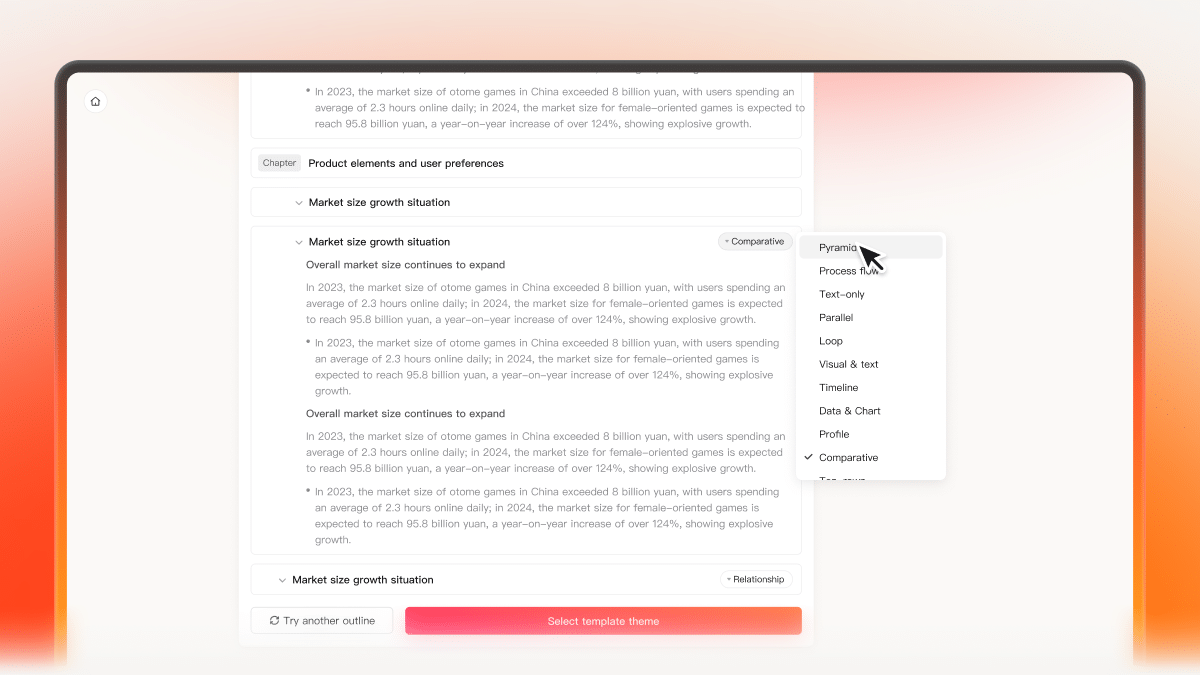
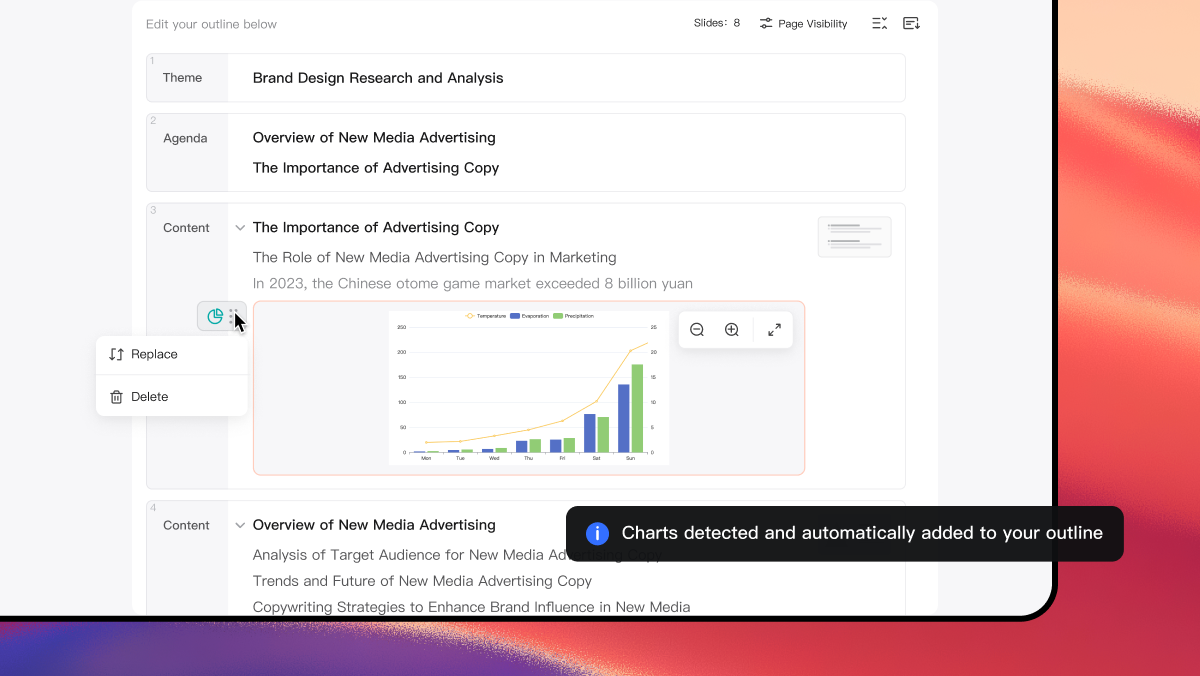
Building a presentation usually starts with a blank slide. But that is often where the problem begins. If you start designing slides before deciding what the presentation should actually say, structural problems become much harder to fix later. A missing section, an overly long introduction, or a weak narrative flow can mean rearranging and rewriting multiple slides after the design work has already started.
A better workflow starts with the presentation outline. With Presenti AI, you can create an AI presentation outline first, review the complete structure, and now refine that outline directly through AI conversation before moving on to slide design. The Presenti product update archive provides context for this release and links to other feature announcements.
Why Start with an AI Presentation Outline?
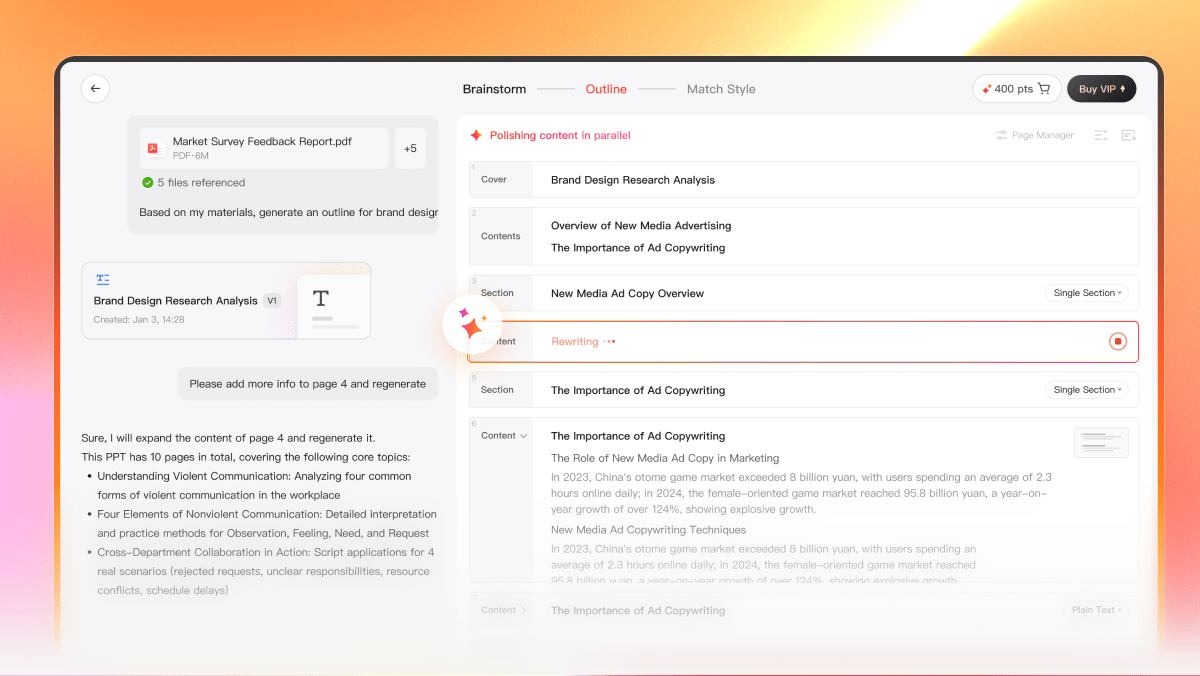
A presentation is more than a collection of slides. It is a sequence of ideas. Before thinking about layouts, images, charts, or animations, you need to decide:
- What should the presentation cover?
- Which sections should come first?
- How much attention should each topic receive?
- Which points deserve their own slides?
- What should the audience understand or do at the end?
These are outline decisions. Some AI presentation workflows move quickly from a prompt to a finished deck. That can save time, but it also means you may not have a chance to review the structure before slide generation begins. An AI-generated outline gives you that review stage.
You can see the narrative before committing to the design, identify gaps early, and adjust the presentation while the content is still easy to restructure. That is why Presenti separates the workflow into stages such as Input, Refine Outline, and Pick Style. The outline becomes the bridge between your original idea and the finished presentation.
How to Create a Presentation Outline with Presenti AI
Presenti works as an AI outline generator for presentations. Start by providing the content or topic you want to turn into a presentation. Depending on your workflow, that may include a topic, prompt, notes, or source material.
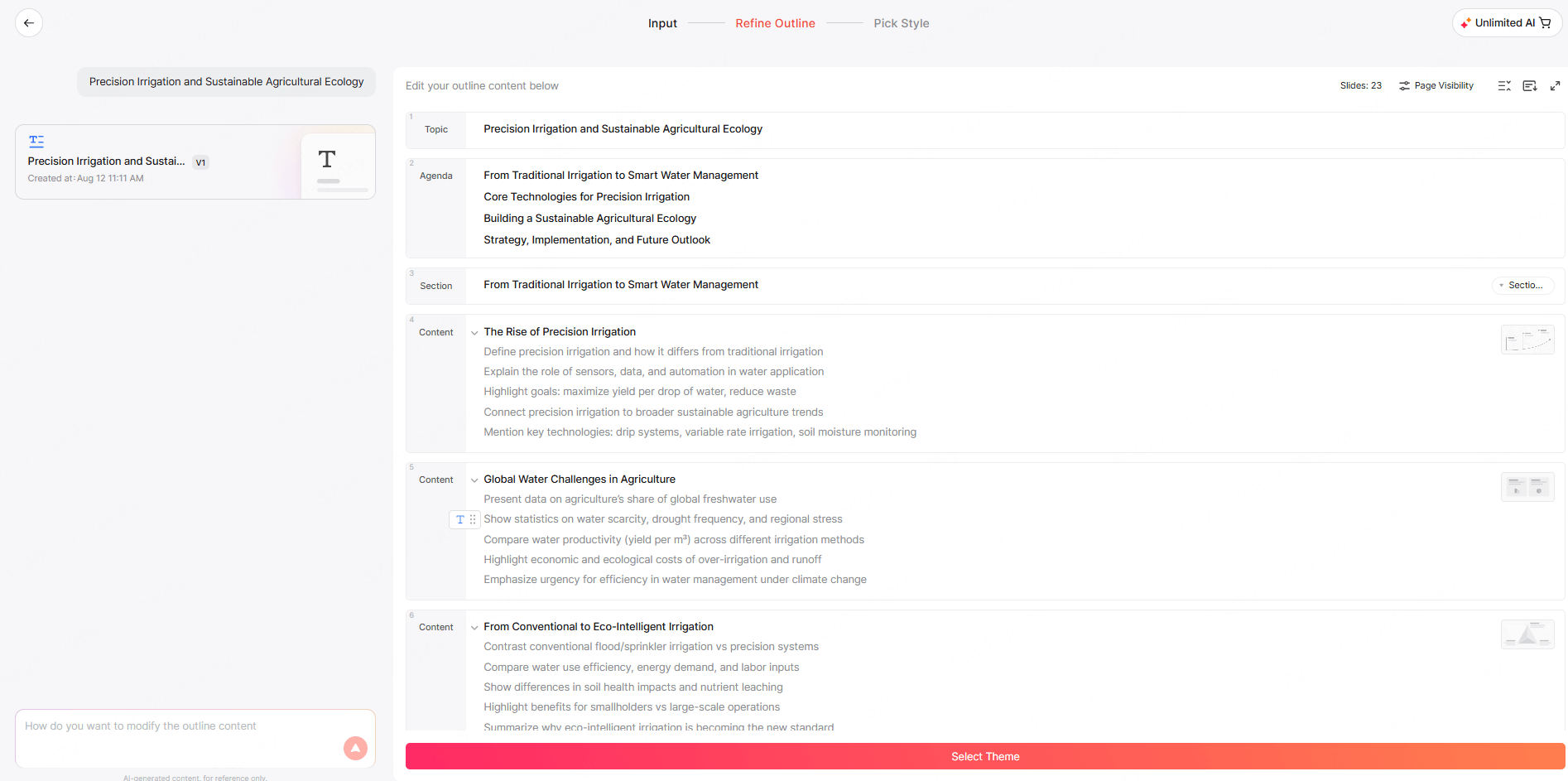
Presenti then organizes the information into a structured presentation outline. Instead of immediately designing every slide, you can review the generated structure first.
A typical outline can include:
- Presentation topic — the overall subject of the deck
- Agenda — the major ideas or chapters
- Sections — the main parts of the presentation
- Content pages — individual topics within each section
- Supporting points — the ideas each page should communicate
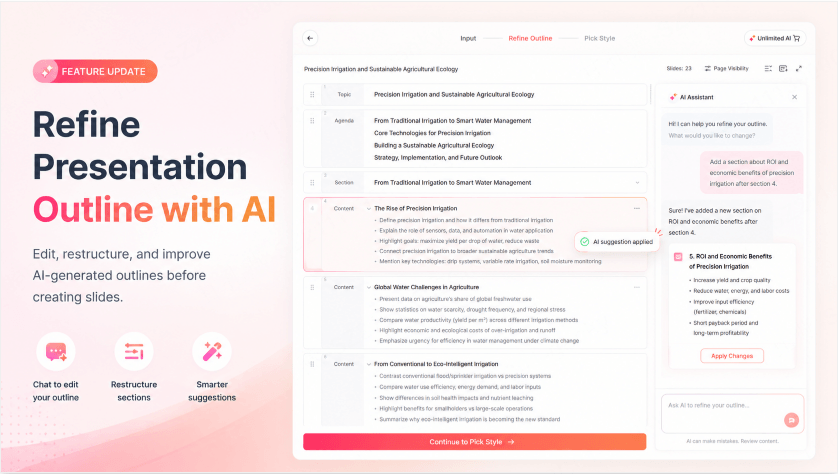
For example, if you want to create a presentation about precision irrigation and sustainable agriculture, the generated outline may organize the topic into areas such as:
- Traditional vs. precision irrigation
- Core technologies
- Global water challenges
- Sustainable agriculture
- Implementation strategies
- Future outlook
The important part is not the exact structure AI generates on the first attempt. The important part is that you can see the entire structure before designing the deck. And if that first outline is not quite right, you can refine it.
New: Refine Your Presentation Outline Through AI Chat
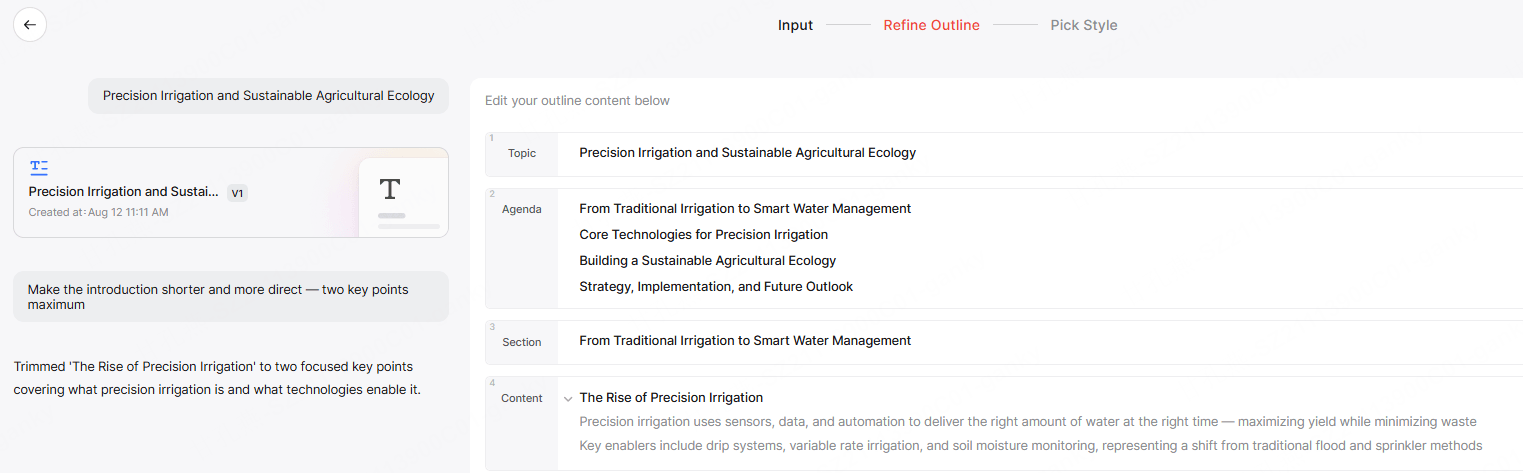
This is where the new Presenti workflow becomes especially useful. Inside the Refine Outline stage, you can tell the AI how you want to modify the outline using natural-language instructions.
Instead of manually rewriting multiple outline items, describe the change you want in the chat box. Presenti can then use your instruction to help adjust the AI-generated outline.
For example, you might enter:
“Make the introduction shorter and focus on the main problem.”
Or:
“Add a section about implementation strategy.”
Or:
“Use the supplied sources to add evidence to the sustainability section, and flag any missing data.”
This makes it much easier to refine a presentation outline when you know what you want to change but do not want to manually reorganize the entire structure.
Refine the Focus of a Section
Sometimes the section itself is necessary, but its emphasis is wrong.
For example:
“Rewrite the market analysis section to focus more on competitive advantages.”
Instead of starting the outline again, you can use the existing structure as the foundation and ask AI to shift the emphasis.
This is especially useful for business presentations where the same topic may need to be framed differently for executives, customers, investors, or internal teams.
Make a Section Shorter
AI-generated outlines can occasionally give too much space to a secondary topic.
You might ask:
“Make the introduction shorter and keep only the most important points.”
This allows you to reduce unnecessary detail before those ideas become full presentation slides.
Add a Missing Topic
After reviewing the complete outline, you may realize that an important part of the story is missing.
For example:
“Add a section about implementation and next steps.”
Instead of manually creating the section title and writing its supporting points one by one, you can describe what the new section should cover. If the deck has already been generated and only one slide is missing, use the separate single-slide Markdown insertion workflow instead of treating it as a new outline.
Change the Audience or Tone
The structure of an executive presentation may be different from that of a classroom presentation or detailed project report.
You can therefore use instructions such as:
“Make this section more suitable for senior executives.”
Or:
“Simplify this section for a general audience.”
This allows the outline to better reflect who will actually see the final presentation.
Reorganize the Narrative
Sometimes individual sections are fine, but the overall story needs improvement.
You may want to:
- Move a topic earlier
- Reduce background information
- Expand recommendations
- Add a stronger conclusion
- Combine closely related ideas
- Create a clearer transition from problem to solution
Rather than treating the first AI-generated structure as final, the Refine Outline stage gives you another opportunity to shape the narrative before slide generation begins.
Example AI Prompts for Refining a Presentation Outline
You do not need complicated prompt engineering to refine an outline.
A short, specific instruction is usually easier to work with.
Here are several examples:
| What You Want to Change | Example AI Instruction |
|---|---|
| Shorten the opening | “Make the introduction shorter and more direct.” |
| Change the focus | “Rewrite this section to focus more on customer outcomes.” |
| Add a topic | “Add a section about implementation risks and mitigation.” |
| Improve the ending | “Add a stronger conclusion with three recommended next steps.” |
| Adapt the audience | “Make this section more suitable for an executive audience.” |
| Add more evidence | “Add measurable results supported by the supplied sources; flag missing evidence instead of inventing it.” |
| Simplify the structure | “Reduce this section to three main points.” |
| Strengthen recommendations | “Expand the recommendations section with specific actions.” |
The key is to describe the outcome you want.
Instead of telling the AI exactly how every line should be rewritten, tell it what the section needs to accomplish.
AI Outline Refinement vs. Manual Editing
AI chat does not have to replace manual editing completely.
The two approaches are useful for different types of changes.
Use AI Chat for Broader Changes
AI refinement is especially helpful when you want to modify:
- Section focus
- Content depth
- Narrative direction
- Audience
- Tone
- Topic coverage
- Overall organization
These changes involve more than replacing one or two words.
For example:
“Make this chapter focus more on the business impact of water efficiency.”
That instruction describes intent rather than exact wording.
AI can help turn that intent into a revised outline.
Use Manual Editing for Precise Changes
Direct editing is often faster when you already know the exact wording you want.
For example:
- Correcting a product name
- Changing one slide title
- Replacing a statistic
- Updating terminology
- Fixing a spelling issue
- Changing a specific phrase
A practical workflow is therefore:
Generate with AI → Refine the structure with AI chat → Make precise edits manually → Generate the presentation
You get AI assistance without giving up control over the final structure.
Why Refine the Outline Before Generating Slides?
The biggest advantage of an outline-first workflow is that structural changes happen before design work begins.
Imagine you generate a 20-slide presentation and only then realize:
- The introduction is too long.
- Two sections repeat the same idea.
- The recommendation appears too late.
- There is no implementation section.
- The ending does not provide clear next steps.
You can still fix those problems.
But now you may also need to rearrange slides, rewrite content, and adjust layouts.
If you catch the same issues while reviewing the AI presentation outline, the changes are much easier to make.
The outline is essentially the architecture of the deck.
Get the architecture right first, then build the slides around it.
From AI-Generated Outline to Presentation
Once the outline reflects the story you want to tell, you can continue to the next stage of the Presenti workflow.
After refining your outline, choose the presentation style or theme and let Presenti turn the structure into a complete deck.
The workflow becomes:
1. Provide your topic or content
Start with the information you want to present.
2. Generate an AI presentation outline
Let Presenti organize the material into a structured presentation.
3. Review the AI-generated outline
Check the agenda, sections, content pages, and narrative flow.
4. Refine the presentation outline through AI chat
Describe what you want to add, remove, simplify, expand, or reposition.
5. Make any precise manual edits
Fine-tune individual titles or wording where needed.
6. Pick a presentation style
Choose how the final deck should look.
7. Generate the presentation
Turn the approved structure into slides.
This separates two tasks that are often mixed together: deciding what the presentation should say and deciding how the presentation should look.
Practical Examples for Different Presentation Types
The same AI outline generator workflow can be useful across many presentation scenarios.
| Use Case | Outline Problem | Refinement Prompt |
|---|---|---|
| Business Proposal | Too much background | “Shorten the background and expand the recommendations.” |
| Sales Presentation | Too focused on features | “Focus more on customer outcomes and business value.” |
| Academic Presentation | Missing connection between sections | “Add a transition section between the methodology and findings.” |
| Project Update | No clear next steps | “Add a final section with the next three actions.” |
| Product Launch | Opening feels too generic | “Make the introduction more relevant to enterprise buyers.” |
| Marketing Report | Too much data without conclusions | “Add a takeaway after each major performance section.” |
| Training Presentation | Content is too complex | “Simplify the structure for beginners.” |
In each case, the first outline is a starting point rather than a fixed result.
You review it, identify what is missing, and tell AI what needs to change.
Tips for Creating a Better AI Presentation Outline
An AI outline generator can organize content quickly, but the quality of the result still depends partly on the direction you provide.
Start with a Clear Goal
Instead of entering only a broad topic, explain what the presentation should achieve.
For example:
Instead of:
“Cybersecurity”
Try:
“Create an executive presentation explaining the main cybersecurity risks facing mid-sized companies and recommend five priorities for the next 12 months.”
The second prompt gives the AI much more useful context.
Tell AI Who the Audience Is
Audience affects structure.
A technical audience may need methodology and implementation details.
Executives may care more about impact, risks, decisions, and next steps.
Students may need more explanation and examples.
Including the audience helps the generated outline start closer to the structure you actually need.
Review the Narrative, Not Just the Titles
When reviewing an AI-generated outline, do not only check whether each section title sounds good.
Ask:
- Does each section lead naturally to the next?
- Is anything repeated?
- Is an important argument missing?
- Does the presentation spend too much time on background?
- Are the recommendations supported by the earlier sections?
- Does the conclusion clearly tell the audience what matters?
These questions help you refine the structure before visual design begins.
Give Specific Refinement Instructions
“Make it better” gives AI very little direction.
A more useful instruction is:
“Reduce the background section and give more space to implementation recommendations.”
Or:
“Make the first three sections more concise for a 10-minute executive presentation.”
The more clearly you describe the desired outcome, the easier it is to refine the outline in the right direction.
Frequently Asked Questions
What is an AI presentation outline?
An AI presentation outline is a structured plan for a presentation generated with AI. It typically organizes the presentation into topics, sections, individual content pages, and supporting points before the final slides are designed.
What is an AI outline generator?
An AI outline generator uses artificial intelligence to turn a topic, prompt, notes, or source content into an organized outline. In a presentation workflow, it helps define the structure and narrative before slide generation.
How can I create a presentation outline with AI?
With Presenti, start by entering your topic or source content. The AI generates a structured outline that you can review before moving to presentation design. You can then refine the outline based on your audience, goals, and preferred narrative.
Can I refine a presentation outline after AI generates it?
Yes. In Presenti's Refine Outline stage, you can use AI chat to describe how you want the outline to change. For example, you can ask to shorten a section, change its focus, add another topic, or adapt the content to a different audience.
What should I include in an AI-generated outline?
A useful AI-generated outline should clearly define the presentation's main topic, major sections, supporting topics, and the key points that need to be communicated. The exact structure depends on the presentation type and audience.
Should I edit the outline manually or use AI chat?
Use AI chat for broader changes such as focus, structure, tone, or content depth. Manual editing is useful when you want to change a specific word, title, statistic, or phrase.
When should I generate the slides?
Generate the presentation once the outline has the right sections, order, and narrative flow. You do not need to perfect every sentence at the outline stage. The priority is making sure the structure communicates the story you want to tell.
Conclusion
A strong presentation starts before the first slide is designed. By creating an AI presentation outline first, you can review the structure, identify missing ideas, and improve the narrative while changes are still easy to make.
Presenti's AI outline generator gives you that starting structure. The Refine Outline workflow then lets you continue shaping the outline through natural-language conversation instead of treating the first AI-generated result as final.
Create the structure. Talk to the outline. Refine the story. Then turn it into slides.