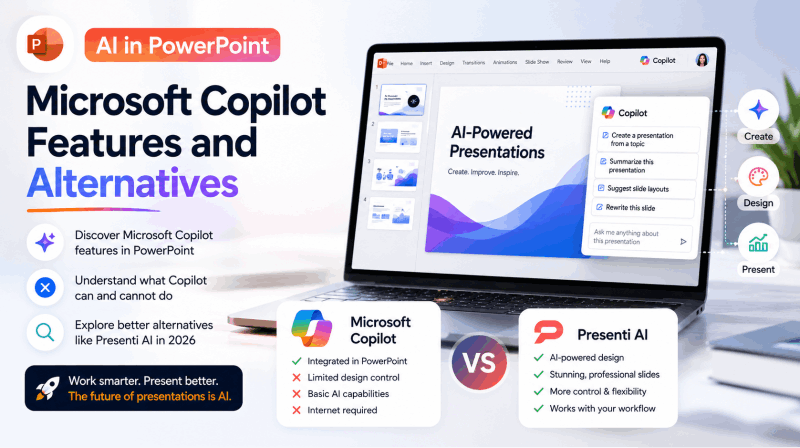
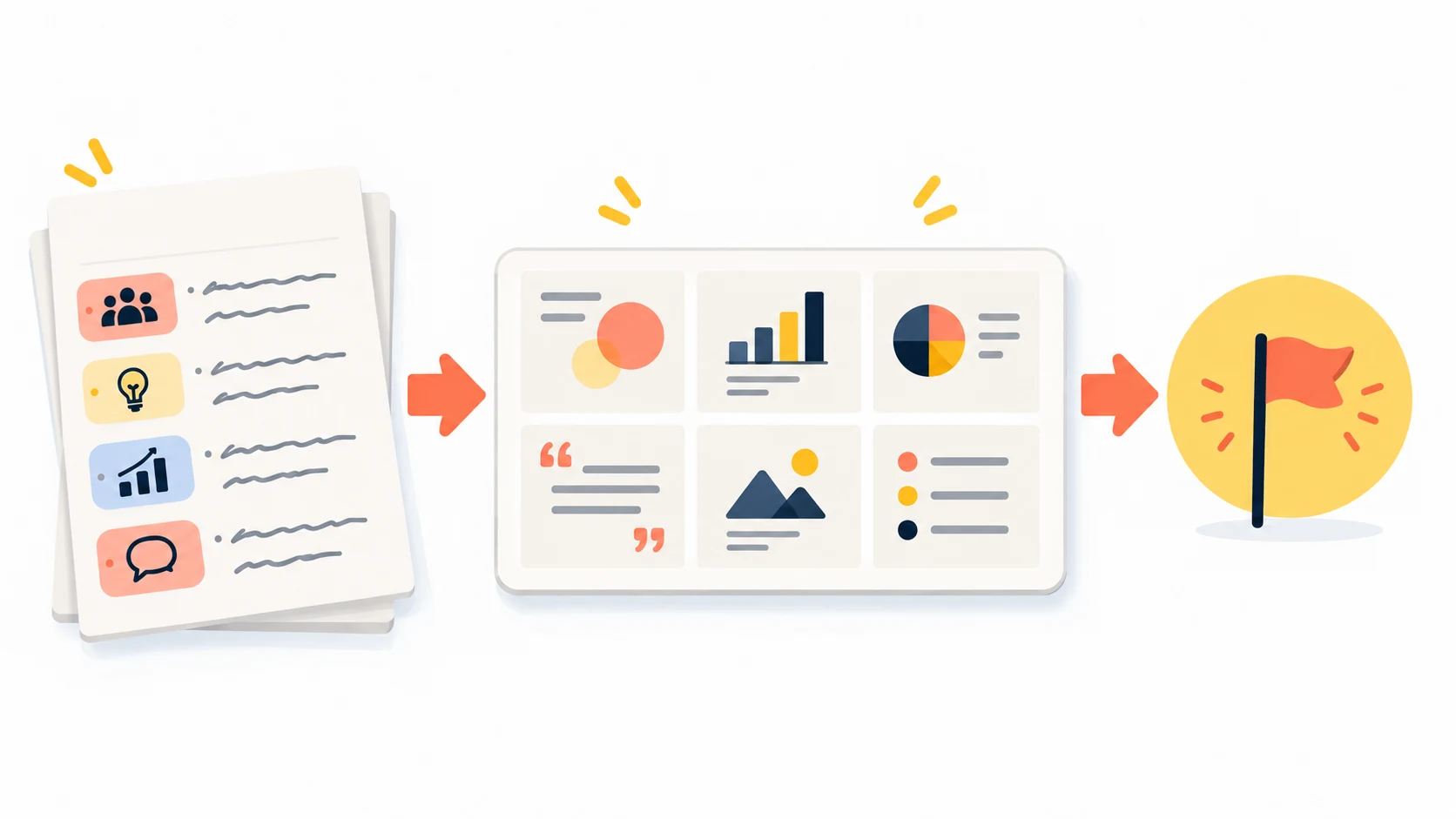
ChatGPT can help with presentation content and, in supported workflows, create or revise slide files. OpenAI’s presentation guide describes these options. This article focuses on a separate route: take a reviewed ChatGPT outline into Presenti, choose the design, and finish the deck in PowerPoint.
This is a manual handoff between tools, not a built-in ChatGPT–Presenti integration. It is useful when you want to develop the wording in ChatGPT and use Presenti for the slide draft. Keep your source material available throughout the process.
Phase 1: Build a Clear Outline in ChatGPT
Give ChatGPT the audience, purpose, available evidence, and desired length. Ask for a concise outline with a clear recommendation and supporting points.
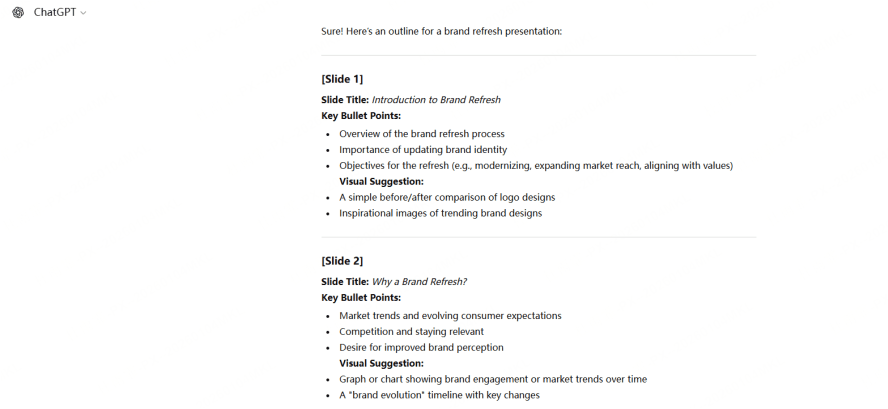
Supply the report or notes the outline should use, and ask the tool to flag missing evidence instead of inventing it. Request one slide title, a few key points, and a visual suggestion per slide. Markdown headings make the structure easier to review before transferring it.
For example:
“Using the attached brand-refresh brief, draft a 10-slide outline for our marketing team. For each slide, give a title, up to three key points, and a visual suggestion. Use only supported figures; label any missing information. End with the decision we need from the team.”
Phase 2: Turn the Outline into a Presenti Draft
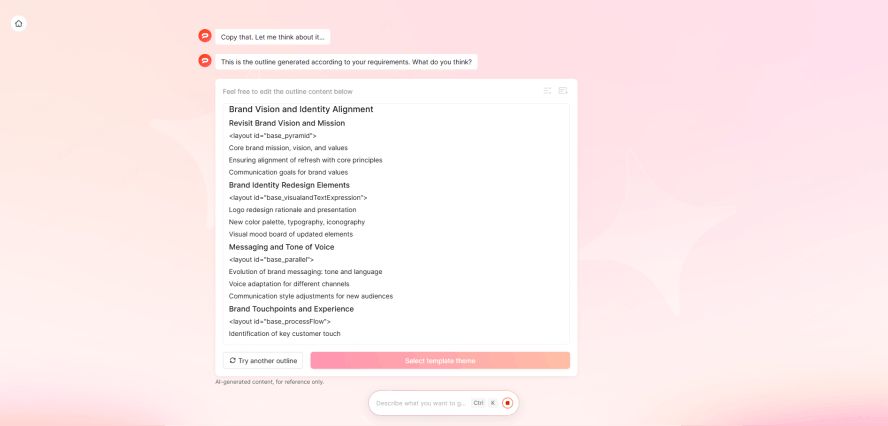
Read the outline first. Remove repetition, correct claims, and decide which details belong in speaker notes. Then move the structure into Presenti using the input options available in your account. Once you are reviewing the outline in Presenti, outline refinement through AI chat is a separate way to request changes to its order or emphasis.
Step 1: Importing Content into Presenti
Paste the reviewed text or import a supported file. Keep slide titles and supporting points clearly separated. Inspect the generated outline before proceeding: headings can be misread, and important qualifications can be lost when text is summarized. If you saved that outline as a text file, the TXT-to-PowerPoint guide explains how to prepare and review that file-based route.
Step 2: Choosing Your Template
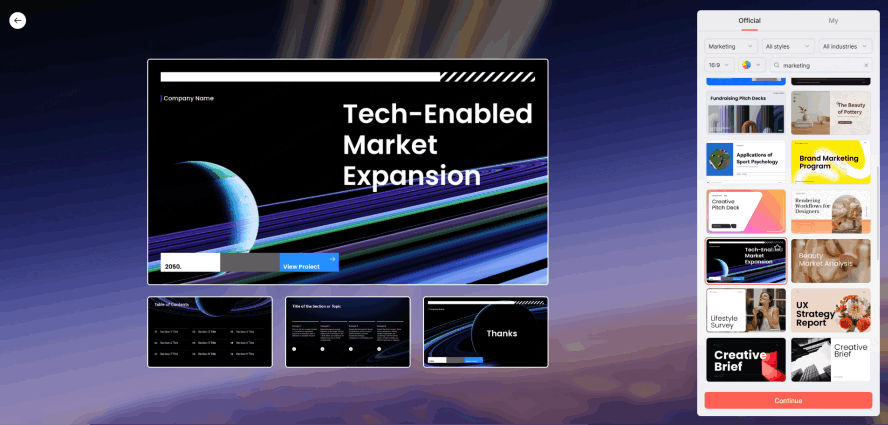
Choose a template that fits your audience and content. Use a layout with room for your actual charts, screenshots, and labels. Compare the preview with your brand requirements rather than assuming a tool will infer the right colors or tone from the topic.
Step 3: Choose Relevant Images and Icons
Treat ChatGPT’s visual suggestions as a brief, not an instruction that Presenti will automatically execute. Add images from your own approved material or from available media tools, then check their relevance and usage rights. Generated imagery should not be presented as a photograph of a real customer, event, or result.
Step 4: Intelligent Layout Refinement
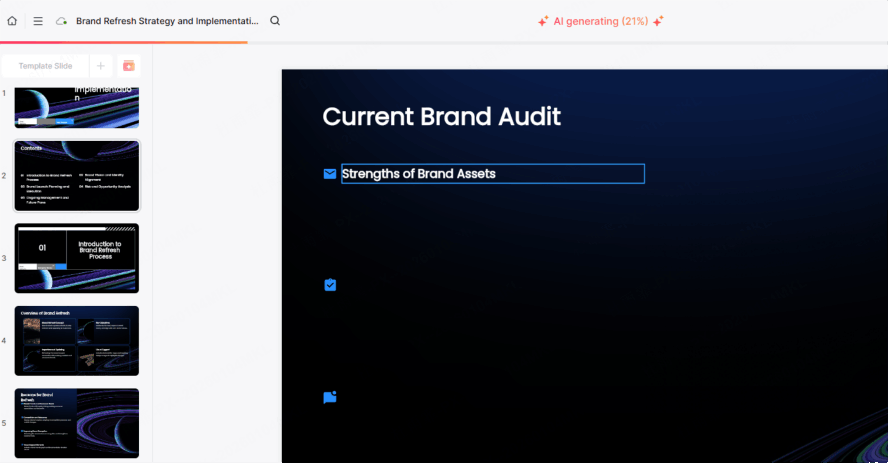
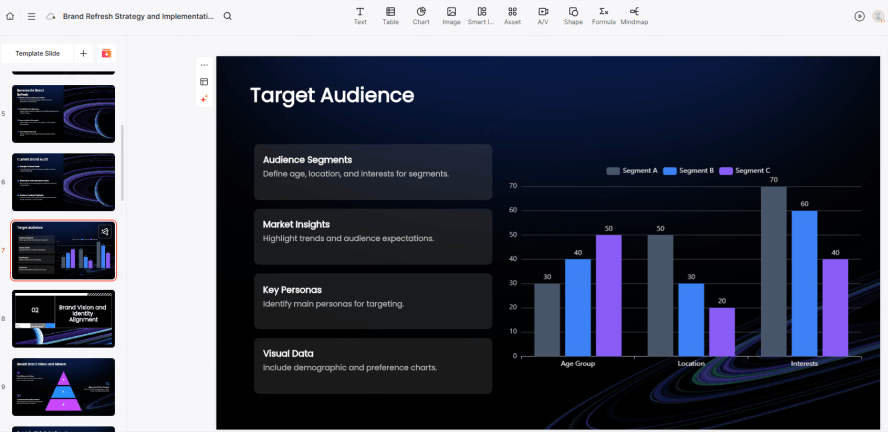
Review each slide after adding the final text. If it is crowded, shorten it, split it, or choose another layout. Check text size, alignment, and chart labels at the size your audience will see.
Phase 3: Fine-Tuning and Exporting to PowerPoint
Prepare the deck for the application in which you will present it. An editable export is useful, but the exported file still needs review in PowerPoint.
- Team review: ask a colleague to check the story, figures, and brand requirements using the review or sharing options available to your team. Resolve important comments before preparing the final export.
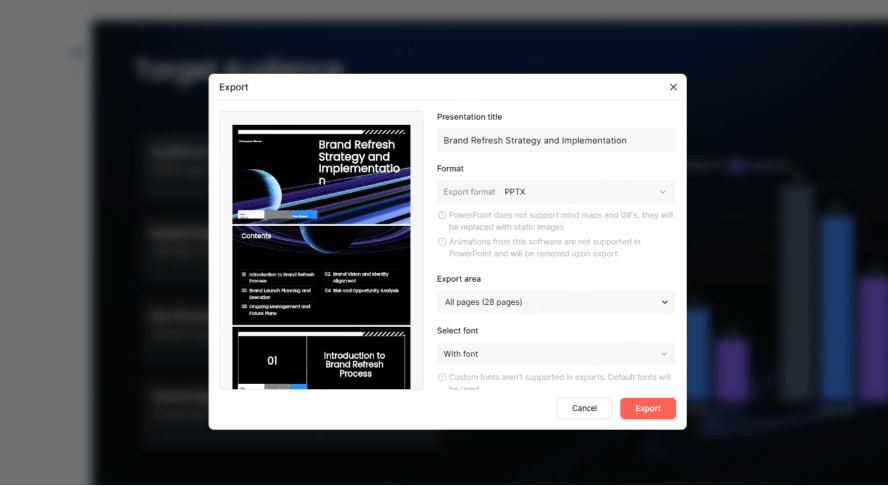
- Export: Presenti’s paid plan details include editable downloads and PPTX/PDF export. Check your account’s export options, download a test file, and confirm that the text, charts, and other elements you need to change are editable. Do not assume every object will transfer identically.
- PowerPoint finishing: open the exported PPTX and check fonts, line breaks, image crops, charts, and speaker notes. Add or test any animations and transitions in PowerPoint; do not assume they were created or preserved during the handoff.
Tips for Data, Translation, and Revisions
These checks address common problems when content moves from a chat response into a designed presentation.
- Data: if ChatGPT summarizes a CSV, compare the totals, units, and labels with the original data. Choose an appropriate chart and check its values after placing it in the slide; a generated summary is not a substitute for the source table.
- Translation: review technical terms and names, then inspect the actual slide. Longer translated text may require a new layout or a shorter sentence rather than a smaller font.
- Revision: change the wording or layout where the message is unclear. Keep a copy before major revisions so you can compare the alternatives and recover an approved version.
Conclusion
A useful ChatGPT-to-PowerPoint workflow keeps the source, outline, and finished slides connected. Use ChatGPT to help organize the material, use Presenti if it fits your design workflow, and inspect the exported deck in PowerPoint. The amount of time saved depends on the source and the revisions it needs.