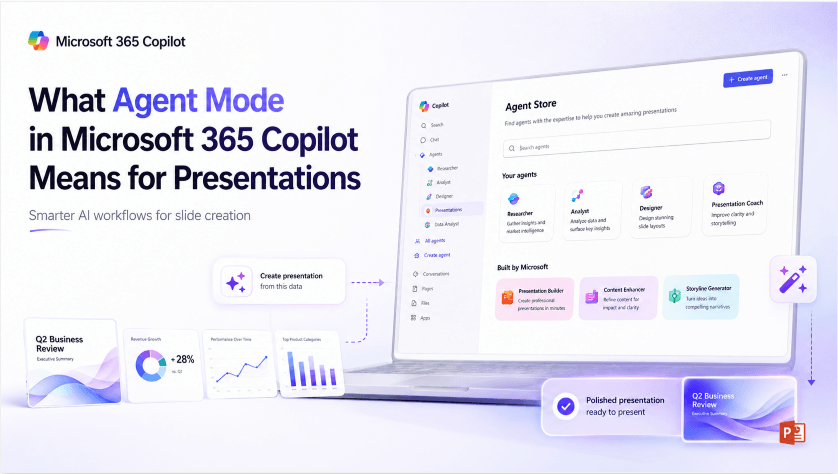
Copilot Notebooks started out as something closer to an AI-powered scratchpad — a place to drop reference documents, links, and notes, then chat with an assistant grounded specifically in that material. Through the first half of 2026, Microsoft has been quietly pushing it toward something more ambitious: instead of just helping you think through a notebook’s contents, it can now generate a structured, editable PowerPoint deck directly from them. Here’s what that workflow actually looks like, and where it fits next to a document-first tool.
Availability note (checked September 28, 2026): Copilot Notebooks and its PowerPoint workflow can vary by license, platform, and rollout wave. Check Microsoft 365 Copilot release notes for the current status.

What Changed in Copilot Notebooks
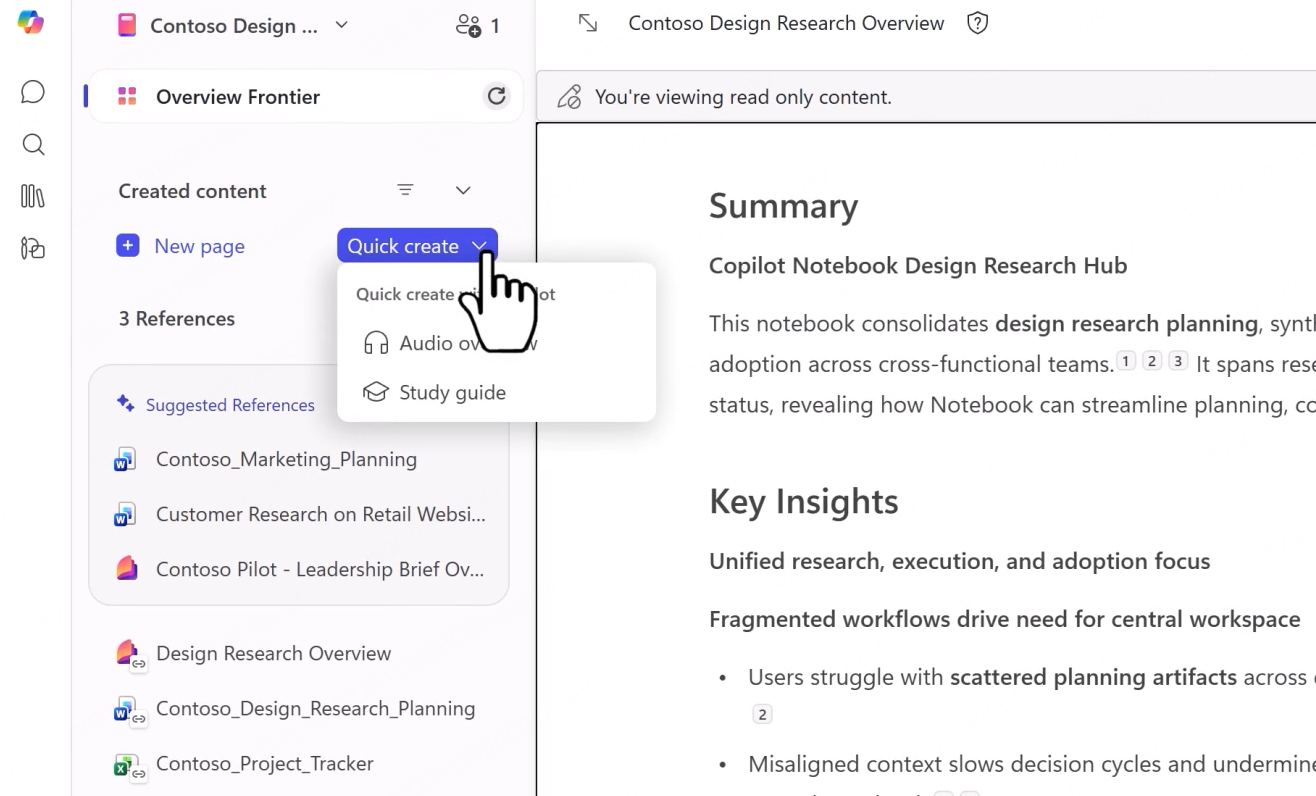

The core idea behind Notebooks hasn’t changed — you still gather documents, links, and notes into a workspace, and Copilot answers questions grounded specifically in that material rather than the open web. What’s new is that Notebooks now includes dedicated Word and PowerPoint “agents” that can generate a full document or deck directly from the references you’ve already collected, without you needing to restate or re-upload that material elsewhere.
This builds on capabilities Microsoft had already shipped elsewhere in the Copilot ecosystem — Copilot in PowerPoint could already turn an existing PDF into a slide deck, and Loop users could generate a deck grounded in a Copilot page. The Notebooks version extends that same “convert curated content into a deliverable” pattern to an entire notebook’s worth of material at once, rather than a single file.
How the Notebook-to-Deck Workflow Works
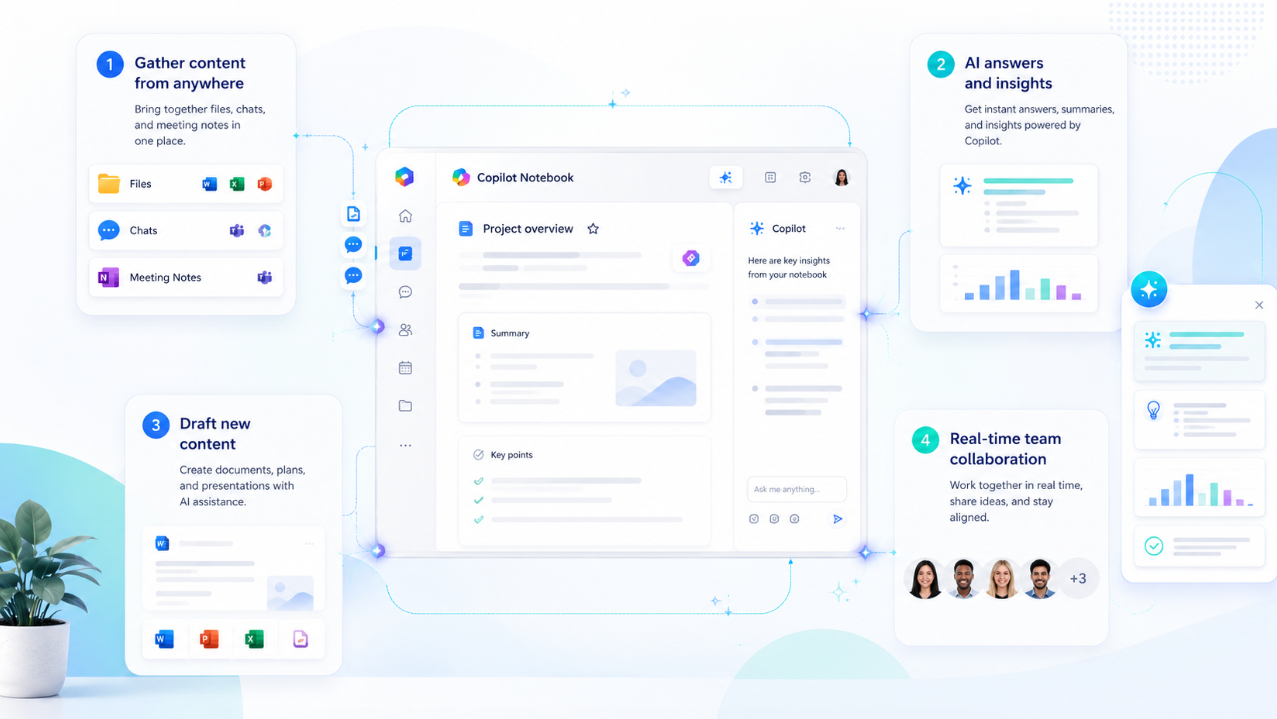
The practical flow looks like this:
Build the notebook first. You add source material — documents, links, notes — into a notebook, the same way you would if you were just planning to chat with Copilot about it. Copilot itself will often suggest relevant references to add, but you can also build the list manually in a few different ways: search for a specific file (including SharePoint sites, document libraries, or entire folders), upload a file directly, paste in a link to something stored in your organization’s OneDrive or SharePoint, pull a file or folder straight from OneDrive, or just drag and drop content into the reference panel. Supported file types cover the formats you’d expect — Word, PowerPoint, Excel, PDF, plain text, rich text, Loop pages, and OneNote pages.
Two limits are worth knowing before you build a large notebook: Microsoft 365 Copilot users can add more than 300 references, but only the first 300 are actually used for grounding the AI’s answers; Copilot Chat users are capped at 50 references, with all 50 used. And regardless of plan, Copilot only draws on the specific sites, folders, or files you’ve explicitly added — it won’t reach into other organizational content just because you have access to it elsewhere.
One more detail matters if you’re building a notebook to share with a team: when you share it, recipients generally get access to the linked files inside it, but only if you actually have permission to share each one yourself — if a linked file is outside their access (a premium source, for instance), they’ll need to request access to that file individually rather than inheriting it automatically through the shared notebook.
- Invoke the PowerPoint agent. Instead of asking a question, you ask Notebooks to turn the collected material into a presentation.
- Copilot structures the deck using what’s already grounded in the notebook. Because the agent is working from curated references rather than the open web, the output is meant to stay closer to your actual source material than a generic prompt-based generation would.
- You open and refine the result in PowerPoint. The output is a standard, editable deck — not a locked or view-only artifact — so normal PowerPoint editing (including Copilot’s other in-app tools) still applies afterward.
The appeal is straightforward: if you’ve already done research inside a notebook — gathering sources, taking notes, building up context over several sessions — turning that directly into a deck skips the step of re-explaining everything to a fresh prompt.
Where This Fits in Microsoft’s Broader Strategy
This isn’t an isolated feature — it’s part of a pattern. Microsoft has been building out reusable “content conversion” pathways across the Copilot ecosystem rather than treating each app’s AI features as separate silos: a PDF can become a deck, a Loop page can become a deck, and now an entire notebook can become one too. The common thread is grounding — in each case, the output is built from material you’ve already curated, not a blank-prompt generation.
That’s a meaningfully different design philosophy than typing “make me a presentation about X” into a chat box. It’s closer to: “you already did the research here — now turn it into a deliverable.”
Where It’s Genuinely Useful
For a specific kind of workflow, this is a real time-saver. If your process already involves building up a notebook over time — collecting sources for a report, tracking research for a client project, gathering meeting notes and reference links over several weeks — having a direct path from that accumulated context to a first-draft deck removes a genuinely tedious step: manually re-reading your own notes and re-structuring them into slides.
It also plays to one of Copilot’s stronger design principles: grounding output in material you’ve actually vetted, rather than letting the model generate content from general knowledge that you then have to fact-check from scratch.
Where It Still Needs You
A few things are worth knowing before treating this as a fully hands-off feature:
You have to build the notebook first. This isn’t a shortcut for someone starting from a single existing document — the value depends on already having invested time into curating a notebook’s contents. If your actual starting point is “I have one PDF report,” a more direct document-to-deck path (whether that’s Copilot’s own PDF-to-deck feature or a separate tool) is a shorter route than building a notebook around a single file first.
It’s still a review-and-refine workflow, not a publish-and-forget one. Like Copilot’s other generation features, the output is a starting draft meant to be opened and refined in PowerPoint, not a final deliverable you present unedited.
Notebook access and PowerPoint generation have separate requirements. Notebook availability depends on the account and relevant services; the Word and PowerPoint agents may have additional license, platform, and rollout conditions. Check the features available in your account.
Output quality still depends on notebook quality. Because the deck is grounded in whatever you’ve added to the notebook, missing or conflicting sources can lead to gaps in the draft. Review the notebook and the generated deck against the original material.
How This Compares to a Document-First Tool Like Presenti AI
The most useful comparison isn’t “which is better” — it’s about where each tool assumes you’re starting from.
Copilot Notebooks assumes you’ve already built a research workspace. Its strength is turning an accumulated, curated notebook — built up over time, potentially from many sources — into a deck without restating that context. That’s a genuinely different starting point than having a single document ready to go.
Presenti AI assumes you’re starting from a document you already have, whether that’s a Word file, PDF, Markdown, or a rough outline — no notebook-building step required first. You upload the file, and you can review the outline, choose a design, and generate a slide draft, without needing an existing Microsoft 365 Copilot license or a curated workspace built up in advance.
There’s also a second layer worth noting: Presenti’s editor includes its own in-canvas AI agent for refining a deck after generation — fixing content, translating slides, switching layouts, or replacing images through the same conversational interface used to generate it in the first place. That covers a similar “review and refine” step to what Copilot Notebooks expects you to do afterward in PowerPoint, but inside the same tool rather than a separate app.
In short: if your work already lives inside a Microsoft 365 notebook built up over time, the Notebooks-to-deck path is a natural extension of work you’ve already done. If your starting point is a single document sitting outside that ecosystem and you want to go from that document to an editable presentation draft, a document-first tool is the more direct route.
Who Should Use Which
Copilot Notebooks is the better fit if: - You already research and take notes inside Copilot Notebooks as part of your regular workflow - Your source material is spread across multiple documents, links, and notes rather than one file - You’re working inside an organization already on an eligible Microsoft 365 Copilot plan
Presenti AI is the better fit if: - You have a single document, PDF, or outline ready to go and want a deck from it directly, without a notebook-building step first - You want to generate and then conversationally refine the deck in the same tool - You don’t have (or don’t want to wait on) Microsoft 365 Copilot access or the Frontier rollout for newer Notebooks features
Frequently Asked Questions
Do I need a special Microsoft 365 plan to use Copilot Notebooks?
Notebooks are available through more than one account route, including eligible Copilot Chat and consumer accounts. Creating notebooks can require a SharePoint or OneDrive service plan. PowerPoint generation has its own license and rollout conditions, so check it separately from basic notebook access.
Can Copilot Notebooks generate a deck from just one document?
It can, but its real advantage shows up when a notebook contains multiple sources built up over time — that’s the scenario the feature is specifically designed around. For a single document, compare the direct import workflow with building a notebook around that file.
Is the deck it generates final, or does it need editing?
It’s meant as an editable starting draft. Microsoft’s own framing is that Copilot creates a structured deck you then open and refine in PowerPoint, not a finished, presentation-ready file.
How is this different from Copilot in PowerPoint generating a deck from a prompt?
Copilot in PowerPoint’s original prompt-based generation draws on a topic description or a single uploaded file. The Notebooks version is grounded in an entire notebook’s accumulated references and notes, which is a broader and more curated source than a single prompt or file.
Conclusion
Copilot Notebooks moving into deck generation is a logical next step for Microsoft’s broader push to turn Copilot’s various apps into a connected content pipeline rather than isolated AI features. For teams that already build up research inside notebooks over time, it’s a genuine shortcut. For everyone else — anyone starting from a single document without an existing notebook already in place — a direct document-to-deck tool like Presenti AI remains the shorter path from source material to an editable presentation draft.