Use PowerPoint speaker notes for the material you need to say but do not want to crowd onto a slide: the precise comparison, a source cue, a qualification, and the transition to the next point. Write the notes beside the relevant slide, then rehearse them in Presenter View.
This guide shows where to add notes on desktop and web, how to view them while presenting, and how to print or remove them from a sharing copy. It also includes a completed chart-narration example. Notes are saved with the PPTX: keeping them off the audience's live screen does not make them private from people who receive the file.

Where PowerPoint Keeps Your Notes
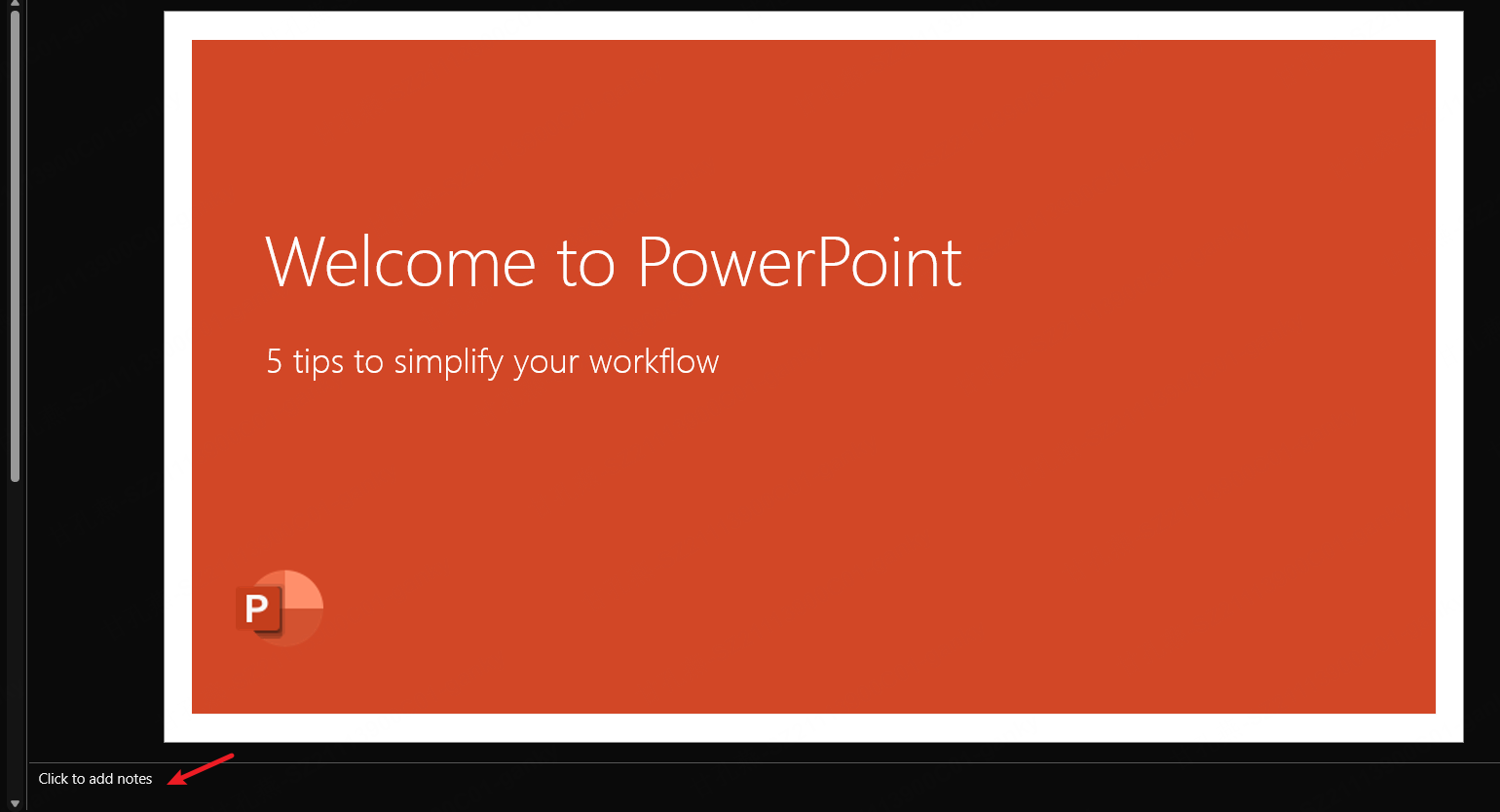
The Notes pane appears below the slide in Normal view. Its text is separate from the slide layout but remains part of the presentation file. The pane is useful for writing; Presenter View is the desktop presentation interface for reading those cues while the audience sees the slide.
If you use Google Slides speaker notes, the principle is similar: separate the audience's visual from the presenter's explanation. PowerPoint also has a notes-page layout for printed output.
How to Add Notes to PowerPoint

Windows or Mac desktop: open the deck in Normal view, reveal the Notes pane below the slide using the Notes control, and type in the notes area. Drag the pane's upper edge to make more writing room. Use View > Notes Page where available when you need to inspect the page layout for printing.
PowerPoint for the web: open the deck and select View > Notes. Write in the panel beneath the slide. The web app supports adding and viewing notes while editing, but its presentation features differ from the desktop app; see Microsoft's web-feature guide.
Save after editing. Automatic saving depends on the file location and settings. Before presenting, select each slide and confirm that its cues belong to that slide, especially after moving or deleting slides.
How to Present PowerPoint with Notes
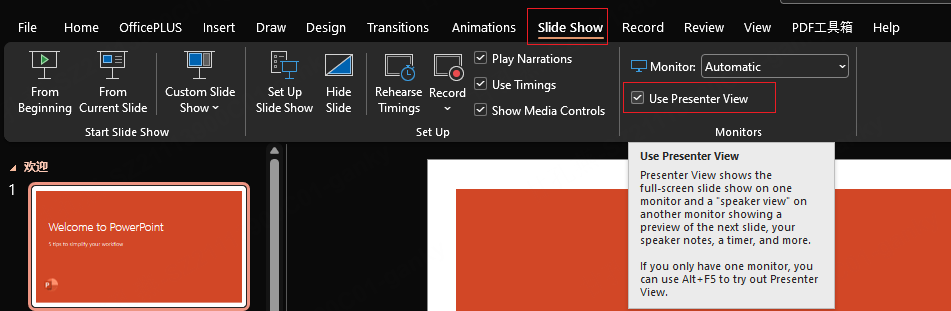
For two displays on Windows, connect the second screen and enable Slide Show > Use Presenter View. Use an extended display arrangement so the slide show and presenter controls can occupy different screens. Start the show and look at the audience display; swap the display assignment if the notes appear there. Microsoft's Presenter View guide covers desktop setup and switching displays.
Rehearse on one screen: in PowerPoint for Windows, Alt+F5 starts Presenter View. On Mac, the documented shortcut is Option+Return. These PowerPoint presentation shortcuts let you practice the cues without a room projector. They do not by themselves determine what a video call broadcasts.
For a call, select the slide-show window or the intended audience display in your sharing controls. Check the recipient's view in a test call, including what happens when you advance a slide or leave the show. Keep Presenter View out of the selected share. If your setup cannot separate the views, use a second device or printed notes for your cues.
Viewing Notes on Mobile and the Web
Microsoft's platform comparison lists speaker notes on Android, iOS and the web, but does not list full Presenter View for those three platforms. Its separate “PowerPoint Mobile” column is a different product column; it should not be read as a promise about the Android or iOS app.
Use the notes controls available in your mobile app to review the script. If you cast or mirror the phone's display, whatever is visible on that display can become visible to the audience. For a live talk, establish a separate notes view before relying on the phone as a presenting device.
Print Notes or Make a Reader Handout
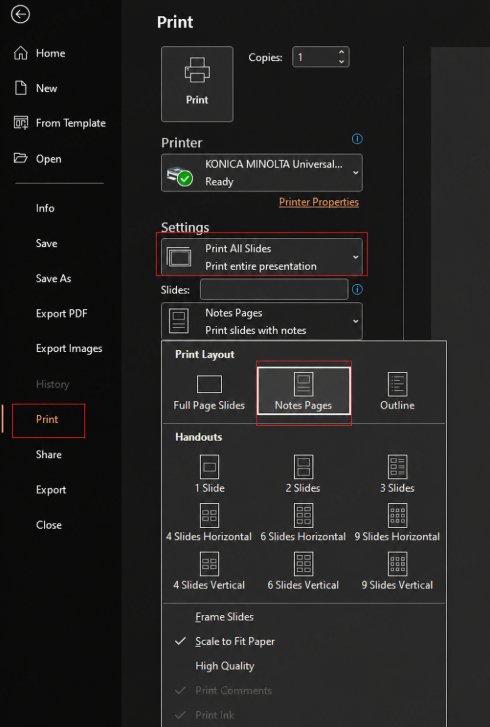
For a printed notes copy in Windows, choose File > Print and select Notes Pages in the layout choices. On Mac, choose Notes in the PowerPoint print dialog's Layout menu. Preview the pages: a long cue block may need editing to fit. See Microsoft's notes-printing instructions.
In PowerPoint for Windows, File > Export > Create Handouts sends a chosen slide-and-notes arrangement to Word. In the dialog, choose Paste for a fixed copy or Paste link for a linked version. The official Word-handout instructions explain the difference. Rewrite shorthand cues into complete explanations when the document is meant for someone who missed the talk.
When Your Notes Do Not Appear
- The editing pane is closed: reveal Notes in Normal view before assuming the content is missing.
- The audience slide is showing on both monitors: inspect the operating system's mirror/extend setting and PowerPoint's display assignment.
- You are viewing the slide show rather than Presenter View: use the desktop Presenter View controls or rehearse with the appropriate shortcut.
- You are in the web or mobile app: notes support does not imply the same presenter interface as desktop PowerPoint.
- The notes are attached to another slide: inspect the surrounding slides, particularly after rearranging a deck.
When troubleshooting, first determine whether the notes are absent from the file or simply absent from the current view. Those are different problems.
A Completed Speaker-Notes Example
Here is an authored chart slide for a support review. Its fictional dataset contains 100 resolved tickets in June and 100 in July. The median resolution times are 12 and 9 hours. The slide title states the comparison: “Median resolution time fell from 12 to 9 hours.” A two-bar chart, a unit label, and a short source line are enough on the audience slide.
The notes below supply the spoken explanation. Use the bold-style cue labels as landmarks while rehearsing; the target of roughly 60–90 seconds is a planning range, not a guaranteed reading time.
Download the completed example and reusable notes skeleton.
SPEAKER NOTES — authored example, rehearse for roughly 60–90 seconds
Slide title: Median resolution time fell from 12 to 9 hours.
Audience chart: June 12 hours; July 9 hours. Each month contains 100 resolved tickets in this fictional example. Use a zero baseline and label the unit Hours.

OPEN: We saw a three-hour decrease in the median time to resolve a ticket. I want to explain what that tells us—and what it does not.
POINT TO THE CHART: Start with June at 12 hours, then July at 9. Keep the comparison in hours. These are medians, not the slowest ticket or a promise that every customer waited three hours less.
SOURCE CUE: These are authored example figures, not a customer result. In a real deck, name the ticket report, extraction date, date filters, and resolution-time definition here.
QUALIFY: We have not compared the mix of ticket types, staffing, or reopened cases. The chart alone cannot tell us why the median changed.
TRANSITION: The next slide separates tickets by category so we can investigate the change before choosing an action.
LIKELY QUESTION: Did the new help article cause the decrease? Answer: This comparison does not establish that; we would need evidence about article use and comparable tickets.

REUSABLE NOTES SKELETON
Opening line:
Point to explain, in order:
Exact numbers, units and period:
Source cue:
Qualification the audience needs:
Transition to the next slide:
Likely question and supported answer:
Rehearsal time:

TAKEAWAY-NOTE VARIANT
In this fictional example, the median resolution time was 12 hours in June and 9 hours in July, using 100 resolved tickets in each month. The three-hour difference describes these two samples. It does not show that every ticket was resolved faster or identify the cause. A real review would examine the ticket mix, staffing, and measurement rules before attributing the change to an intervention.
The qualification belongs in the spoken explanation because it changes what the audience can conclude. The source cue helps you answer questions without crowding the slide. The transition gives the next slide a purpose, rather than ending with “and that's the chart.”
Full sentences can be useful for a precise opening or an unfamiliar explanation. Short prompts can work better for a passage you know well. Rehearse aloud and shorten whichever wording makes you lose your place; a notes pane is not a requirement to memorize or read a complete script.
Make a Separate Copy Before Sharing the PPTX
Keep a presenter file such as support-review-presenter.pptx, then save a separate support-review-share.pptx. Work on the sharing copy so your original cues remain available.
In Windows PowerPoint, use File > Info > Check for Issues > Inspect Document. Select the relevant checks, run the inspection, and use Remove All for Presentation Notes if you want the notes text removed. Microsoft recommends inspecting a copy because removal may not be reversible. Its Document Inspector guidance also states that pictures in notes are not removed by this inspector.
Reopen the sharing copy and inspect its notes pages, including any images, rather than treating a clean notes-text result as proof that every hidden item is gone. If the recipient needs explanation, provide a deliberately written handout, such as the takeaway-note variant above. For a slides-only PDF, use the PowerPoint PDF export guide and inspect the actual output.
Prepare the Slide Draft in Presenti, Then Add Your Cues

Presenti can draft slides from a prompt or supported source material, including PDF, Word, or Markdown. Check current plans for document input and PPTX export access. Open the exported deck in PowerPoint, inspect it, and add the notes for the talk you will actually deliver. Do not assume that an imported or exported file has carried across every existing note.
Rehearse One Slide with Its Notes
Start with the chart example or a slide from your own deck. Say the opening, explain the exact comparison, include the qualification, and make the transition without reading every word. Then run the same slide with your real display or sharing arrangement. The rehearsal should establish both what you need to see and what the audience will see.