To embed fonts in PowerPoint for Windows, open File → Options → Save, enable font embedding for the presentation, choose the character coverage you need, and save the file. If someone else will rewrite the slides, include the whole character set rather than only the letters already used. Then test the saved PPTX on the recipient’s computer.
Embedding addresses a specific dependency: the font used by editable text. It does not prove that the entire presentation is ready for another person to maintain. For the wider package of files and agreed edits, use the editable PowerPoint handoff guide. This article concentrates on choosing a font-sharing approach and resolving an embedding failure.
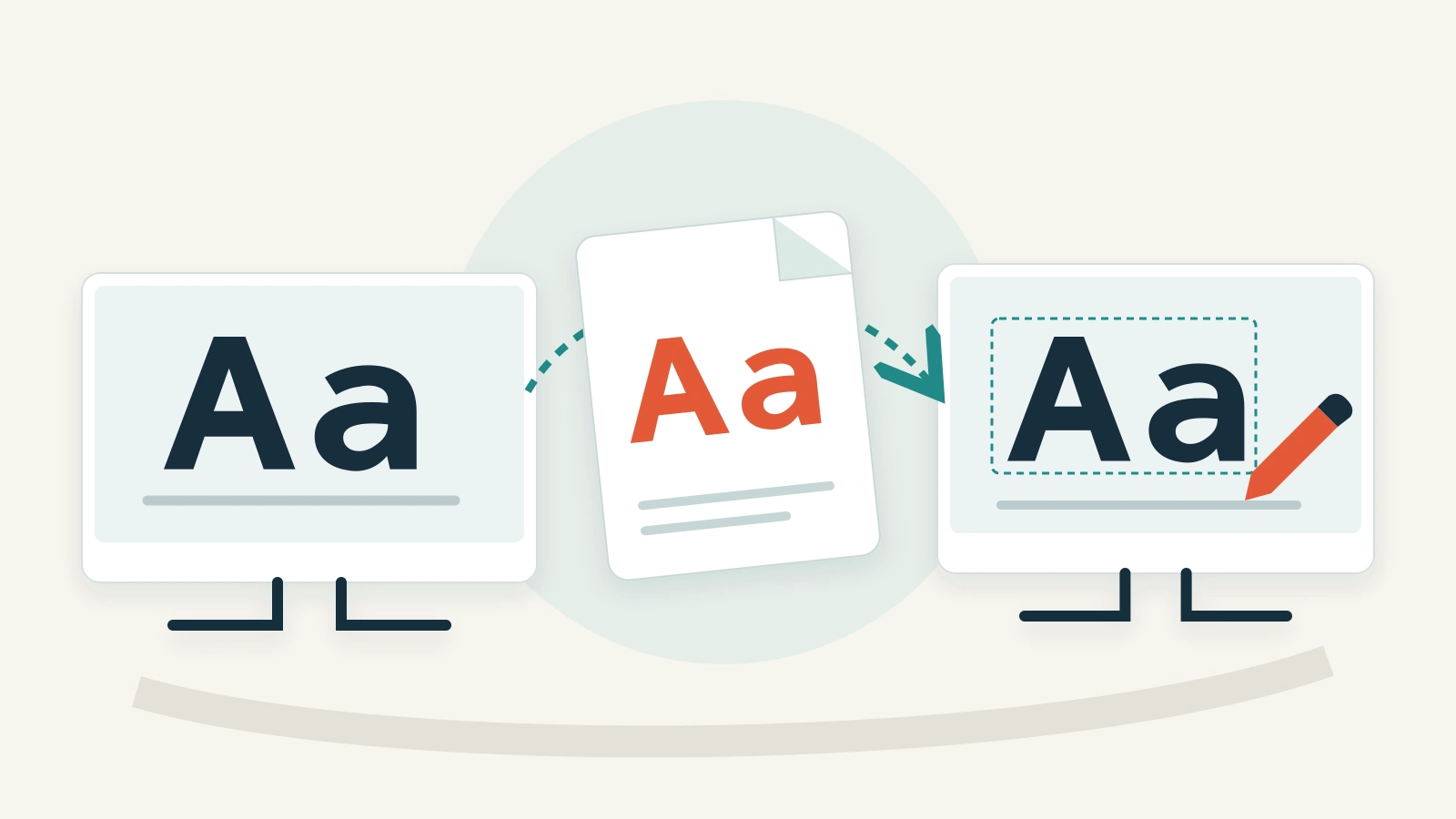
Choose for the next edit, not just the current slide
Imagine you are delivering a conference deck to a colleague. The slides currently say “Welcome, Anna” and “Room 12.” Your colleague needs to change the name to “Zoë” and the room to “B7,” then add a session title in another language. A file that displays the original words correctly has not yet passed that assignment.
Write down three things before saving the delivery copy: the application the colleague will use, whether the text needs to change, and whether the presentation must work without a connection. These are more useful requirements than “make the fonts portable.” Keep a separate working copy so that a delivery-specific font replacement does not overwrite your original design.
| Recipient’s task | Practical delivery choice | What to test |
|---|---|---|
| Rewrite titles and translate labels in desktop PowerPoint | Choose an embeddable font with the needed characters, or agree on a font already available to the recipient. | Type the actual replacement words, then save and reopen. |
| Show an approved, unchanged version | Send the presentation and a visual reference; agree which file will be projected. | Run the chosen file on the presentation computer, including any media. |
| Edit in a browser or a different presentation application | Treat that destination as a separate compatibility test. | Open, edit and reopen in that exact application rather than relying on a desktop preview. |
| Read a static copy | A checked PDF may meet the task without an editable PowerPoint file. | Inspect the exported pages, text and reading order; do not promise slide-show behavior. |
Enable embedding in the desktop application
Microsoft’s font-embedding instructions cover supported desktop versions. In Windows, use File → Options → Save and the embedding control under the presentation’s sharing-fidelity settings. Confirm the intended presentation if several are open. On supported Mac versions, use PowerPoint → Preferences → Save and the font-embedding setting. Save the delivery copy after changing it.
Embedding only the characters already used reduces the font payload but limits later editing. Use all characters when the recipient will add text. This does not add characters that the font itself lacks. Microsoft lists current Microsoft 365, PowerPoint 2024 and PowerPoint 2021 for Mac as supporting saved embedded fonts; do not apply these desktop menu paths to the browser editor.
The conference example makes the choice concrete. The current deck’s letters are not a reliable inventory of next week’s attendee names. Make the “new name” edit part of the test, rather than testing by deleting and retyping “Anna.” A future translated title should also be tested in its intended language; Latin letters alone tell you little about another writing system.
When PowerPoint says a font cannot be saved
Record the font named in the warning before changing anything. Microsoft identifies two major causes in its embedding-error guidance: an unsupported font type, or a restriction set by the font’s creator. A TrueType or OpenType file is not automatically permission to embed. On Windows, inspect Font embeddability in the Fonts control panel. On a Mac, inspect the font information in Font Book where that information is available.
The permission categories matter. Preview/Print allows viewing and printing with the embedded font on a machine that lacks it, not unrestricted editing. Restricted or No embedding prevents embedding; Editable and Installable permit it. A save setting cannot change the creator’s restriction.
For the conference deck, the useful question is now narrower: can the colleague perform the agreed edits with this font? If not, select an approved replacement or arrange a permitted installation. Do not keep toggling embedding and sending near-identical copies while the recipient waits.
Keep a short change record in the delivery note, such as “Title font changed to the agreed alternative; opening and closing slides reflowed.” That tells the recipient what changed. There is no need to include the entire troubleshooting history.
Replace a font without losing the layout
A replacement can solve availability while introducing a layout problem. In the example deck, a wider title font might push the second line into a photograph. Fixing that by shrinking every title would make unrelated slides worse.
Work through representative content first: the longest title, the most crowded table, a slide with emphasized text, and any multilingual labels. Compare the replacement’s spacing and hierarchy with the original. Then apply the choice consistently and examine the remaining slides for exceptions.
- A title wraps differently: adjust the title box or shorten the wording while retaining its meaning. Keep the relationship between title and body text clear.
- A label becomes a rectangle: check whether the chosen font contains the intended character. Repeating the embedding operation is not a substitute for that character.
- Bold text changes unexpectedly: inspect the actual bold or italic text, not only the regular title. The delivery needs the styles the slides use.
- A table overflows: examine column widths and the amount of content. Do not shrink the whole table until every row becomes hard to read.
If installation is the agreed route, Microsoft provides instructions for installing custom fonts through Windows or macOS. Installing a font on your own machine does not install it on your colleague’s. Use the authorized source and the organization’s installation process; do not assume that sending the PPTX also distributes a separate font file.

Test a recipient copy with three meaningful edits
Send one clearly named test copy before the final delivery. Ask the colleague to use the same computer and application intended for the job. If the presentation is intended for offline use, include an offline run rather than assuming that an online preview is equivalent.
- Open: compare the longest title and the densest table with the agreed visual reference. Note missing characters, changed line breaks or substituted styles.
- Edit: replace the example name with “Zoë,” the room with “B7,” and one title with the actual target-language text. Use the edits relevant to your project rather than a generic sample if these are not representative.
- Save and reopen: close the edited copy, reopen it, and run the affected slides. Confirm both the new wording and the surrounding layout.
A failure report should identify the file version, application, slide and change. “Slide 6: the new session title wraps into the image after reopening in the recipient’s desktop PowerPoint” gives the author something to reproduce. “Fonts broken” does not establish whether the issue is missing glyphs, replacement, edit permissions or simply an overfull text box.
Choose a fallback that still meets the task
If the recipient must edit, an agreed replacement font is usually a more useful delivery than a flattened picture of each slide. If the recipient only needs a fixed reading copy, send a checked PDF and identify it as the reference version. When both tasks matter, provide both files and explain which one is editable.
For the conference example, a short handoff note might read: “Use Conference-editable.pptx for name and room changes. Conference-reference.pdf shows the approved layout. The title font has been replaced with our agreed alternative. The name, room and translated-title edits were checked in the recipient’s desktop application.” Only include the last sentence after that test actually happens.
The result you need is a file that survives the recipient’s real change. Successful saving on the author’s computer is a useful step, but it is not that result.