A one-slide status update should answer three questions: what changed, what threatens the next milestone, and what the audience needs to decide. It is not a project log compressed until everything fits.
Use one slide when the audience already knows the project and needs a short update. If they need the background, schedule, budget, and workstream detail, start with a fuller progress report structure and use the single slide as its summary. Do not hide essential detail merely to satisfy a slide-count rule.
Lead with the change, not the project name
Keep the project name and reporting date in a small header. Use the main title for the current situation: “Integration test moved by two days; launch decision unchanged” tells the reader more than “Weekly update.” It also makes a change from the previous report visible.
A useful layout gives most space to evidence of progress, a smaller area to the leading risk, and a clearly separated decision or request. Include a status date: “as of 6 October” is more precise than “currently.” A traffic-light indicator can help scanning, but pair it with a word and explanation rather than relying on color.
Define any status labels used by your team. “At risk” might mean a milestone needs intervention, whereas “blocked” means work cannot continue. Without shared definitions, two owners may report the same situation differently.
Work through a complete one-slide example
The following example describes a fictional customer-portal project. The numbers are illustrative, not Presenti results.
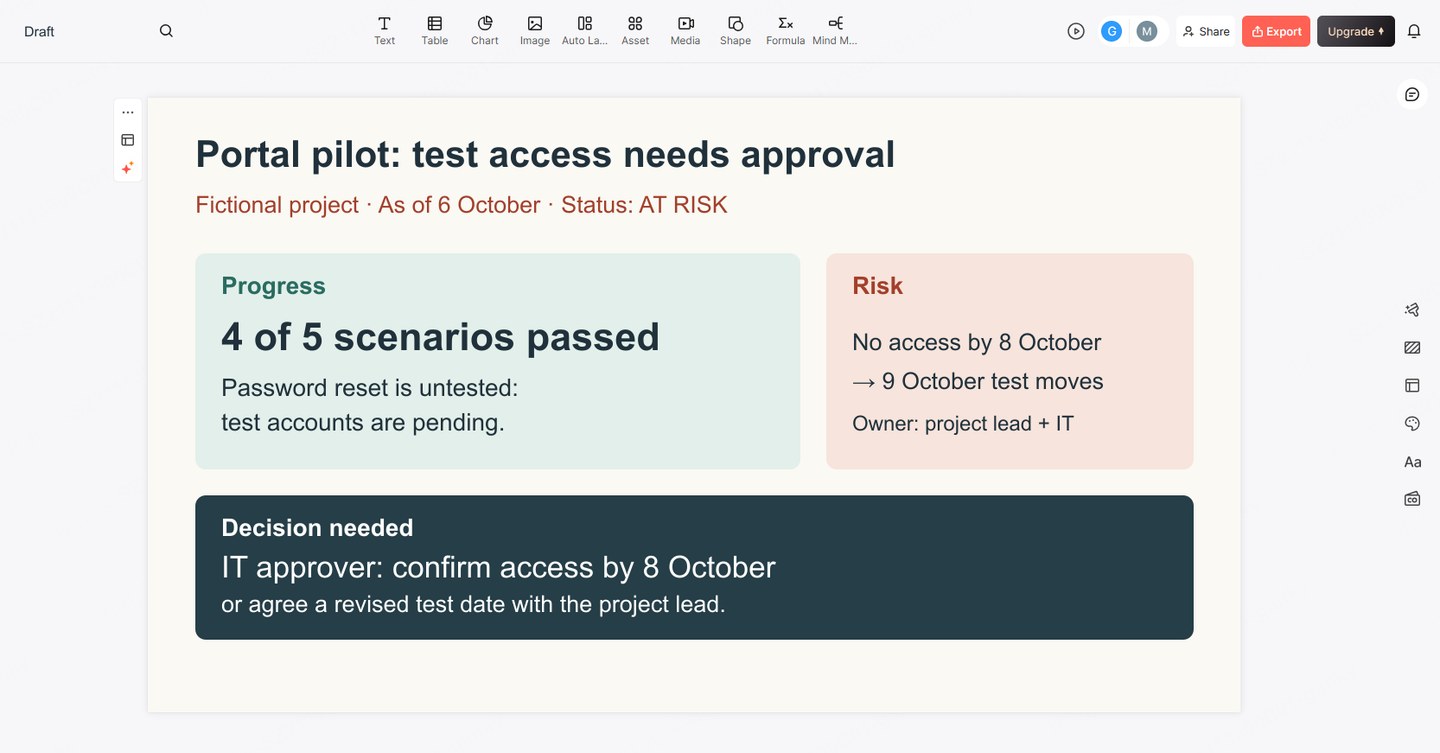
Portal pilot: password-reset check needed before user testing
As of: 6 October. Status: At risk — dedicated password-reset test accounts are not yet available.
Progress: Four of five acceptance scenarios passed using existing test accounts. The password-reset scenario remains untested because it needs separate test accounts. The feedback form and session guide are ready.
Risk: If the dedicated accounts are not available by 8 October, the first user-test session on 9 October must move: the password-reset check needs to be completed first. Owner: the project lead, coordinating with IT.
Decision needed: IT approver to confirm access to the dedicated accounts by 8 October, or agree a revised test date with the project lead.
Next milestone: First user-test session; findings reviewed after the scheduled sessions.
The slide distinguishes work completed from work not yet tested. It does not label an untested scenario as a failure, and it does not call the whole project “80% complete” just because four of five scenarios passed.
If the room asks for the test details, keep the acceptance criteria and test record in a supporting document or appendix. The slide should identify that evidence, not squeeze the full test log into the corner.
Choose evidence that shows progress toward the milestone
“Held three meetings” describes activity. “The approver accepted the data fields; implementation can start” describes a change in project state. Select changes that affect readiness, scope, schedule, cost, or the requested decision.
For a count, state the denominator and what qualifies. “Four of five acceptance scenarios passed” is assessable; “testing almost finished” is not. For a milestone, compare the planned date with the current forecast. For a budget, distinguish actual spending from commitments and forecast costs rather than merging them into one unlabeled figure.
Avoid percentages unless you can explain their calculation. One remaining task may carry most of the risk even when many small tasks are complete. A short milestone statement can be more honest than a precise-looking progress bar.
Keep previous and current reporting periods comparable. If scope changes from five scenarios to eight, say so; otherwise the audience may mistake a lower completion percentage for lost progress. If the update combines figures from several teams, the spreadsheet-to-executive-presentation example shows why you must recalculate the total from counts rather than average the teams’ percentages.
Make the request actionable and keep the slide readable
Replace “Need support” with an action, an owner or decision-maker, and a deadline. If no decision is needed, say “For information; next update after the test sessions.” Do not manufacture an approval request just to fill a box.
Rank risks by their effect on the next milestone. A useful risk statement connects condition and consequence: “If access is delayed beyond 8 October, the 9 October session moves.” Add the mitigation already underway so the meeting does not repeat work the team has done.
When the slide feels crowded, remove historical activity and move detailed evidence to the supporting report. Keep the status date, decision, and crucial qualification. Check the slide in a normal shared-screen window; reducing every font is not a solution to excessive content.
Draft from the current project record, then verify every status
Prepare short source notes under progress, risk, decision, and next milestone. You can use Presenti's text-to-presentation workflow to create an editable draft, then reduce it to the information this audience needs. Specify that missing values must stay unknown rather than being estimated. When the input is a meeting record, first separate decisions, observations and open questions in the notes so a proposed action is not reported as an approved one.
Before the meeting, ask the named owners to confirm dates, status, and the requested action. AI-generated wording is not confirmation from an owner. After the meeting, record the actual decision in the project record; do not leave the proposed decision on the slide looking as though it was approved.