The best photo-to-video slideshow apps make it easy to turn a folder of pictures into a finished video with music, text, transitions, and motion. You might be creating:
- A wedding or anniversary video
- A birthday slideshow
- A memorial tribute
- A travel recap
- A graduation video
- A family photo montage
- A product showcase
- An Instagram Reel or TikTok
- A narrated educational video
- A visual portfolio
The right app depends on where you want to edit, how much control you need, and whether you can accept a watermark on the final video.
For most people, Canva is the best all-around browser-based photo slideshow maker, while Adobe Express and Microsoft Clipchamp are stronger choices when watermark-free free exports matter. CapCut is particularly useful for fast social media edits, iMovie is the best built-in option for Apple users, and Google Photos is the easiest choice for a simple automatic highlight video.
This guide focuses specifically on apps that turn photos and short video clips into an MP4-style slideshow video. If you need an editable slide deck for a report, class, proposal, or business presentation, see our comparison of the best free slideshow makers for presentations instead.
The Best Photo-to-Video Slideshow Apps at a Glance
| App | Best For | Platforms | Music and Transitions | Free Export | Watermark on Free Plan |
|---|---|---|---|---|---|
| Canva | Best overall for templates and design | Web, iOS, Android, desktop | Yes | MP4 and GIF | No when using free assets; Pro assets may be watermarked |
| Adobe Express | Polished watermark-free videos | Web, iOS, Android | Yes | MP4 | No |
| Clipchamp | Windows and browser-based editing | Web, Windows | Yes | Up to 1080p | No |
| CapCut | Social media effects and short-form video | Web, iOS, Android, desktop | Yes | Available with restrictions | May appear when Pro assets or features are used |
| iMovie | iPhone, iPad, and Mac users | iOS, iPadOS, macOS | Yes | Video export | No third-party editor branding |
| Google Photos | Fast automatic highlight videos | Web, iOS, Android | Yes | Video export | No |
| ScreenPal | Narration and no-watermark editing | Web, Windows, Mac, iOS, Android | Yes | Free video export | No |
| Animoto | Guided family and business slideshows | Web | Yes | Free creation; paid sharing/downloads | Yes |
| FlexClip | Templates and AI-assisted slideshow videos | Web | Yes | Free export | Yes |
| VEED | Captions, social content, and browser editing | Web | Yes | Limited free export | Yes |
Feature availability and free-plan restrictions were reviewed using official product information in July 2026. Free limits, AI credits, premium assets, and watermark policies can change, so verify important export requirements before building a long project.
How We Compared the Apps
Photo slideshow tools often look similar on the surface. Most allow you to upload pictures, select music, add transitions, and export a video. The differences become clearer when you examine the complete workflow.
This comparison uses the following criteria; it is based on product information, not a hands-on export benchmark:
- Ease of use: Can a beginner arrange photos, adjust timing, add music, and export without learning a professional video editor?
- Photo and video support: Can the project combine still images with short video clips, GIFs, logos, illustrations, or screen recordings?
- Music and narration: Does the app provide licensed music? Can users upload their own audio, record a voiceover, and control volume?
- Timing and transitions: Can each photo have a different duration? Are transitions adjustable, or are they applied automatically?
- Text and design: Can users add captions, dates, names, title cards, subtitles, and branded elements?
- Aspect ratios: Can the video be adapted for landscape, square, and vertical social media formats?
- Export quality: Can the app export an MP4 video at 1080p? Is higher-resolution output available?
- Watermarks and free-plan restrictions: Does the free version add a logo, branded outro, resolution limit, or premium-asset watermark?
- Best practical use case: Is the tool better for family memories, social content, business promotions, education, or narrated presentations?
1. Canva — Best Overall Photo-to-Video Slideshow Maker
Best for: Users who want a large selection of templates, visual assets, fonts, animations, and design controls.
Platforms: Web, iOS, Android, Windows, and Mac.
Free plan: Permanent free plan.
Watermark: Canva does not normally add a platform watermark when a project uses free assets. Premium content may appear watermarked for free users until it is licensed or replaced.
Export: MP4, GIF, PNG, JPG, PDF, and presentation formats.
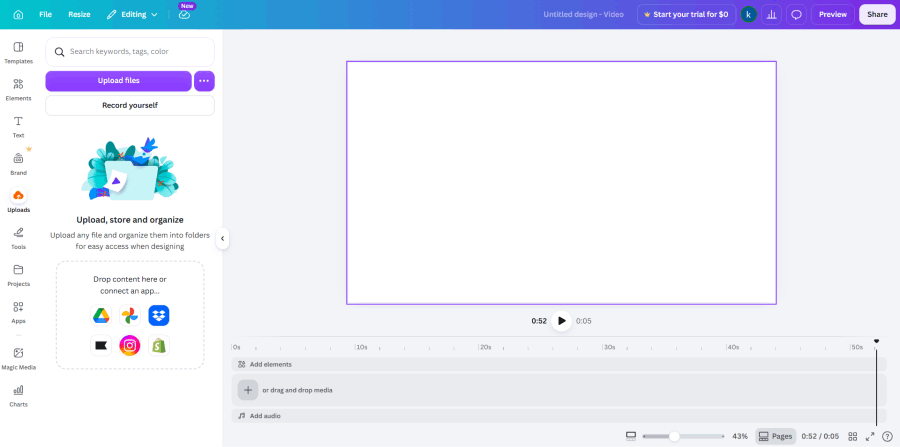
Canva is one of the most versatile tools for turning pictures into a video because it combines slideshow creation with a complete visual design platform.
You can begin with a blank canvas or select a template for:
- Birthdays
- Weddings
- Travel recaps
- Family memories
- Product promotions
- Photography portfolios
- Real estate listings
- Educational videos
- Instagram Reels
- YouTube intros
After choosing a template, you can upload photos and video clips, place them into individual scenes, and rearrange them through a visual timeline.
Canva supports background music, animated text, transitions, stickers, illustrations, stock video, charts, logos, and voice recordings. Completed slideshows can be downloaded as high-resolution MP4 videos or animated GIFs.
Why Canva is useful
Canva is especially strong when the slideshow needs more than a sequence of full-screen photos.
For example, you can create:
- Split-screen photo collages
- Before-and-after scenes
- Title cards between sections
- Animated captions
- Branded product slides
- Social media end cards
- Photo grids
- Quote overlays
- Maps and travel routes
The editor provides enough freedom to produce a distinctive design without requiring traditional video-editing experience.
Music and animation
Users can upload an audio file or select a track from Canva’s media library. Animations can be applied to individual photos, text elements, or entire pages.
Transitions help connect scenes, while effects such as pan, zoom, fade, and rise can add motion to still images.
Canva free-plan limitations
The free plan includes many templates and assets, but users will frequently encounter Pro-labelled music, video, images, fonts, animations, and editing tools.
Free users can still create watermark-free videos as long as the design contains free or personally uploaded content. Canva explains that Pro content may display a watermark when used by a free account.
Some advanced functions, including premium resizing, brand management, background removal, and selected AI capabilities, require Canva Pro.
Canva verdict
Choose Canva when you want the widest balance of templates, editing flexibility, stock media, and export options.
It is particularly useful for users who want their slideshow to feel like a designed social video rather than an automatically generated sequence of photos.
2. Adobe Express — Best for Polished Watermark-Free Videos
Best for: Users who want an accessible editor, professional templates, Adobe fonts, and clean free exports.
Platforms: Web, iOS, and Android.
Free plan: Permanent free plan without a credit card requirement.
Watermark: Adobe Express states that completed photo video projects can be exported watermark-free.
Export: MP4 and other supported creative formats.
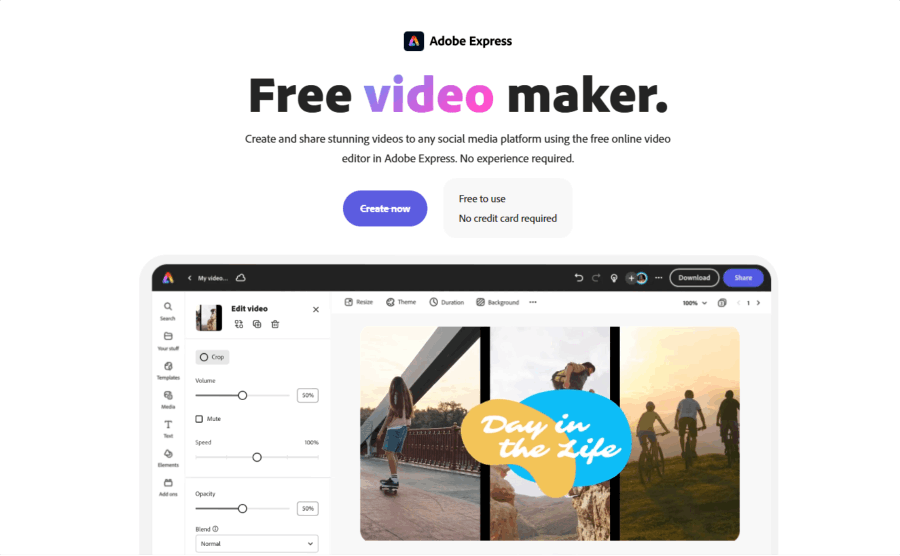
Adobe Express offers a straightforward way to combine photos, video clips, music, text, and animated elements.
The editor is simpler than Adobe Premiere Pro and is intended for users who want polished results without learning a complex professional timeline.
You can create content for:
- TikTok
- YouTube
- Celebrations
- Travel videos
- Product announcements
- Event recaps
- School projects
- Small-business promotions
Adobe Express provides slideshow templates, stock media, fonts, icons, transitions, animation, and basic video-editing controls. Users can upload their own photos, add music, insert text, and customize the visual identity with brand colors and logos.
Why Adobe Express stands out
Its biggest advantage in this comparison is the combination of polished templates and watermark-free free output.
Adobe states that photo videos and projects created in Adobe Express can be saved without an Adobe Express watermark.
That makes it a practical option for:
- Client-facing social content
- Small-business advertising
- Portfolio videos
- School submissions
- Personal events
- Videos that should not display another company’s logo
Editing and animation
Photos can be cropped, resized, filtered, and animated. Users can also add icons, graphics, stickers, captions, and visual effects.
The timeline is suitable for beginner and intermediate projects, although users who need detailed keyframe animation, advanced audio mixing, or complex multi-track editing may eventually require a more advanced video editor.
Adobe Express free-plan limitations
The free plan includes core editing capabilities, templates, stock assets, and a monthly allowance for selected generative AI tools.
Premium templates, expanded stock libraries, advanced brand management, 4K export, and some AI features require an upgrade. Adobe’s pricing information currently lists free video projects of up to 30 minutes, with longer and more advanced workflows available on paid plans.
Adobe Express verdict
Choose Adobe Express when you want a professional-looking slideshow video without a platform watermark and prefer a guided, design-focused editor.
3. Microsoft Clipchamp — Best Free Slideshow Maker for Windows
Best for: Windows users and anyone who wants a browser-based timeline editor with free 1080p exports.
Platforms: Web and Windows.
Free plan: Permanent free video editor.
Watermark: No watermark on standard free exports.
Export: Up to 1080p on the free plan.
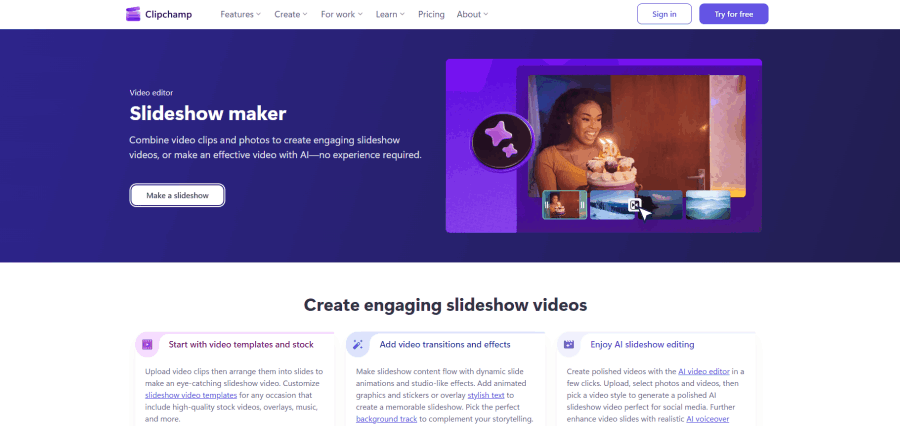
Clipchamp is Microsoft’s browser-based video editor and the natural successor to the older Windows Movie Maker workflow.
Users can import pictures and videos from their computer or OneDrive, arrange them on a timeline, and add:
- Music
- Sound effects
- Text
- Titles
- Filters
- Stickers
- Transitions
- Voiceovers
- Stock photos and video
- Logos and brand elements
The slideshow maker allows users to connect photographs with motion effects such as pan and zoom, adjust the rhythm to the background music, and resize the finished project for different social networks.
Free export quality
Clipchamp’s free slideshow editor supports video export at up to 1080p and includes free stock videos, images, and audio.
Microsoft states that standard videos created in Clipchamp do not receive a Clipchamp watermark.
This gives Clipchamp an important advantage over browser editors that limit free exports to 720p or add visible branding.
AI slideshow creation
Clipchamp also supports AI-assisted video creation. Users can select photos and videos, choose a style, and allow the tool to create an initial sequence automatically.
The result can then be adjusted through the regular timeline.
Clipchamp limitations
The editor is relatively approachable, but it is closer to a traditional video editor than Canva or Animoto. Users must become comfortable with a timeline, tracks, clip trimming, and audio positioning.
Premium stock, filters, effects, and Microsoft 365 features may require a paid plan. Clipchamp is also most deeply integrated into Windows, although its web editor works on other supported desktop environments.
Clipchamp verdict
Choose Clipchamp when you want free 1080p output, no platform watermark, and more timeline control than a template-only slideshow maker.
4. CapCut — Best for Social Media Effects and Short-Form Slideshows
Best for: TikTok, Instagram Reels, short-form content, trending templates, and mobile editing.
Platforms: Web, iOS, Android, Windows, and Mac.
Free plan: Core editing tools are available for free, with many premium features under CapCut Pro.
Watermark: Depends on the template, asset, feature, and export workflow. Projects using Pro resources may require upgrading or export with a watermark.
Export: Resolution and frame-rate options vary by platform and plan.
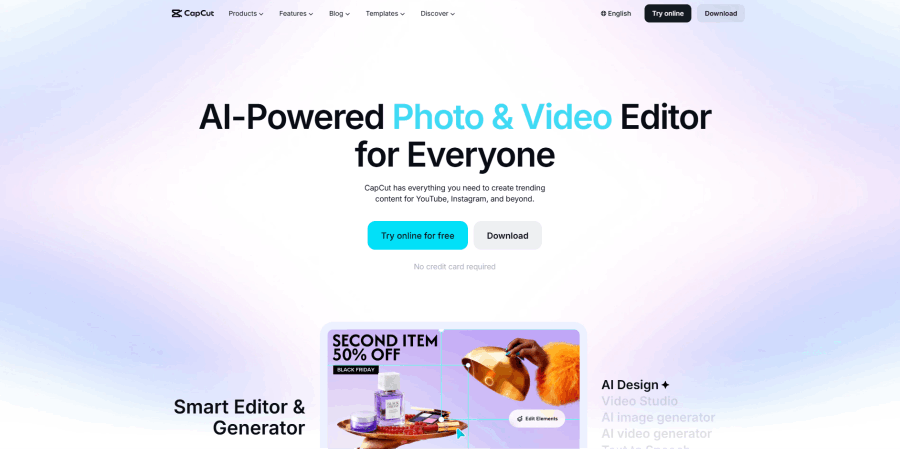
CapCut is one of the most feature-rich options for turning photos into energetic short-form videos.
It provides:
- Photo slideshow templates
- Beat-synchronized editing
- Animated text
- Trending transitions
- Filters
- Stickers
- Sound effects
- Music
- Auto captions
- Image animation
- AI-generated scripts
- Voiceovers
- Background removal
- Social media resizing
CapCut’s slideshow tools are designed around visual movement. Templates can automatically animate photographs, synchronize changes with music, and add fast transitions that work well for TikTok and Instagram.
AI image-to-video features
CapCut also offers AI image-to-video functionality.
This is different from a standard slideshow. Instead of simply moving between static photographs, AI tools may create motion inside the image, generate camera movement, or transform a picture into a short animated clip.
This can be useful for:
- Product images
- Fashion photos
- Character artwork
- Travel images
- Social media hooks
- Promotional content
However, AI-generated motion may alter details in the original picture. For family archives, historical images, memorial videos, or product photography where exact fidelity matters, traditional pan-and-zoom animation may be safer.
CapCut free-plan limitations
CapCut’s free and Pro boundaries have become more complex. Some advanced AI functions, templates, effects, export settings, and watermark-removal options are associated with CapCut Pro.
CapCut’s current help information notes that users may encounter a Pro upgrade prompt during export and that cancelling the upgrade can result in a watermarked export when premium features are present.
Before completing a long project, create a short test video using the exact template, music, effects, and export settings you plan to use.
CapCut verdict
Choose CapCut when you are creating a fast, visually dynamic social video and want access to current effects, templates, and mobile-first editing tools.
5. iMovie — Best Photo Slideshow App for Apple Users
Best for: iPhone, iPad, and Mac users who want a free native editor.
Platforms: iPhone, iPad, and Mac.
Free plan: Included for supported Apple devices.
Watermark: No third-party editing-platform branding.
Export: Standard video export and social sharing.
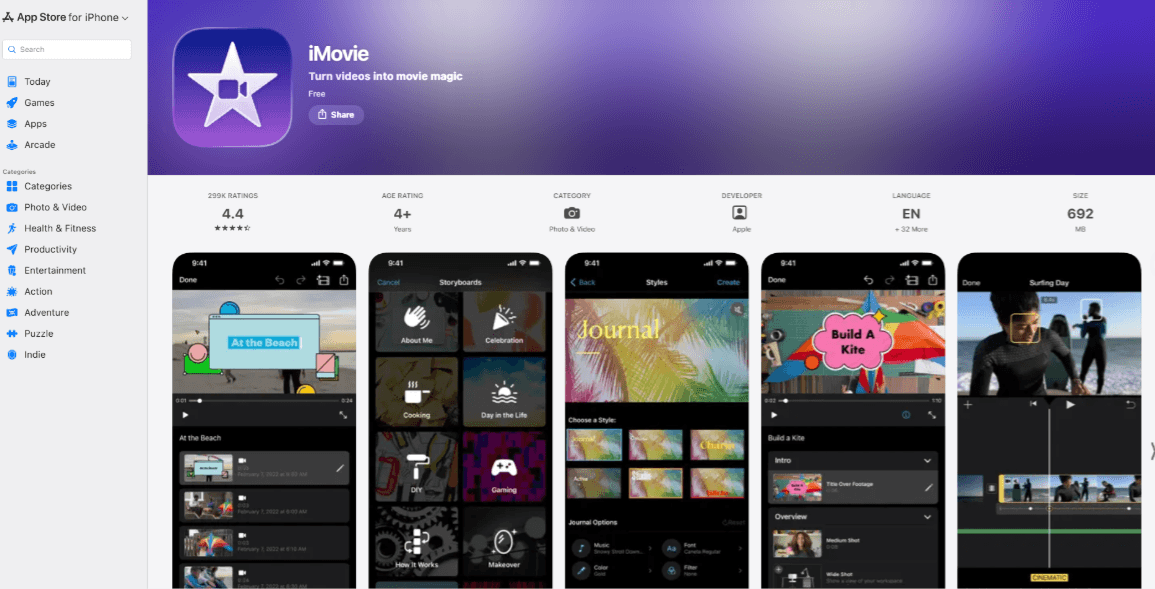
iMovie is one of the best options for Apple users because it combines automatic slideshow creation with more detailed manual editing.
On iPhone, users can choose between:
- Magic Movie
- Storyboard
- Traditional Movie projects
Magic Movie allows you to select photos and video clips and lets iMovie create an initial edit with a soundtrack and transitions. Afterward, you can change titles, filters, timing, and individual clips.
Manual editing
Users who want more control can create a regular movie project and manually arrange photographs and clips.
iMovie supports:
- Music and sound effects
- Voiceovers
- Animated titles
- Filters
- Transitions
- Photo duration controls
- Ken Burns movement
- Color adjustments
- Green-screen effects
- Video overlays
Apple’s built-in soundtracks and sound effects can be added directly to a project, while the Ken Burns effect creates controlled movement across a still image.
Why iMovie is practical
Because iMovie works directly with the Apple photo library, it is a convenient choice for:
- Vacation videos
- Family recaps
- School projects
- Graduation slideshows
- Personal documentaries
- Simple YouTube videos
It also provides more detailed control than Google Photos while avoiding the account restrictions and asset paywalls common in browser-based editors.
iMovie limitations
iMovie is limited to the Apple ecosystem. Project transfer and collaboration are not as seamless for teams working across Windows, Android, and browser environments.
The template selection is also smaller than Canva, Adobe Express, or CapCut.
iMovie verdict
Choose iMovie when your photos are already stored on an iPhone, iPad, or Mac and you want a capable free editor without subscription prompts.
6. Google Photos — Best for Automatic Highlight Videos
Best for: Quickly turning an existing Google Photos album into a simple video.
Platforms: Web, Android, iPhone, and iPad.
Free plan: Included with Google Photos.
Watermark: No Google Photos watermark on the saved video.
Export: Saved highlight video.
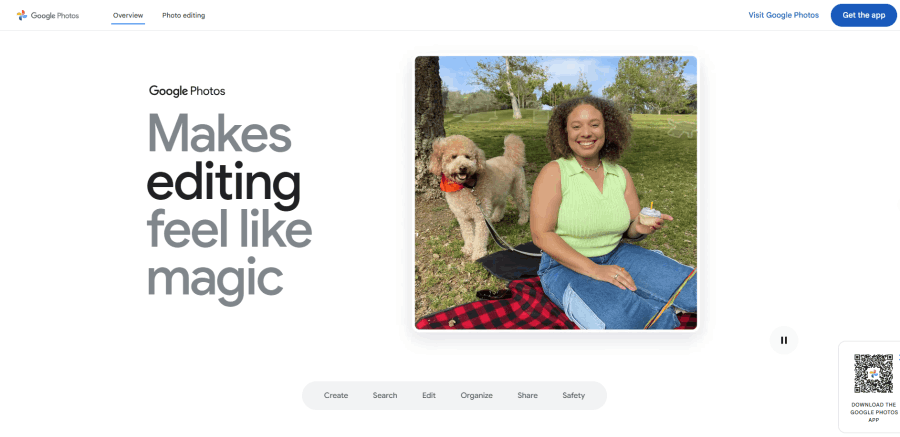
Google Photos is the easiest option when you do not want to design every scene manually.
Its Highlight Video feature creates a video with music from selected photos and clips. Users can customize the result by changing the media, music, and text.
The workflow is especially convenient when photographs are already organized by:
- Person
- Location
- Date
- Vacation
- Event
- Pet
- Activity
Google Photos can help select relevant images and build an initial sequence without requiring a traditional video-editing timeline.
Where Google Photos works well
It is a practical option for:
- Vacation highlights
- Monthly family recaps
- Pet videos
- Children’s milestones
- Casual birthday videos
- Short event memories
The automatic workflow can produce a usable result within minutes.
Google Photos limitations
The editing controls are much simpler than those in dedicated slideshow apps.
Users have limited control over:
- Detailed text placement
- Custom animation
- Advanced transitions
- Multi-track audio
- Brand design
- Complex collages
- Scene-level visual effects
It is designed for convenient memory creation rather than professional content production.
Google Photos verdict
Choose Google Photos when speed matters more than customization and your pictures are already stored in the Google Photos library.
7. ScreenPal — Best for Narrated Slideshows Without a Watermark
Best for: Educational, explanatory, business, and narrated slideshow videos.
Platforms: Web, Windows, Mac, Chromebook, iOS, and Android.
Free plan: Free video creation and editing tools.
Watermark: No ScreenPal watermark on free videos.
Export: Video download, hosting, and supported publishing options.
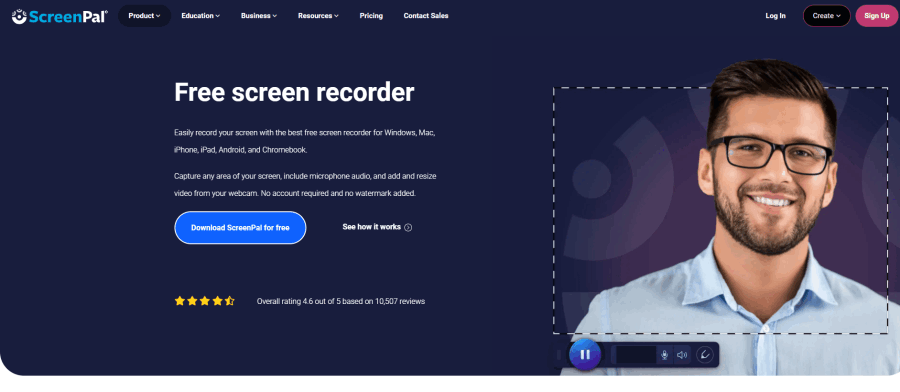
ScreenPal is particularly useful when your slideshow needs a voiceover, screen recording, or webcam explanation.
It supports:
- Photos
- Video clips
- Text
- Animations
- Transitions
- Music
- Narration
- Screen recordings
- Webcam recordings
- Captions
- Overlays
The free slideshow maker allows users to create and share videos without a ScreenPal watermark.
Presentation-to-video workflow
ScreenPal can also help turn an existing presentation into a video.
One approach is to display the slides on screen and record the presentation while speaking. This works well for:
- Online classes
- Employee training
- Software demonstrations
- Course lessons
- Sales explanations
- Research summaries
Paid Stories features provide a more structured storyboard workflow for importing presentation slides, but the free screen recorder remains useful for creating narrated presentation videos.
ScreenPal limitations
ScreenPal is more functional than design-led. Its template and visual-asset ecosystem is not as extensive as Canva, Adobe Express, or CapCut.
Users focused on stylish wedding, fashion, or social media templates may prefer another app.
ScreenPal verdict
Choose ScreenPal when explanation, narration, education, or screen recording is more important than decorative templates.
8. Animoto — Best Guided Slideshow Maker for Beginners
Best for: Family videos, small-business promotions, and users who prefer a guided block-based editor.
Platforms: Web.
Free plan: Unlimited free video creation.
Watermark: “Made with Animoto” watermark on free videos.
Export: Free creation and preview; sharing links, downloads, and watermark removal require a paid plan.
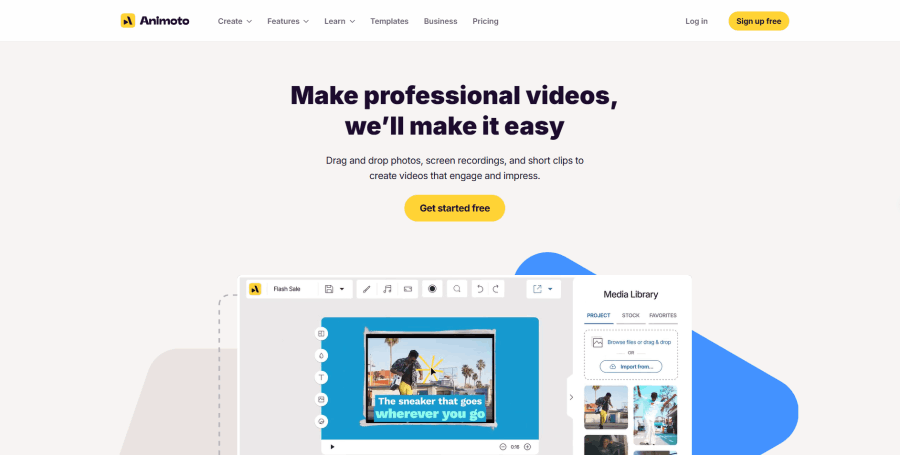
Animoto has been associated with photo slideshow creation for many years. Its block-based editor helps beginners arrange pictures, video clips, text, logos, and music without managing a complicated multi-track timeline.
It works well for:
- Wedding slideshows
- Anniversary videos
- Memorial tributes
- Birthday videos
- Real estate promotions
- Product showcases
- Social advertisements
- Photography marketing
Free-plan features
Animoto’s free plan currently allows users to create unlimited videos without entering payment information.
Free accounts include access to more than 50 music tracks, three standard fonts, and 30 color swatches. All free videos display a “Made with Animoto” watermark.
Why Animoto is easy
Rather than positioning every item manually, users select visual blocks for different purposes, such as:
- Full-screen media
- Photo collages
- Text scenes
- Quotes
- Logo scenes
- Comparisons
- Calls to action
This guided structure helps maintain consistency.
Animoto limitations
The free plan is suitable for testing and casual use, but the watermark makes it less appropriate for client projects, professional portfolios, or paid advertising.
Sharing links, embeds, watermark removal, and 1080p downloads require a Basic, Professional, or Professional Plus subscription.
Animoto verdict
Choose Animoto when simplicity matters more than free watermark removal and you want a guided editor for personal or small-business storytelling.
9. FlexClip — Best for Template Variety and AI-Assisted Slideshows
Best for: Users who want many themed video templates and basic AI slideshow generation.
Platforms: Web.
Free plan: Free editor and limited AI trials.
Watermark: Free exports include a FlexClip watermark.
Export: Free exports are restricted compared with paid plans.
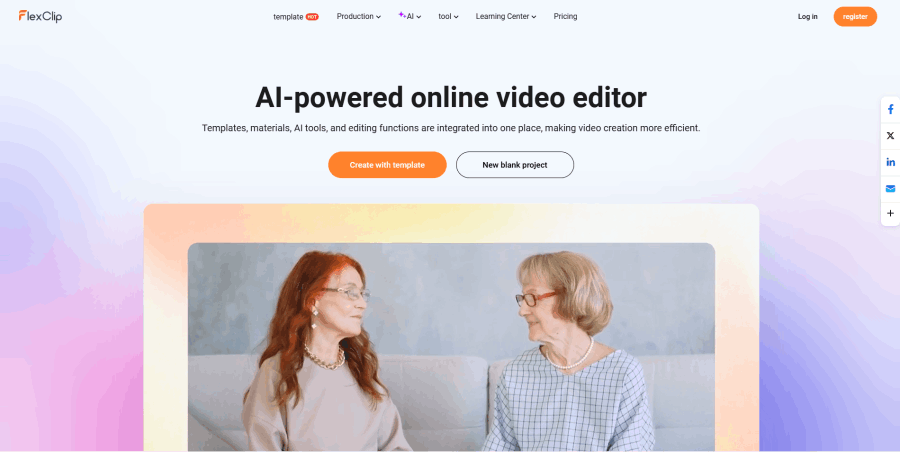
FlexClip offers templates for a wide range of slideshow scenarios, including:
- Weddings
- Birthdays
- Memorials
- Travel
- Business promotions
- Invitations
- Product videos
- Real estate
- Education
- Vintage photo slideshows
- Sports
- Social media
Users can combine photos, footage, music, voiceovers, text, overlays, transitions, filters, and animated elements.
FlexClip also offers an AI slideshow maker that can turn a text prompt into an initial image or video slideshow.
FlexClip strengths
The app is useful for users who need creative direction.
Instead of designing the complete project from scratch, they can select a scenario-specific template and replace its media and text.
It also provides AI and editing tools for:
- Text-to-video
- Automatic subtitles
- Image generation
- Background removal
- Text-to-speech
- Script creation
- Photo animation
FlexClip free-plan limitations
Videos exported through the free plan include a FlexClip watermark. FlexClip’s help center states that this watermark cannot be removed from free-plan exports.
Stock usage, project length, export resolution, AI features, and cloud storage are also restricted according to the plan.
FlexClip verdict
Choose FlexClip when template variety and AI-assisted creation are more important than watermark-free free output.
10. VEED — Best for Captions and Browser-Based Social Videos
Best for: Social media videos, captions, marketing content, and team-based browser editing.
Platforms: Web.
Free plan: Basic editing tools are available for free.
Watermark: Free videos include VEED branding.
Export: Higher resolution and watermark-free export require a paid plan.
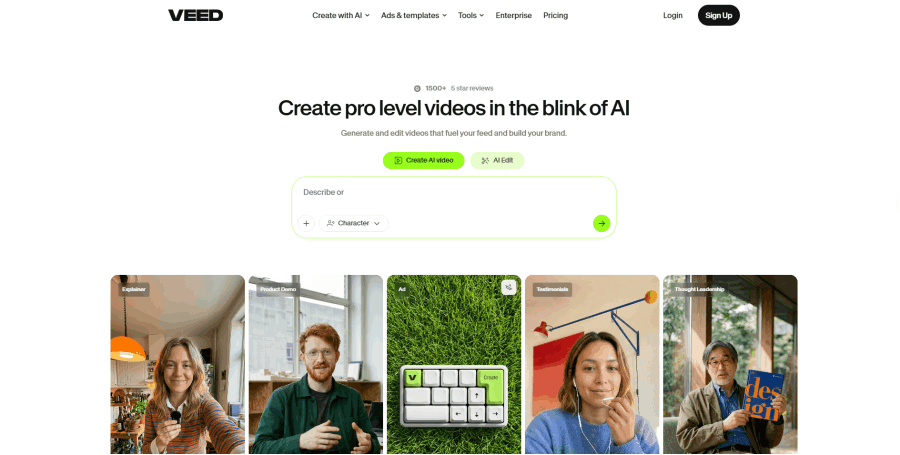
VEED is a broad online video editor that can also be used as a slideshow maker.
Users can upload photos and video clips, arrange them on a timeline, and add:
- Music
- Text
- Subtitles
- Transitions
- Progress bars
- Logos
- Filters
- Stickers
- Voiceovers
- AI-generated media
Its slideshow tool is positioned for marketing, storytelling, and corporate content.
Captions and text-based workflows
VEED is particularly useful when text and captions are central to the video.
For example, it can be used for:
- Quote videos
- Educational explainers
- Product features
- List-based social posts
- Multilingual captions
- Talking-head introductions
- Marketing slideshows
The browser editor also supports broader AI video workflows, although advanced AI usage is tied to paid plans.
VEED free-plan limitations
Free users receive basic tools such as trimming, cropping, resizing, text, and music. Watermark-free video and 4K export require a premium plan.
This means the free plan is best treated as a way to test the editor or create informal content.
VEED verdict
Choose VEED when subtitles, text, social video editing, and browser accessibility matter more than watermark-free free export.
How to Choose the Right Photo Slideshow App
- Choose Canva when design flexibility matters: Canva combines templates, visual assets, layouts, animation, and beginner-friendly controls.
- Choose Adobe Express when you want clean free exports: Adobe Express is a strong choice for polished personal or promotional videos that should not display the editor’s watermark.
- Choose Clipchamp when you need 1080p and timeline control: Clipchamp works particularly well for Windows users who want more control over timing, audio, and scene arrangement.
- Choose CapCut for TikTok and Instagram: CapCut is designed for faster edits, popular effects, beat synchronization, and short-form video formats.
- Choose iMovie when you use Apple devices: iMovie provides automatic creation and detailed manual editing without requiring another subscription.
- Choose Google Photos when you want an instant result: Google Photos is ideal for simple highlight videos generated from an existing photo library.
- Choose ScreenPal for narration and education: ScreenPal is more suitable for explaining images, recording lessons, or combining presentation slides with a voiceover.
- Choose Animoto for a guided block-based workflow: Animoto helps beginners create structured slideshows but adds branding to free exports.
- Choose FlexClip when templates are your priority: FlexClip offers a broad range of event and promotional themes, along with AI-assisted generation.
- Choose VEED when captions matter: VEED works well for social media slideshows that depend on subtitles, quotes, or text-heavy storytelling.
- Before choosing: Make a short sample with the photos, music, captions, and export settings you plan to use. Confirm the resulting file before building the full slideshow.
When You Need a Presentation Instead of a Photo Slideshow
A photo-to-video slideshow works best when the images are the primary story.
Examples include:
- A wedding
- A vacation
- A birthday
- A memorial
- A portfolio
- A visual product showcase
A presentation maker is more appropriate when the information or argument is the primary story.
Examples include:
- A research defense
- A business proposal
- A sales pitch
- A market report
- A training course
- A class presentation
- An investor update
- A strategic plan
Presenti AI, the AI slideshow maker for presentation, is designed for this second category.
It can turn Word documents, PDFs, Markdown files, text, existing PowerPoint files, mind maps, web links, and audio into structured presentations. Presenti identifies key arguments, generates an outline, applies suitable slide layouts, and supports editable PPTX and PDF output on eligible plans.
A useful combined workflow is:
- Use Presenti AI to transform a report or document into a structured slide deck.
- Review and edit the narrative.
- Export the presentation as an editable PowerPoint file.
- Use Clipchamp or ScreenPal to record narration and turn the presentation into a video.
This separates two different jobs:
- Presenti AI organizes and designs the information.
- The video editor adds narration, timing, music, and final video output.
Frequently Asked Questions
What is the best app to make a video with pictures and music?
Canva is an option to compare for a broad design workflow because it combines templates, music, animation, text, stock assets, and flexible MP4 export.
Adobe Express and Clipchamp are particularly strong when free watermark-free output is important. CapCut is better for fast social media effects, while iMovie is a strong native option for Apple users.
What is the best free slideshow maker without a watermark?
Adobe Express, Clipchamp, ScreenPal, iMovie, and Google Photos can all produce videos without adding a visible platform watermark under their standard free workflows.
Canva can also produce watermark-free videos when the design uses free or personally uploaded assets. Premium Canva content may display a watermark for free users.
Always run a short export test because policies and asset restrictions can change.
How do I turn multiple photos into one video?
Upload the photos to a slideshow or video editor, arrange them in sequence, set the duration of each image, add transitions and music, and export the finished project as an MP4 file.
Canva, Adobe Express, Clipchamp, CapCut, iMovie, and Google Photos all support this basic workflow.
Can I make a slideshow with photos and videos together?
Yes. Most modern slideshow makers allow still images and video clips to appear in the same project.
Check the audio from imported video clips so that it does not compete with the background music.
How long should each picture appear in a slideshow?
Three to five seconds is a useful starting point for most slideshows.
Fast social videos may use shorter durations, while memorial, historical, or narrated slideshows may leave important images visible for five seconds or longer.
How many photos do I need for a three-minute slideshow?
At an average of four seconds per picture, a three-minute video could contain approximately 45 images.
The actual number should be lower when the video includes title cards, video clips, long transitions, or images that need additional viewing time.
Which slideshow app is best for a wedding?
Canva, Adobe Express, Animoto, FlexClip, and iMovie are all suitable for wedding slideshows.
Canva and Adobe Express provide more template and design variety. iMovie gives Apple users more manual control, while Animoto provides a simpler guided workflow.
Which slideshow app is best for a memorial video?
Choose an editor that preserves the original photographs and gives precise control over timing, music, and text.
Canva, Adobe Express, Clipchamp, iMovie, ScreenPal, and Animoto are practical options. Avoid applying strong AI image animation unless the family specifically wants that effect.
Can I turn a PowerPoint presentation into a video?
Yes. You can present and screen-record the PowerPoint, import slides into a supported video editor, or export the presentation to video through compatible software.
For document-heavy projects, Presenti AI can first generate an editable PowerPoint from Word, PDF, Markdown, text, mind maps, web links, or audio. The deck can then be narrated and converted to video using Clipchamp, ScreenPal, PowerPoint, or another video tool.
Is a photo slideshow the same as a presentation?
Not always. A photo slideshow is usually exported as a video and focuses on pictures, music, timing, and emotional storytelling.
A presentation is normally designed for explaining ideas, research, data, proposals, or lessons. It may remain interactive and editable as a PPTX, Google Slides file, or online deck.
Final Verdict
The best photo-to-video slideshow app depends on what you are creating. The most important decision is not which app has the most effects. It is choosing the correct output for the story you need to tell.
Use a photo-to-video slideshow app when your photographs and memories are the story.
Use an AI presentation maker such as Presenti AI when you need to turn research, documents, arguments, and business information into a structured, editable presentation.
Start with the story. Then choose the tool that delivers it in the right format.